Mail/Telephone (MOTO) Order Creation
Modified on Tue, 4 Aug at 9:56 AM
From the All Orders Overview page, click + New in the top corner to open the order creation form.
Note: Button only available with correctly configured keypairs for MOTO order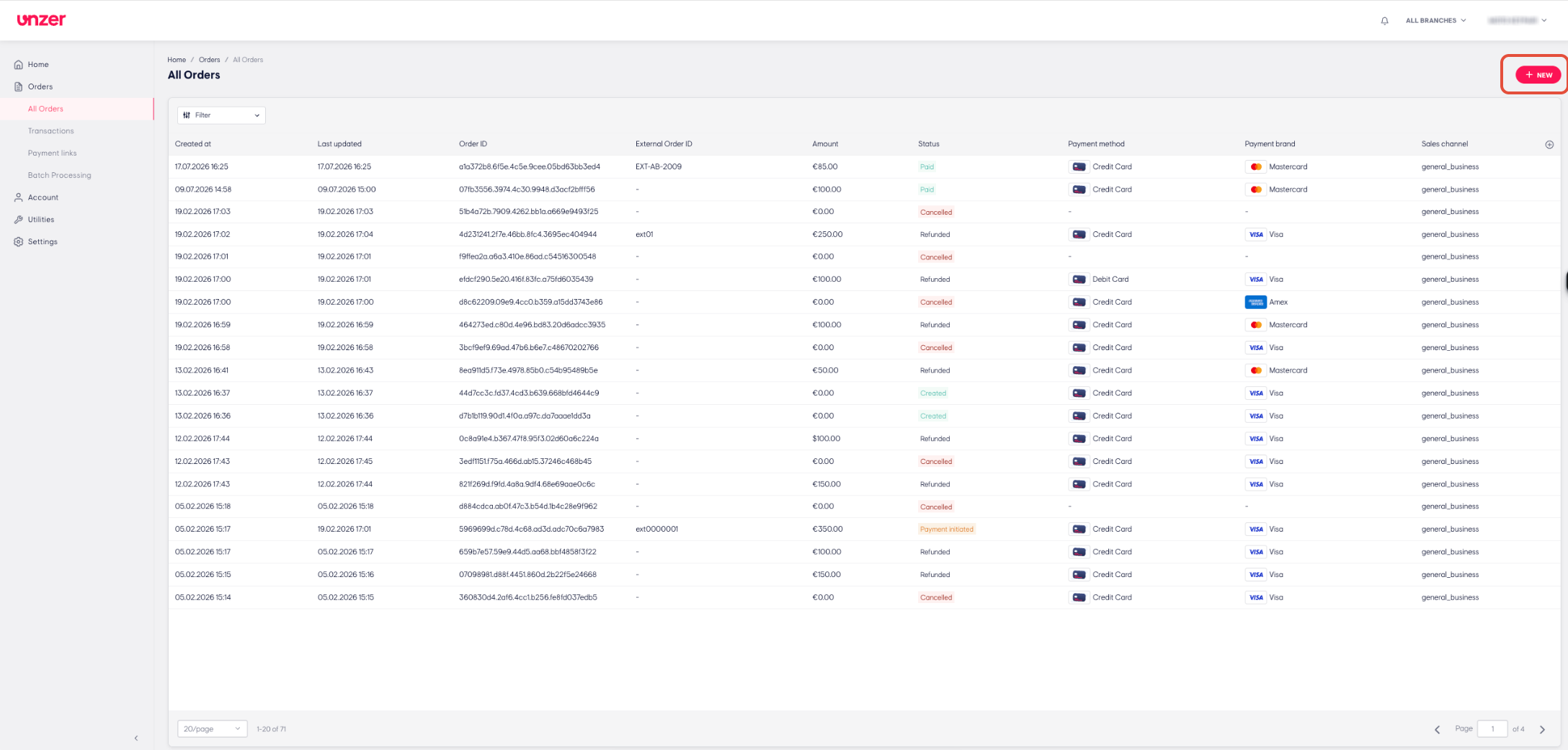
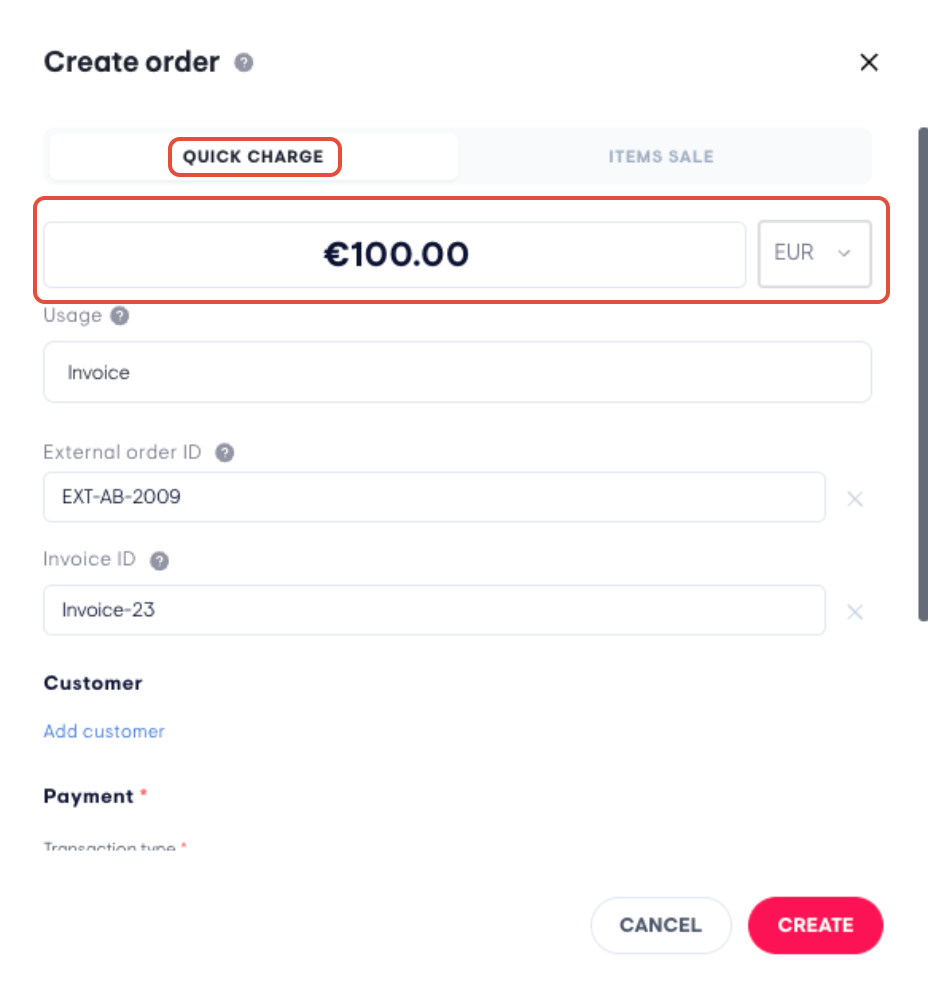
Select how you want to create the order - There are 2 options:
- Quick Charge — for simple, one-off charges
- Item Sale — for itemized sales with more detail
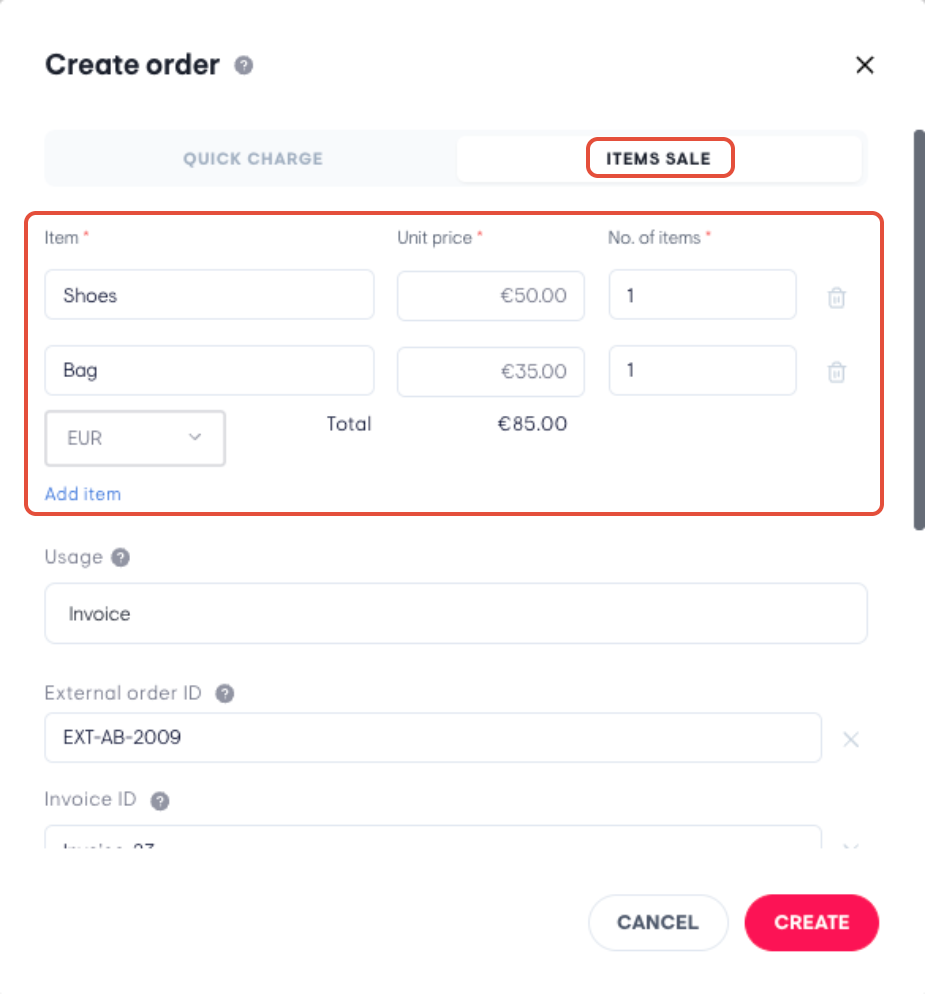
- Quick Charge — for simple, one-off charges
Fill in Order Details (Depending on the mode selected, enter the following)
Field Description Usage Info Details on what the order is for External Order ID Reference ID from your external system Invoice ID Associated invoice number Customer Info Customer name, contact, or account details 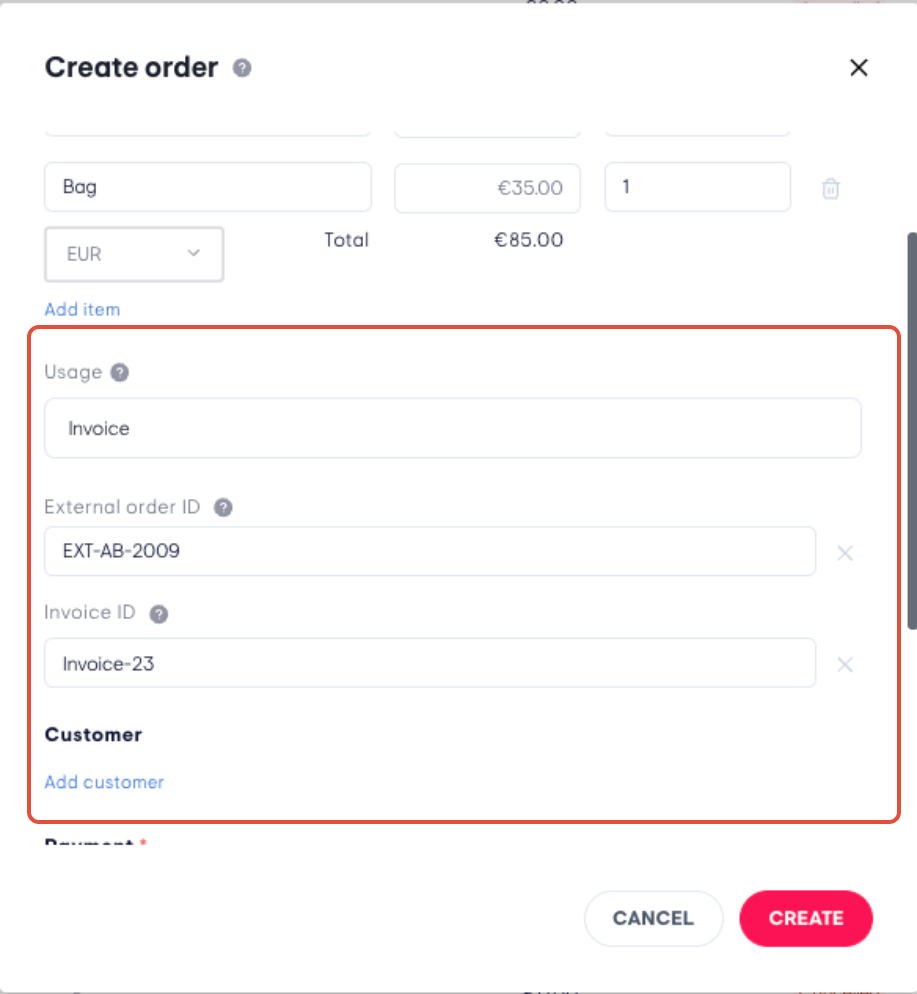
Choose the payment type:
Charge — processes payment immediately
Authorization — reserves funds without immediately capturing them
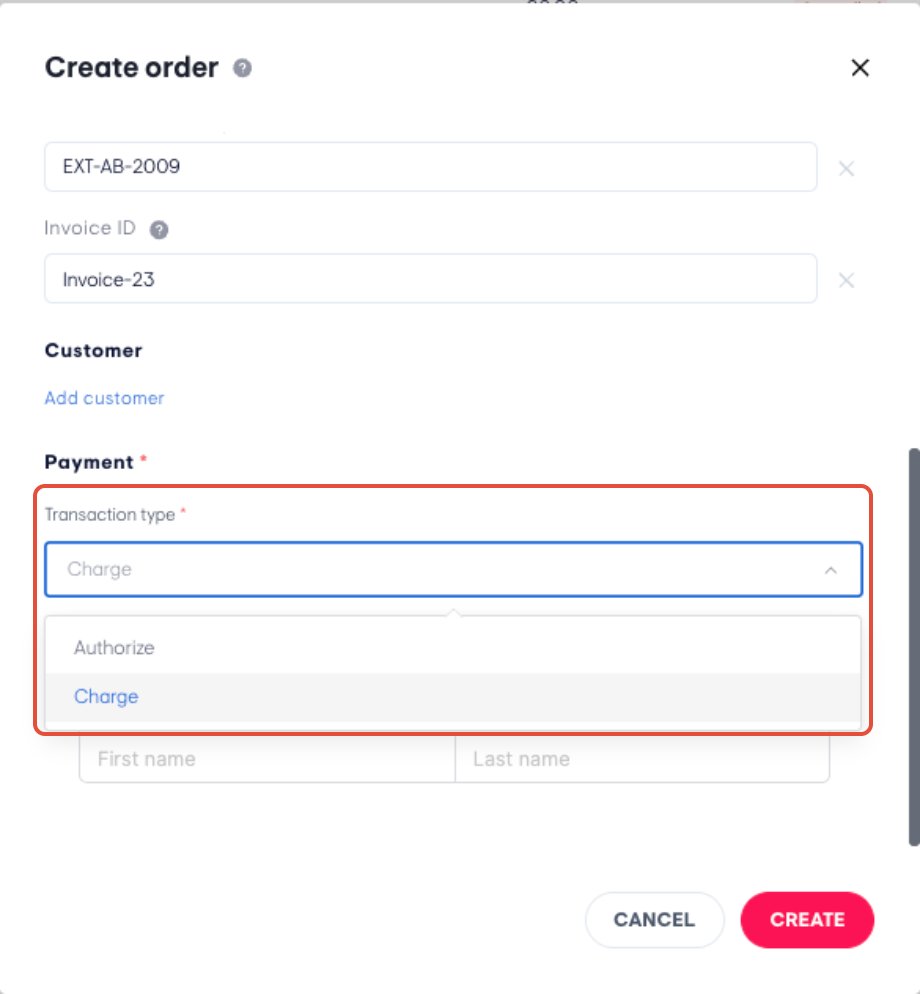
Then enter the required card details to complete this section.
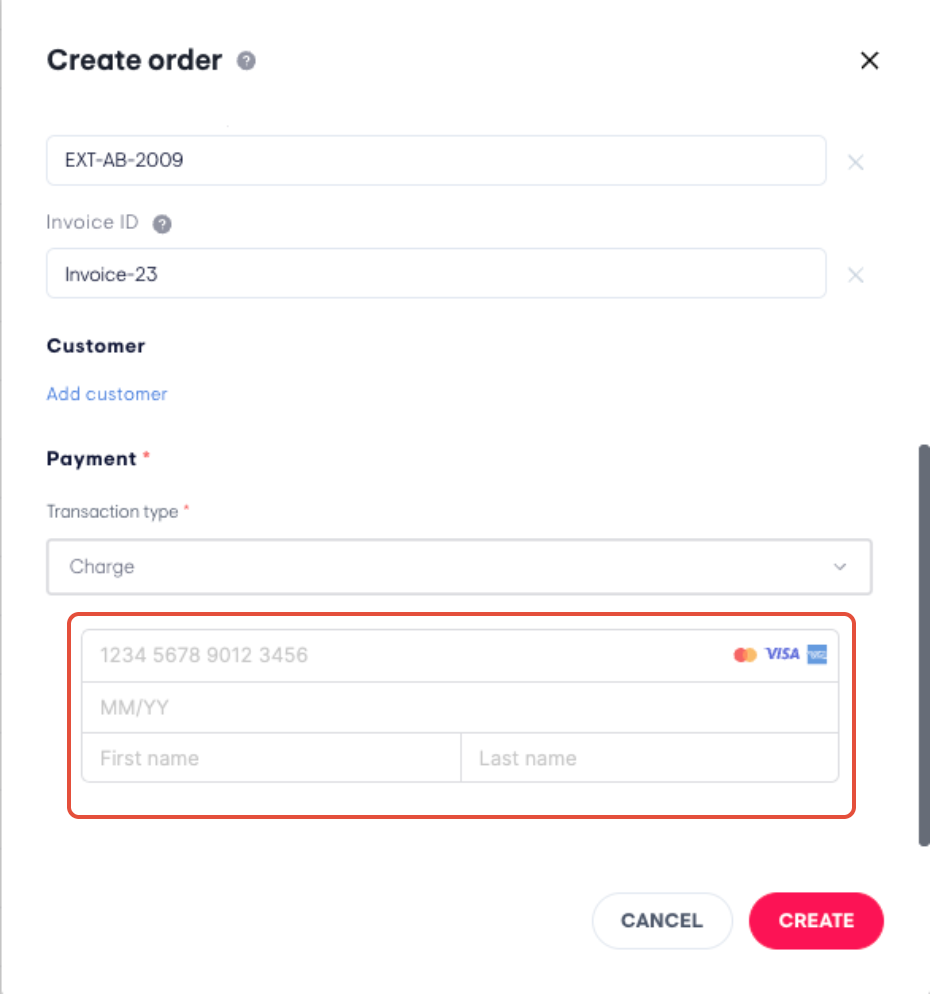
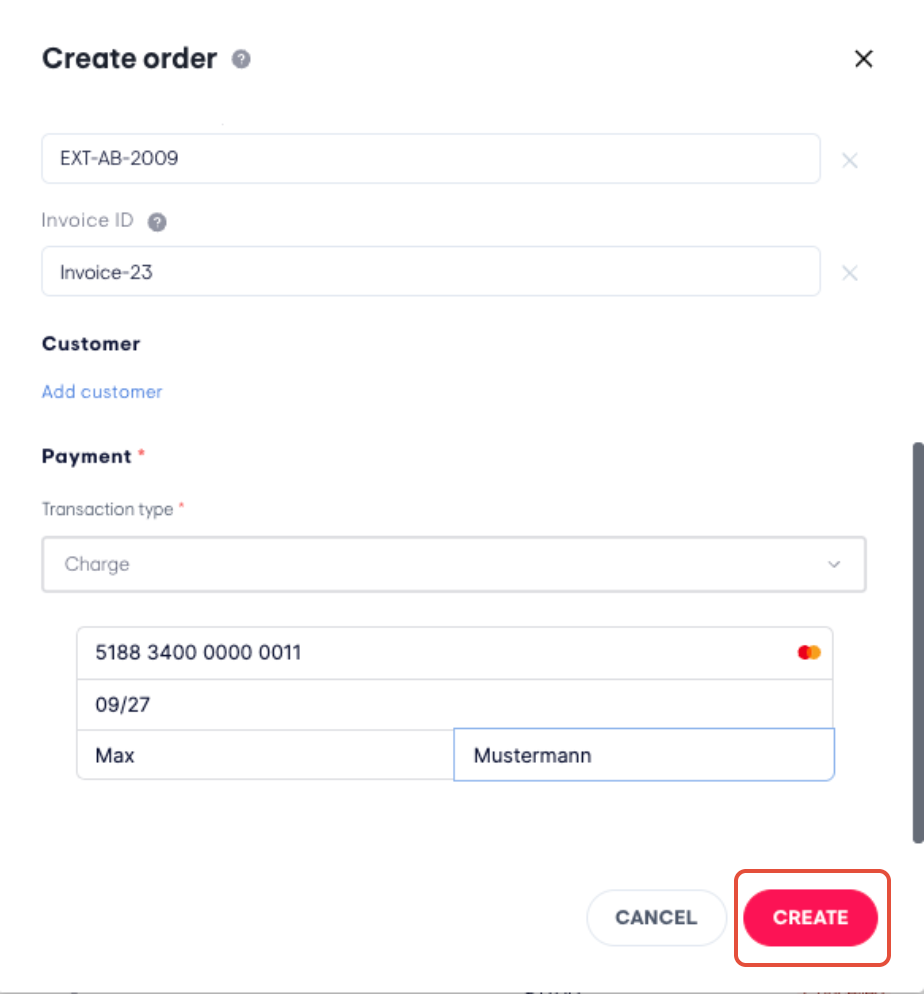
Click Create to finalize and submit the order.
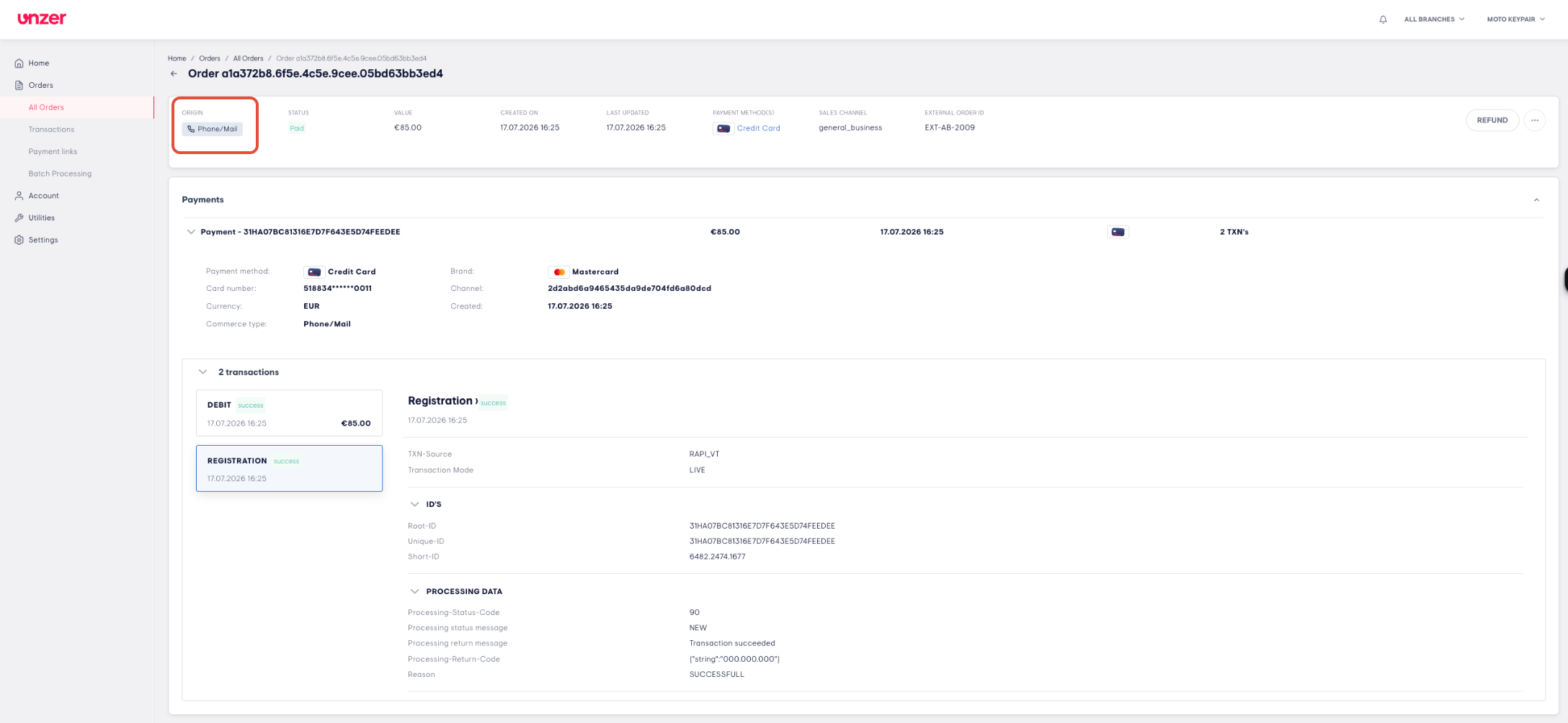
The order will be successfully created and shown at the top of the list of order overview
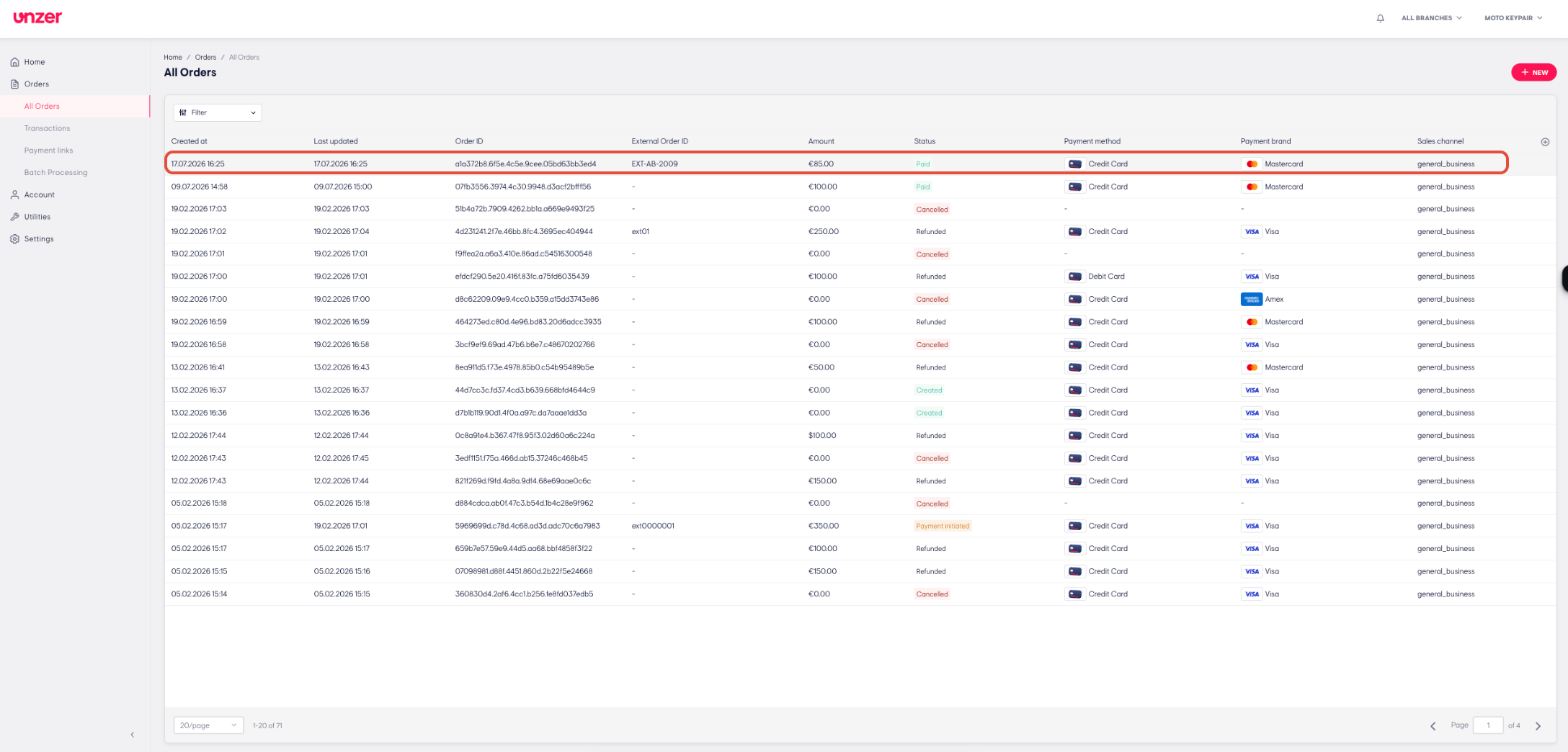
Opening the order details will show origin = Phone/ Mail with all associated payment and transactions.
Was this article helpful?
That’s Great!
Thank you for your feedback
Sorry! We couldn't be helpful
Thank you for your feedback
Feedback sent
We appreciate your effort and will try to fix the article