Transaction Overview
Modified on Tue, 27 Jan at 11:49 AM
TABLE OF CONTENTS
Getting an overview
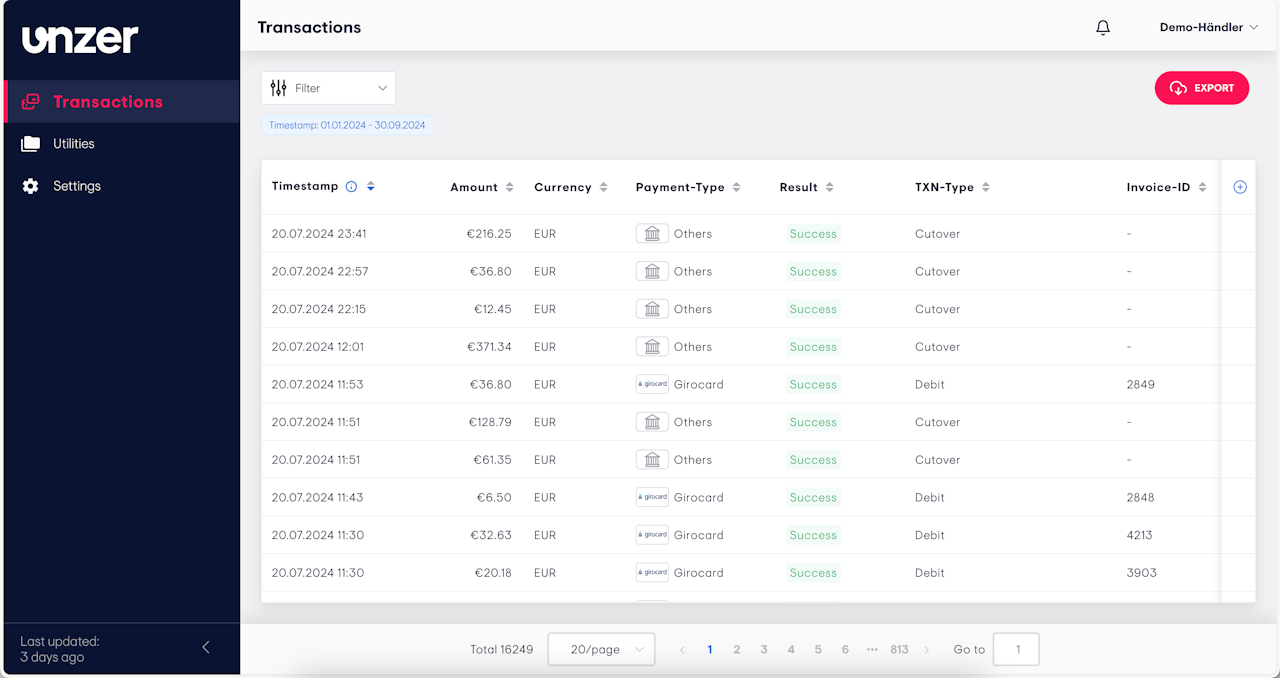
You can view your transactions list easily in the Unzer dashboard.
Navigate to the Transactions menu on the left sidebar.
The list of transactions will be displayed, showing details such as Timestamp, Amount, Currency, Payment-Type, Result, and more.
You can also filter the data or export the list as needed.
Show or hide columns
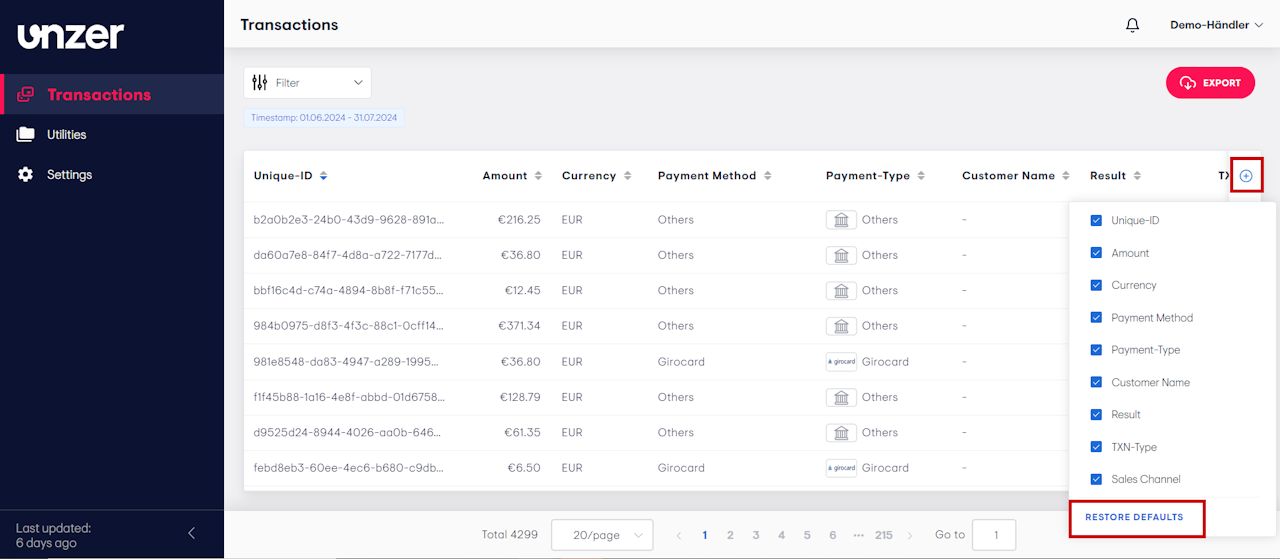
You can customize the transactions table view to show only the data that’s relevant to you:
Go to Transactions, and click the "+" icon in the top-right corner of the table to open the column configuration panel.
Select or clear the checkboxes for columns you want to display or hide. The table will update instantly.
(Optional) Click Restore defaults to return to the default column view.
Filtering
You can narrow down the transactions list by applying filters:
Navigate to the Transactions page and click the Filter button at the top of the table.
Select the desired filter criteria. You can apply multiple filters simultaneously.
Click Search to view the filtered results.
Note: The filters will reset when you navigate away from the page or sign out.
Was this article helpful?
That’s Great!
Thank you for your feedback
Sorry! We couldn't be helpful
Thank you for your feedback
Feedback sent
We appreciate your effort and will try to fix the article
