5. Checkout Process
Modified on Fri, 6 Mar at 1:17 PM
TABLE OF CONTENTS
Initiating the Checkout
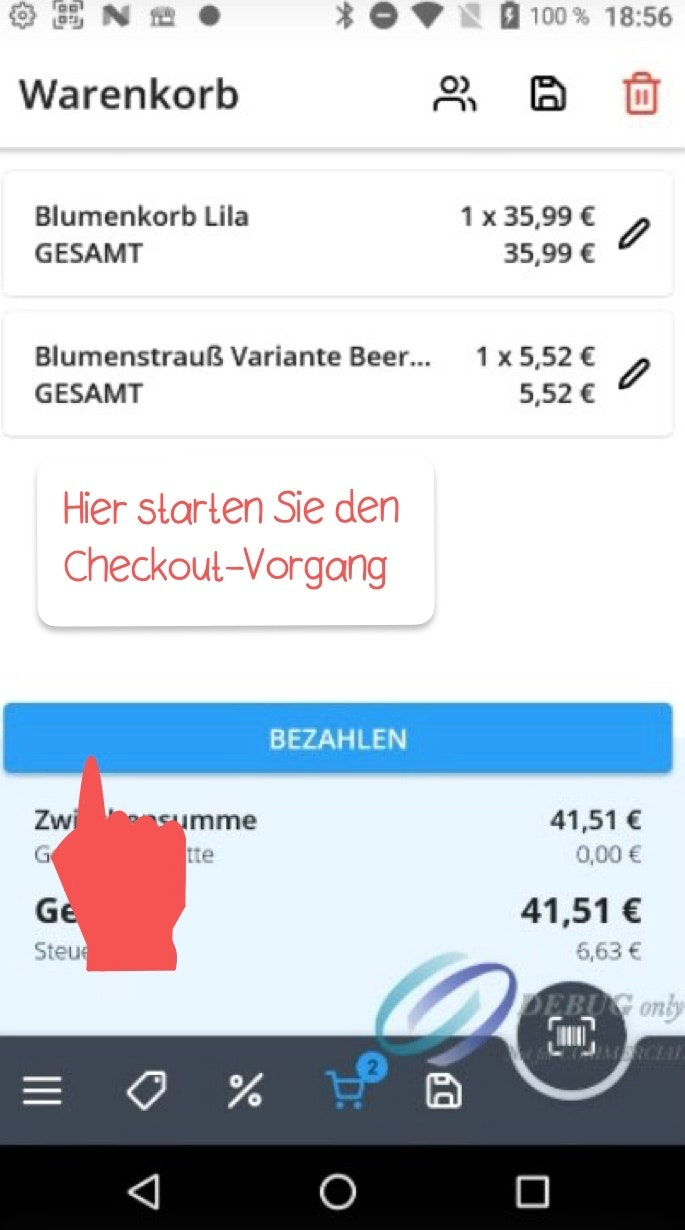
When you are in the shopping cart view, you can start the checkout process by tapping the blue "Pay" button.
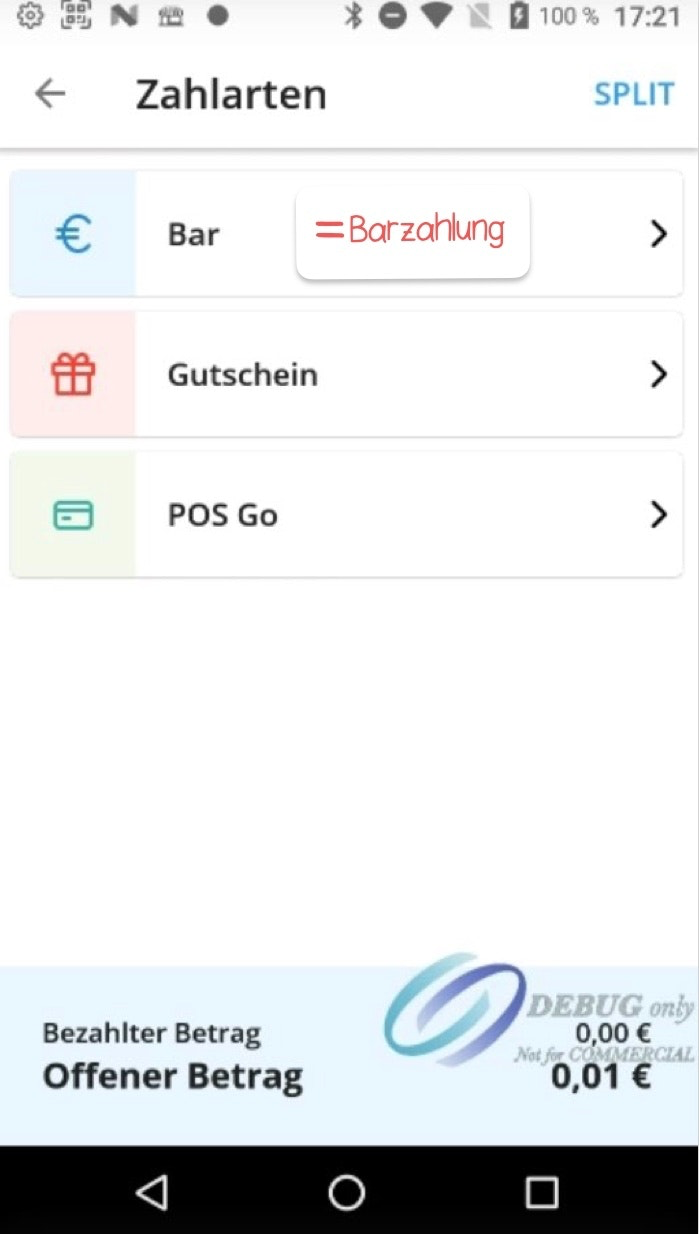
In the next screen, all payment methods that you have previously configured in your Dashboard will be displayed.
Payment Methods
Cash Payment
To process a cash payment, tap the "Cash" button.
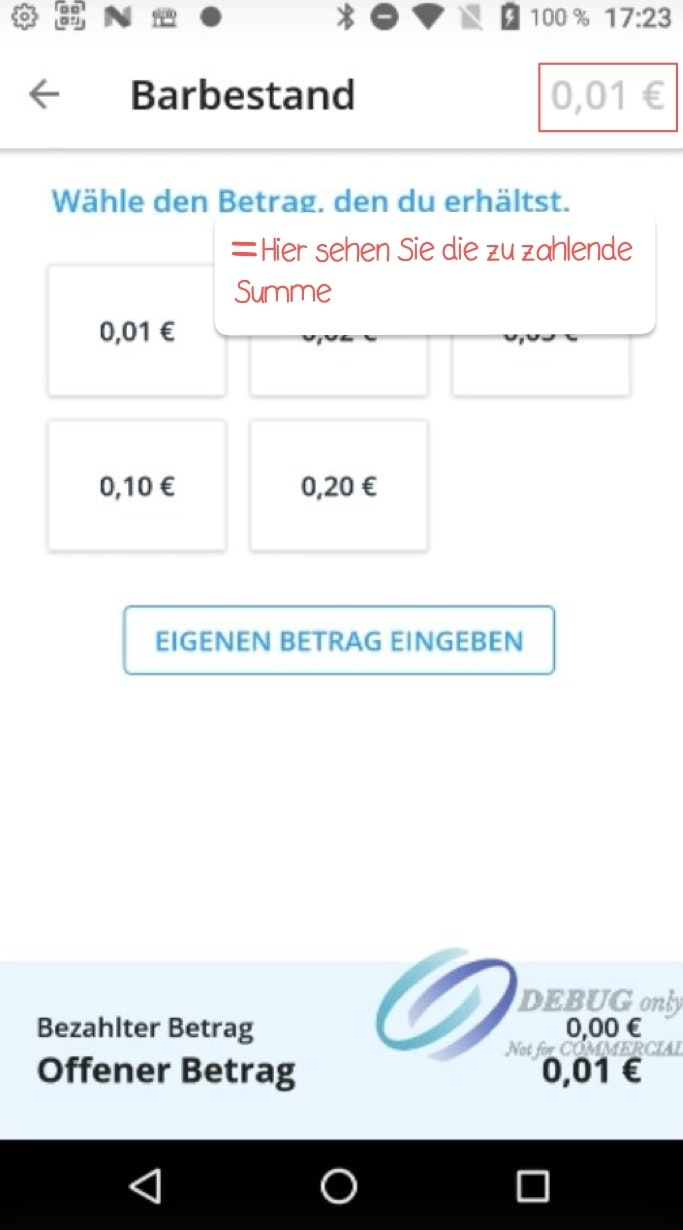
Select one of the suggested amounts or enter a custom amount manually. The total amount due is shown in the top right corner. Confirm your input by tapping "Pay".
Card Payment
To process a cash payment, tap the "Cash" button.
Select one of the suggested amounts or enter a custom amount manually. The total amount due is shown in the top right corner. Confirm your input by tapping "Pay".
Voucher / Gift Card
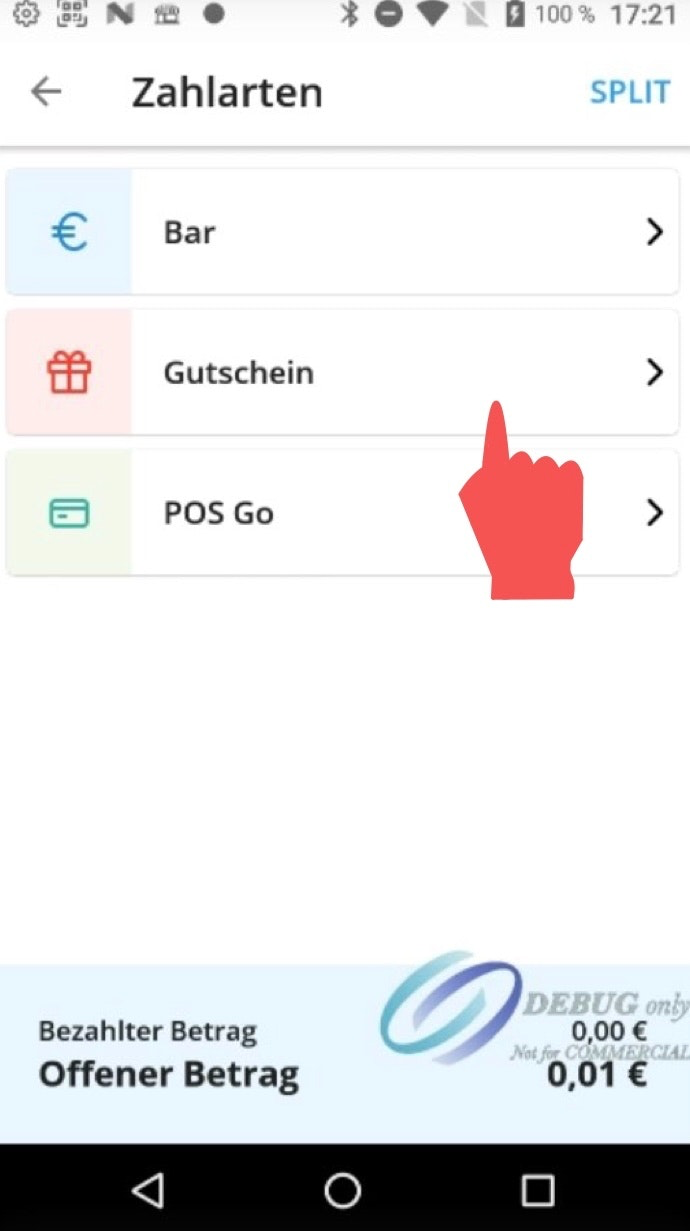
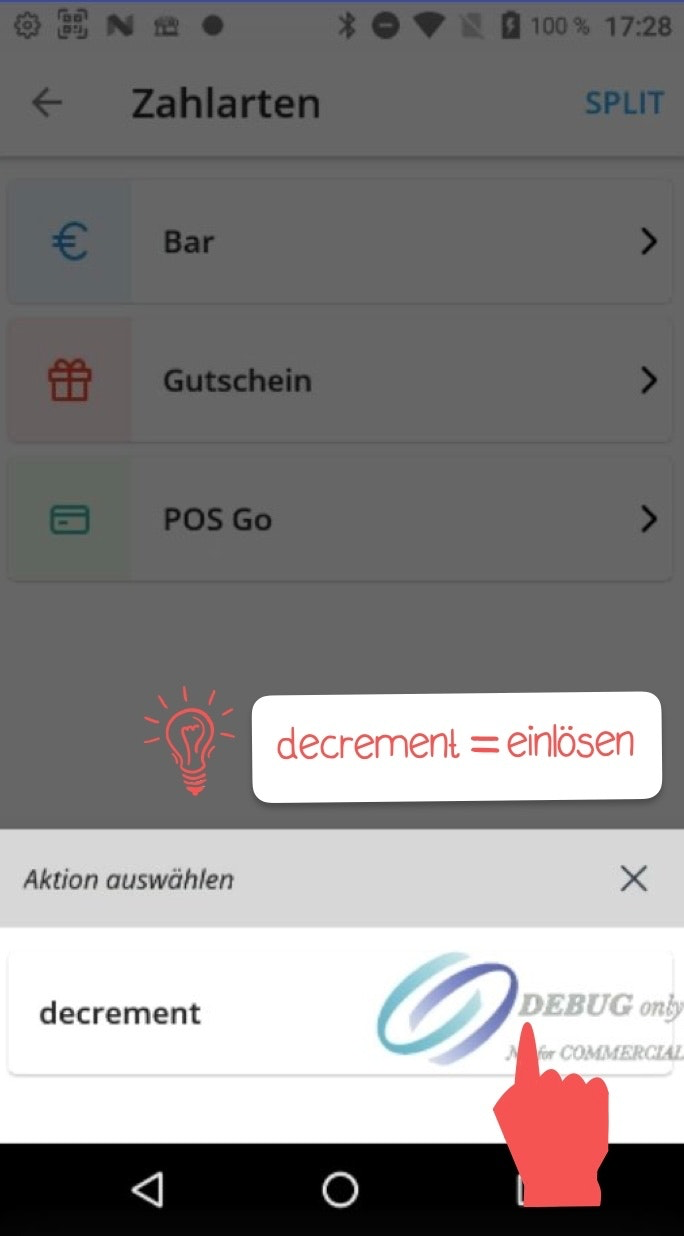
If you have set up a voucher system on your POS Go, you can also select "Voucher" as a payment method.
Select the action "Decrement" (redeem) from the options.
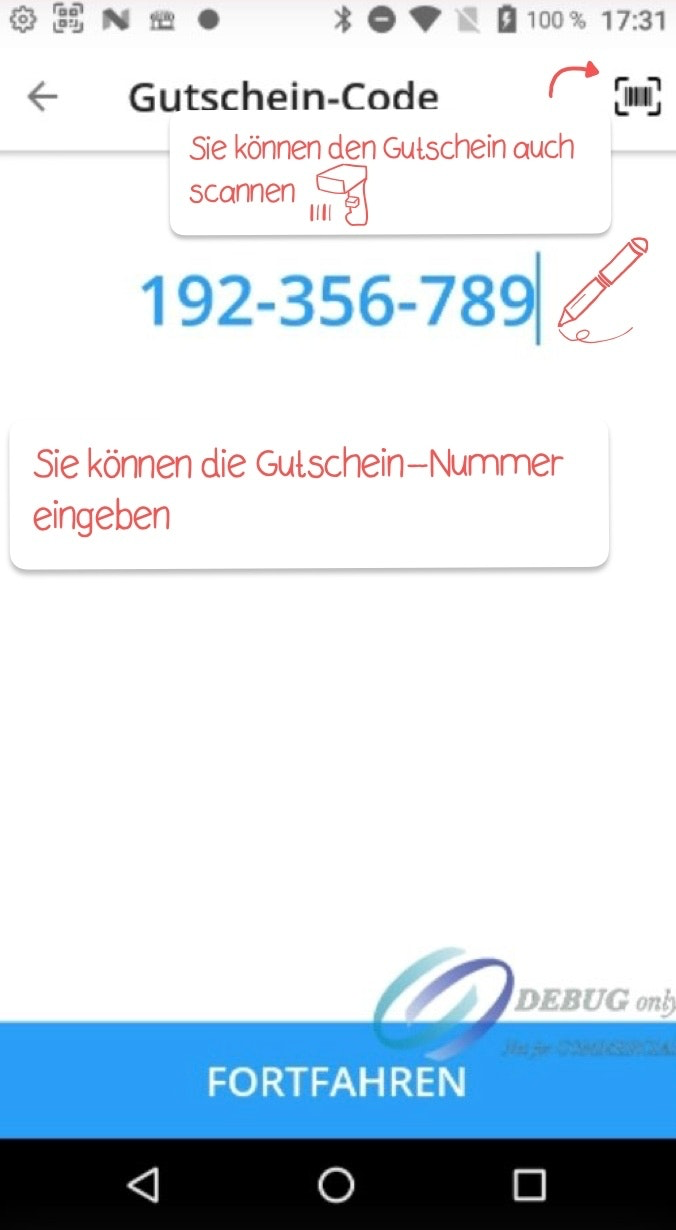
Scan or manually enter the voucher number. You can also use the barcode scanner by tapping the icon in the top right corner. Finally, tap "Continue" to complete the payment.
Split Payment
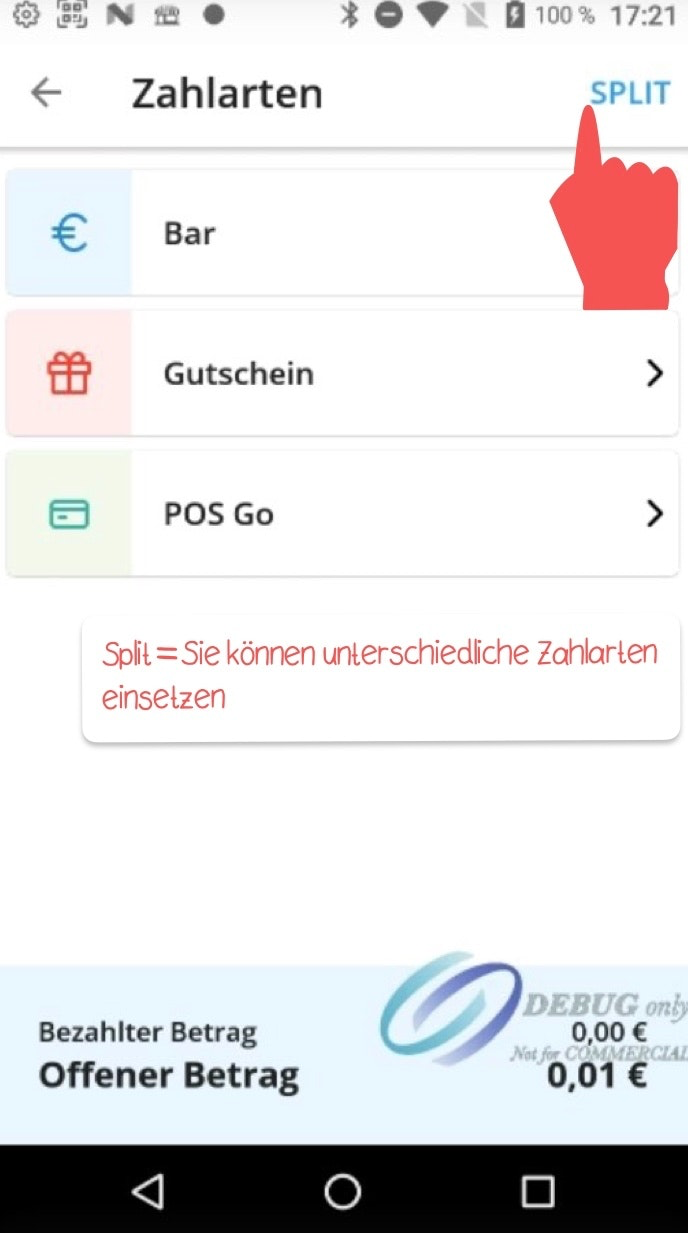
You can split the payment across multiple transactions, using the same or different payment methods. To do so, tap "Split" in the top right corner of the payment screen.
- Select the payment method for the first transaction.
- Enter the amount to be paid with that method. The remaining balance is shown in the top right for reference.
- After tapping "Pay", you will be returned to the payment method screen. Select the next payment method and repeat the process.
- Repeat as many times as needed until the full amount has been paid.
Change and Receipt
After a successful payment, you will automatically be taken to the transaction summary view, which provides a clear overview of all relevant information from the completed transaction.
Change Overview If the customer paid in cash and change is due, the amount to be returned is clearly displayed — serving as a final check to ensure the correct amount is handed back to the customer.
Digital Receipt via QR Code If the digital receipt option is enabled, a QR code will appear on this screen. The customer can scan it directly with their smartphone to receive their receipt in digital form - a convenient, paper-free alternative.
Detailed Receipt View Scrolling down reveals additional receipt details, including a full item breakdown, payment method, date, and other relevant transaction information. This allows for a final review directly at the point of sale.
Print or Email the Receipt In the top right corner of the summary screen, you can either print the receipt directly or send it to the customer via email - giving you the flexibility to accommodate each customer's preferences.
Start a New Sale To return to the sales view, tap "New Sale" at the bottom of the screen. This closes the current transaction and allows you to begin the next sale immediately.
Was this article helpful?
That’s Great!
Thank you for your feedback
Sorry! We couldn't be helpful
Thank you for your feedback
Feedback sent
We appreciate your effort and will try to fix the article
