Exporting transactions
Modified on Tue, 27 Jan at 11:50 AM
TABLE OF CONTENTS
- Exporting your transaction data
- Advanced settings
- Steps for advanced export settings:
- Export status
- View your export history
- Downloading previous recurring exports
- Filtering your export history
Exporting your transaction data
You can export your transaction data to a file for further analysis or record-keeping.
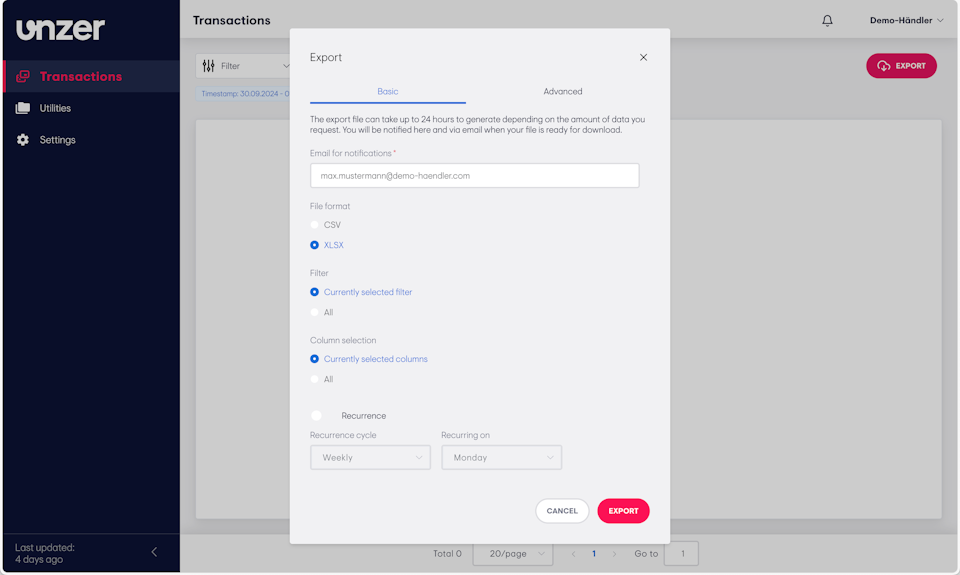
Click Export in the top-right corner of the Transactions page.
In the Export window, enter your notification email.
Choose the File format (e.g., CSV, XLSX) and select whether to apply current filters and columns.
Toggle the Recurrence option if you want a recurring export (e.g., weekly).
Click to Advanced tab to set additional options or Export to request the file creation.
You can monitor the export’s progress and download the file in the Notification Panel or in the Export History.
An email notification will be sent to the specified address once the export is ready. For recurring exports, a notification will be sent to this email whenever a new file is generated.
Advanced settings
For more control over the exported file, use the advanced settings to fine-tune the export format.
Steps for advanced export settings:
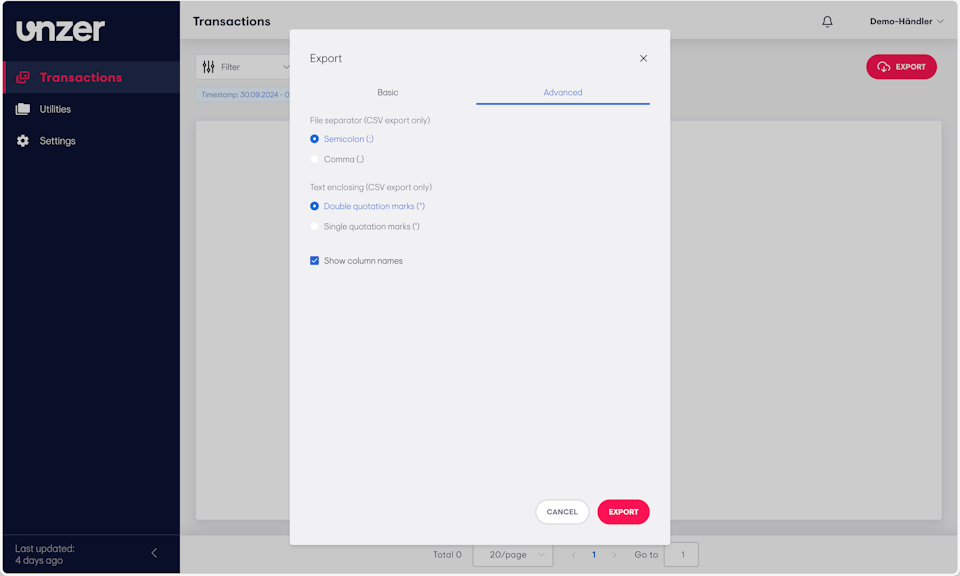
Click the Advanced tab in the Export window.
Configure the following options:
File separator (CSV export only): Choose between semicolon or comma.
Text enclosing (CSV export only): Select either double or single quotation marks.
Show column names: Toggle whether to include column names in the exported file.
After configuring the settings, click Export to generate your file with the advanced customizations.
Export status
You can check the status of your export requests and download files once they are ready.
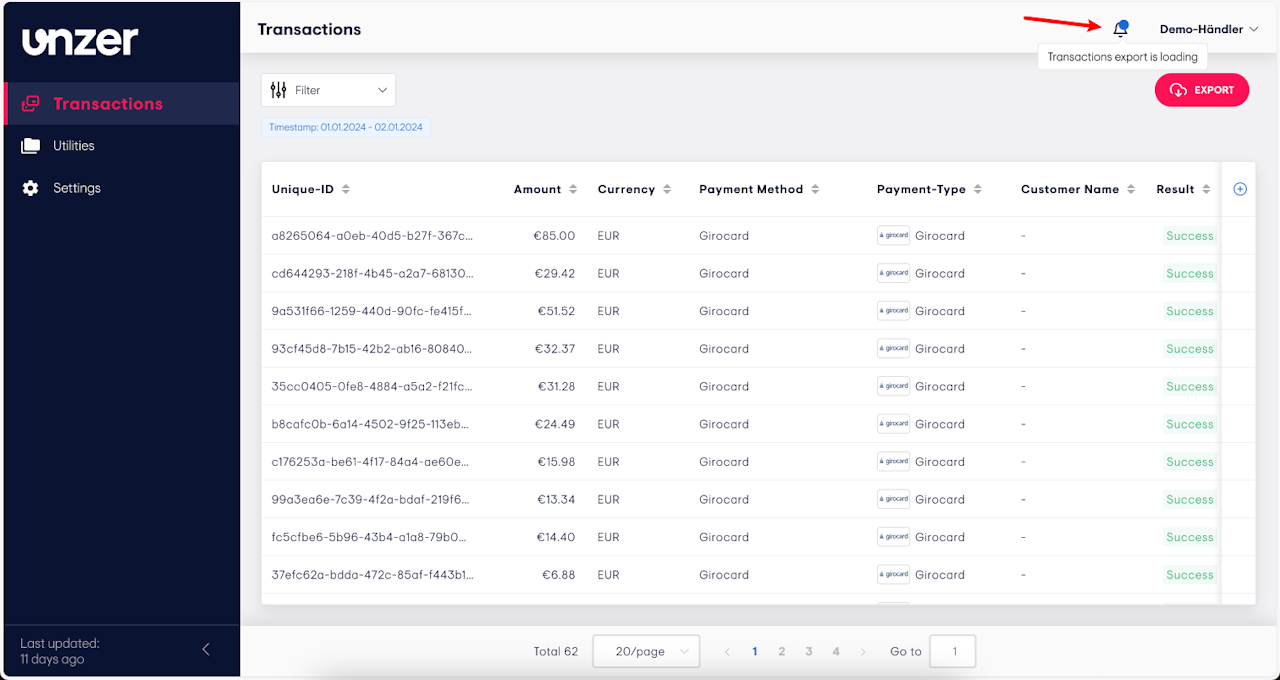
Click the bell icon in the header bar to open the Notifications panel.
Monitor the status of your export requests:
You'll see whether the export is in progress or completed.
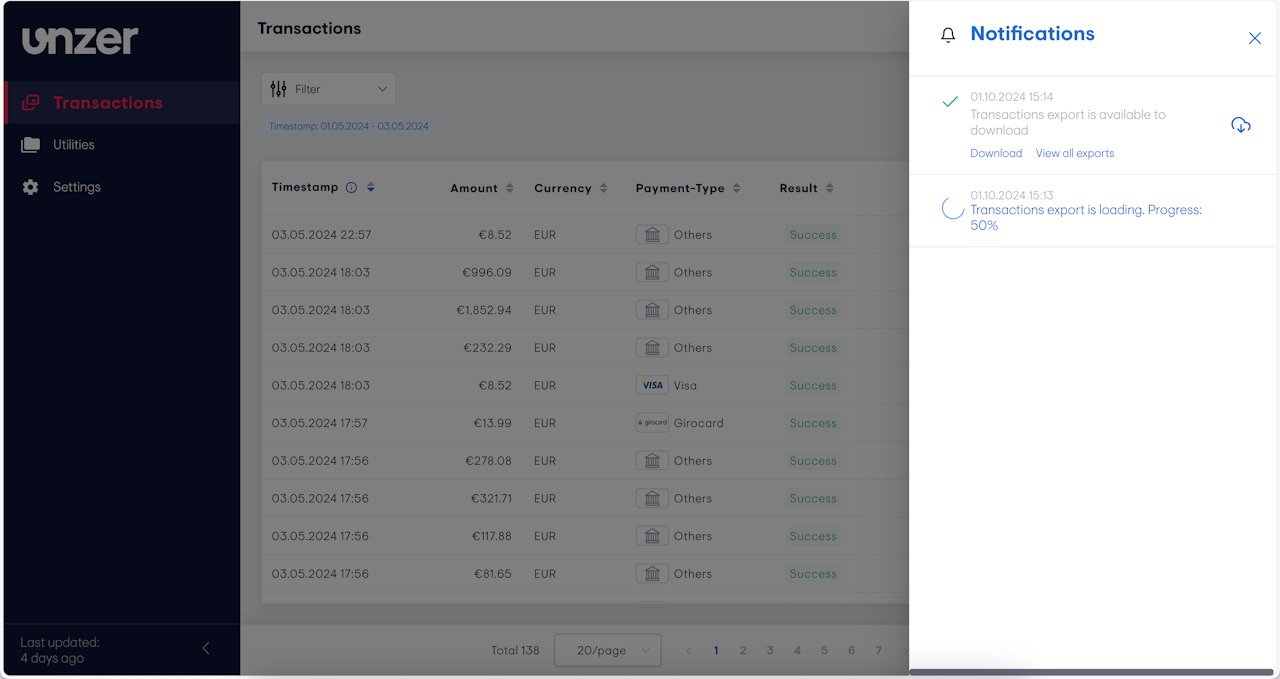
Once an export is completed, you can download it directly or view all export history.
In the Notifications panel, click Download to retrieve the completed export.
Alternatively, click View all exports to go to the Export History page and see all your export files.
View your export history
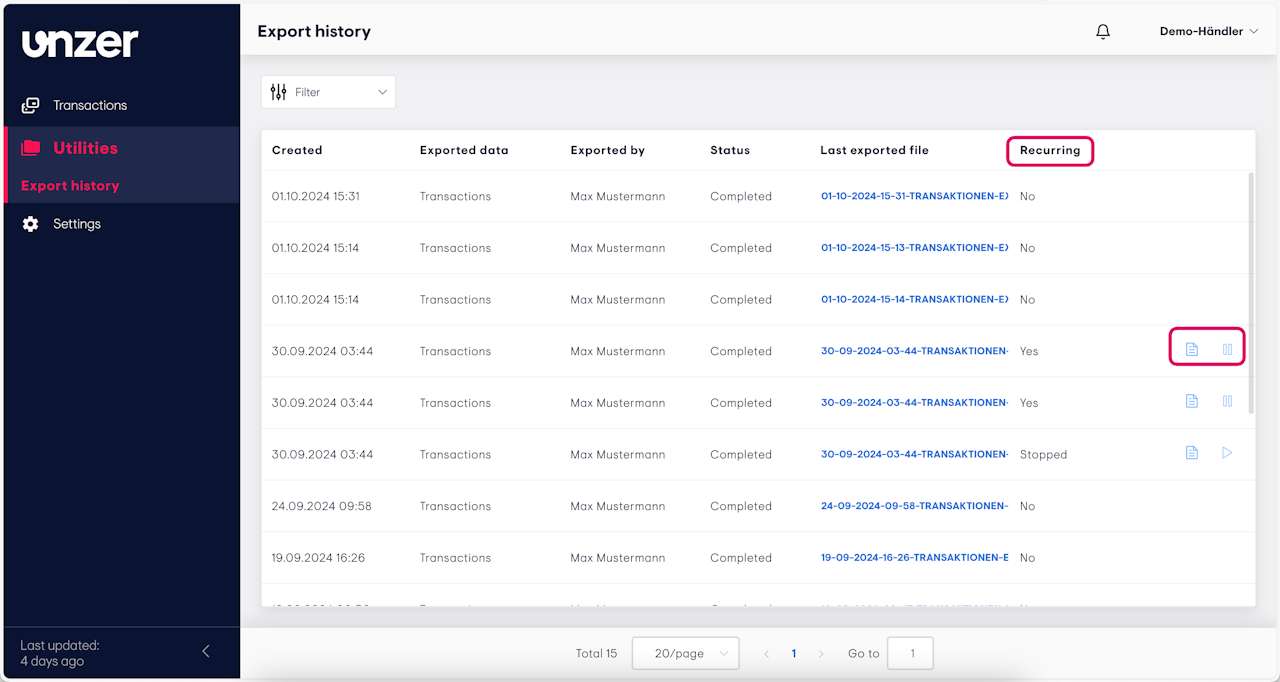
The Export History page shows all your transaction exports, including the status, creation date, the user who initiated it, and whether it’s a single or recurring export.
There are two types of exports:
Single export: Displayed as "No" in the Recurring column, indicating a one-time export.
Recurring export: Displayed as "Yes" in the Recurring column, meaning it runs automatically at scheduled intervals. If marked "Stopped", the recurring export has been paused.
For recurring exports, you’ll see two buttons at the end of the row:
Pause/Start: Use this to stop or resume the recurring export.
Document: Click this to view and download all previous exports generated by the recurring cycle.
The Last exported file column provides a direct link to the generated export. For recurring exports, this link will take you to the most recent file created in the recurring cycle.
Downloading previous recurring exports
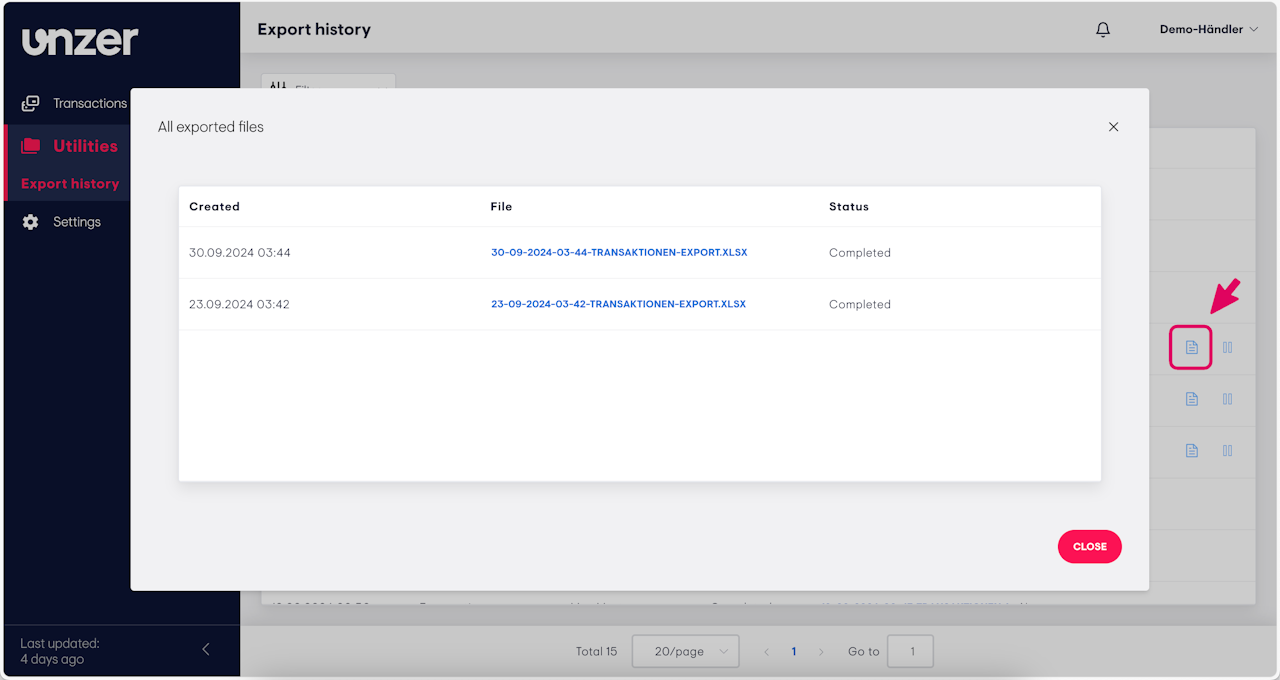
To view and download previous files from a recurring export:
- Click the Document icon next to the recurring export to view the list of all files generated by that export.
- Then, click on the file name to download it.
Filtering your export history
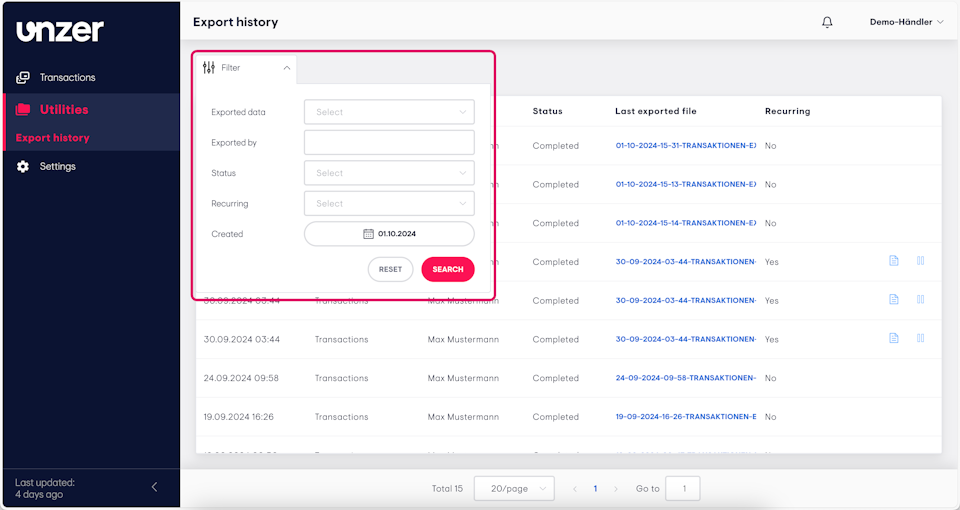
You can apply filters to narrow down the export history and find specific exports more efficiently.
Click the Filter button at the top of the Export history page.
Select the relevant filter criteria. You can apply multiple filters at once.
After selecting your filter options, click Search to apply the filters.
To reset the filters and view the full history again, click Reset.
Note: The filters will reset when you navigate away from the page or sign out.
Was this article helpful?
That’s Great!
Thank you for your feedback
Sorry! We couldn't be helpful
Thank you for your feedback
Feedback sent
We appreciate your effort and will try to fix the article
