CCV PAX A920 - Setting up a static IP address assignment
Modified on Wed, 4 Feb at 9:09 AM
Sometimes it is necessary to assign a static IP address on your card reader. In general, this should be configured as an IP reservation on your internet router. However, this is not always possible. In this tutorial, we will show you how to assign a static IP address directly on your CCV PAX A920 card reader.
You will usually receive the IP address data from your IT service provider, IT technician, or POS system provider.
Android menu
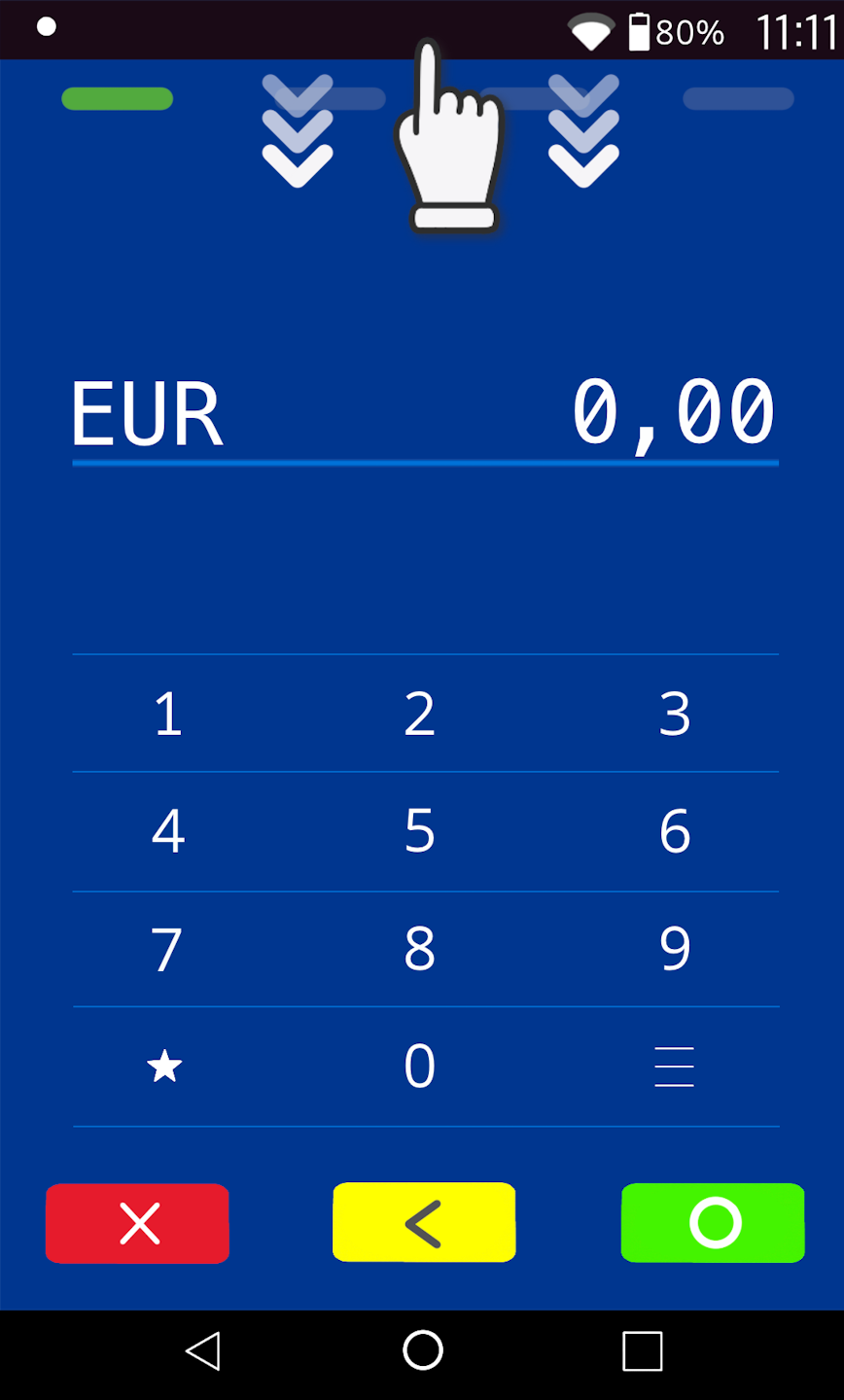
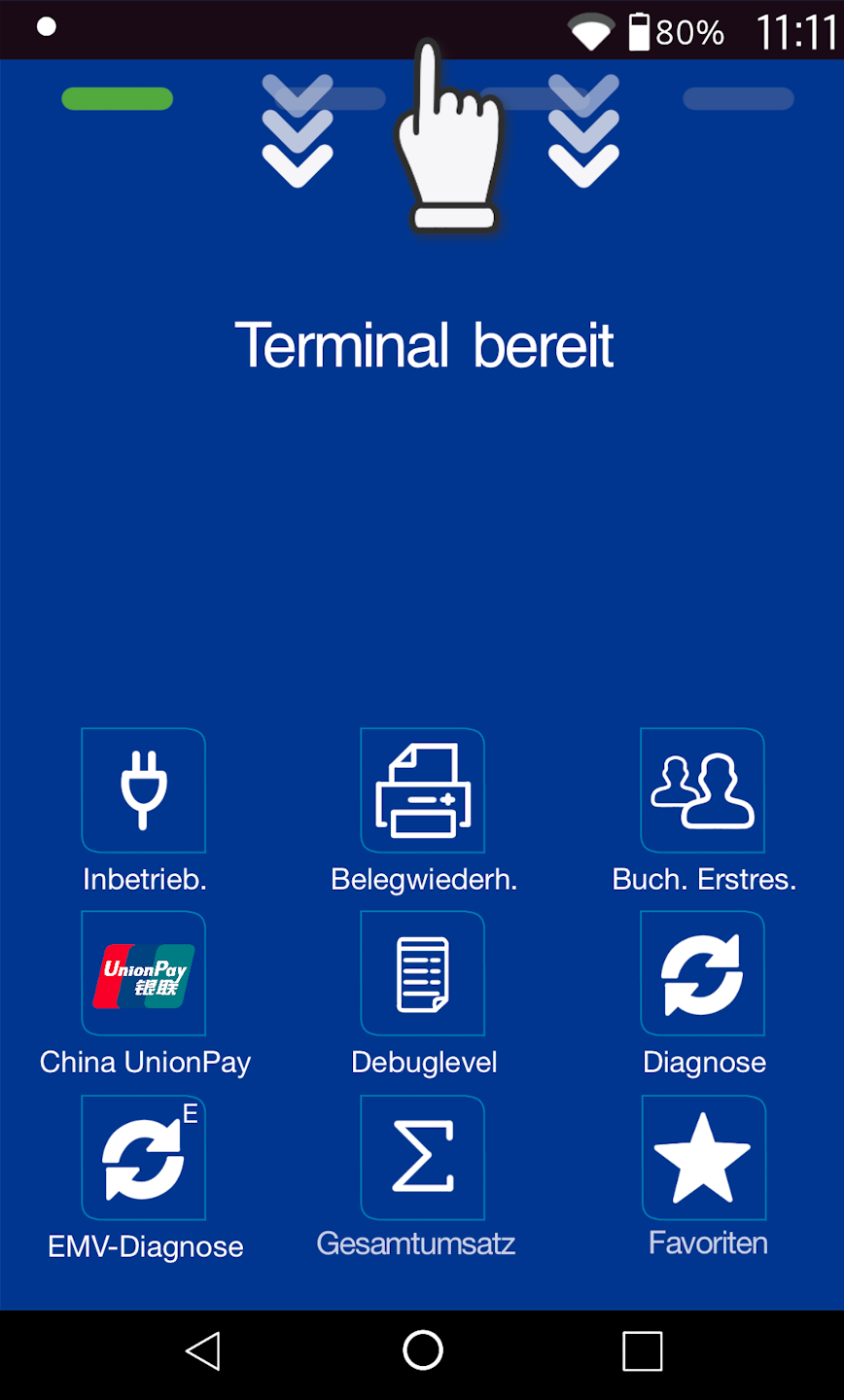
Please swipe down from the top edge of the display to access the Android settings.
Wi-Fi selection
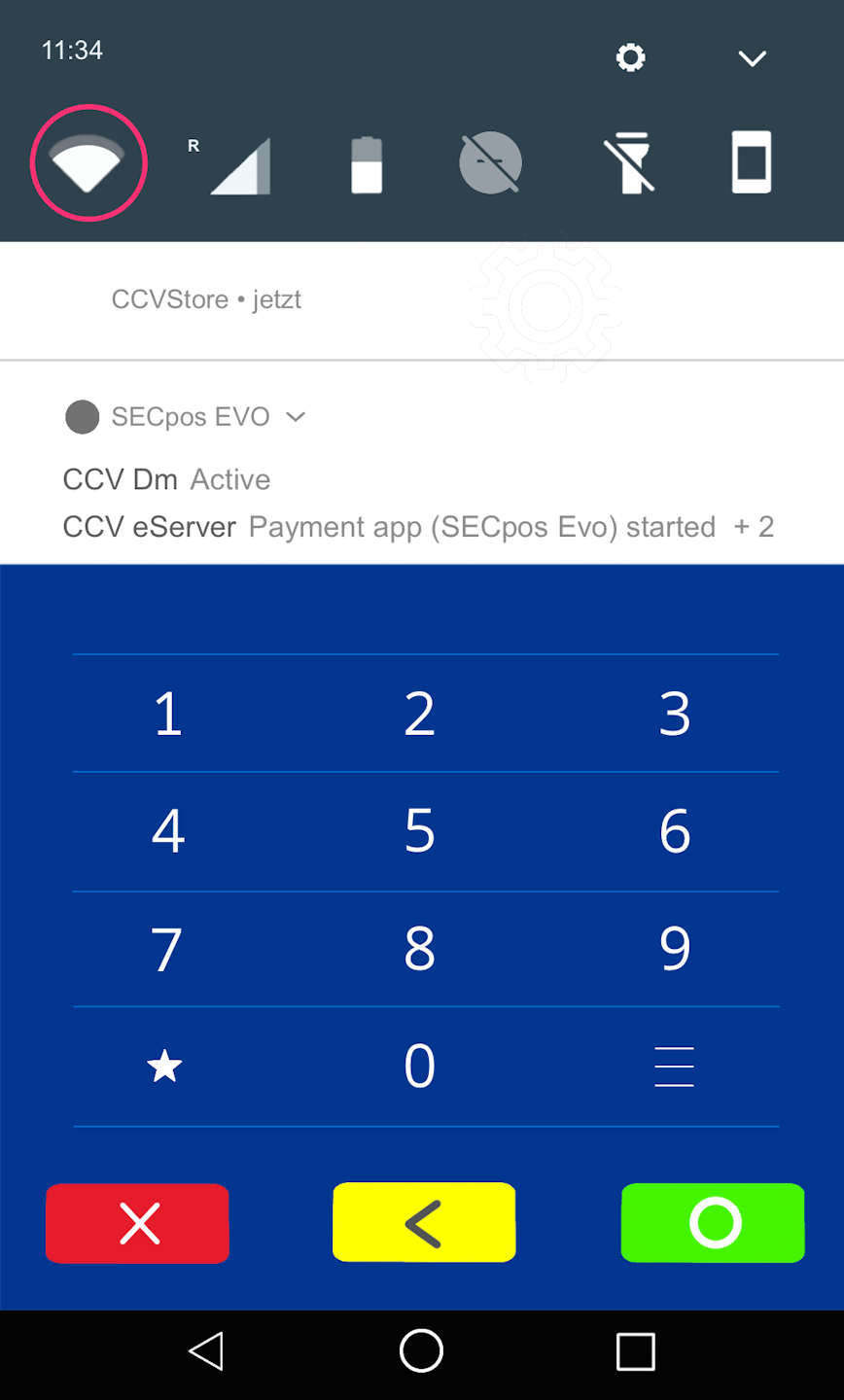
Please press and hold the Wi-Fi icon for a moment. A new menu window will open.
Wi-Fi network modification
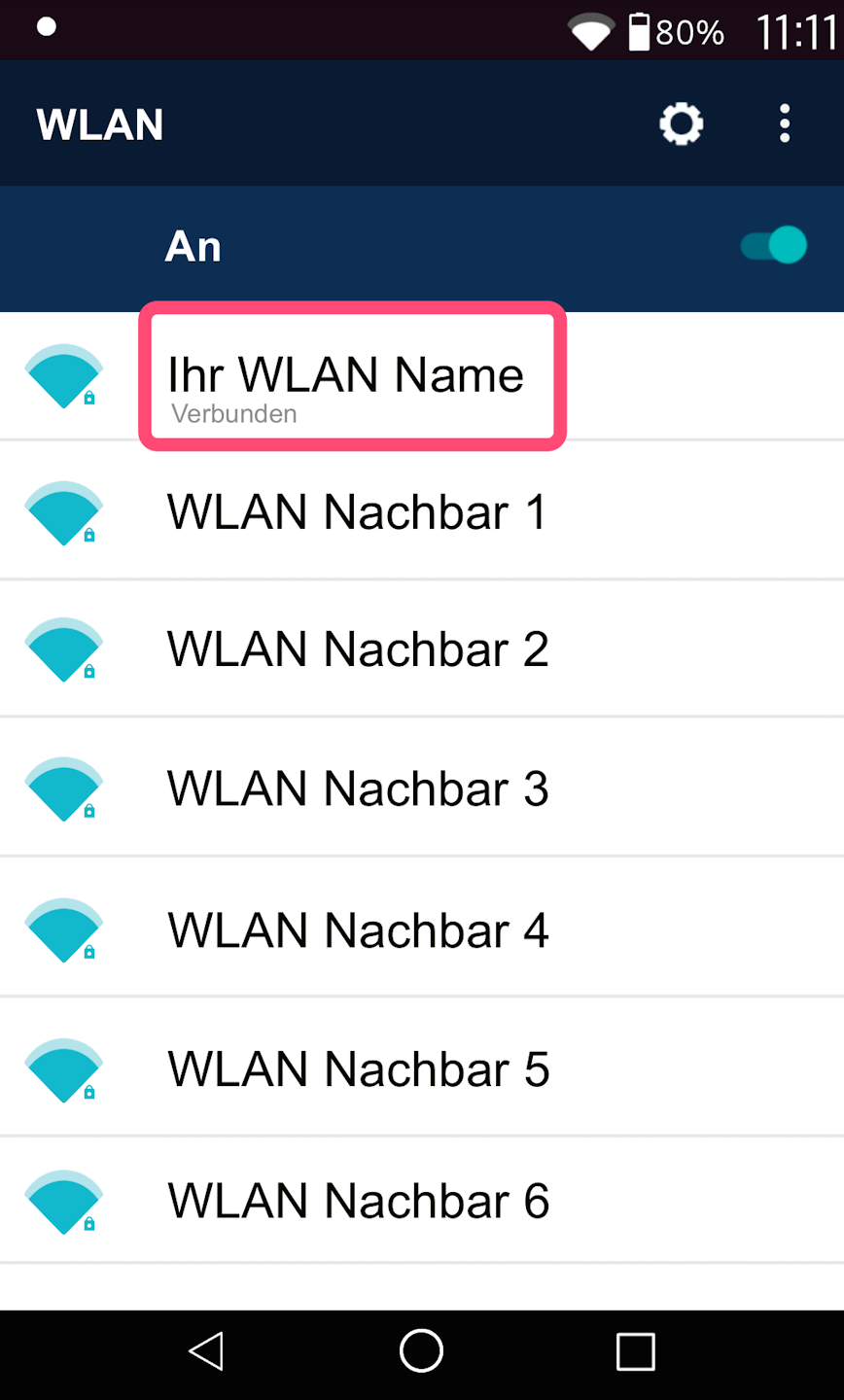
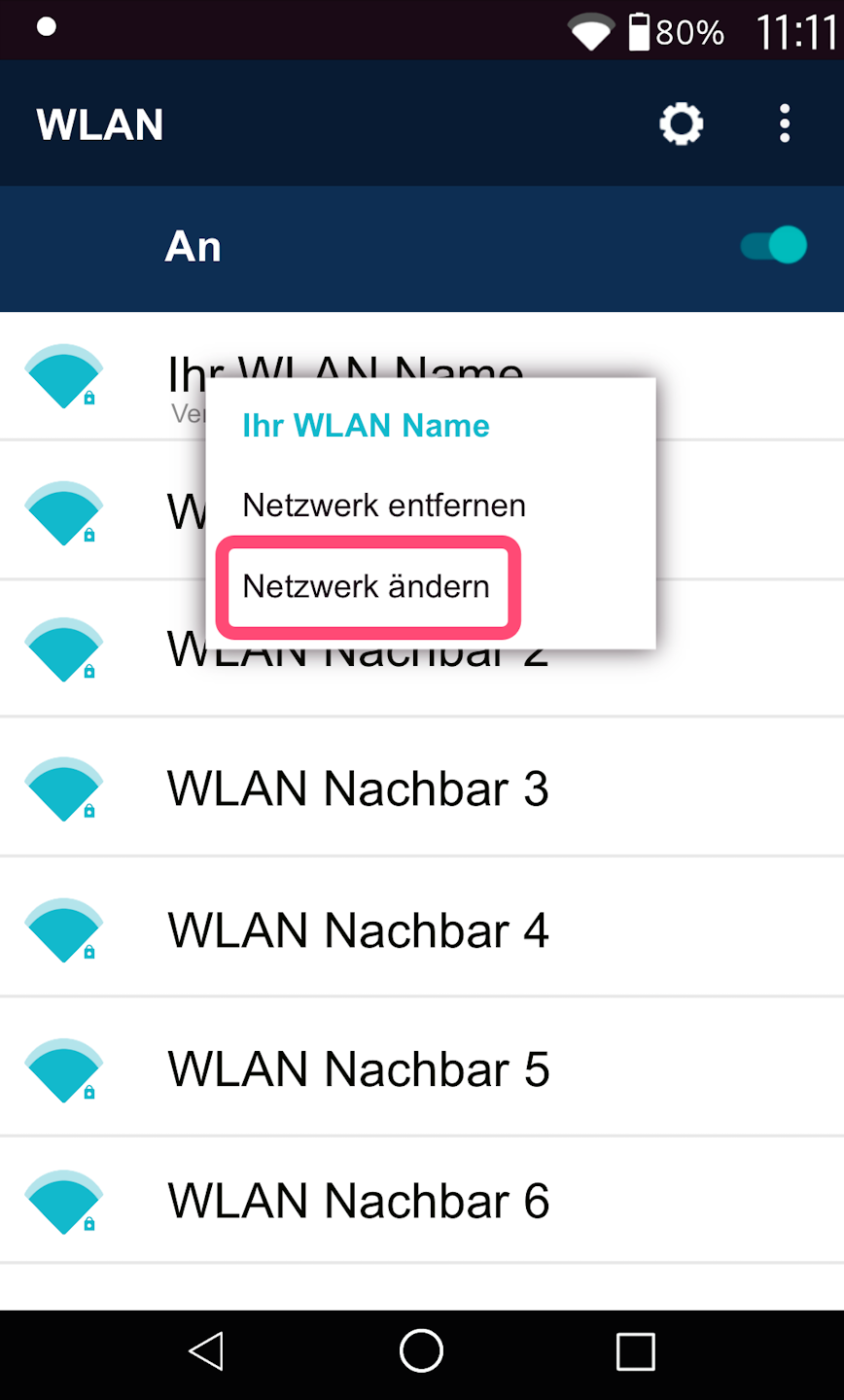
In this step, please press and hold your Wi-Fi network for a moment (Fig. 1).
In Fig. 2, you can see the extended menu. Please select "Modify network."
Selection of settings
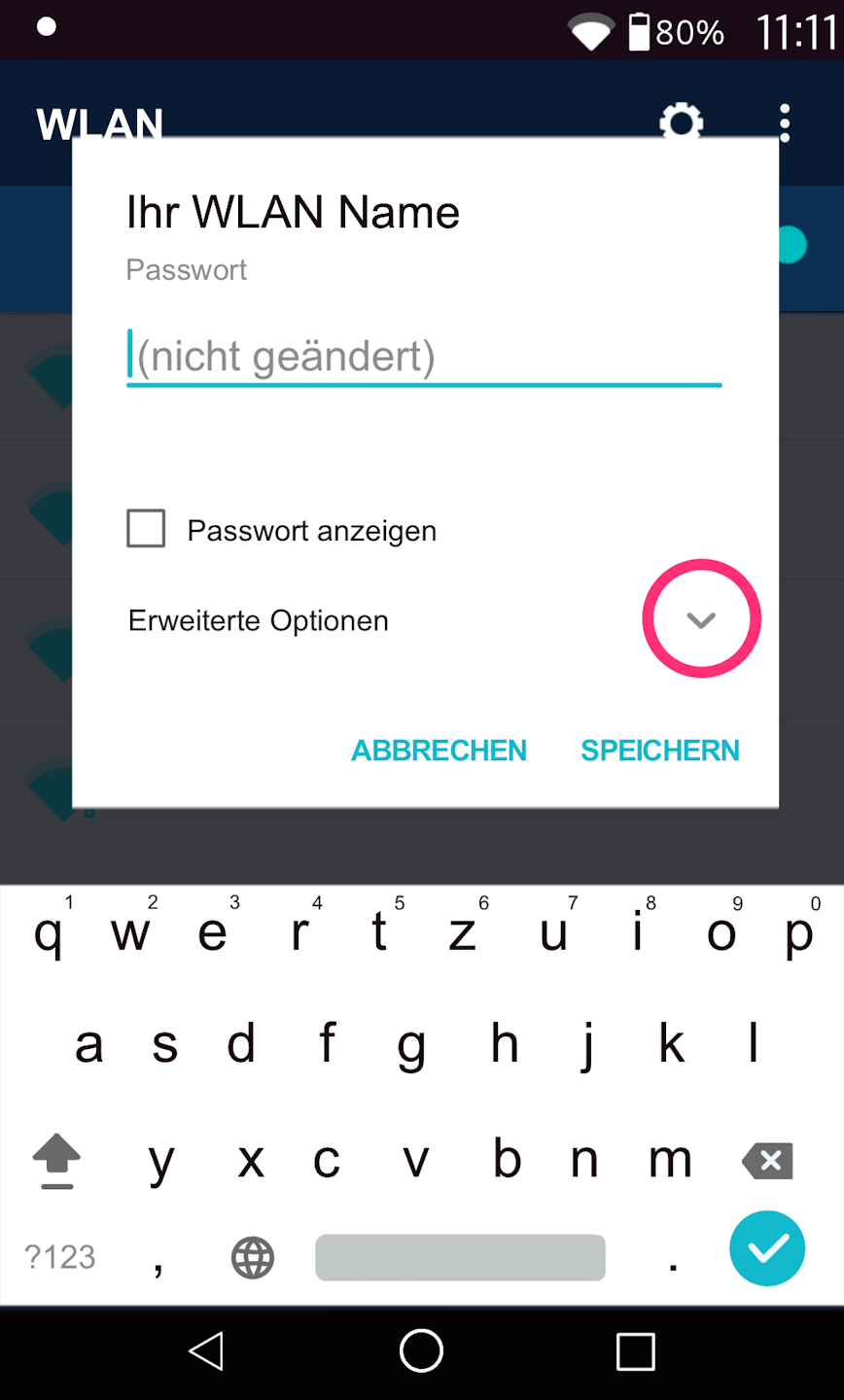
Fig. 1 – Select "Advanced options" here.
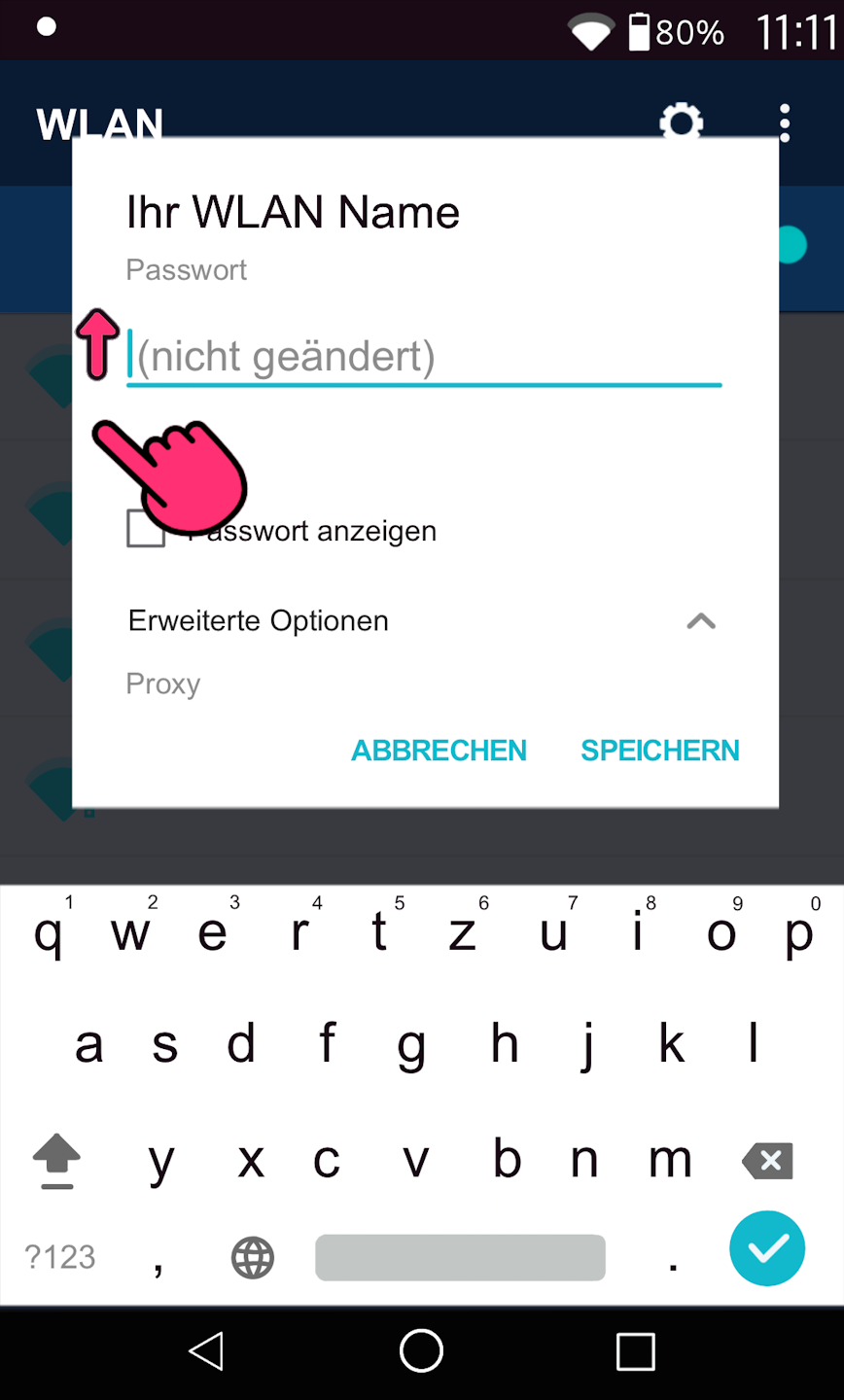
Fig. 2 – Please swipe up on the left side to view the settings.
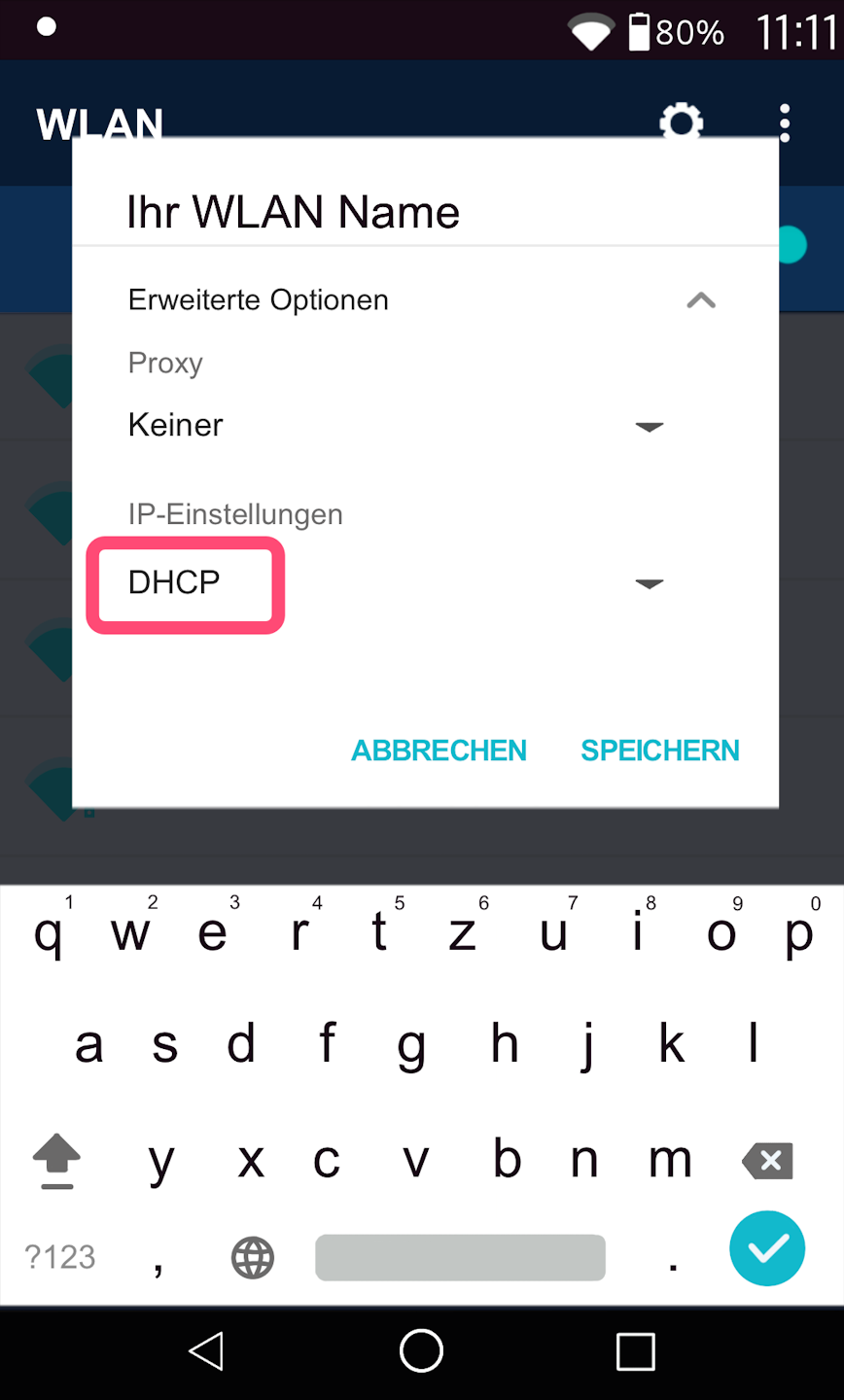
Fig. 3 – At the bottom, you will find the IP settings. By default, DHCP is selected. Please tap on "DHCP."
Entering the IP address data
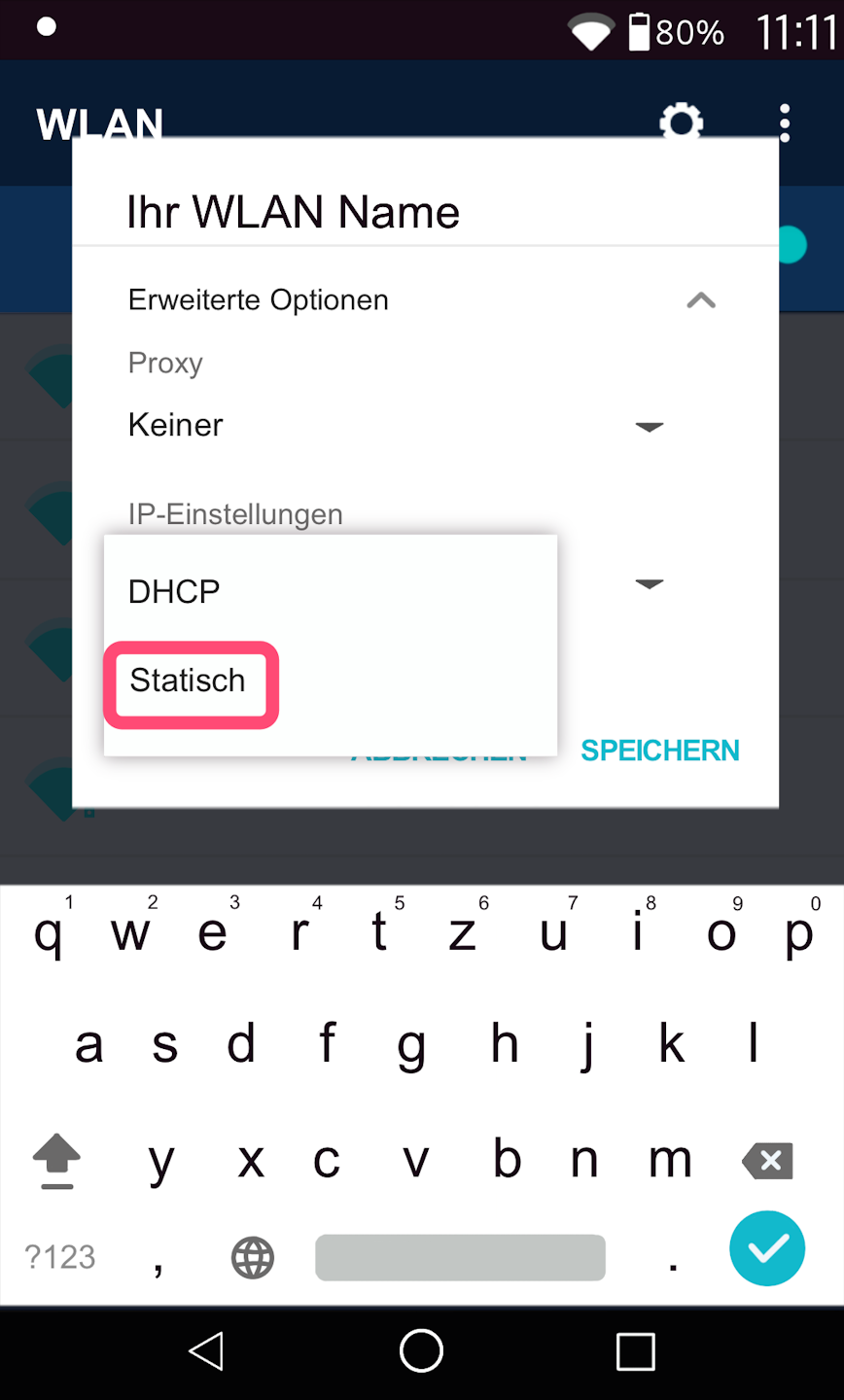
Fig. 1 – Please select "Static."
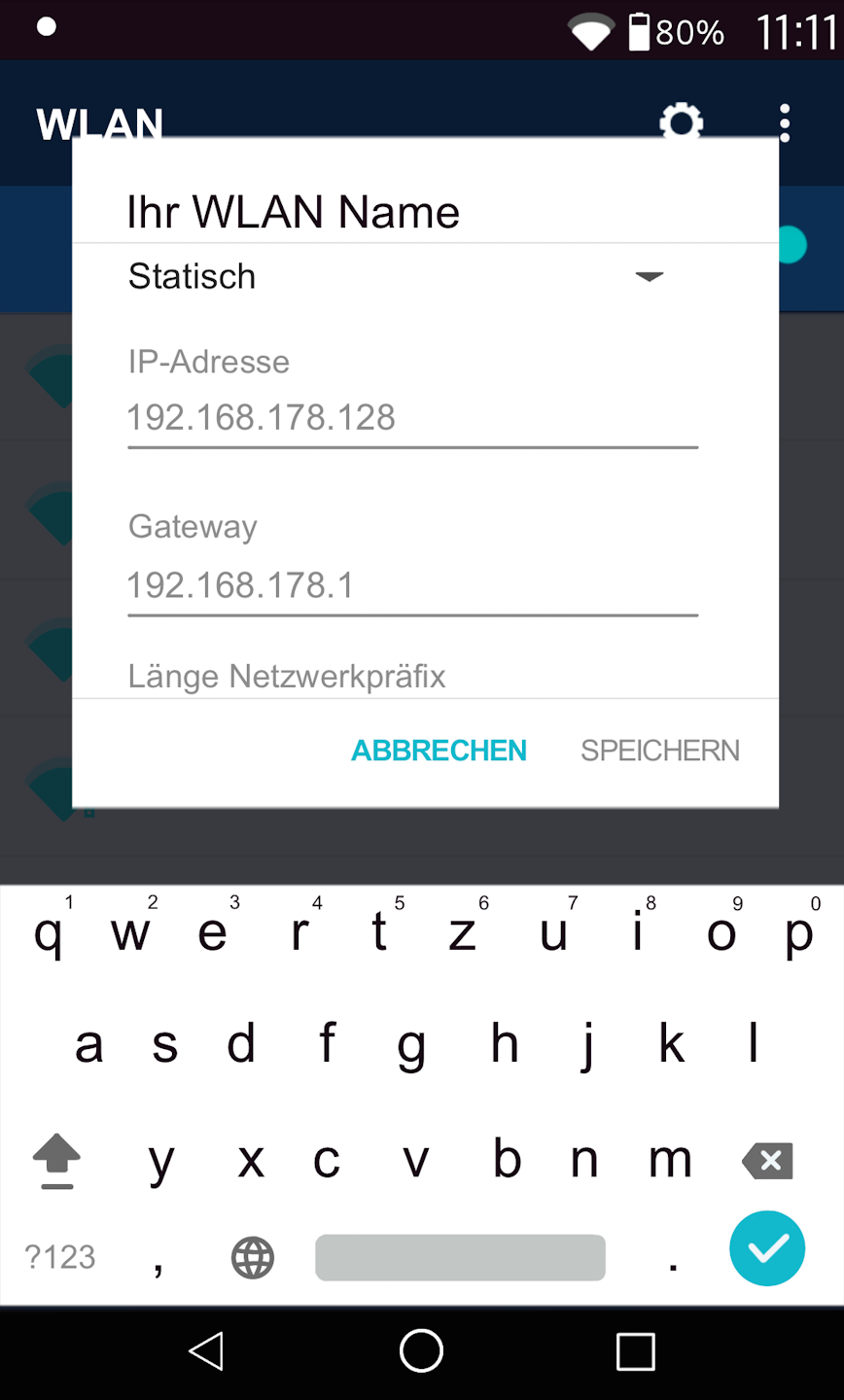
Fig. 2 – Swipe down again on the left side of the menu until you can enter the IP data. The required IP data are the IP address and the default gateway.
The DNS is optional.
192.168.178.128 – Example IP address
192.168.178.1 – Example default gateway
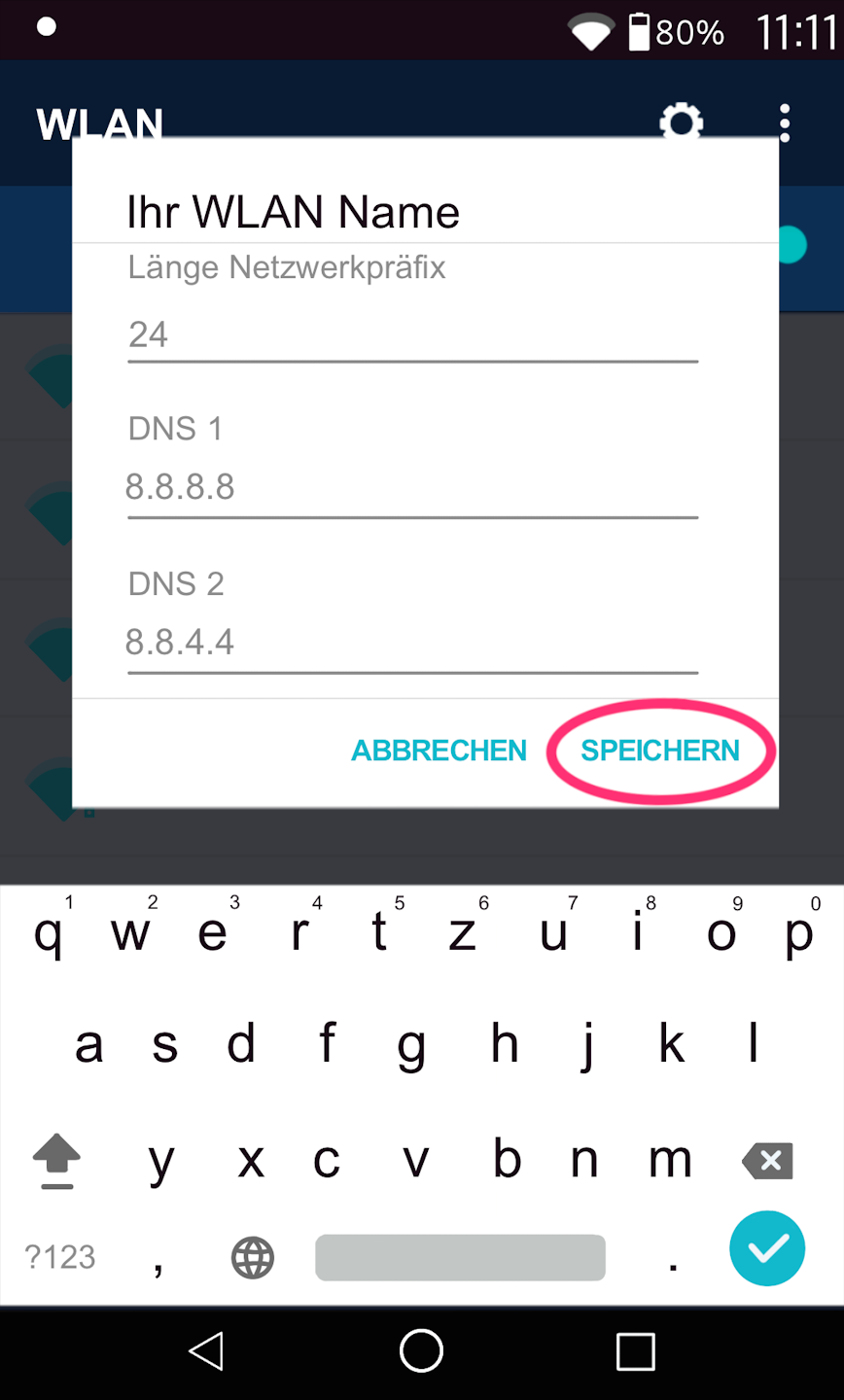
Fig. 3 – Once all data has been entered, please press the "Save" button at the bottom.
Please do not change the network prefix length.
Completion
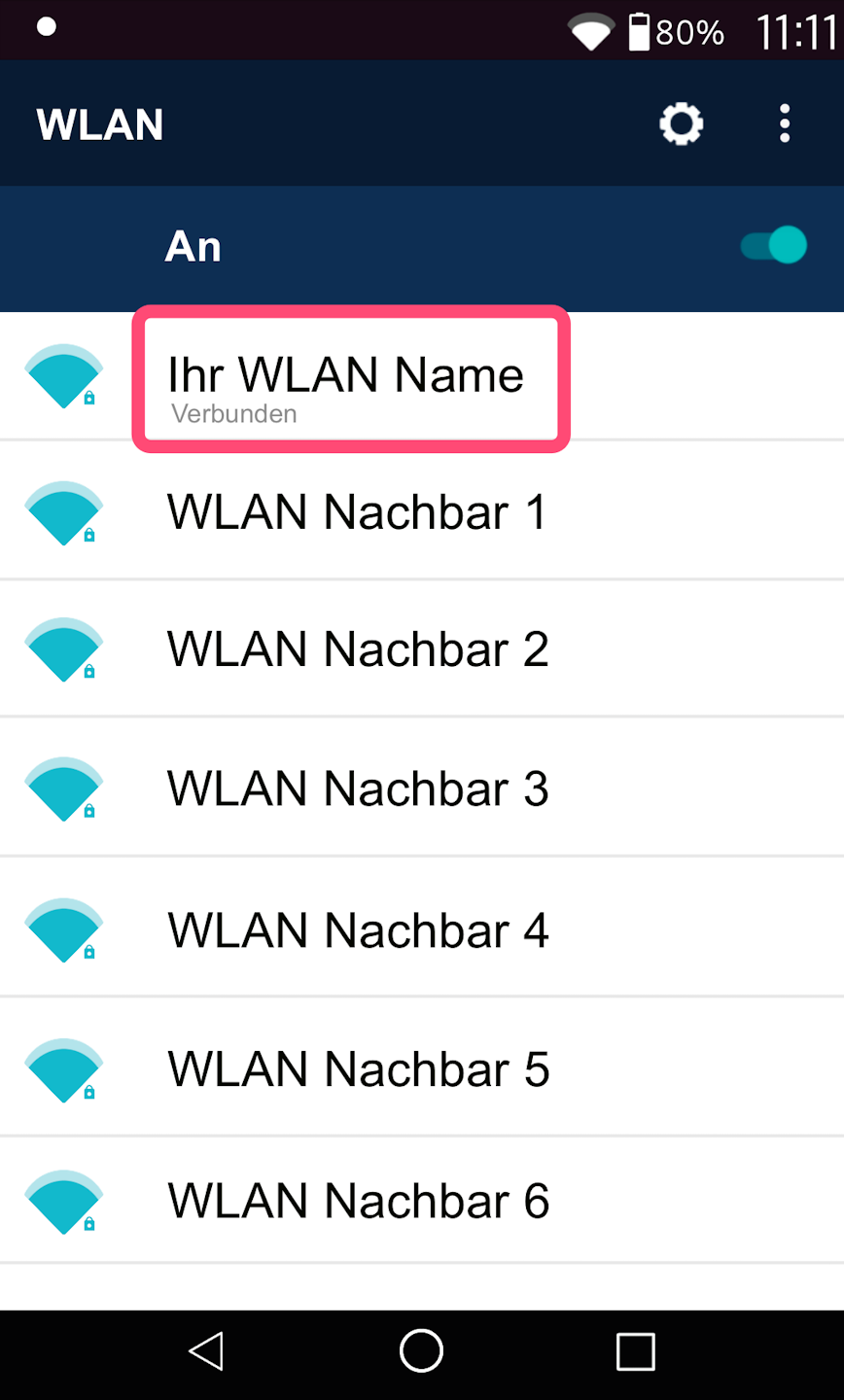
After tapping "Save," the card reader will attempt to connect to the Wi-Fi network using the static IP data.
A successful connection can be recognized by the word "Connected" displayed under your Wi-Fi network name.
If you see a different message instead of "Connected," the connection with the entered IP data was not successful. Please repeat the setup.
Then, please perform a connection test.
Was this article helpful?
That’s Great!
Thank you for your feedback
Sorry! We couldn't be helpful
Thank you for your feedback
Feedback sent
We appreciate your effort and will try to fix the article
