CCV PAX A920 – Switching Your Card Reader Due to Contract Changes
Modified on Wed, 4 Feb at 9:09 AM
Have you received the confirmation email regarding the switch of your card reader to the new contract changes? This email includes both your old and new terminal ID.
In this step-by-step guide, we would like to support you—through images and text—in switching your CCV PAX A920 card reader from the old to the new terminal ID.
Please perform a cash register reset before switching, so that any open transactions are settled. Existing transactions cannot be transferred to the new contract account.
Guide to Cash Register Reset – LINK
Which image do you see on the display?
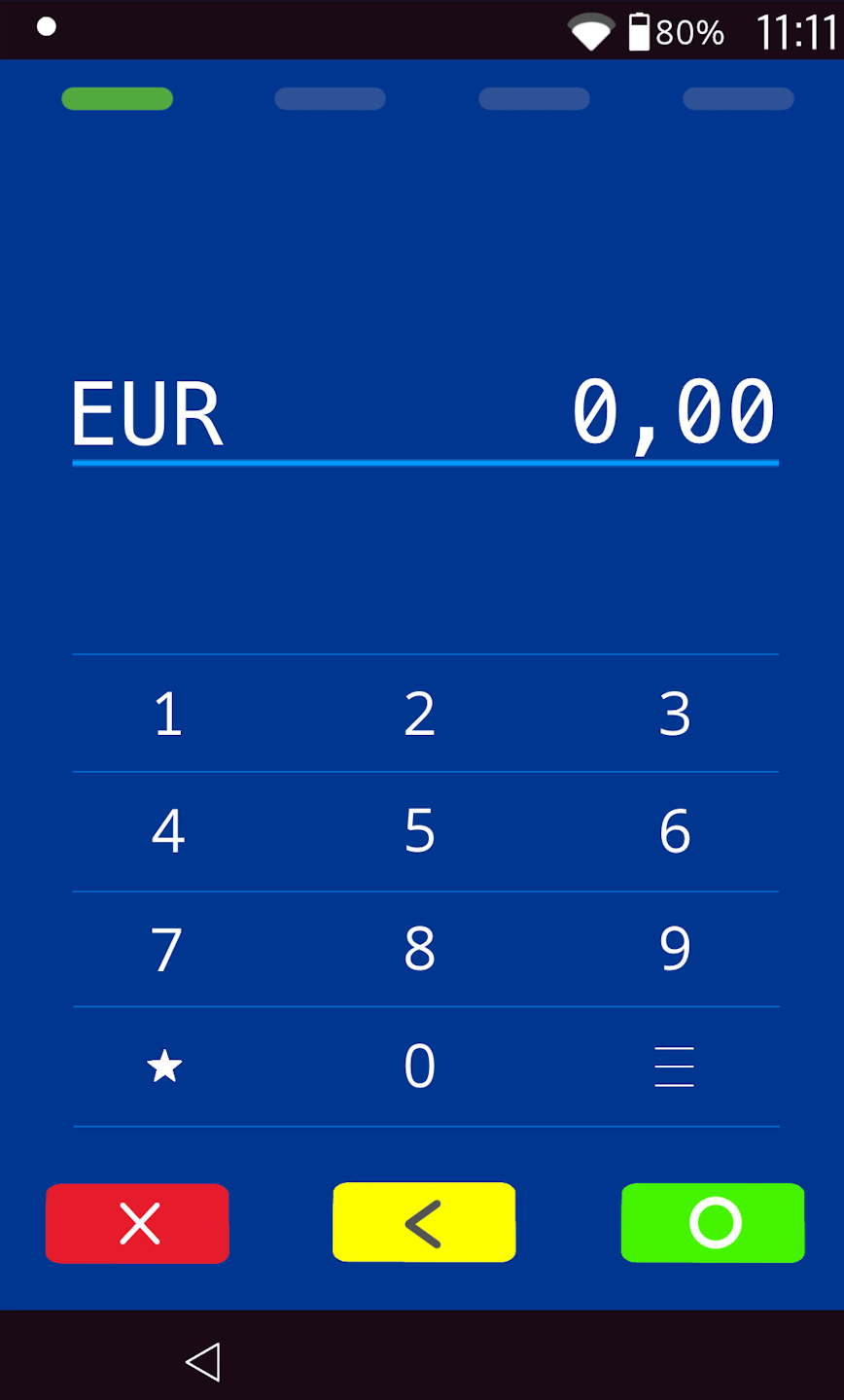
I see Fig. 1 – Without Cash Register Connection
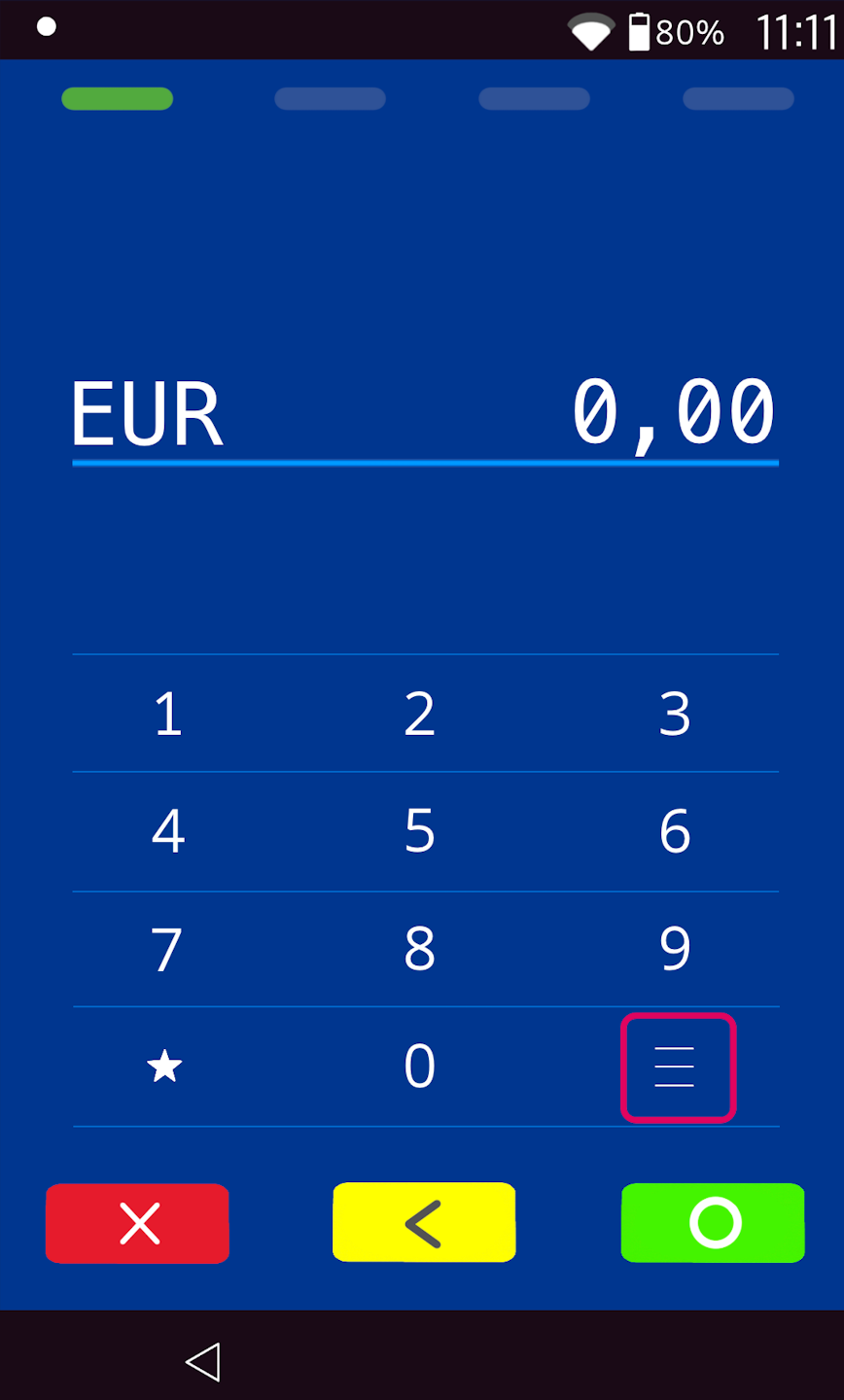
If you are operating your card reader without a cash register connection or with a cash register connection without login, you will see the following image.
Please select the button with the three horizontal lines at the bottom right.
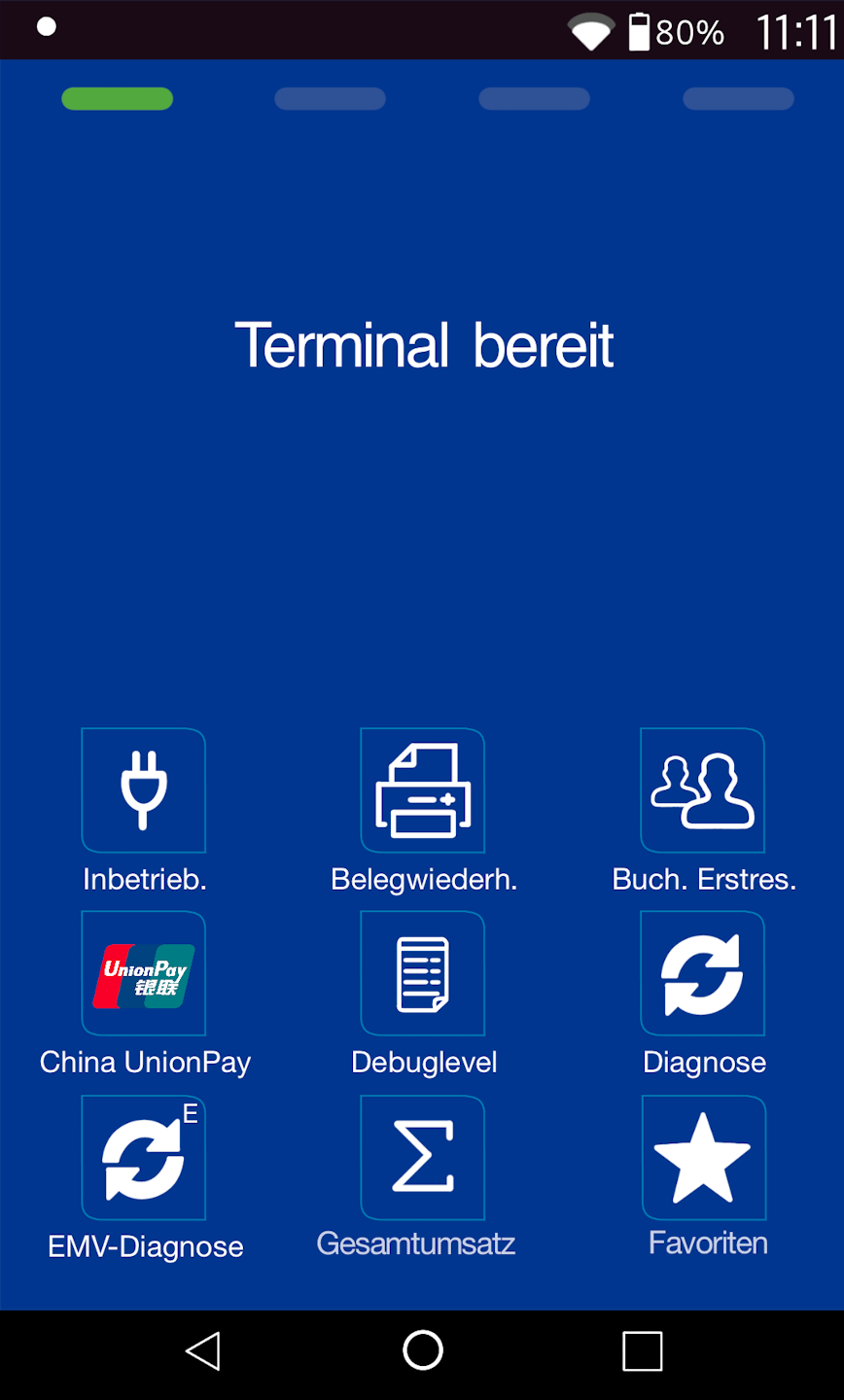
I see Fig. 2 – With Cash Register Connection
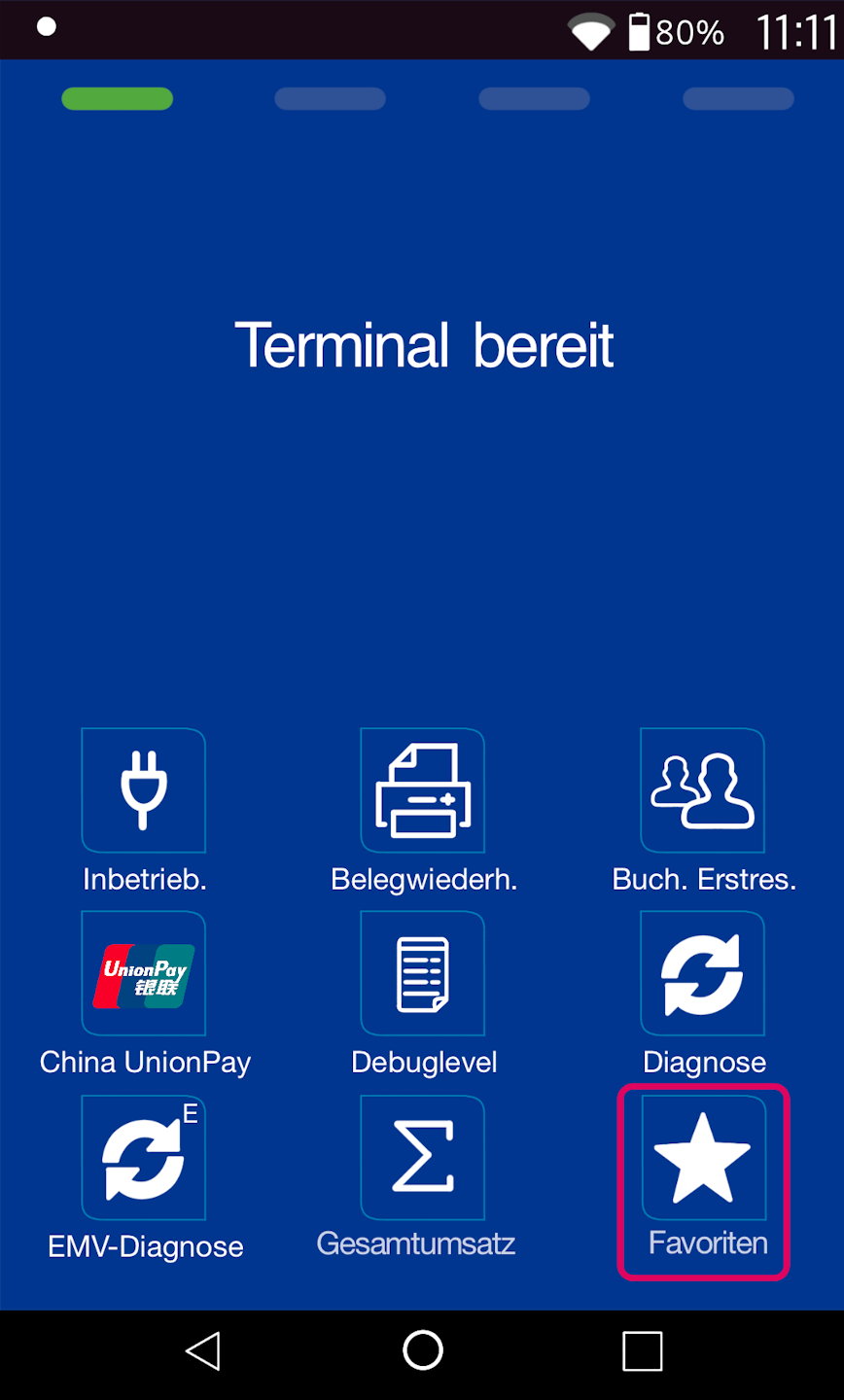
As shown in Fig. 1, please select **Favorites** at the bottom right, and in Fig. 2, tap the button with the three horizontal lines at the bottom left. This will take you to the main menu.
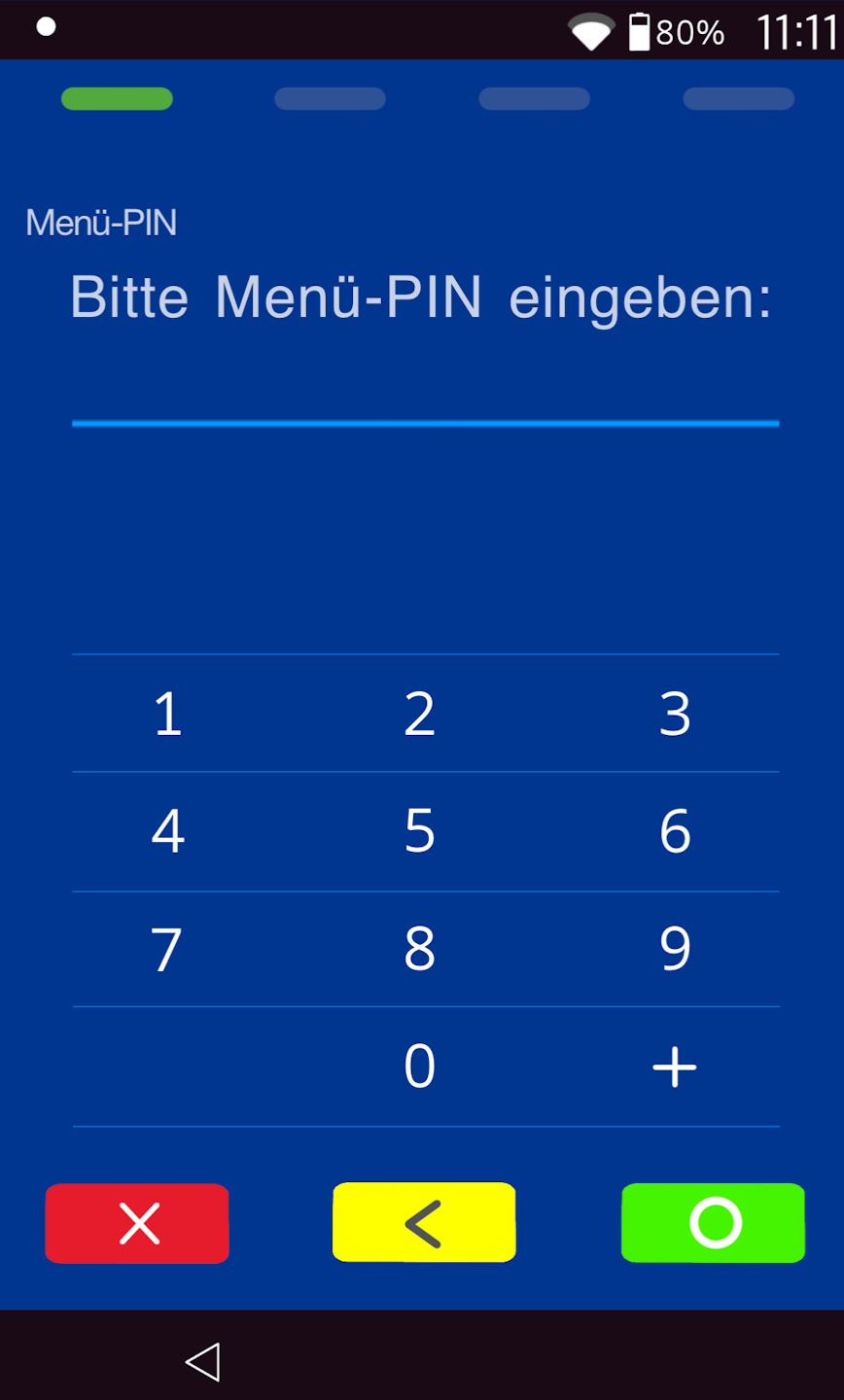
PIN Entry
Please now enter your merchant PIN.
You can find the terminal ID on your merchant receipts or on the cash register report.
Terminal IDs starting with 68xxxxxx: 111111
Terminal IDs starting with 526xxxxx: 0123
Please confirm the entry with the green OK key.
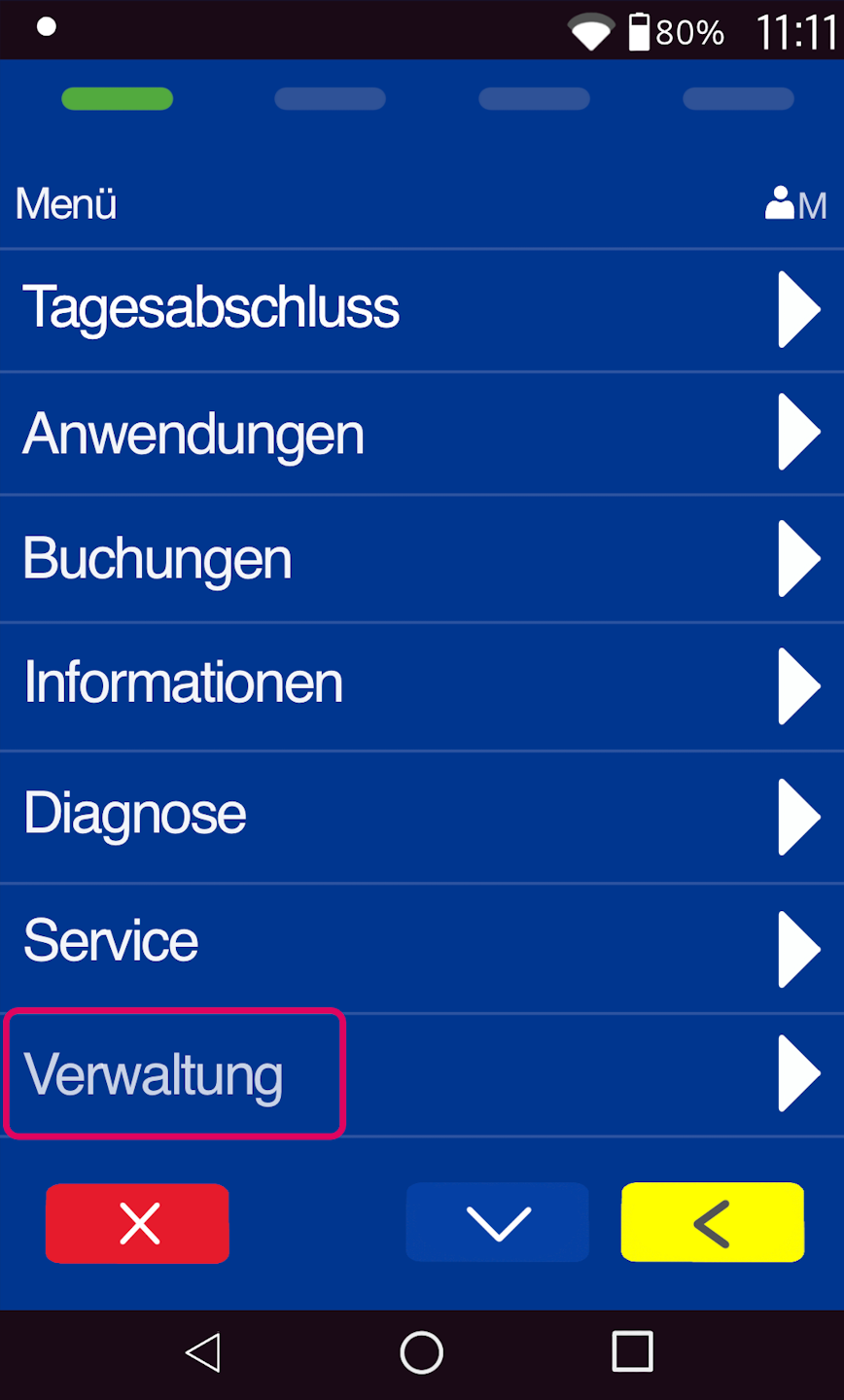
Main Menu
Please navigate to the menu item Administration.
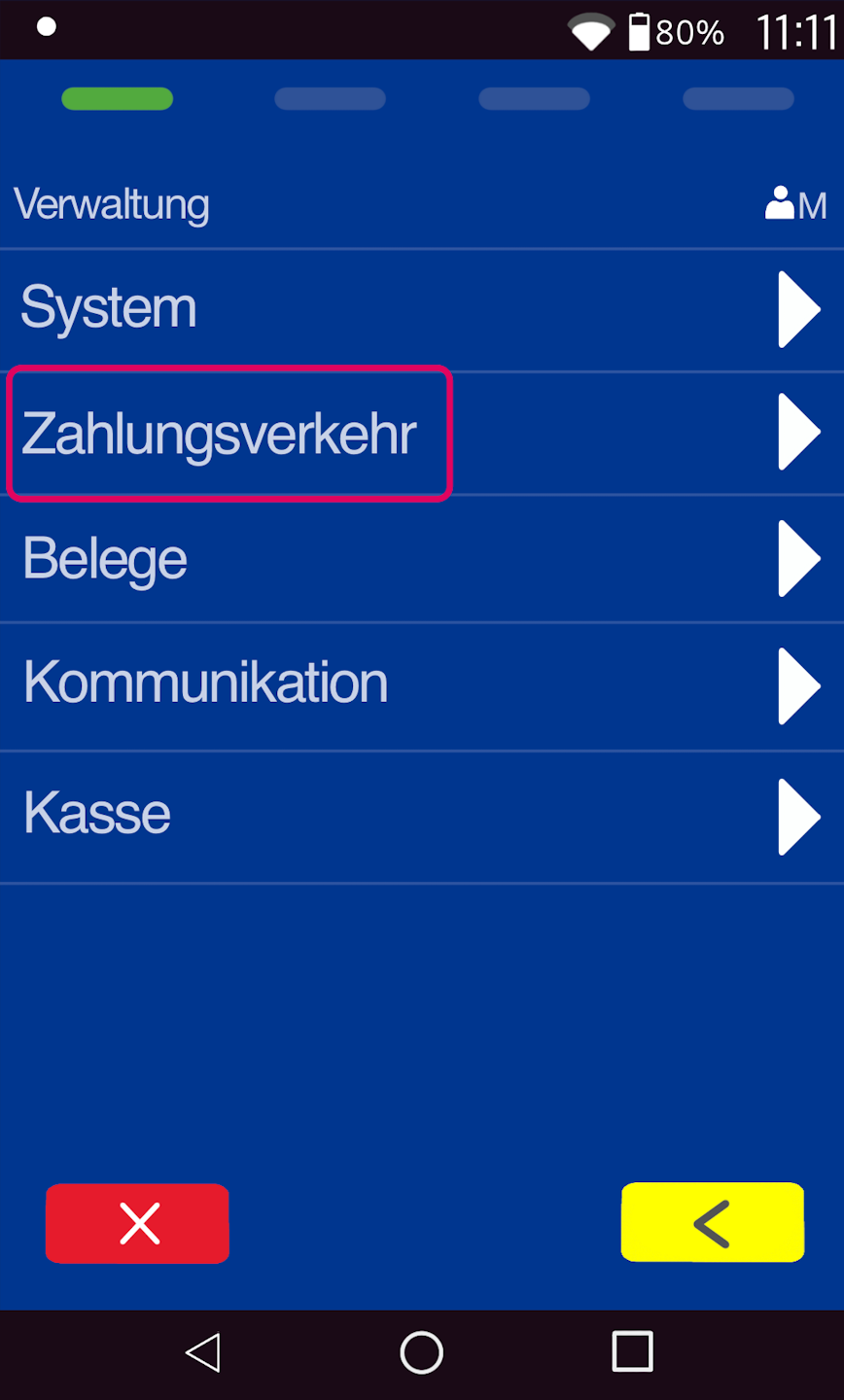
Transactions
Please select the menu item **Transactions** here.
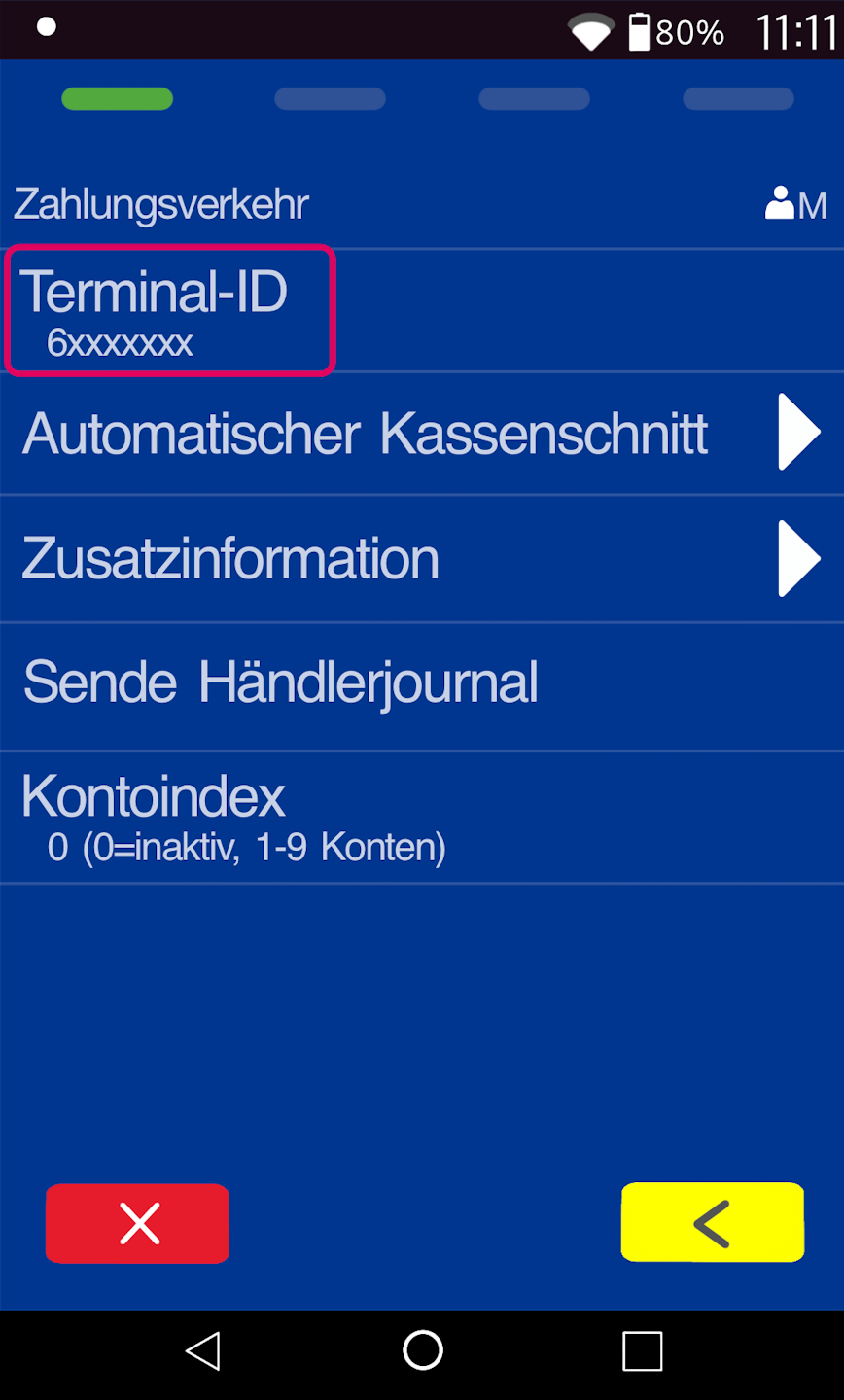
Terminal ID
The top menu item Terminal ID shows your currently active terminal ID.
To edit it, please tap the Terminal ID menu item.
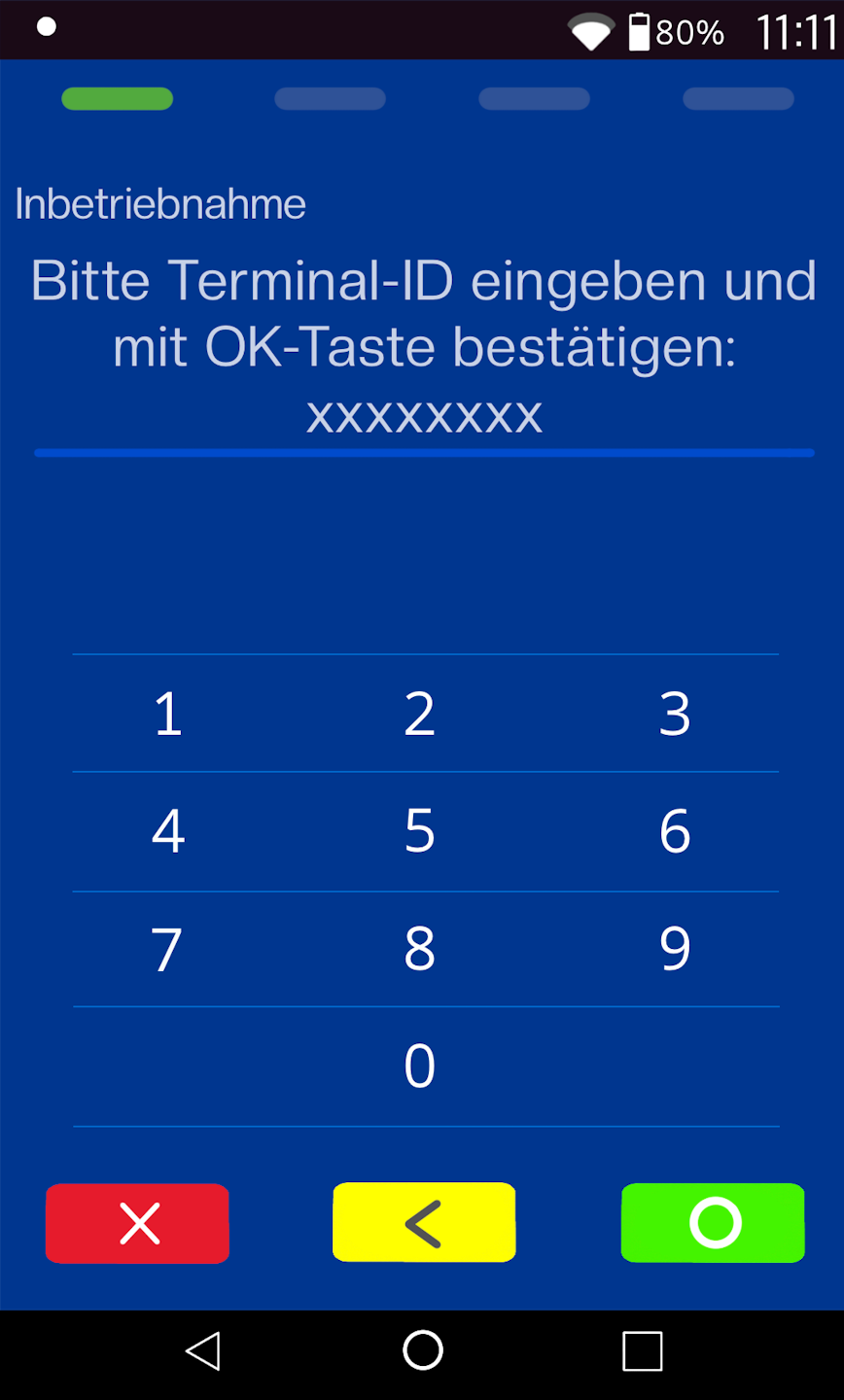
Change Terminal ID
Your old terminal ID will be displayed. Please delete it using the yellow key and enter your new terminal ID correctly.
Both your old and new terminal ID were provided to you via email.
Please confirm the entry with the green OK key.
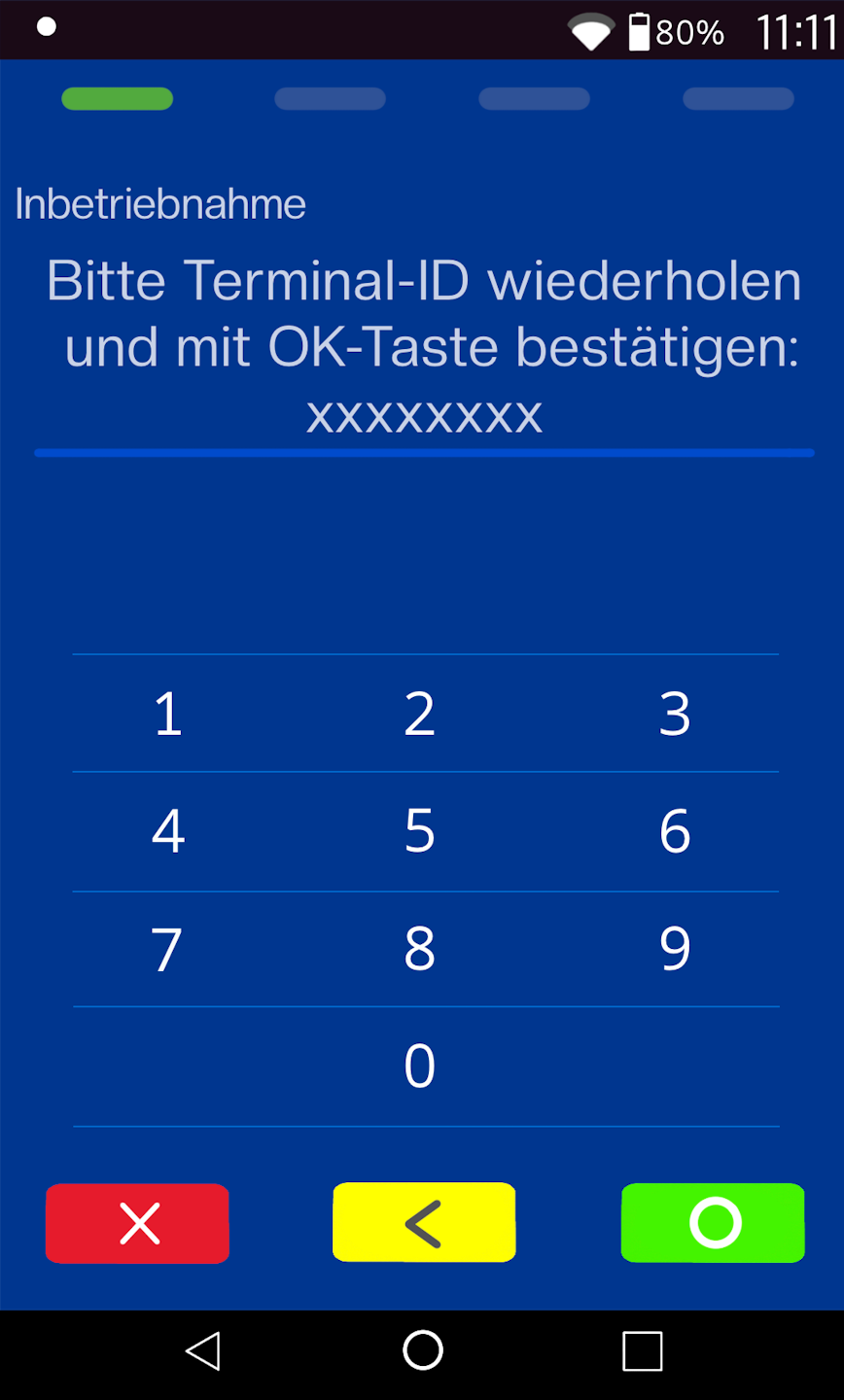
Repeat Terminal ID
Please also delete the existing terminal ID here using the yellow key and enter your new terminal ID correctly.
Please confirm the entry of the new terminal ID again with the green OK key.
The card reader will now be activated with the updated contract information. Three diagnostic checks will be performed, each confirmed by a receipt.
Once all diagnostics are completed, your card reader will be available again with the new contract changes.
Was this article helpful?
That’s Great!
Thank you for your feedback
Sorry! We couldn't be helpful
Thank you for your feedback
Feedback sent
We appreciate your effort and will try to fix the article
