CCV - Deactivation of Your POS Connection
Modified on Wed, 4 Feb at 9:49 AM
In this tutorial, we will show you how to deactivate the connection between your CCV Mobile Premium & CCV Base Next and your POS system.
Start Display
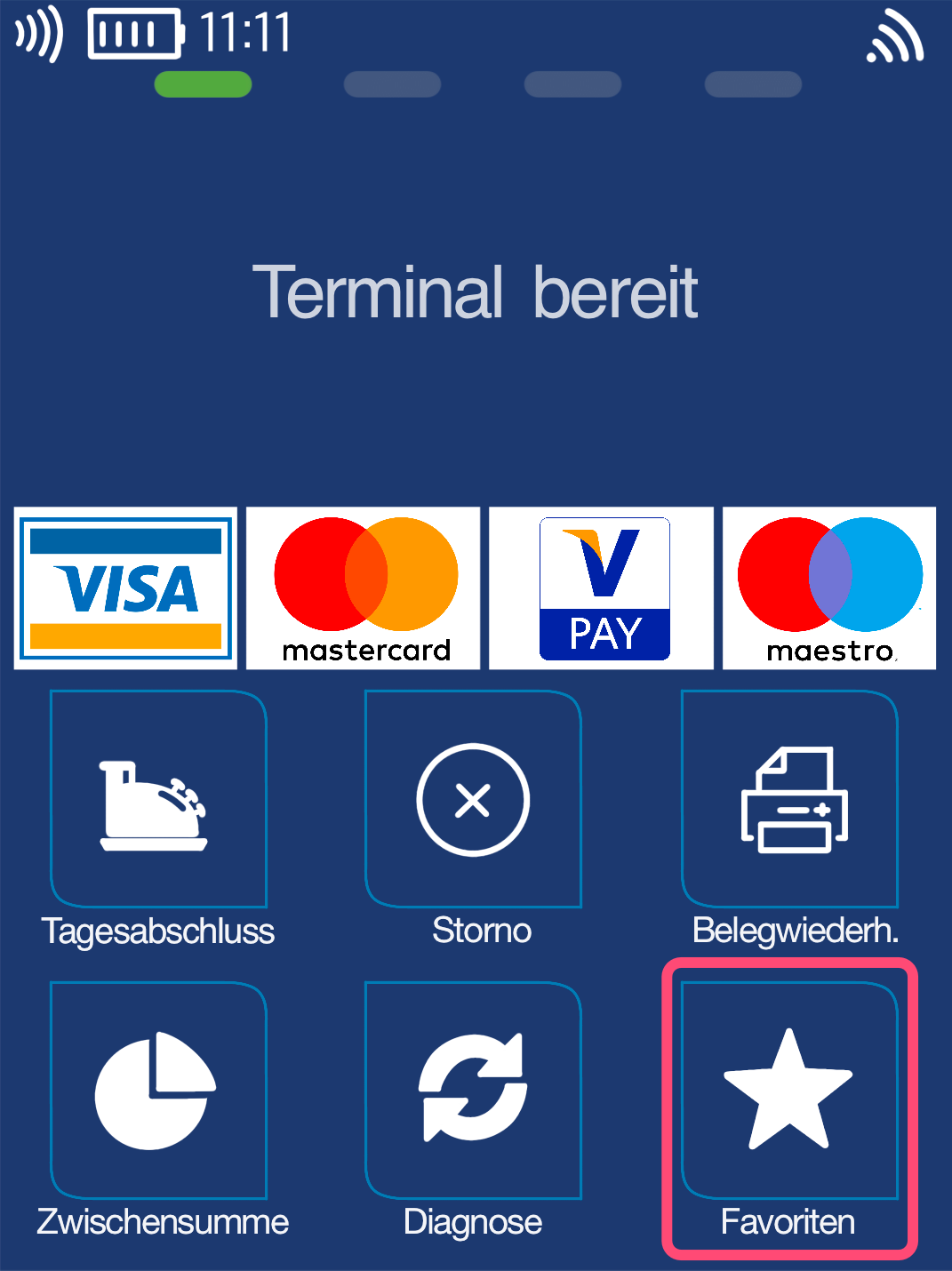
In Fig. 1 you can see your start display.
Please select the "Favorites" menu item.
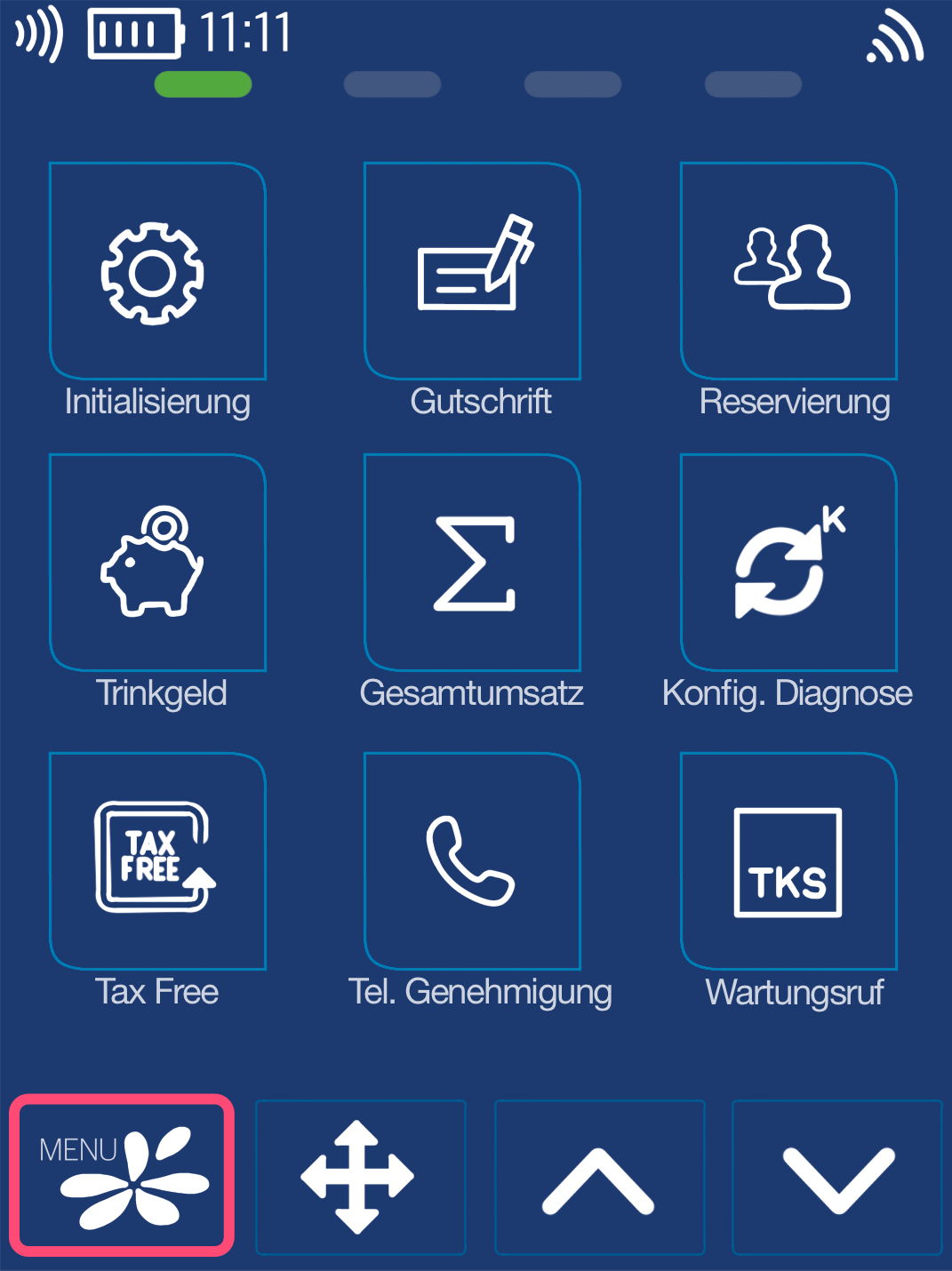
As shown in Fig. 2, please select the main menu button.
PIN Entry
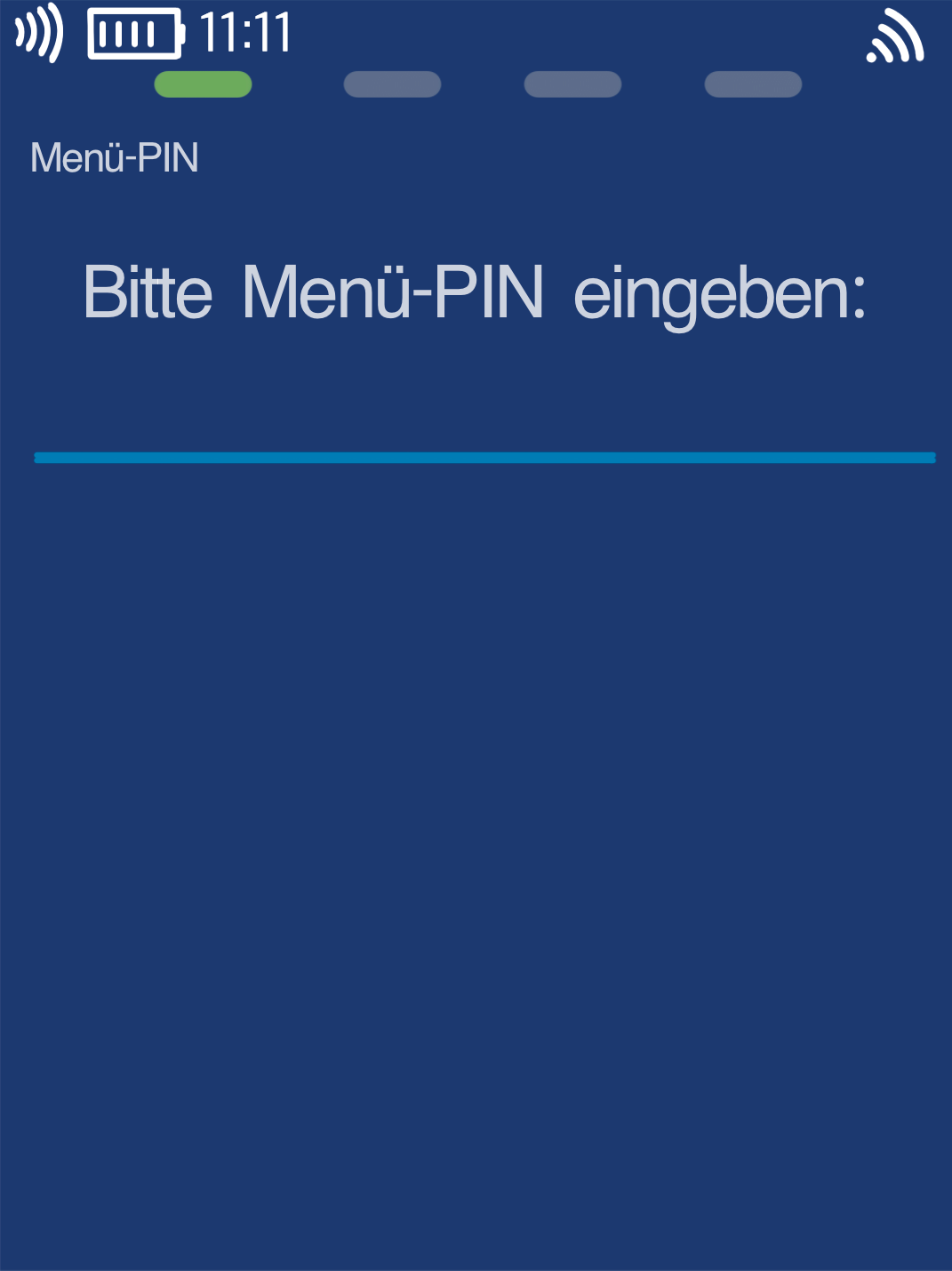
Please now enter your merchant PIN.
You can find the terminal ID on your merchant receipts or on the POS interface.
Terminal IDs starting with 61xxxxxx: 111111
Terminal IDs starting with 68xxxxxx: 111111
Terminal IDs starting with 526xxxxx: 0123
Please confirm the entry with the green OK button.
Main Menu
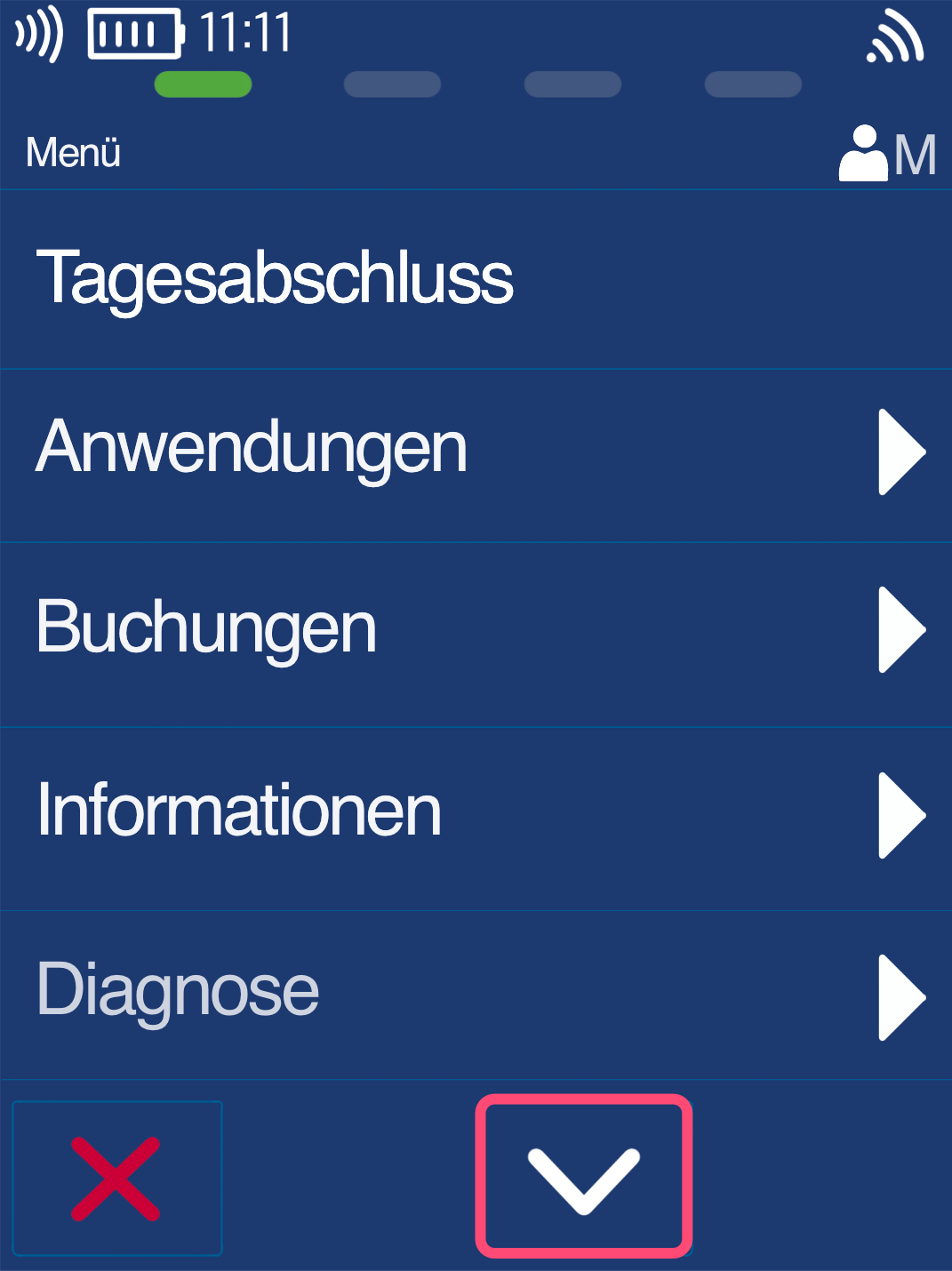
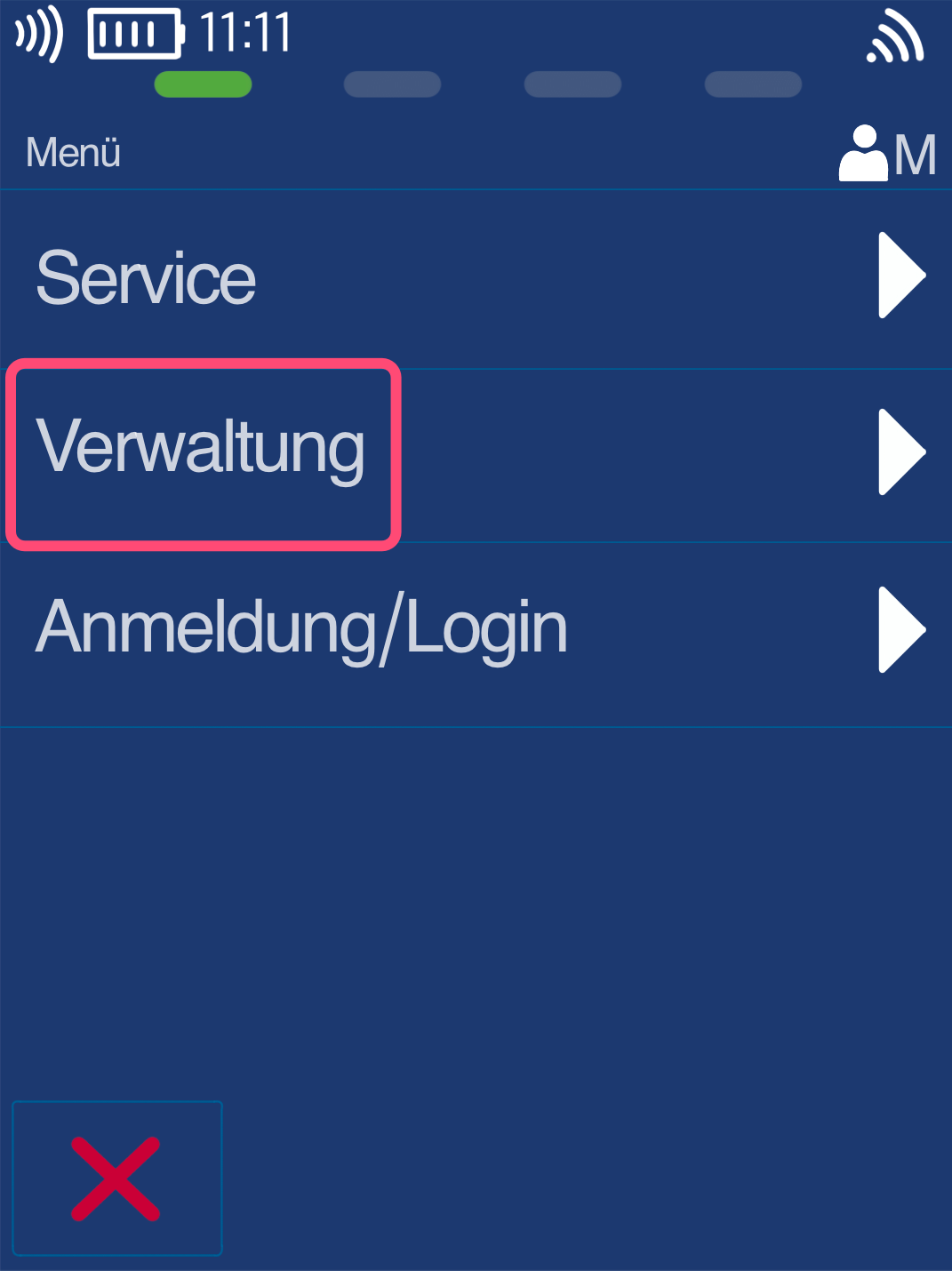
In the main menu, please use the down arrow (Fig. 1) to navigate to the "Administration" menu item (Fig. 2).
POS
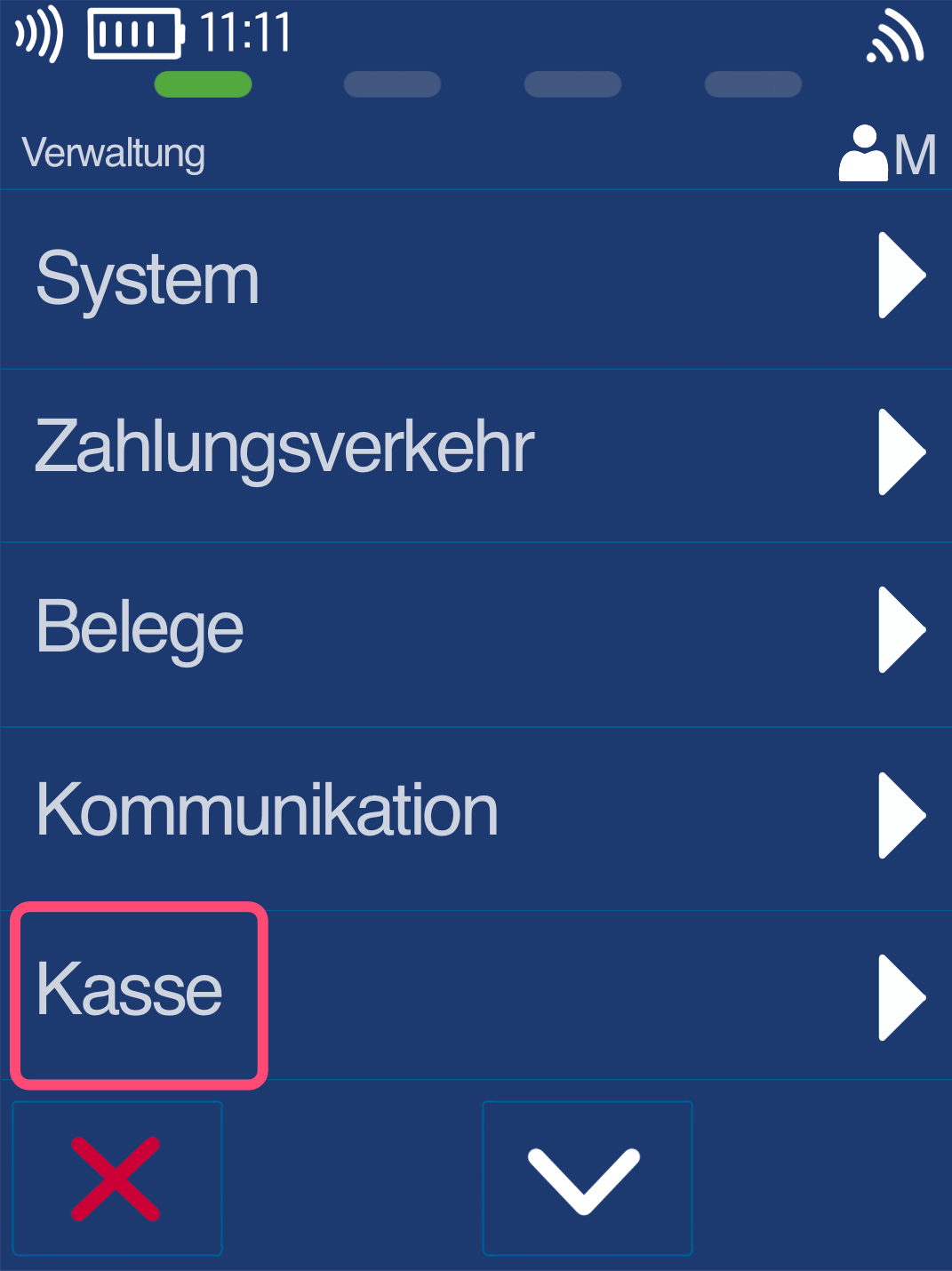
Now please select the "POS" menu item.
Completion
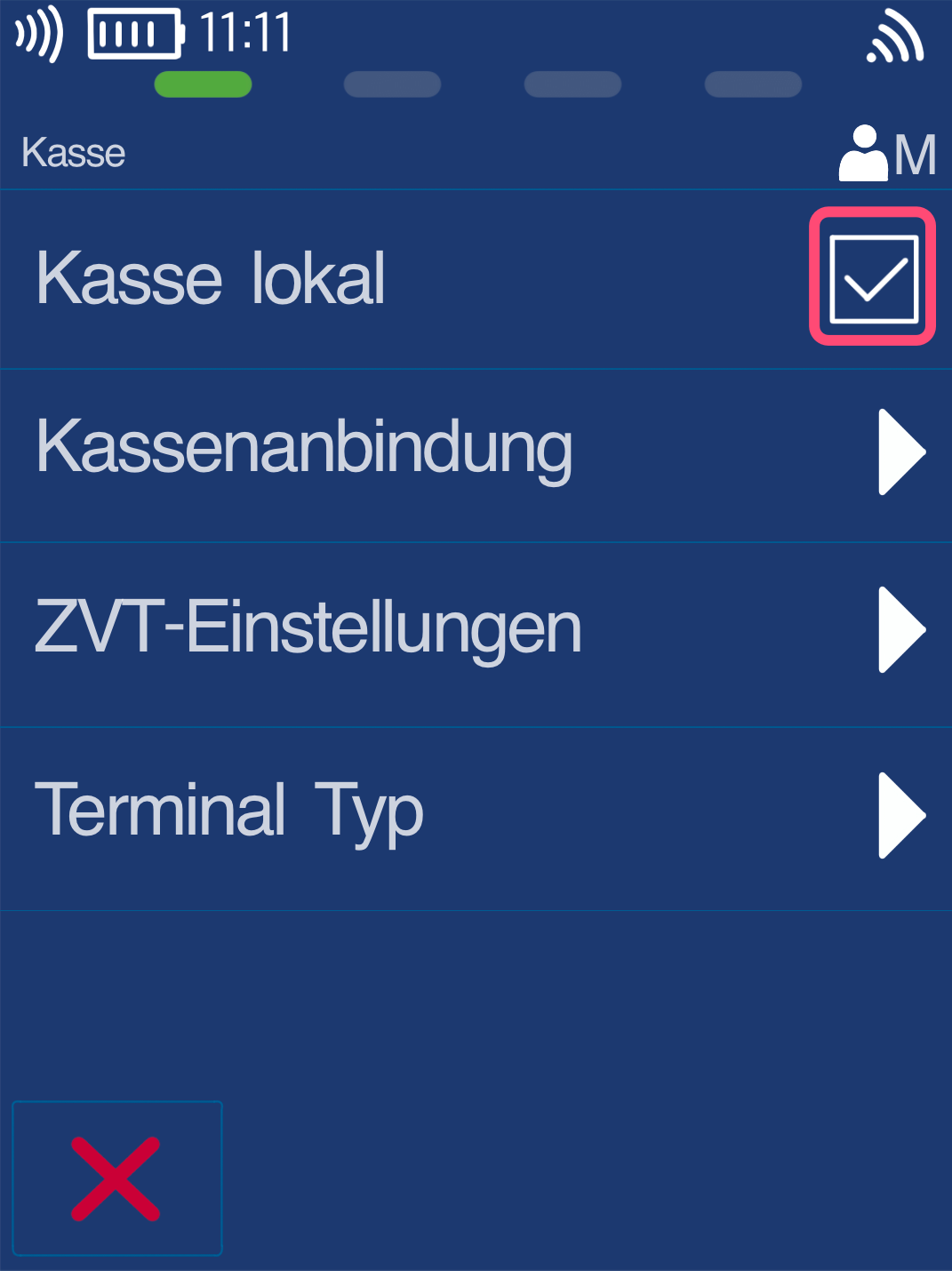
Please check the box by tapping on "POS local".
From now on, your start display will show the amount entry screen. This means you can manually enter payment amounts again.
However, for some POS connections (e.g., Tillhub), the connection is still active because the POS system is still registered with the card reader.
As soon as you decouple or deregister the POS system from the card reader, no more amount transmission will take place.
The deactivation is now complete.
Was this article helpful?
That’s Great!
Thank you for your feedback
Sorry! We couldn't be helpful
Thank you for your feedback
Feedback sent
We appreciate your effort and will try to fix the article
