Ingenico – Card Reader Update
Modified on Tue, 10 Feb at 4:03 PM
In this step-by-step guide, we will show you how to perform an update on your Ingenico card reader.
Feel free to read here as well what the new software has in store for you.
To ensure the update is not blocked by a firewall, the following internet router configurations must be in place:
Terminal ID starting with: 61xxxxxx
IP address authorization: 194.054.002.033 (TCP/IP) – Port: 58416
Terminal ID starting with: 68xxxxxx / 65xxxxxx
IP address authorization: 91.245.215.19 (TCP/IP) – Port: 10101
You can find the terminal ID on every merchant receipt as well as on every daily closing receipt.
If you have questions regarding the configuration of your firewall or internet router, please contact your IT service provider or IT technician.
This process will take approximately 15 minutes, during which card payments will not be possible. With a mobile connection, it may take around 30 minutes.
Function Code
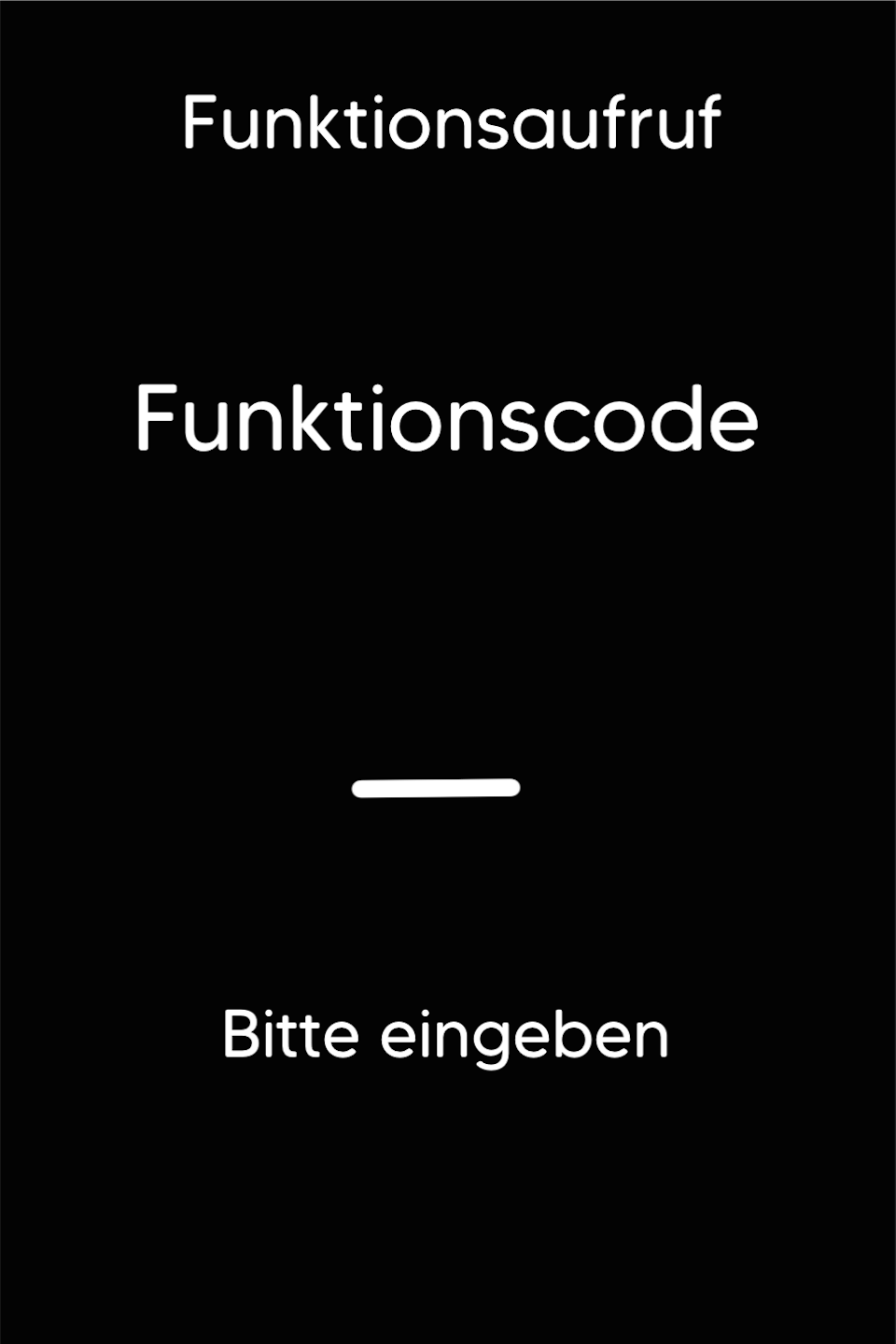
First, please press the F key at the bottom left of the keypad several times in succession. You will now see "Funktionscode" on the display.
Function Code 742
Please enter the number 742 and confirm the entry with the green OK key.
Händlerpasswort
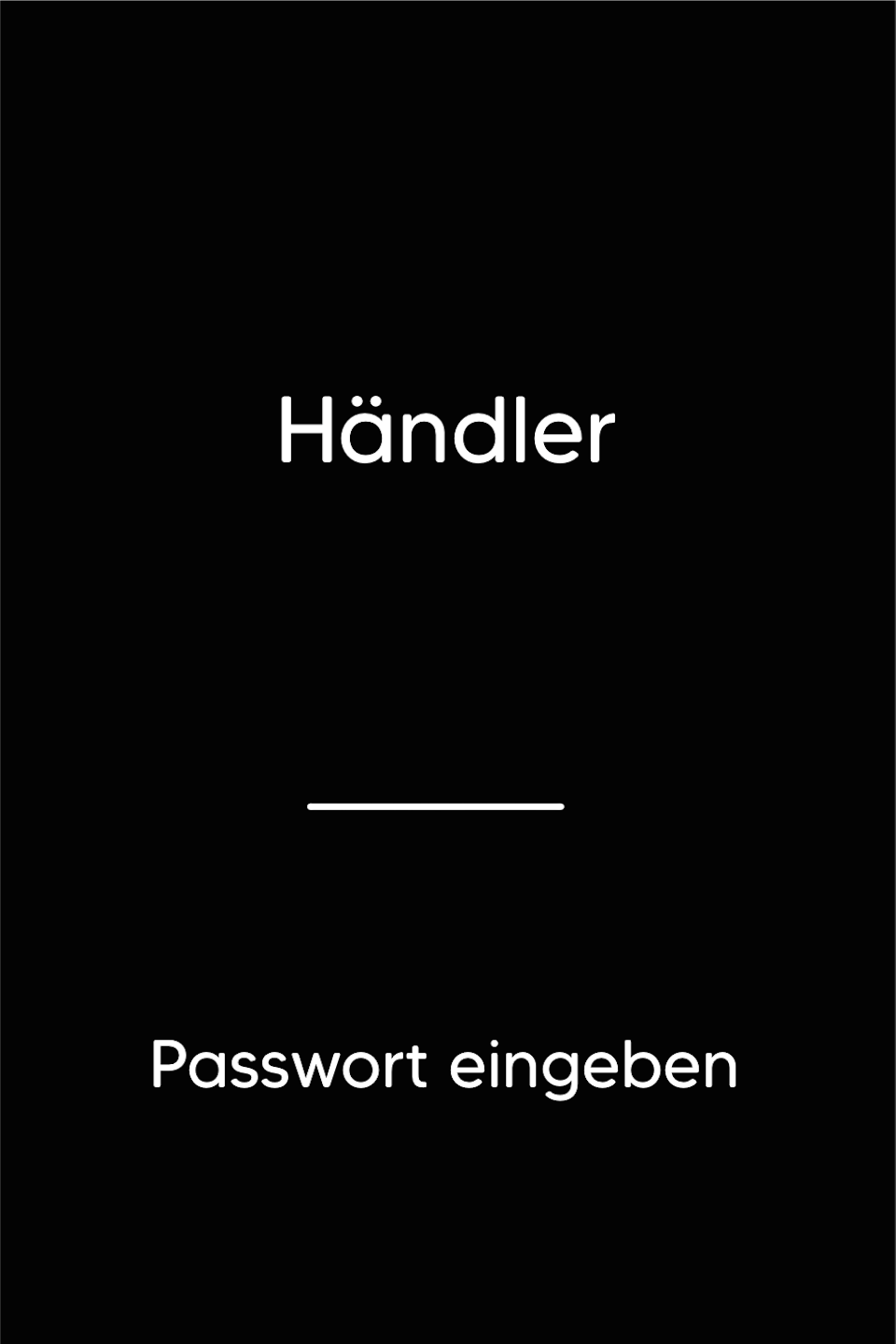
Please enter the 5-digit merchant password and confirm the entry with the green OK key.
You can find the terminal ID on your merchant receipts or on the daily closing receipt.
Terminal IDs starting with 61xxxxxx – 22222
Terminal IDs starting with 68xxxxxx – 12345
Terminal IDs starting with 526xxxxx – 12345
Auftragsnummer
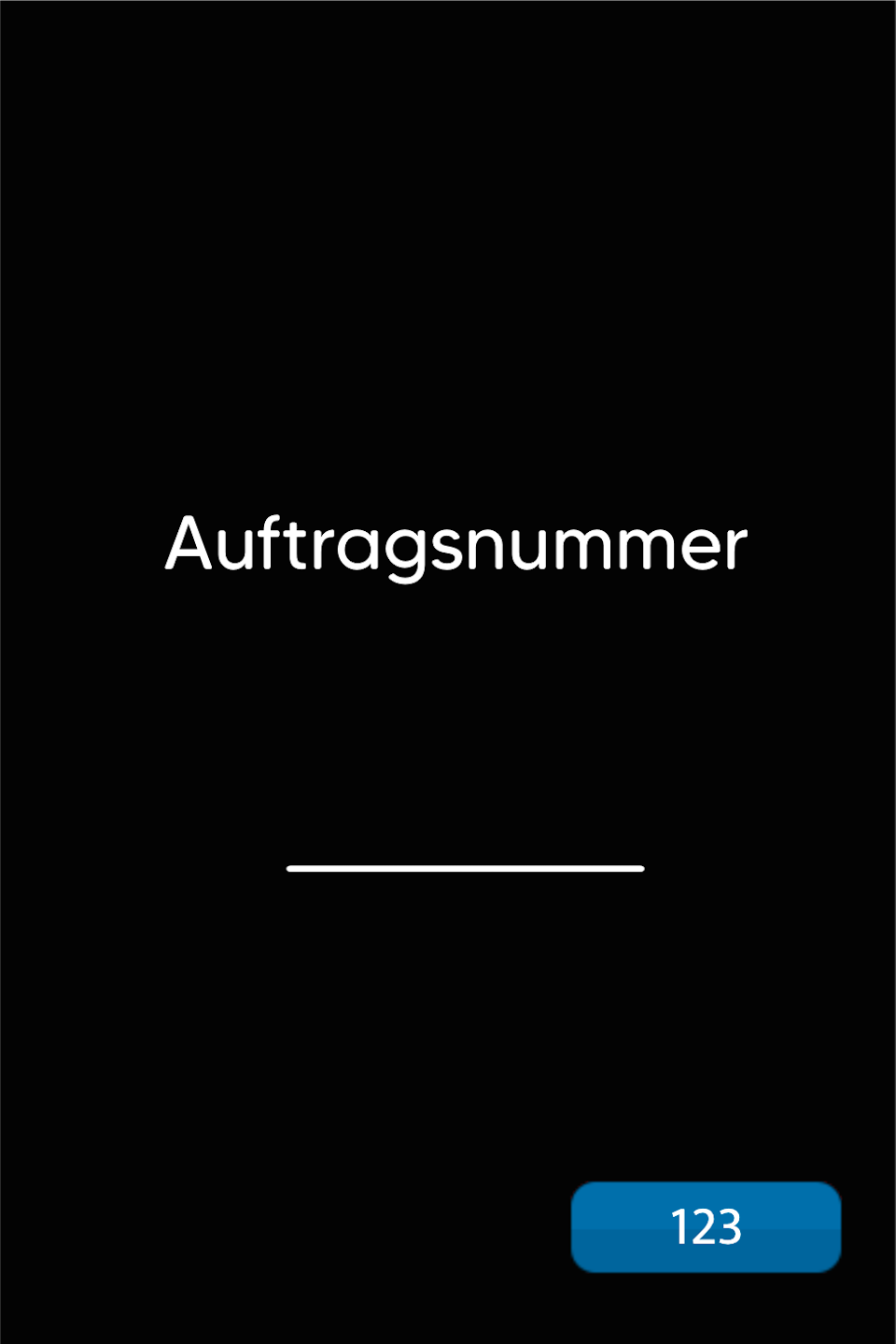
Now the "Auftragsnummr" (order number) for the update is entered here and confirmed with the green OK key.
Please check your merchant receipt or daily closing receipt for your 8-digit terminal ID.
61xxxxxx
Order number: 323006626 (9 digits)
68xxxxxx / 65xxxxxx
Order number: 12161400 (8 digits)
After entering the order number, the card reader will show you that the order number has been saved.
Funktionscode
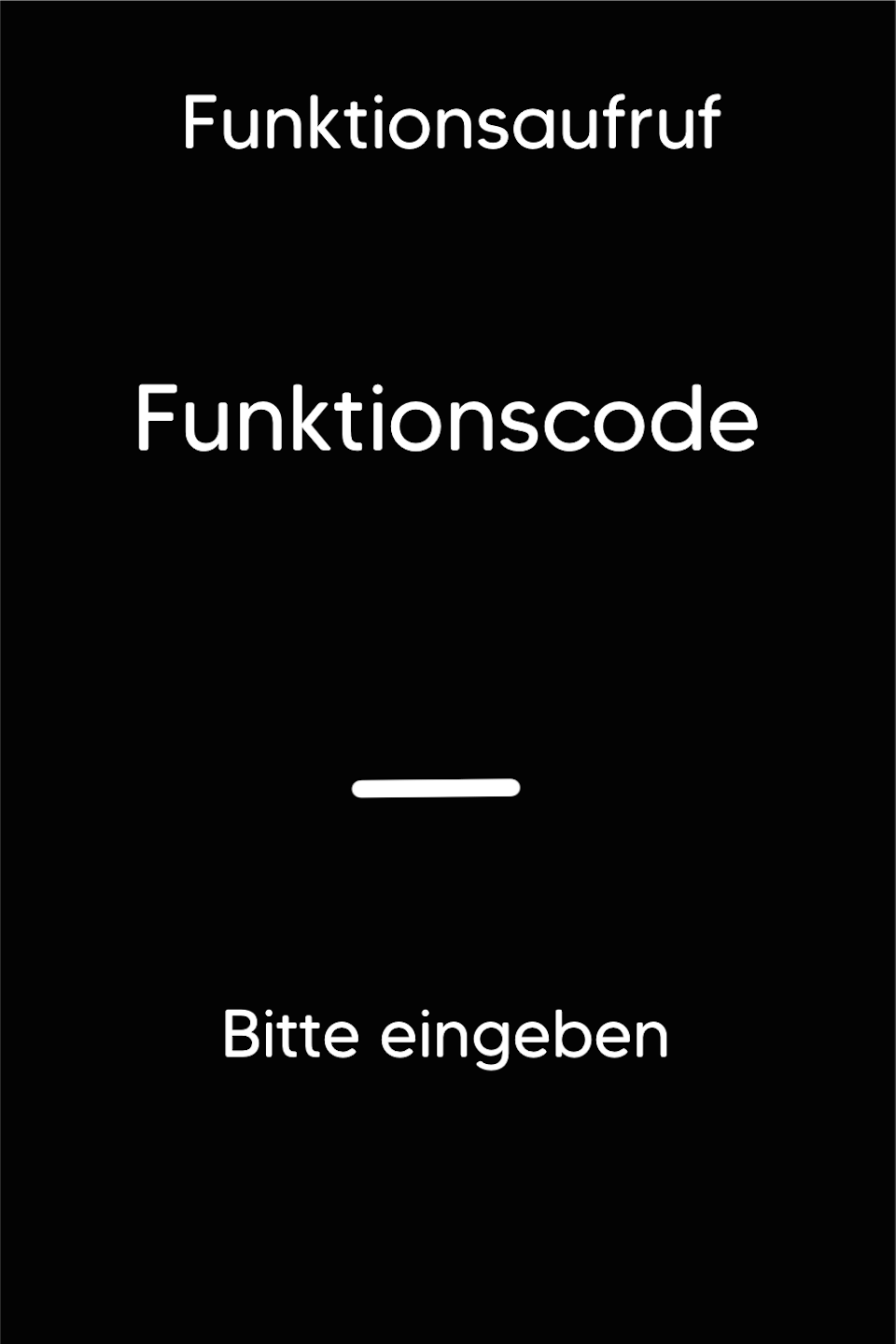
We need the "Funktionscode" again to start the update.
Please press the F key at the bottom left of the keypad several times again.
Function Code 740
Please enter the number 740 and confirm the entry with the green OK key.
Händlerpasswort
Please enter the 5-digit Händlerpasswort and confirm the entry with the green OK key.
You can find the terminal ID on your merchant receipts or on the daily closing receipt.
Terminal IDs starting with 61xxxxxx – 22222
Terminal IDs starting with 68xxxxxx – 12345
Terminal IDs starting with 526xxxxx – 12345
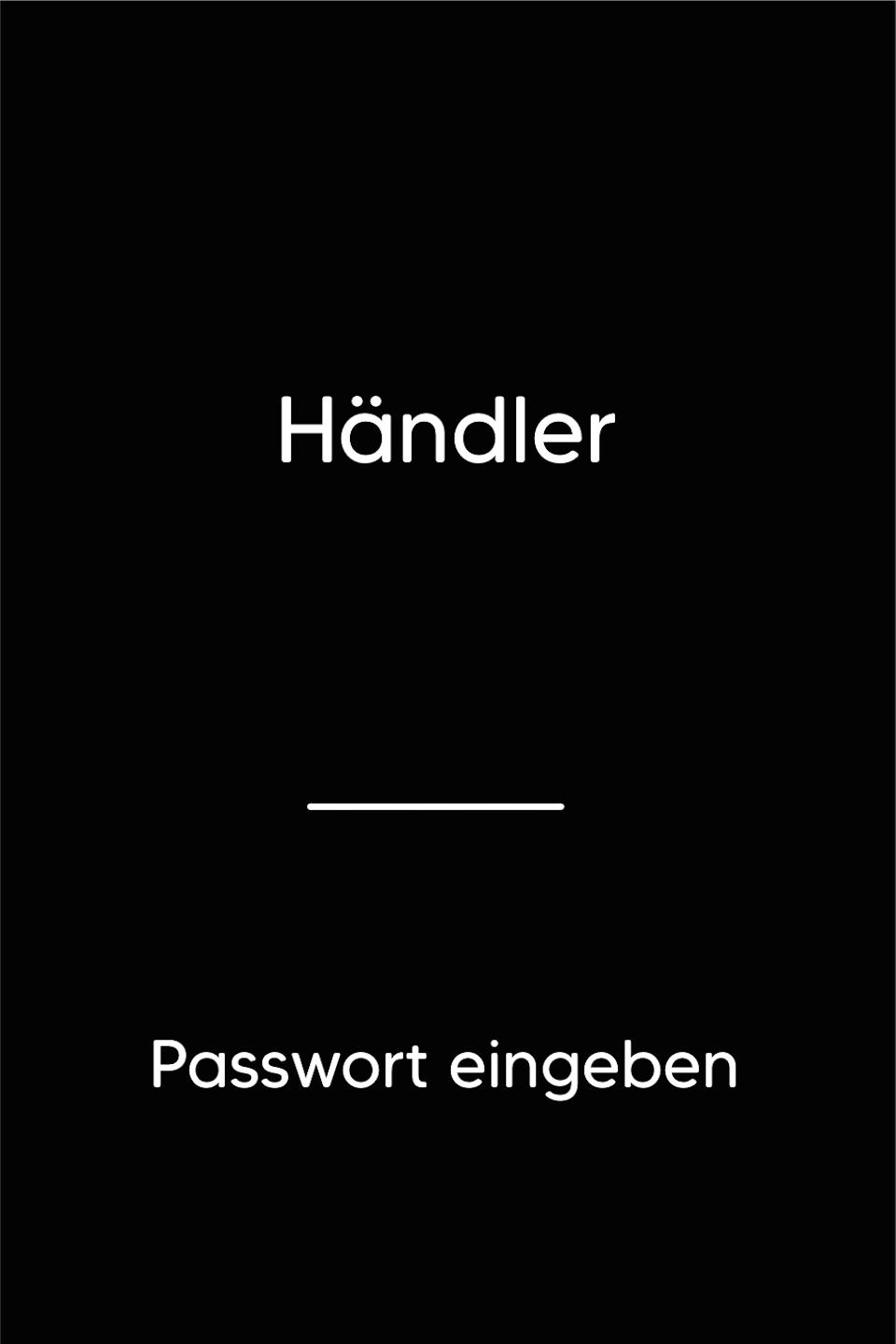
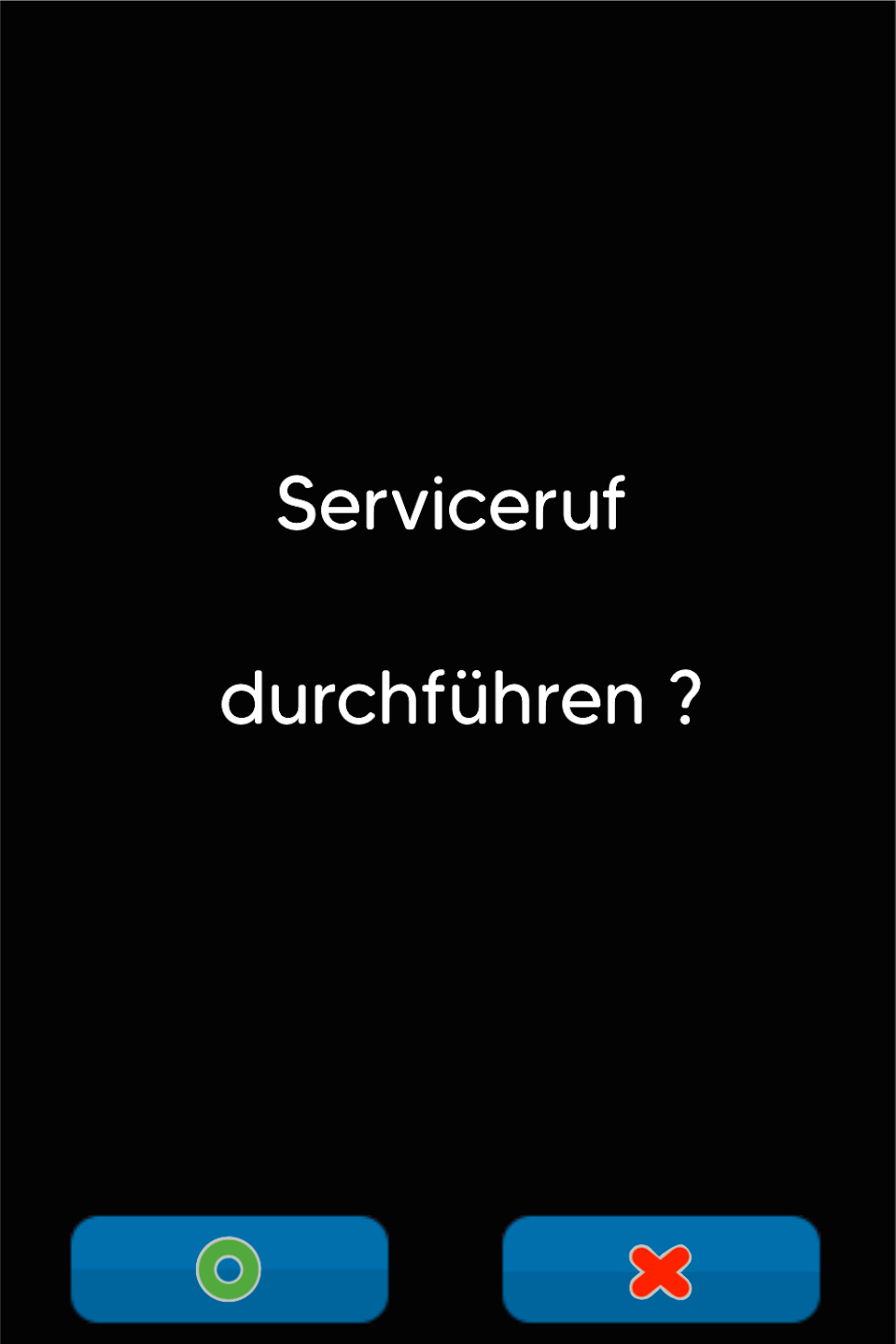
Start Service Call
Please confirm the "Serviceruf" with the green "OK" key. A daily closing will be performed to ensure all payments are transmitted to us.
The card reader will now begin downloading and installing the latest software.
The update will take about 15 minutes. No card payments can be made during this time.
If the service call ends after about 10–30 seconds, the card terminal is probably already up to date. In rare cases, another cause may be that the firewall is not yet correctly configured.
After a successful update, all diagnostics will be applied. The terminal is ready for operation again.
Please use the Profile Setup button.
Was this article helpful?
That’s Great!
Thank you for your feedback
Sorry! We couldn't be helpful
Thank you for your feedback
Feedback sent
We appreciate your effort and will try to fix the article
