Verifone – Setting Up Static IP Address Assignment
Modified on Fri, 6 Feb at 5:29 PM
Sometimes it is necessary to assign a static IP address on your card reader. Generally, this should be set as an IP reservation on your internet router. However, that is not always possible. Here we show you how to configure a static IP address directly on your Verifone card reader.
You usually receive the IP address information from your IT service provider, IT technician, or POS integrator.
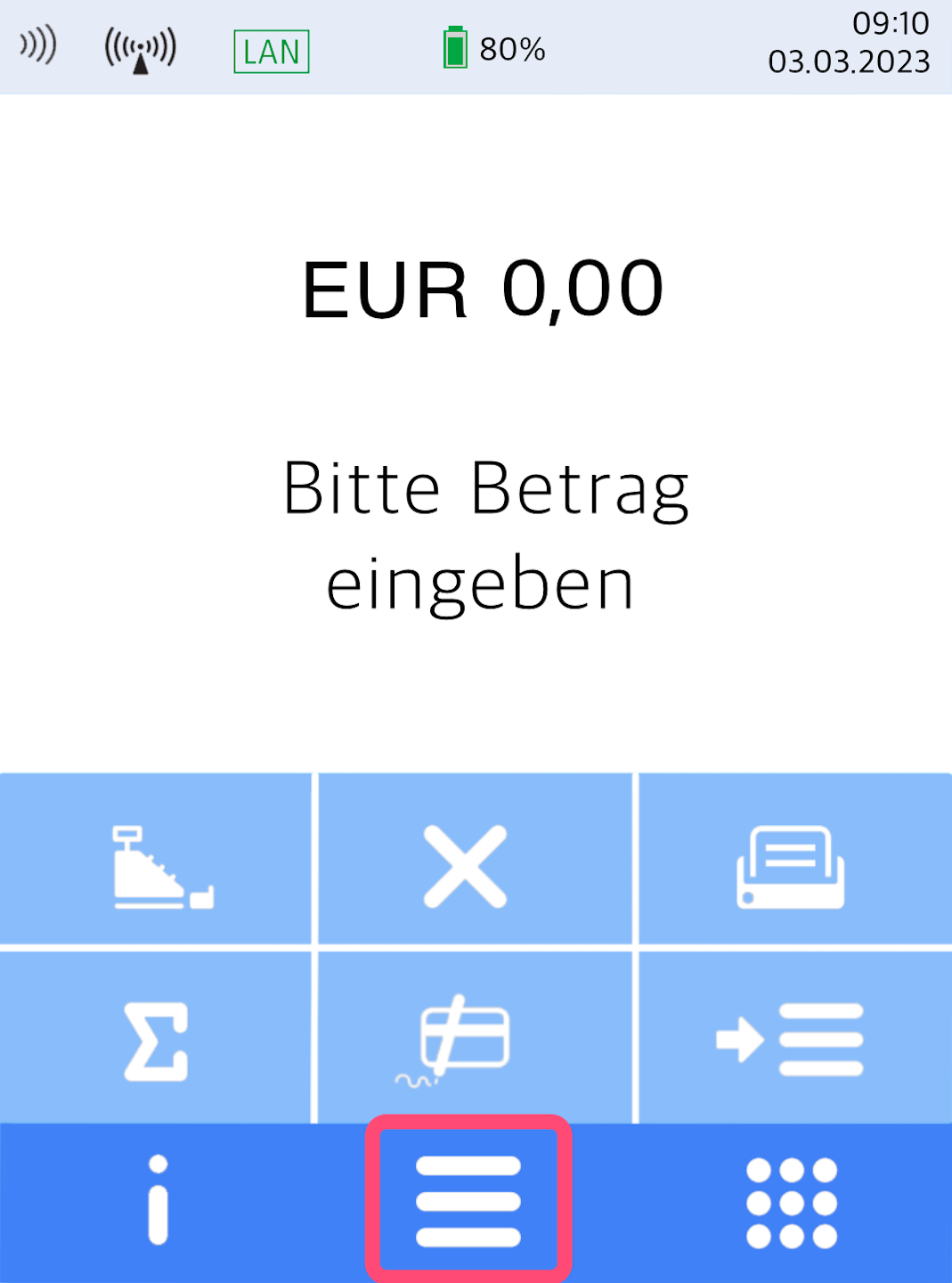
Menu Button
Here you see your home display.
Please tap the button with the 3 horizontal bars to access the main menu.
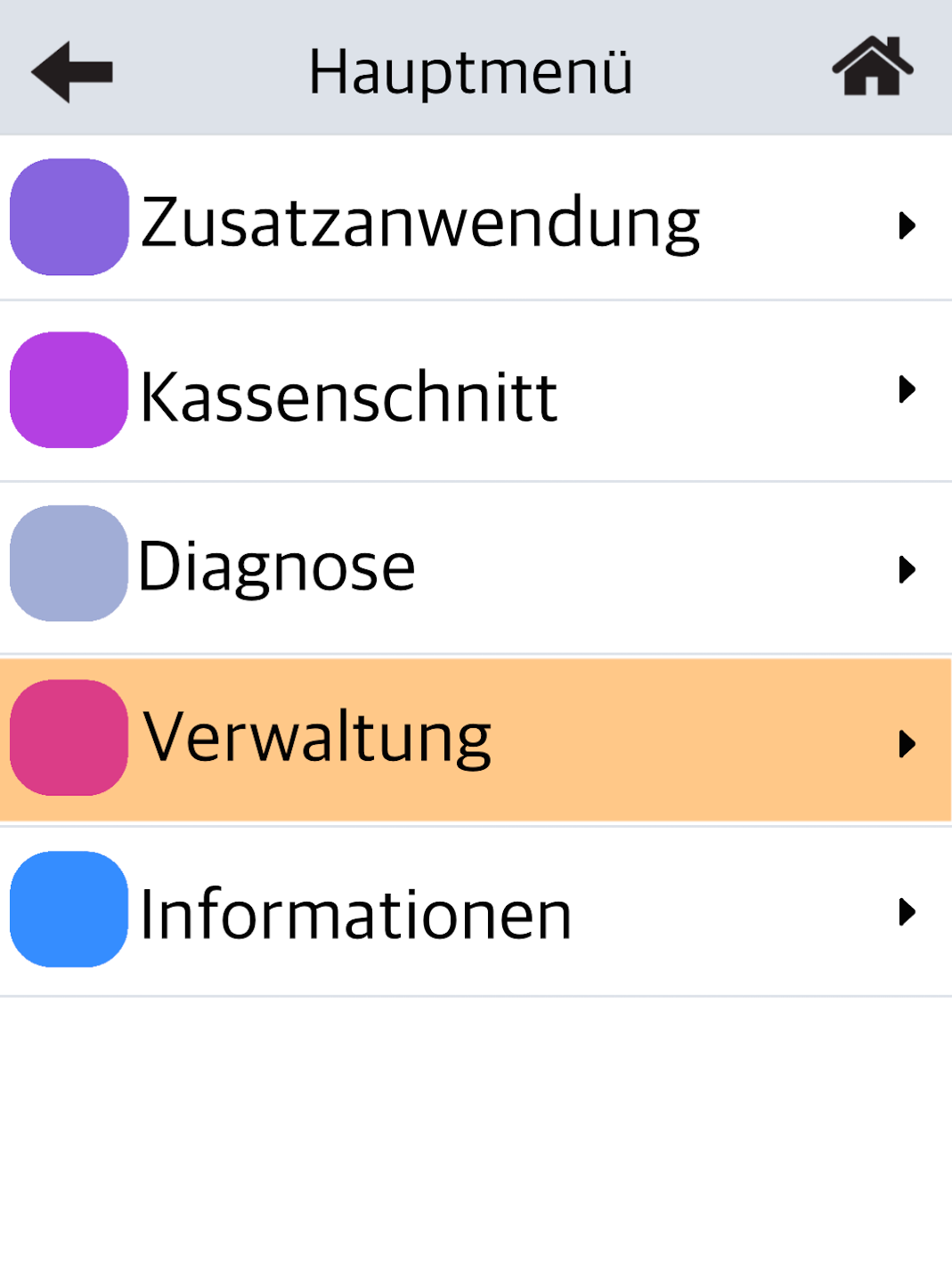
Management
Please select the menu item Management.
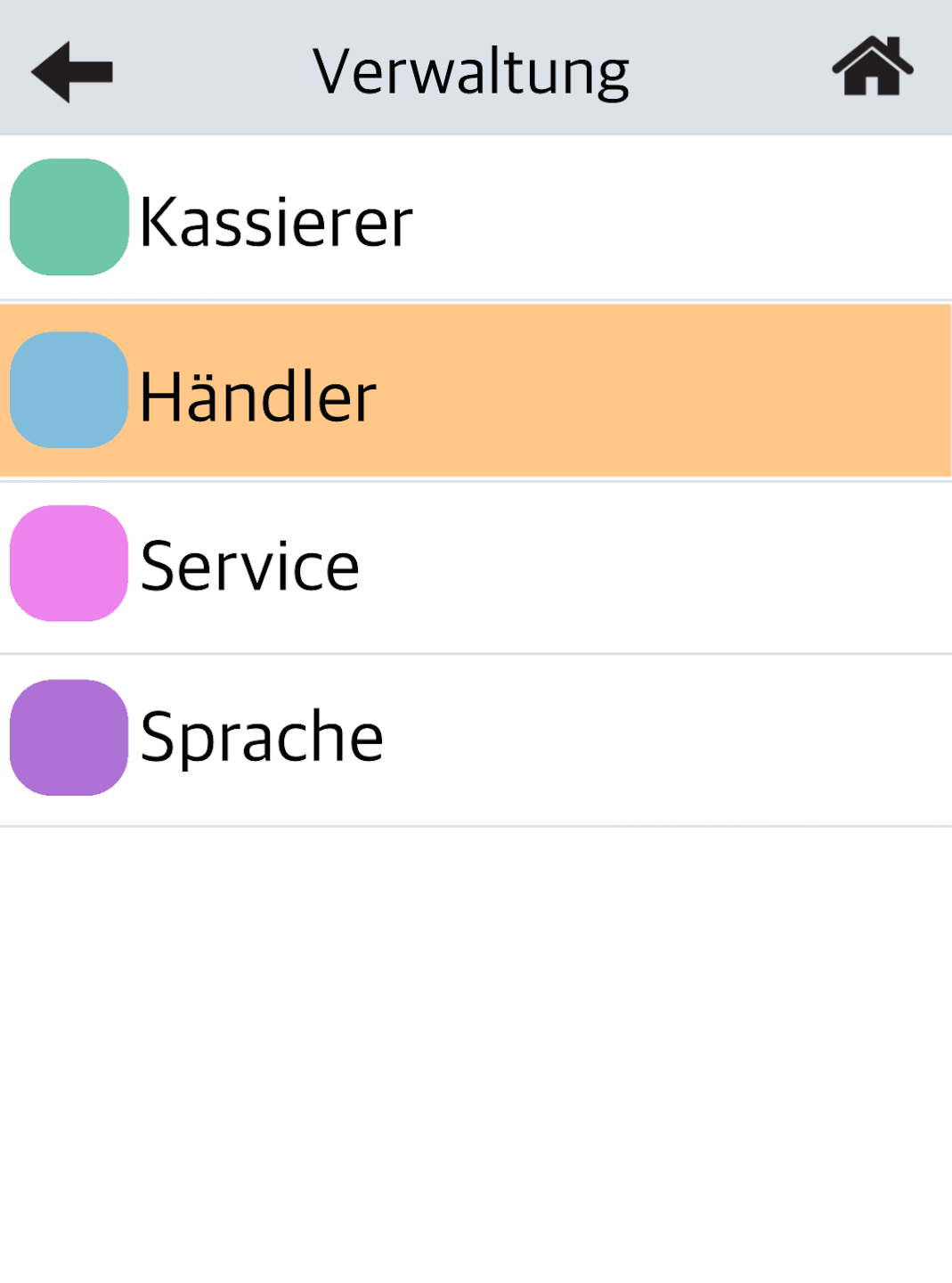
Operator and Password Entry
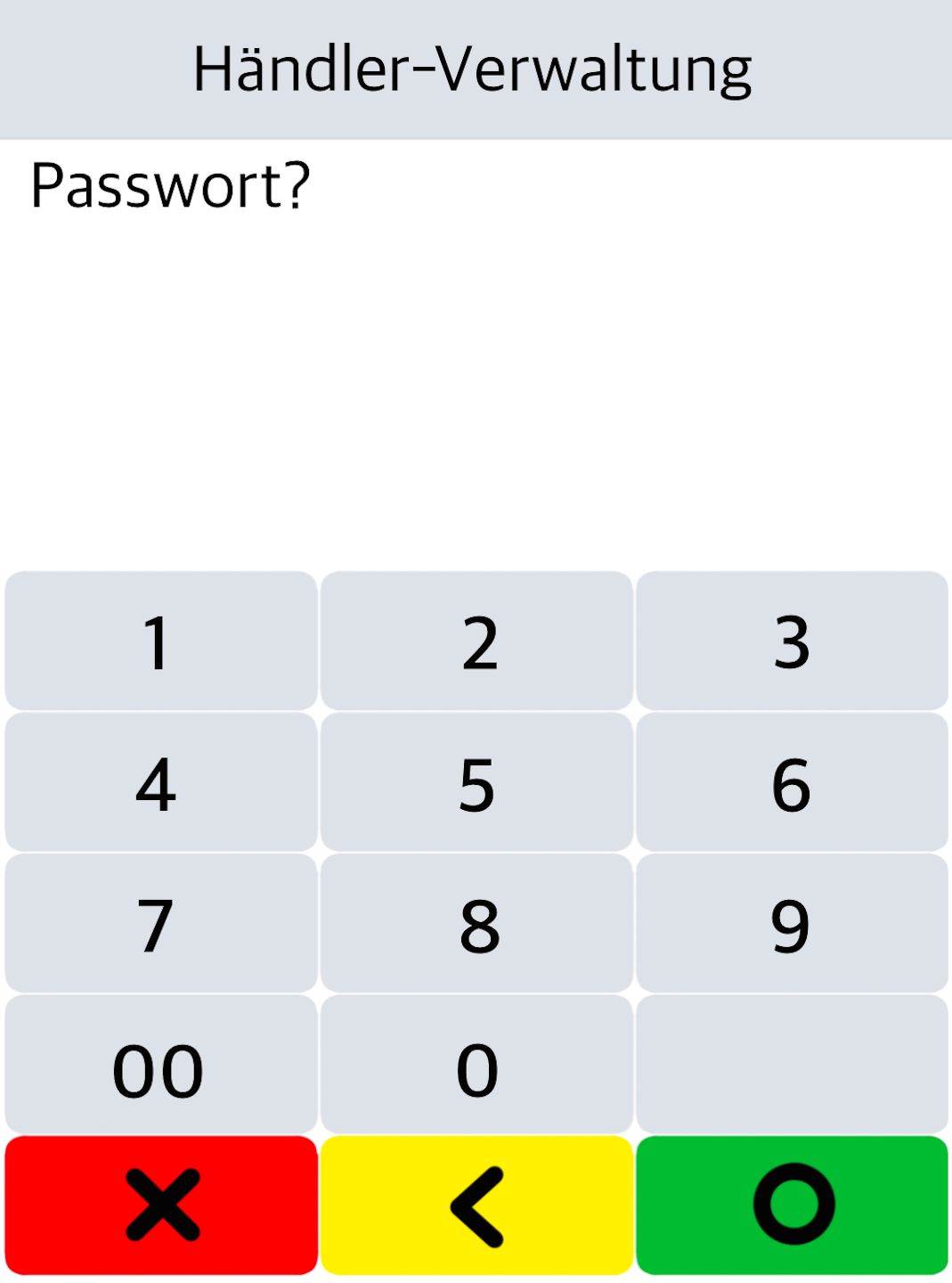
Please select Merchant, and in the next step (Fig. 2) enter your 6-digit merchant password.
Then confirm the entry with the green OK button.
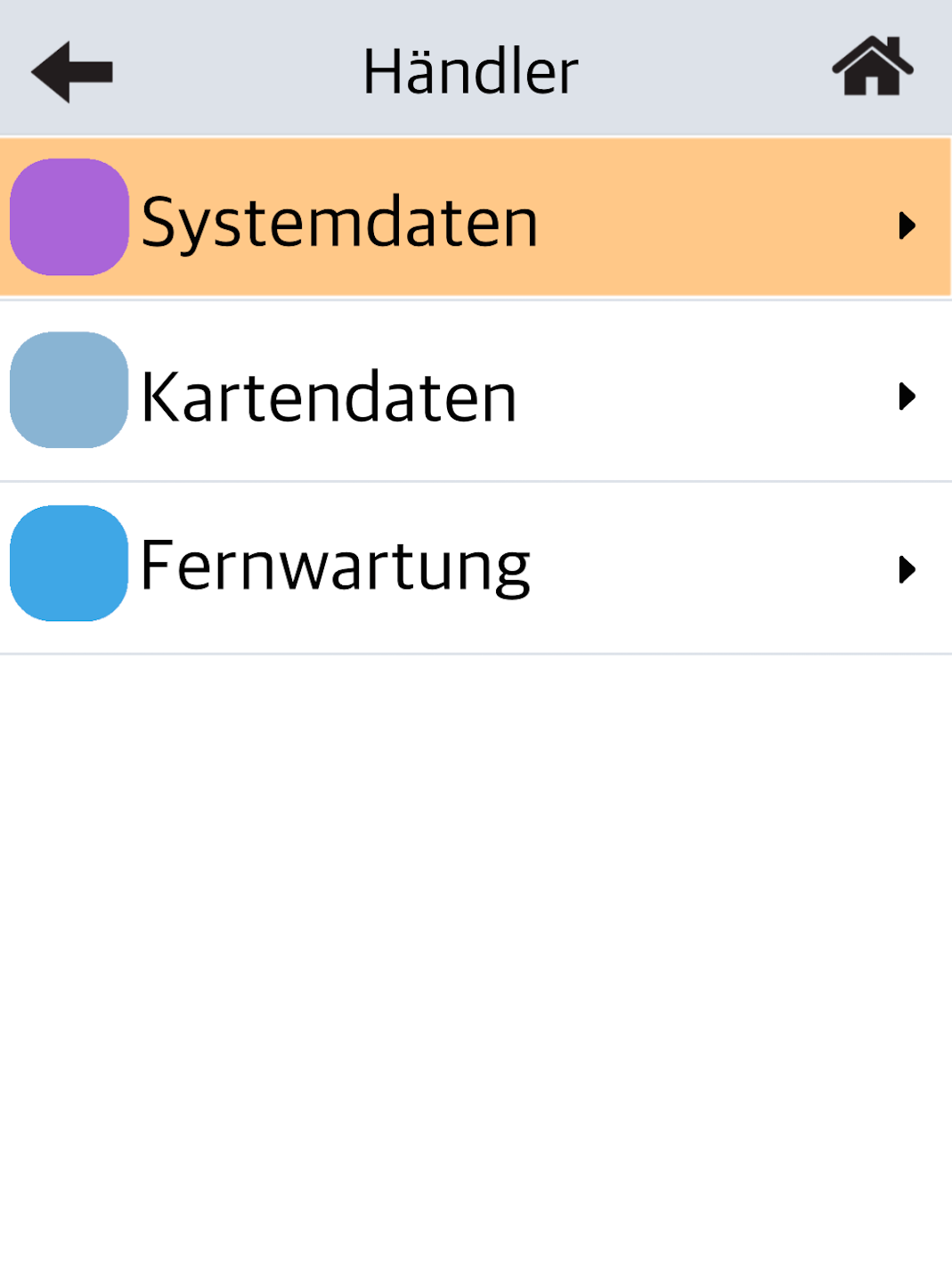
System Data
Please select System Data.
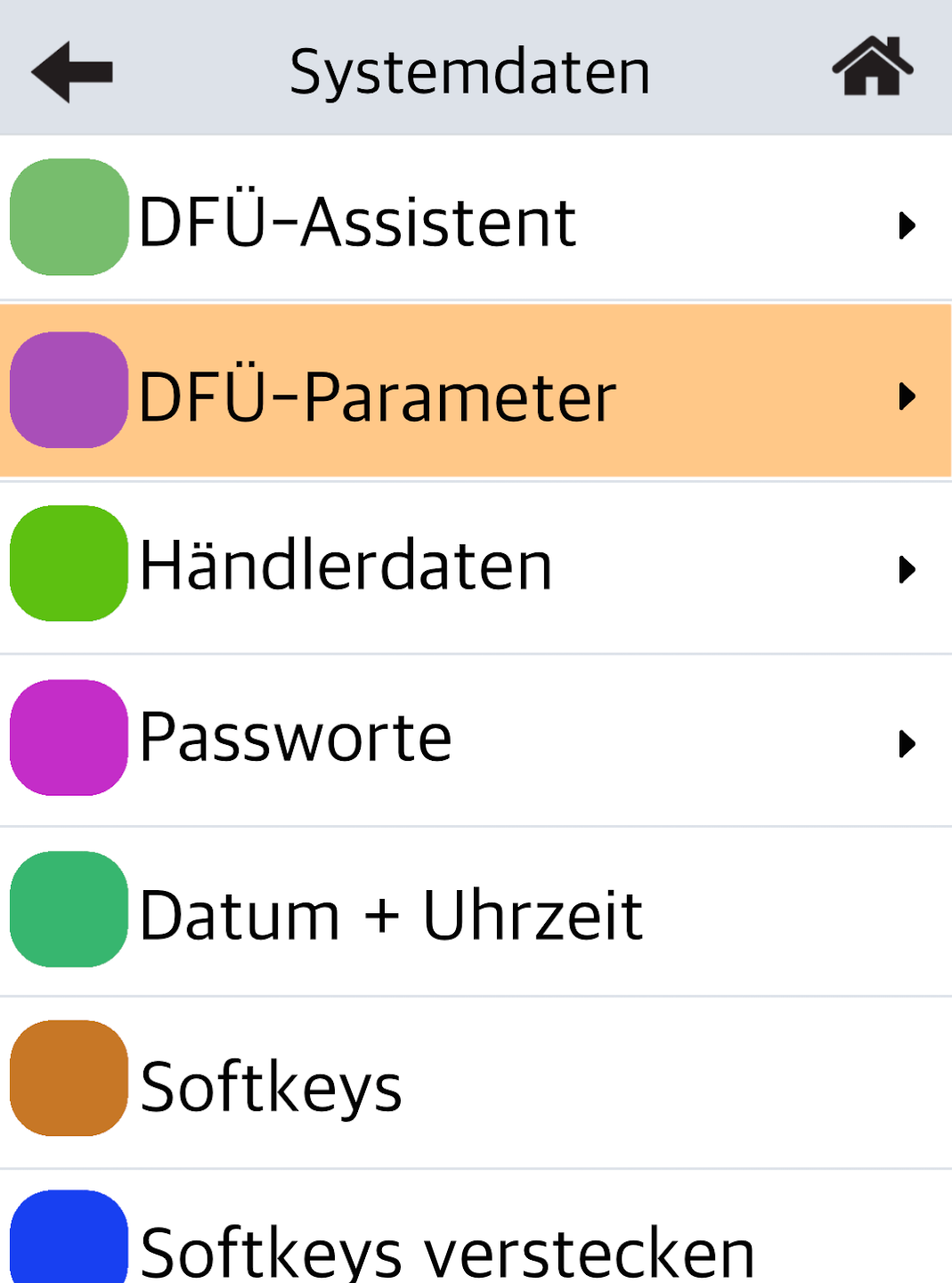
Dial-up Parameters (DFÜ-Parameter)
Please select the menu item DFÜ-Parameter.
If your card reader is connected via a network cable (LAN cable), please select LAN. If you are using a WLAN connection, select WLAN.
A mobile network connection cannot be assigned a static IP address.
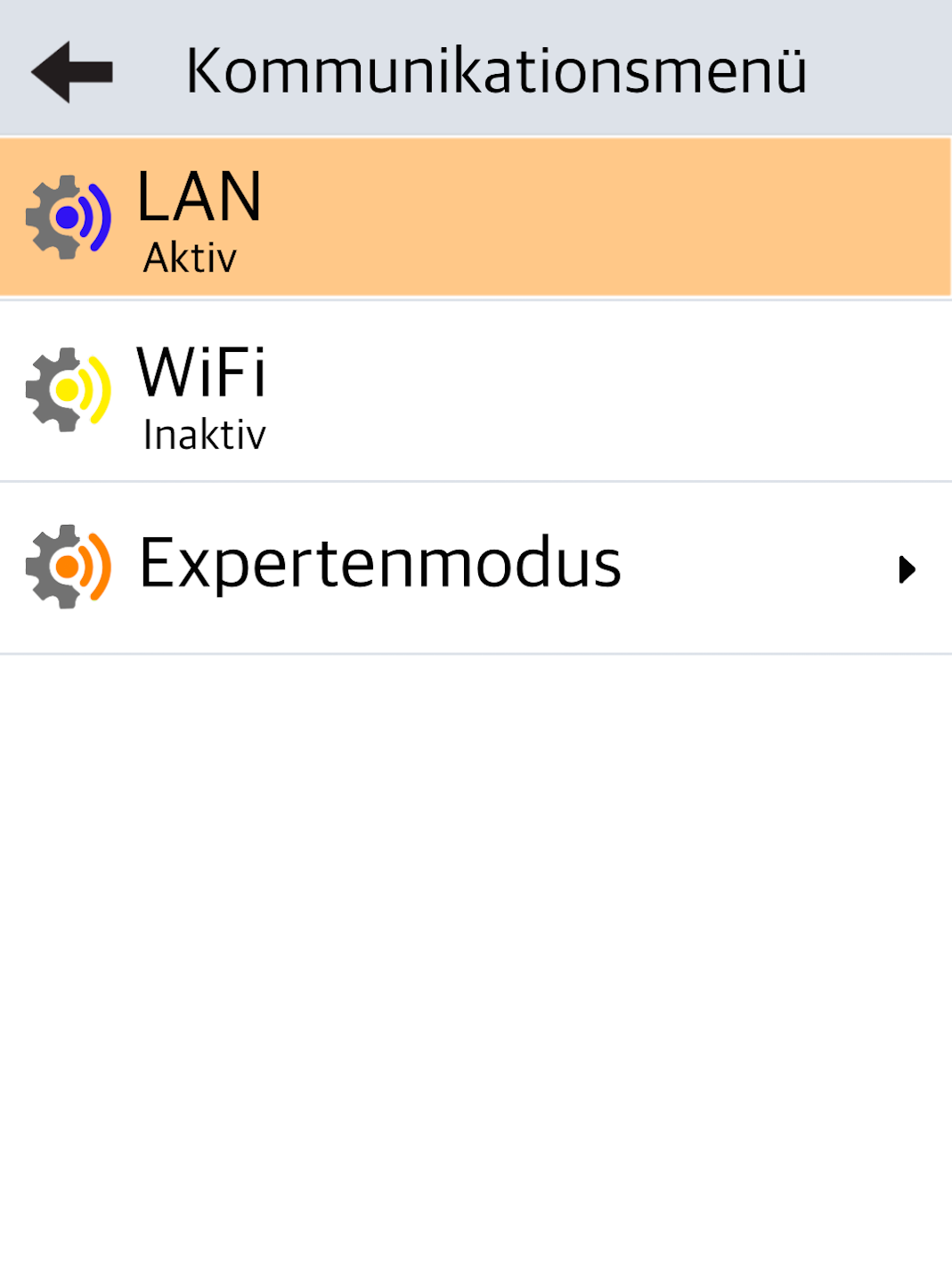
LAN
If you are using a LAN cable connection, please select LAN.
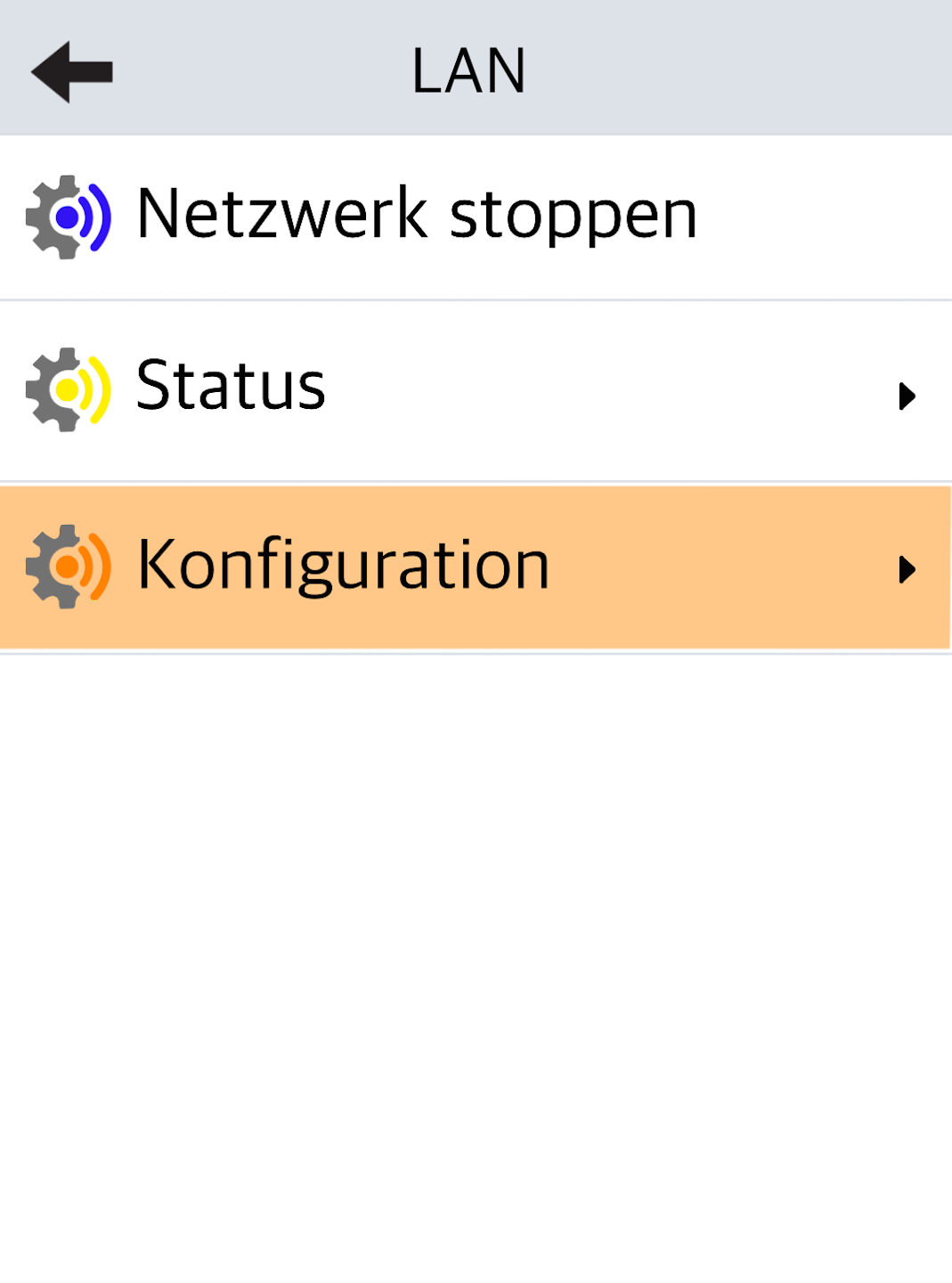
Configuration
Select the menu item Configuration.
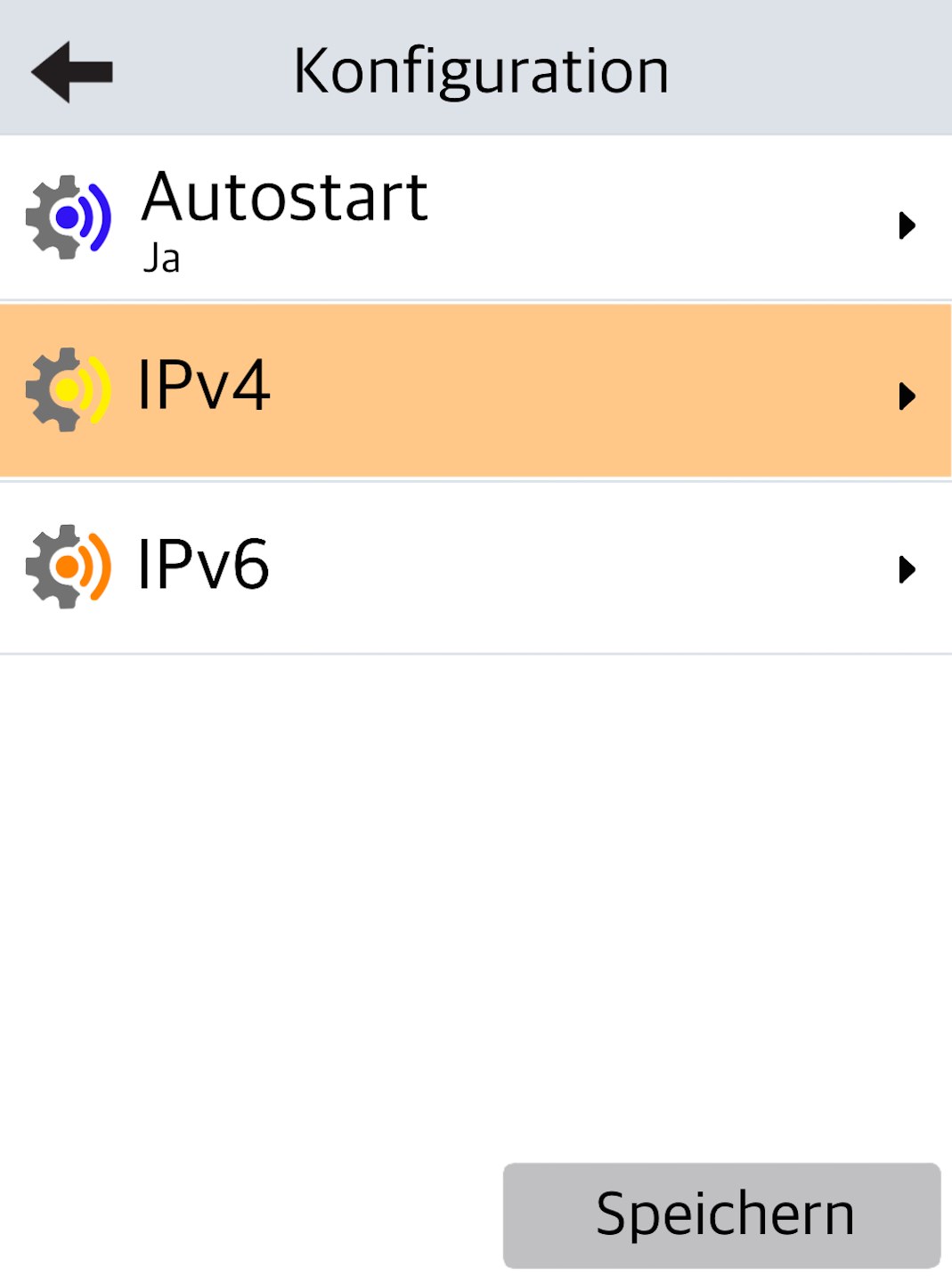
IPv4
Please select IPv4.
DHCP
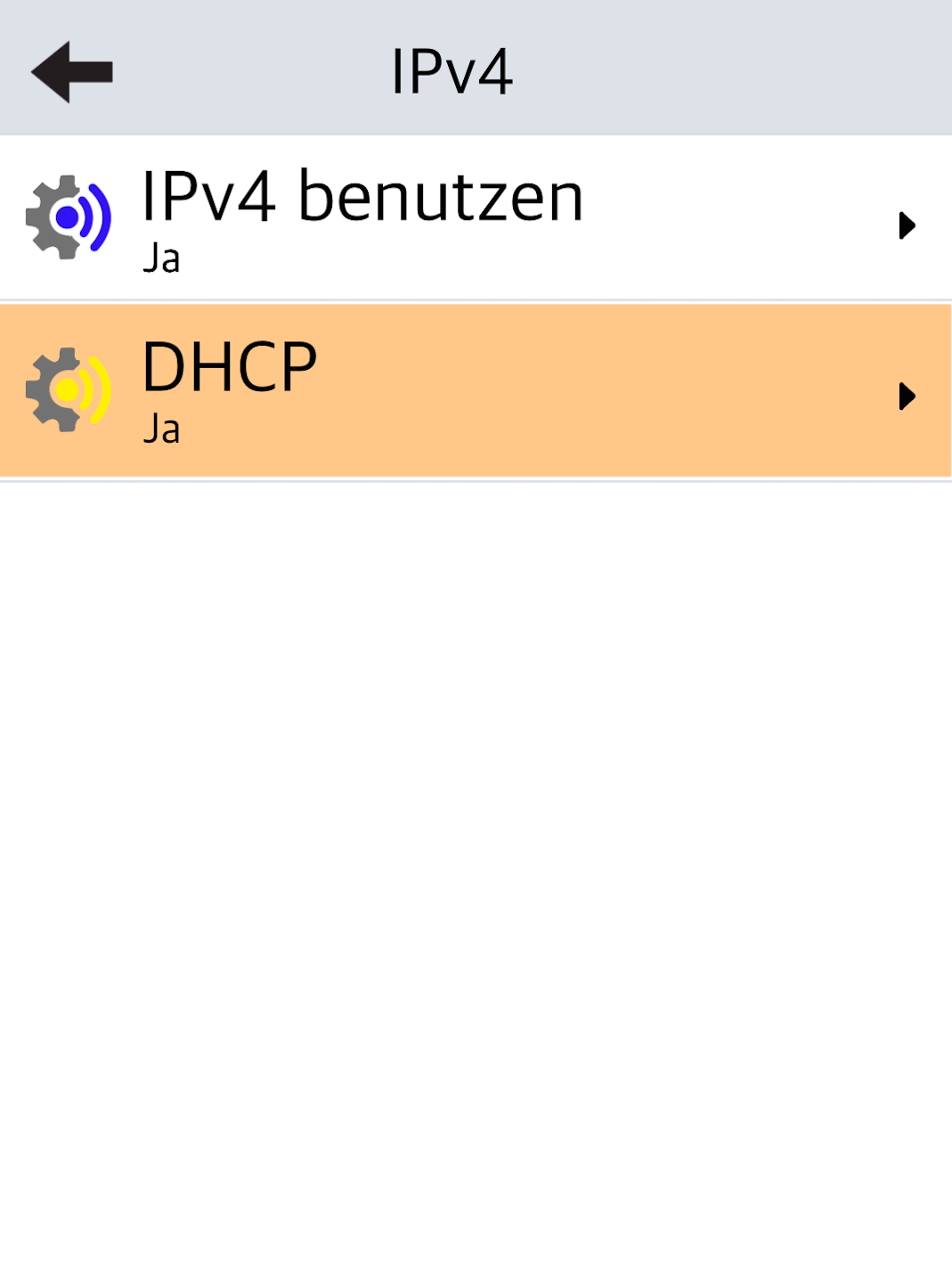
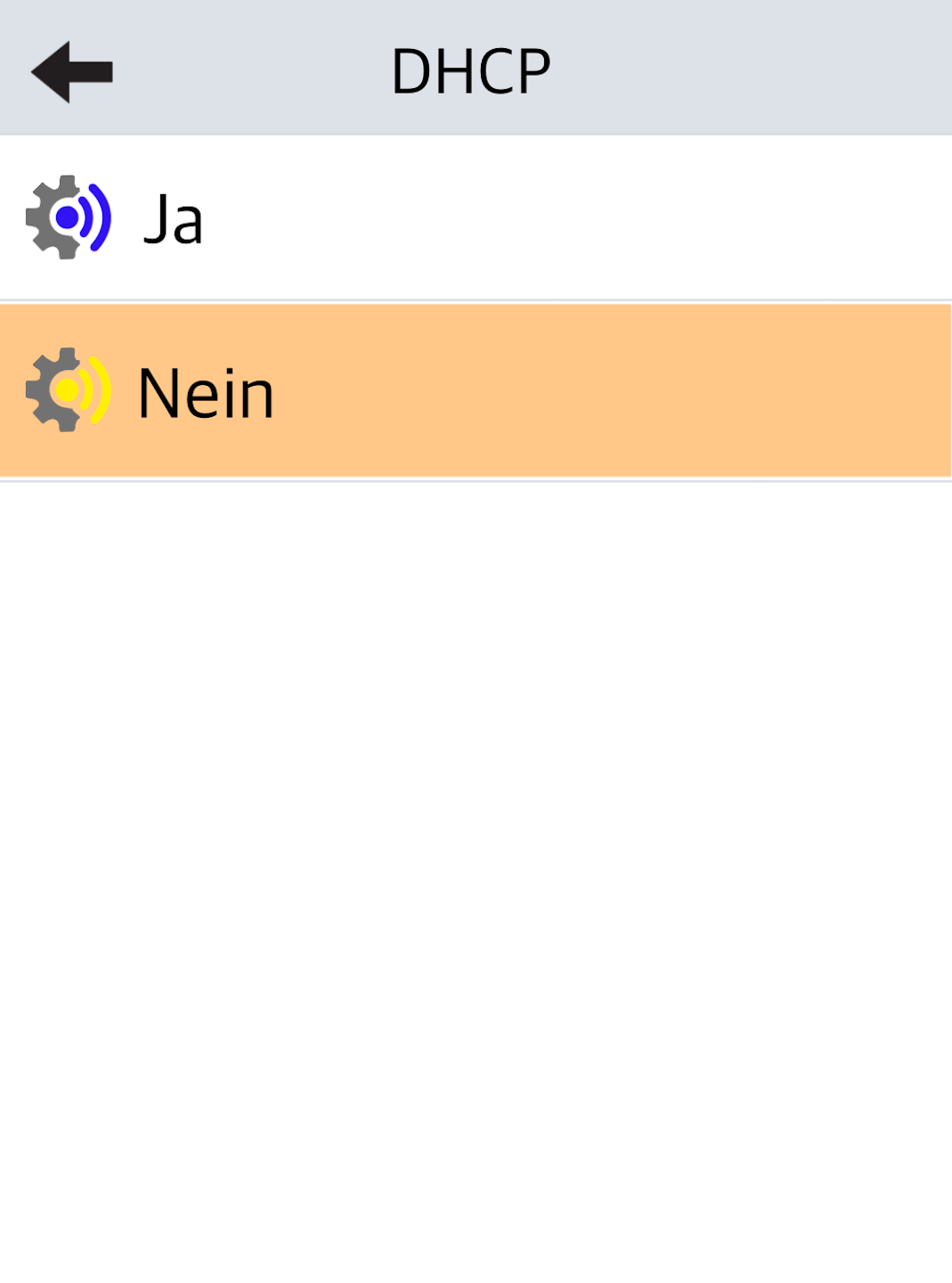
Dynamic IP address assignment is enabled.
Tap to disable it (Fig. 2).
Static IP data can only be entered when this is disabled.
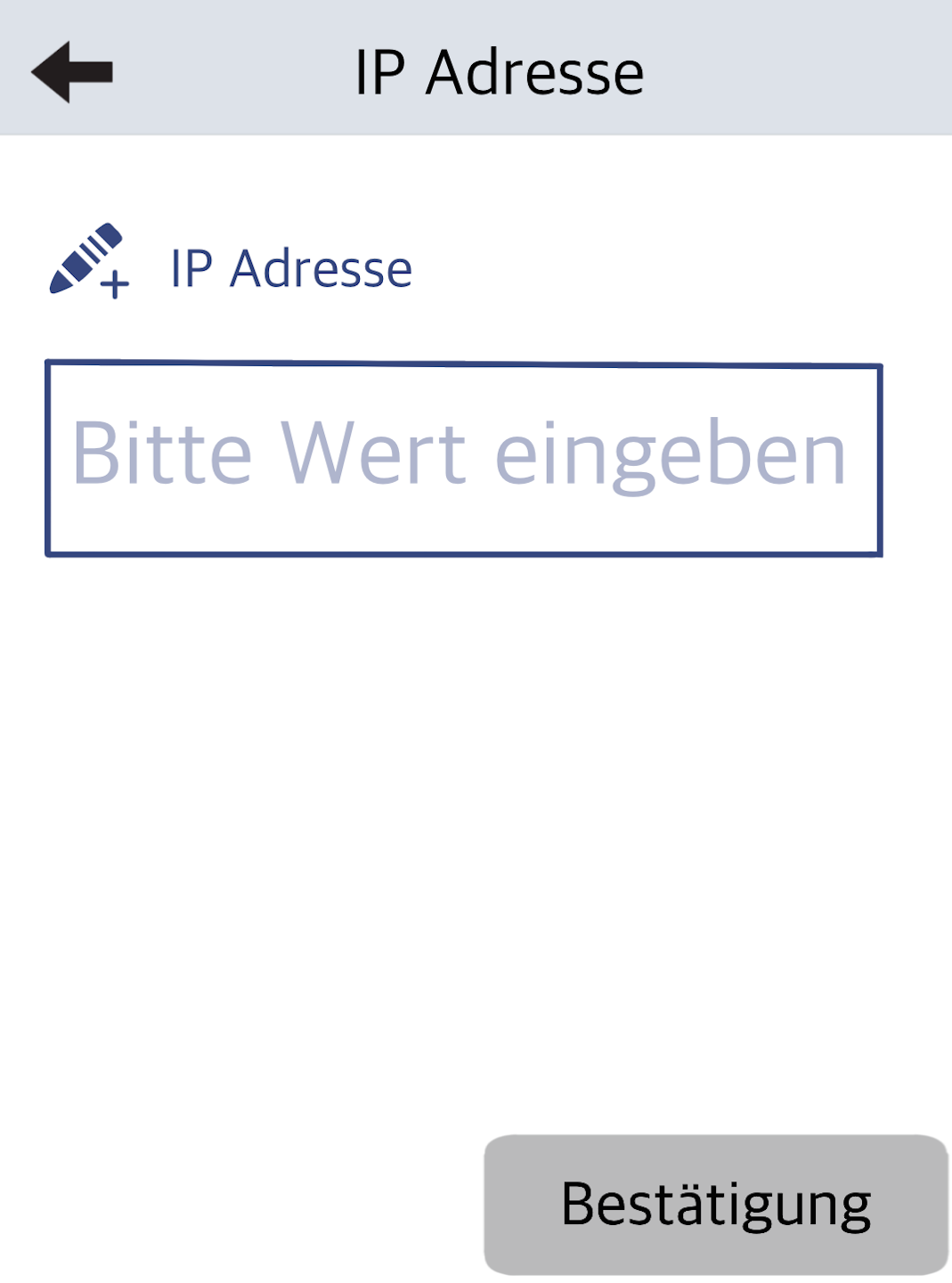
IP Address
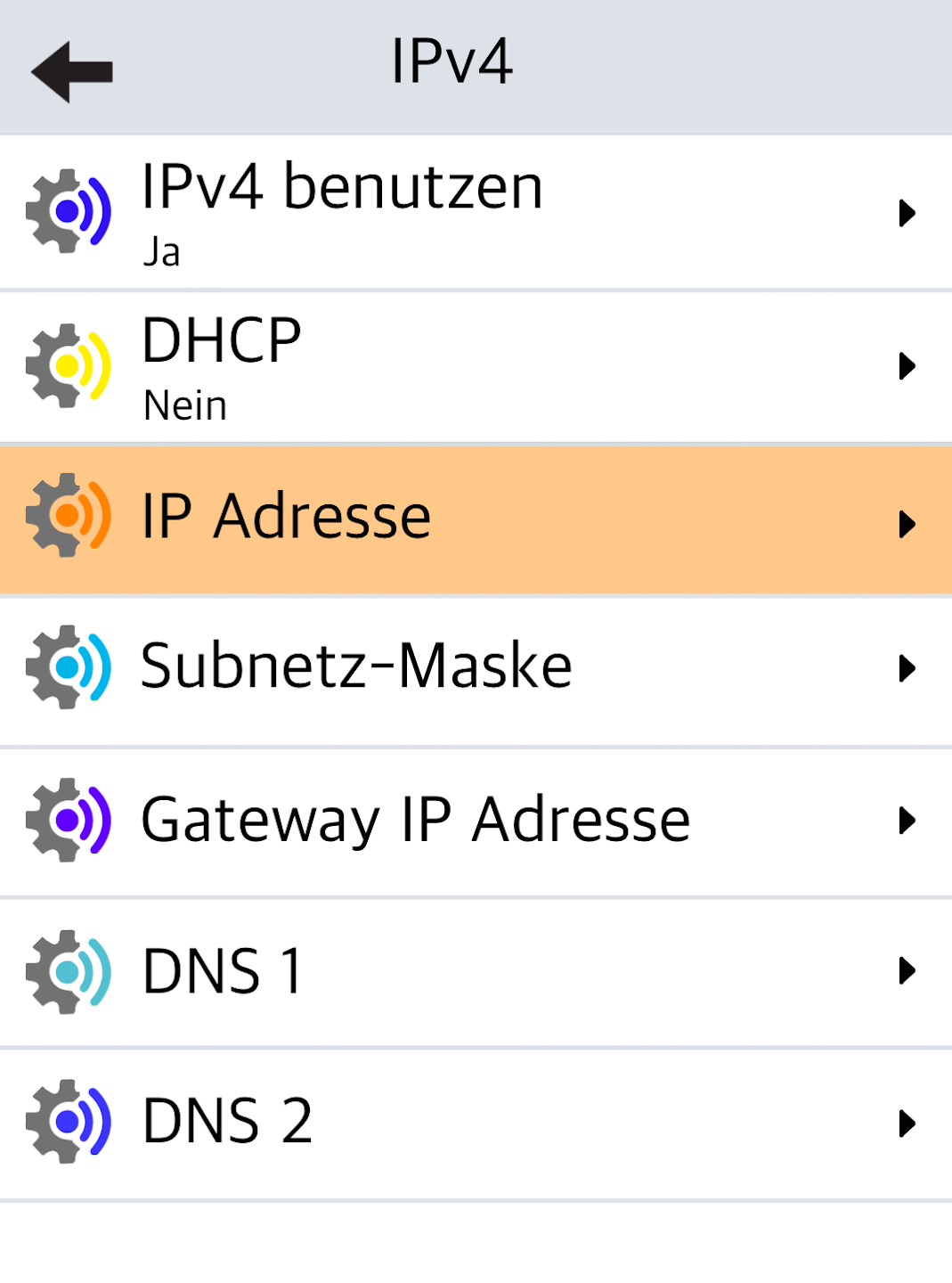
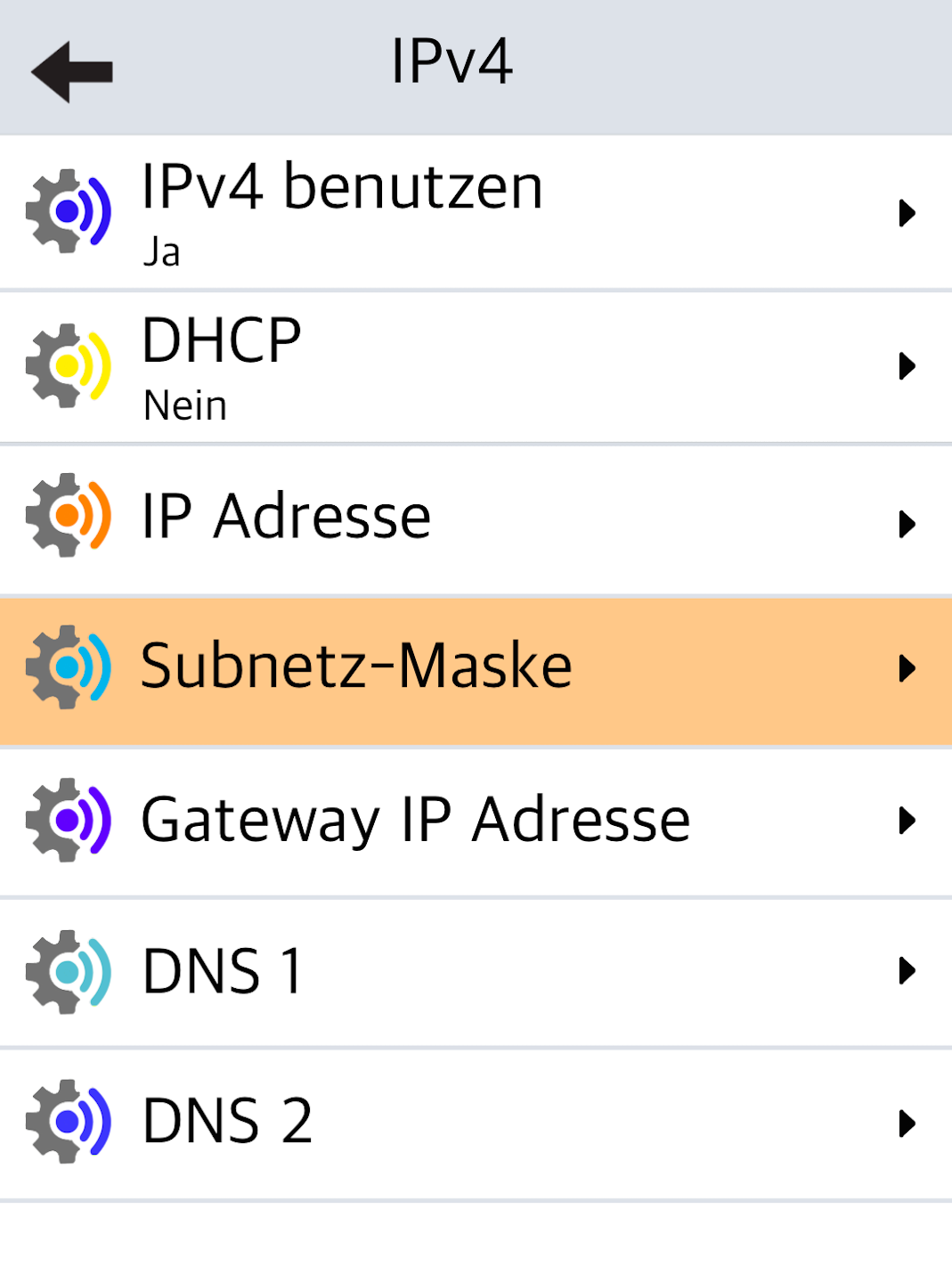
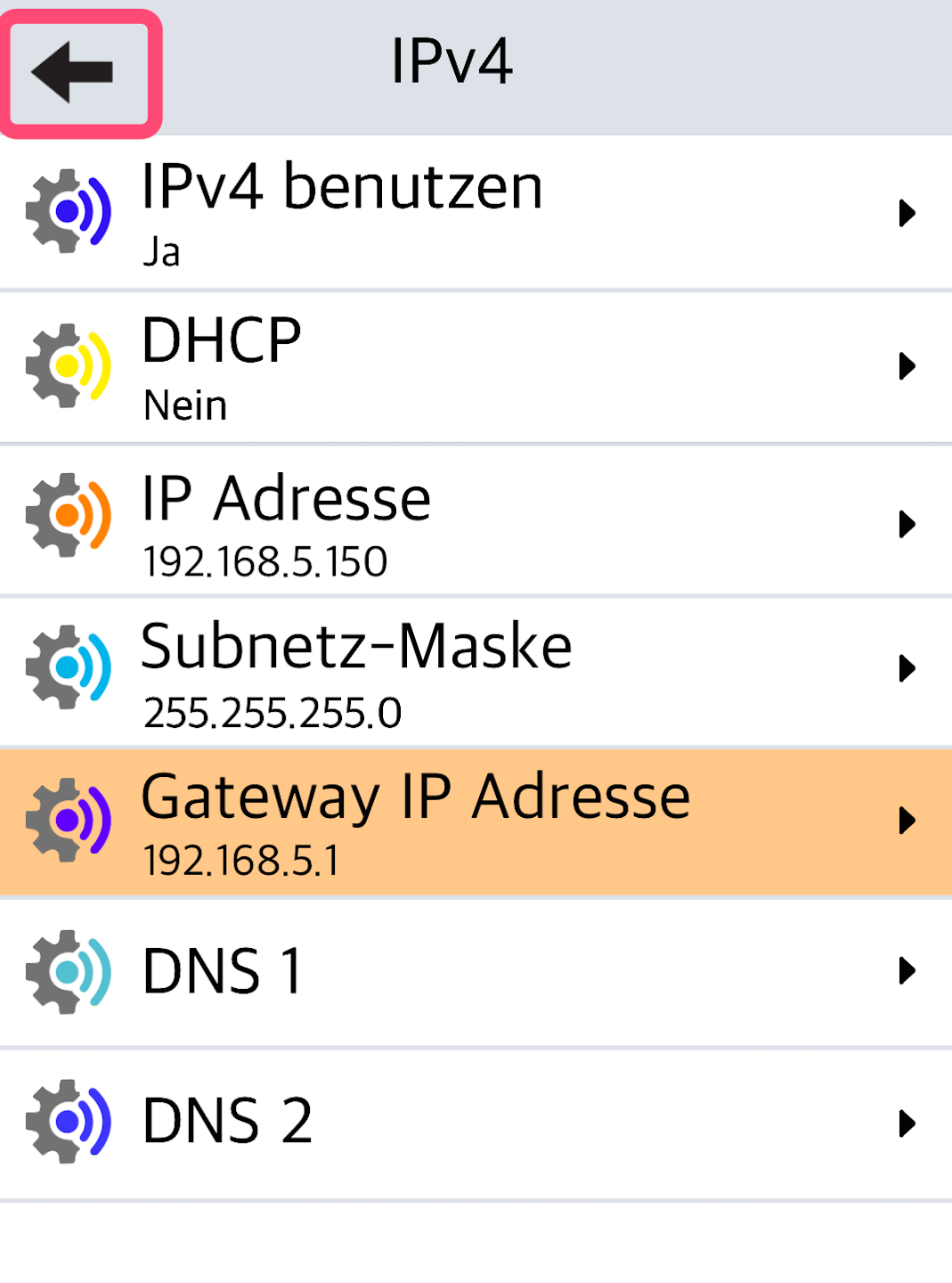
As shown in Fig. 1, the required information includes the IP address, subnet mask, and default gateway.
An IP address consists of four 3-digit number blocks separated by dots:
Example IP Address: 192.168.005.078
Example Subnet Mask: 255.255.255.000
Example Gateway: 192.168.005.254
Tap IP Address to enter the values (Fig. 2).
Please fill in all number blocks completely.
Confirm with the green OK button.
Subnet Mask
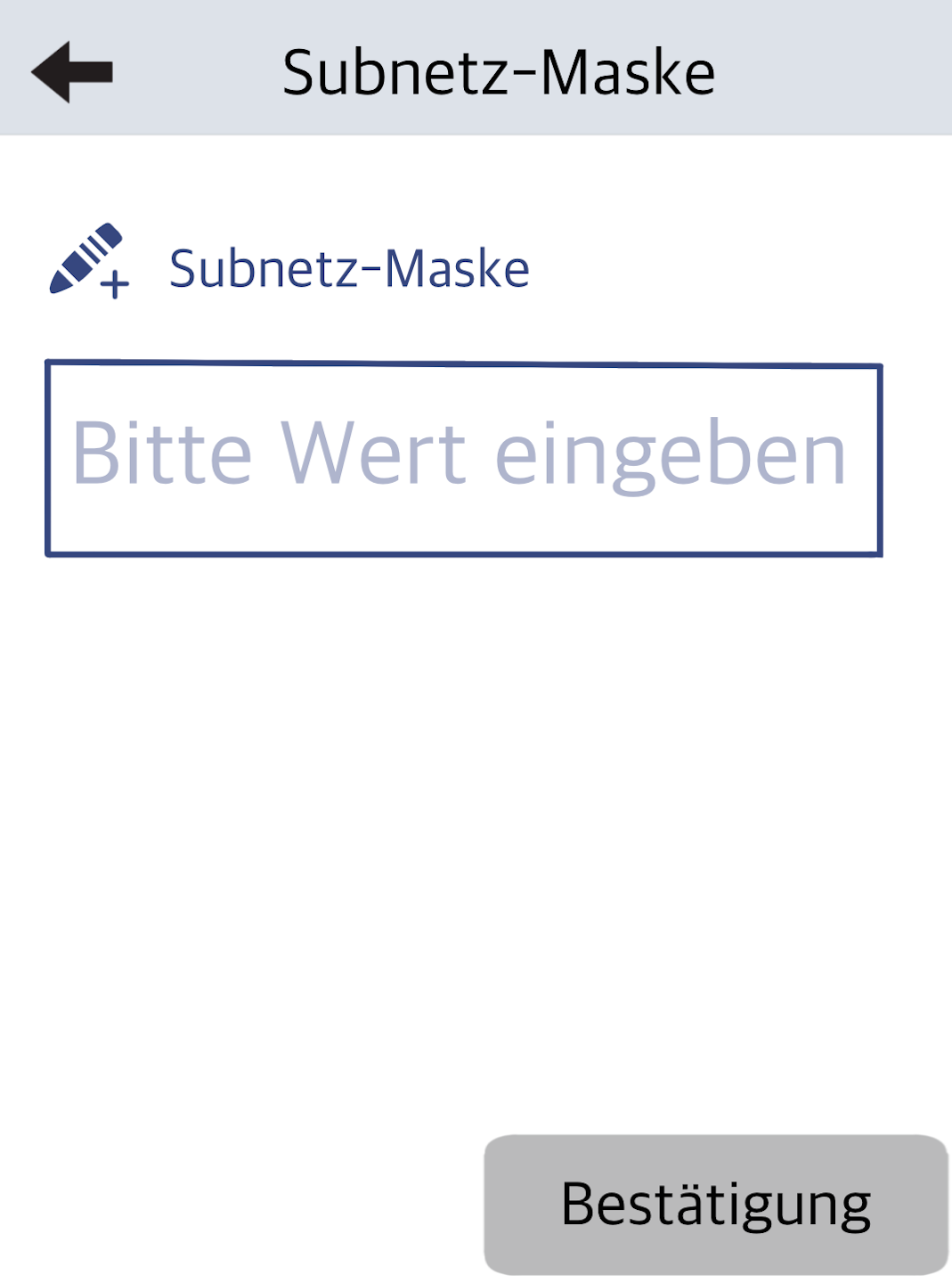
Now select Subnet Mask and enter the address (Fig. 2).
Please fill in all number blocks completely.
Confirm with the green OK button.
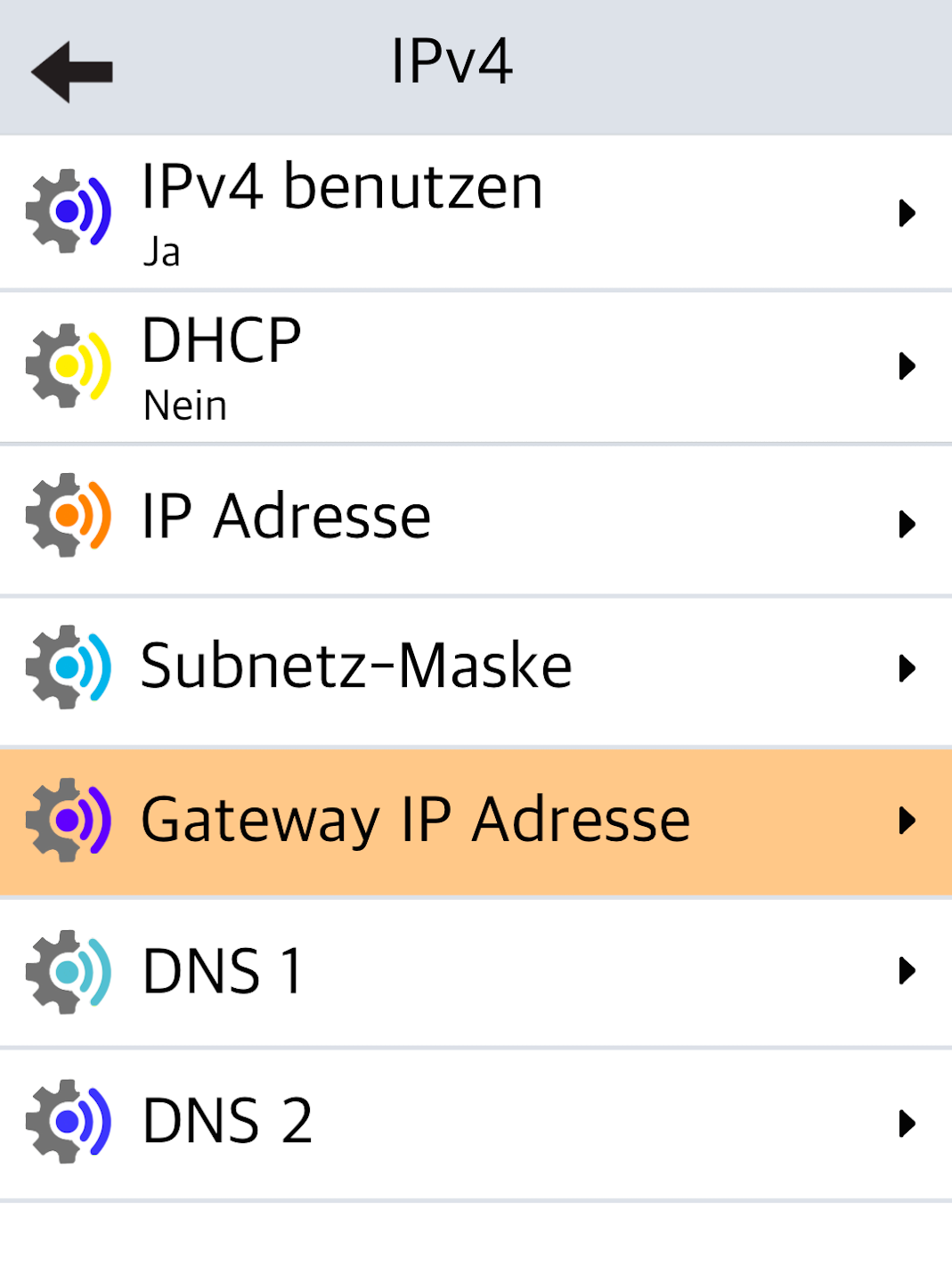
Gateway IP Address
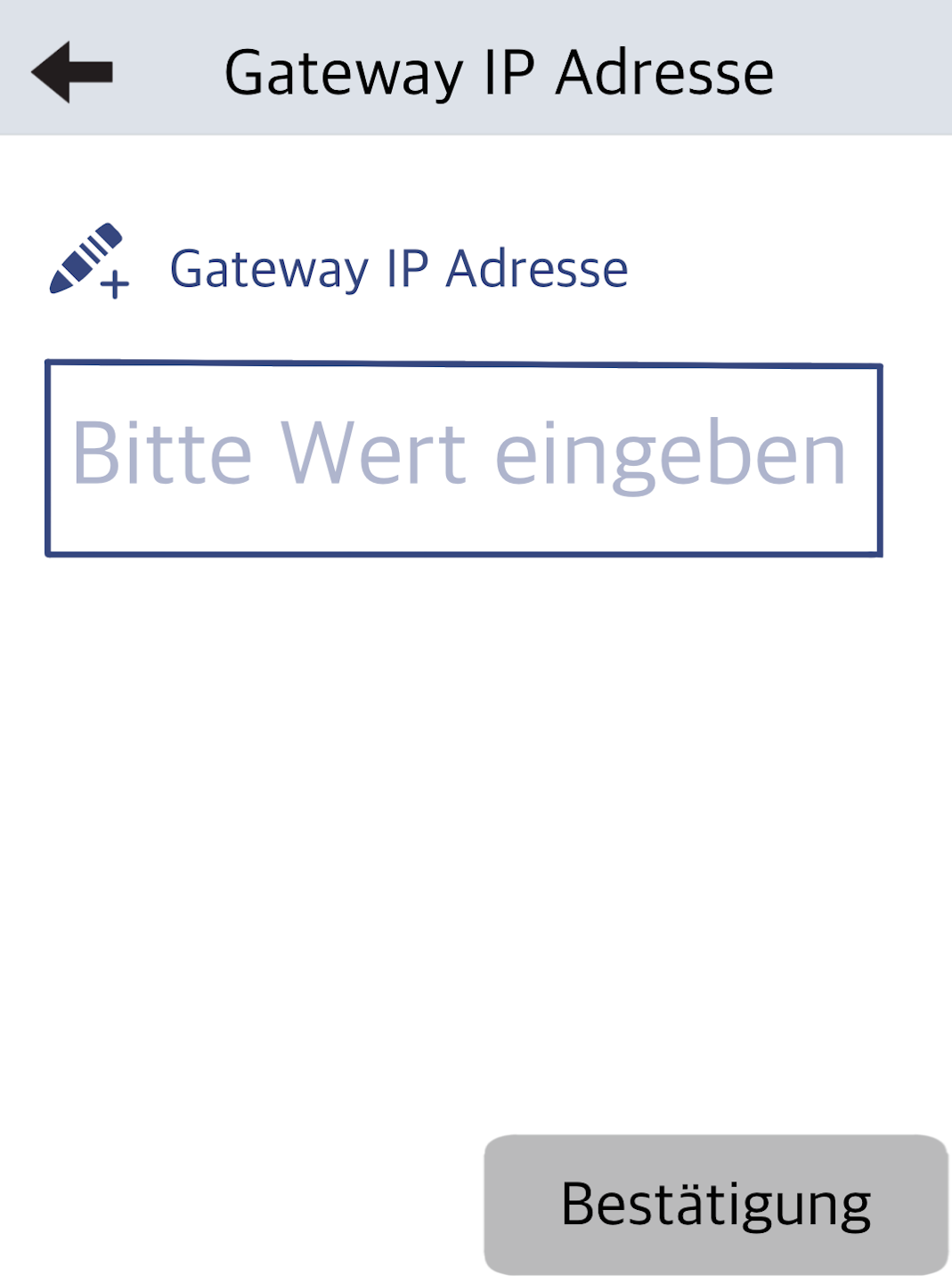
Please enter the gateway information here (Fig. 2).
Please fill in all number blocks completely.
Confirm with the green OK button.
Back
After completing the entries, Fig. 1 will appear.
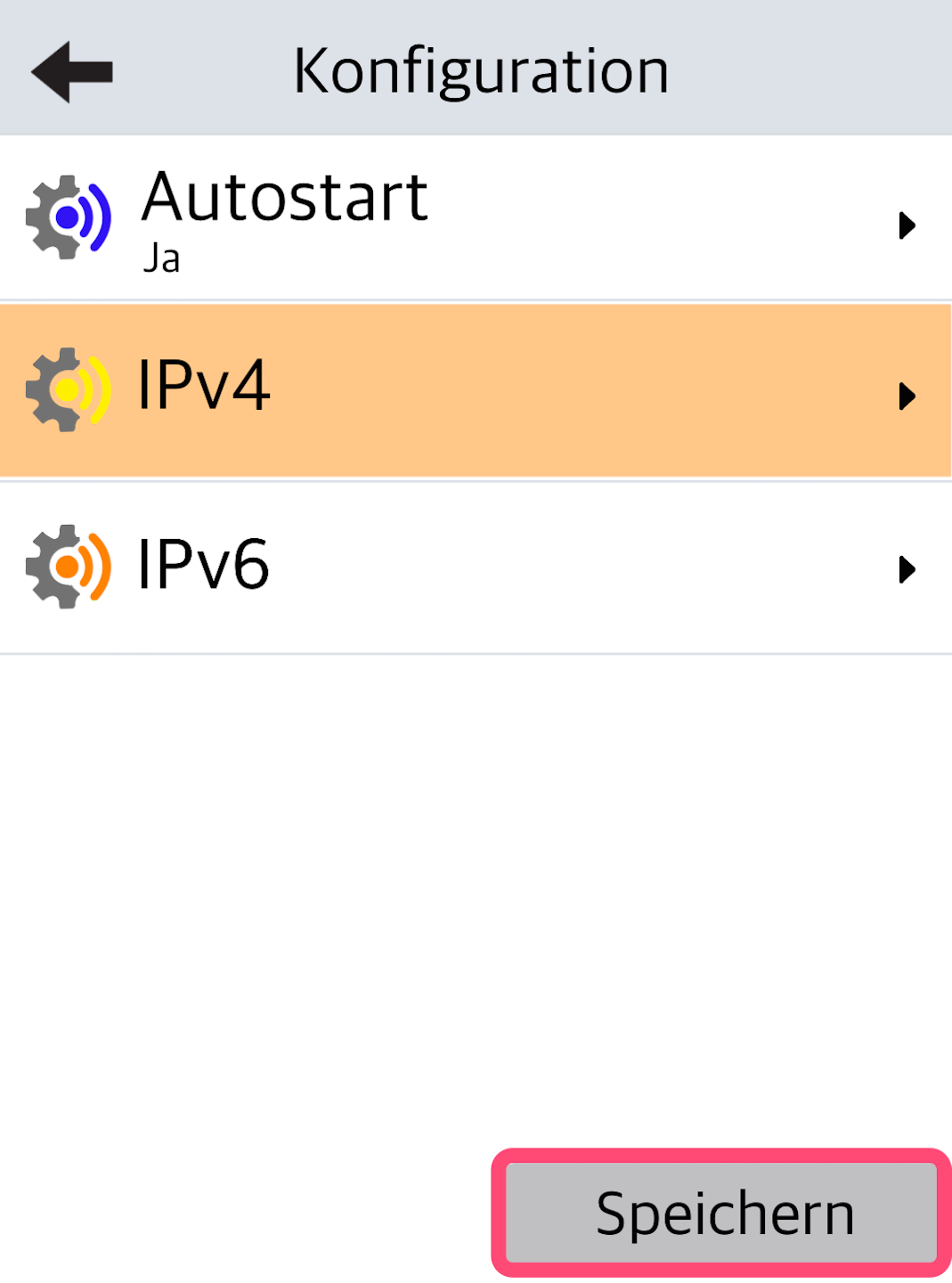
Press the arrow key in the top left once to go to Fig. 2.
To save the IP address data, please press the Save button at the bottom right.
Confirmation
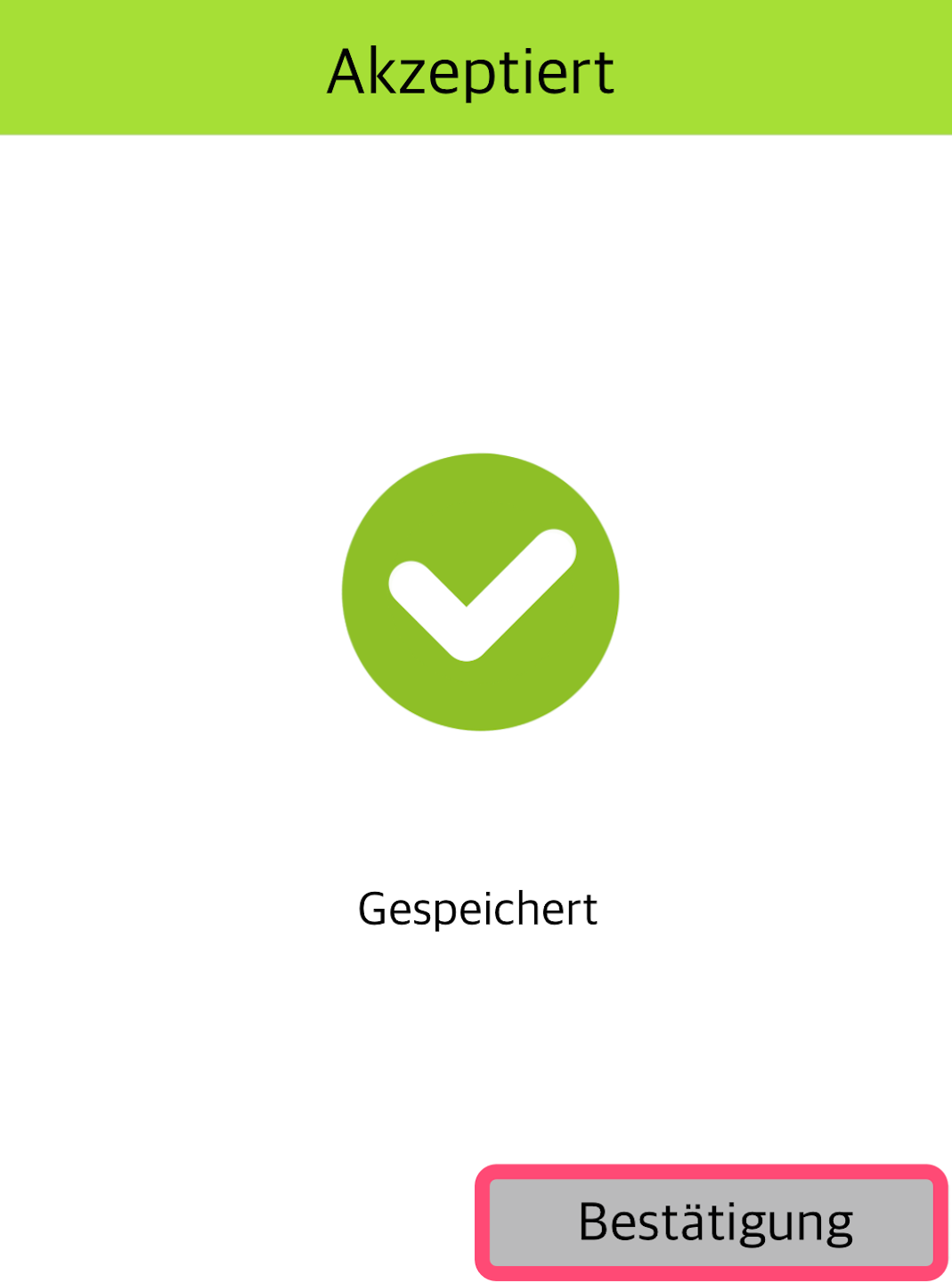
The IP address data is being saved. Please confirm the save (Fig. 1).
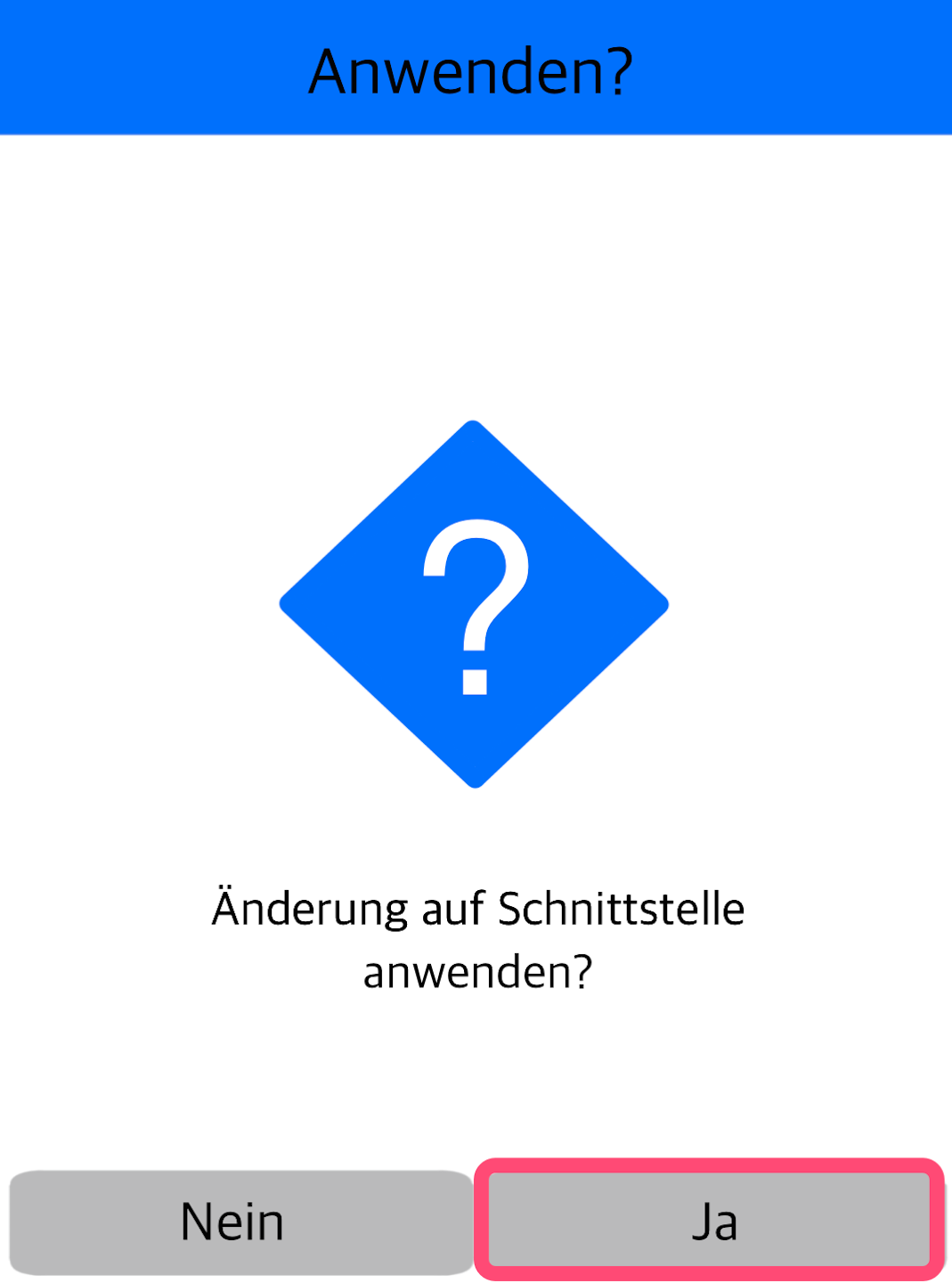
In Fig. 2, you will be asked whether the IP address should be applied to the interface. Confirm with YES.
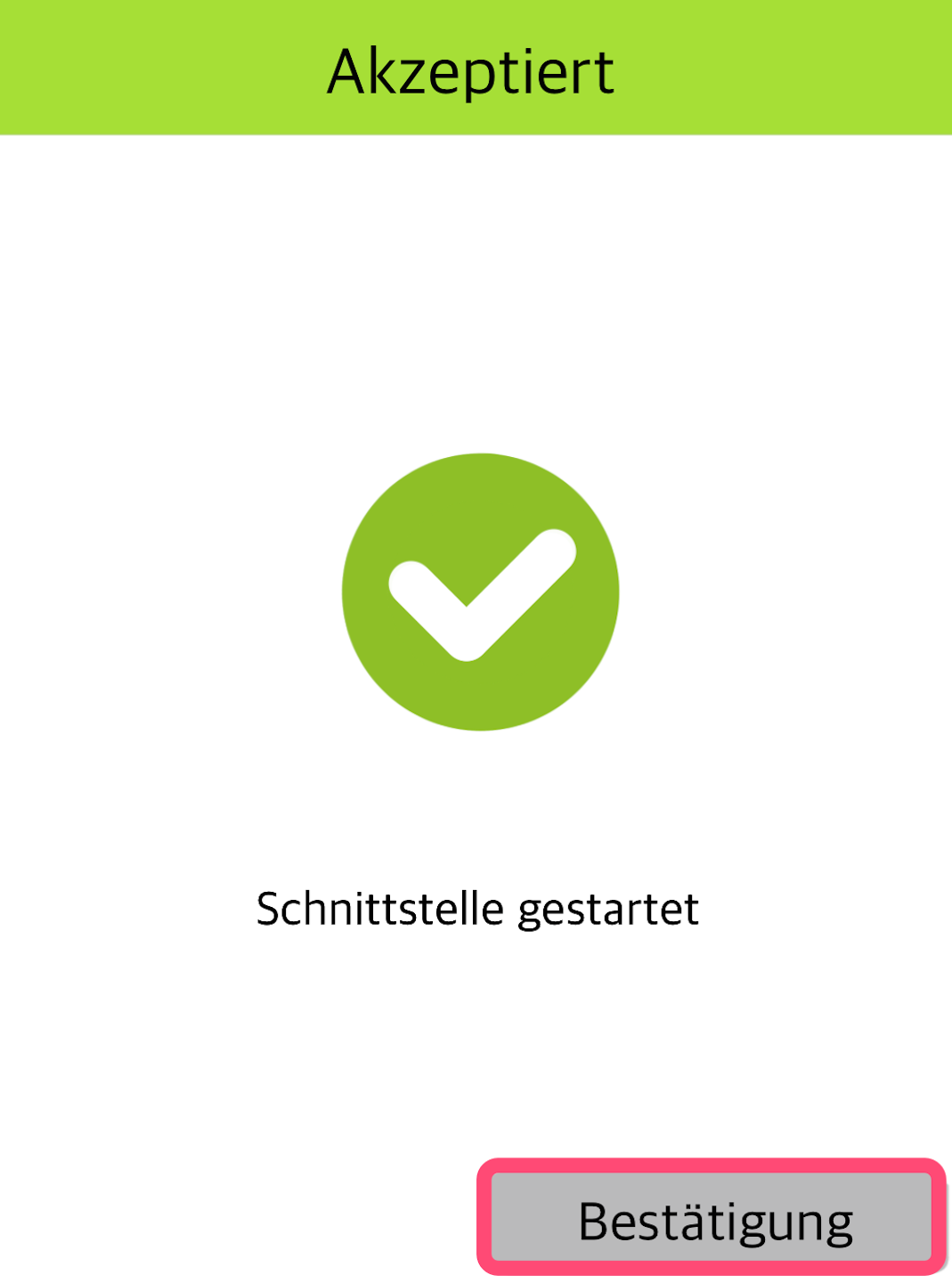
Then another confirmation will appear (Fig. 3). Please also confirm this with YES.
Return to Main Menu
You will be returned to the home display.
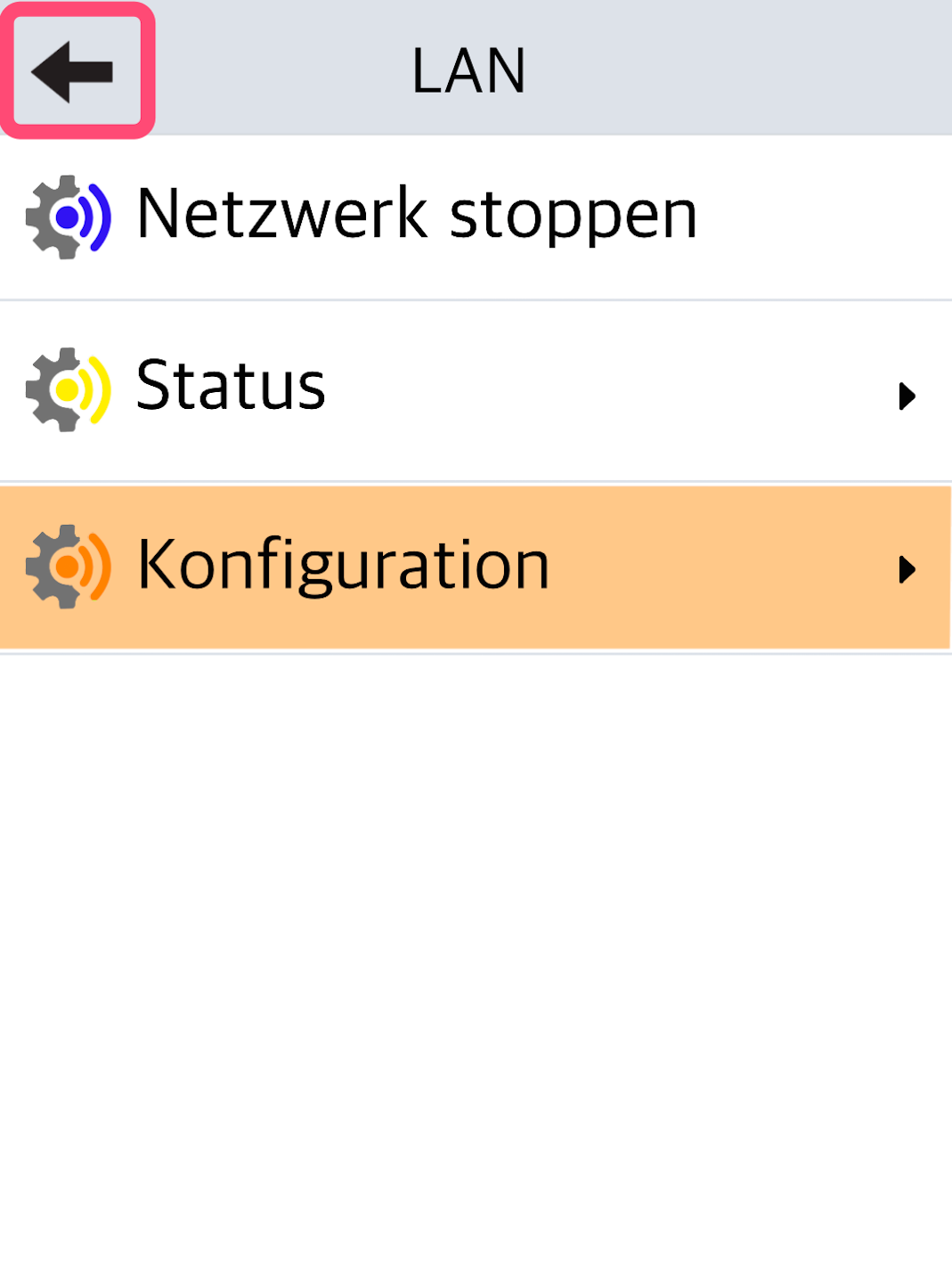
Now press the top-left arrow key 6 times to return to the main display.
Please check the connection using our guide after the static IP address has been configured.
WLAN
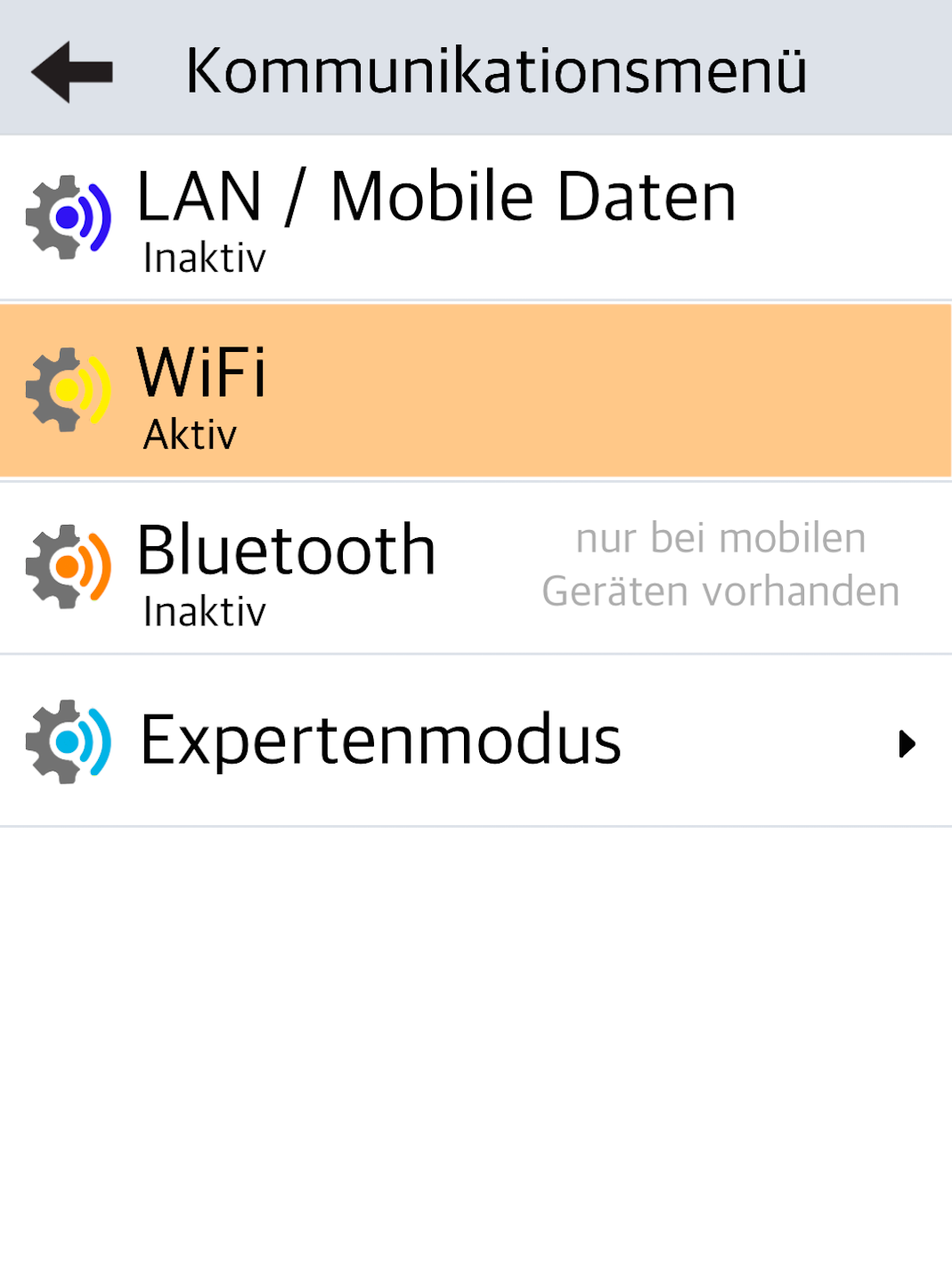
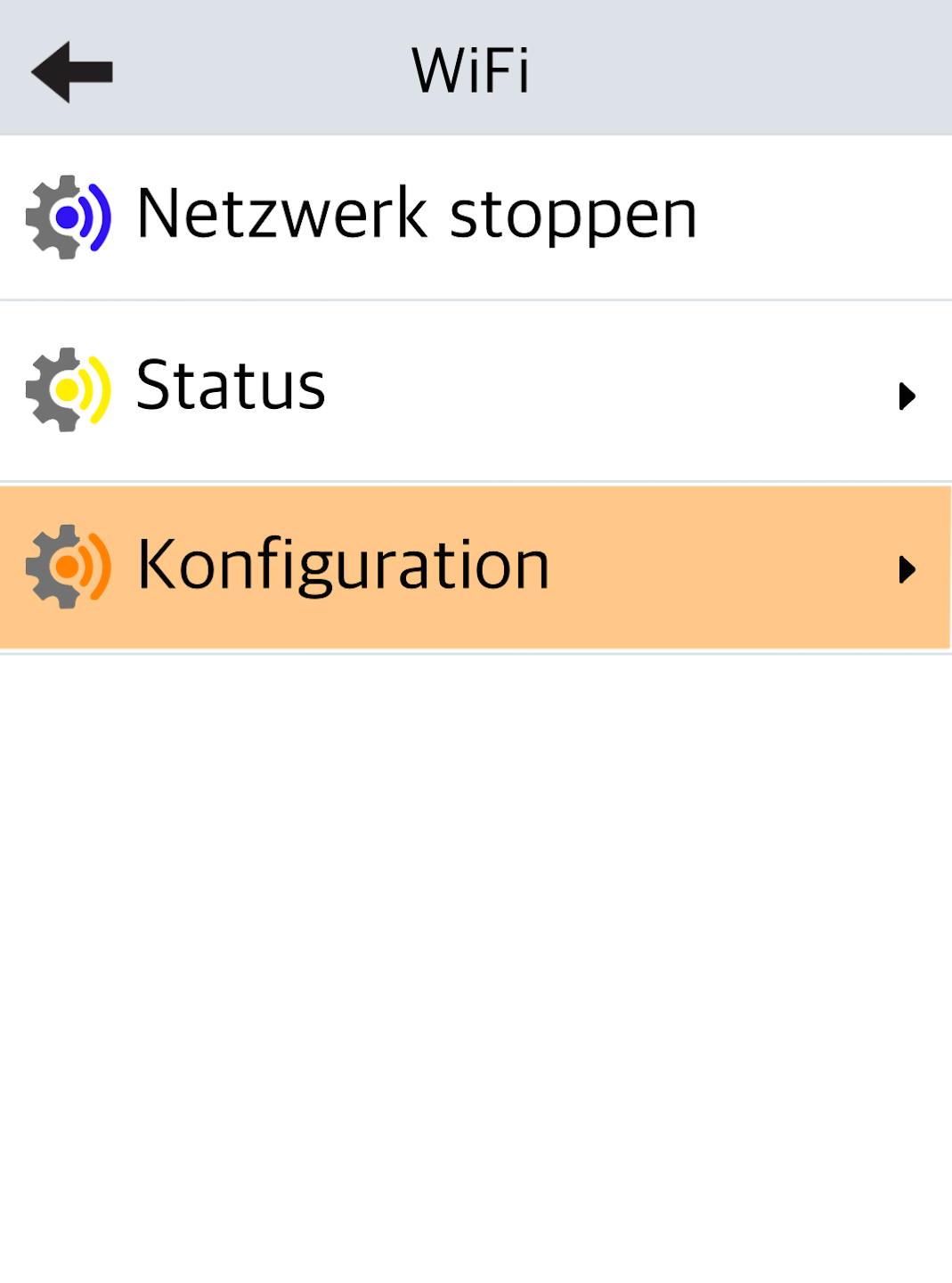
If you want to connect your card reader via WLAN, please select WiFi here.
Configuration
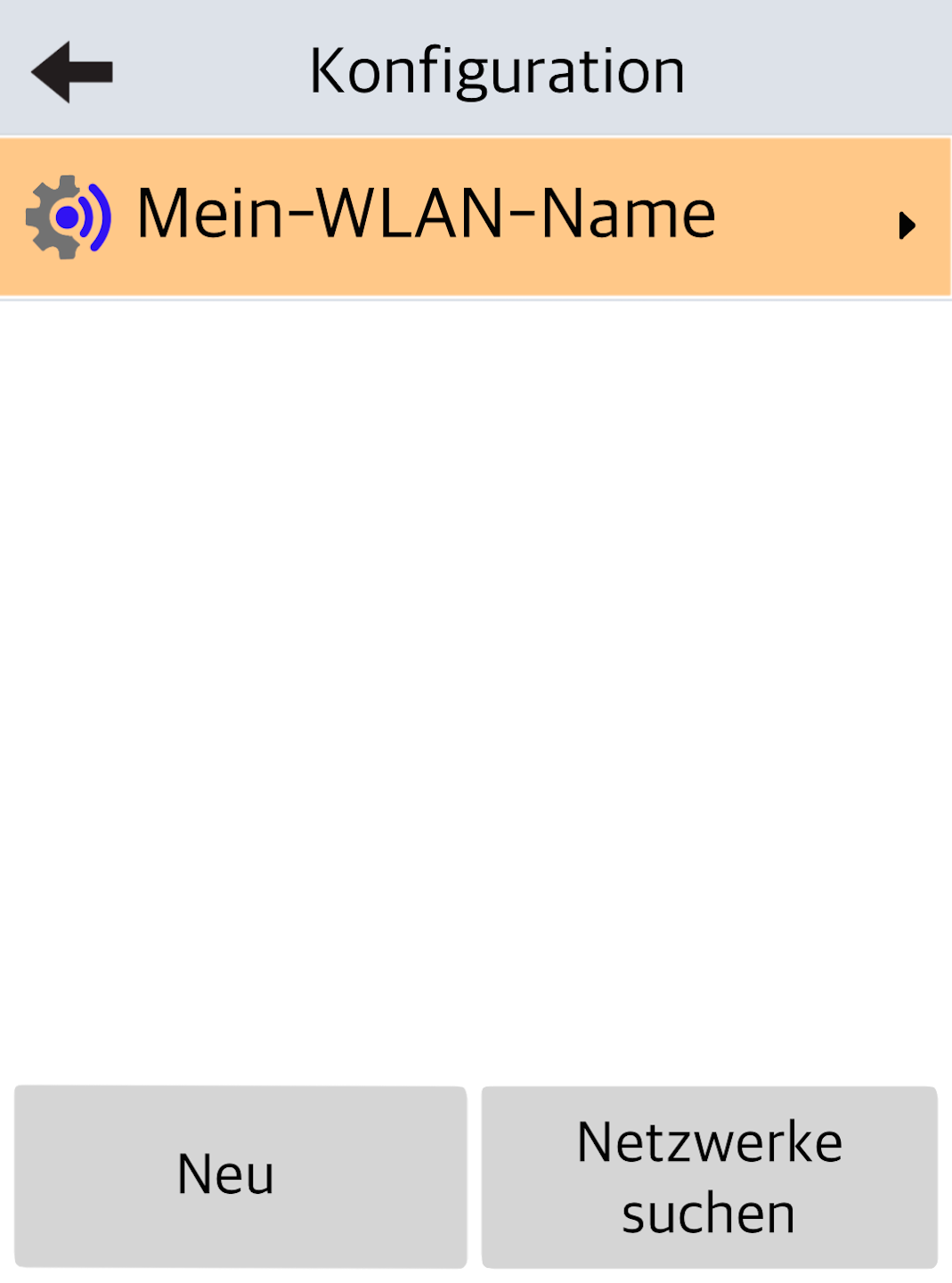
Please select the menu item Configuration.
In Fig. 2, select the WLAN network the card reader is connected to.
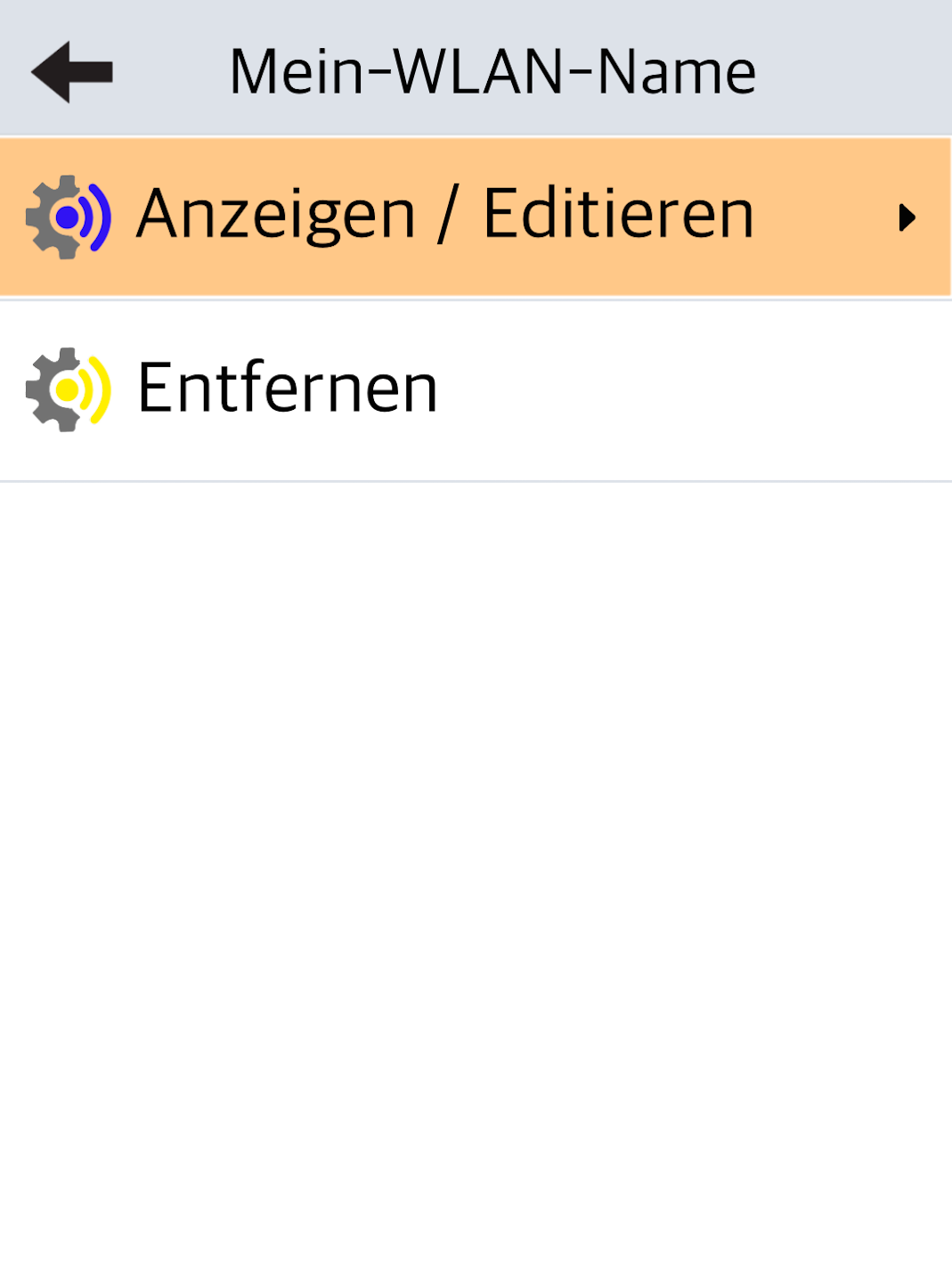
Display / Edit
Please select Display / Edit.
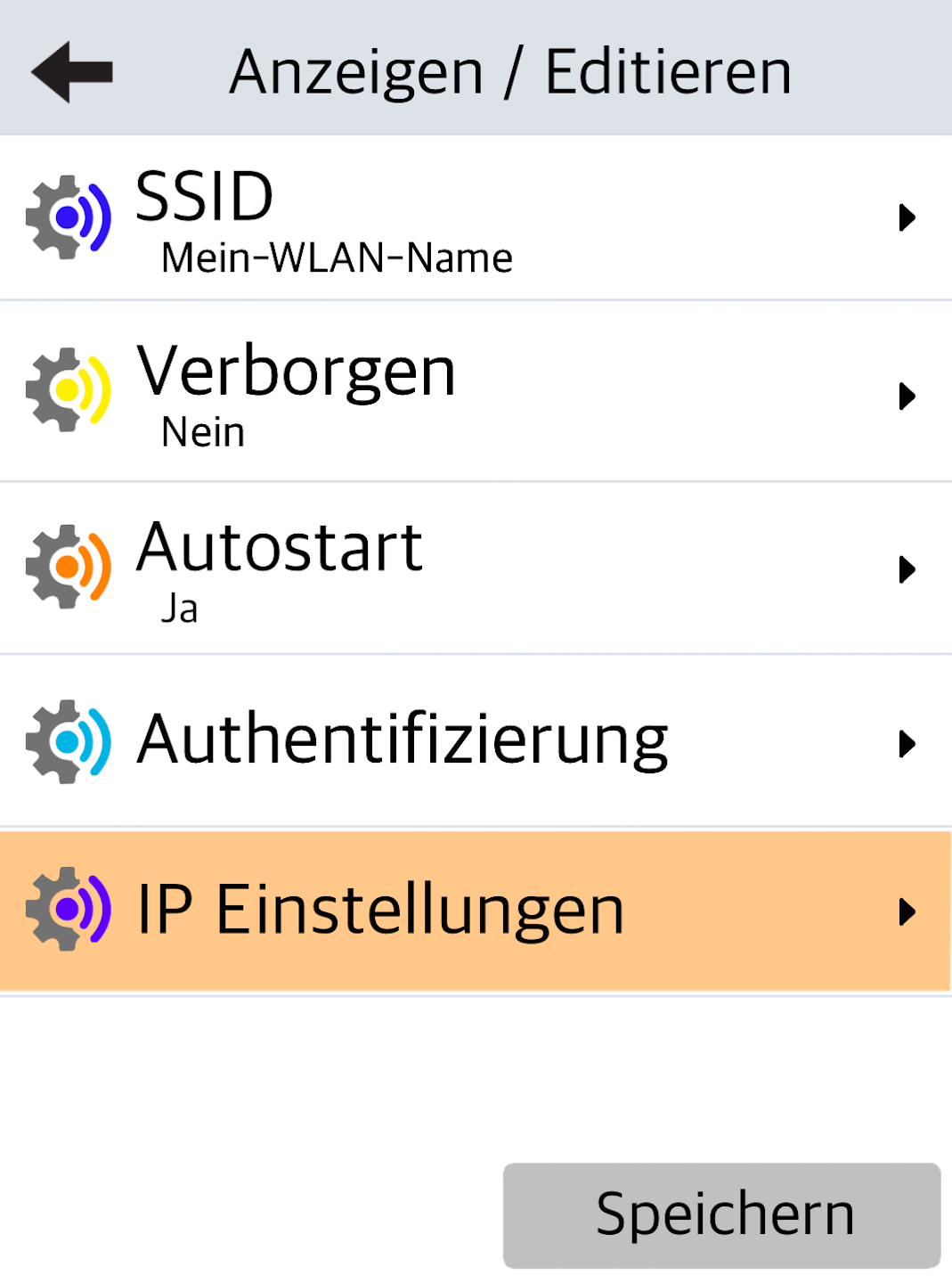
IP Settings
Next, please select IP Settings.
IPv4
Please select IPv4.
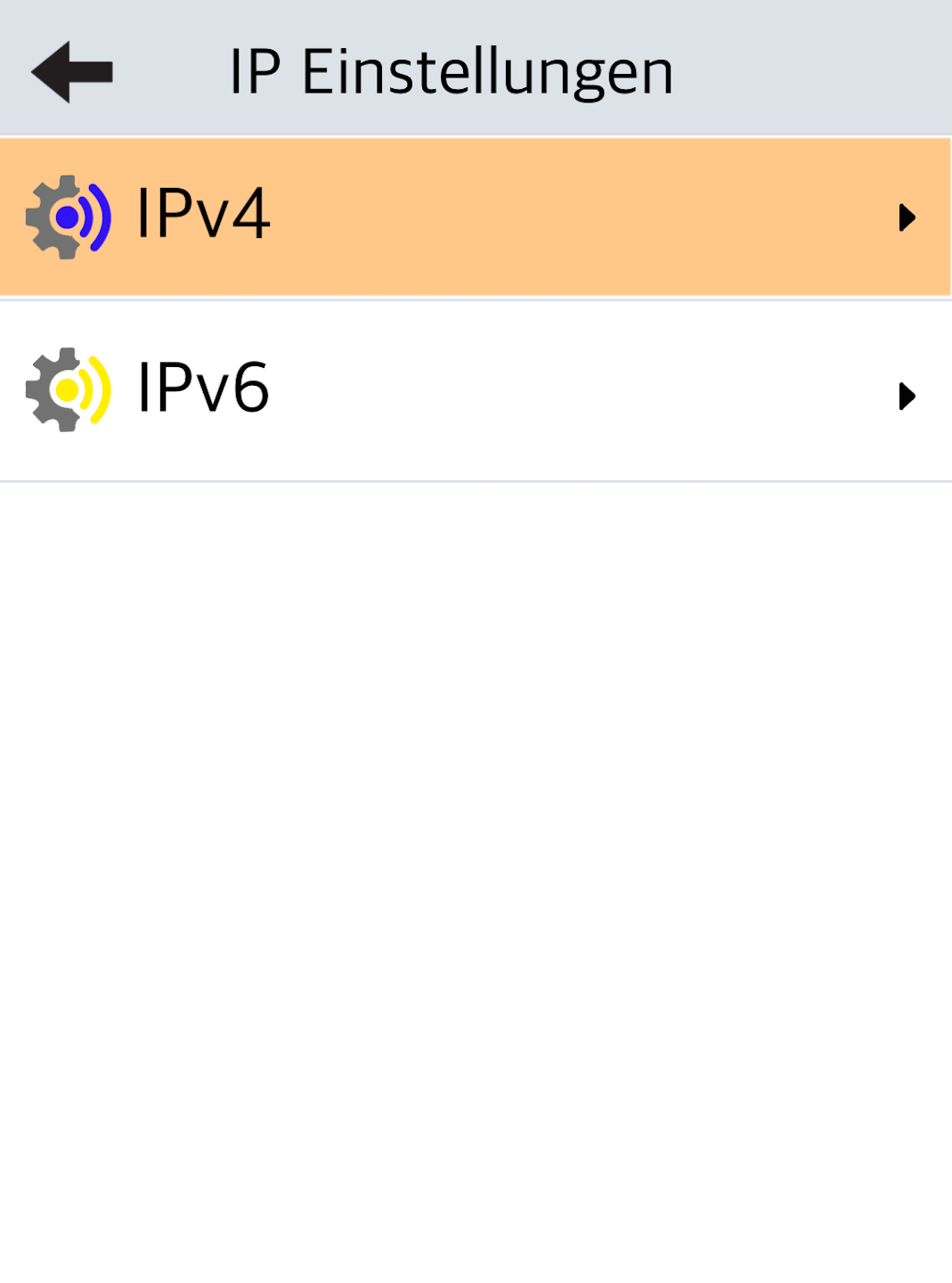
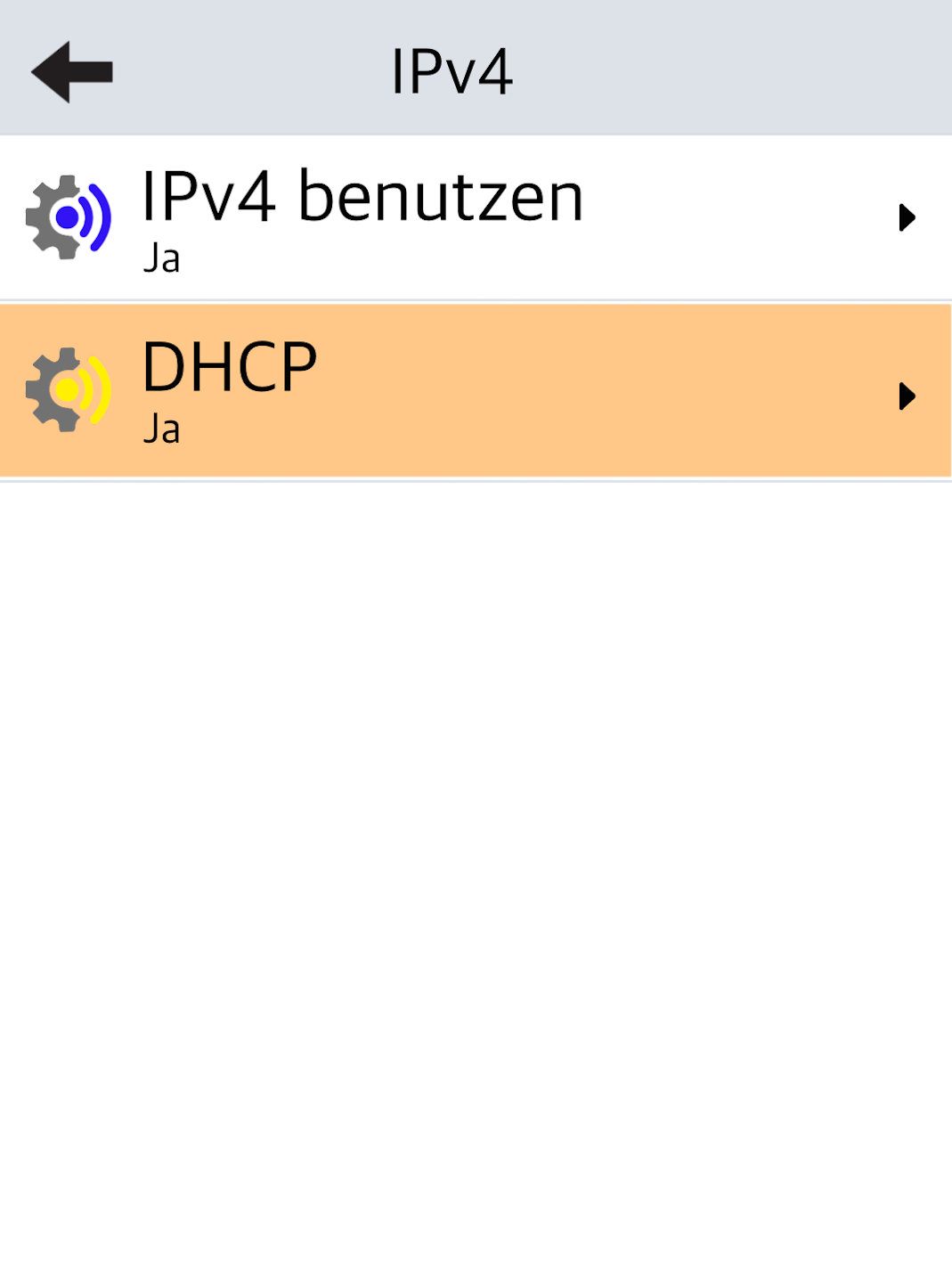
DHCP
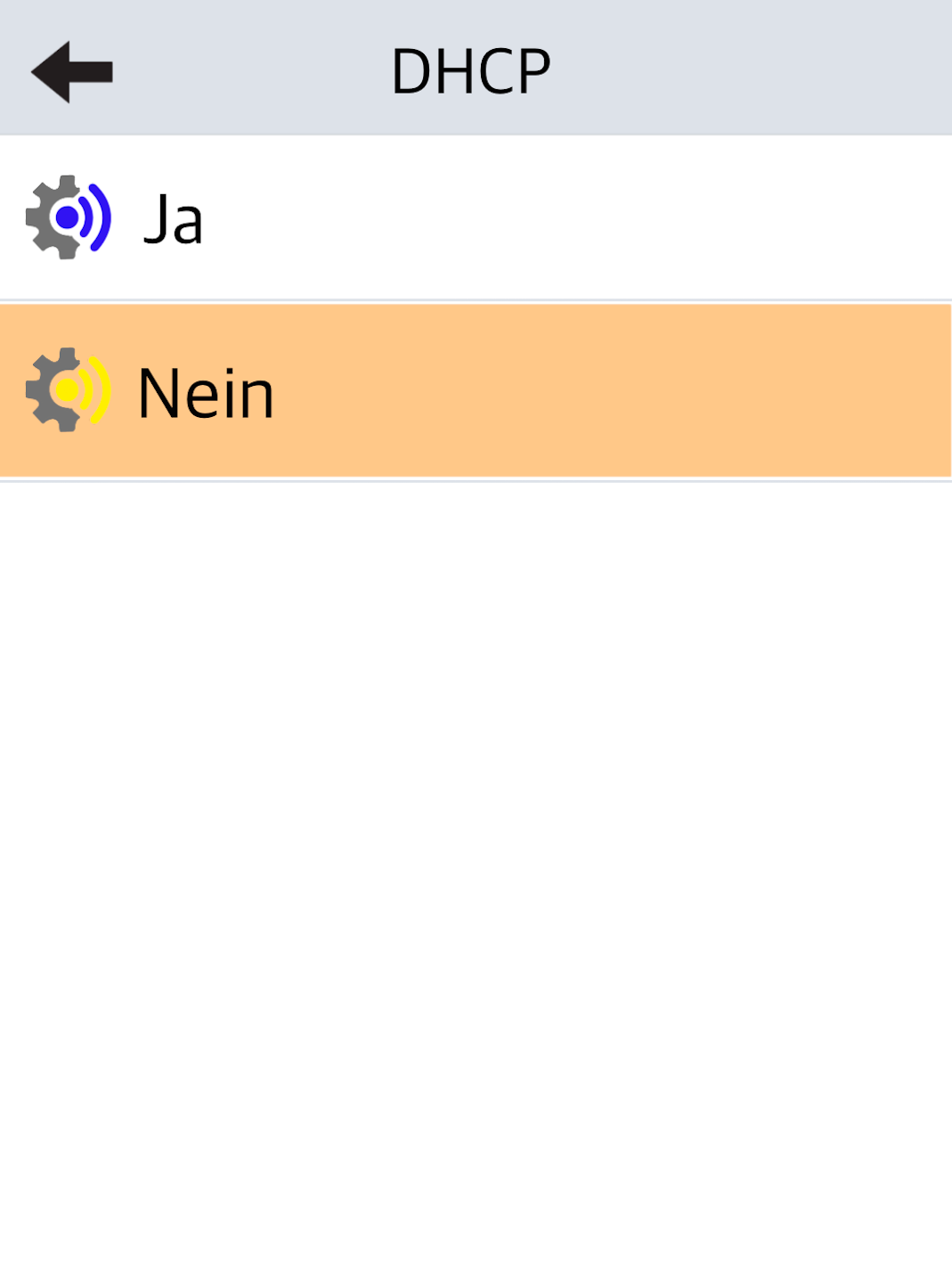
Dynamic IP address assignment is enabled.
Tap to disable it (Fig. 2).
Static IP data can only be entered when this is disabled.
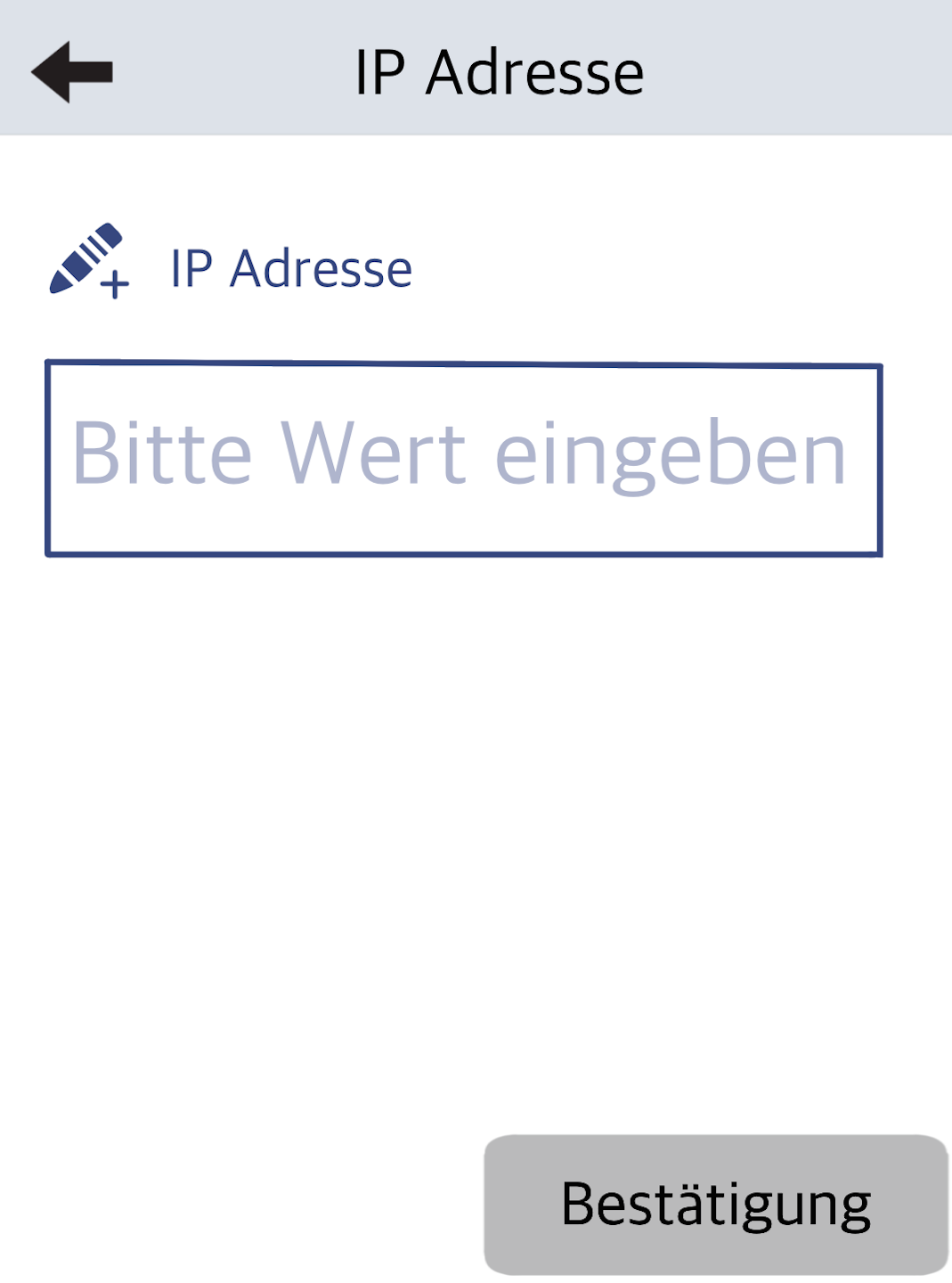
IP Address
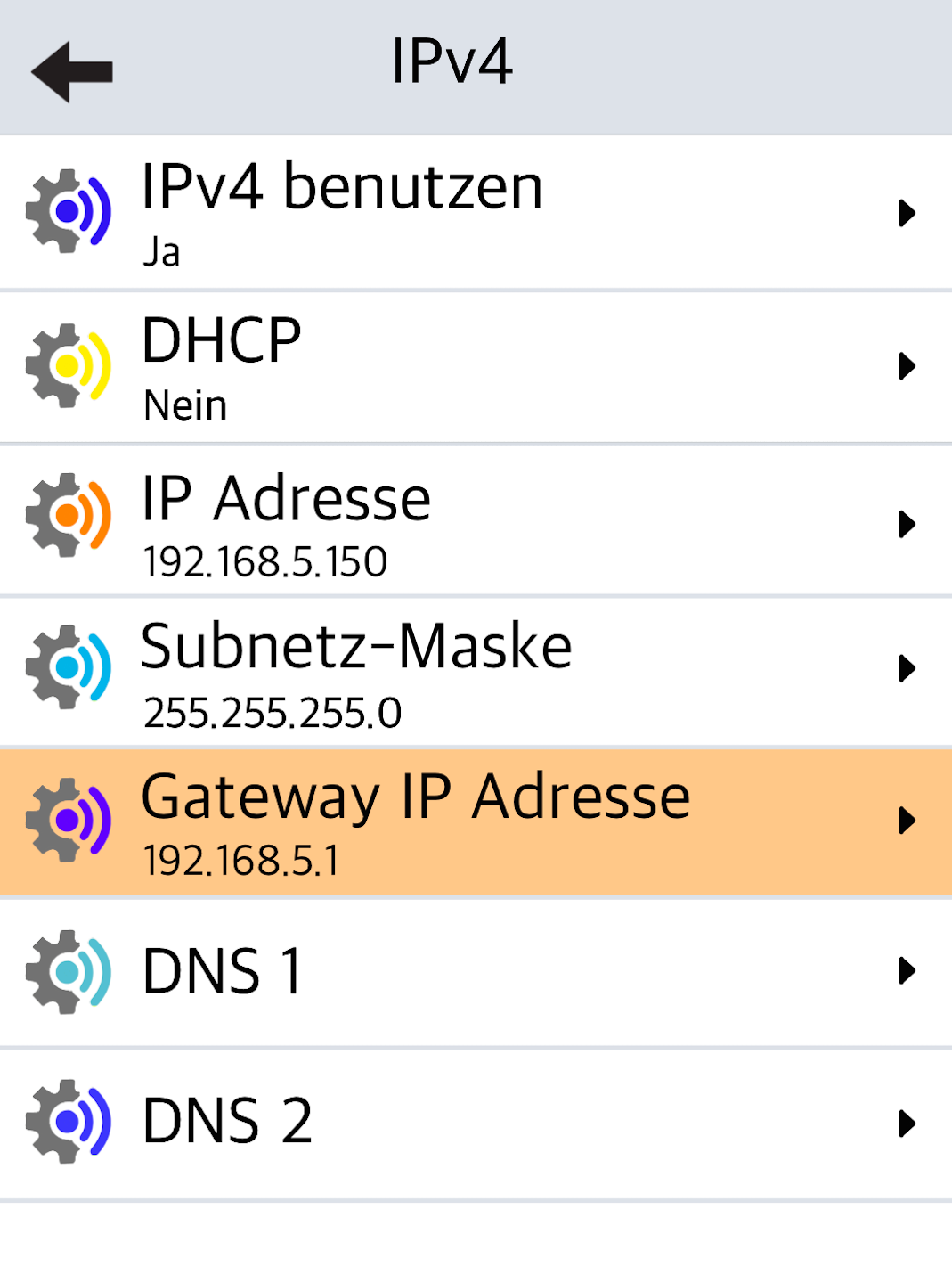
As shown in Fig. 1, the required information includes the IP address, subnet mask, and default gateway.
Example IP Address: 192.168.005.078
Example Subnet Mask: 255.255.255.000
Example Gateway: 192.168.005.254
Tap IP Address to enter the values (Fig. 2).
Please fill in all number blocks completely.
Confirm with the green OK button.
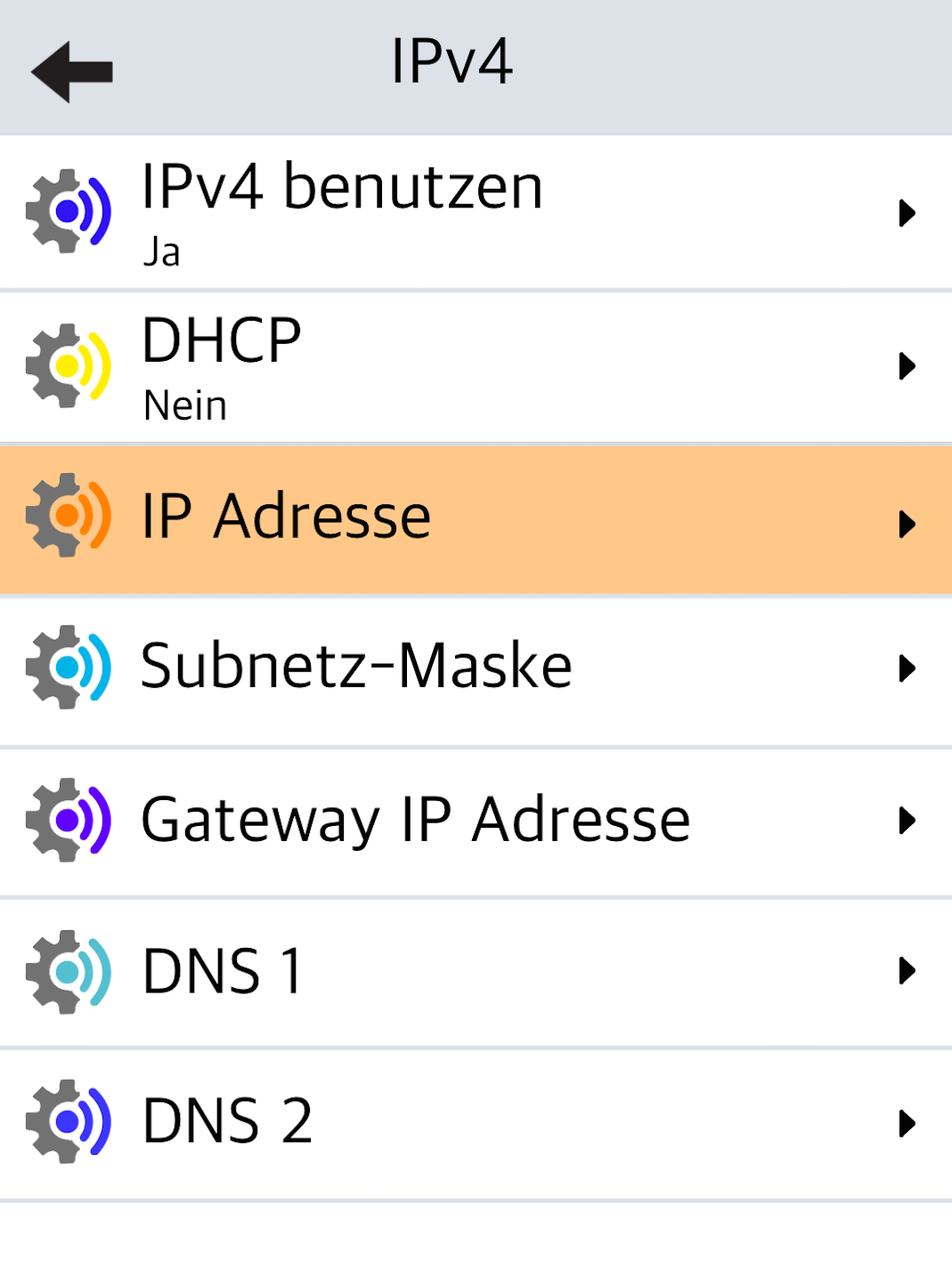
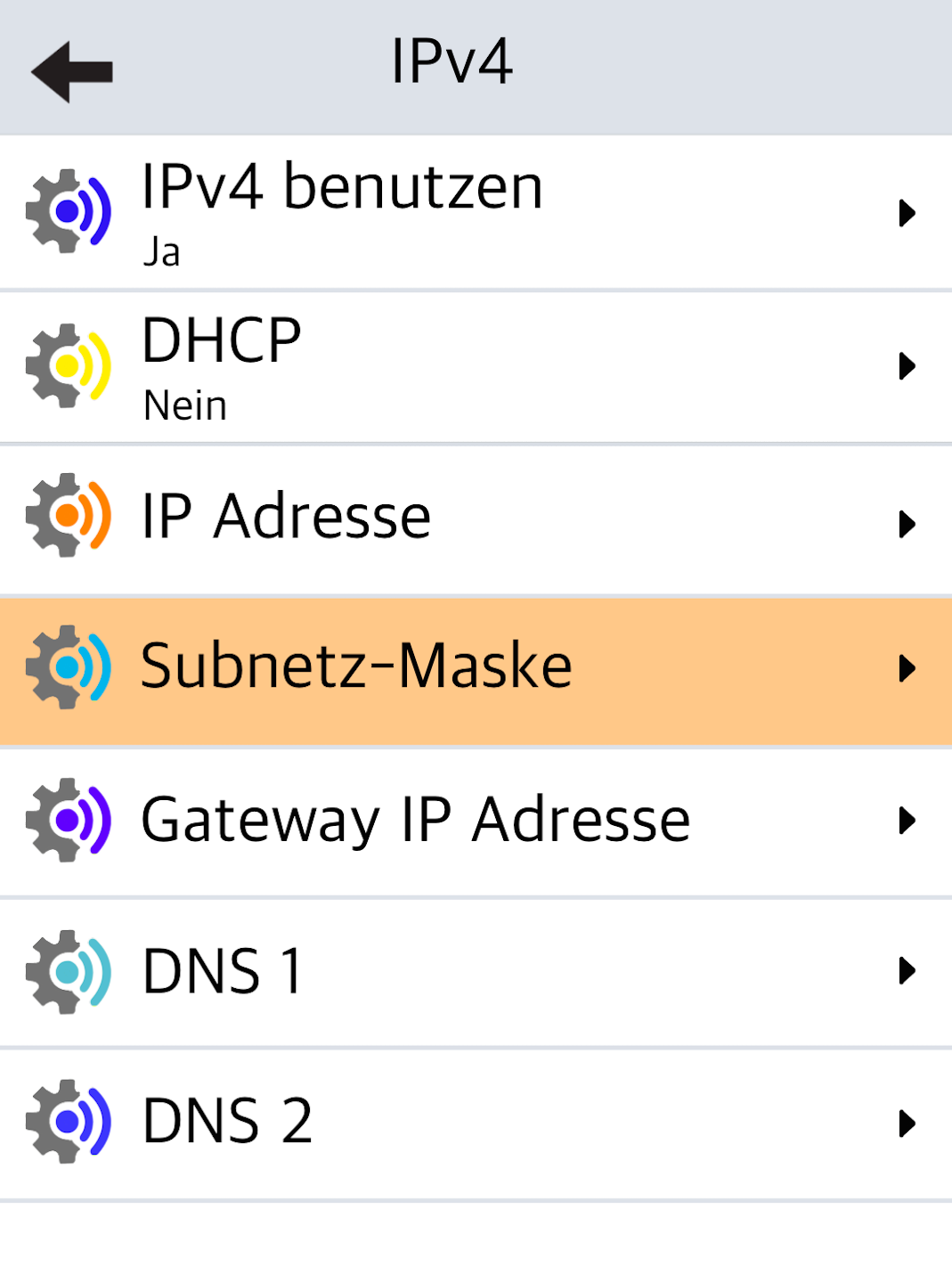
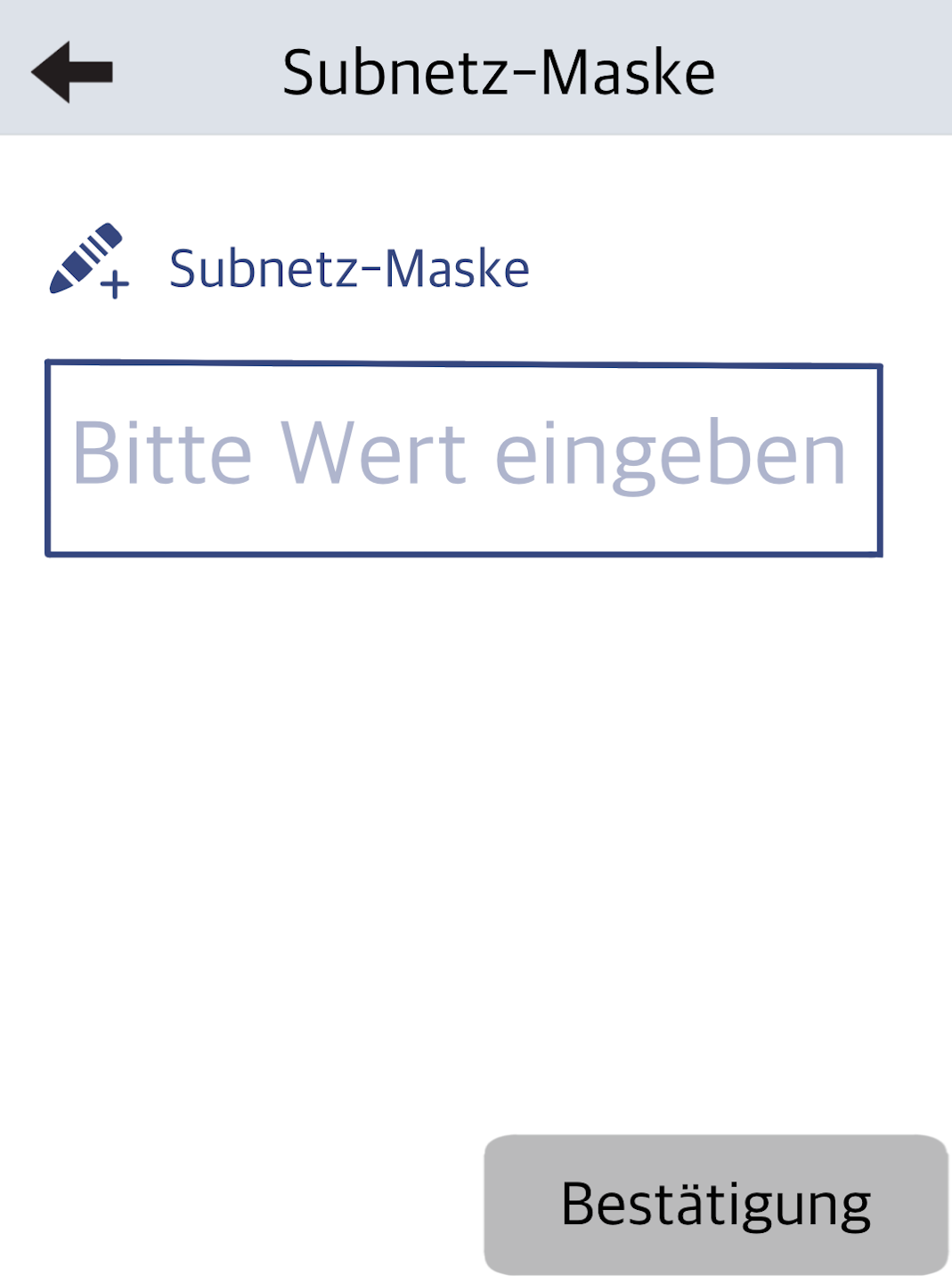
Subnetz-Maske
Bitte wählen Sie nun die Subnetz-Maske aus und tragen die Adresse ein (Abb.2).
Example IP Address: 192.168.005.078
Example Subnet Mask: 255.255.255.000
Example Gateway: 192.168.005.254
Tap IP Address to enter the values (Fig. 2).
Please fill in all number blocks completely.
Confirm with the green OK button.
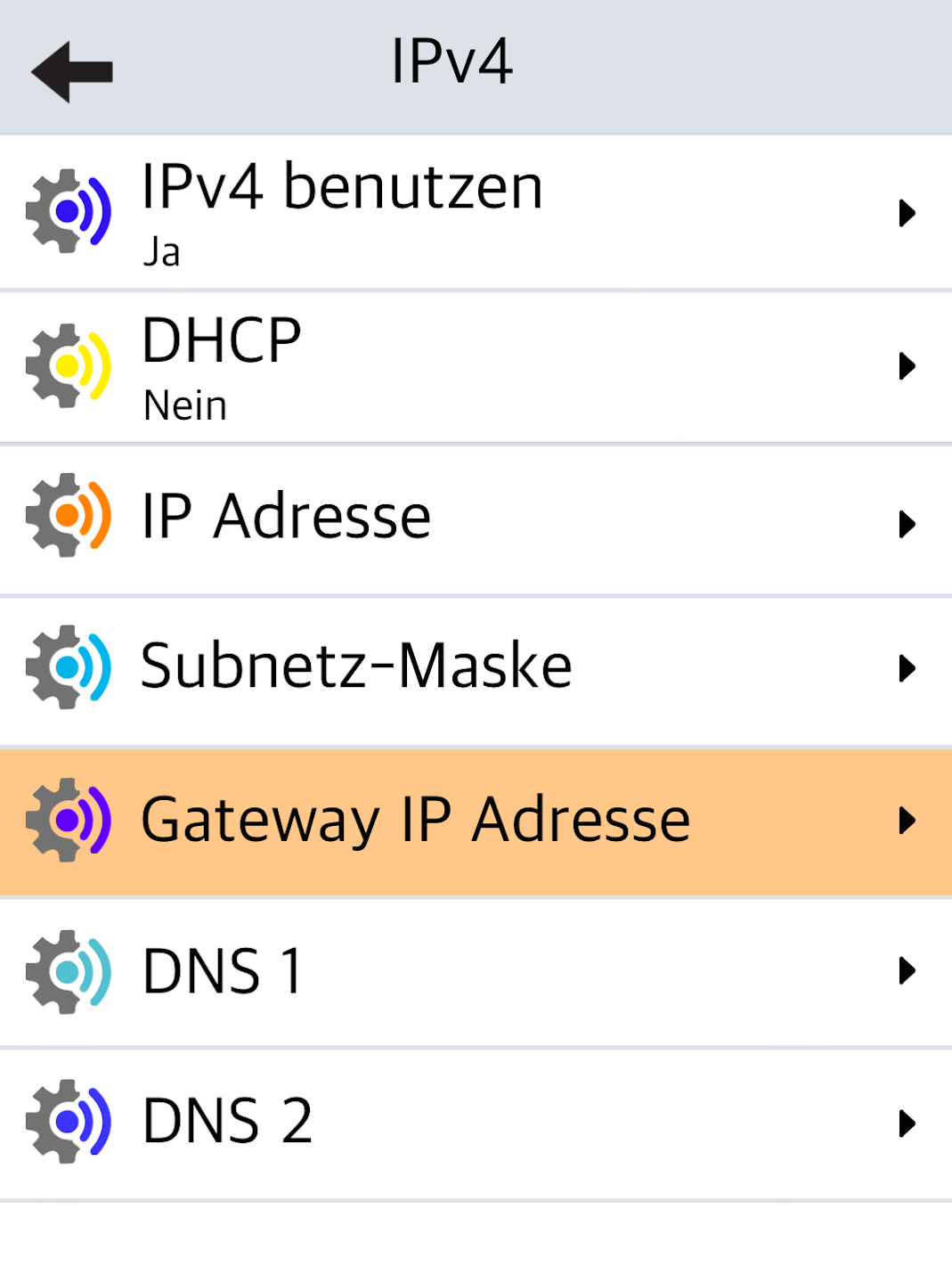
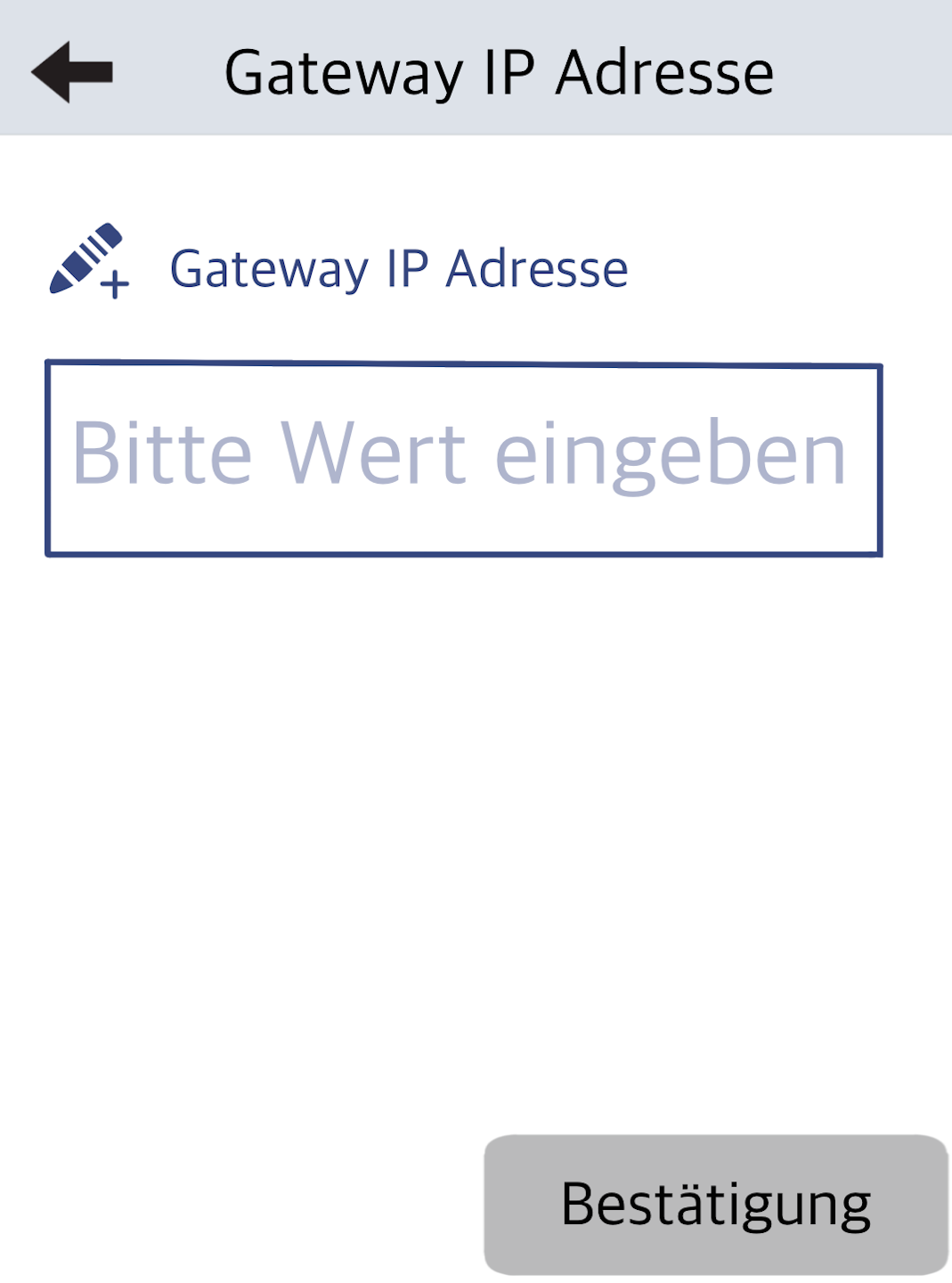
Gateway IP Address
Please enter the gateway data here (Fig. 2).
Please fill in all number blocks completely.
Confirm with the green OK button.
Back
After completing the entries, Fig. 1 will appear.
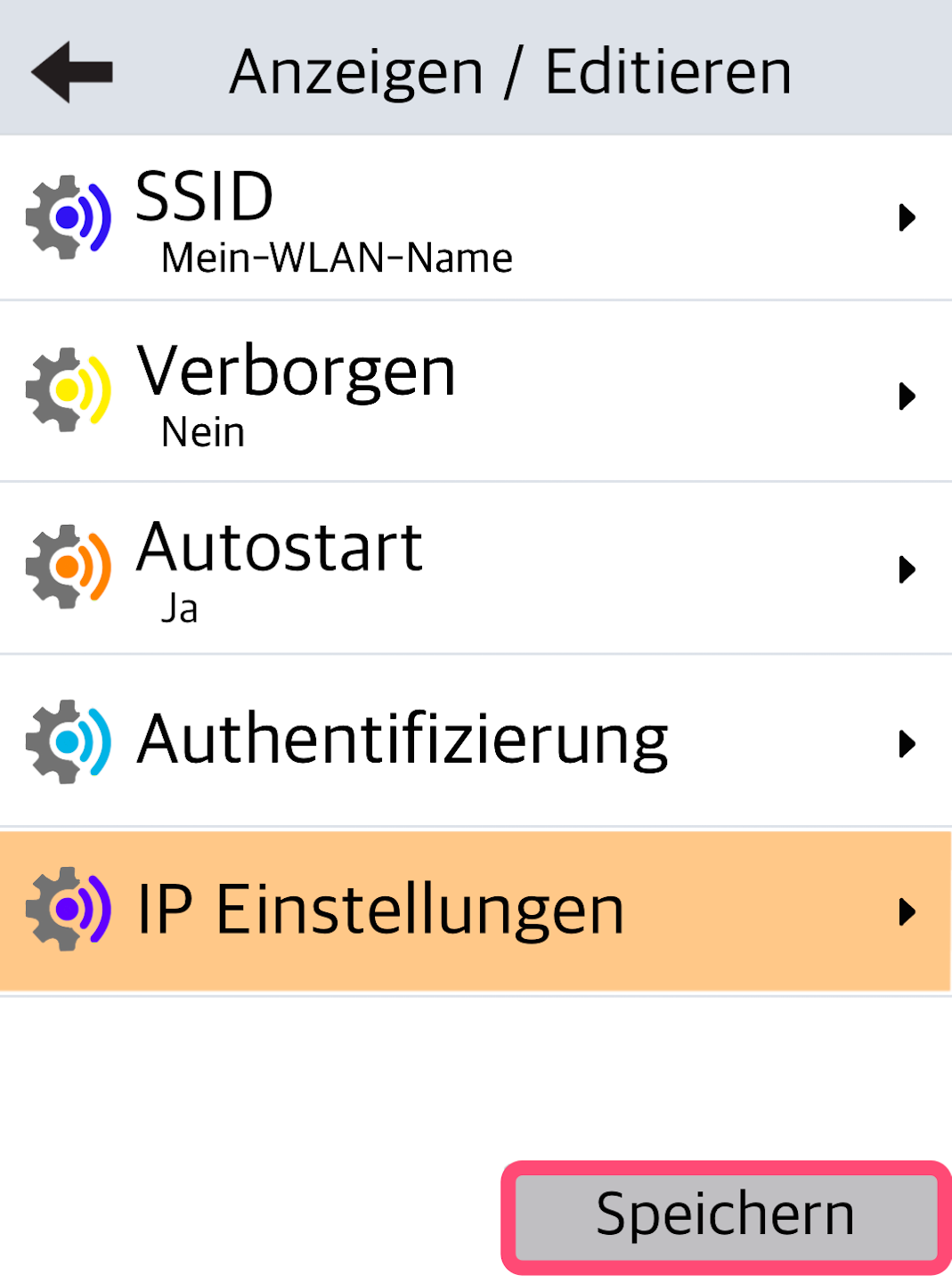
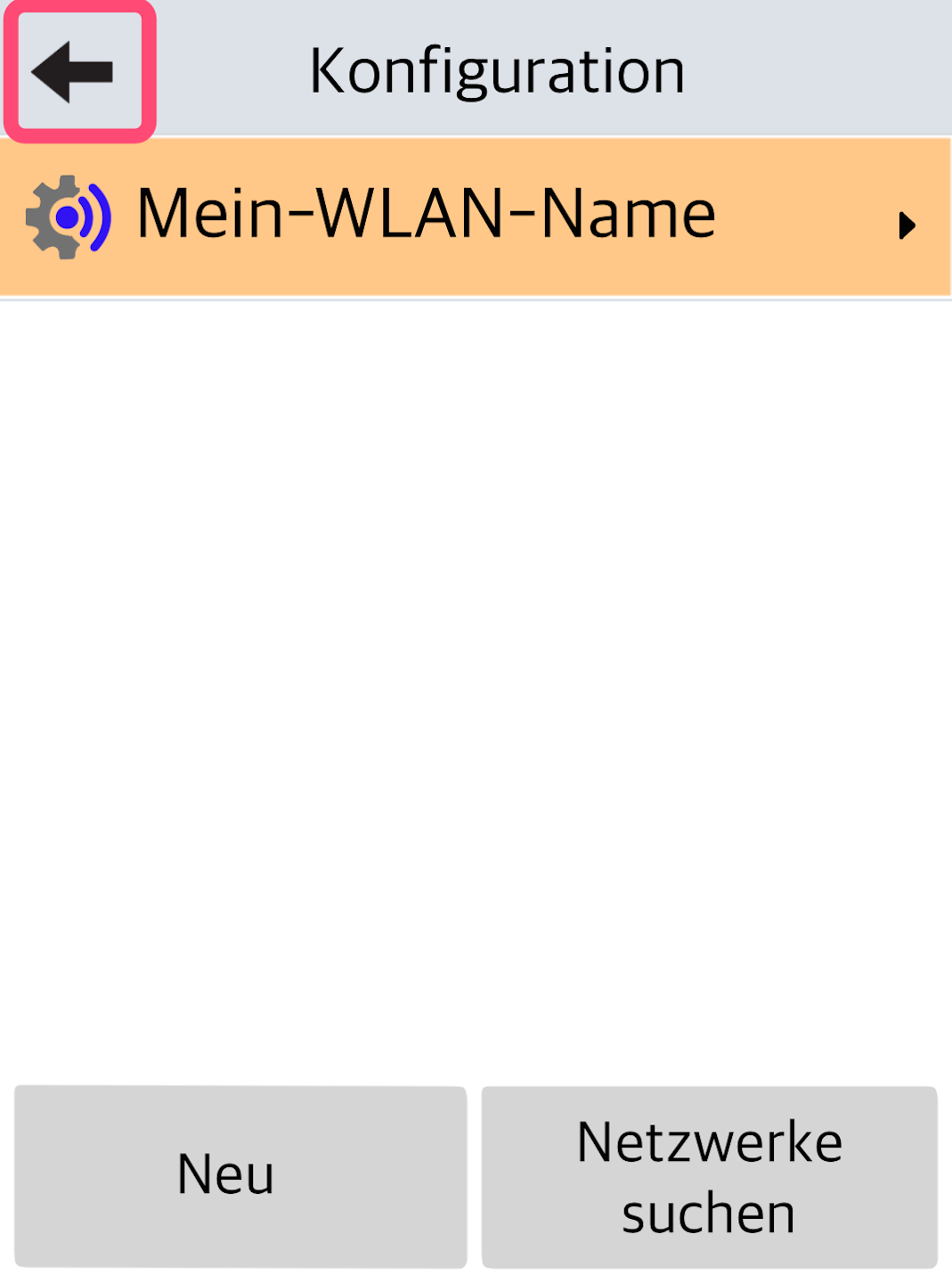
Press the top-left arrow key twice to go to Fig. 2.
To save the IP address data, press the Save button at the bottom right.
Confirmation
The IP address data is being saved. Please confirm the save (Fig. 1).
In Fig. 2, you will be asked whether the IP address should be applied to the interface. Confirm with YES.
Then another confirmation will appear (Fig. 3). Please also confirm this with YES.
Return to Main Menu
You will be returned to this home display.
Now press the top-left arrow key 7 times to return to the main display.
Please check the connection using our guide after the static IP address has been configured.
Was this article helpful?
That’s Great!
Thank you for your feedback
Sorry! We couldn't be helpful
Thank you for your feedback
Feedback sent
We appreciate your effort and will try to fix the article
