Reasoning
Modified on Mon, 16 Feb at 10:12 AM
The information you provided about setting up “reasons” for cancellations, credits, or inventory adjustments (including required fields) and the Dashboard path "Inventory Management – Reasons" is not included in the context.
Based on your text, here is the English version:
When cancellations, credits, or inventory adjustments occur in the system, you can now define reasons for them, including mandatory fields, to make the process easier to track. This article explains how to use this feature in detail.
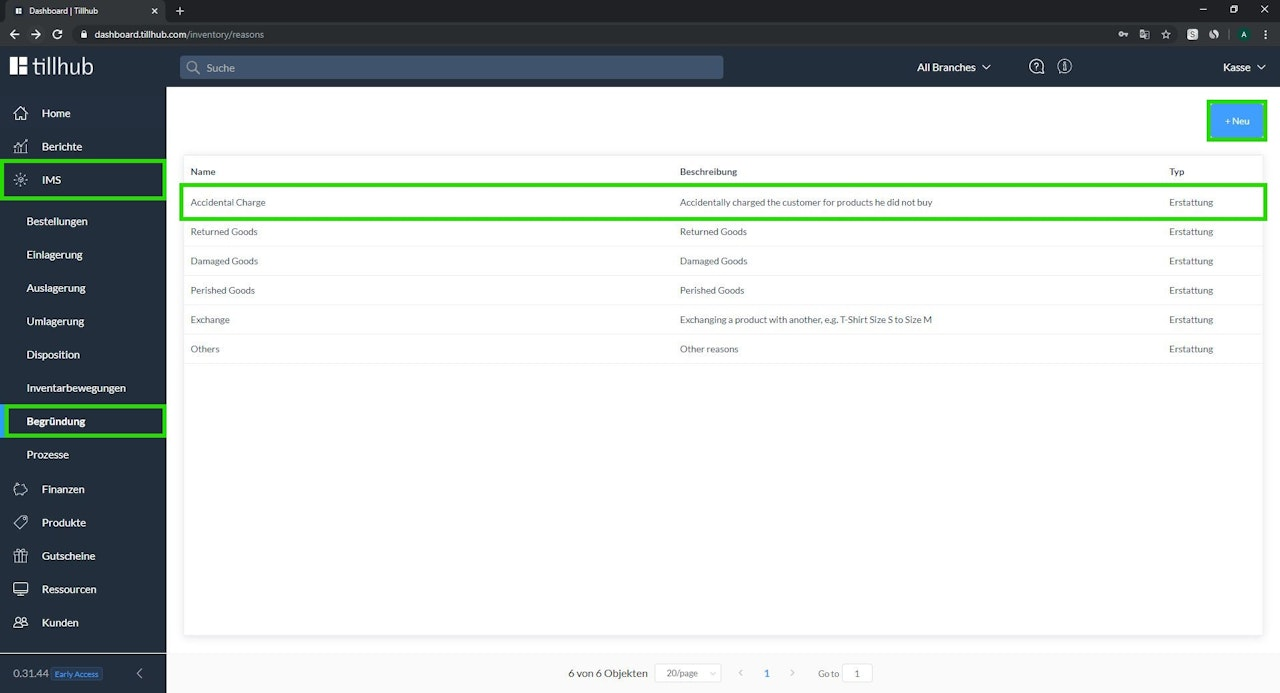
To view, edit, or create new reasons, first open "Inventory Management – Reasons" in your Dashboard.
Click on an existing reason to edit it. To create a new reason, click the blue "+ New" button.
In the menu for editing or creating a reason, you have the following options:
- Name your reason according to the specific case in which it will be used, and add a short but precise description.
- Decide what should happen to the stock after a refund or similar action. By default, this is set to "Return items to inventory".
- Navigation: Define for which case this reason should be applied.
Finally, click "Create". You can then use the reason in your POS.
Was this article helpful?
That’s Great!
Thank you for your feedback
Sorry! We couldn't be helpful
Thank you for your feedback
Feedback sent
We appreciate your effort and will try to fix the article
