6. Reports
Modified on Wed, 25 Feb at 12:29 PM
TABLE OF CONTENTS
DATEV (optional)
If you have DATEV included in your subscription, please watch this video and set everything up accordingly. If DATEV is not included, you can skip this section.Monthly Reports
For the monthly reports, go to Reports in the dashboard and select Accounting. For the monthly reporting, three exports are required and must be sent to your tax advisor: Cash Closings (Balances), Payment Methods, and VAT.
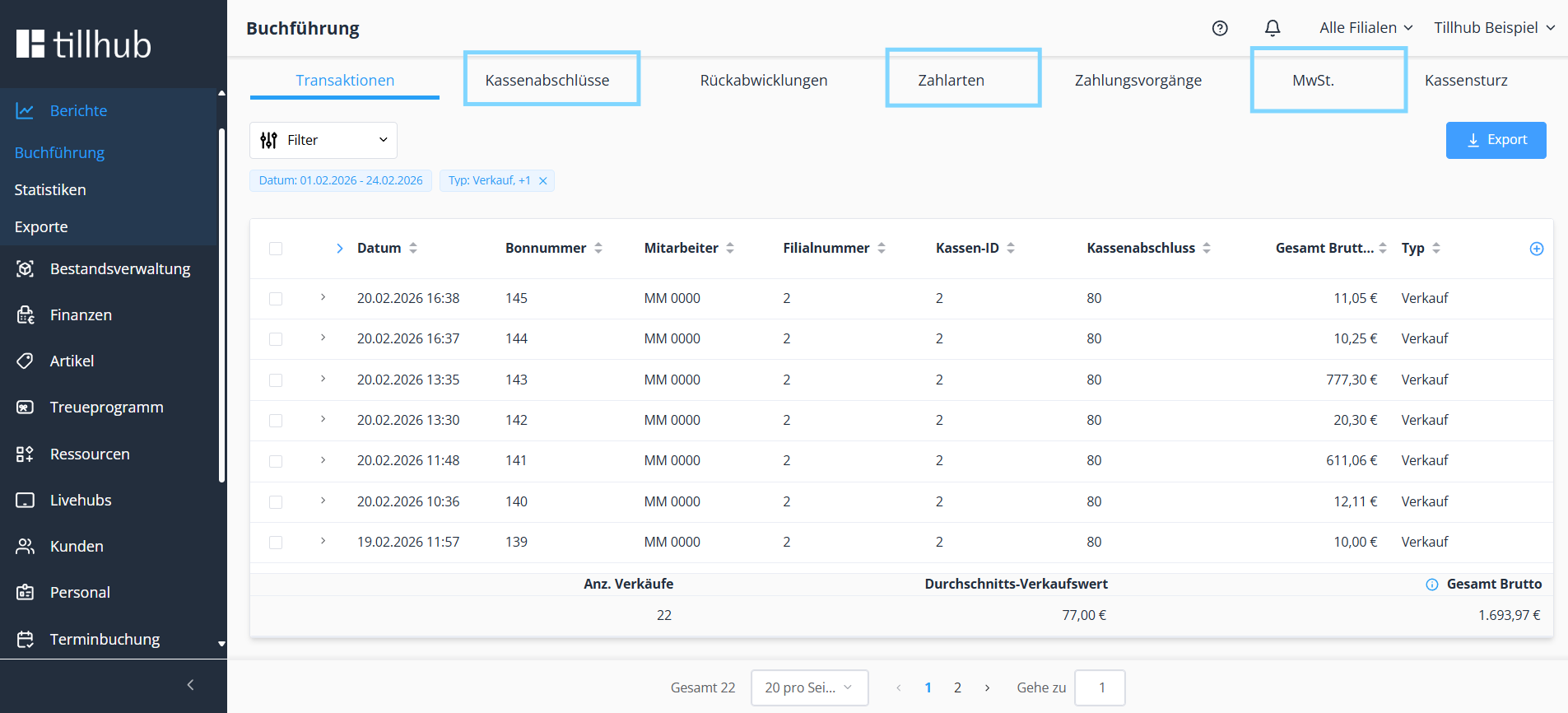
Before creating the exports, first use the Filter: Select the desired month and click Search so that all data for that month is displayed.
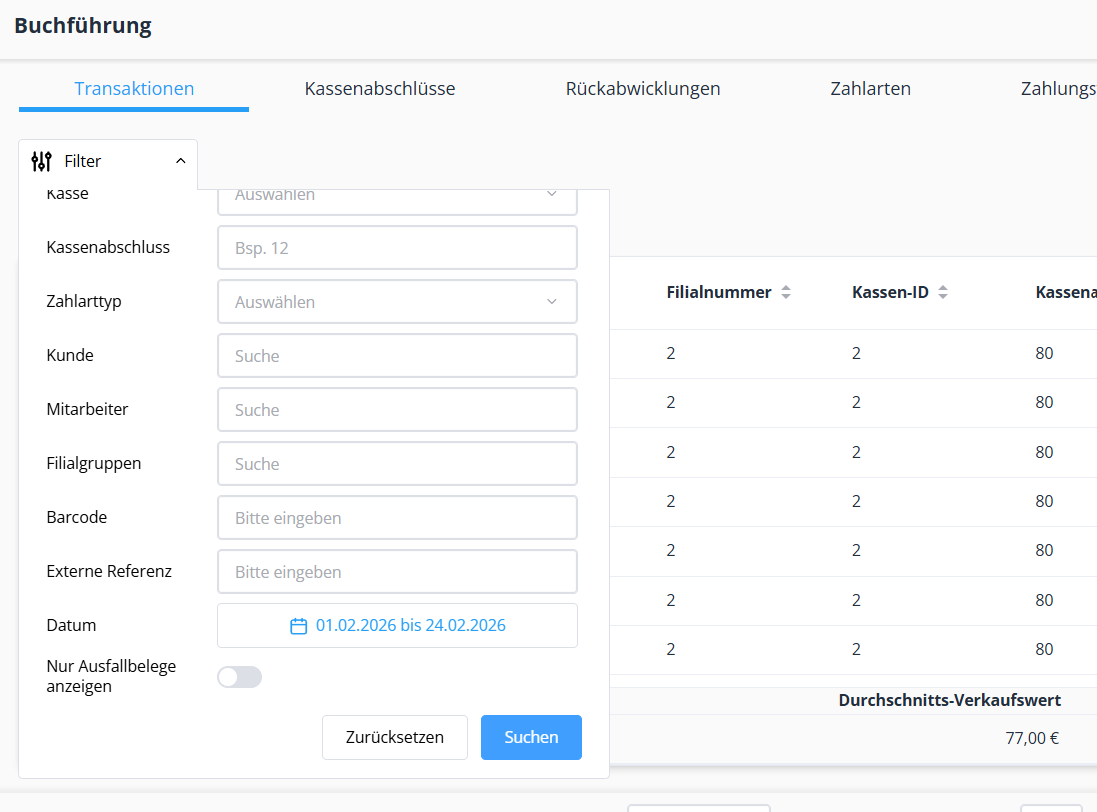
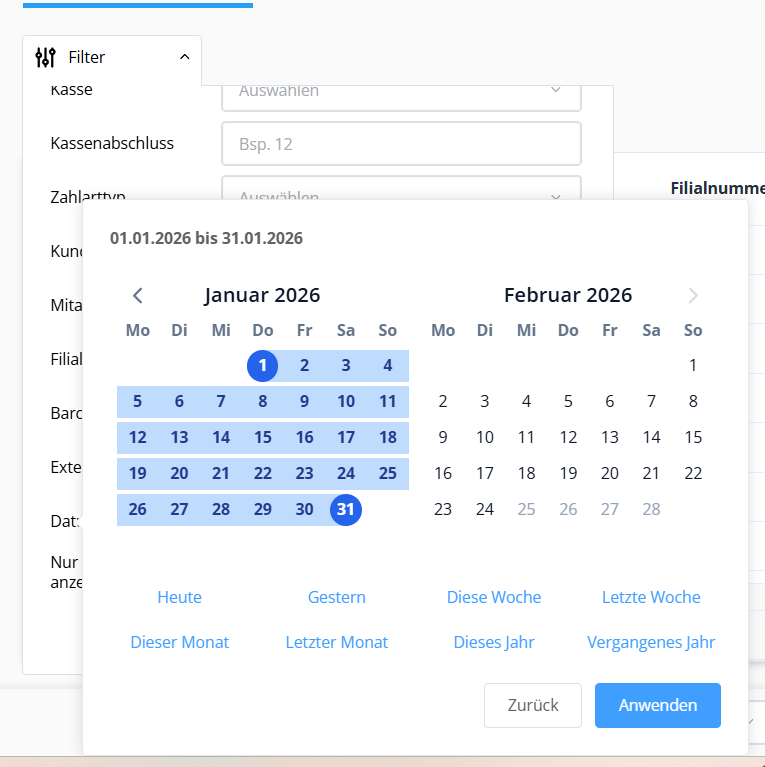
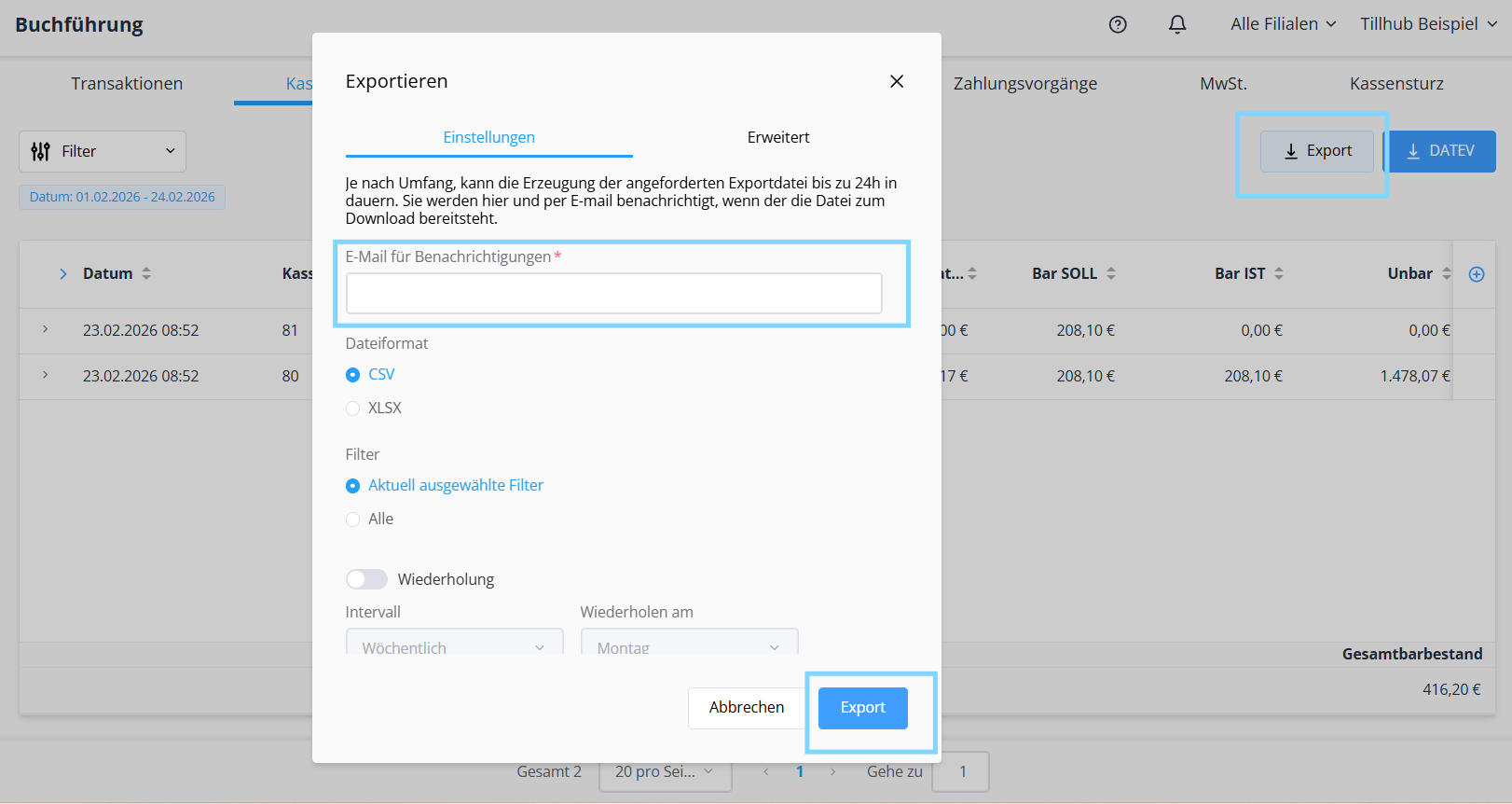
After that, proceed to each tab one by one. In the Cash Closings tab, click on Export, enter the tax advisor’s email address, and generate the export. Repeat the same process in the Payment Methods and VAT tabs, ensuring that all three exports are sent.
What You See in the Accounting Statistics
Cash Closings display all completed cash register closings. When you click on a specific closing, detailed information and the original receipt will appear. Receipts can also be sent by email or printed directly.
Transactions list all recorded activities, including sales, cancellations, income, and expenses. When selecting a transaction, the corresponding receipt is displayed on the right-hand side. The filter in the top left corner allows you to search for specific transactions.
Reversals provide an overview of cancelled or refunded sales. Here you can see which employee cancelled or refunded a transaction and when. The drop-down menu allows filtering by cancellation, refund, or potential refund.
Under Payment Methods, all payment types are clearly listed and can be exported if needed. The view can be sorted by payment type, transaction frequency, total amount, discount, as well as net and gross amounts. The breakdown by the VAT rates actually used provides a clear overview, including a total summary at the bottom.
Under Payment Transactions, all payments are stored. The filter helps you quickly find specific payments, and this category can also be exported.
The VAT section lists all generated VAT amounts, broken down by account, account number, number of sales positions, VAT rate, and VAT amount.
Optionally, under Statistics, you can access additional evaluations and reports, such as statistics for items, product groups, and other categories.
Was this article helpful?
That’s Great!
Thank you for your feedback
Sorry! We couldn't be helpful
Thank you for your feedback
Feedback sent
We appreciate your effort and will try to fix the article
