1. Create and edit accounts
Modified on Wed, 25 Feb at 12:29 PM
TABLE OF CONTENTS
- Create accounts for expenses and deposits
- Cash deposit account (account no.: 1360)
- Create tax and revenue accounts
- 'Where can I find the VAT accounts?
- Where can I find the revenue accounts?
- How do I change the account numbers?
Create accounts for expenses and deposits
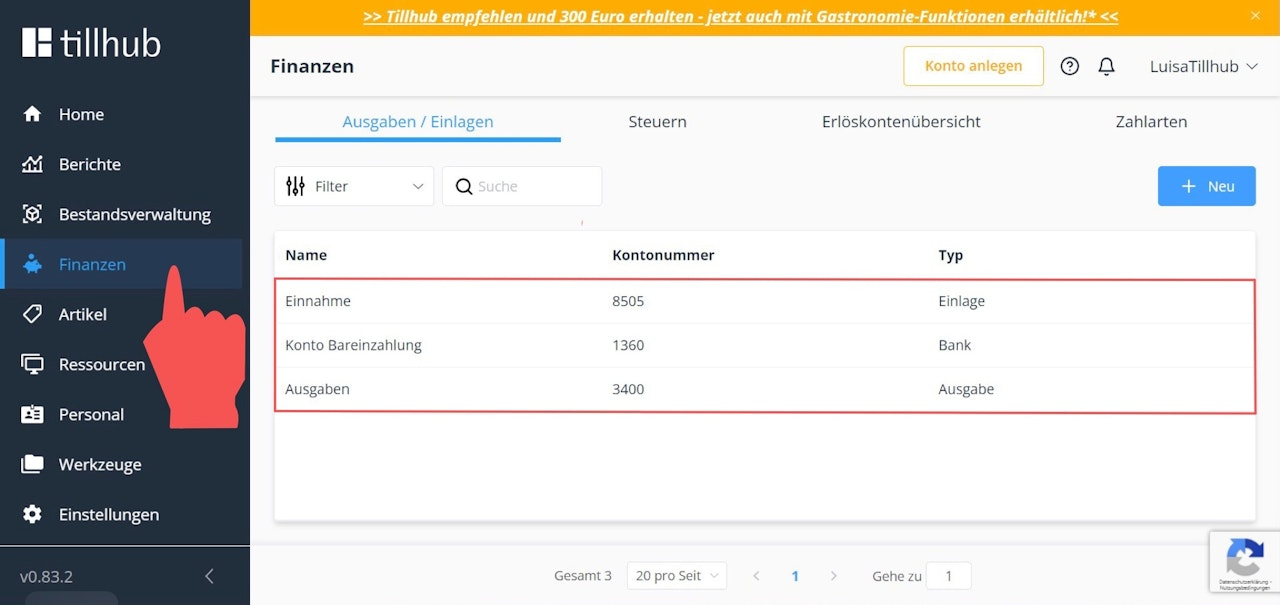
Once you have navigated to the main menu item “Finances” in the dashboard, click on the tab “Expenses/Deposits” on the right-hand side of the screen, where the following accounts are set as default:
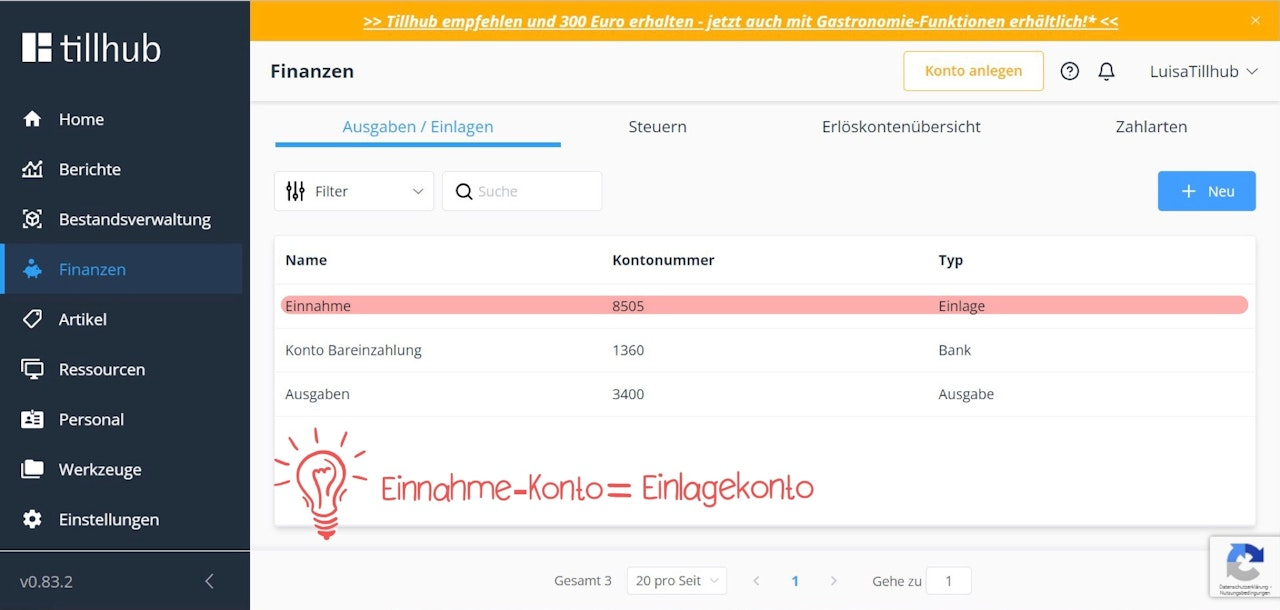
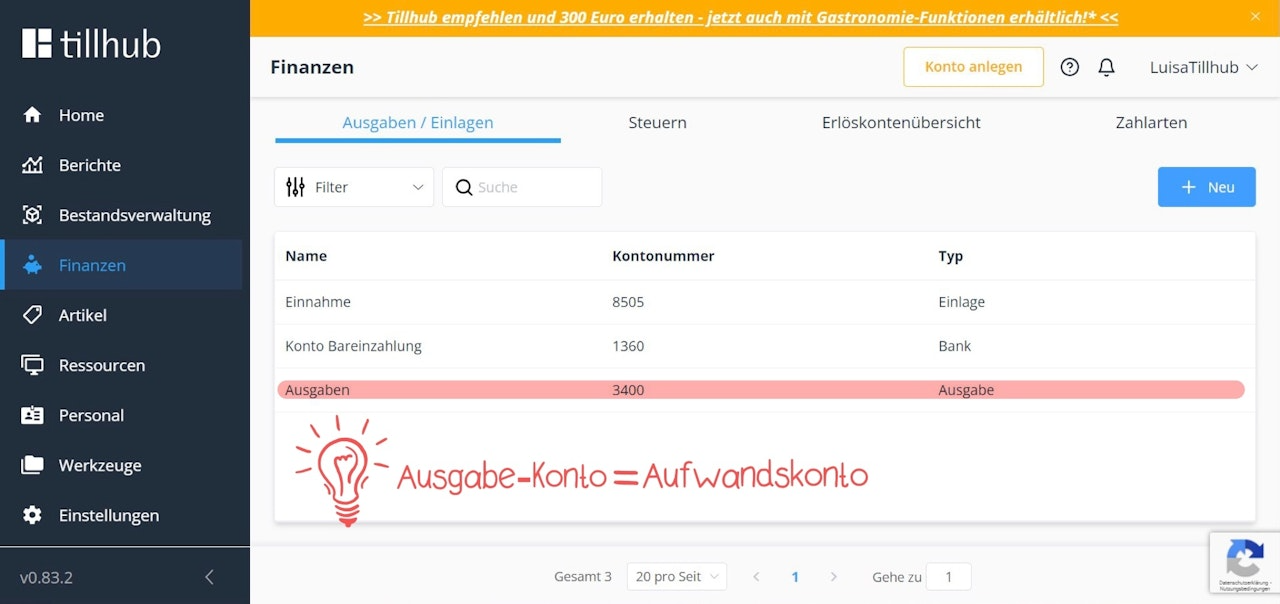
Income (account no.: 8505) & Expenses (account no.: 3400)
These two accounts play a role in your extraordinary transactions and are therefore not linked to any VAT accounts.
For example, you post the opening balance that you place in your cash register at the beginning of the day to the income account.
The expenditure account is an expense account, i.e., you post amounts of money that you take out of your cash register to this account, for example, to pay the postage bill for your company.
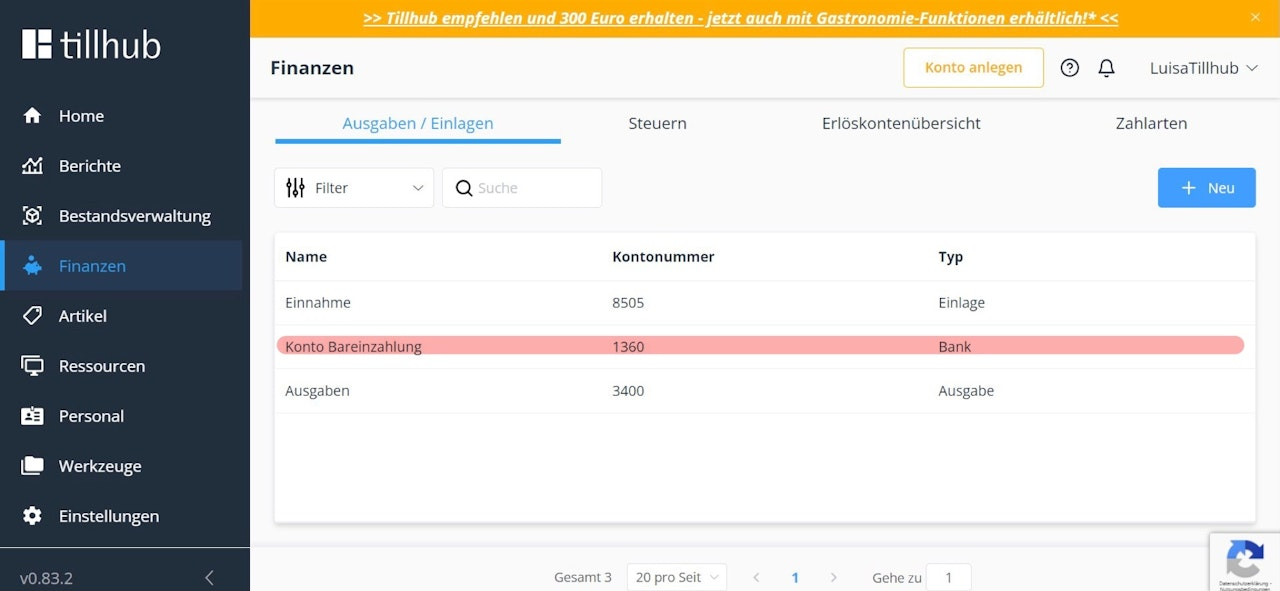
Cash deposit account (account no.: 1360)
The amount that you take out of the cash register and bring to the bank before closing the cash register is posted to this account (i.e., “Cash transit account cash register - bank”).
Create tax and revenue accounts
When you sell your goods, this leads on the one hand to income, which you record in so-called revenue accounts (profit and loss accounts). On the other hand, the sale of your goods results in value-added tax (VAT), which is recorded in so-called VAT accounts so that it can later be paid to the tax office. This is also the reason why product groups in our system are always linked to both a tax account and a revenue account (see the following article: How do I create product groups in the dashboard?).
Separate accounts are created for each VAT rate in order to speed up the reconciliation process during the advance VAT return. In this article, we explain which VAT and revenue accounts are created by default in our system and how you can modify them.
'Where can I find the VAT accounts?
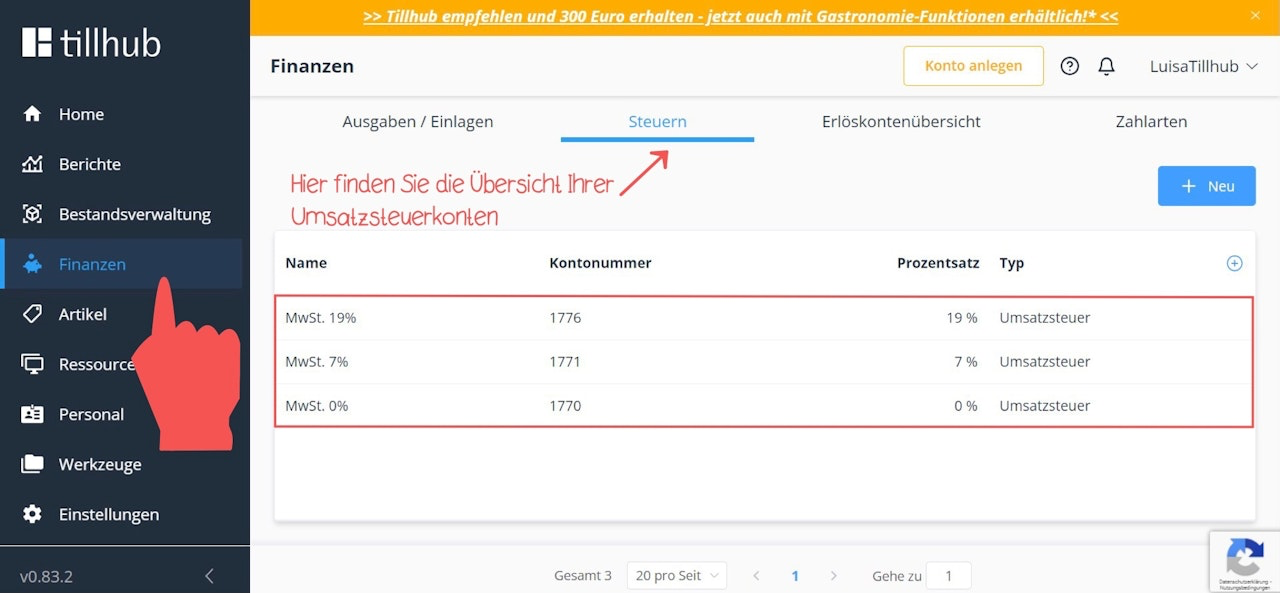
Under the “Taxes” tab, you will find the following VAT accounts:
VAT 19% (Account no.: 1776)
VAT 7% (Account no.: 1771)
VAT 0% (Account no.: 1770)
Where can I find the revenue accounts?
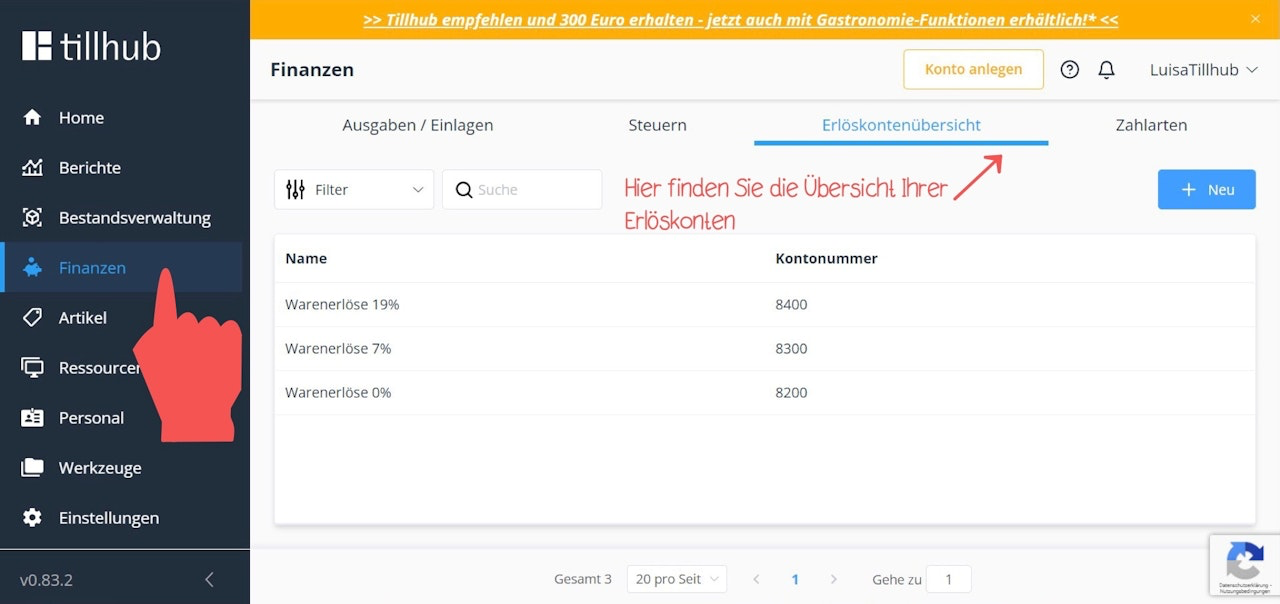
Under the “Revenue Accounts Overview” tab, you will find the following revenue accounts:
Sales Revenue 19% (Account no.: 8400)
Sales Revenue 7% (Account no.: 8300)
Sales Revenue 0% (Account no.: 8200)
How do I change the account numbers?
Since our system uses SKR03 by default, you may need to change the account numbers of the above-mentioned accounts, for example, if your tax advisor uses SKR04.
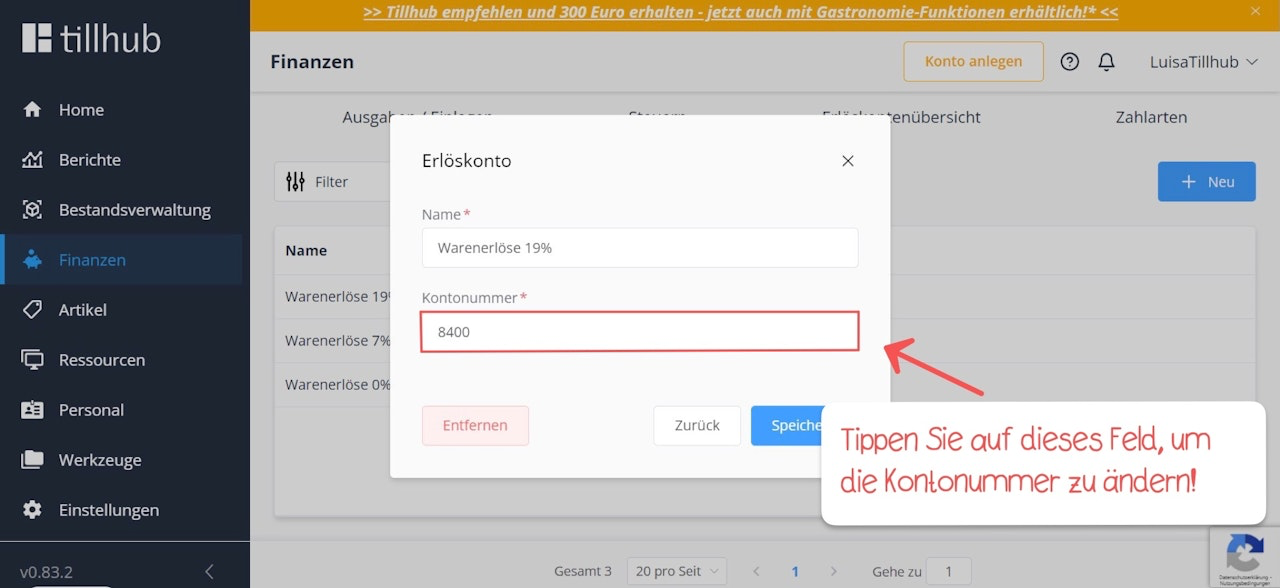
To change an account number, click on the respective account. A pop-up window will open where you can change not only the account number but also, for example, the name, if needed. After making your changes, click the blue “Save” button.
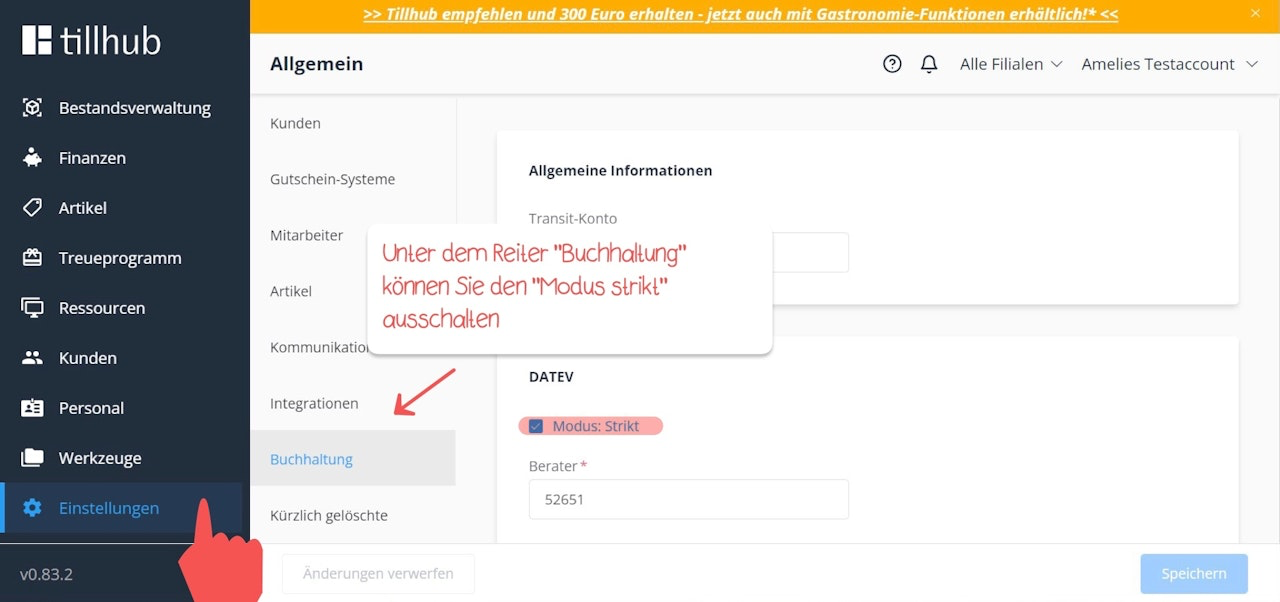
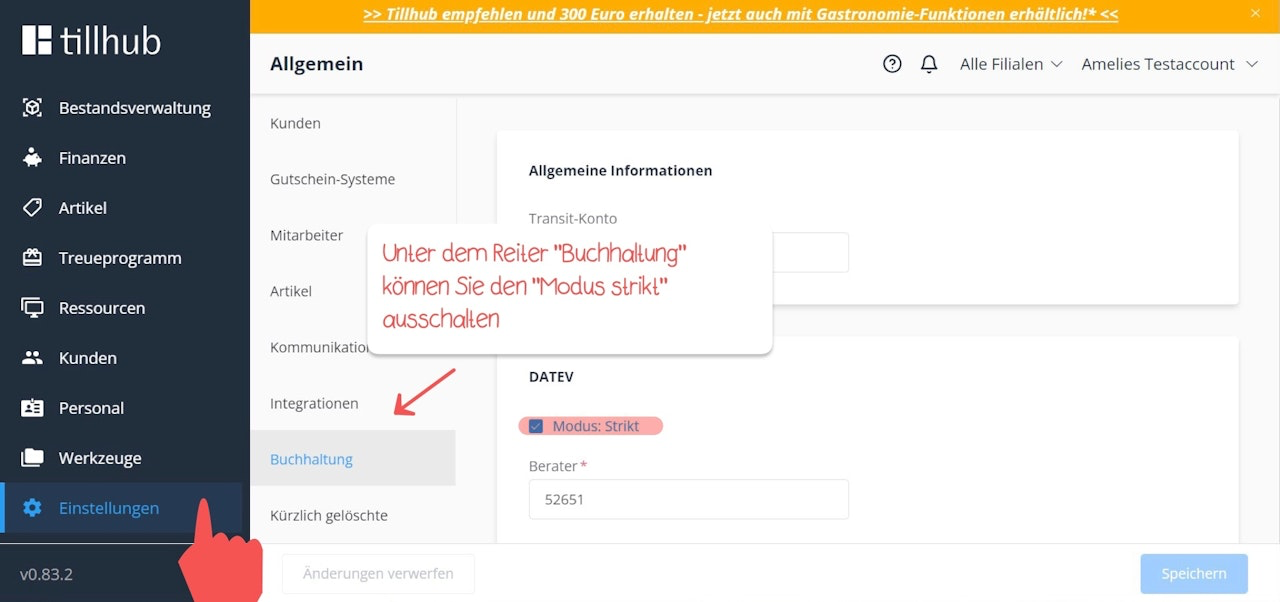
If, for technical reasons, you are unable to change the account numbers, please go to the menu Settings > Accounting.
Now you need to uncheck the box labeled “Strict mode.”
Was this article helpful?
That’s Great!
Thank you for your feedback
Sorry! We couldn't be helpful
Thank you for your feedback
Feedback sent
We appreciate your effort and will try to fix the article
