2. Selecting & Switching Employees
Modified on Thu, 2 Apr at 3:51 PM
Choosing the right employee is important for the correct assignment of transactions. The prompt for employee selection appears automatically in many cases. If it does not appear automatically, you can manually switch employees at any time.
When the employee selection screen is displayed, an employee must be selected to continue working with the register. Only after selecting an employee will this screen close, and you will return to the register interface. After that, you can continue to work with the register as usual.
Procedure
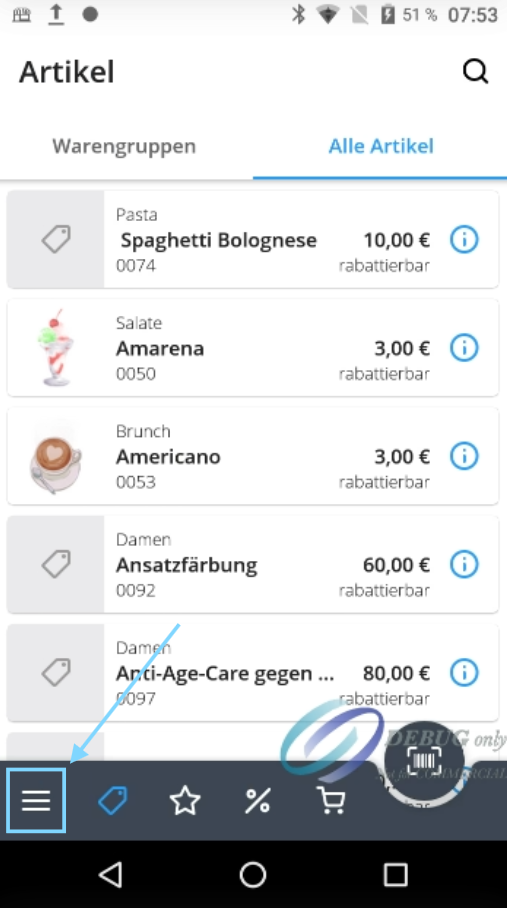
1. Open the Menu
Tap the three lines at the bottom left. The menu will open.
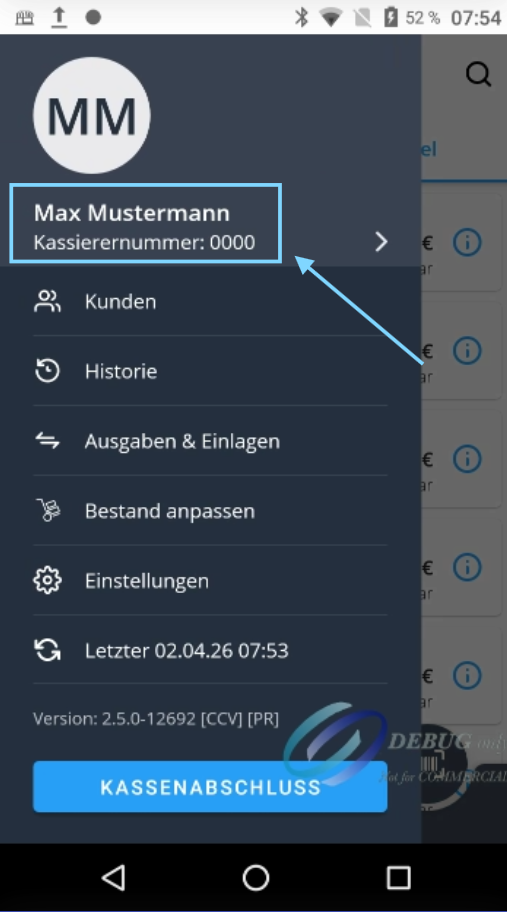
2. View Current Employee
At the top of the menu, you will see the currently logged-in employee. There is a circle with the initials at the top, followed by the name and cashier number. Tap on the employee's name to open the list of all available employees.
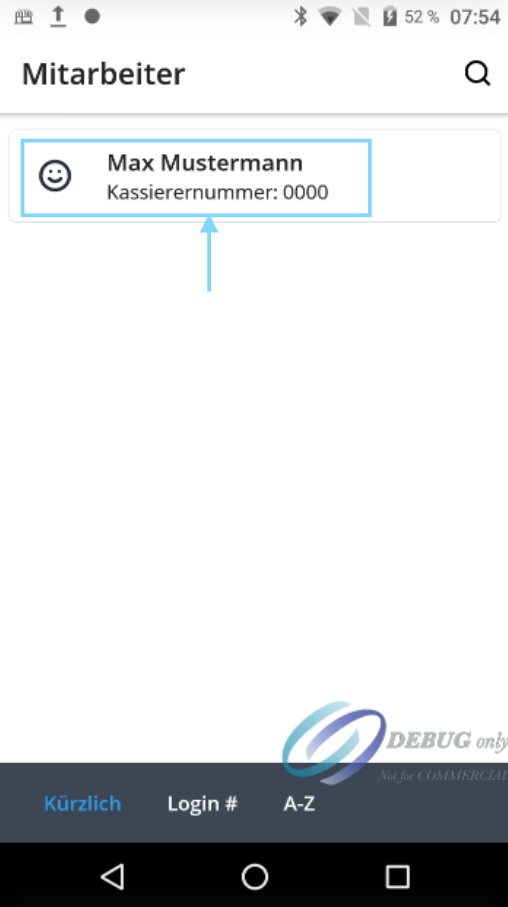
3. Select and Log In Employee
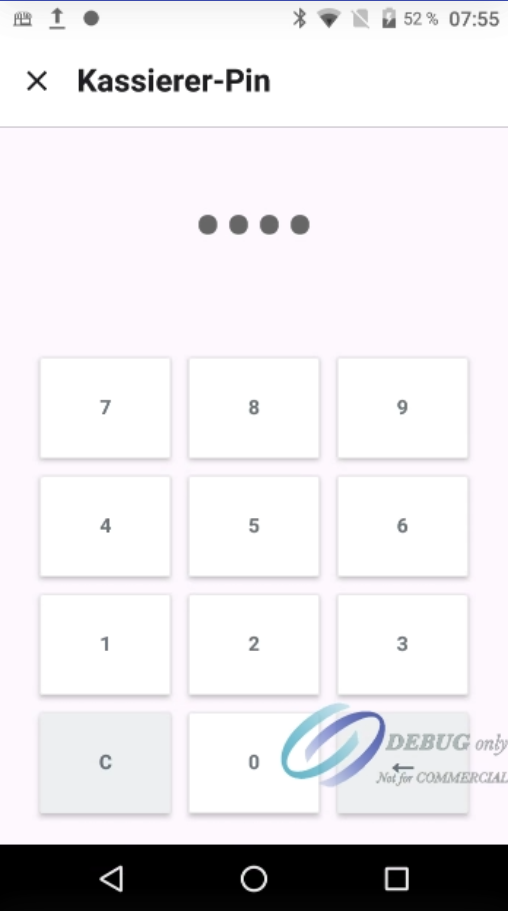
Now you will see the available employees and can select your own name. Tap on your name and then enter your personal cashier PIN (this is set in the dashboard). After a successful entry, you will be logged in immediately and can continue working as usual.
4. If Not All Employees Are Displayed
If not all employees are visible in this view, tap on "A–Z" in the dark bar at the bottom. This will display all registered employees alphabetically.
Note: Each employee uses only their own PIN. The personal PIN is stored in the dashboard under "Staff" and can be changed there if necessary.
Was this article helpful?
That’s Great!
Thank you for your feedback
Sorry! We couldn't be helpful
Thank you for your feedback
Feedback sent
We appreciate your effort and will try to fix the article
