Tipping Feature for iOS Gastro on the Card Reader
Modified on Fri, 4 Sep at 11:04 AM
We offer a tipping feature for iOS Gastro at the checkout. This works with an A920, A77, or A960 device as a card reader, which has already been installed for you.
Requirements:
- Your device is connected to the CCV store and was provided by Unzer.
- You are using the SecPosEvo App.
- Neither Orderpro nor POS Go is installed on your device.
- Your device is connected via OPI.
- The tipping feature is activated for your device in the dashboard.
How to activate the tipping feature on the terminal:
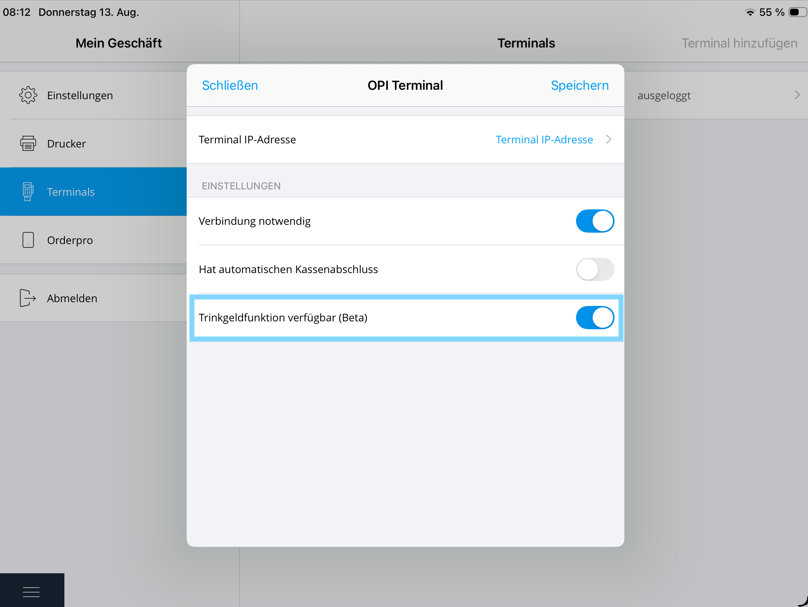
In order to give tips directly at the card reader, you need to activate the OPI terminal setting once: Go to Settings in the Tillhub Gastro App on your iPad, navigate to Terminals, and click on "Add Terminal". Select "OPI" and then click on "Connection required". Additionally, click on "Tipping feature available" and activate it. Under "Terminal IP address" you will then see the corresponding IP address – click on it and finally click on "Log in".
How it works at checkout:
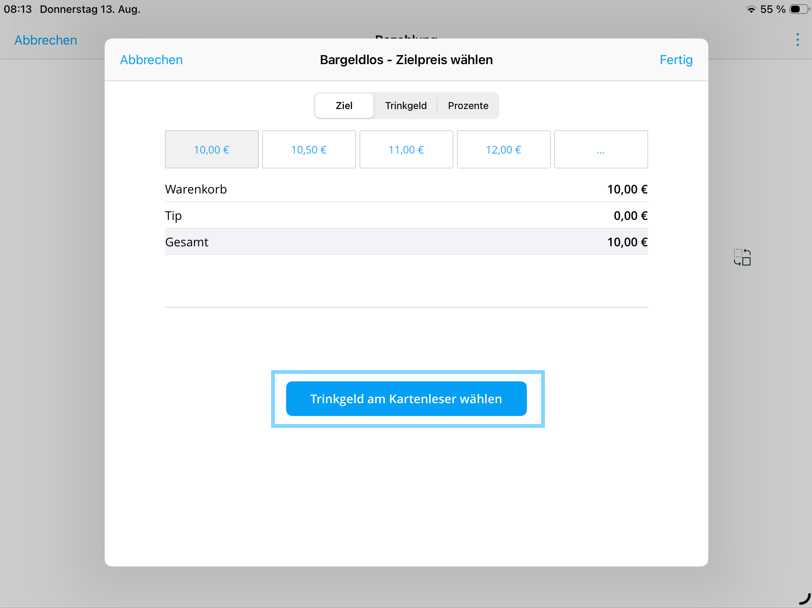
When you complete a sale and select card payment, you will be asked whether the tip should be selected on the card reader. Confirm this. The tip selection then appears directly on the card reader, and the customer can enter the desired amount themselves.
Was this article helpful?
That’s Great!
Thank you for your feedback
Sorry! We couldn't be helpful
Thank you for your feedback
Feedback sent
We appreciate your effort and will try to fix the article