Create a customer and add to the shopping cart
Modified on Tue, 17 Feb at 2:16 PM
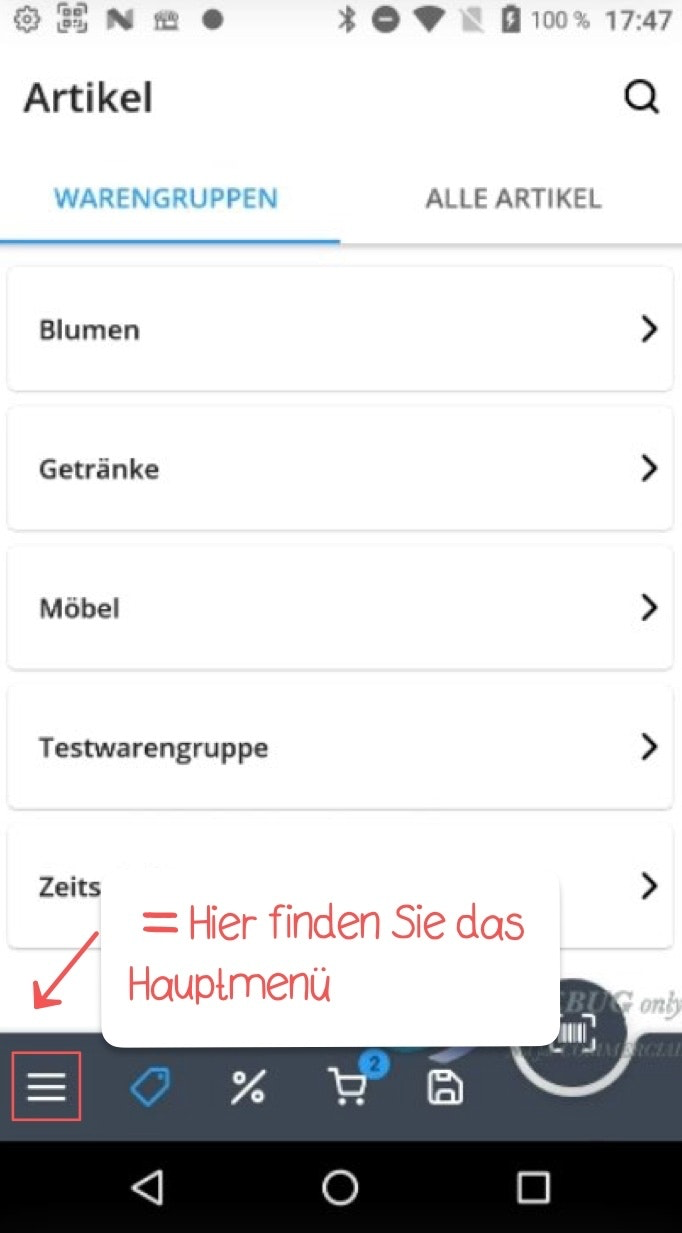
To create new customer accounts, tap the main menu icon at the bottom left.
Create a customer
To create new customer accounts, tap the main menu icon at the bottom left.
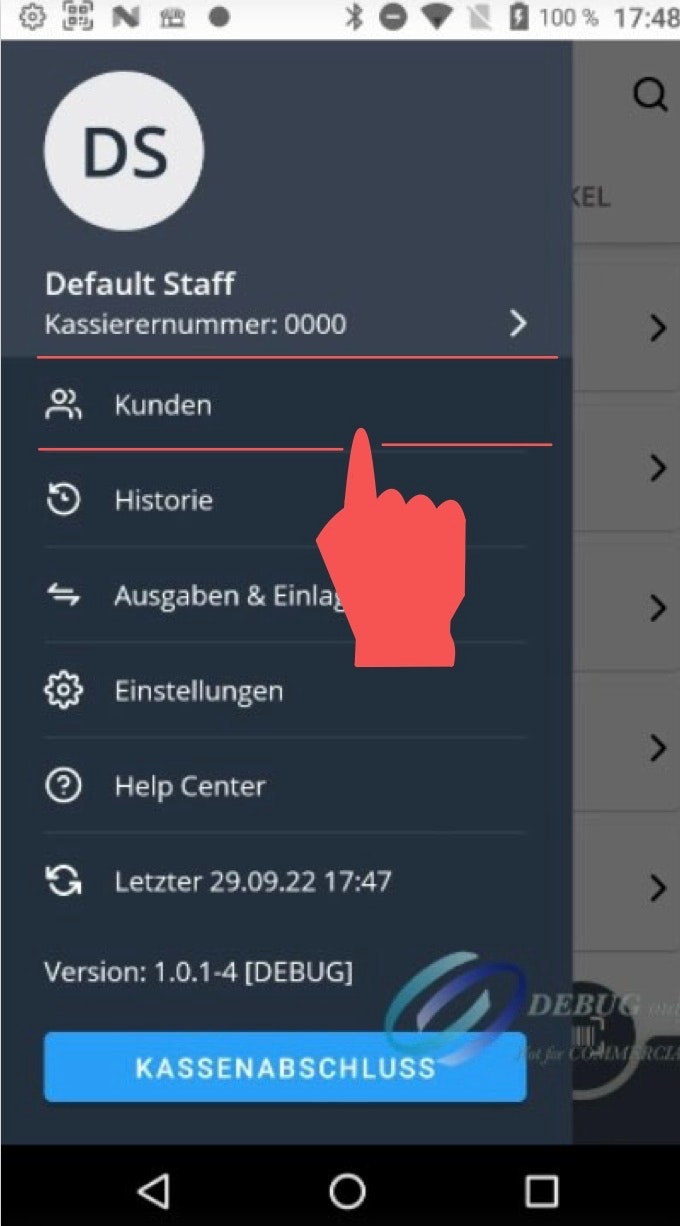
Navigate to the “Customers” menu.
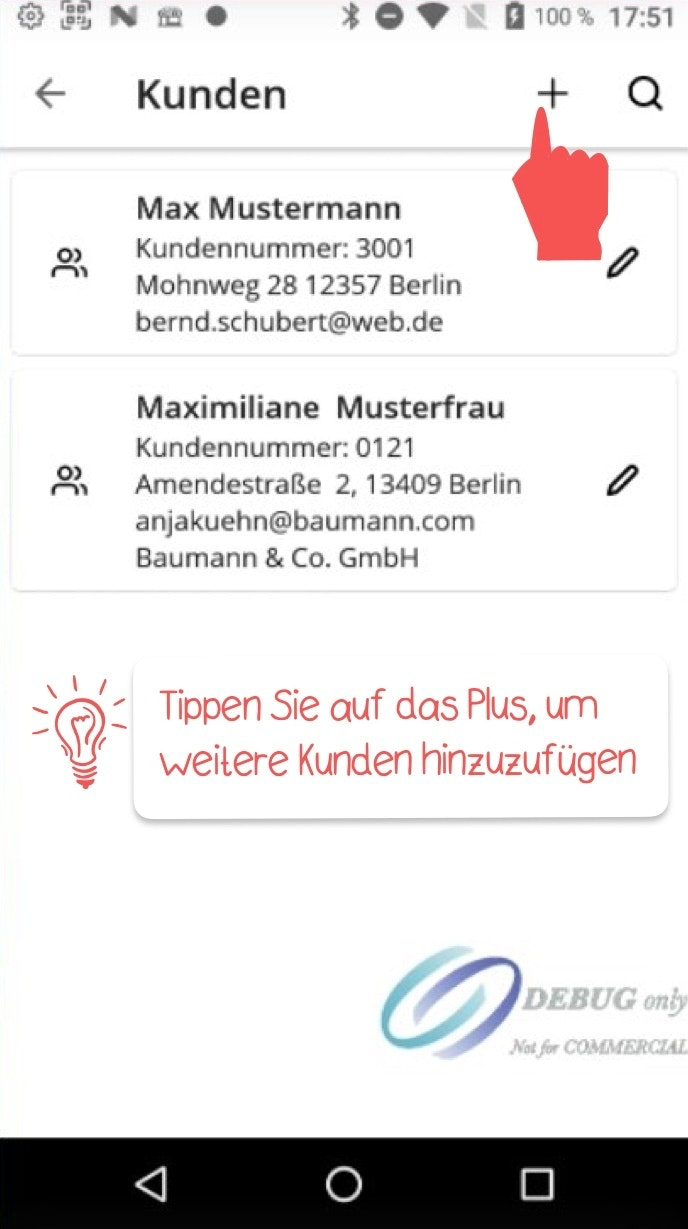
Then tap the plus symbol at the top right.
If you do not wish to fill in all fields, make sure to at least complete the “Last Name” and “Customer Number” fields, as these are mandatory. You can exit the customer menu by tapping the arrow at the top left.
Link a customer account with a discount
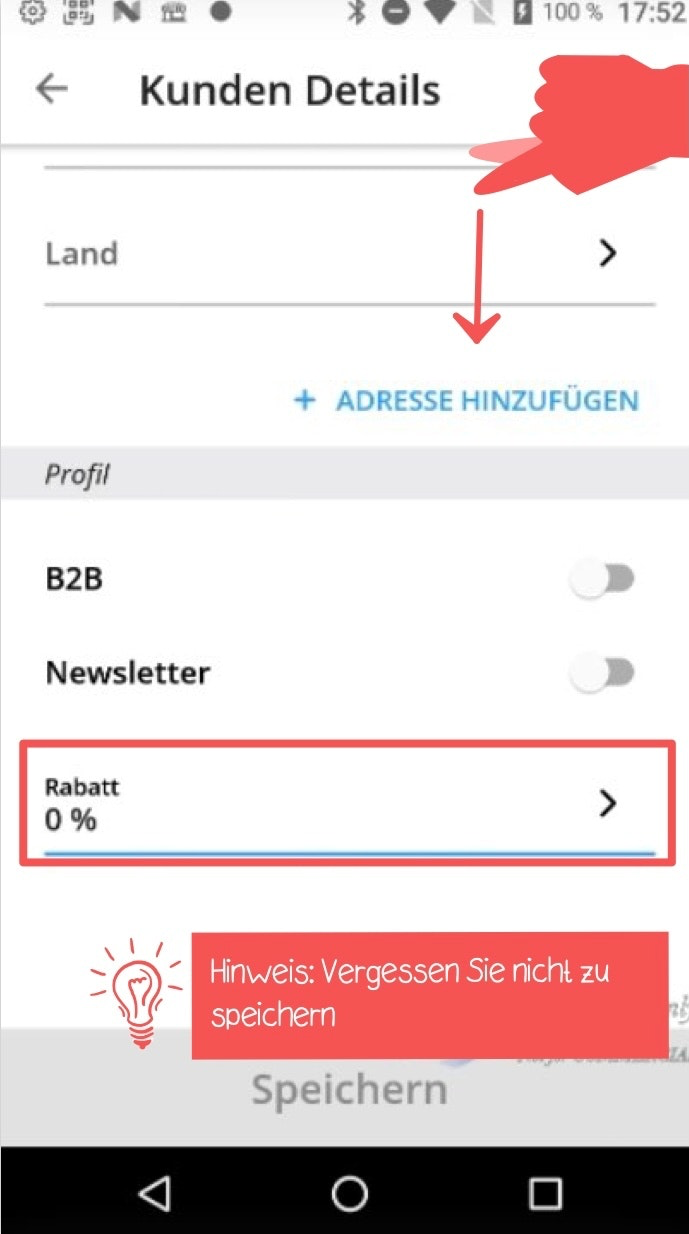
If you want to link a customer account with a discount, navigate to “Discount” in the profile view by scrolling down and entering the desired discount amount.
Add a customer to a shopping cart
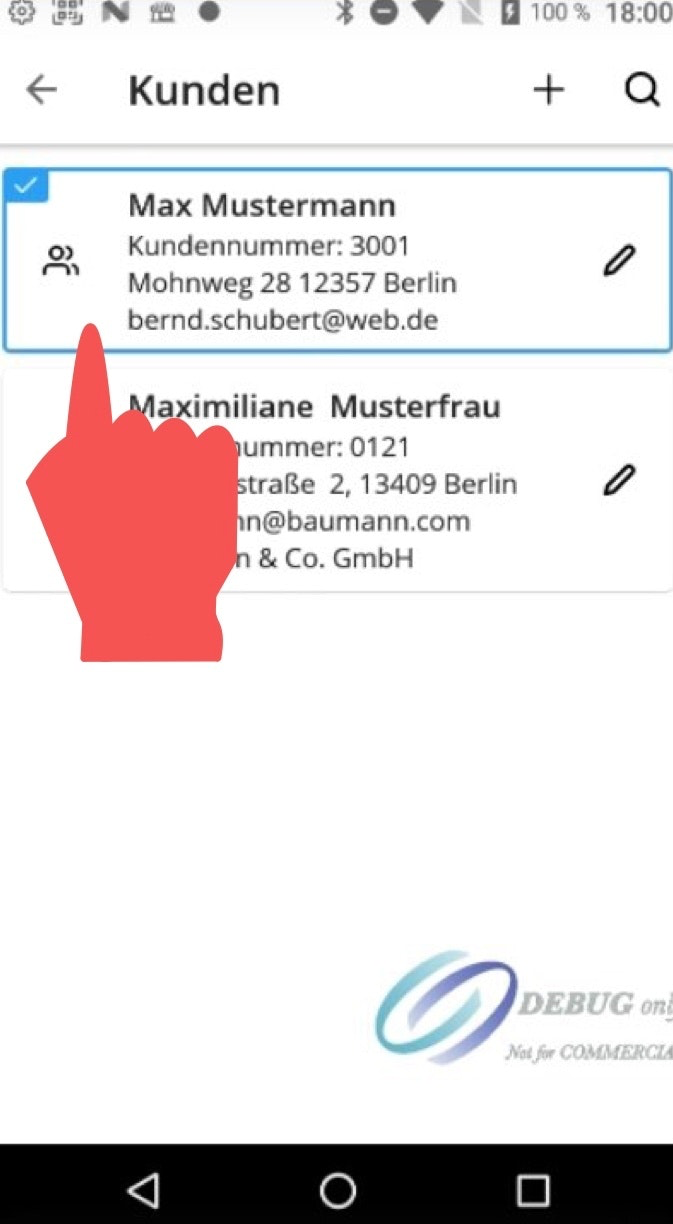
If you want to add a customer to a shopping cart, you can do this either via the main menu by navigating to the “Customers” menu and then tapping the respective customer account.
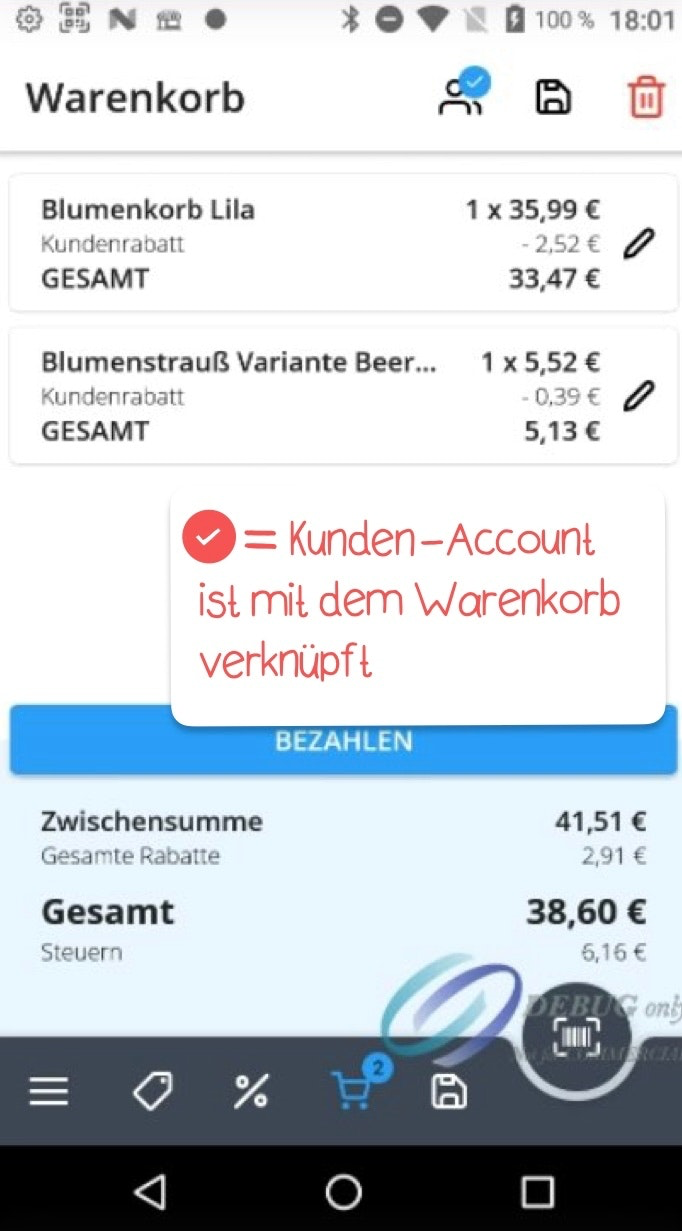
However, the more direct way is to tap the two person icons above the shopping cart on the right and then select one of the customer accounts. Once a customer account has been linked to a shopping cart, this will be confirmed with a blue checkmark.
If you want to undo your selection, simply tap the respective customer account again until the blue outline disappears.

Was this article helpful?
That’s Great!
Thank you for your feedback
Sorry! We couldn't be helpful
Thank you for your feedback
Feedback sent
We appreciate your effort and will try to fix the article