Park shopping carts
Modified on Tue, 17 Feb at 2:16 PM
Save shopping cart
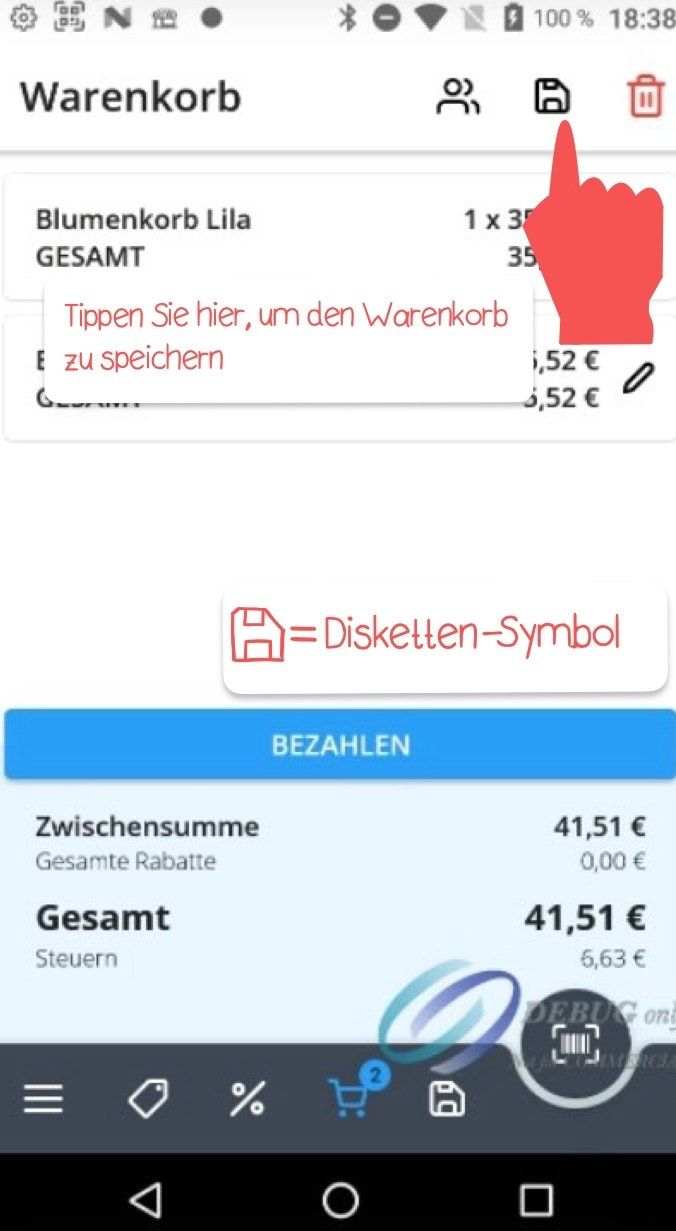
If you want to temporarily save or park the entire contents of a shopping cart, tap the disk icon at the top right.
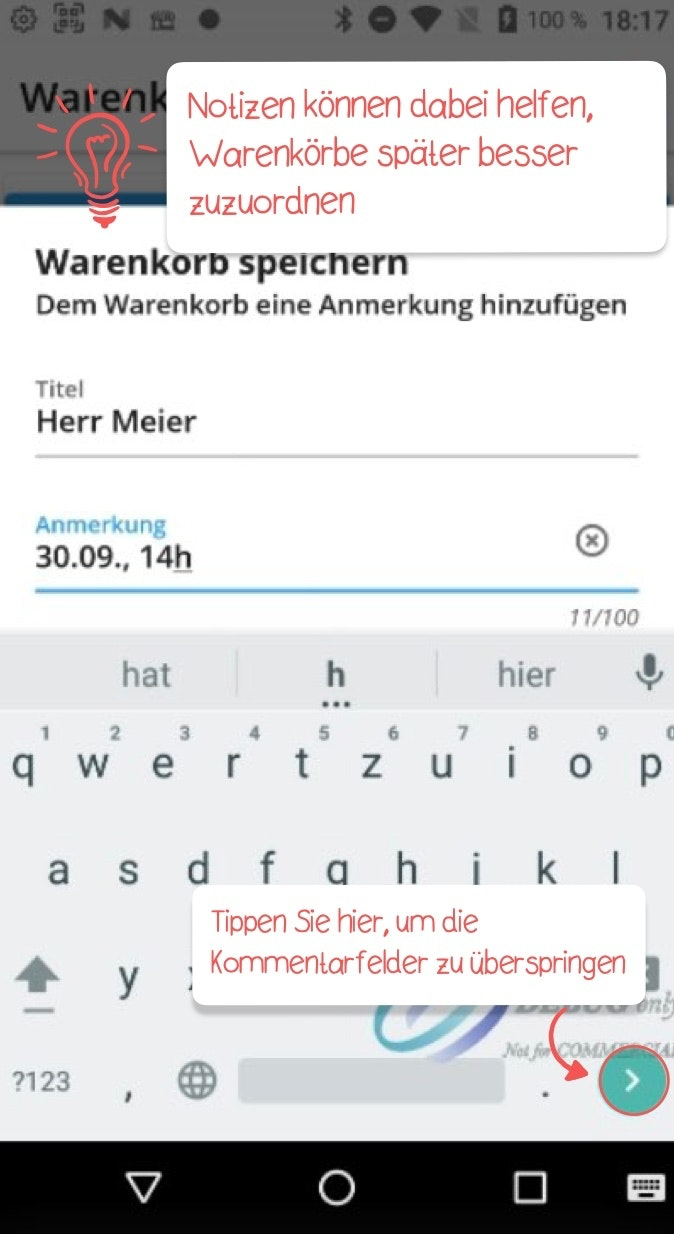
Add a note in the comment fields to make it easier to identify the cart later. Confirm your entries by using the green button at the bottom right. You can also use the green button to skip through the comment fields one by one.
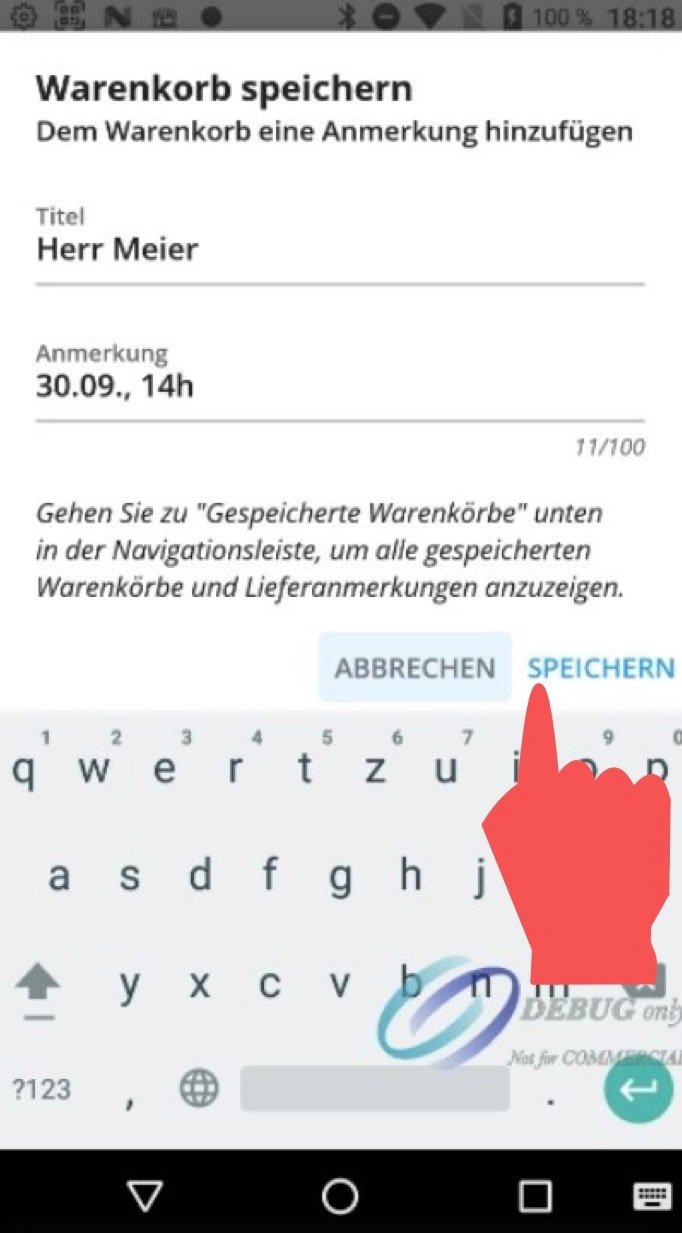
Then tap “Save.”
Additional shopping cart
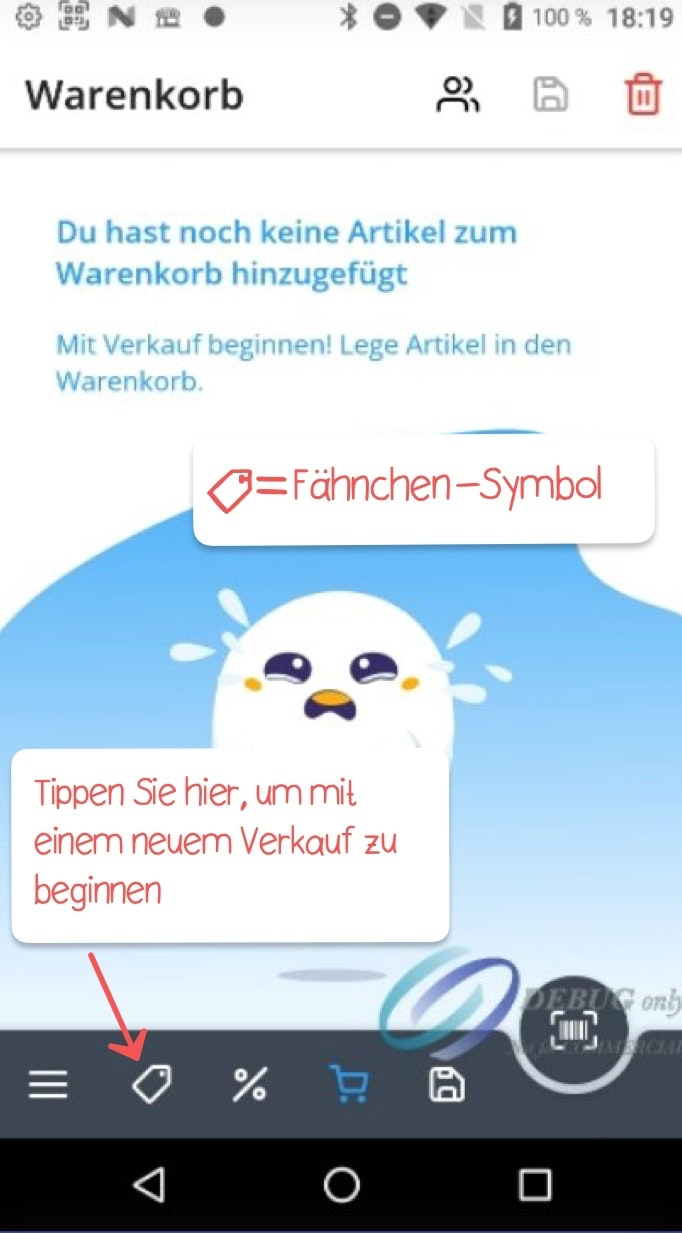
After you have temporarily saved the contents of a shopping cart, you can start a new sale by tapping the flag icon at the bottom left and beginning with item selection.
Open a saved shopping cart
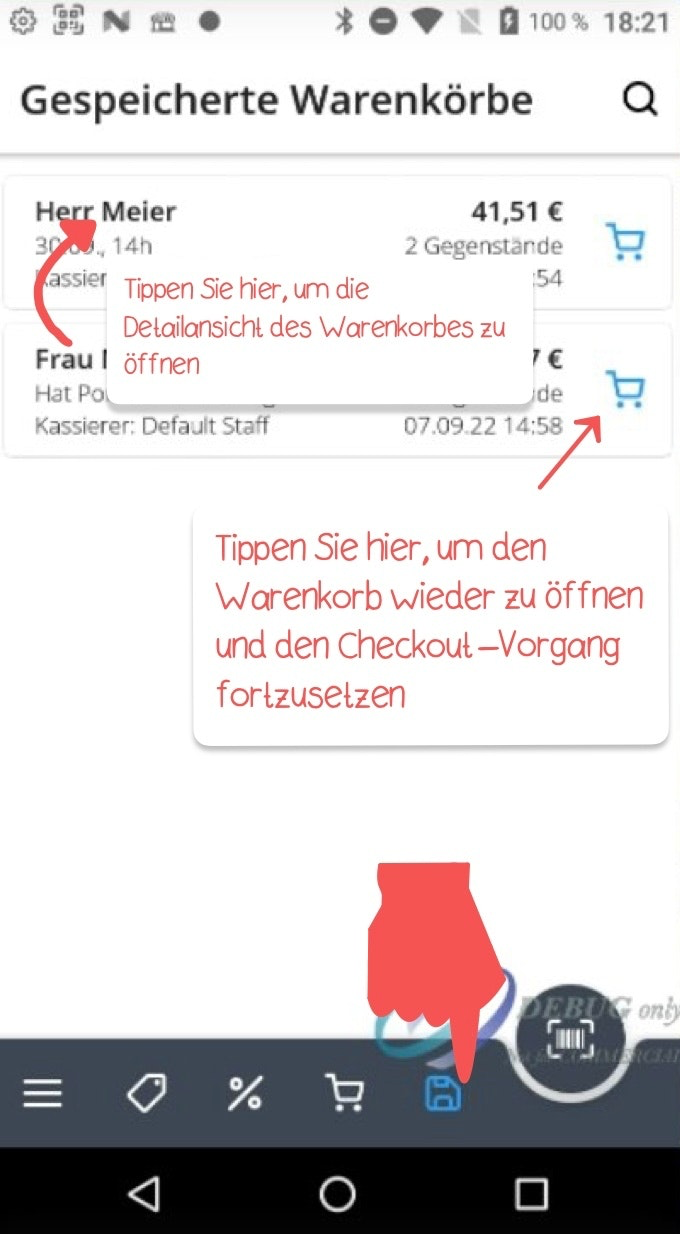
To reopen a temporarily saved shopping cart at a later time, tap the disk icon located in the bottom menu bar.
A list view will then open showing all temporarily saved shopping carts.
If you want to reopen a specific cart for the checkout process, simply tap the shopping cart icon on the right edge.
Delete shopping cart
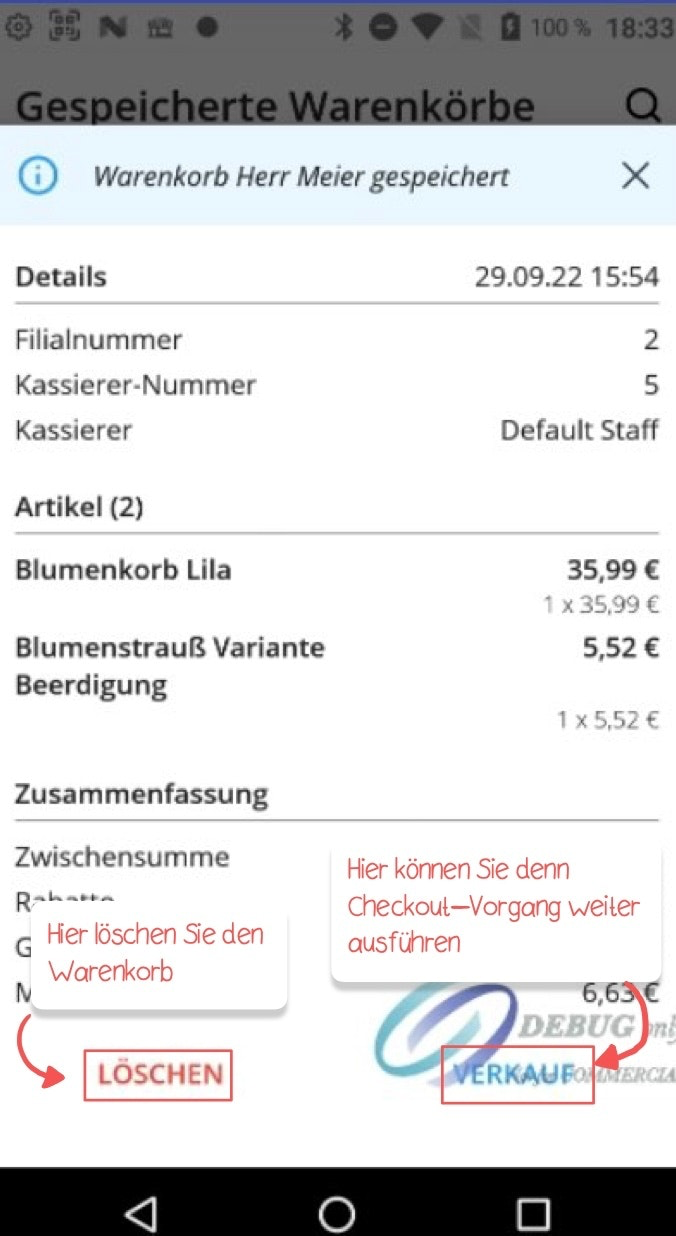
If you want to delete a saved shopping cart, tap its name to open the detail view, then tap “Delete” at the bottom left.
Continue checkout process
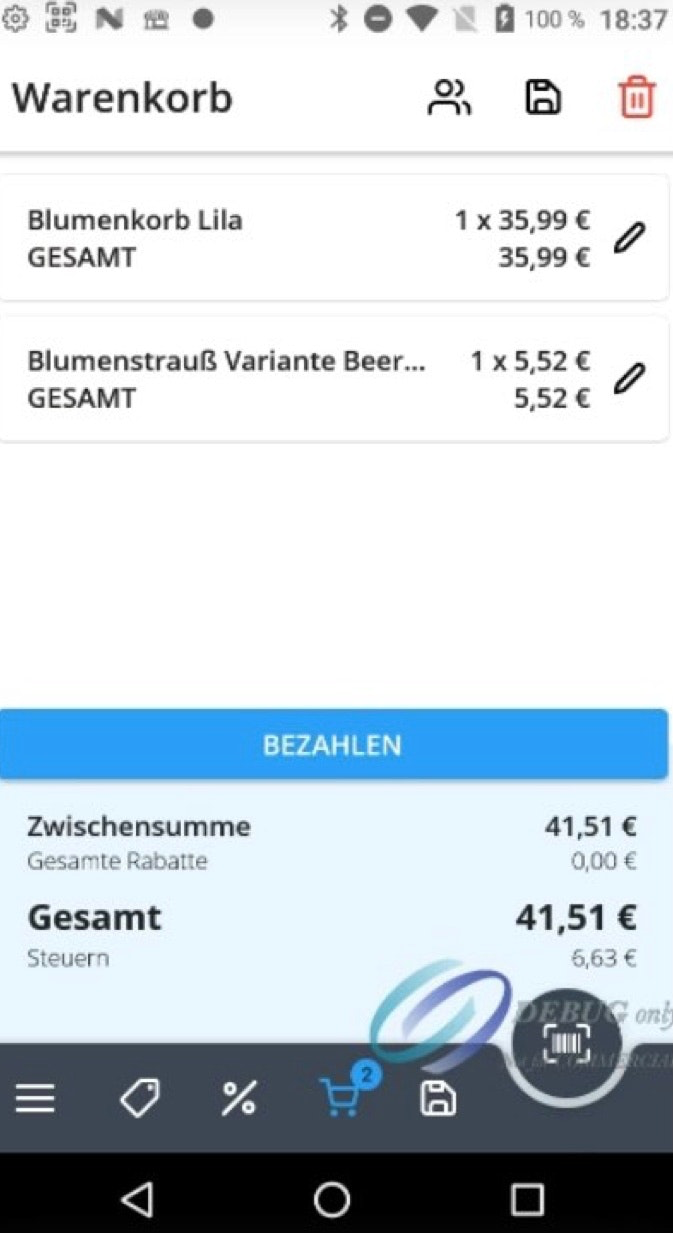
When you tap “Sale,” you can resume the checkout process.
You can now either tap “Pay” directly or continue editing the contents of the shopping cart — for example, by adding more items.

Was this article helpful?
That’s Great!
Thank you for your feedback
Sorry! We couldn't be helpful
Thank you for your feedback
Feedback sent
We appreciate your effort and will try to fix the article