Grant and remove discounts
Modified on Tue, 17 Feb at 2:16 PM
The POS Go distinguishes between item-level discounts and cart-level discounts. Item-level discounts apply to individual items in your shopping cart, while cart-level discounts apply to the entire contents of the cart. Furthermore, both item-level and cart-level discounts can be either fixed-amount discounts (€) or percentage-based discounts (%).
Item-level discounts
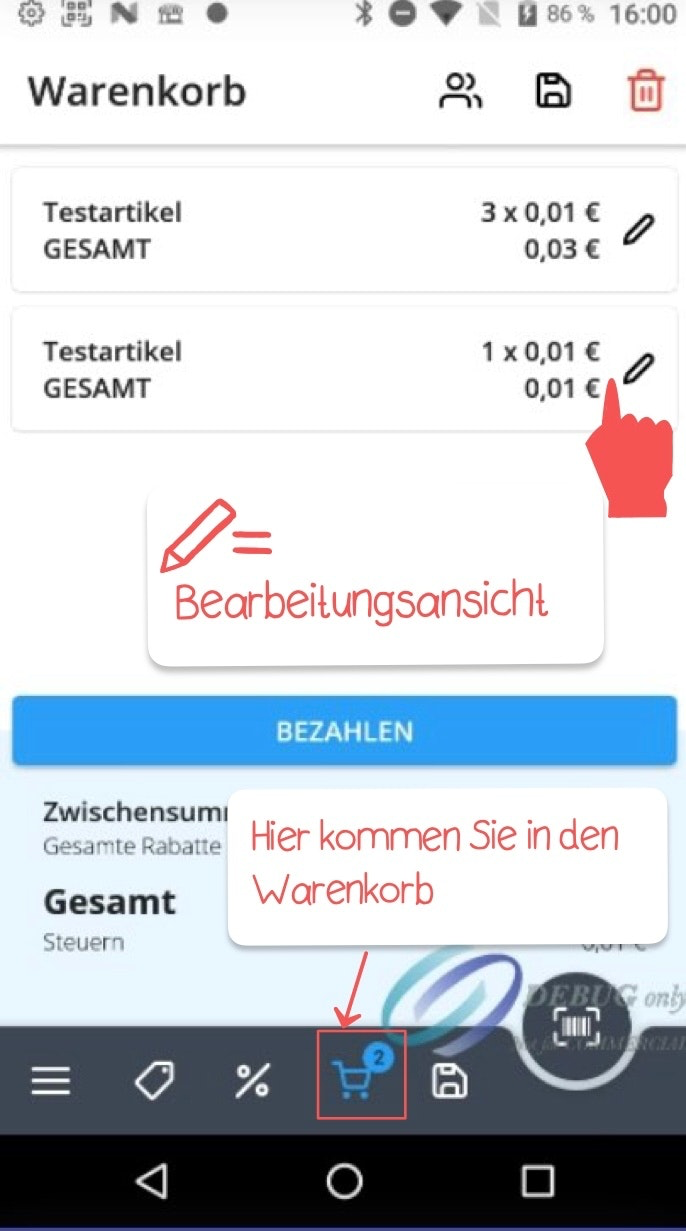
To apply an item-level discount, open the shopping cart by tapping the shopping cart icon in the bottom menu bar. Tap the pencil icon to open an item in edit view.
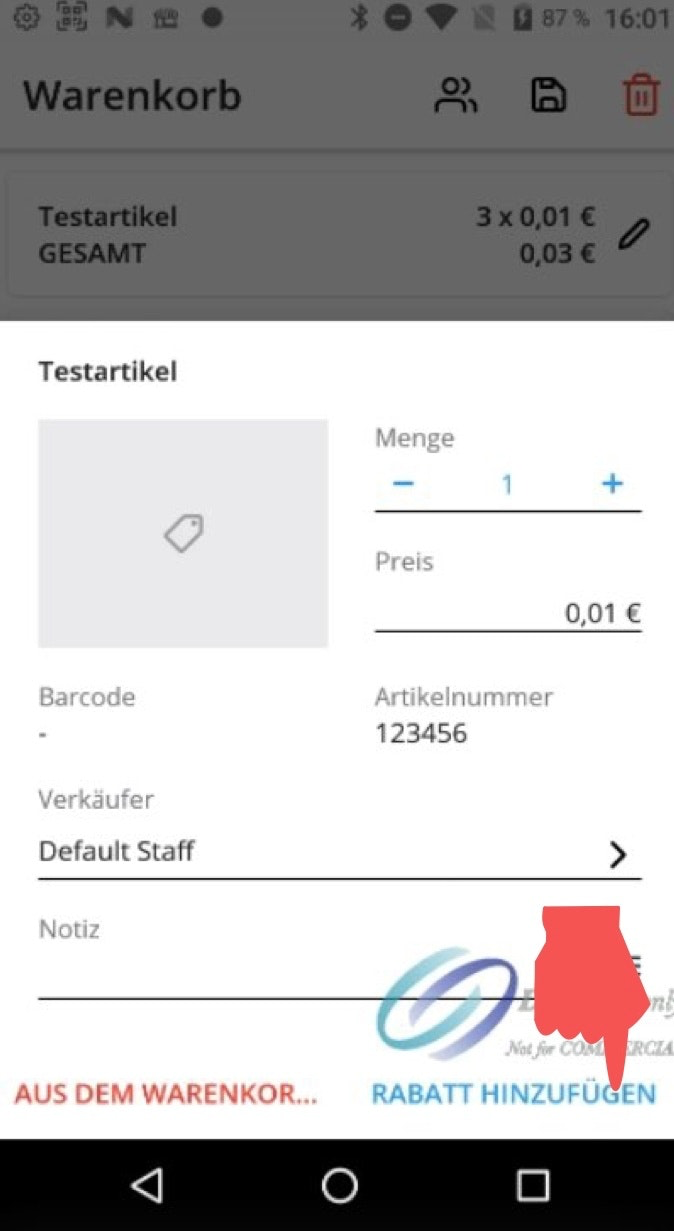
Tap “Add discount” at the bottom right and select one of the predefined discounts.
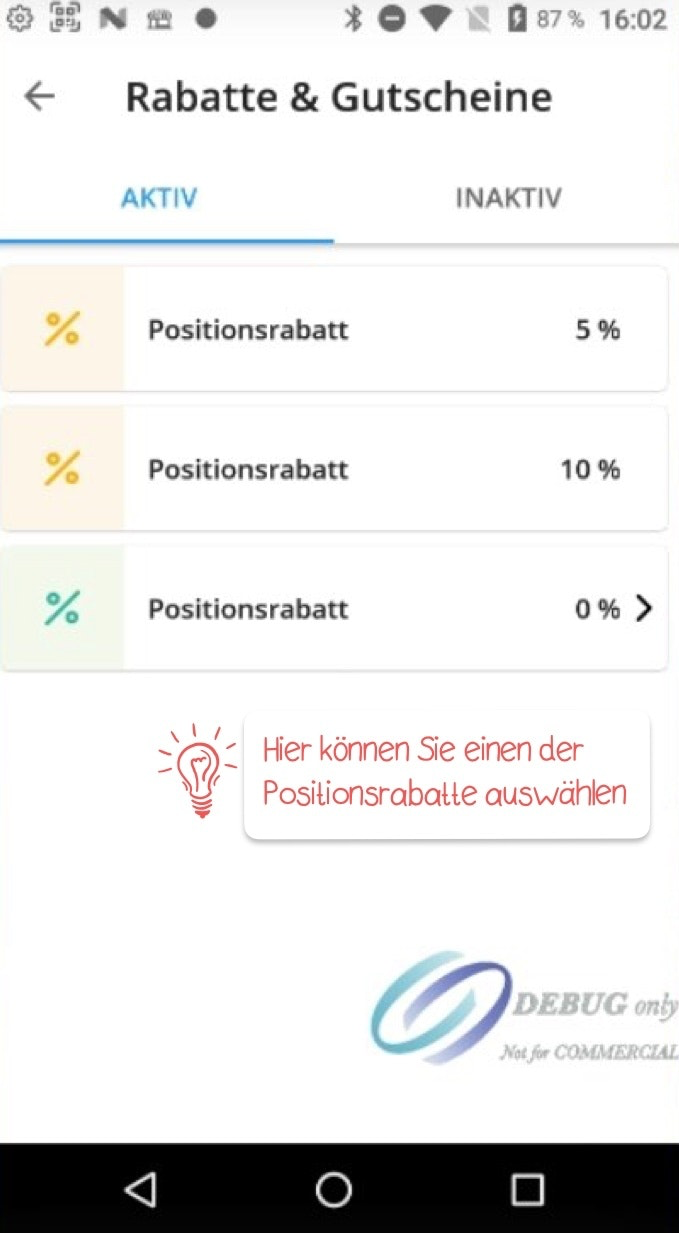
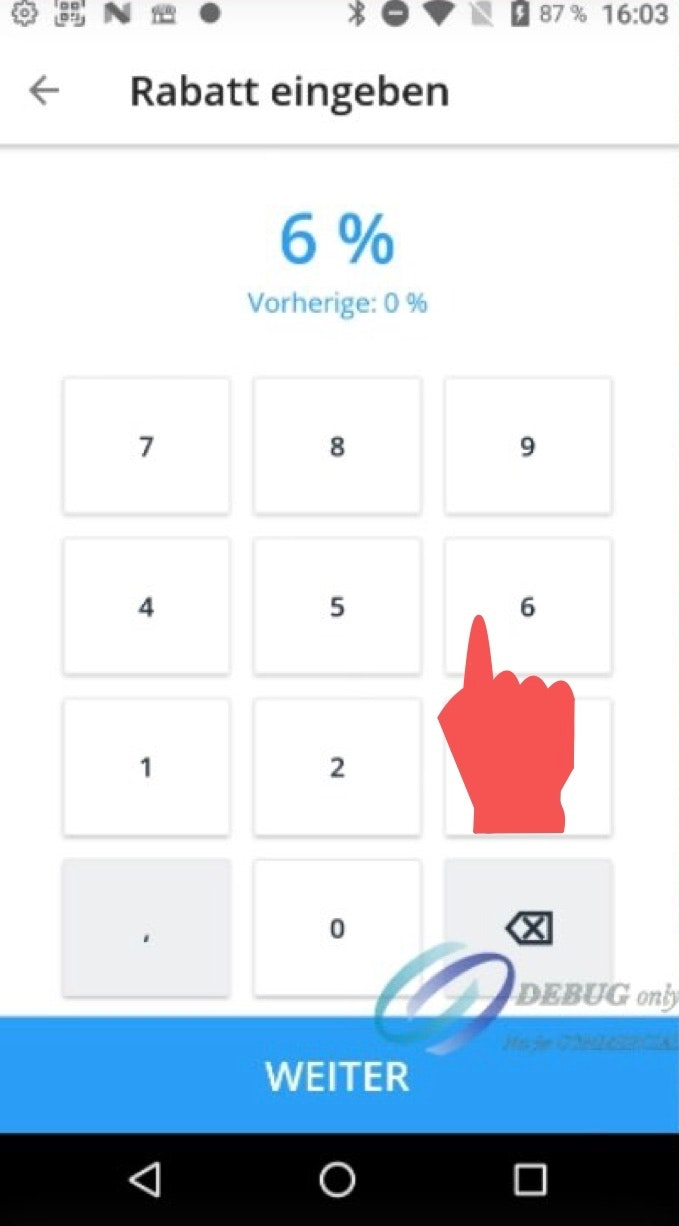
Select item-level discount with 0%
If you select a discount with 0%, you can manually enter the discount amount. Then click “Next.”
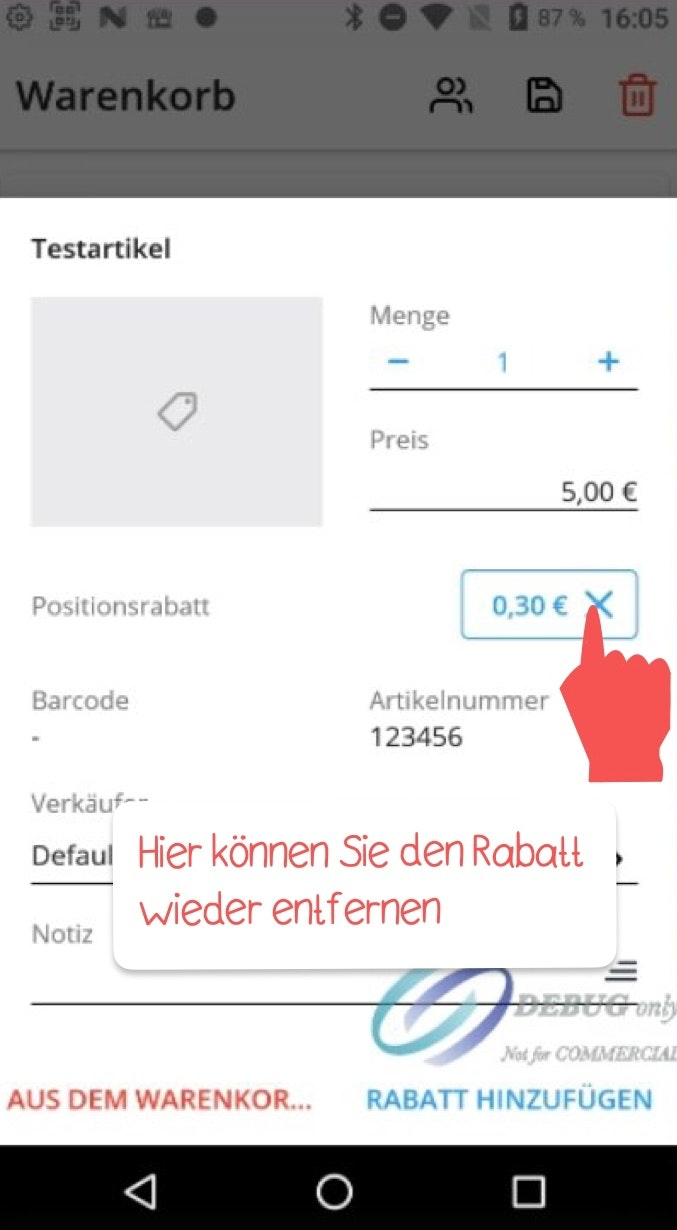
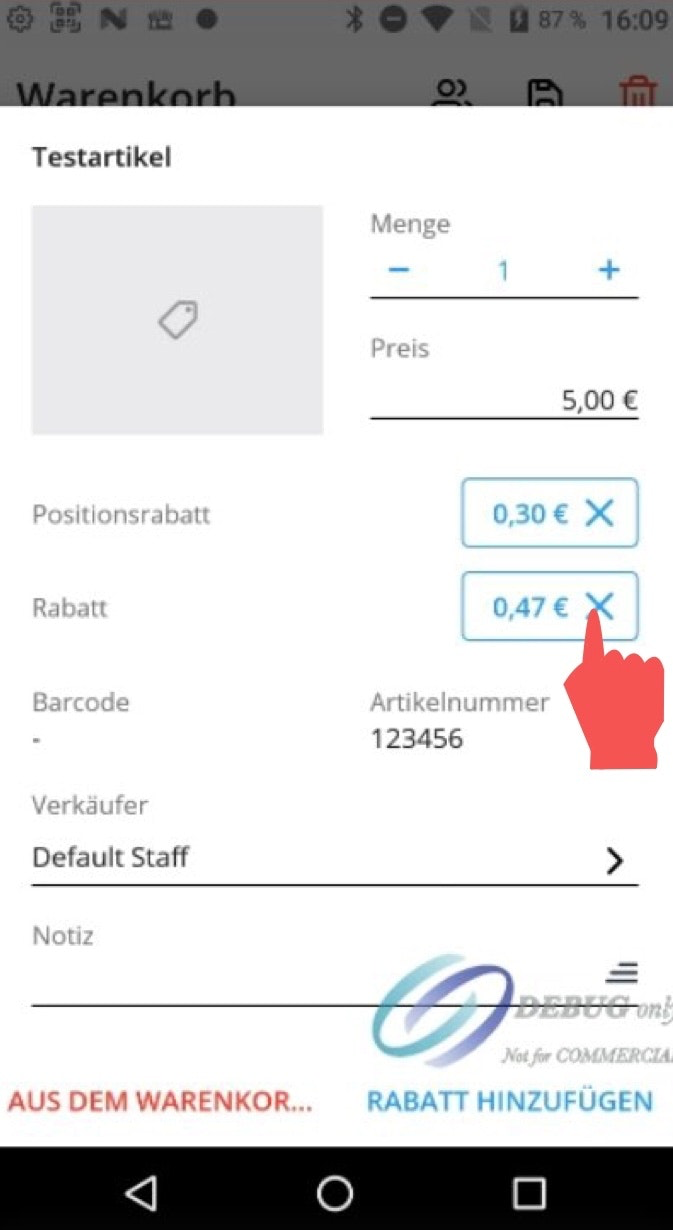
To remove the item-level discount, simply click the small blue cross. Tap the arrow at the bottom left to exit the edit view.
Cart-level discounts
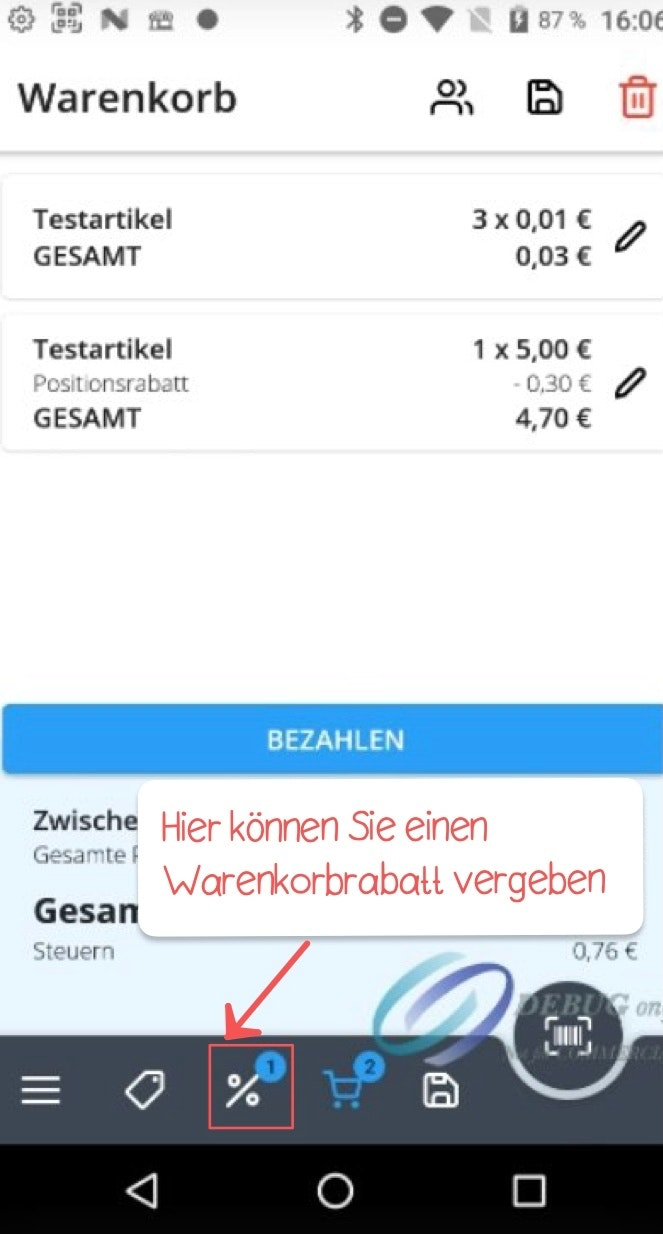
To apply a cart-level discount, tap the percent symbol in the bottom menu bar.
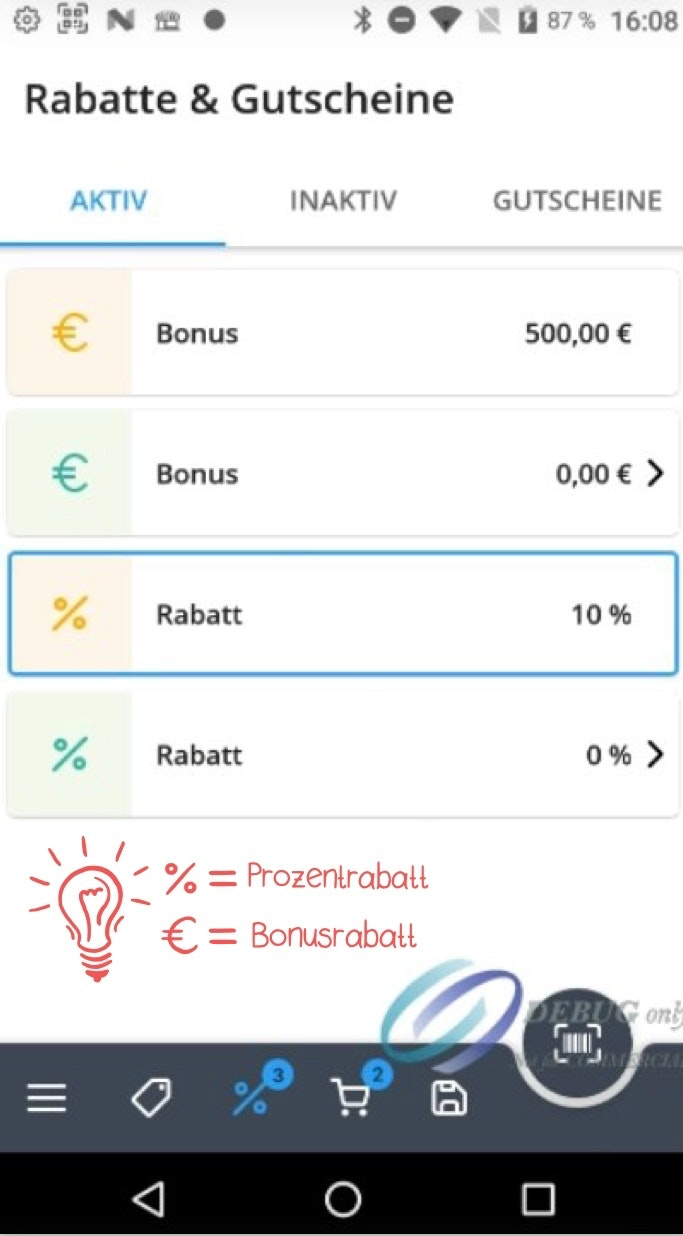
Select one of the predefined discounts. If you select a discount with 0%, you can manually enter the discount amount.
To remove the cart-level discount, open the edit view of any item in the shopping cart.
Click the blue cross. Once you remove a cart-level discount from one item, it will automatically be removed from all other items as well.

Was this article helpful?
That’s Great!
Thank you for your feedback
Sorry! We couldn't be helpful
Thank you for your feedback
Feedback sent
We appreciate your effort and will try to fix the article