CCV PAX A920 - Setting up your SIM connection
Modified on Tue, 3 Feb at 10:08 AM
In this tutorial, we will show you how to connect your CCV PAX A920 card reader with a SIM card.
The card reader is compatible with 2.4 GHz and 5 GHz WLAN networks as well as LTE functionality in the mobile network.
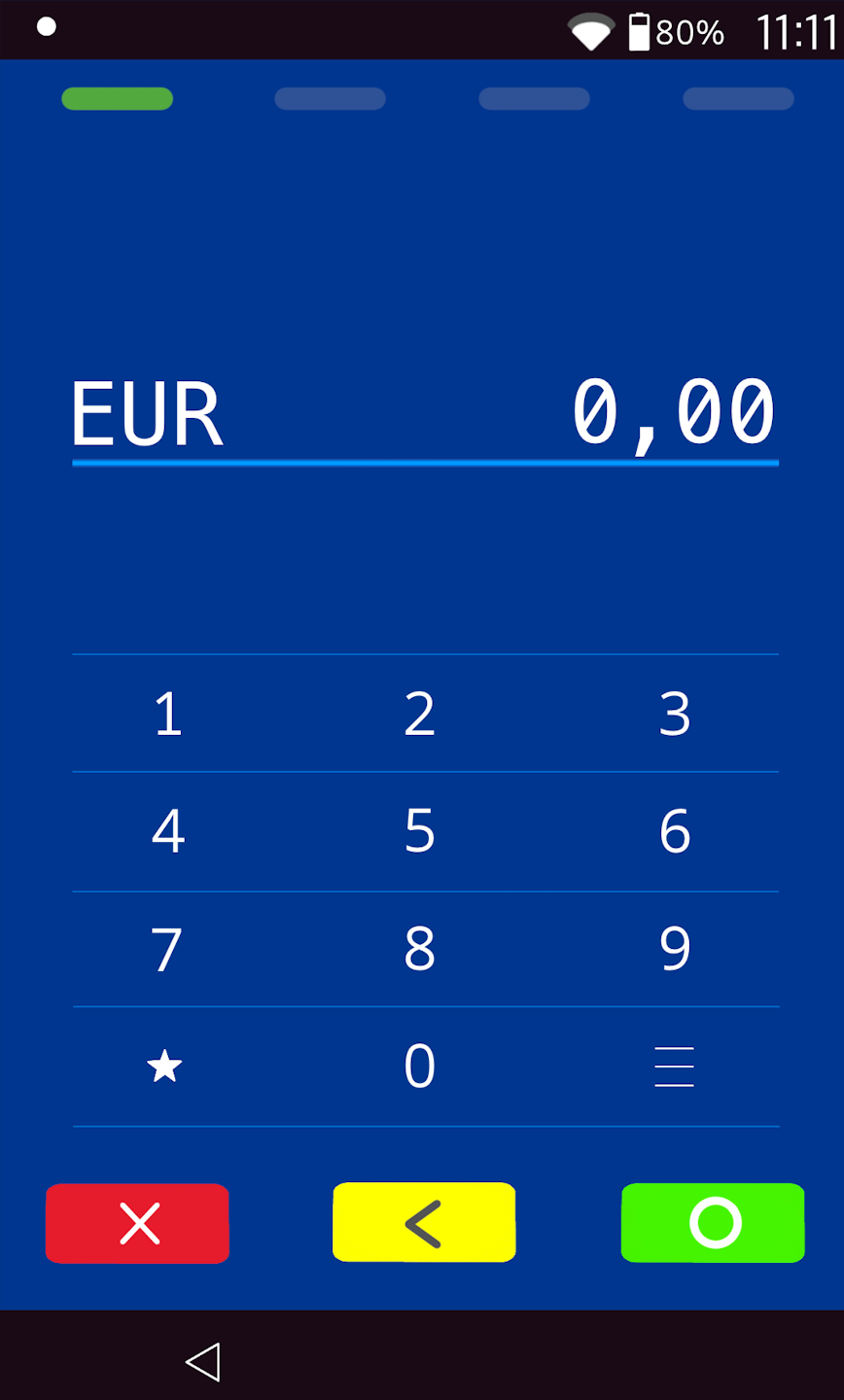
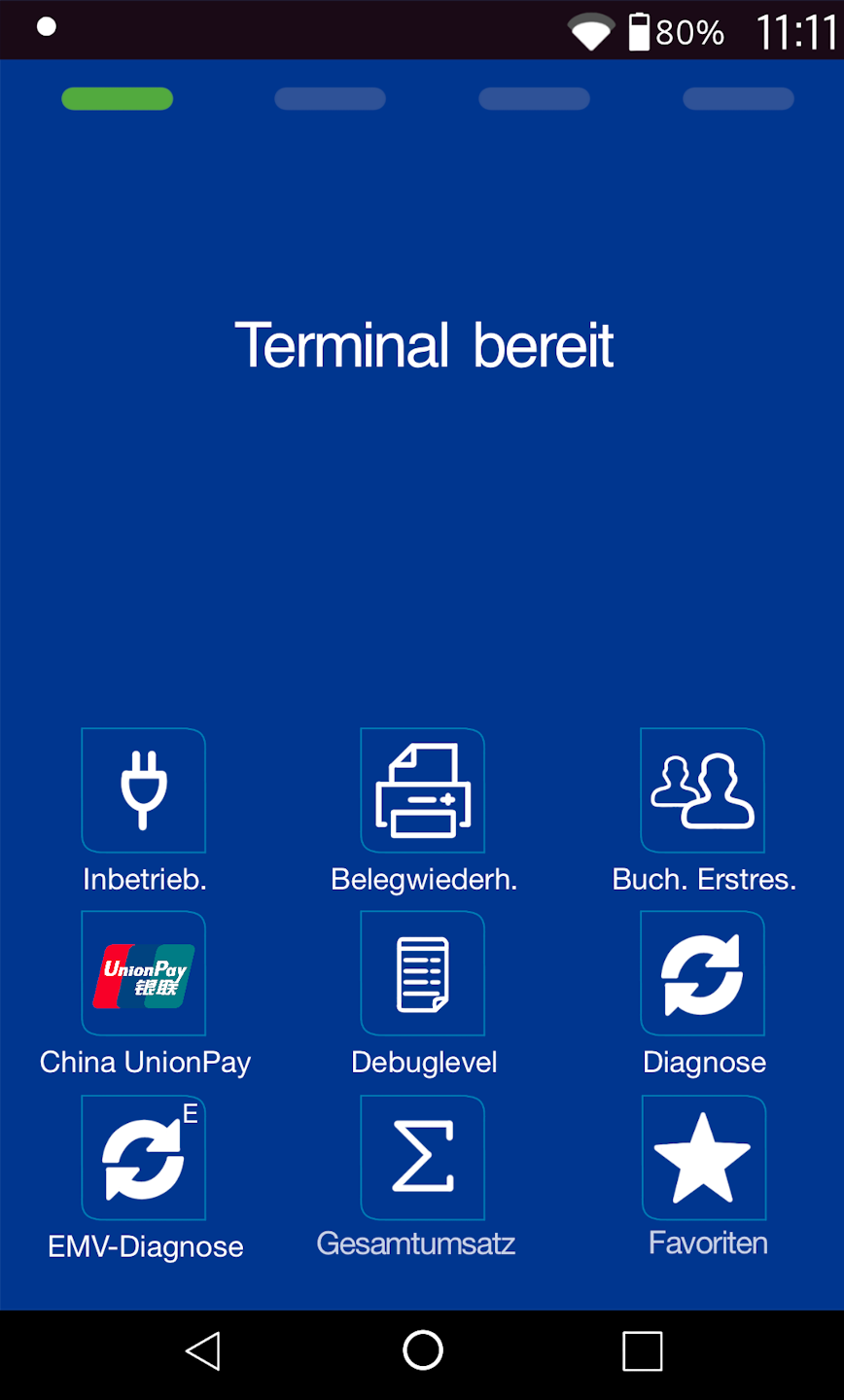
Output display
You can see your output display.
Setting up your SIM card connection
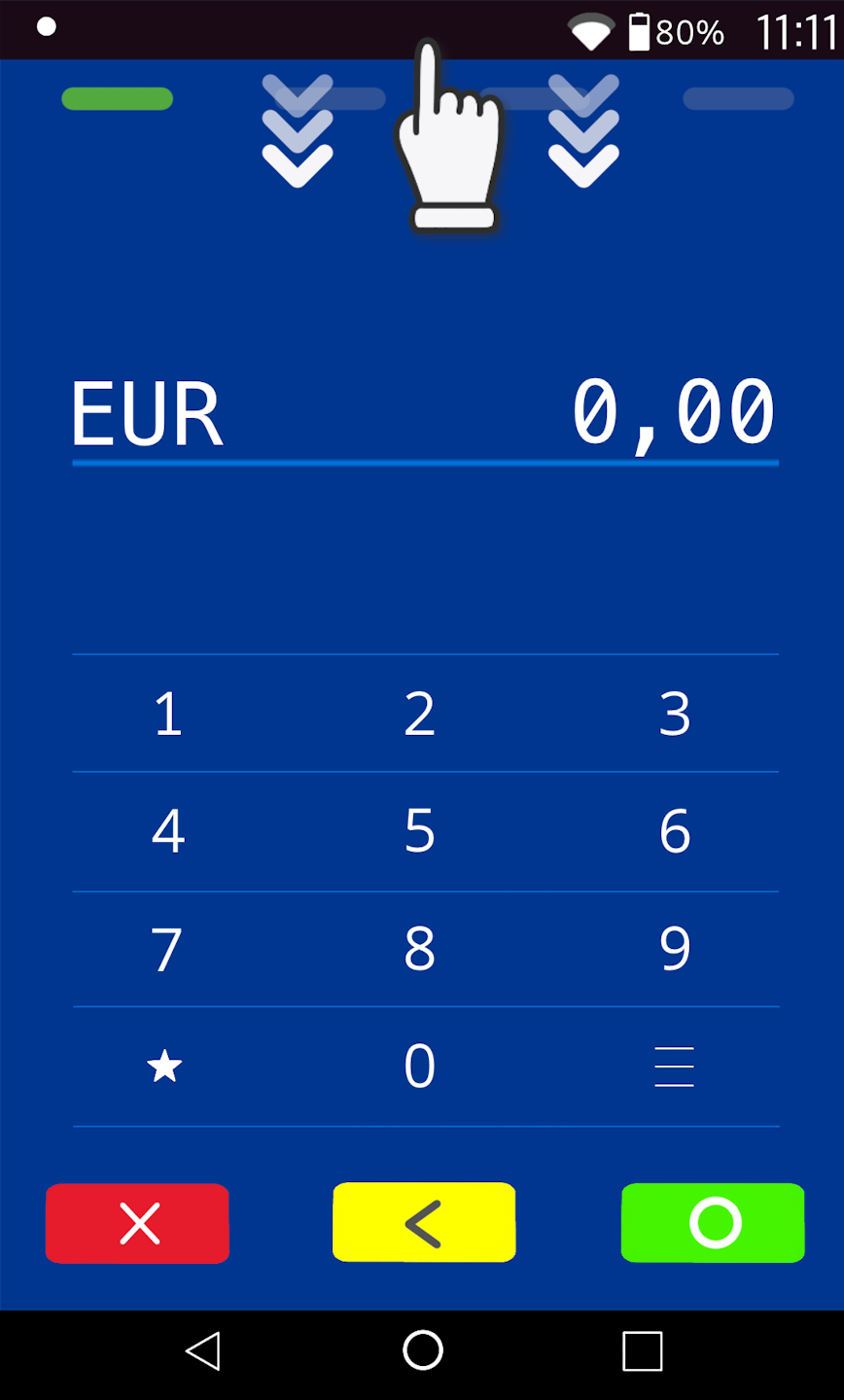
Please swipe down from the top edge of the display to access the Android settings.
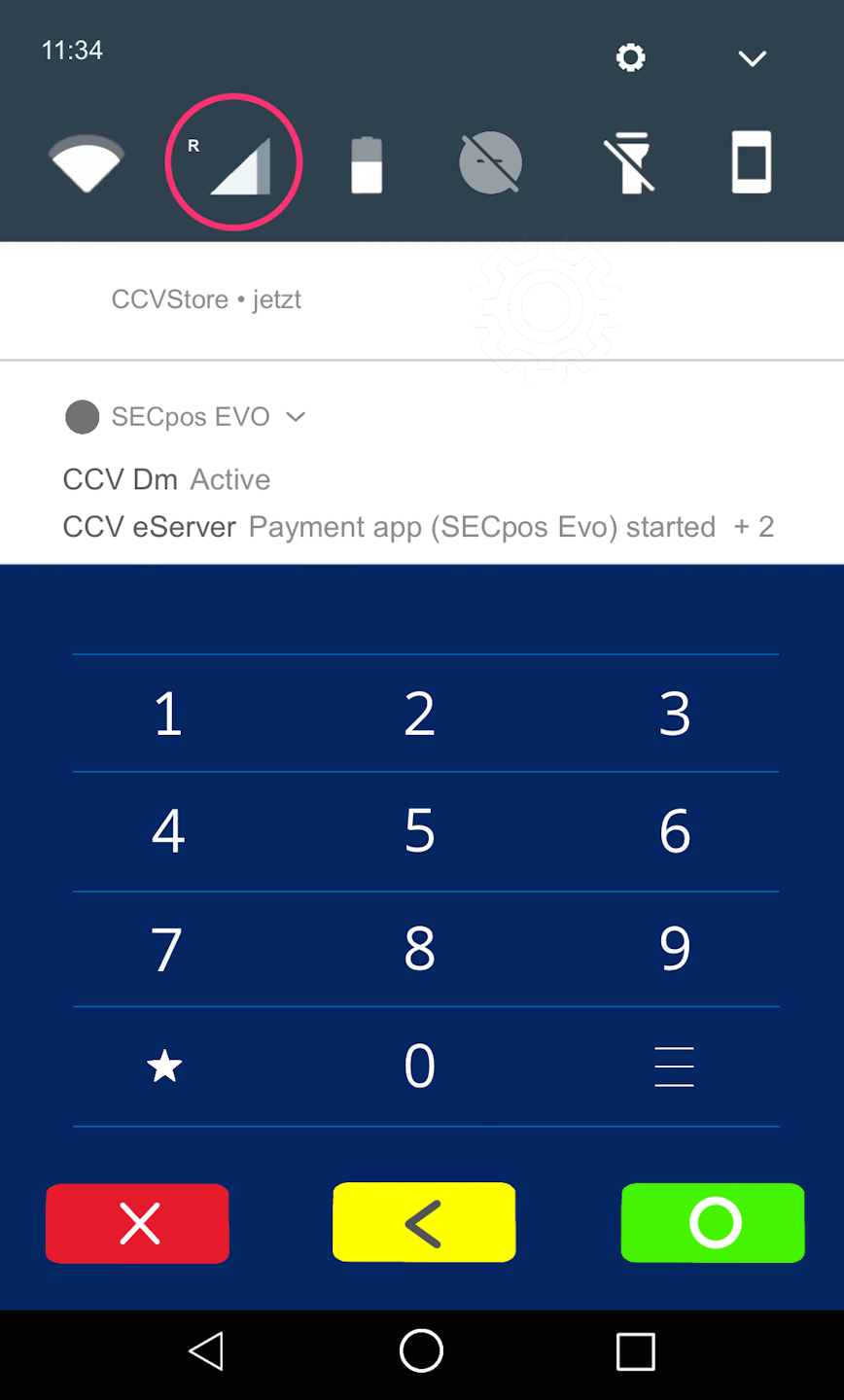
SIM card selection
Please press and hold the SIM card icon for a moment. A new menu window will open.
Mobile networks
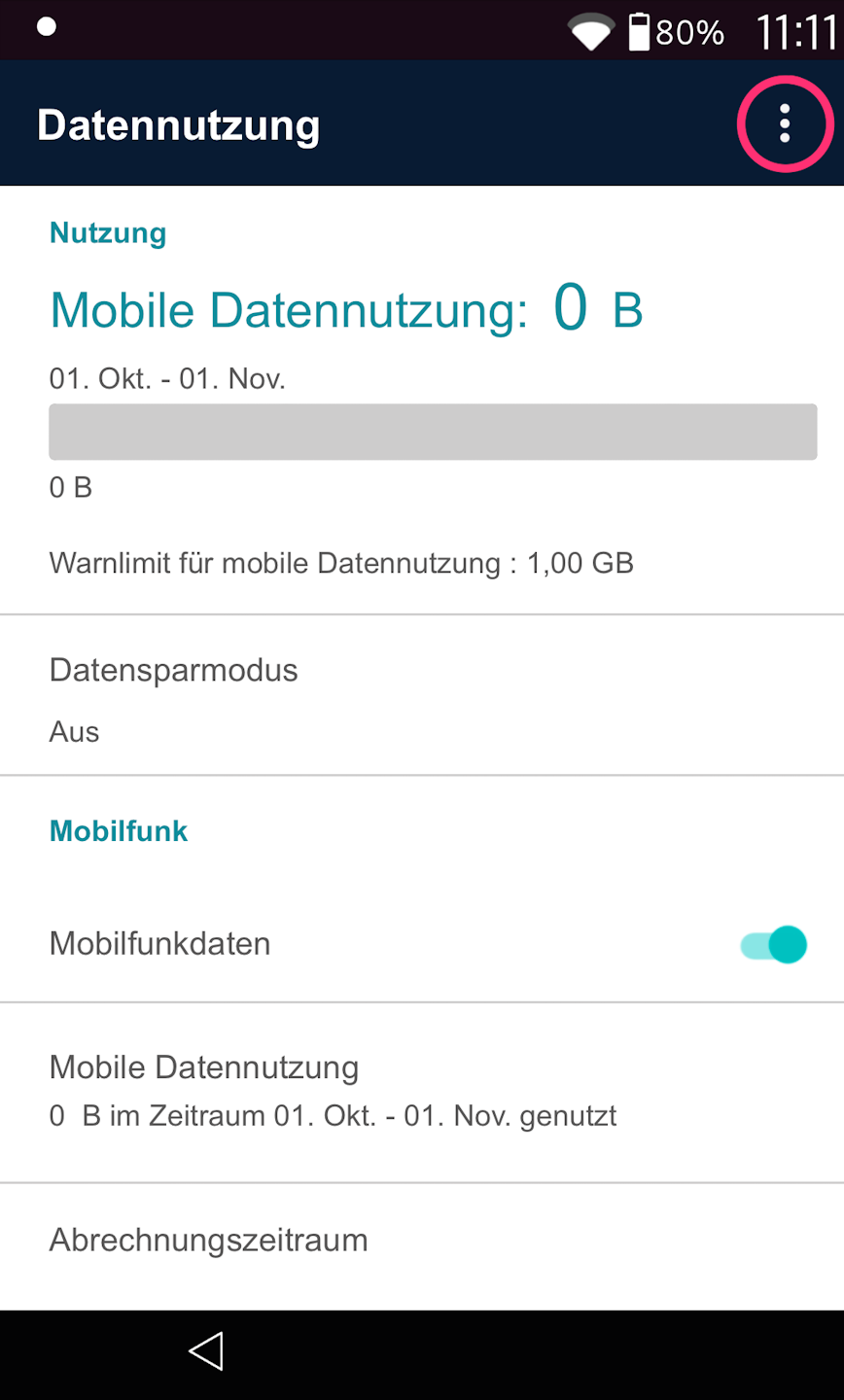
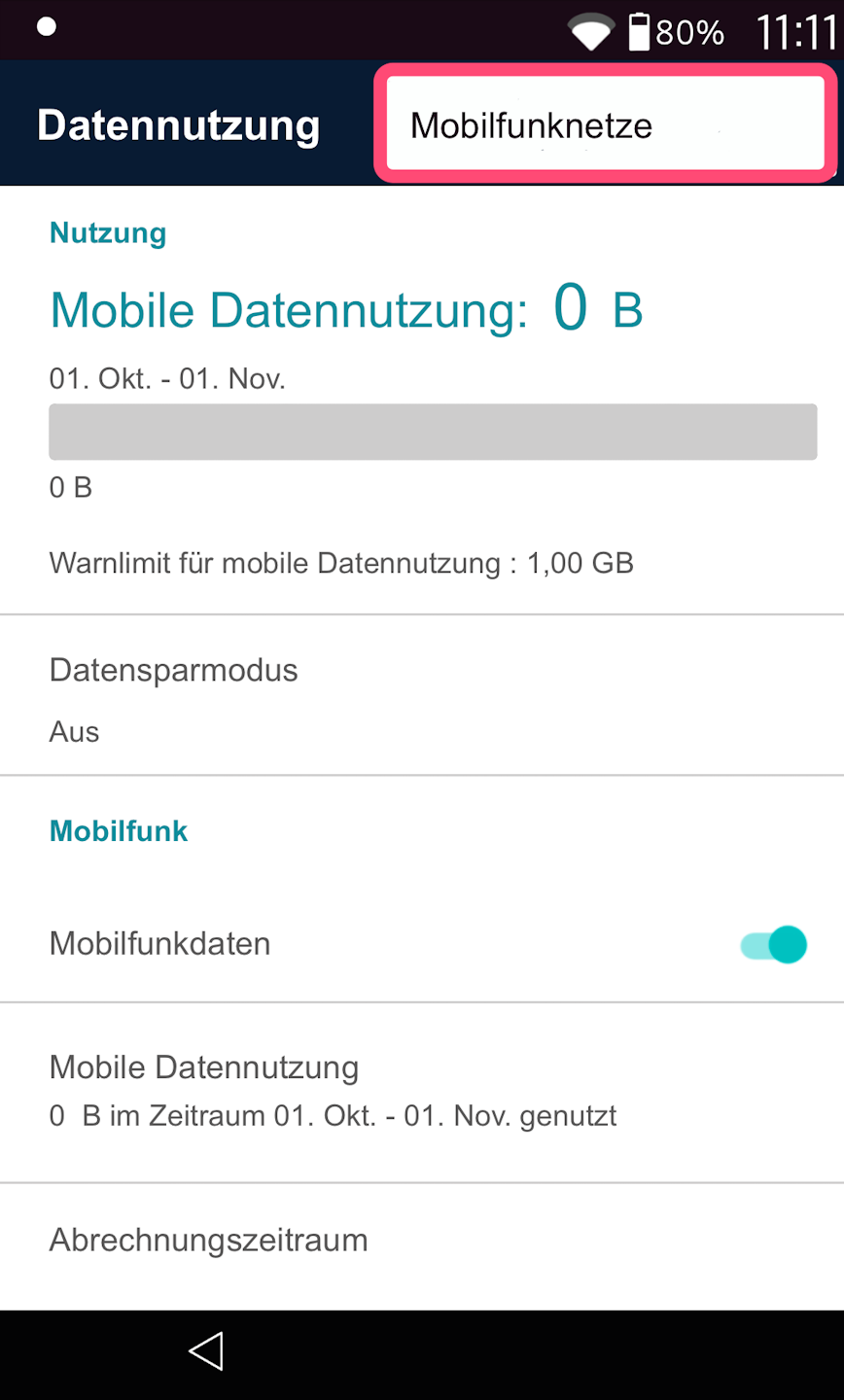
Fig. 1 – Please tap the three dots in the top right corner and select "Mobile networks" (Fig. 2).
Access points
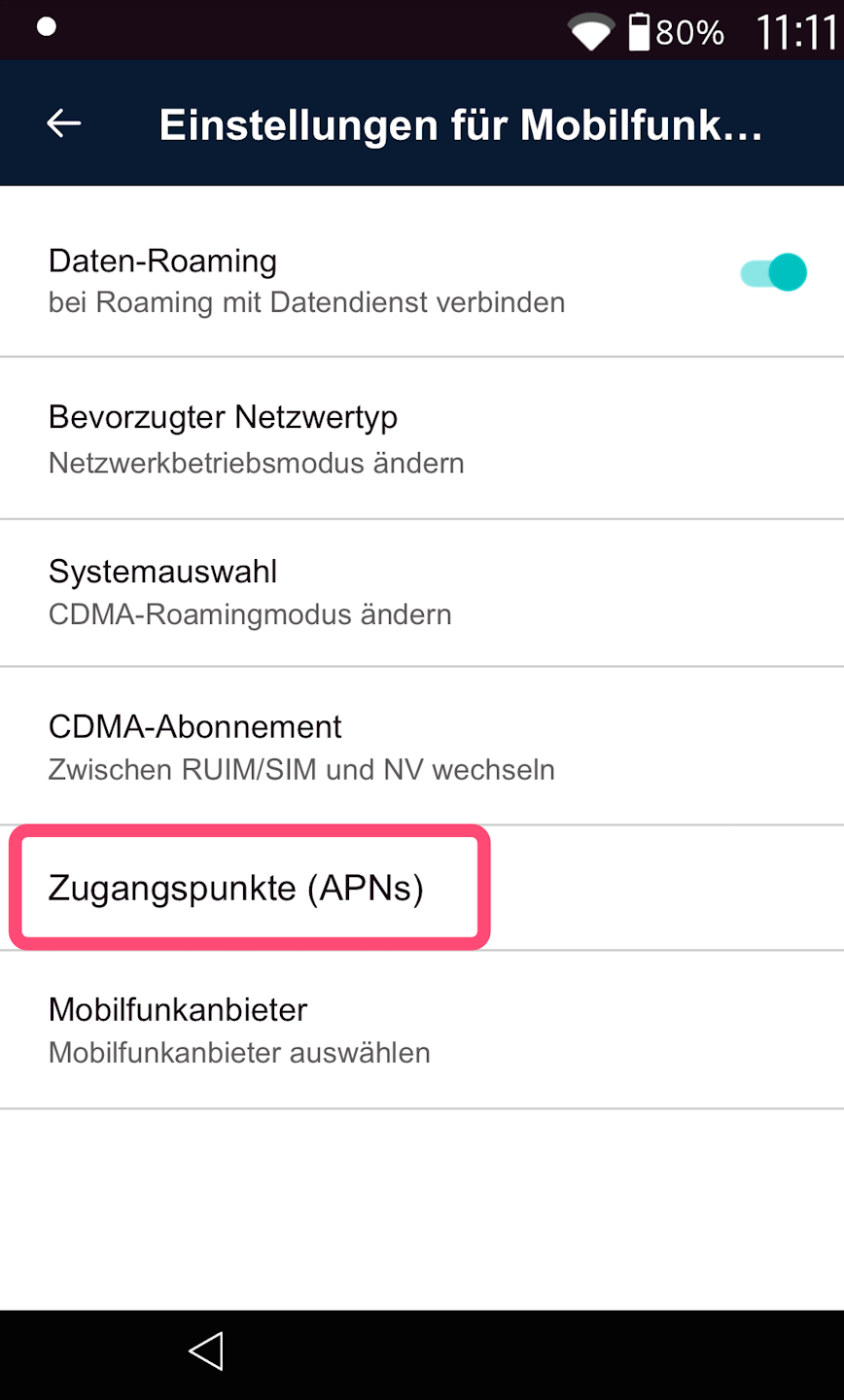
Fig. 1 – Please tap on "Access Points (APNs)." Here, we will define through which access point the SIM card connects. As shown in Fig. 2, please tap the plus symbol in the top right corner.
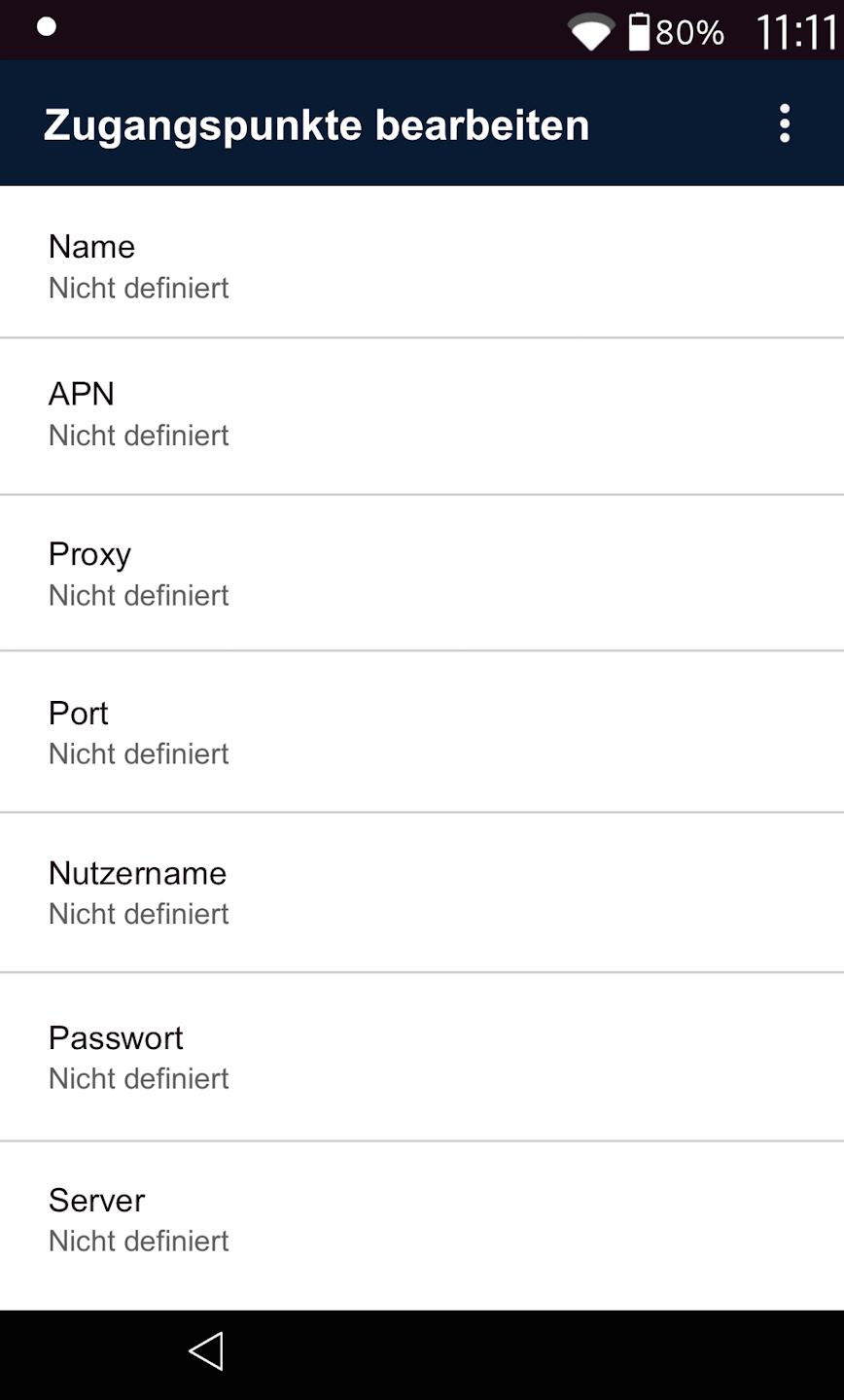
Fig. 3 – You can now define the following access points (next step).
Access points (APNs)
- Name: M2M
- APN: internet.m2mportal.de
- Username: m2m
- Password: sim

Entering the APNs
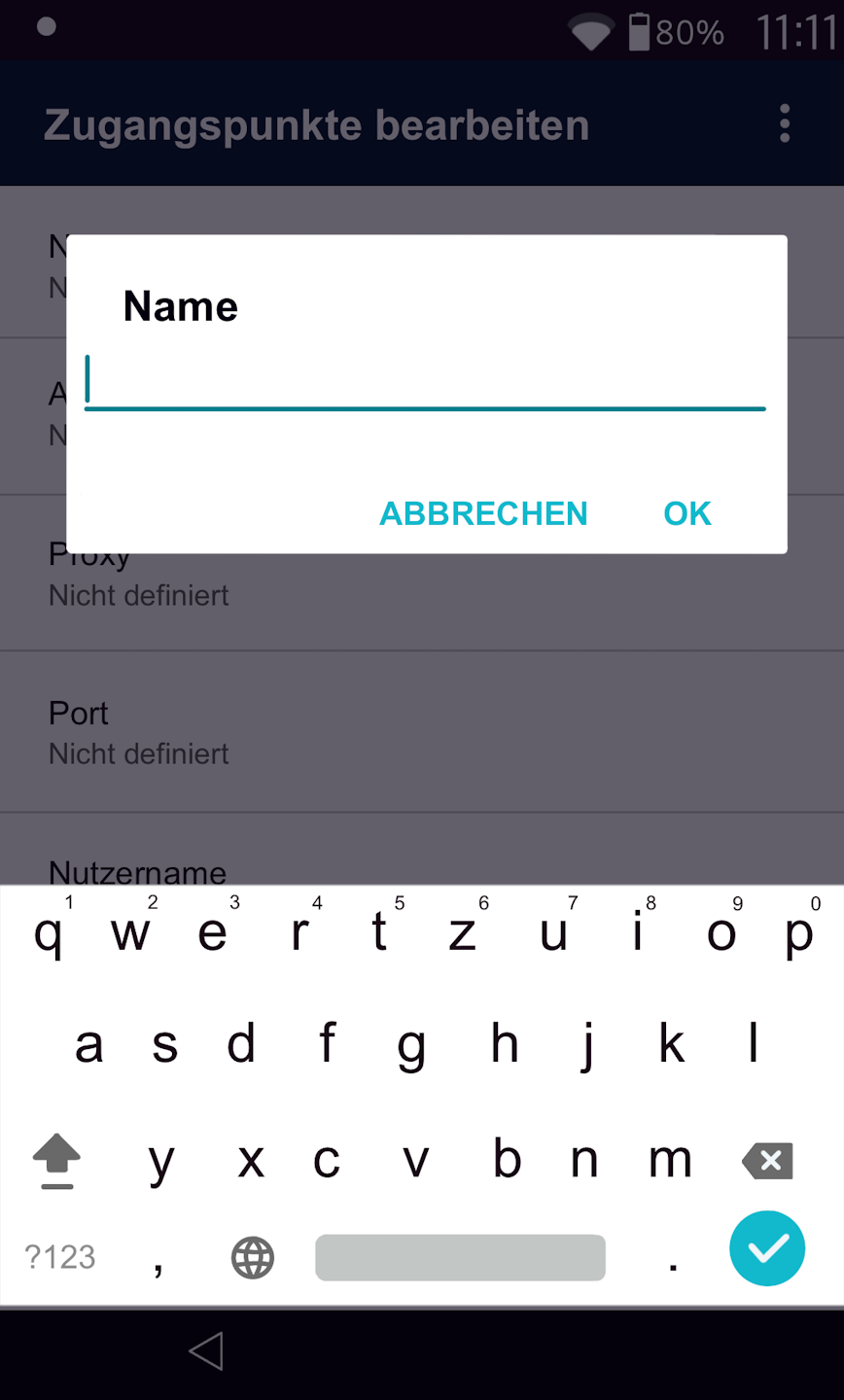
Fig. 1 – By tapping the fields, you can enter the following information.
Access points (APNs)
Name: M2M (required field)
APN: internet.m2mportal.de (required field)
Username: m2m (required field)
Password: sim (required field)
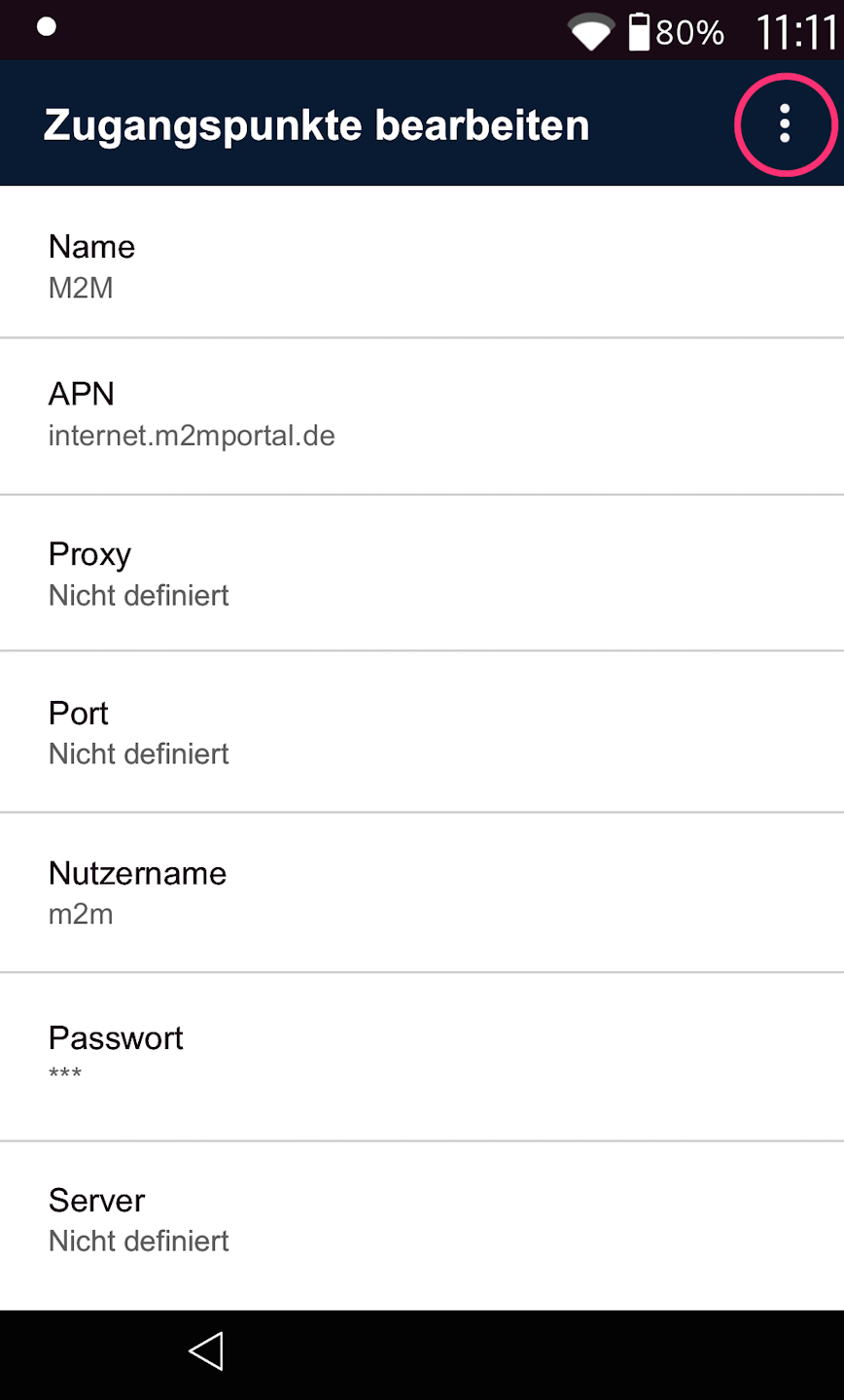
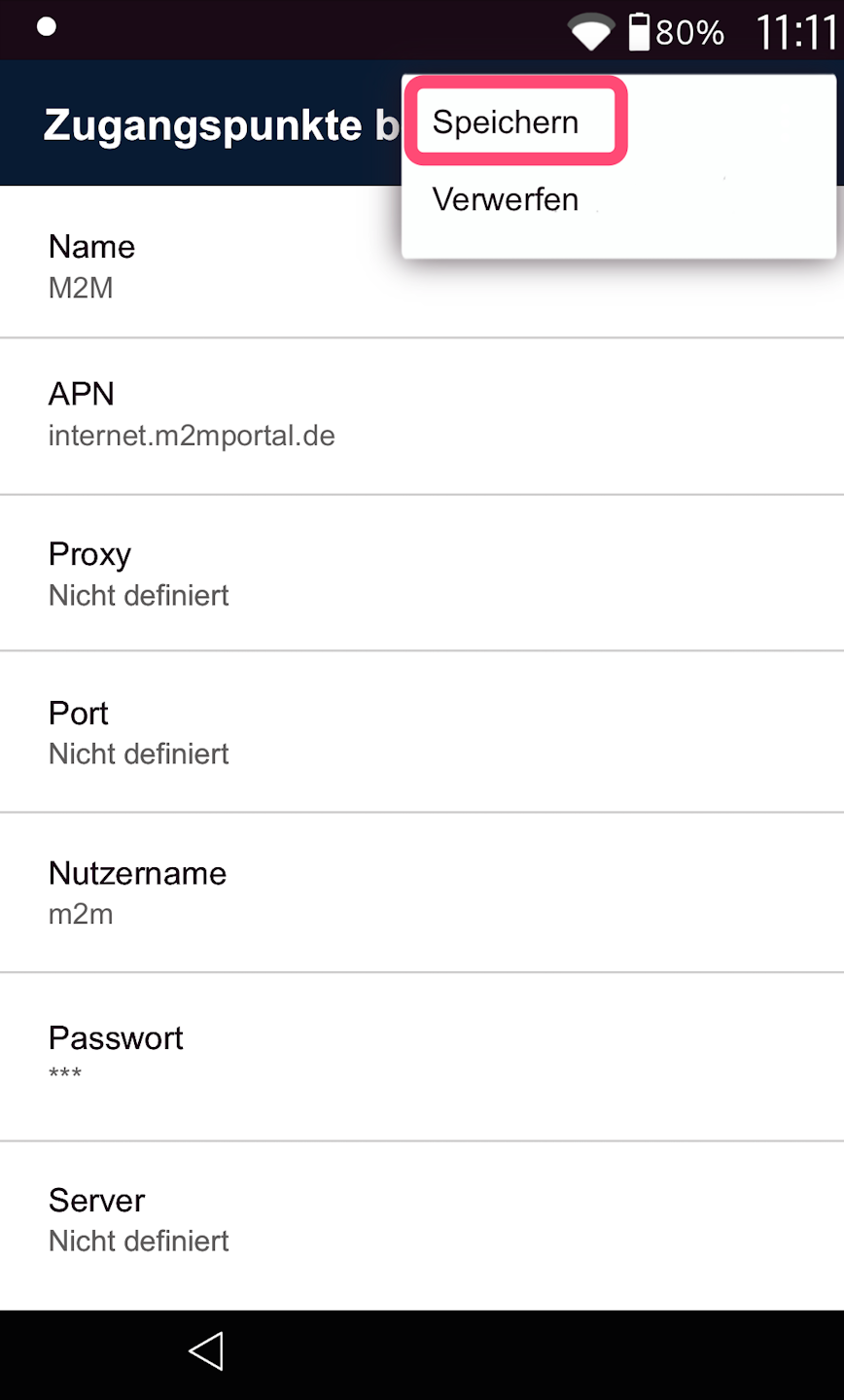
Fig. 2 – To save your entries, please tap the three dots in the top right corner again and select "Save" (Fig. 3).
The card reader has now received all the necessary information to register on the mobile network.
Completion
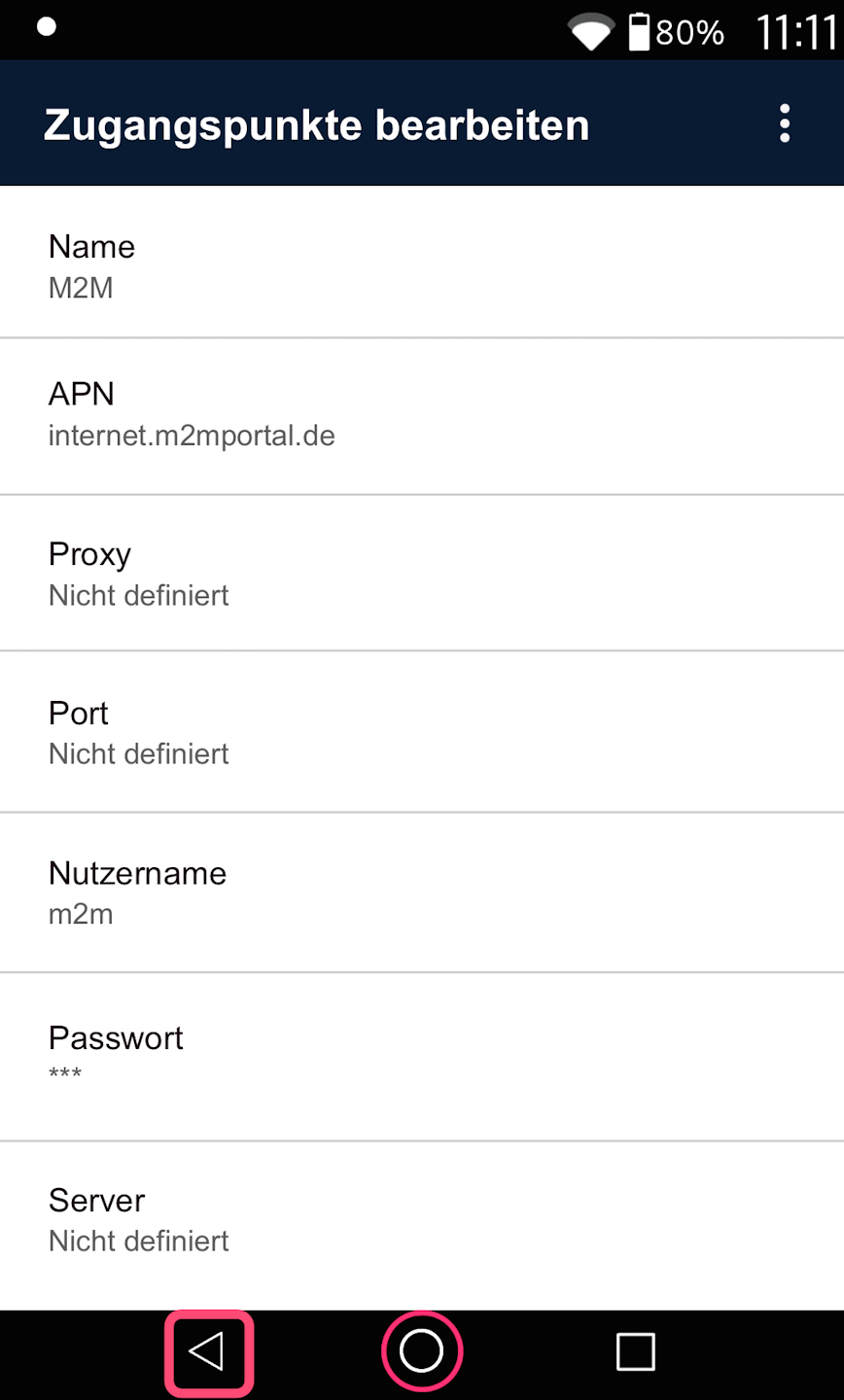
Now that all the data for the access points has been entered, you can tap the right arrow at the bottom left several times to return to your home screen and the Payment App.
The SIM card setup is now complete.
To access the payment entry screen, please tap the small circle in the center at the bottom. Alternatively, you can use the left arrow.
If you have successfully set up the connection, please check its functionality using our article Check Connection.
You can also find an informative article about the connection symbols on your card reader The Connection Symbols
Was this article helpful?
That’s Great!
Thank you for your feedback
Sorry! We couldn't be helpful
Thank you for your feedback
Feedback sent
We appreciate your effort and will try to fix the article
