CCV - Setting Up Automatic End-of-Day Report
Modified on Wed, 4 Feb at 9:49 AM
Setting Up Automatic End-of-Day Report
Would you like the end-of-day report to be performed automatically every day or on specific days? In this step-by-step guide, we will show you how to set it up.
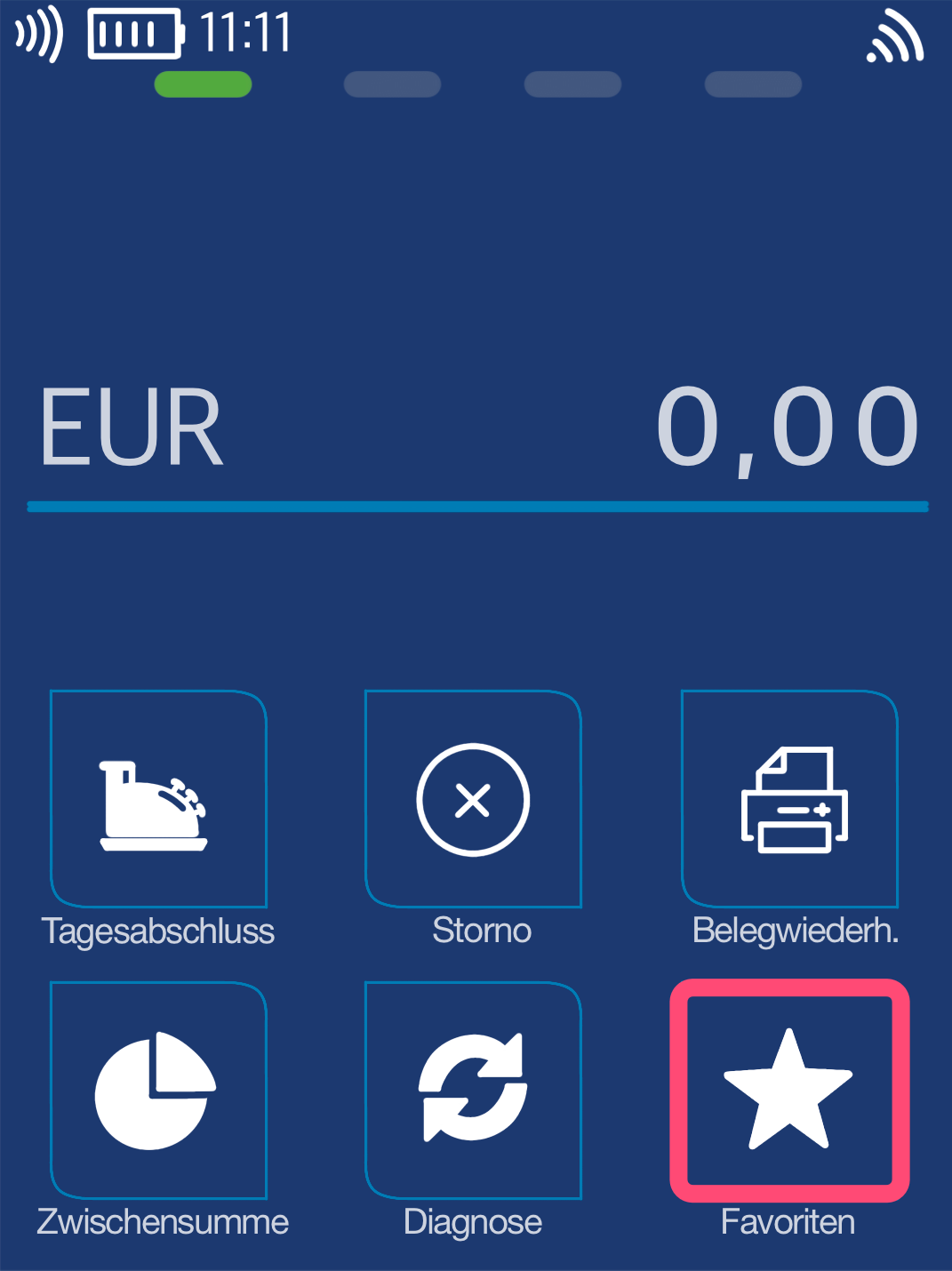
Favorites Button
You will see your main display. Please select the Favorites button.
Select by tapping.
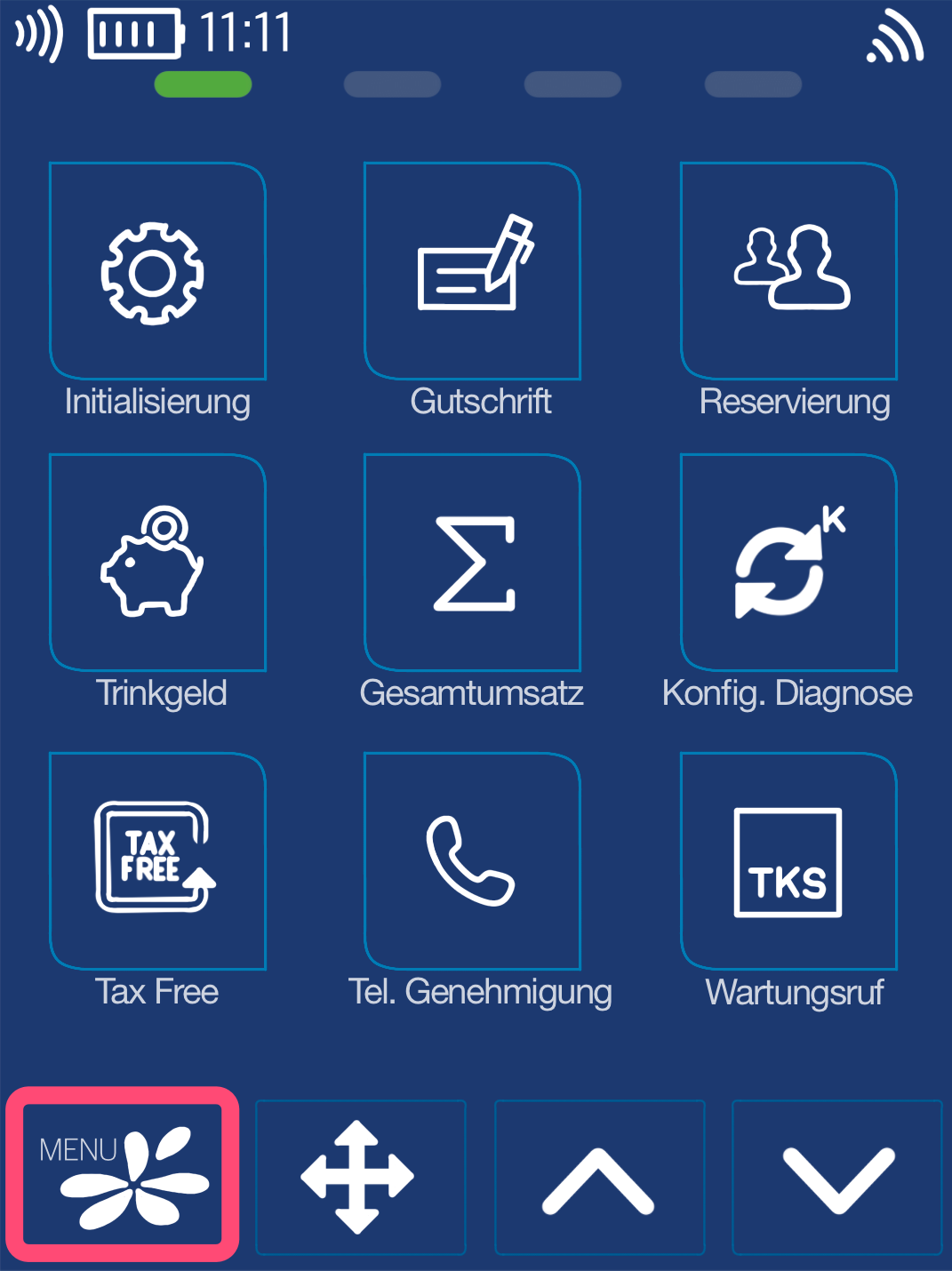
Menu Button
Now please select the Menu button.
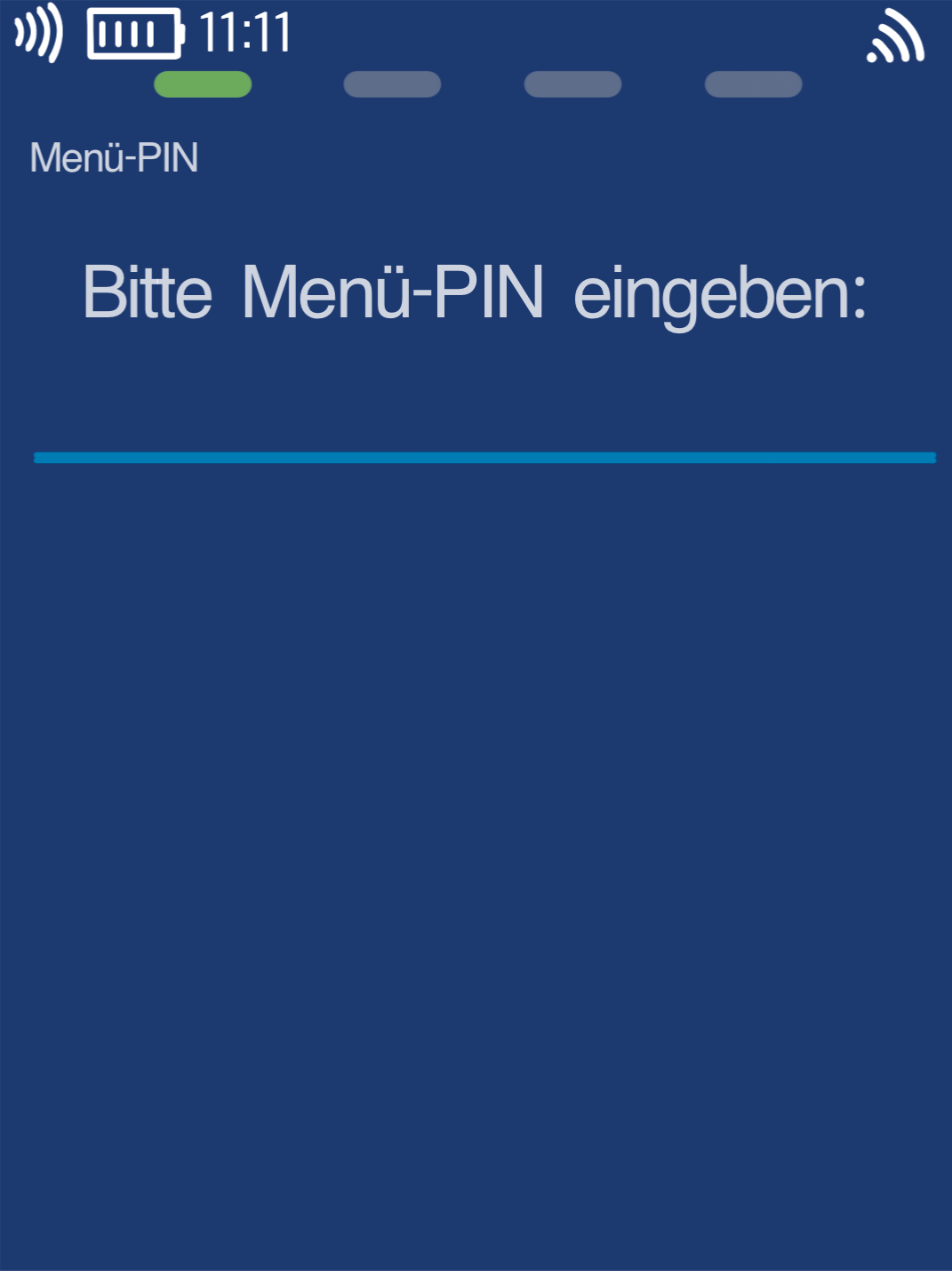
Menu PIN
Please now enter your merchant PIN.
You can find the Terminal ID on your merchant receipts or on the end-of-day report.
Terminal IDs starting with 61xxxxxx: 111111
Terminal IDs starting with 68xxxxxx: 111111
Terminal IDs starting with 526xxxxx: 0123
Please confirm the entry by pressing the green OK button.
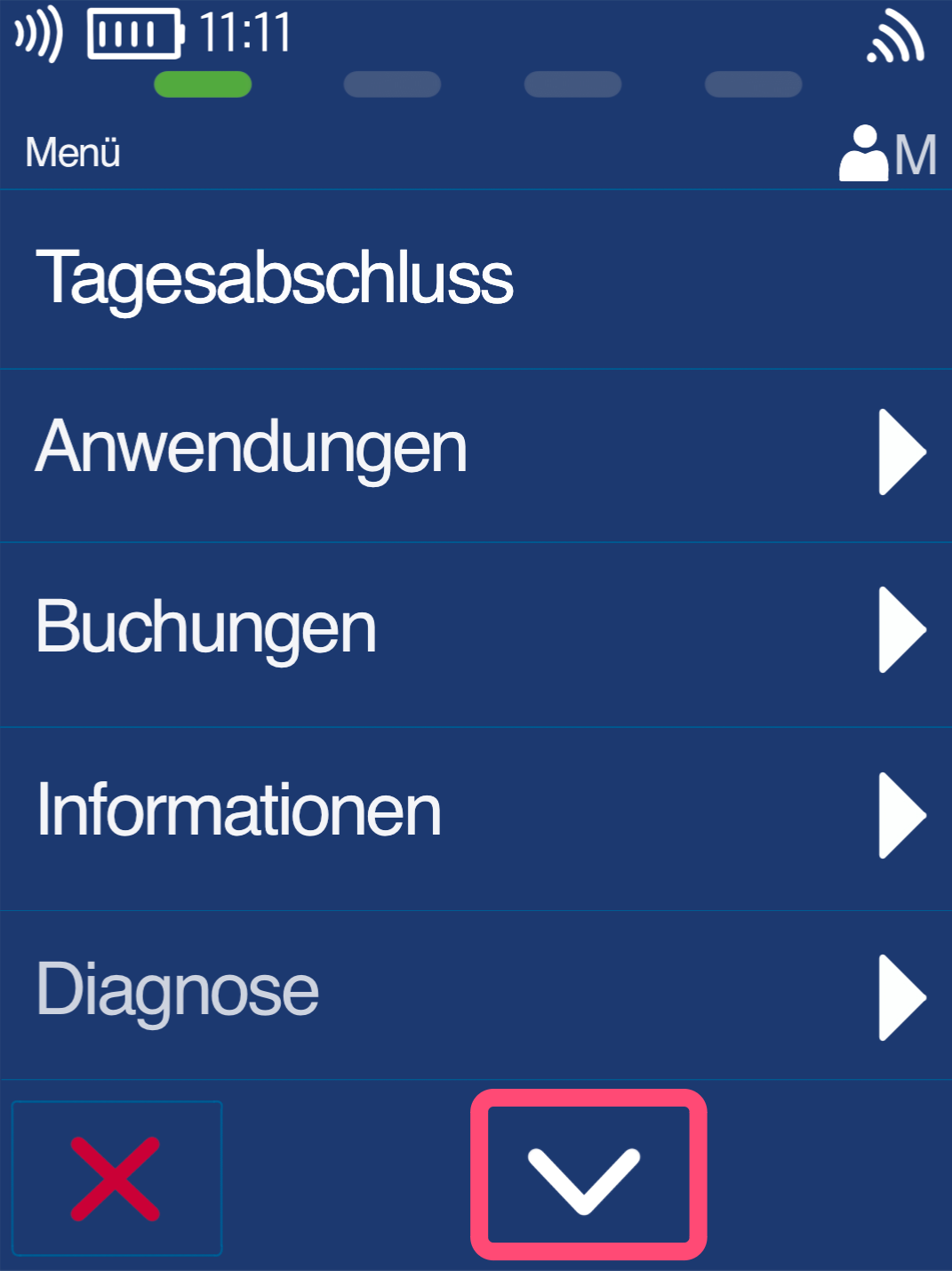
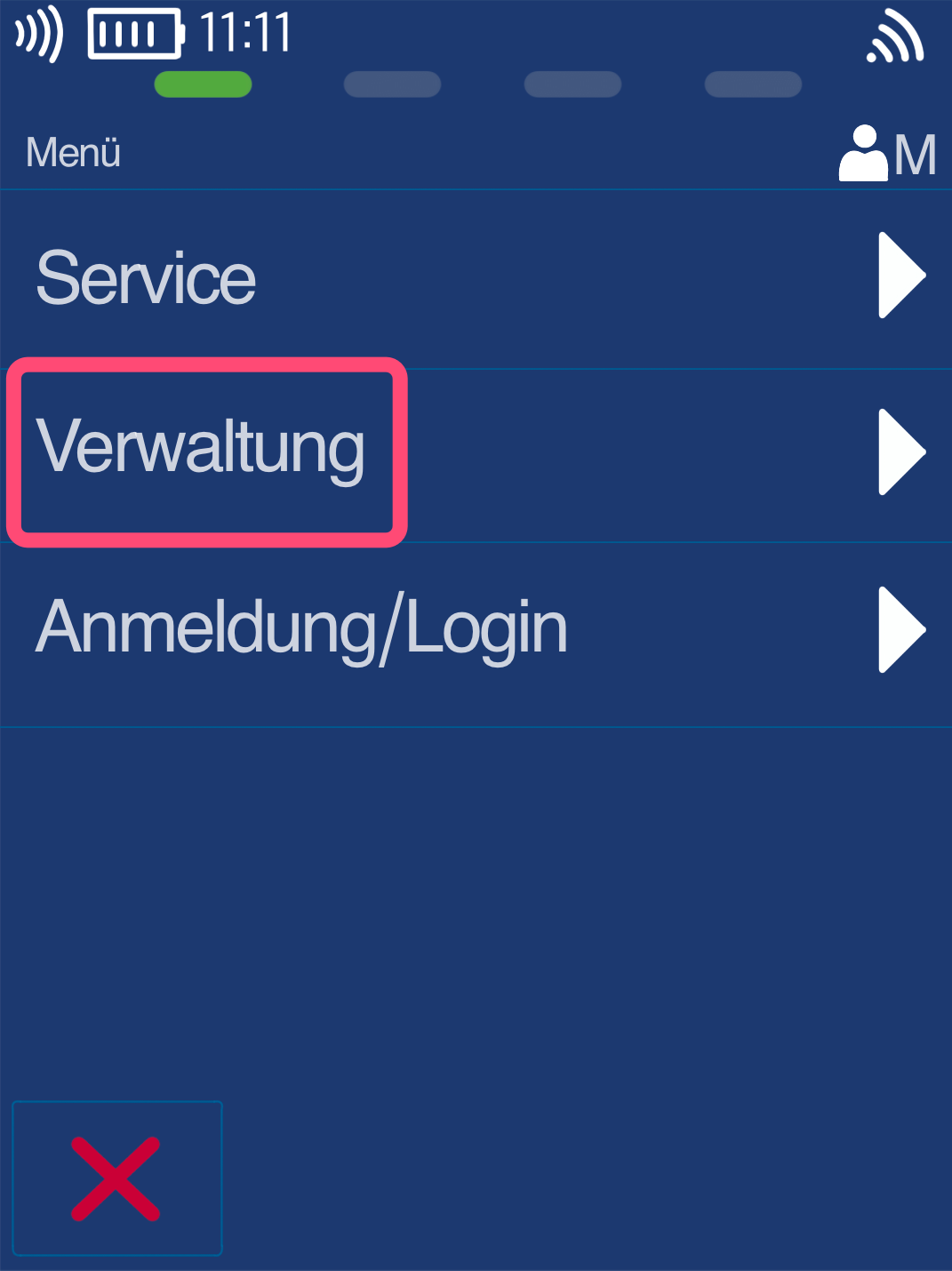
Administration
First, please select the down arrow key and then the Administration button (Fig. 2).
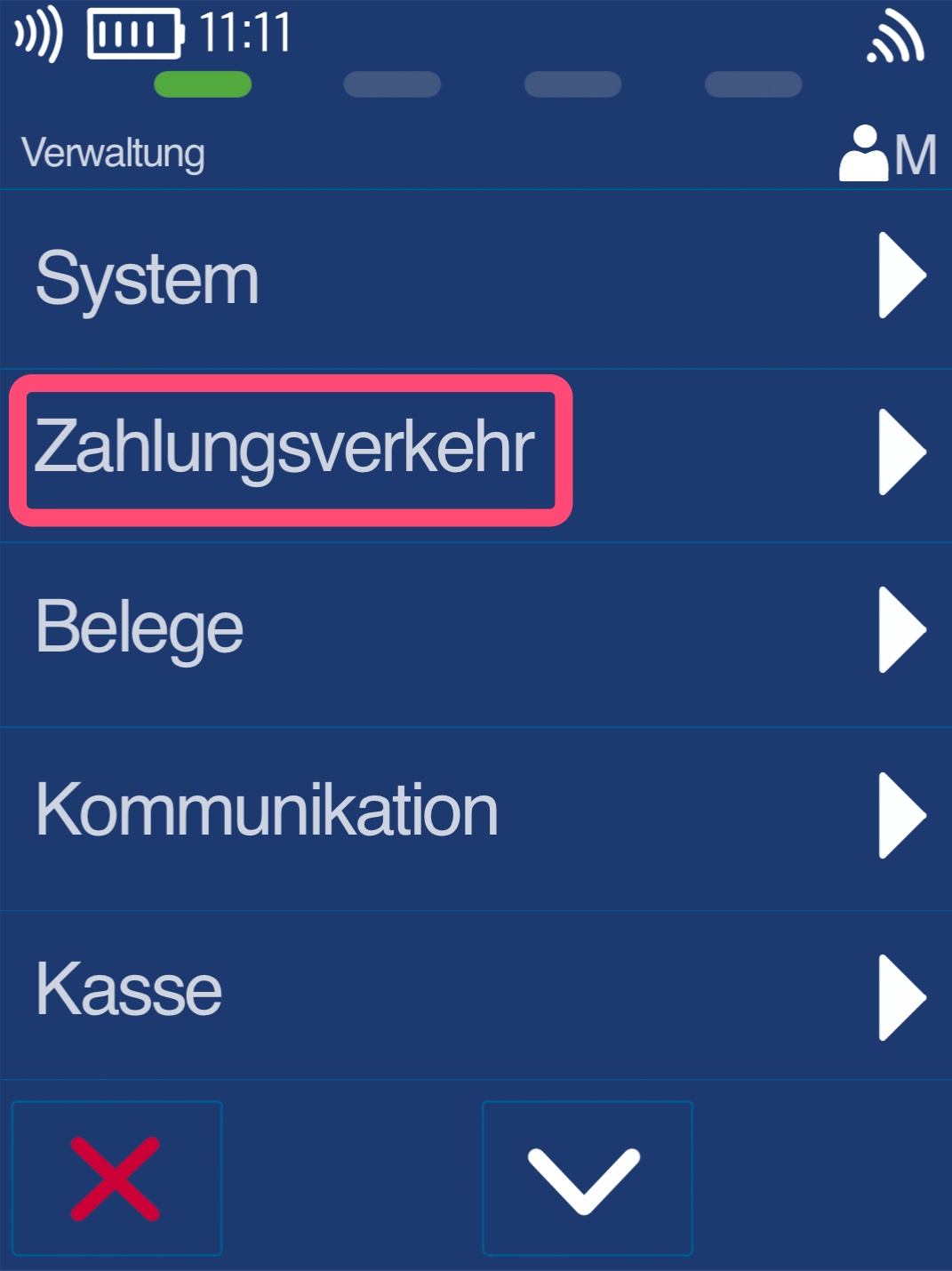
Payment Transactions
Now please select Payment Transactions.
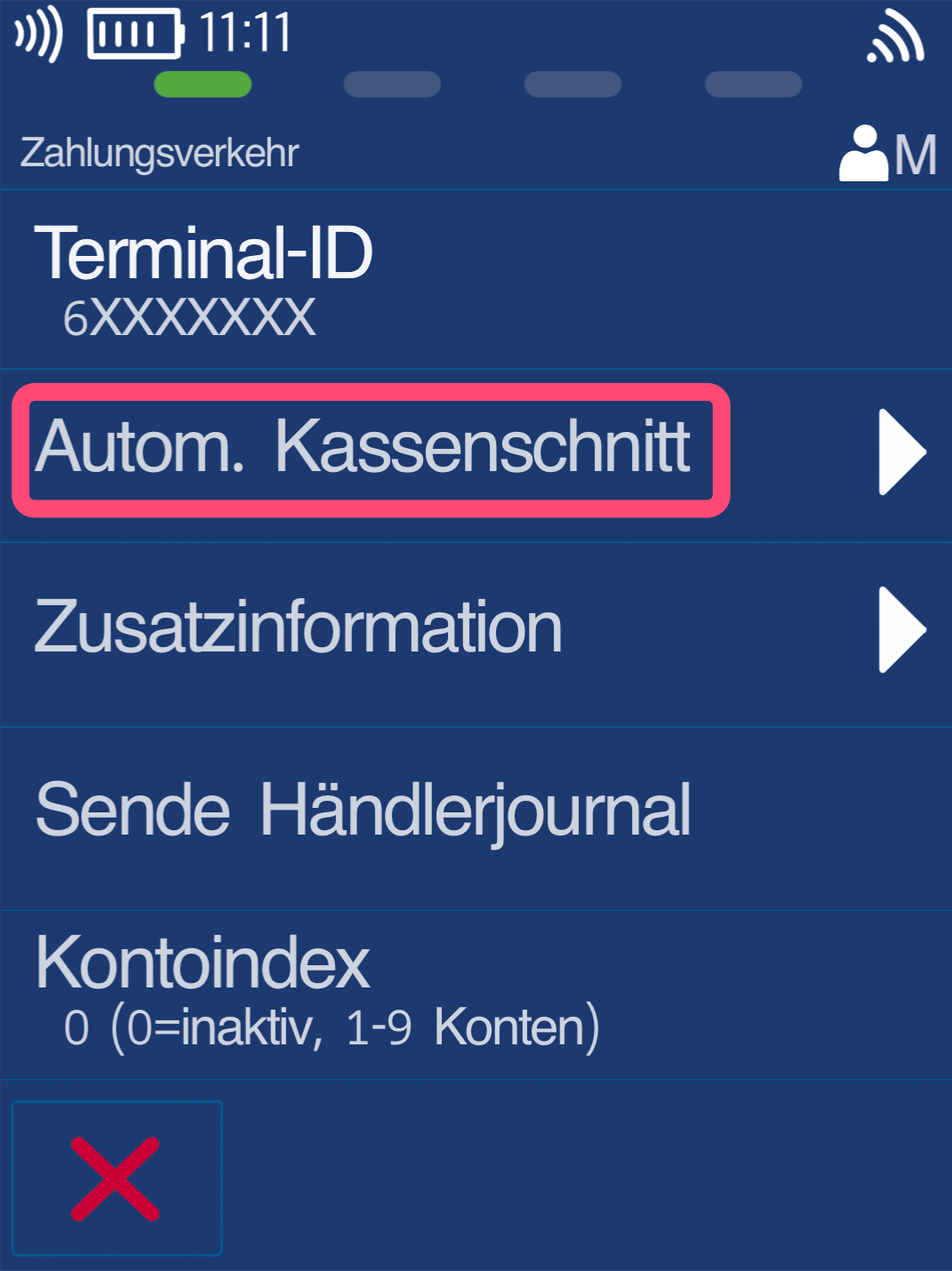
Automatic End-of-Day Report
Please select the button Autom. Kassenschnitt (automatic end-of-day report).
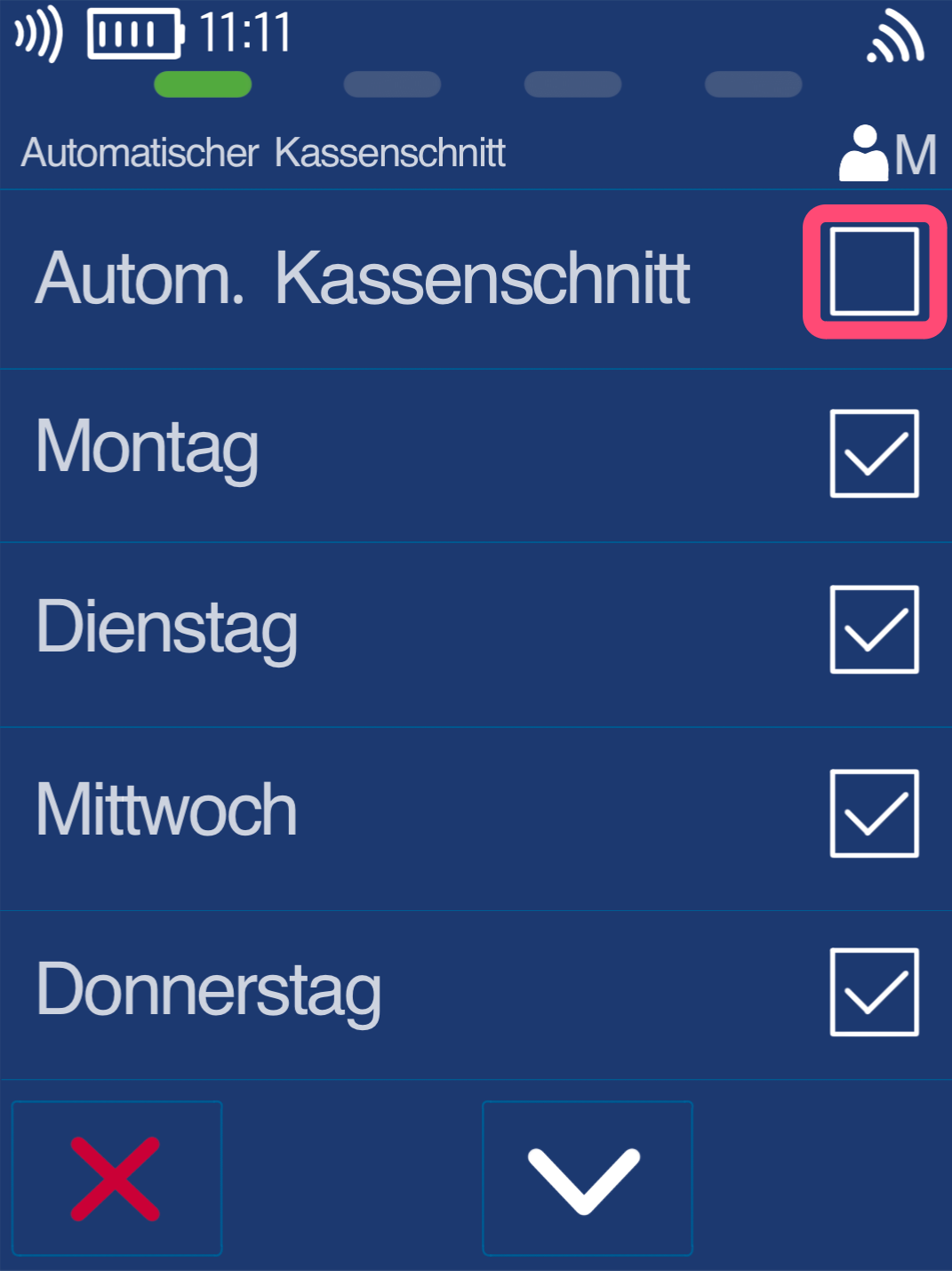
Enable/Disable Automatic End-of-Day Report
Please check the box for Autom. Kassenschnitt.
To disable it, simply tap the field again.
You can mark any days on which you want the automatic end-of-day report to run. By default, all weekdays are activated.
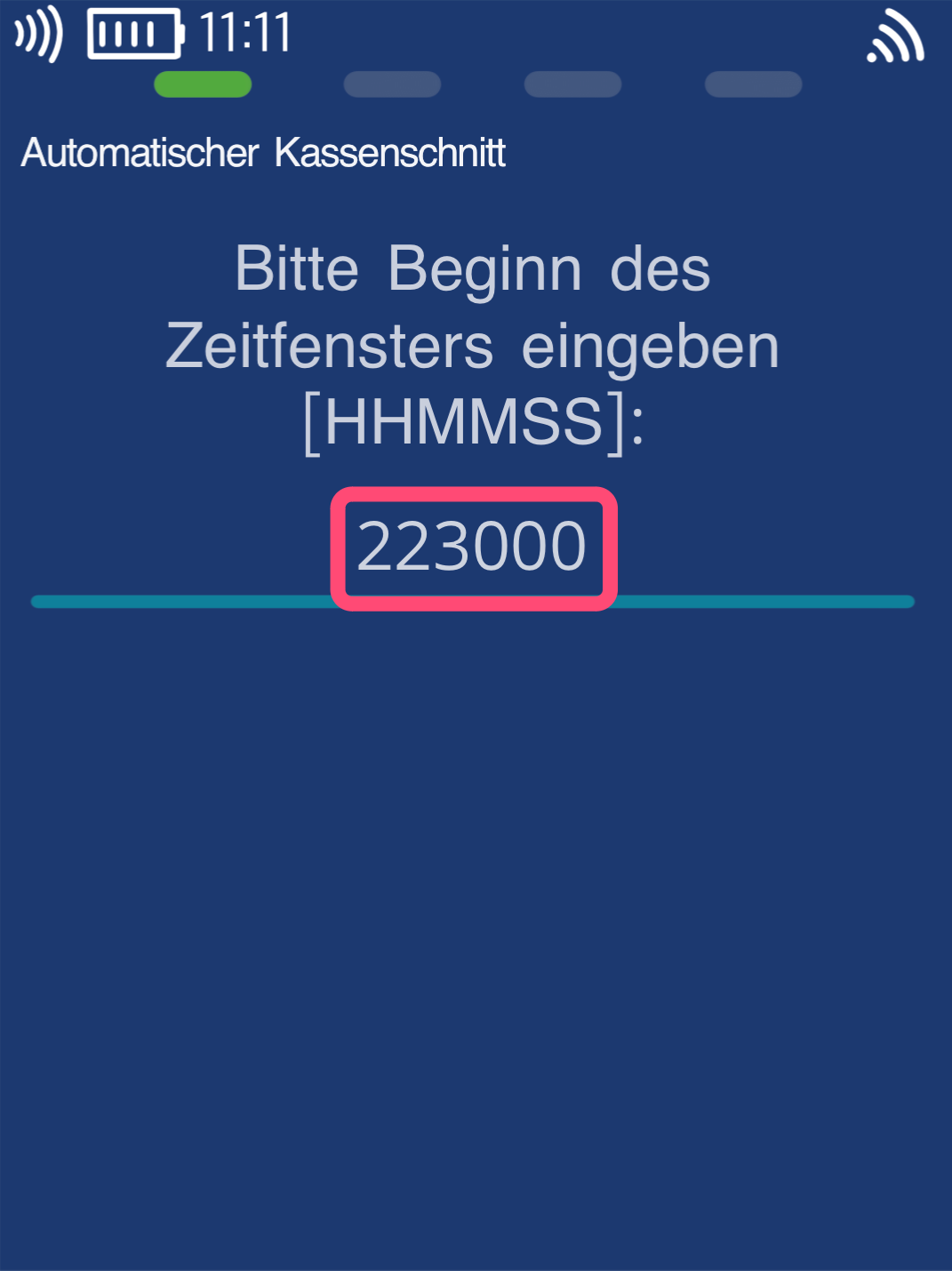
Start Time of Time Window
Please select a start time for the automatic end-of-day report, e.g., 223000 for 10:30 PM.
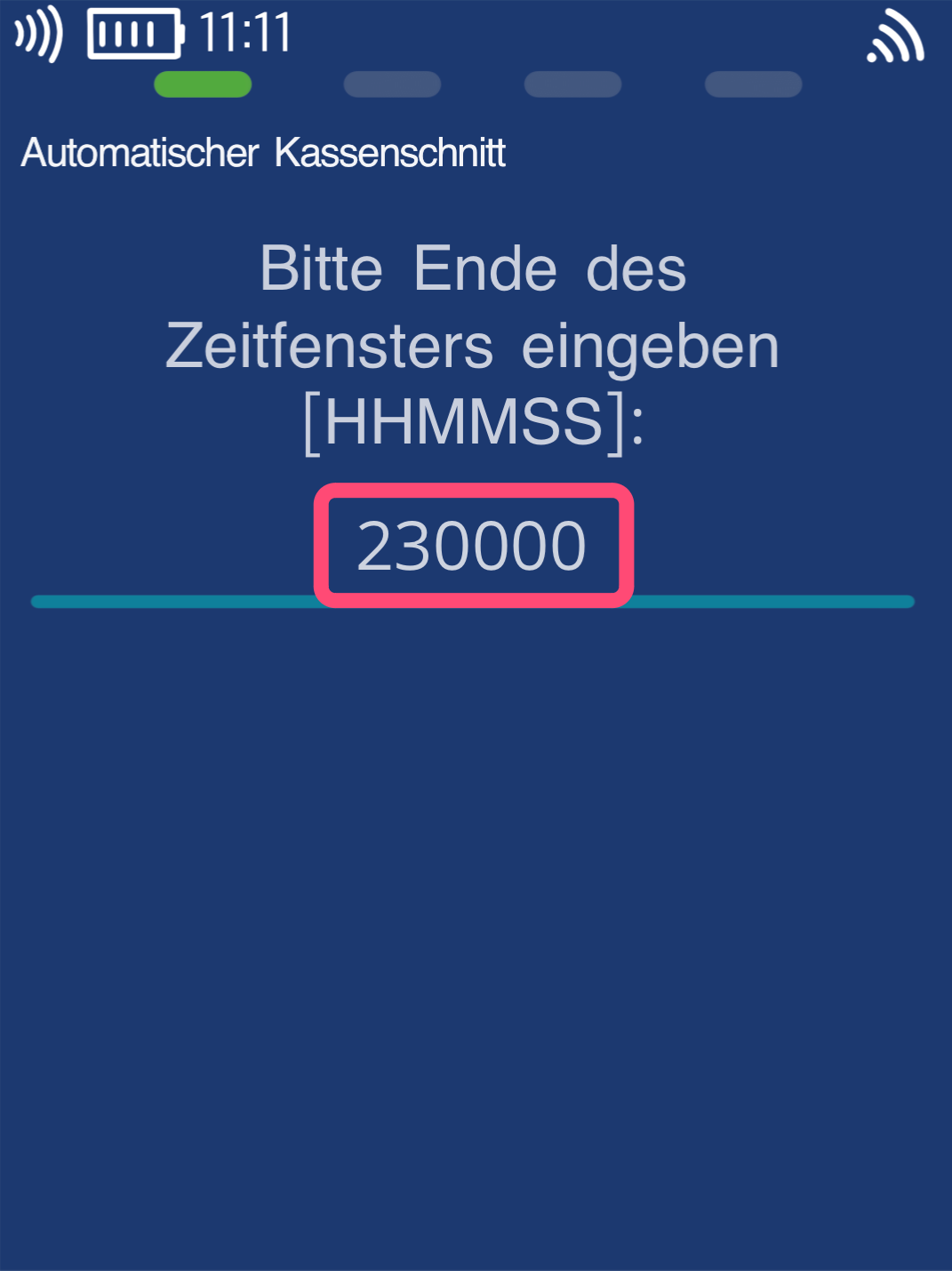
End Time of Time Window
Please select an end time for the automatic end-of-day report, e.g., 230000 for 11:00 PM.
The automatic end-of-day report is now set and will be performed at the specified time as long as there is an active internet connection.
Was this article helpful?
That’s Great!
Thank you for your feedback
Sorry! We couldn't be helpful
Thank you for your feedback
Feedback sent
We appreciate your effort and will try to fix the article
