CCV - Setting Up Your Connection
Modified on Wed, 4 Feb at 9:51 AM
In this guide, we’ll walk you step by step through the setup of a connection on your CCV card reader.
Activating the Connection Type
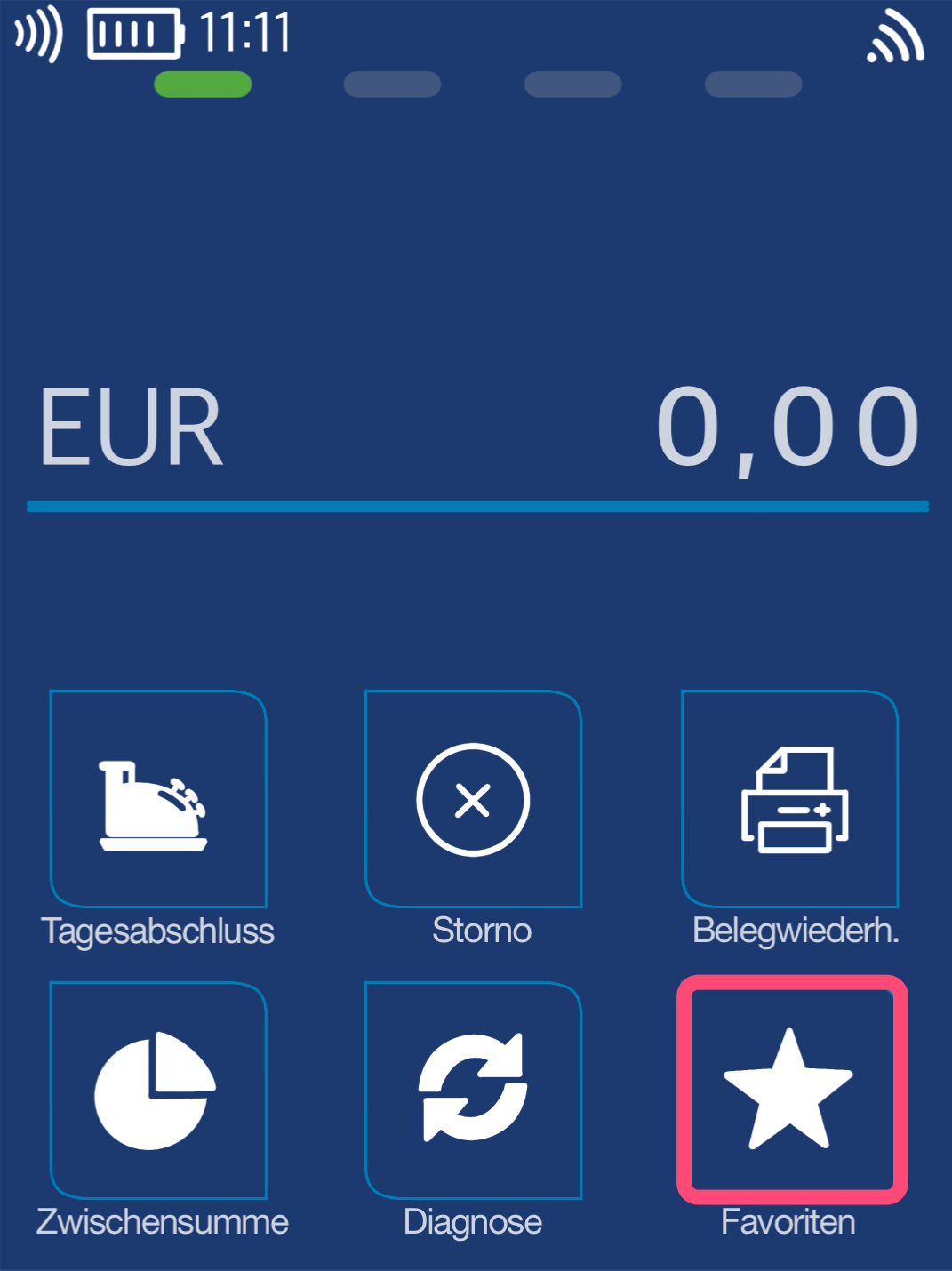
In the first step, the connection type must be activated to allow setup. This is done via the Favorites key (Fig. 1).
Selection by tapping.
Note: Activating the connection is not the same as setting it up. We’ll show you the setup in the next steps.
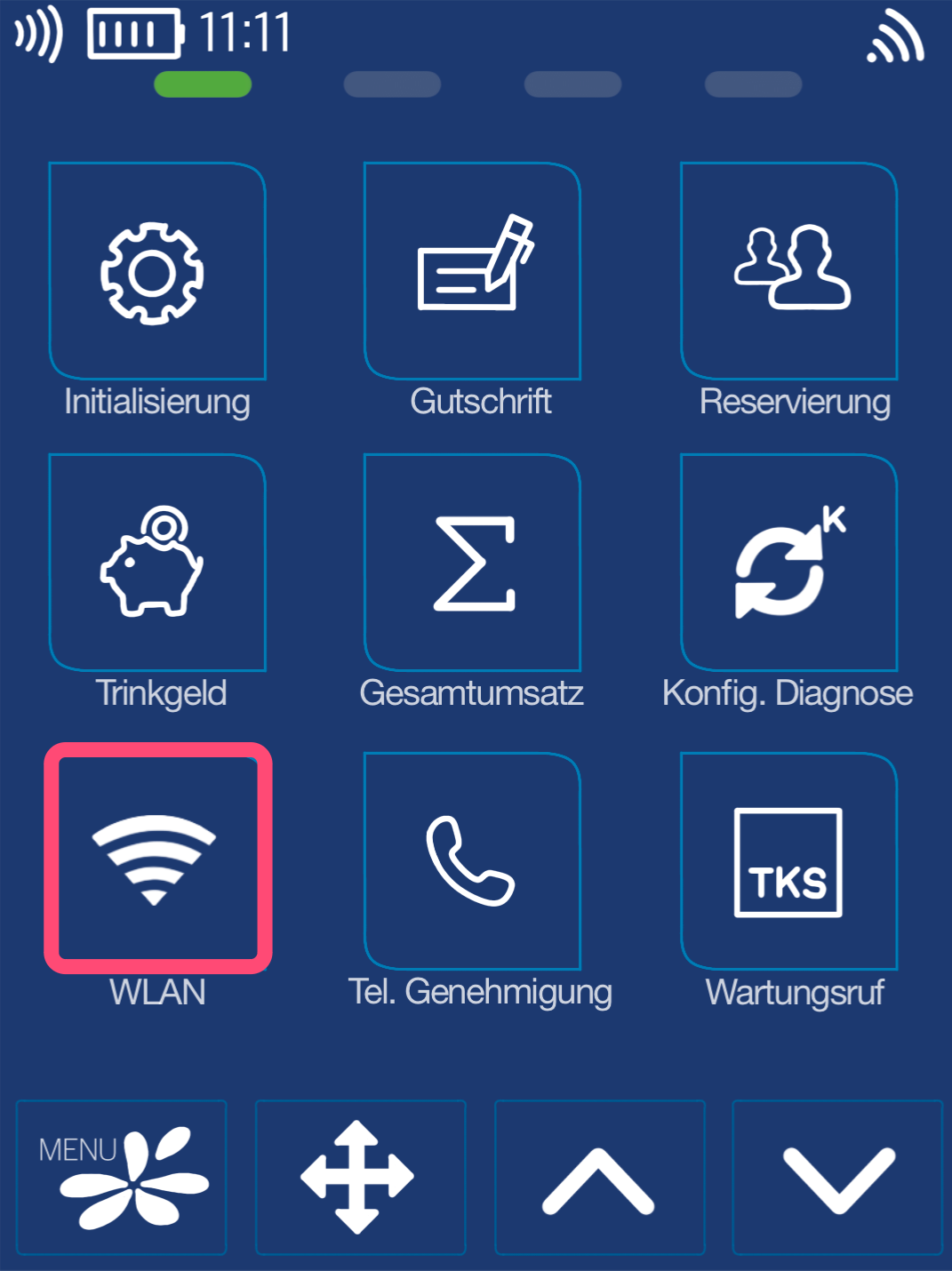
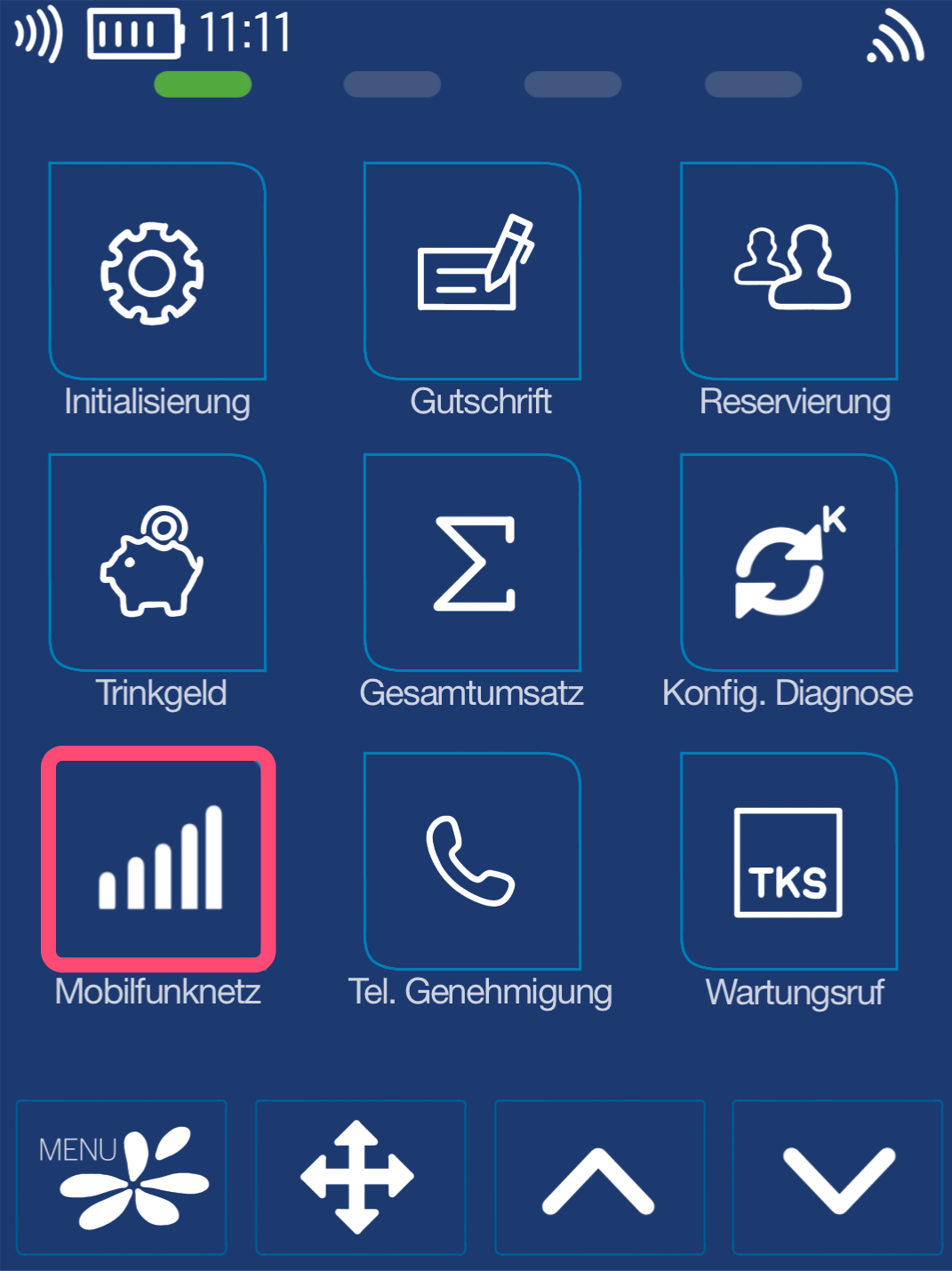
In Figs. 2 and 3, please select the connection type by tapping it.
WLAN = Favorites key WLAN (Fig. 2)
SIM card = Favorites key Mobile Network (Fig. 3)
If you don’t see the connection key in the first Favorites menu, please use the down arrow to view more favorites.
After selecting the connection symbol, you will be asked for your 6-digit cashier password. Please enter it and confirm the input.
You will now automatically return to your home screen.
Setting Up the Connection Type
To set up the connection, we need to enter all necessary data in the menu structure.
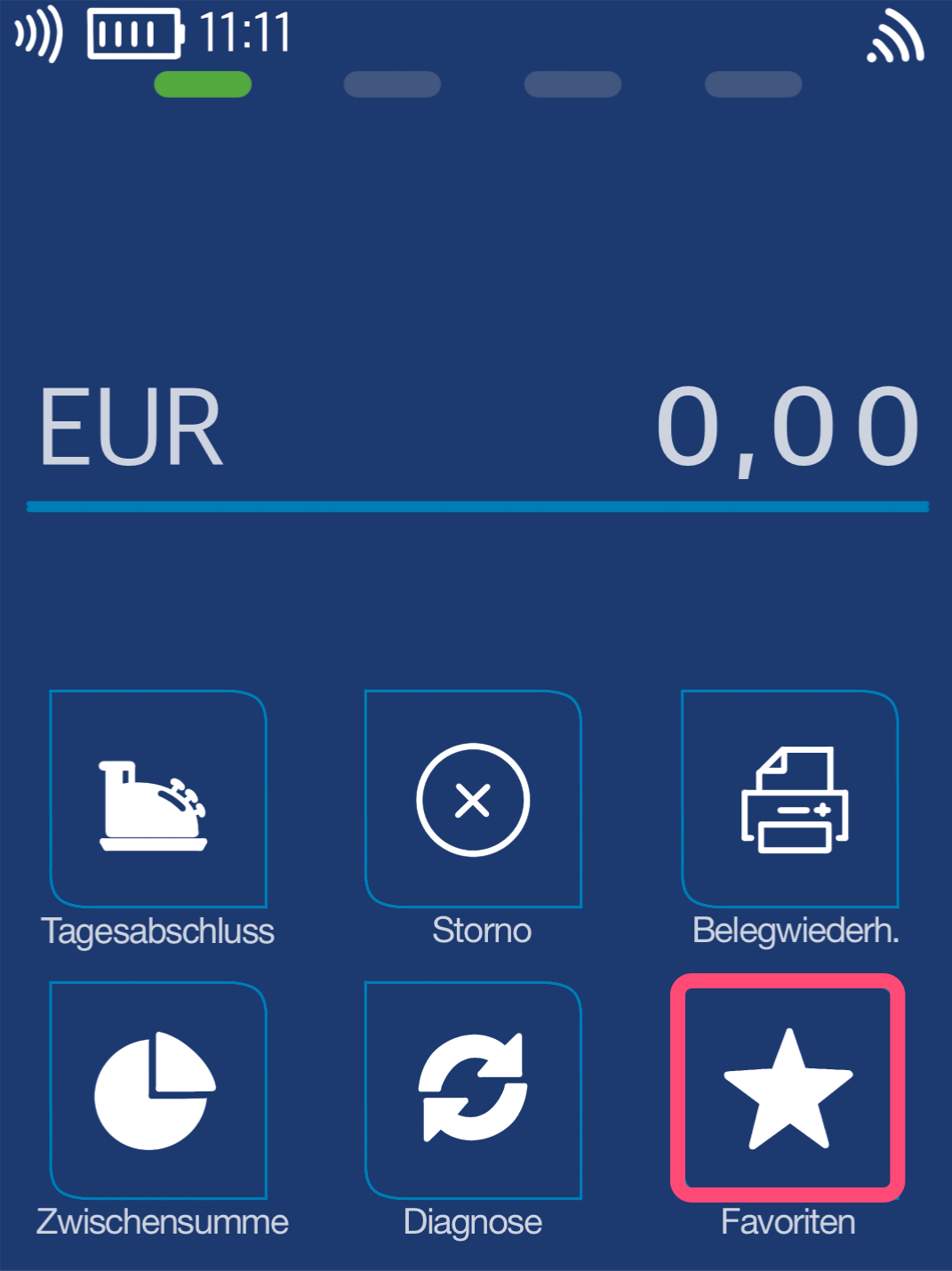
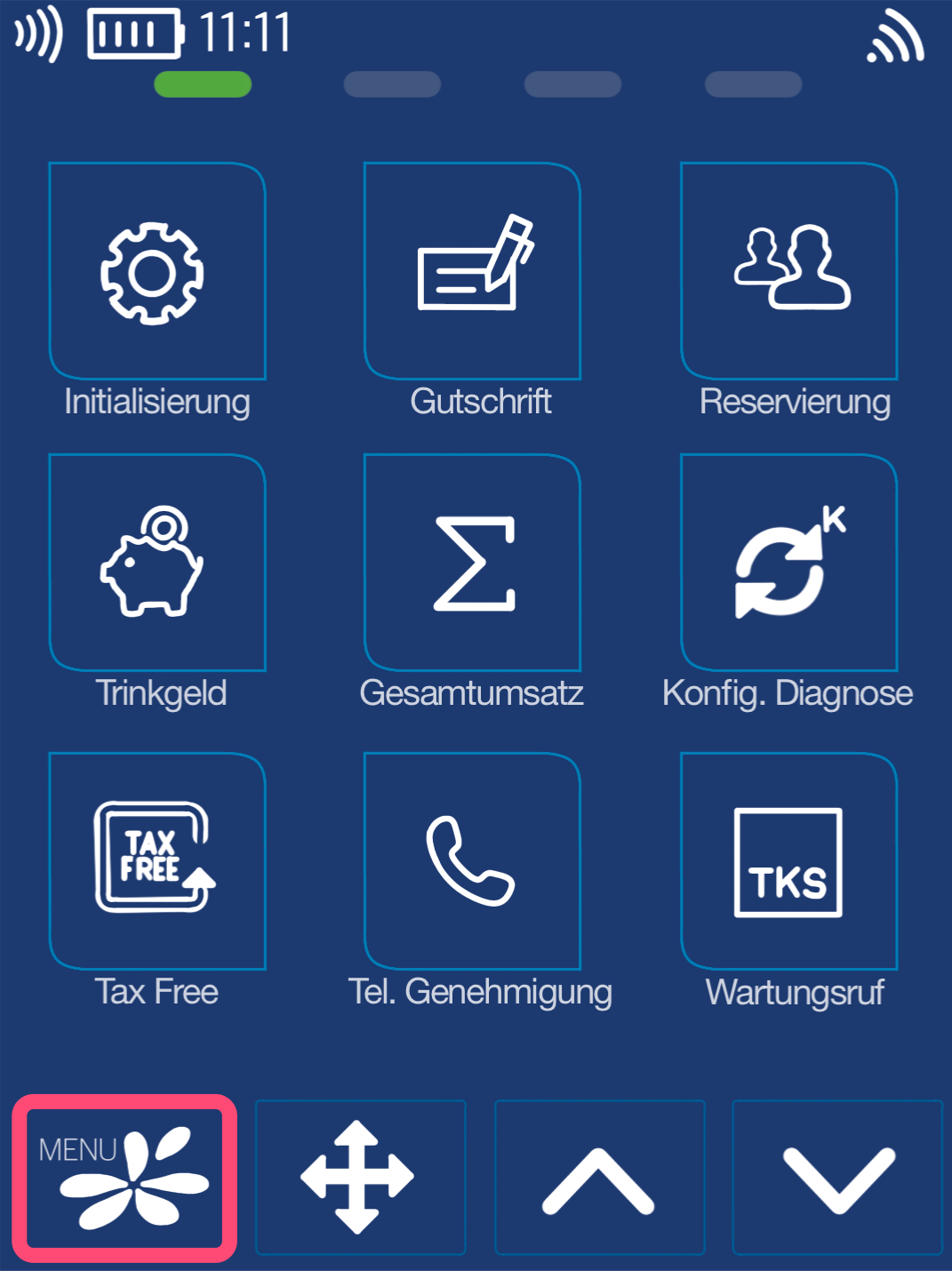
You will see your home screen. Please select the Favorites key (Fig. 1).
Selection by tapping.
In Fig. 2, please press the Menu key.
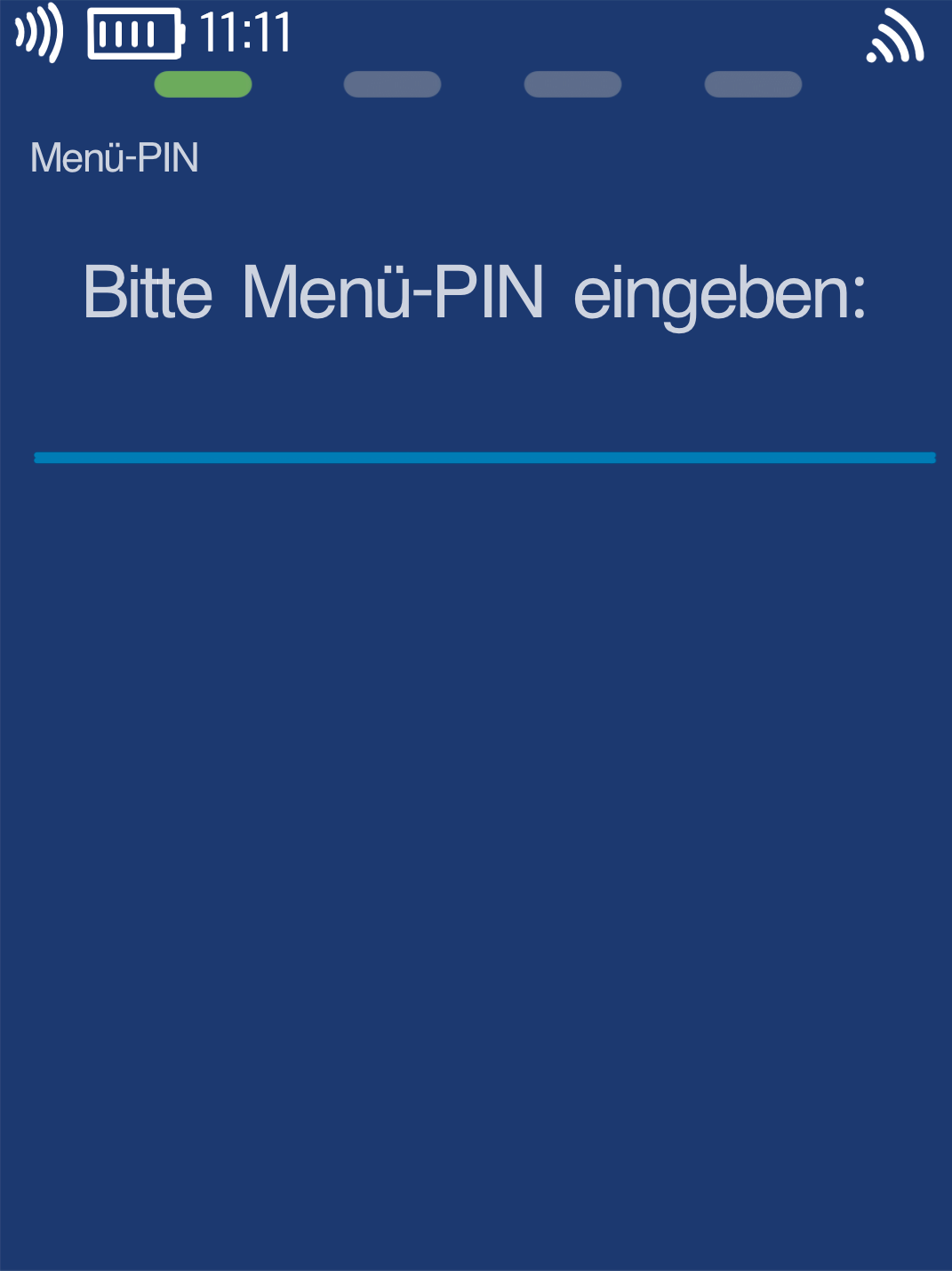
PIN Entry
Please now enter your merchant PIN.
You can find the terminal ID on your merchant receipts or on the end-of-day report.
Terminal IDs beginning with 61xxxxxx: 111111
Terminal IDs beginning with 68xxxxxx: 111111
Terminal IDs beginning with 526xxxxx: 0123
Please confirm your entry with the green OK key.
Management
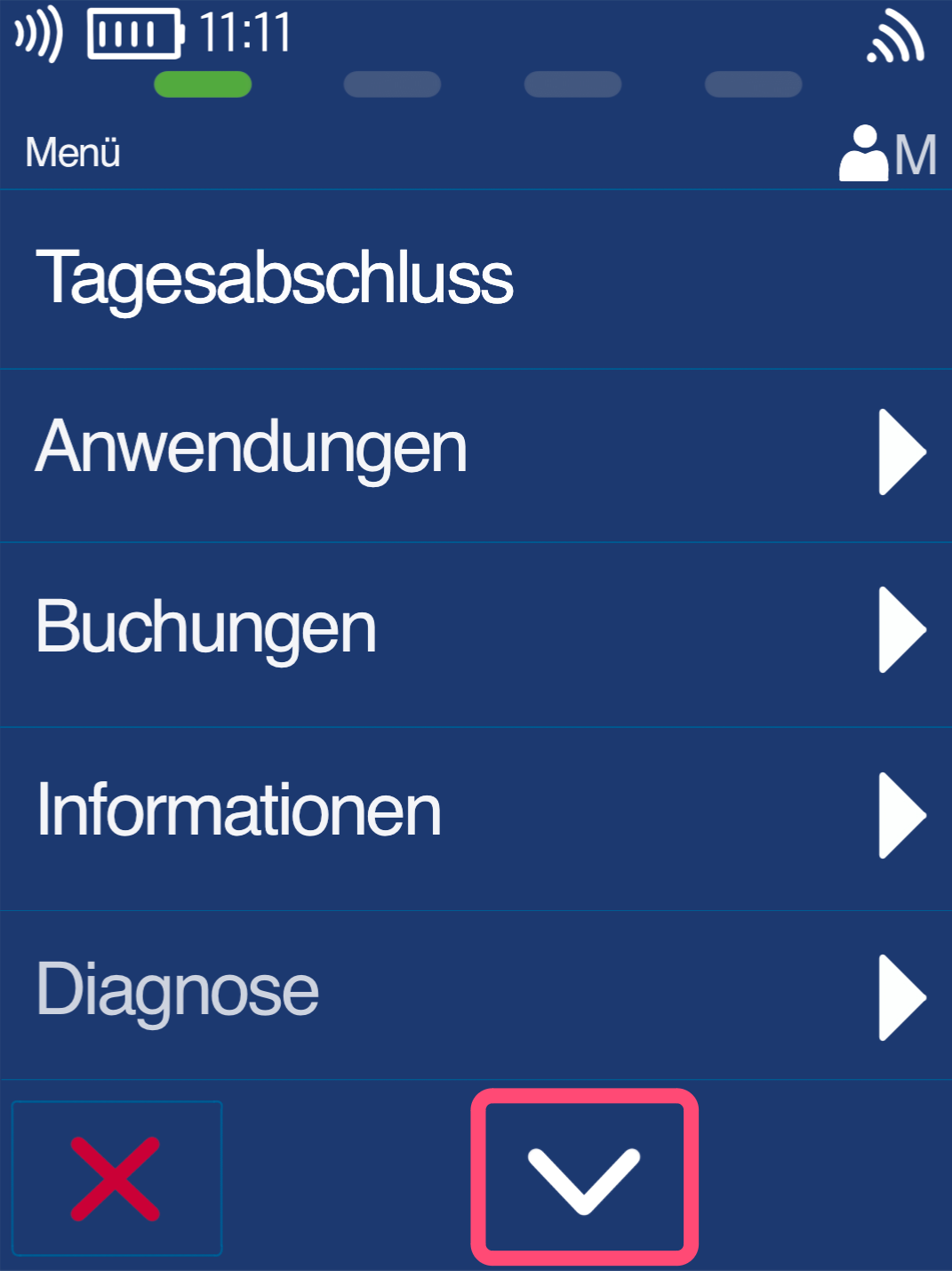
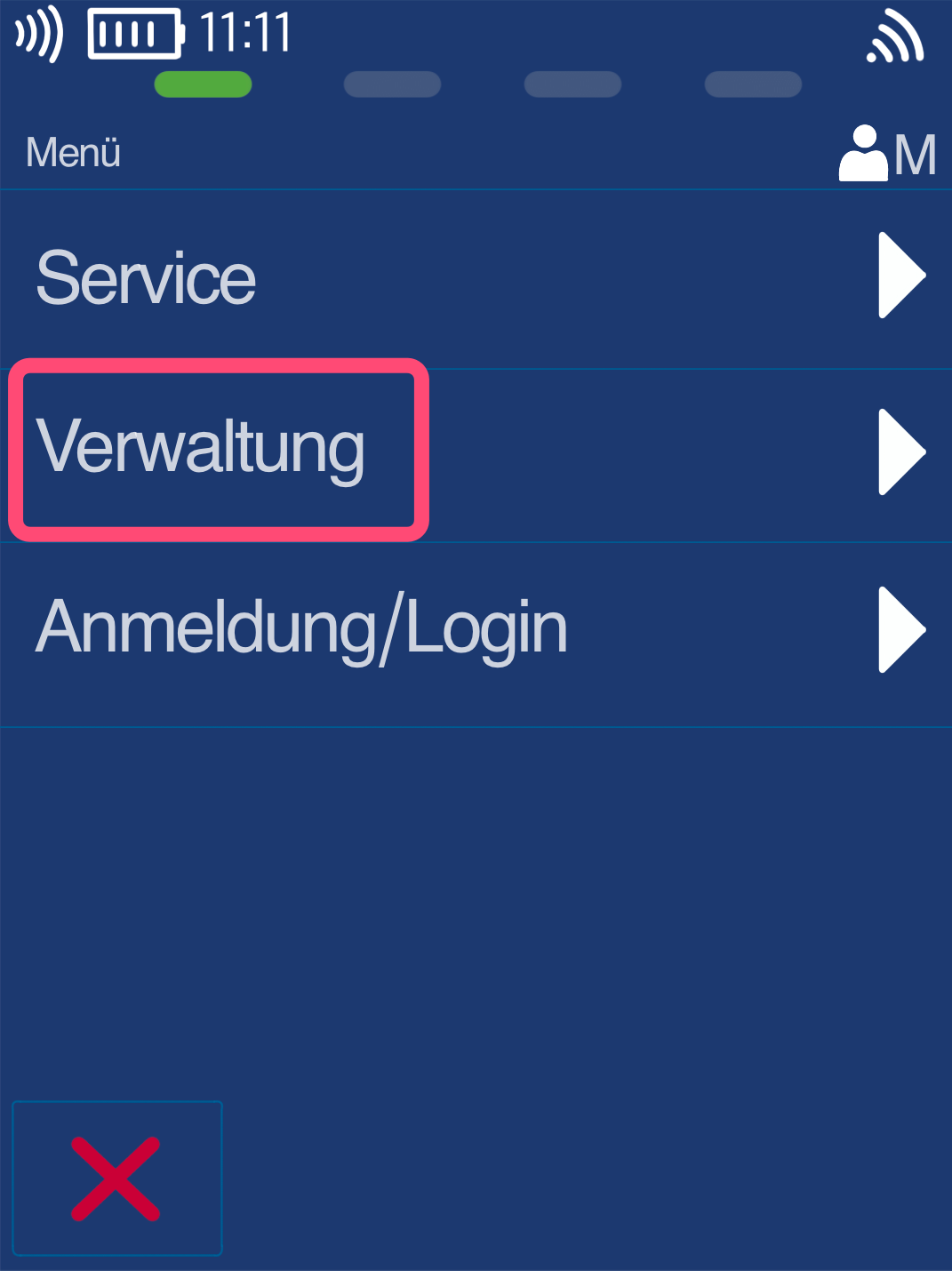
As shown in Fig. 1, use the down arrow key to select the menu item Management (Fig. 2).
In the next step, select the menu item Communication (Fig. 3).
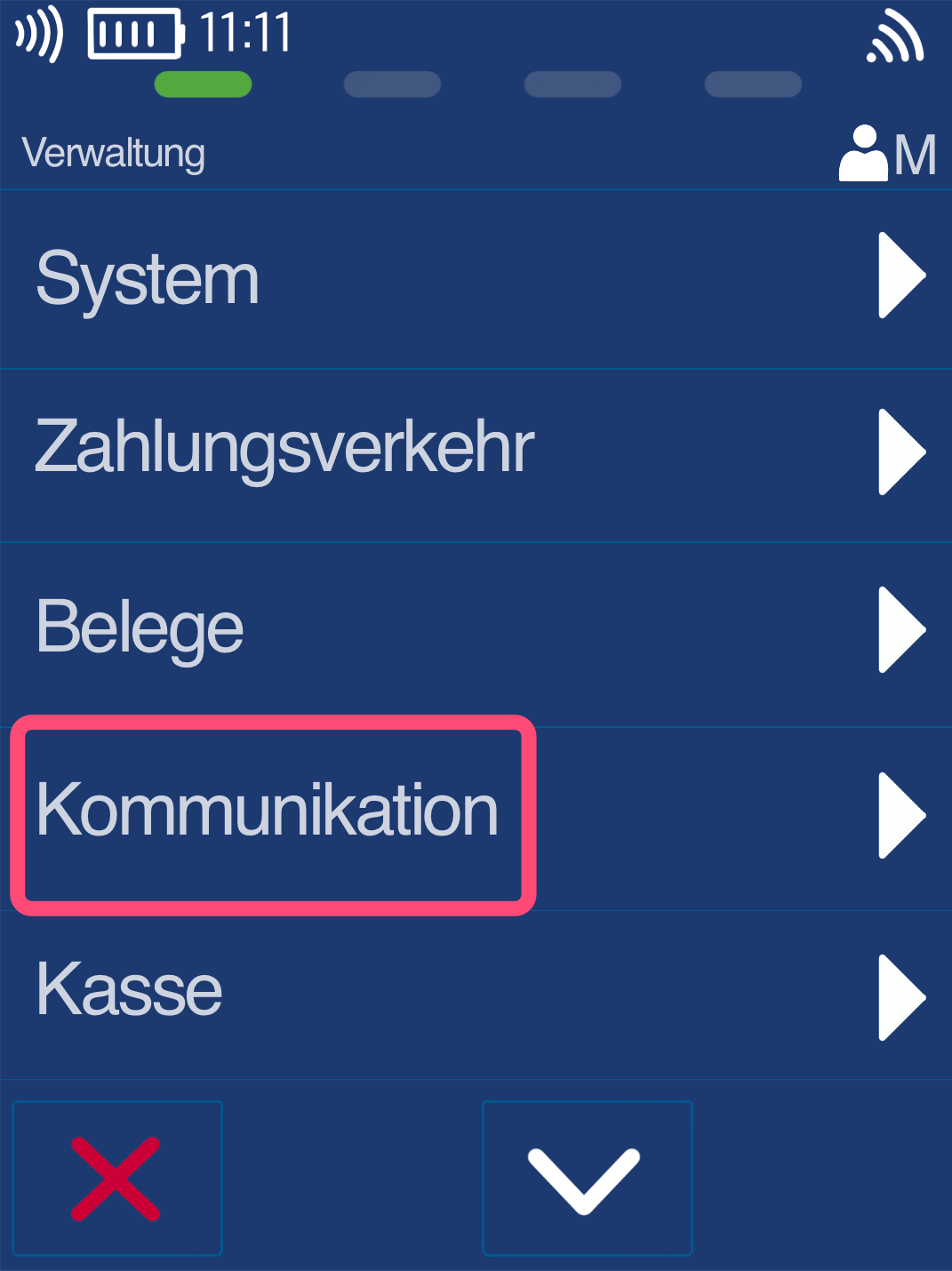
Communication
You are now in the Communication menu, where you can choose your preferred connection type for setup.
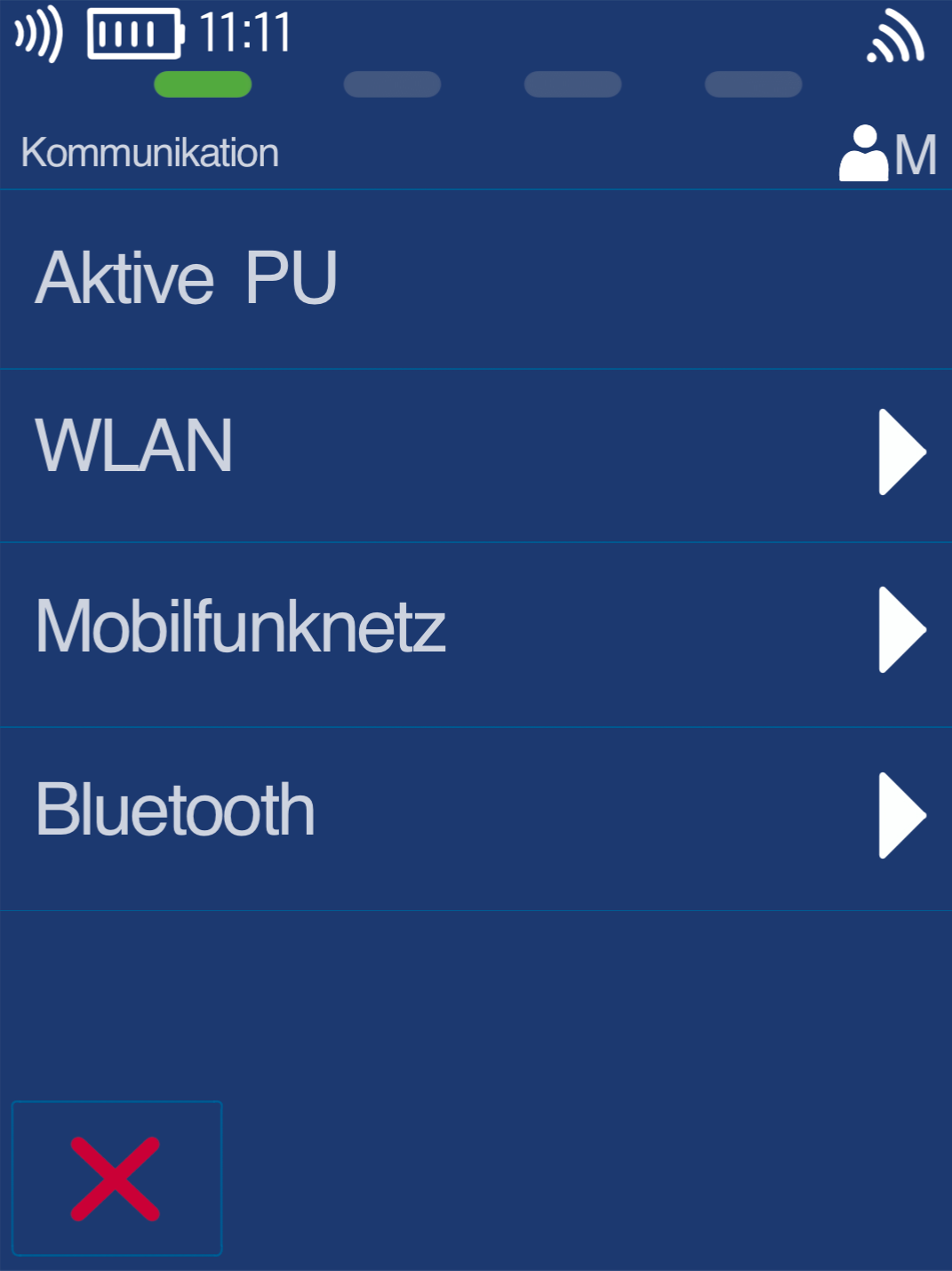
WLAN
In this section, we will set up your WLAN connection.
Please use the down arrow key (Fig. 1) to get to Network Search (Fig. 2).
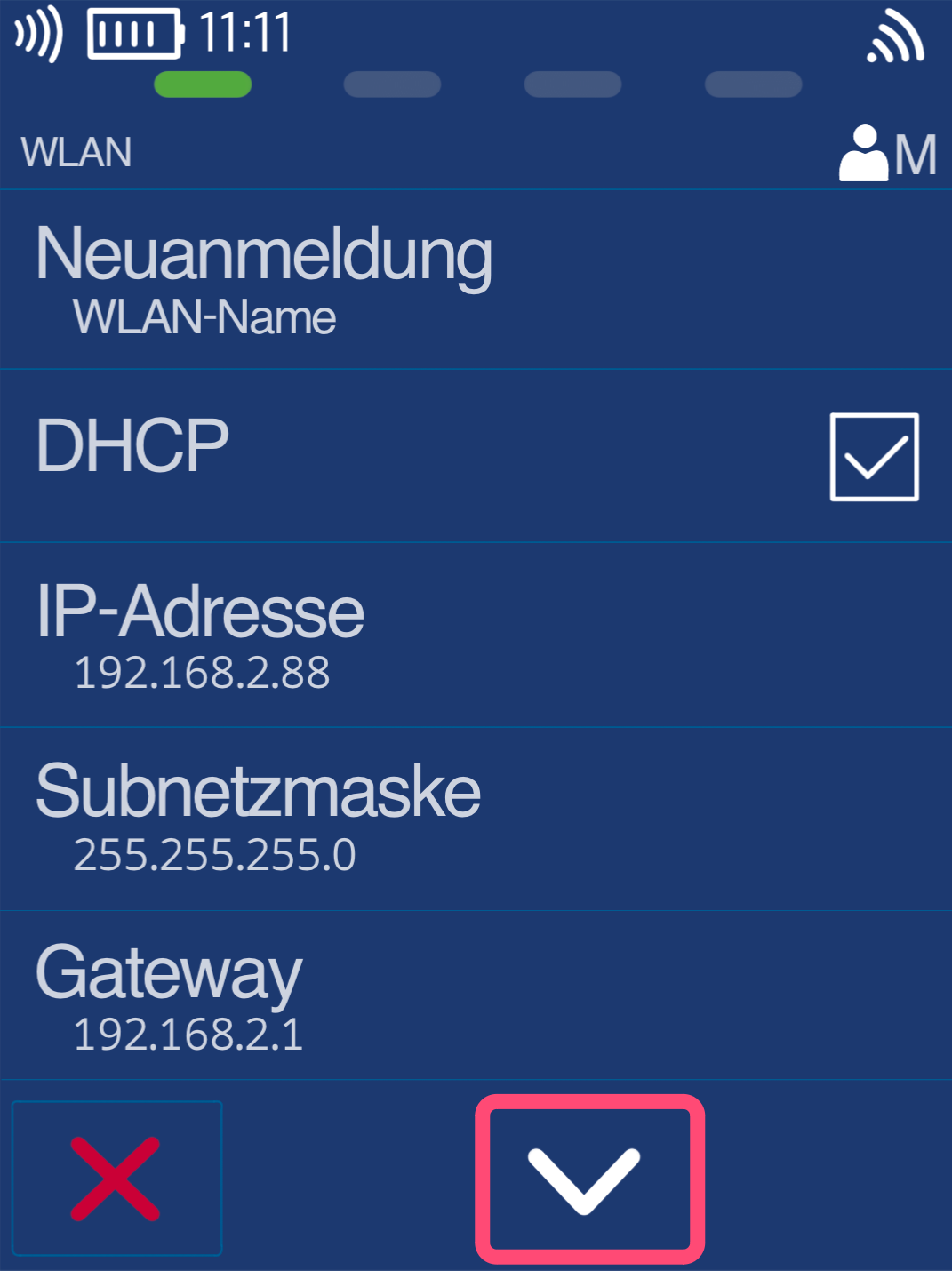
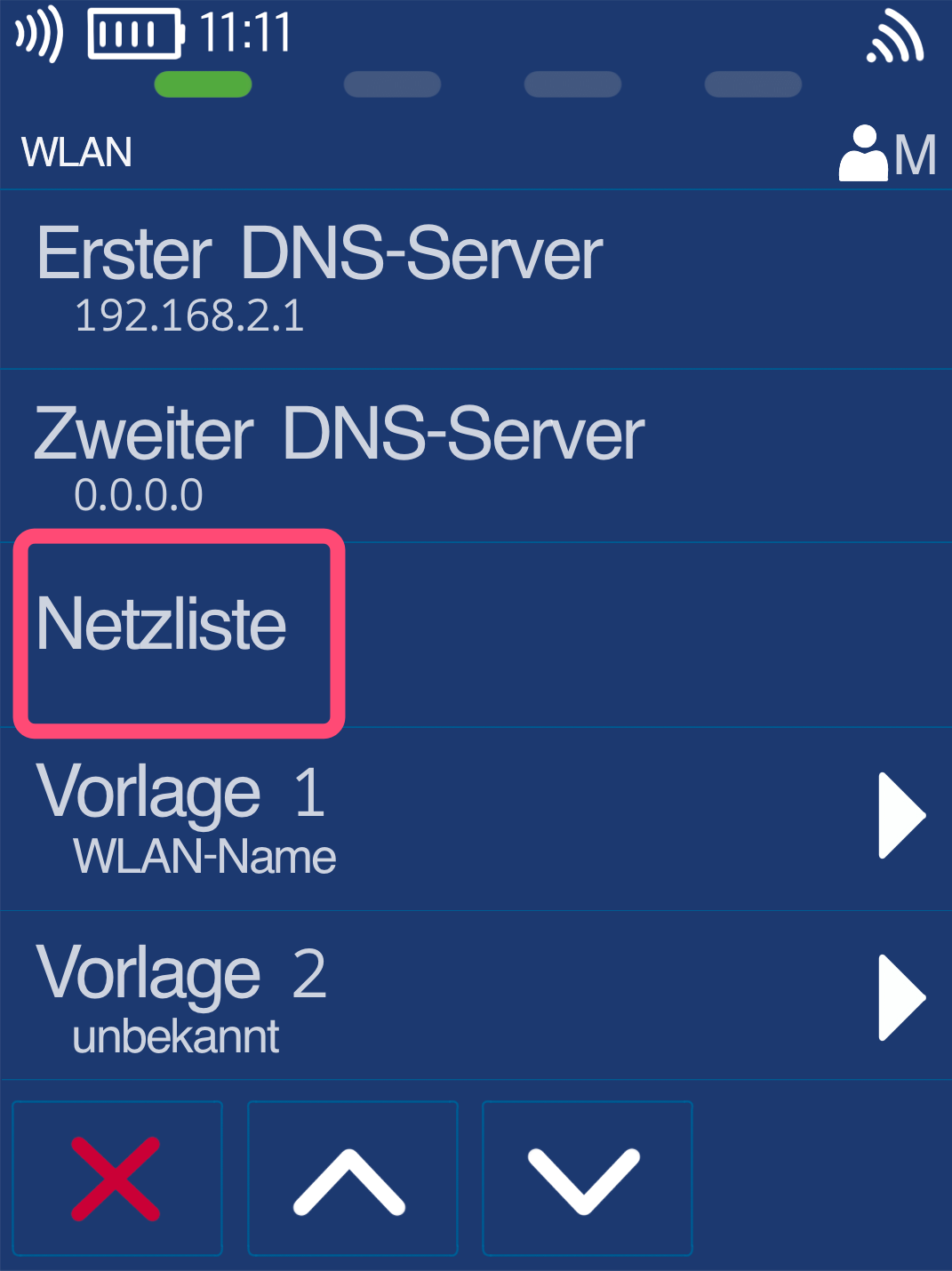
WLAN Network Selection
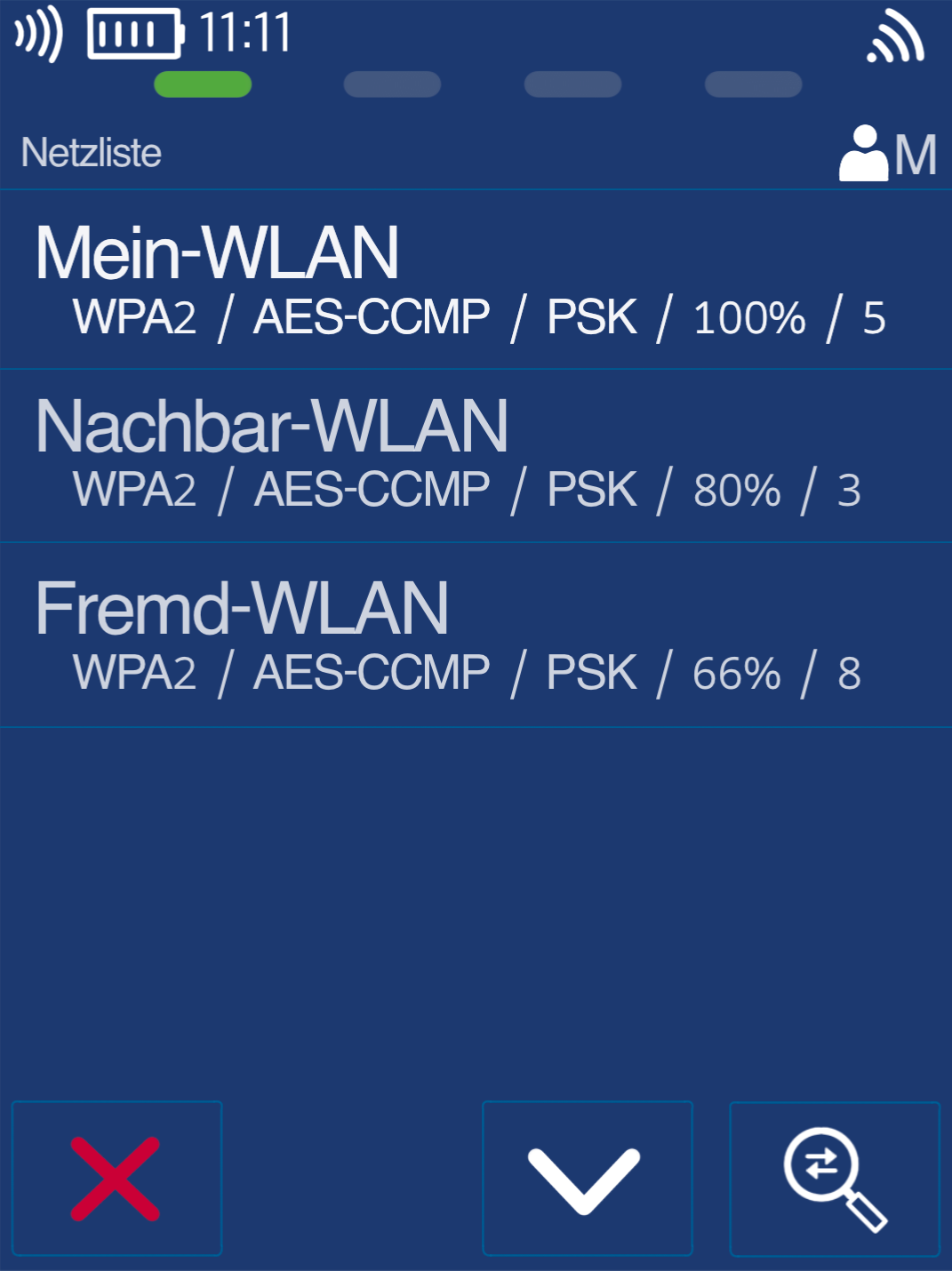
All nearby WLAN networks will be displayed. Please tap your WLAN network (Fig. 1).
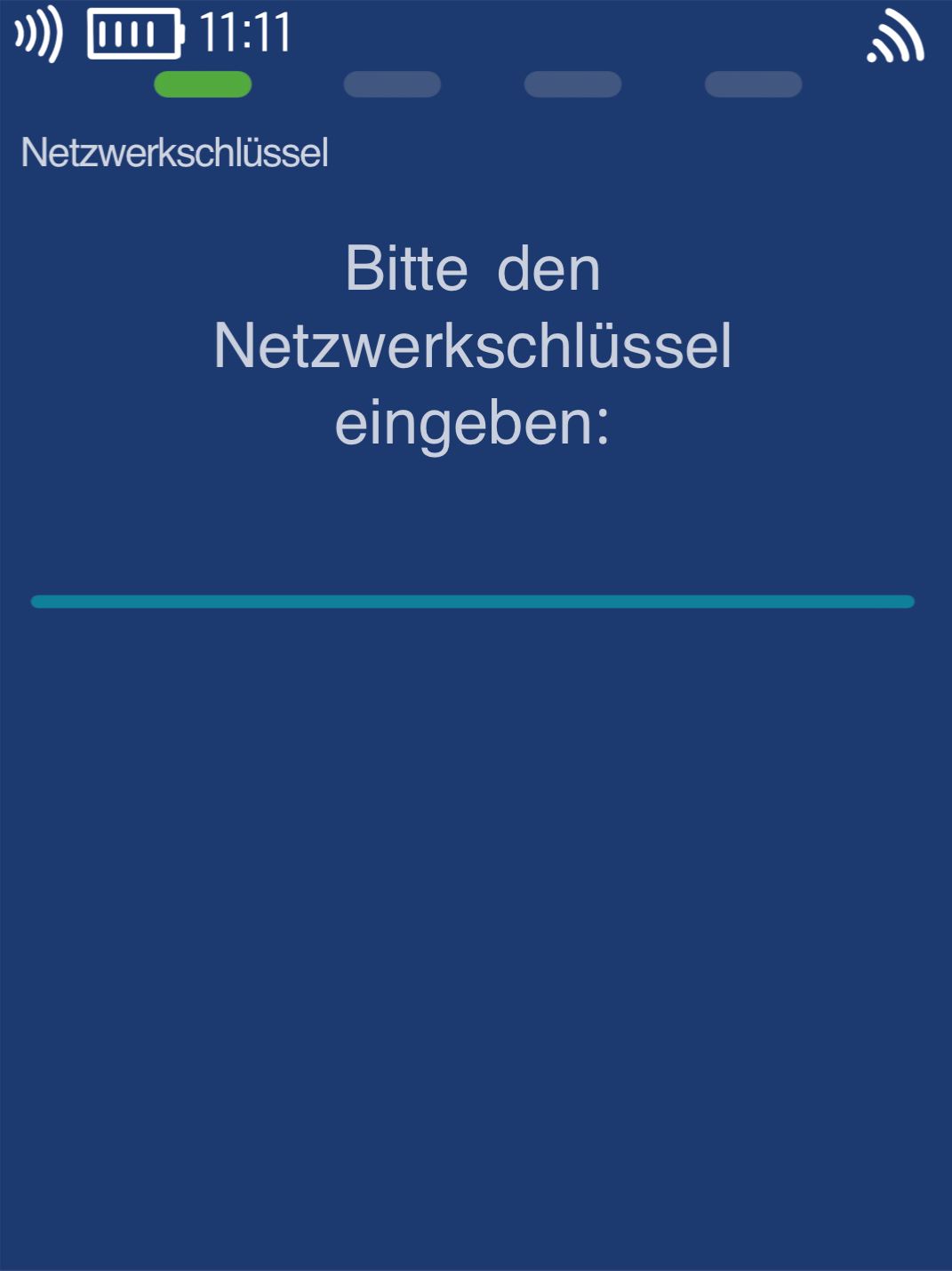
In Fig. 2, you will be prompted to enter your WLAN password.
By repeatedly tapping the keypad, you can first select numbers, then uppercase letters, and finally lowercase letters. Special characters can be found on the * key.
For double numbers, pause slightly between presses to avoid switching to letters.
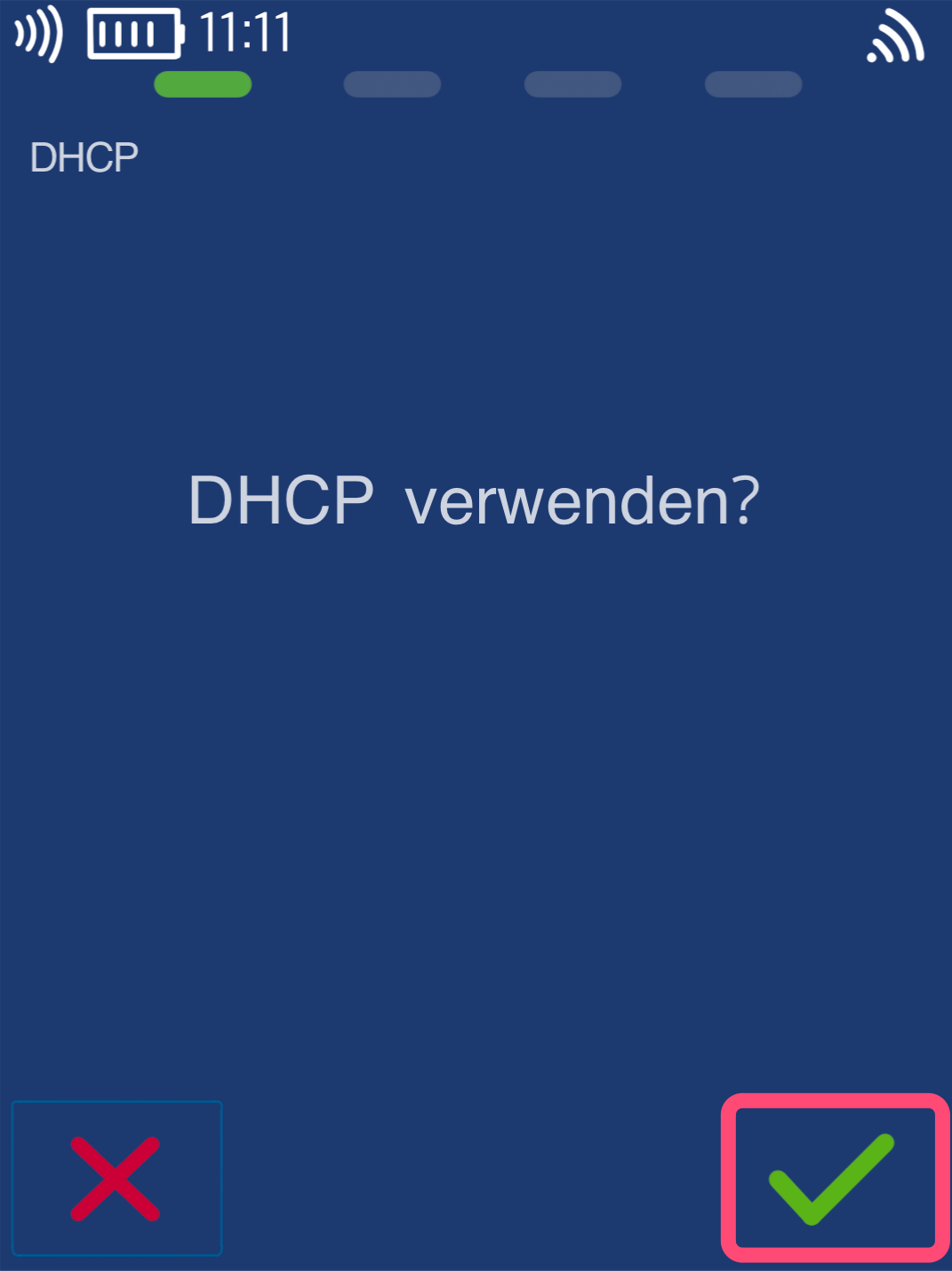
Next, you will be asked about DHCP (Fig. 3). Please confirm with the green OK or arrow key.
Select Template
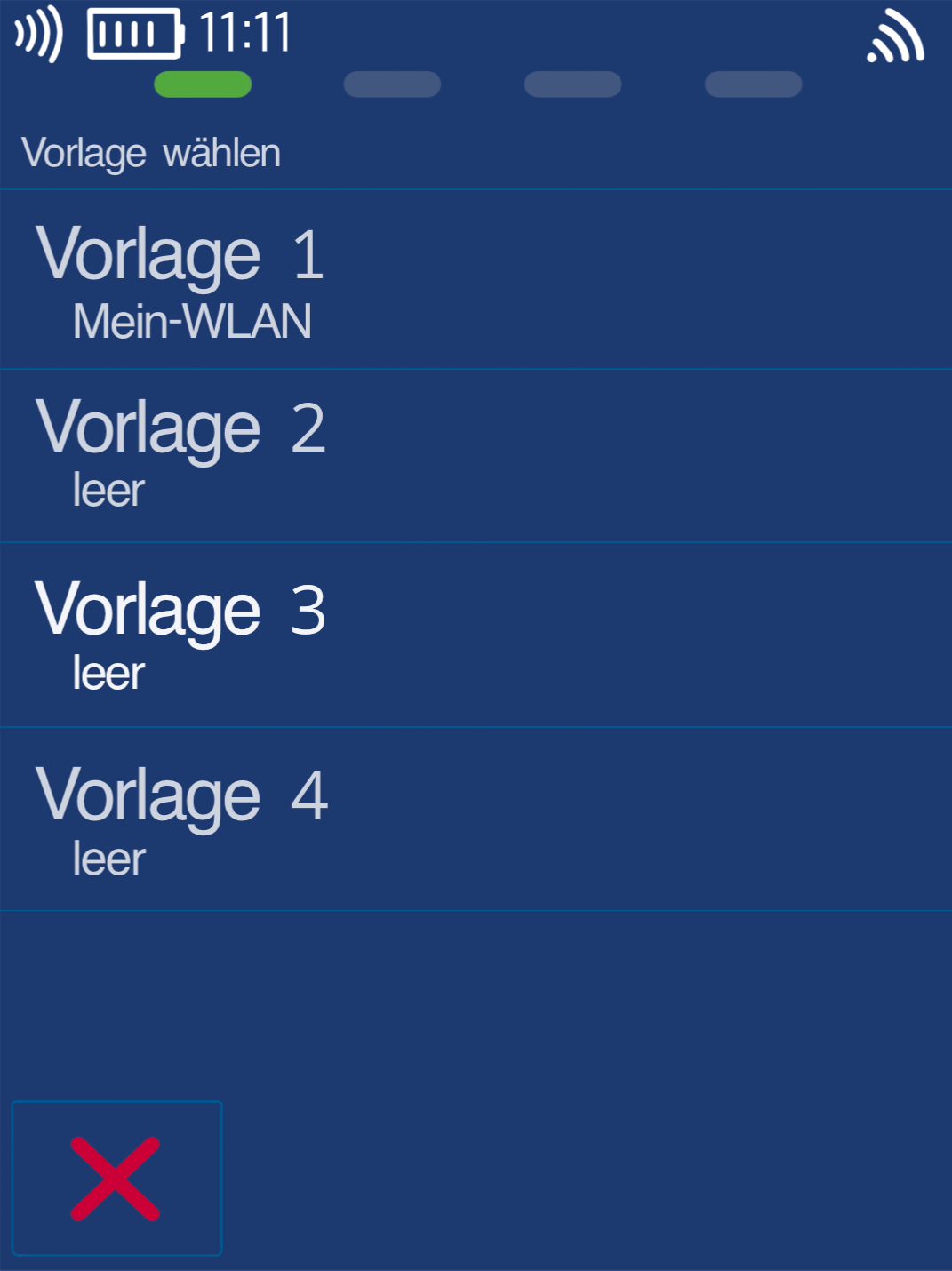
In the final step, a template must be selected.
Please select Template 1.
At the top right of the display, next to the WLAN symbol, “Initializing” and “Logging in” will appear.
The card reader will attempt to connect to your WLAN network using the entered data.
After selecting, you can exit the menu using the red Stop key. You will return to your home screen.
Once the connection has been successfully set up, please check the functionality using our “Check Connection” article.
You can also find an informative article about the connection symbols on your card reader.
Mobile Network
In this section, we will set up your mobile network connection.
Please select the menu item Access Point Name.
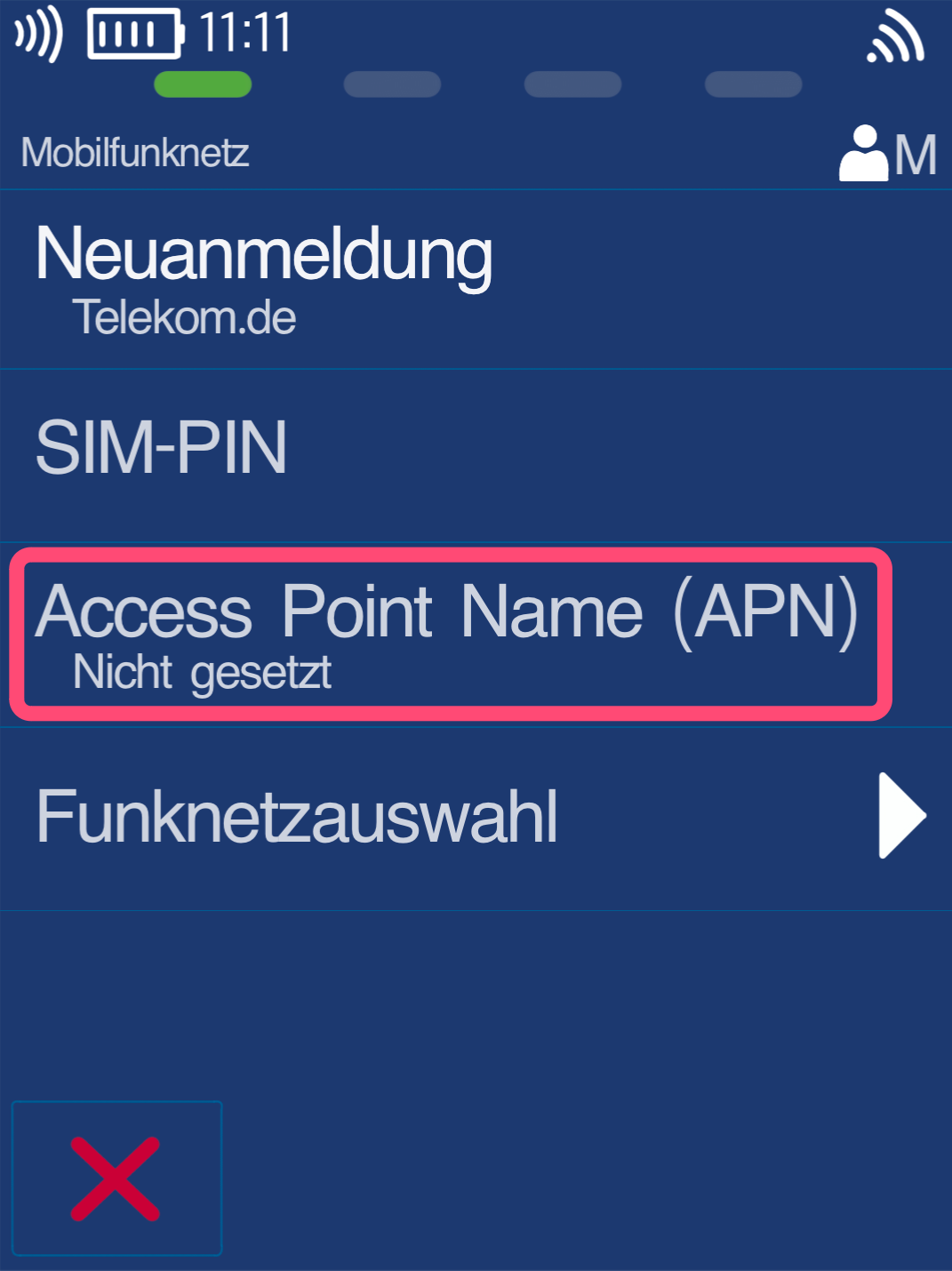
APN Data
APN data is required so the SIM card can correctly dial in and establish a connection.
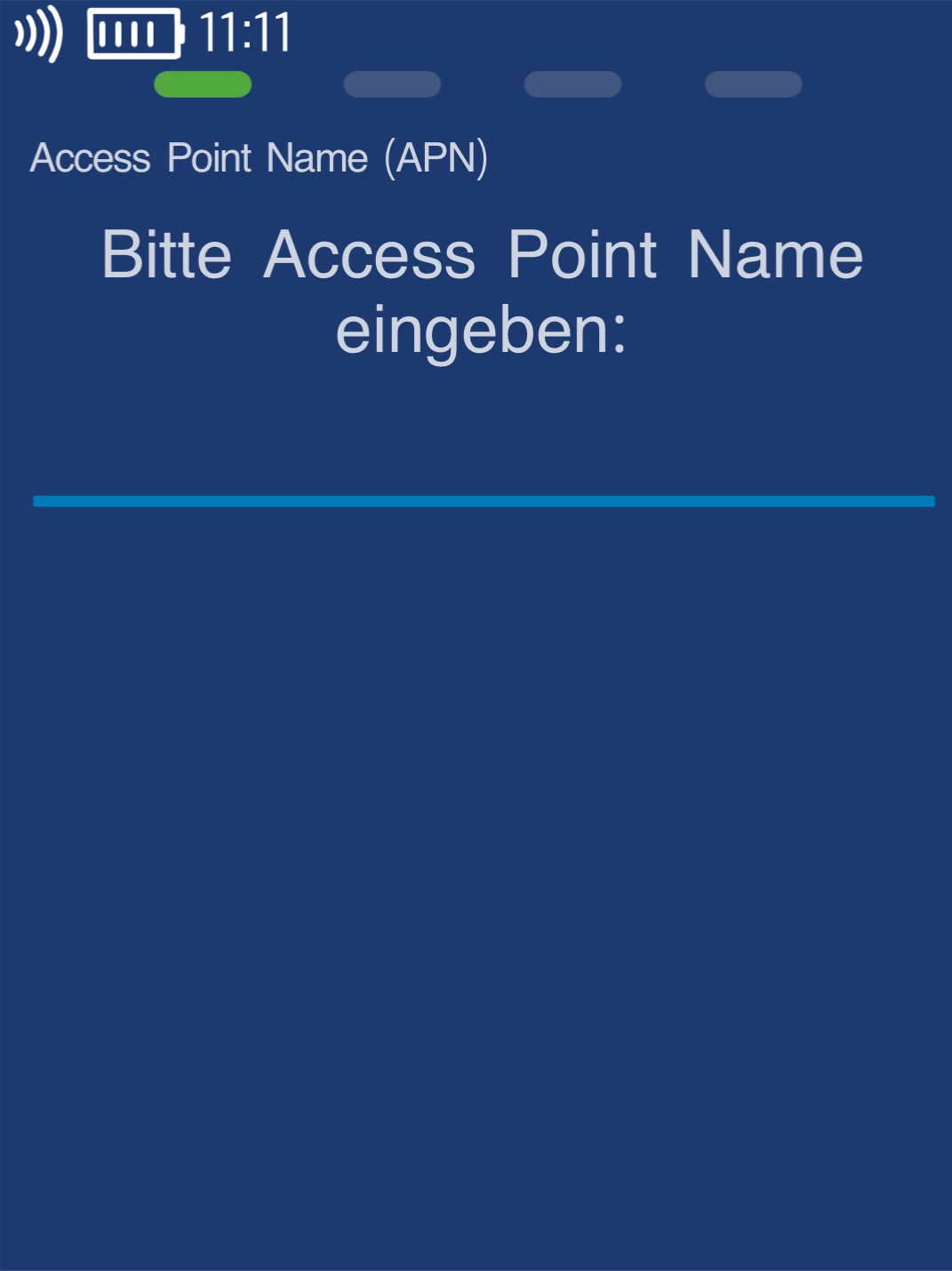
Please enter the following APN data:
Fig. 1
Please enter the following via the keypad:
internet.m2mportal.de
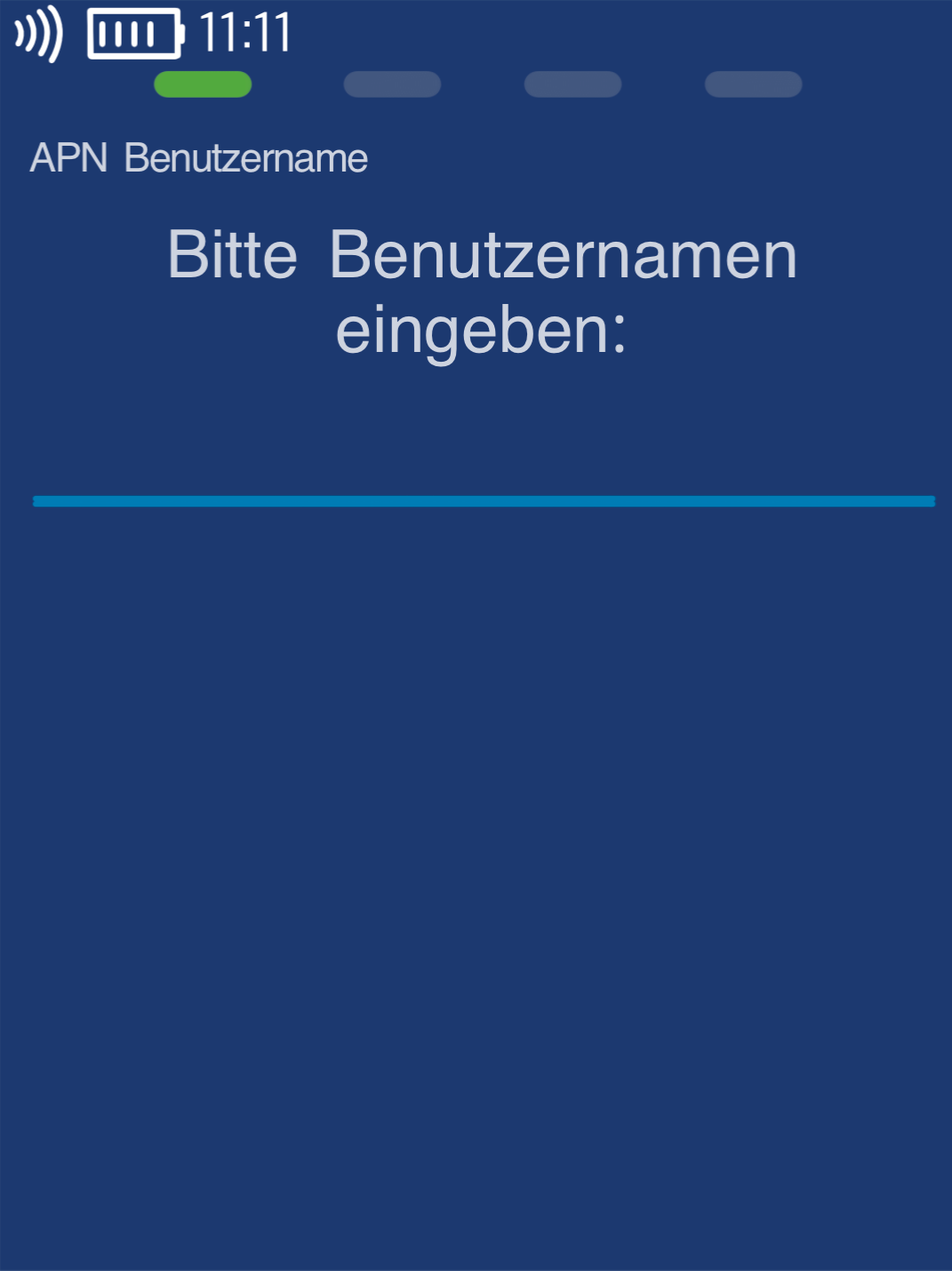
Fig. 2
Please enter the username:
m2m
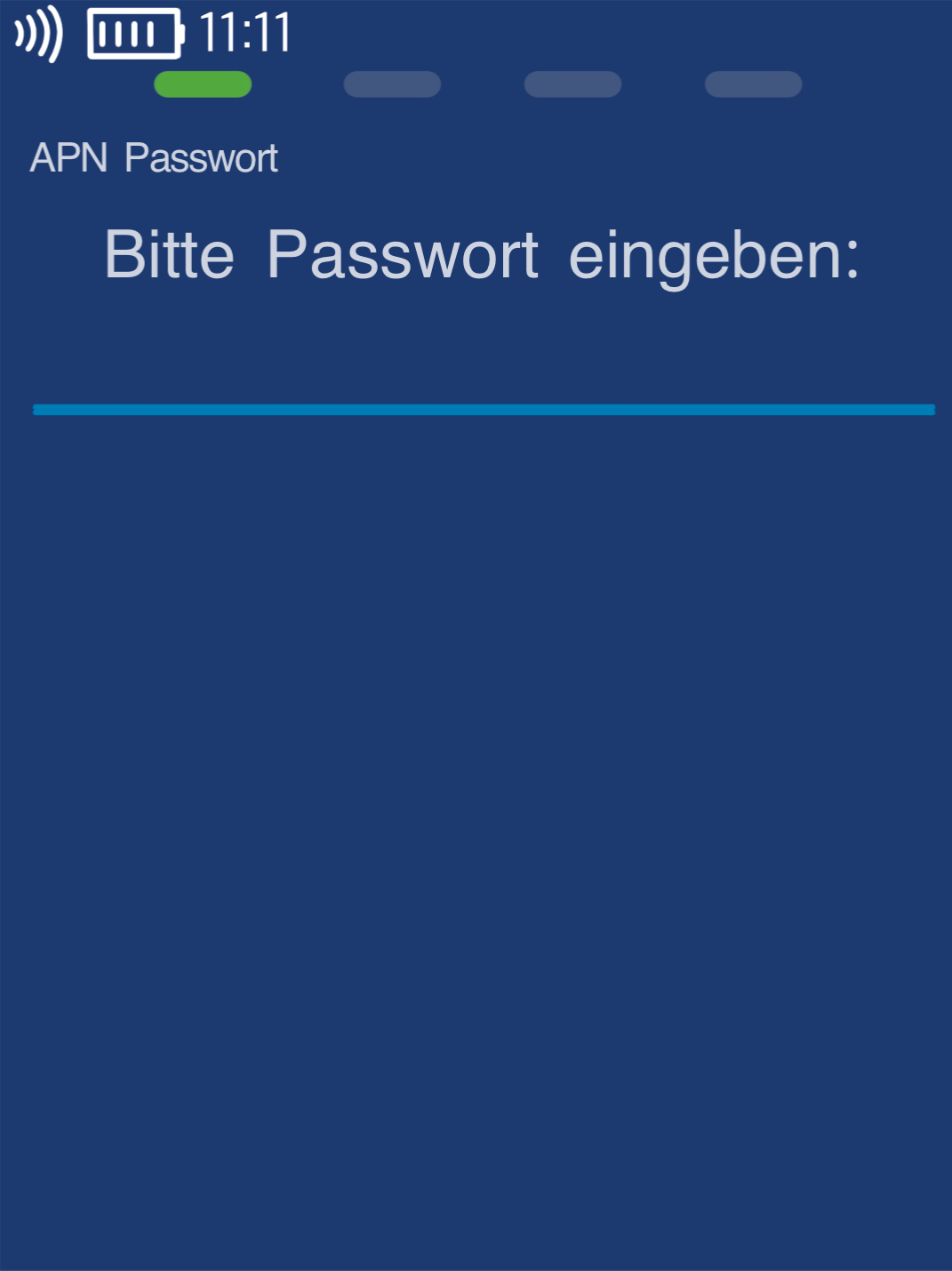
Fig. 3
Please enter the password:
sim
By repeatedly tapping the keypad, you can first select numbers, then uppercase letters, and finally lowercase letters. Special characters are found on the * key.
Please confirm each entry with the green OK key.
Confirm APN Data
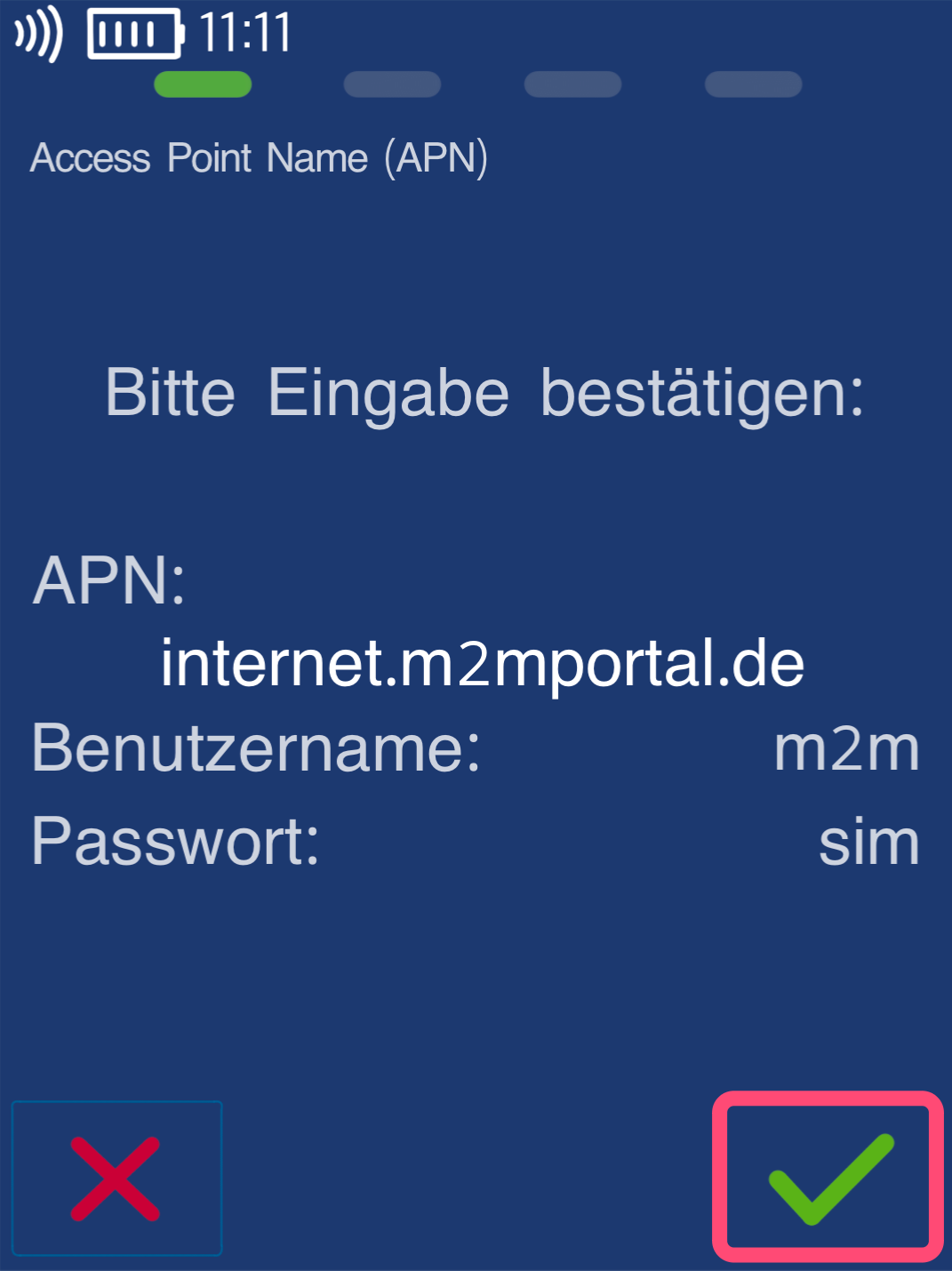
All entered data must now be confirmed again. Please use the green OK or arrow key (Fig. 1).
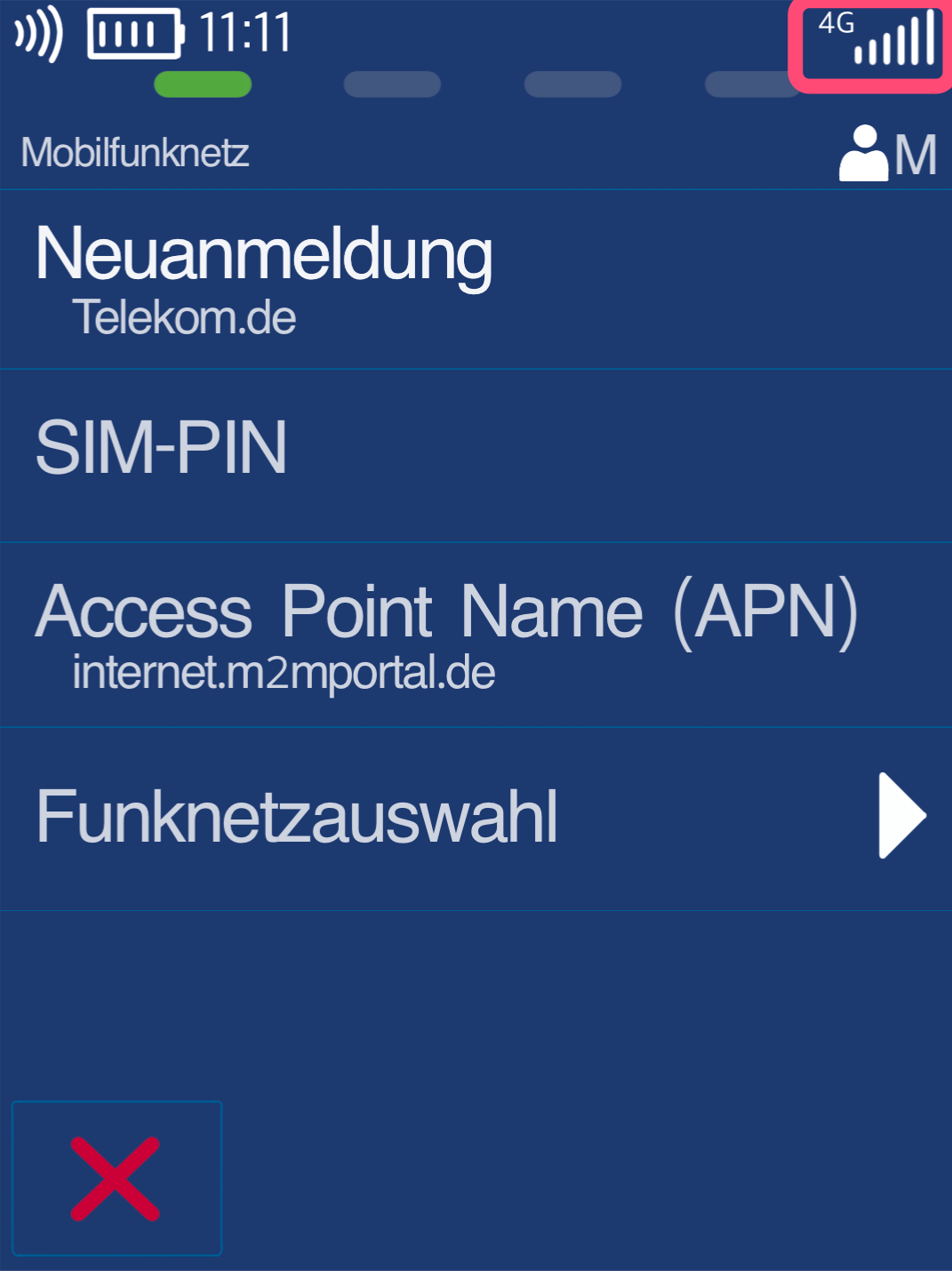
In Fig. 2, you can see the mobile network connection being established. As soon as you see the connection symbol, please check the connection using our guide.
After entering the data, you can exit the menu with the red Stop key. You will return to your home screen.
Once the connection has been successfully set up, please check the functionality using our “Check Connection” article.
Was this article helpful?
That’s Great!
Thank you for your feedback
Sorry! We couldn't be helpful
Thank you for your feedback
Feedback sent
We appreciate your effort and will try to fix the article
