Ingenico - Insert Battery
Modified on Wed, 4 Feb at 10:11 AM
Insert or Replace Battery
If you have removed the battery from your Ingenico card reader and now want to reinsert it for use, you’ll find instructions here.
The battery must be inserted with high precision — the contact points must align exactly.
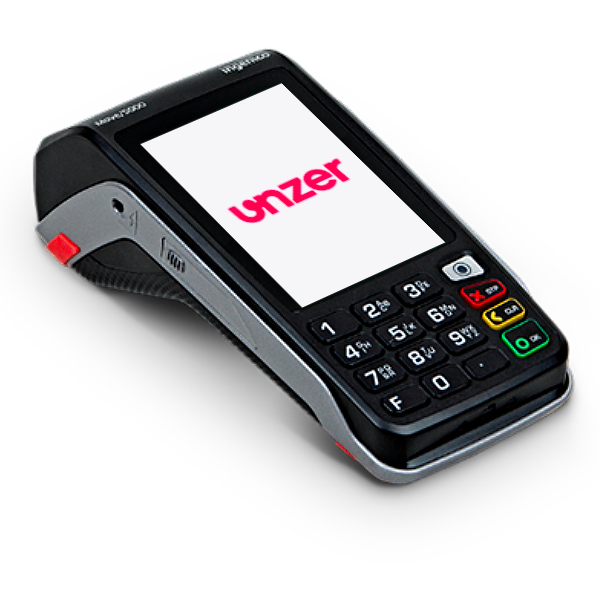
Opening the Terminal
Unlock the battery cover on the back of the device by sliding the latch in the direction of the arrow (upward) and then remove the cover.
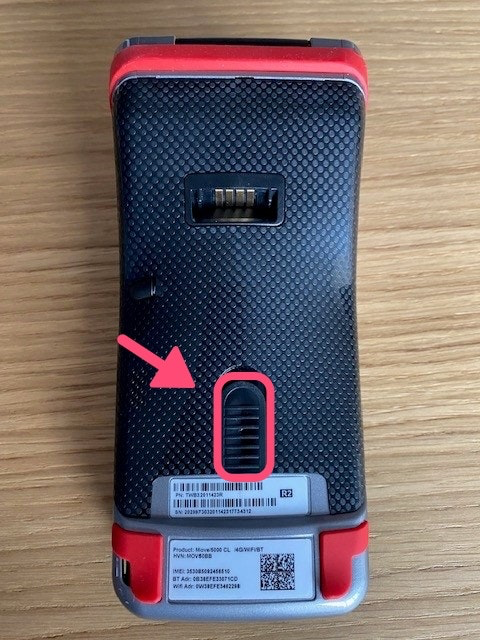
Removing the Battery
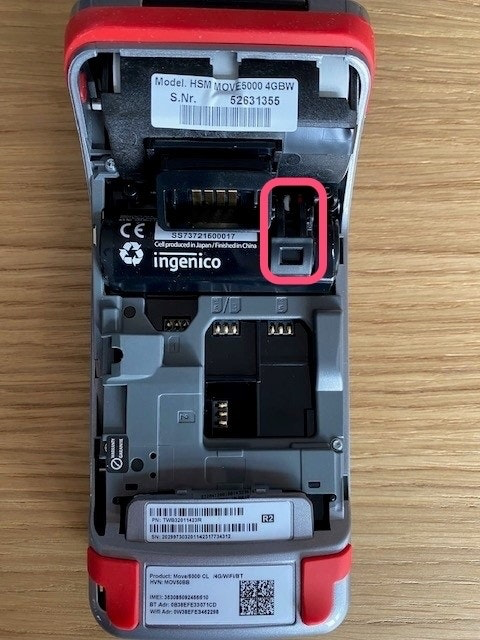
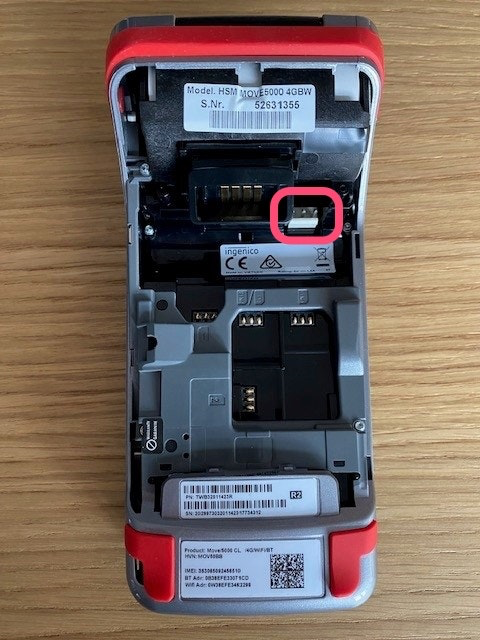
By opening the clip (Fig. 1), the cylindrical battery can be pulled out from the clip.
The battery is easiest to remove by gently wiggling it back and forth while carefully pulling it.
Fig. 2 shows the removed battery.
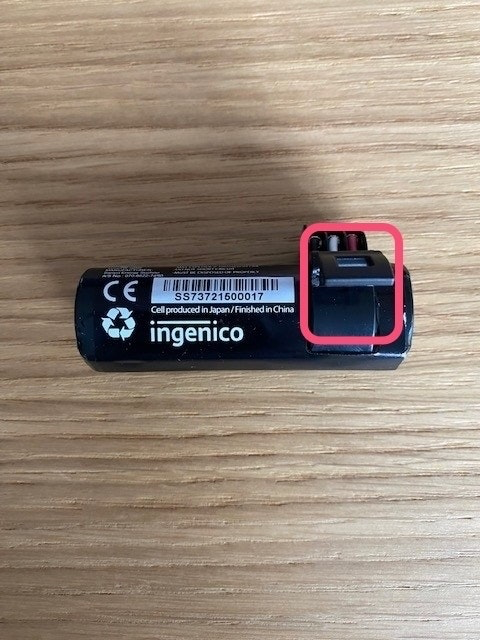
Inserting the Battery
When inserting the battery, please ensure that it is aligned precisely with the 3 contact points inside the card reader.
If the contacts are not perfectly aligned, the battery will not charge, and the card reader will only display “Battery empty – please charge.”
Starting the Card Reader
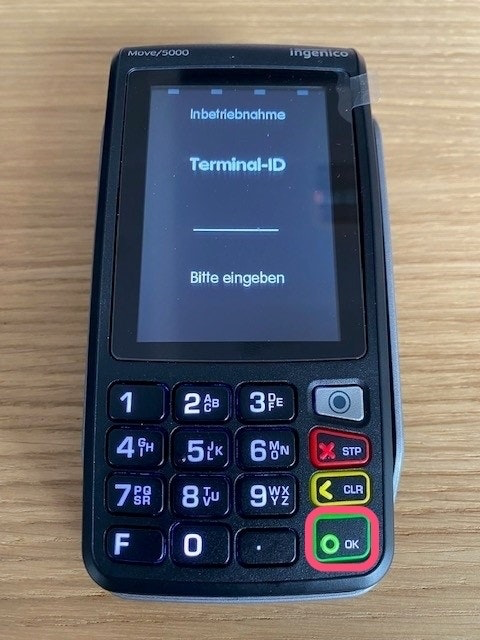
Please turn on the card reader using the green OK key (Fig. 1).
If this is not possible, the battery may not be correctly seated on its contact points. In that case, please remove and reinsert the battery.
If the battery is correctly inserted, the card reader will now start and boot up.
Display on the Card Reader
Battery empty – Please wait
The battery is charging via a power source (charging dock, base station, or direct power connection).
Charging time: approx. 1 hour
Battery empty – Please charge
The battery does not have sufficient voltage.
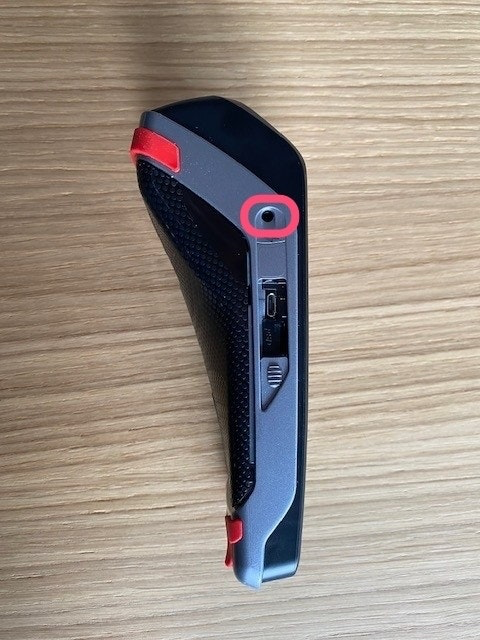
Please place the card reader on its charging dock or base station. Alternatively, you can connect the power cable directly to the device. A socket for this is located on the left side of the card reader (Fig. 2).
Was this article helpful?
That’s Great!
Thank you for your feedback
Sorry! We couldn't be helpful
Thank you for your feedback
Feedback sent
We appreciate your effort and will try to fix the article
