Ingenico - Change Date & Time
Modified on Wed, 4 Feb at 11:37 AM
Setting the Date and Time
During the time changes in March and October, it may be necessary to manually adjust the date and time.
Sometimes you may receive an error message: Certificate expired or Certificate not yet valid. In such cases, the date and time also need to be manually adjusted.
Below, we show you how to do this in 3 steps.
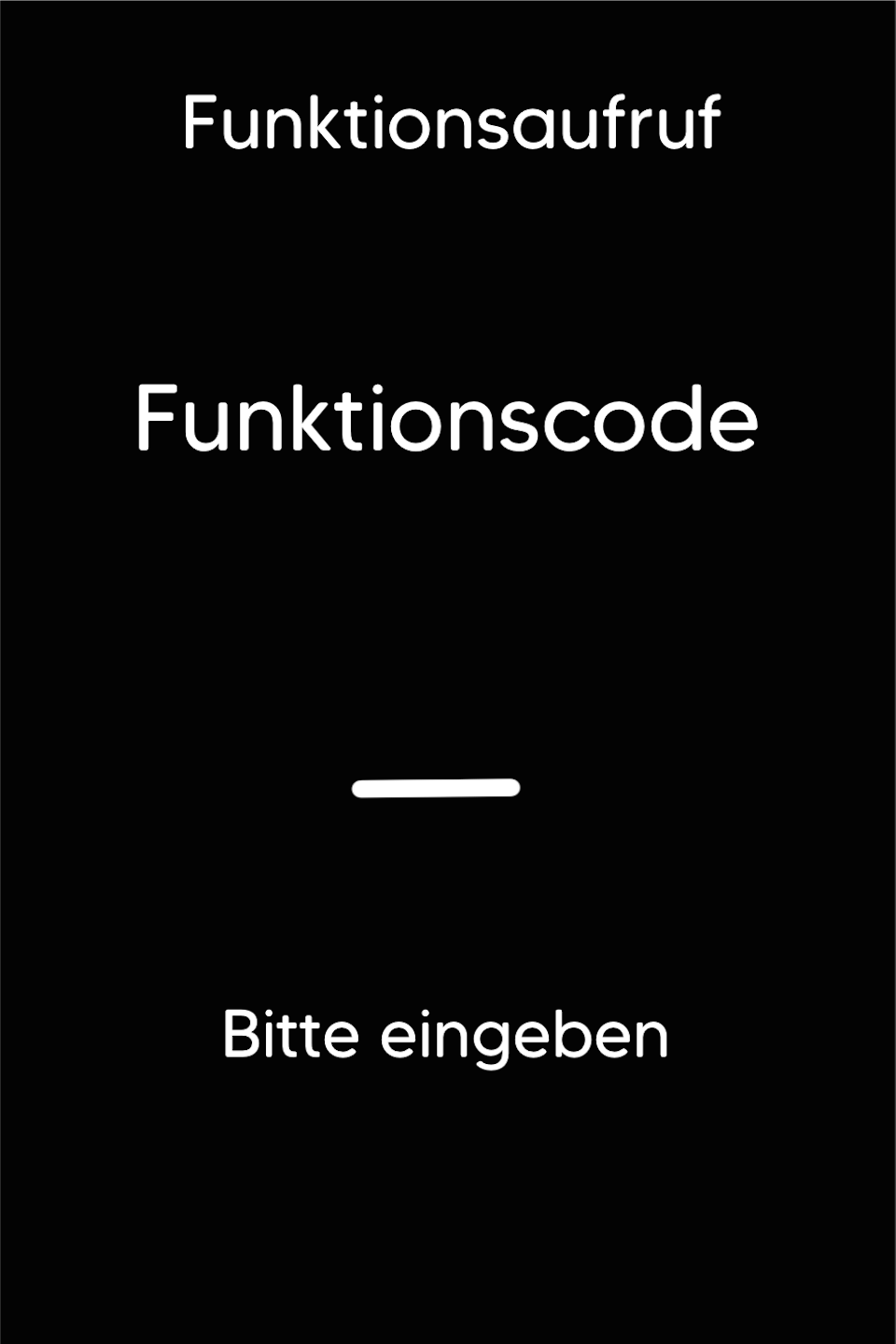
Function Code
First, press the F key on the bottom left of the keypad several times.
You will now see the function code on the display.
Function Code 712
Enter the number 712 and confirm your input with the green OK key.
Password Entry
Enter your 5-digit technician password and confirm with the green OK key.
Please check your merchant receipt for your terminal ID and select the correct password:
TID 61xxxxxx – 82024
TID 68xxxxxx – 11599
TID 526xxxxx – 17356

Setting Date & Time
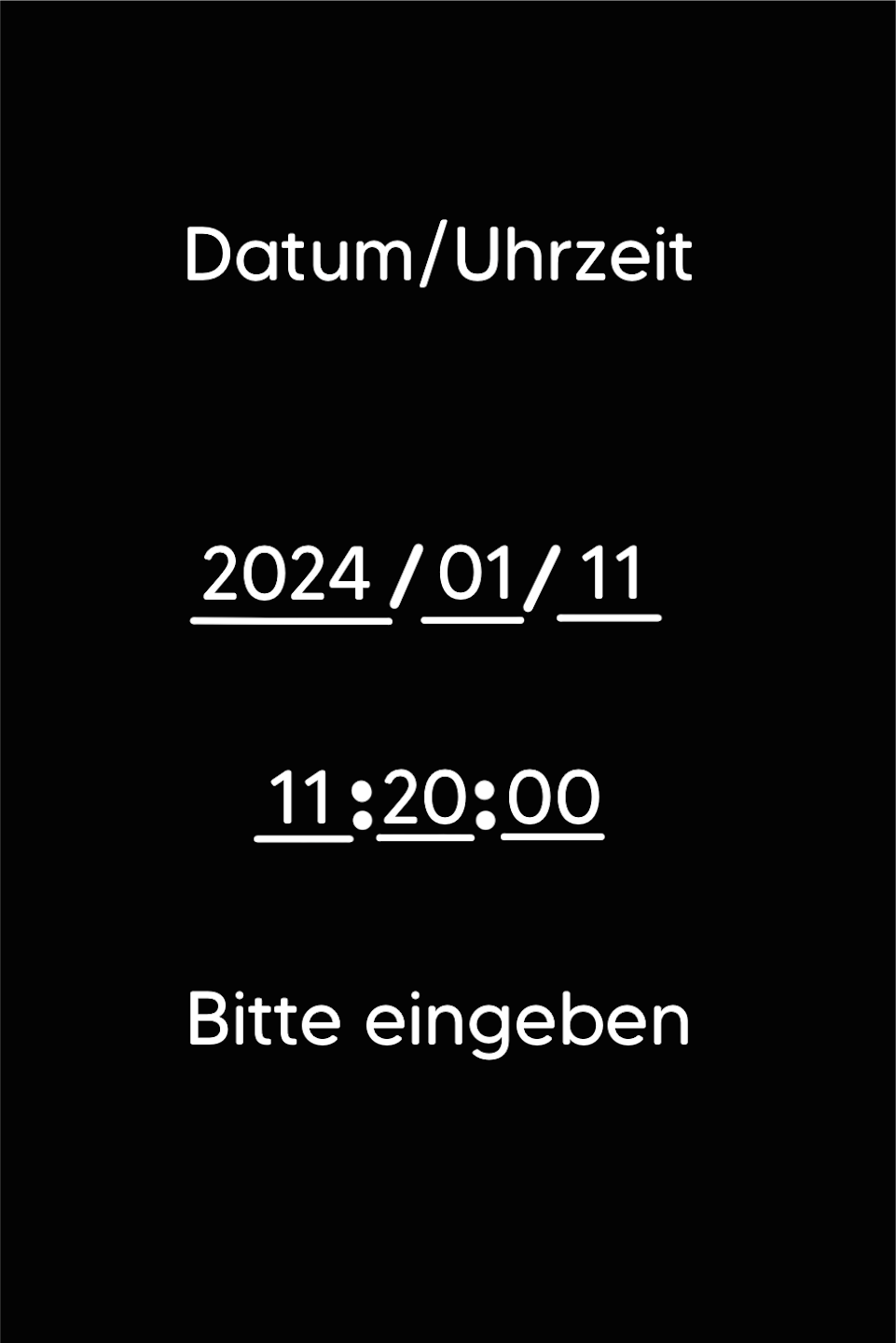
Now enter the current date and time.
Input format:
Year/Month/Day
Hour/Minute/Seconds (can be entered as 00)
After entering the date and time, you will return to the amount entry screen.
The date has now been changed.

Was this article helpful?
That’s Great!
Thank you for your feedback
Sorry! We couldn't be helpful
Thank you for your feedback
Feedback sent
We appreciate your effort and will try to fix the article
