Ingenico - Setting Up Your Connection
Modified on Wed, 4 Feb at 11:37 AM
In this guide, we will show you how to set up a connection (LAN, Wi-Fi, mobile network) on your Ingenico card reader. This step-by-step guide will walk you through the options and configurations.
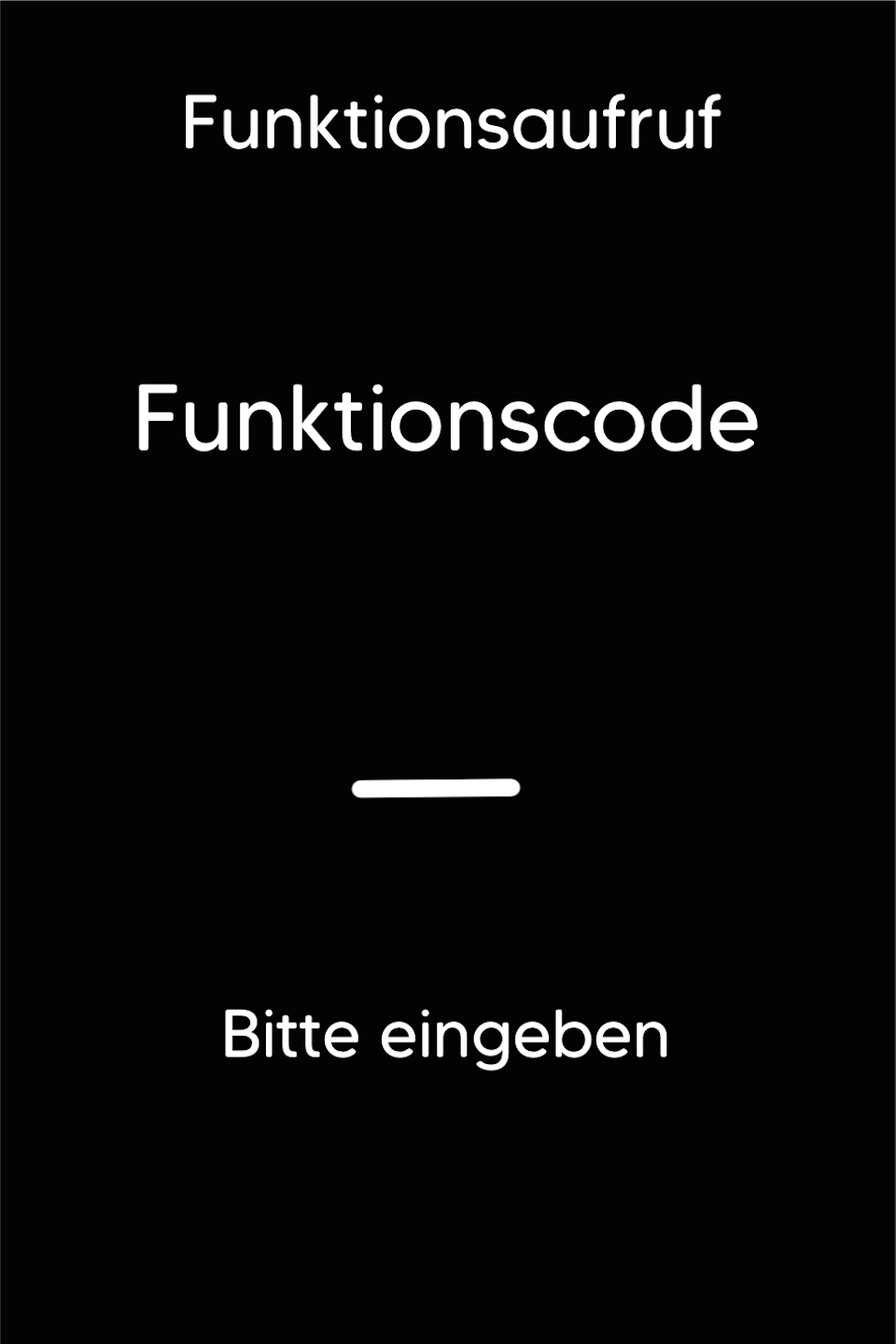
Function Code
Please press the F key at the bottom left of the keypad repeatedly until you see the function code on the display.
Function Code 54
Please enter code 54 and confirm the entry with the green OK button.
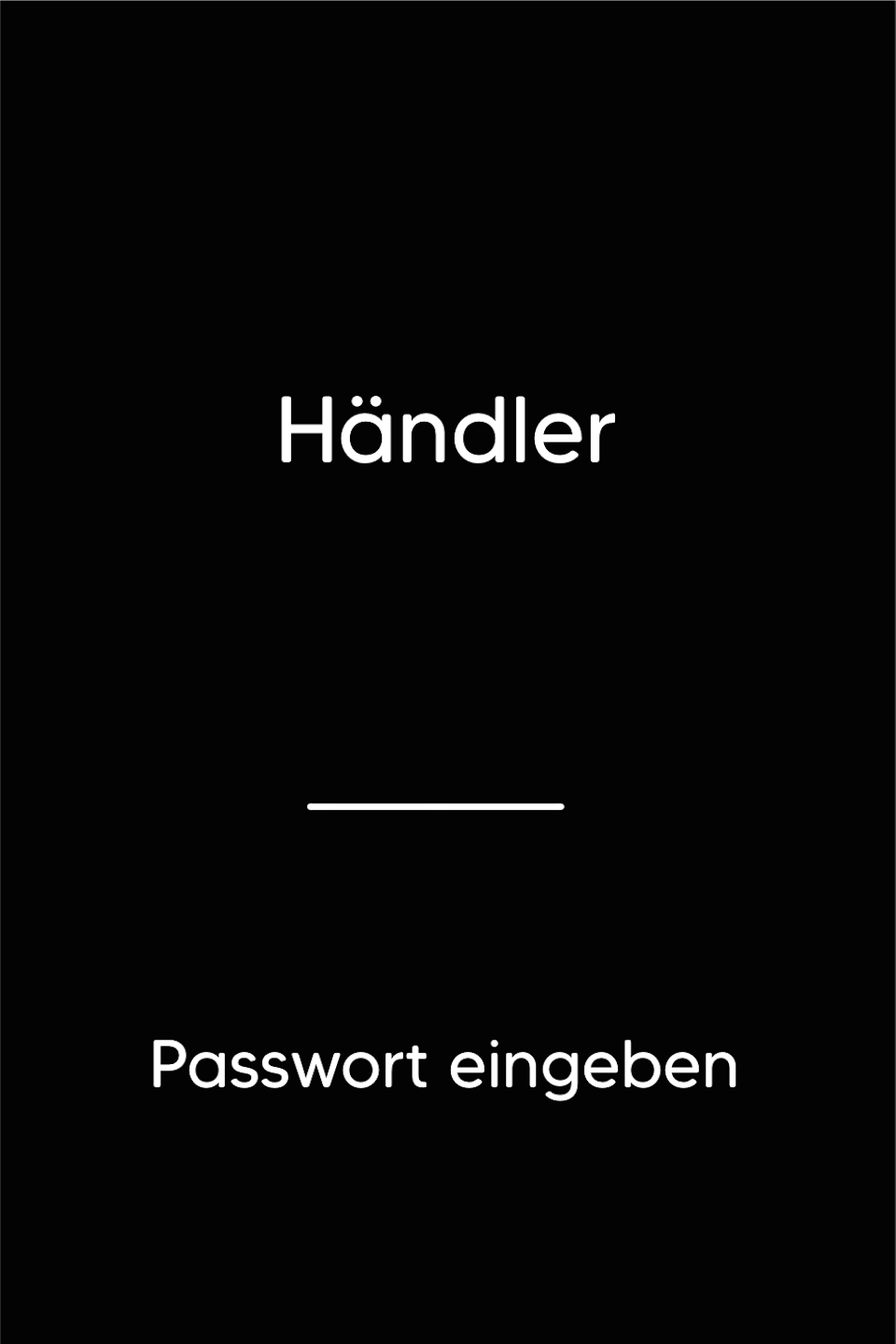
Password Entry
Please enter your 5-digit merchant password and confirm the entry.
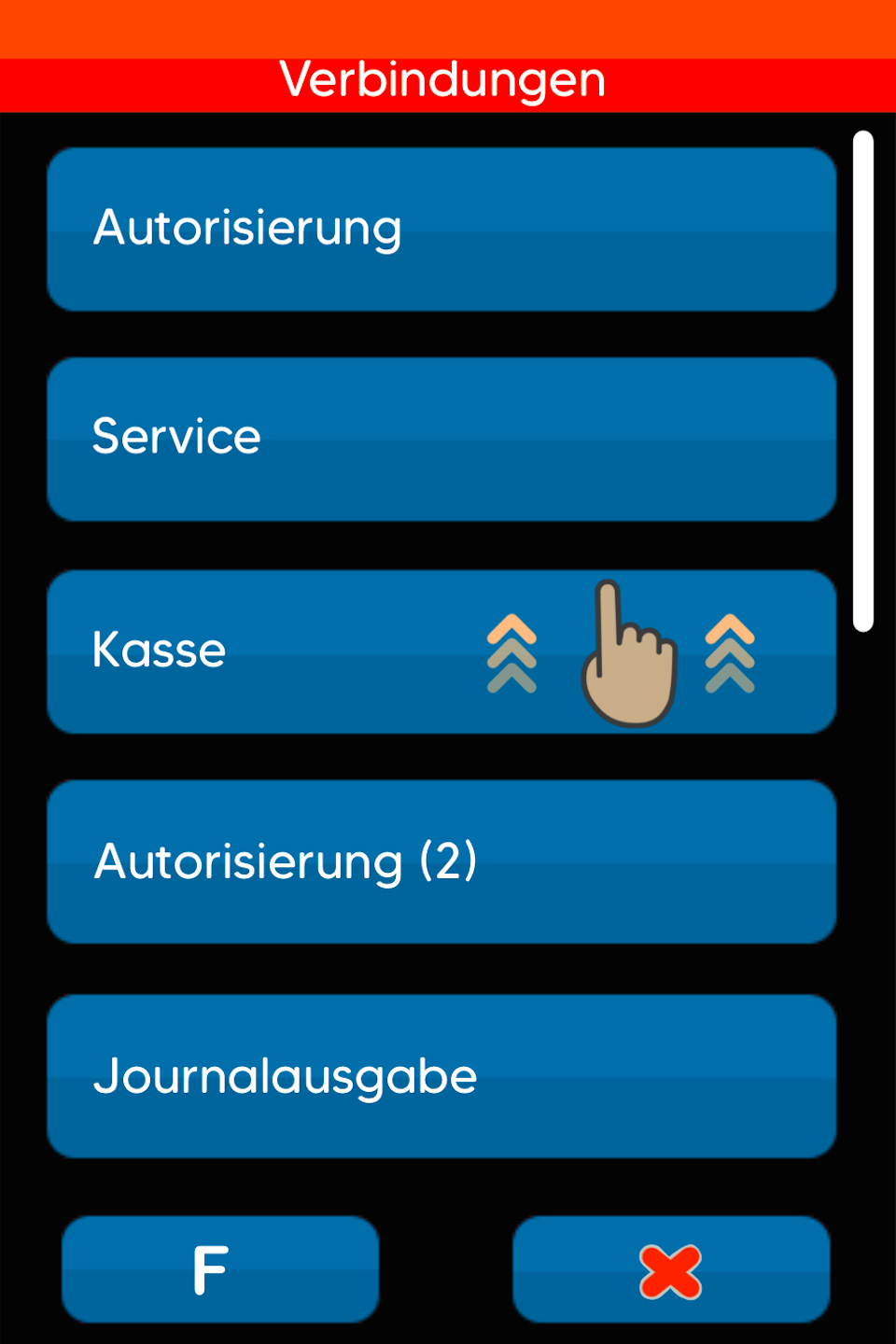
Connections
You are now in the "Connections" menu.
Please swipe on the display to the "Dial-up Assistant" (Fig. 2).
Select by tapping.
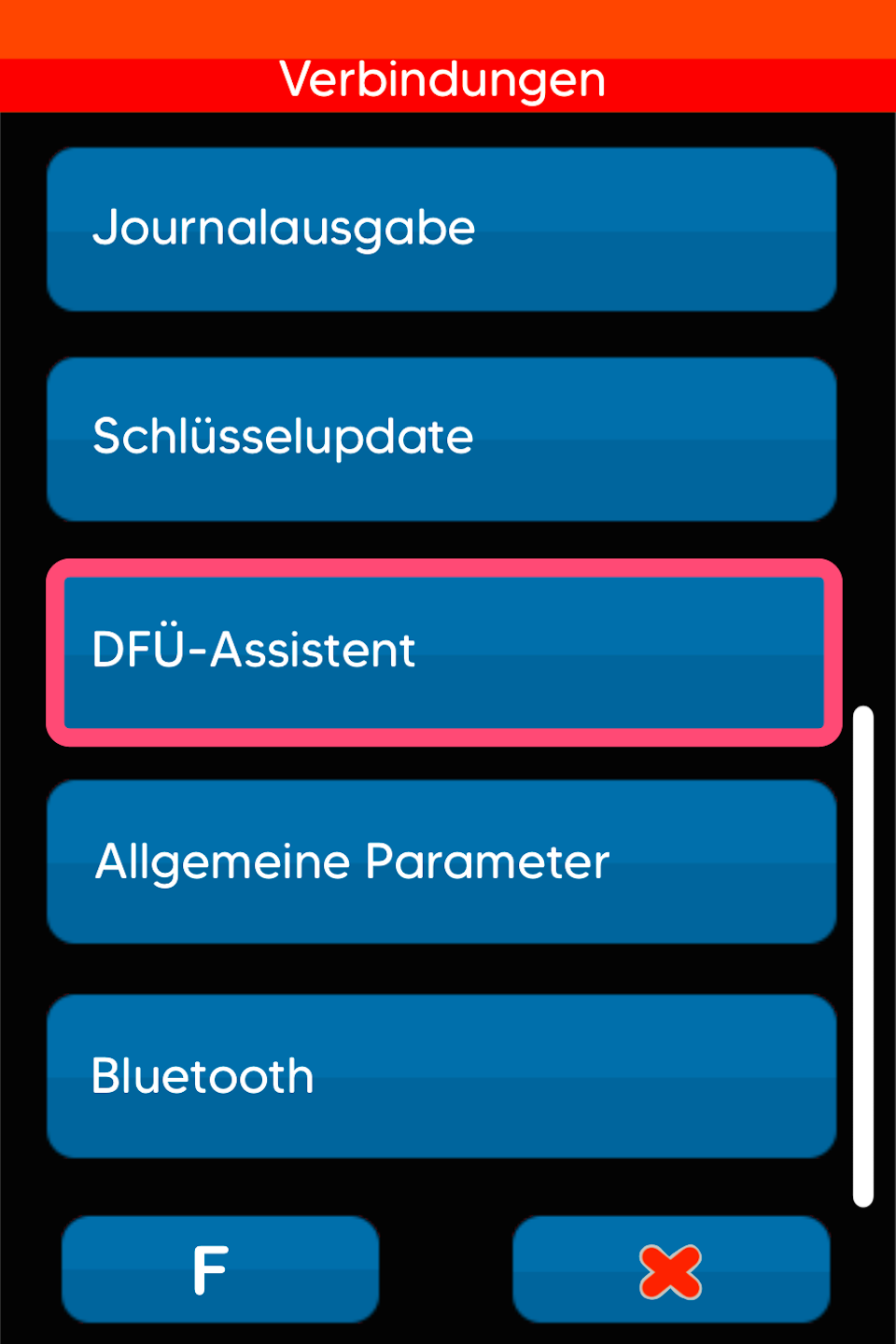
Dial-up Assistant
You can now choose your desired connection type.
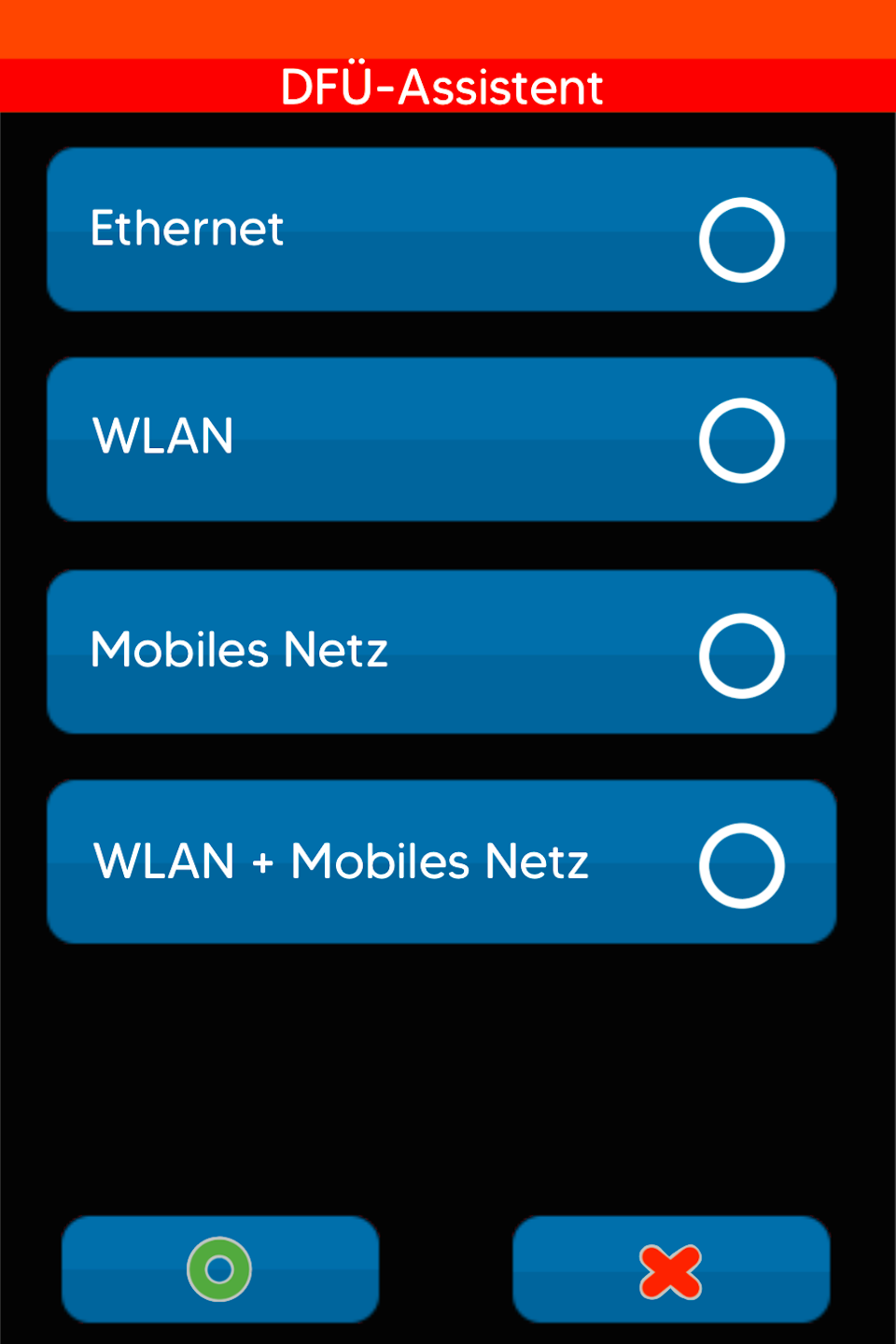
Please select your connection
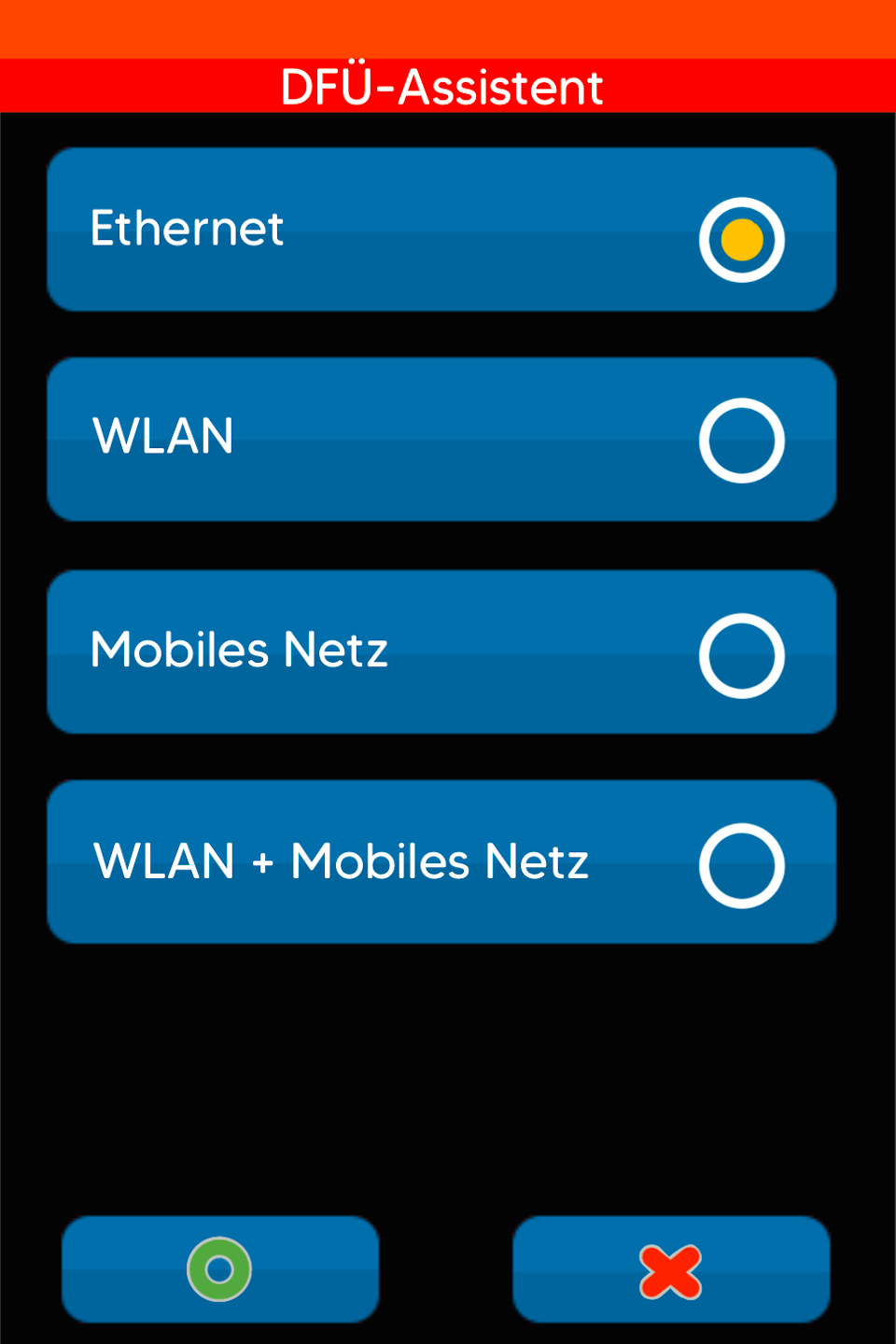
LAN Connection
If you are connecting your card reader with a network cable (LAN cable), please select "Ethernet" here.
Please confirm your selection with the green OK button.
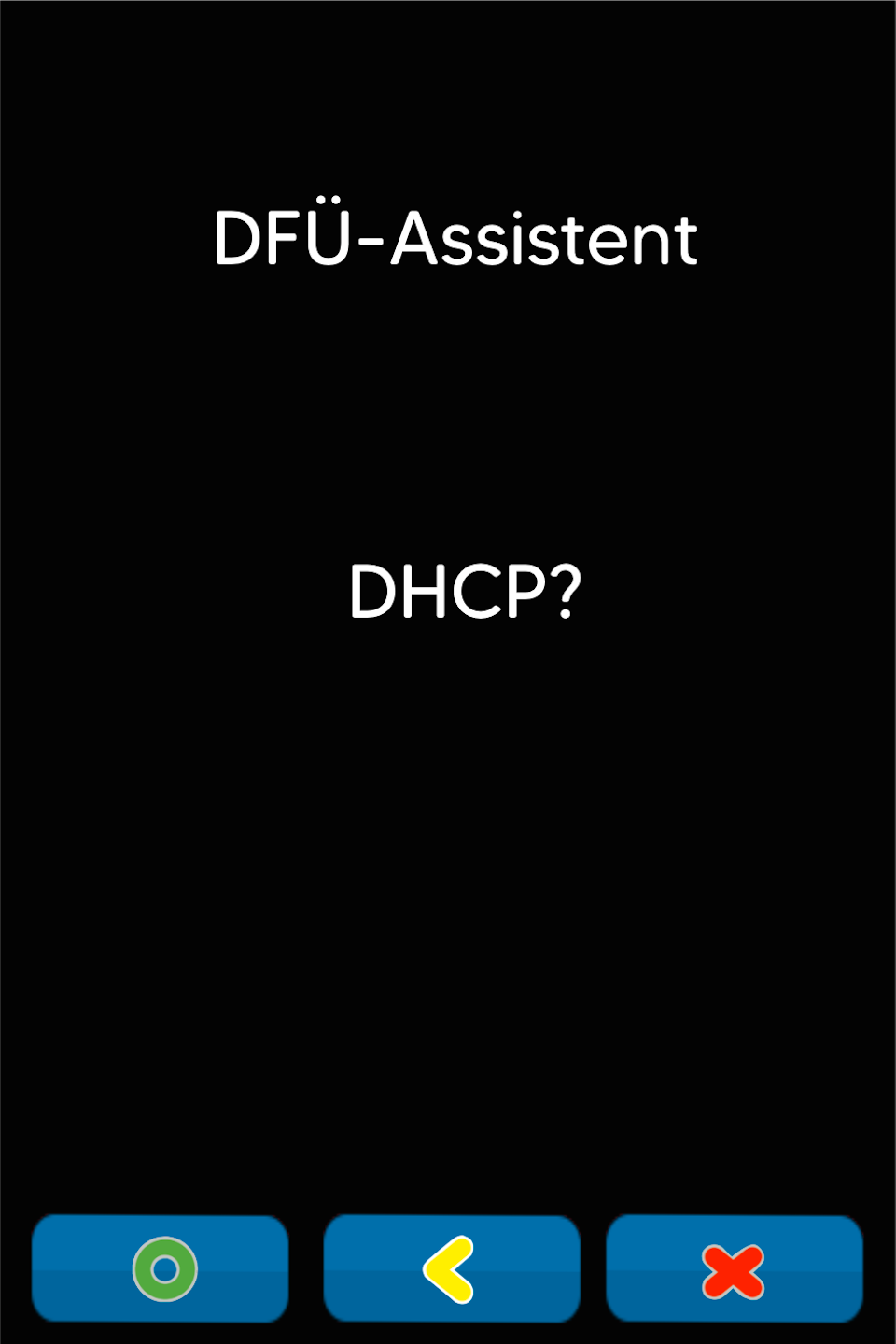
DHCP
Please confirm the selection "DHCP" (dynamic IP address assignment).
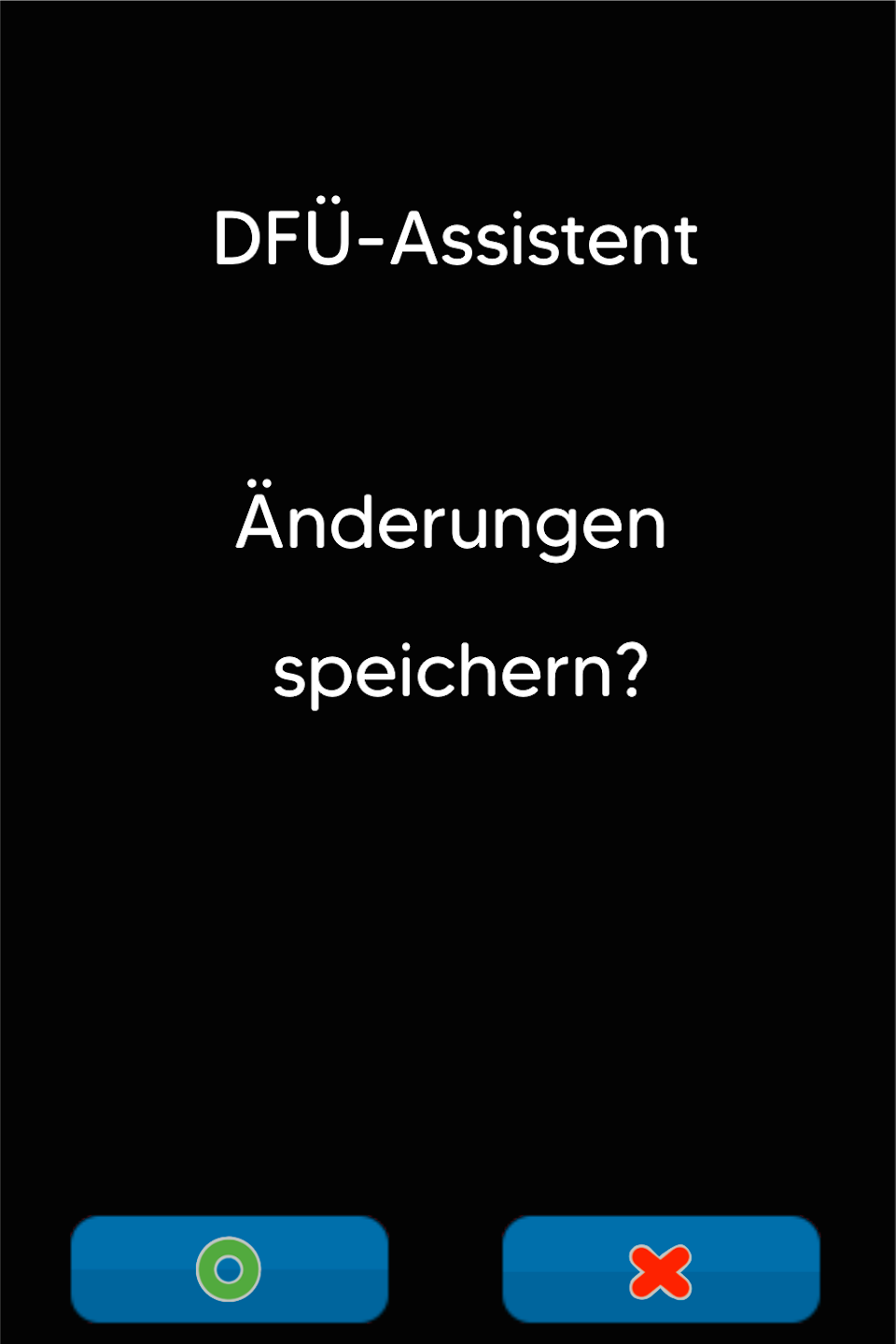
Save Selection
Please confirm that your selection will be applied and saved.
The card reader will print a receipt.
The card reader usually restarts automatically. If it does not, please press the red stop button. The restart will then be performed.
Once you have successfully set up the connection, please check its functionality with our article “Check Connection.”
Here you will find an informative article about the connection symbols on your card reader.
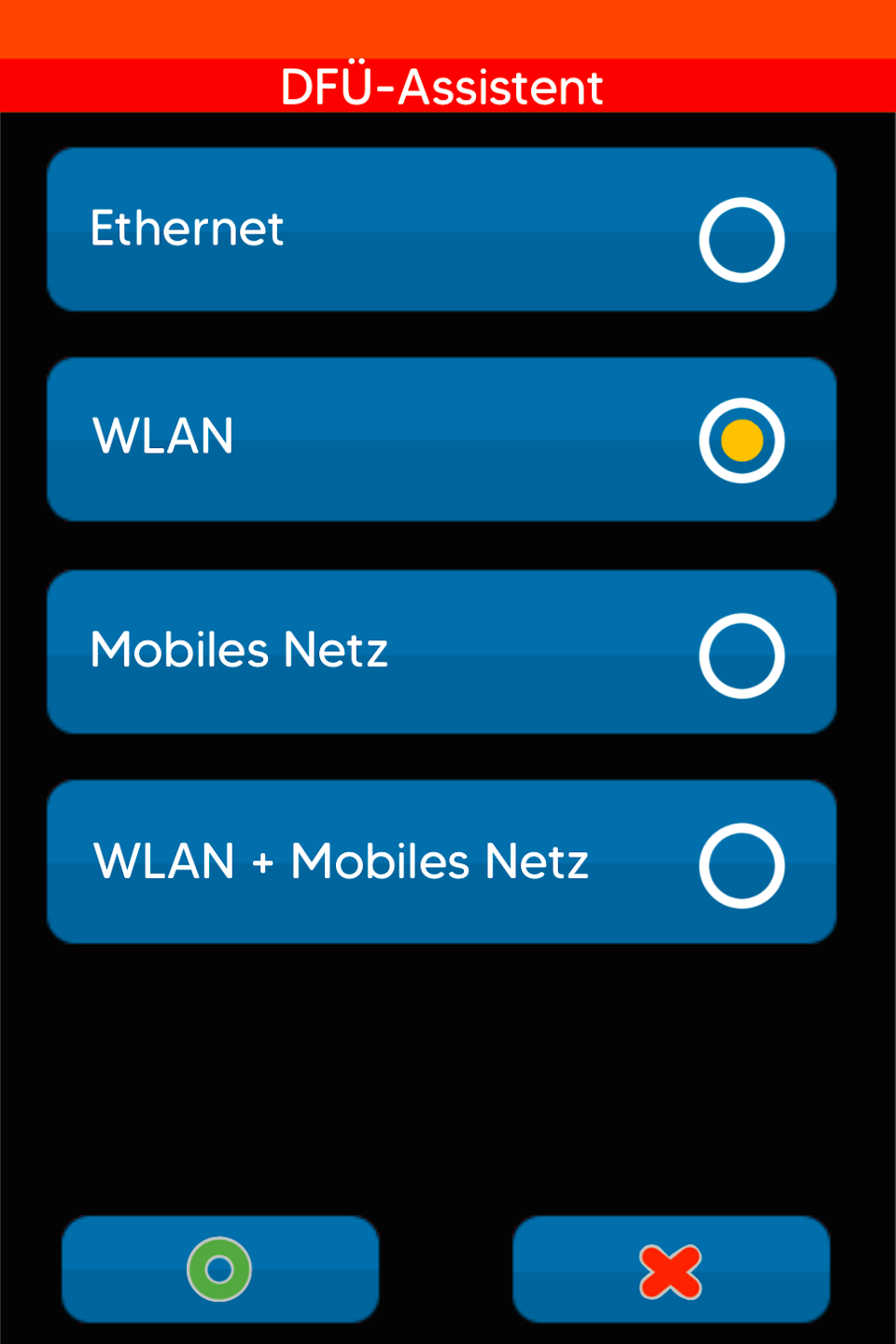
WLAN Connection
If you want to connect your card reader via a WLAN network, please select "WLAN" here.
Please confirm your selection with the green OK button.
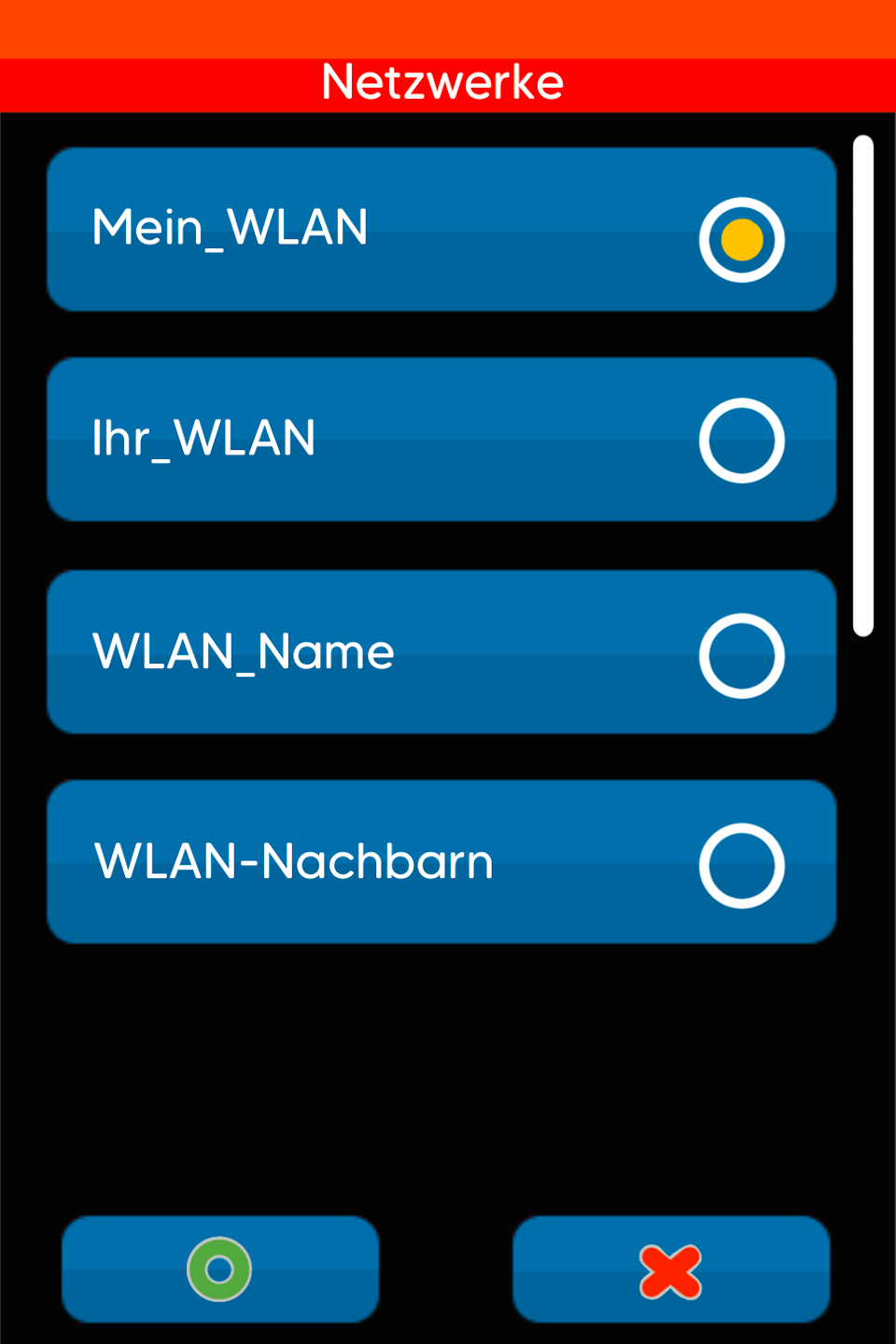
WLAN Network
Please select your WLAN network.
Please confirm your selection with the green OK button.
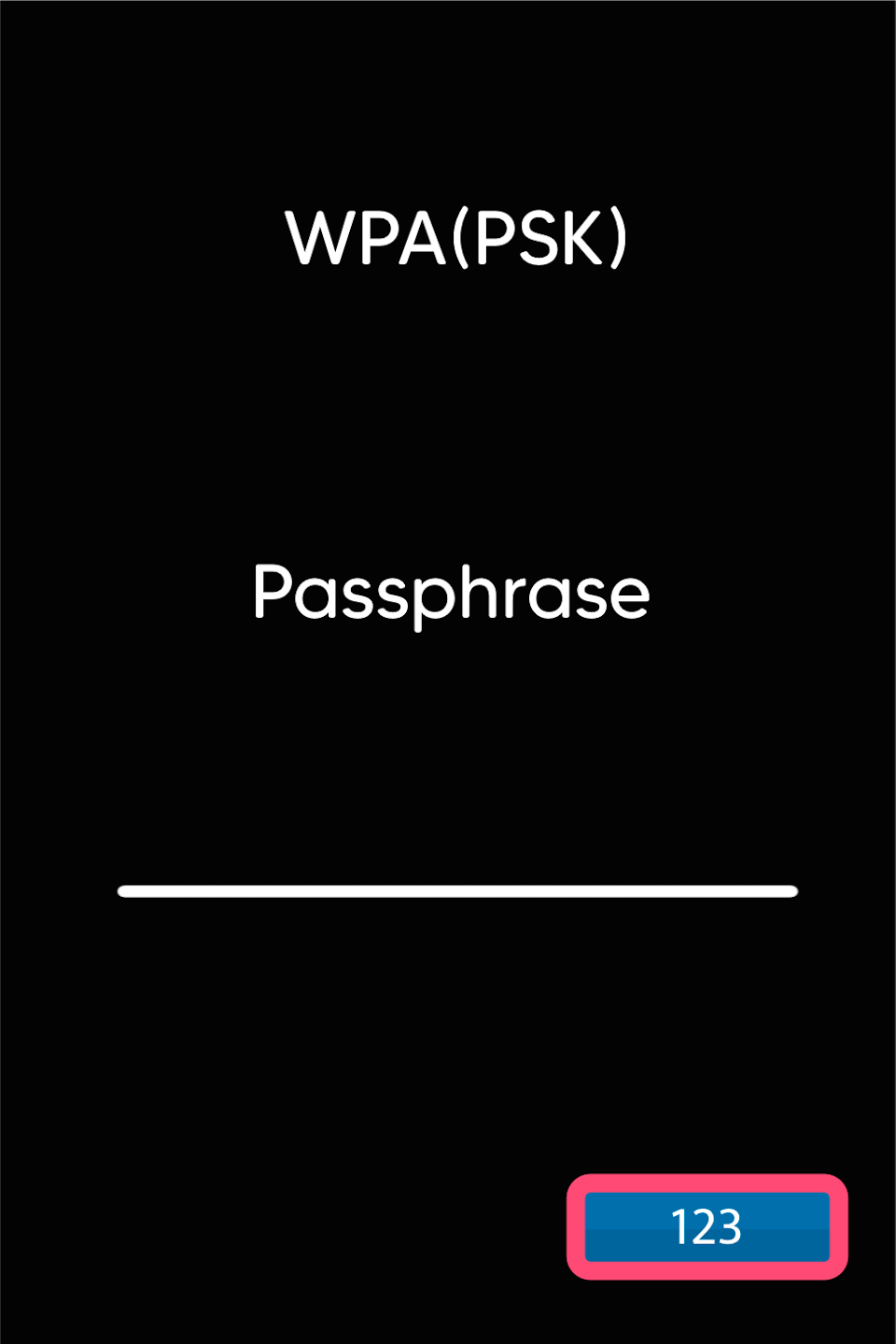
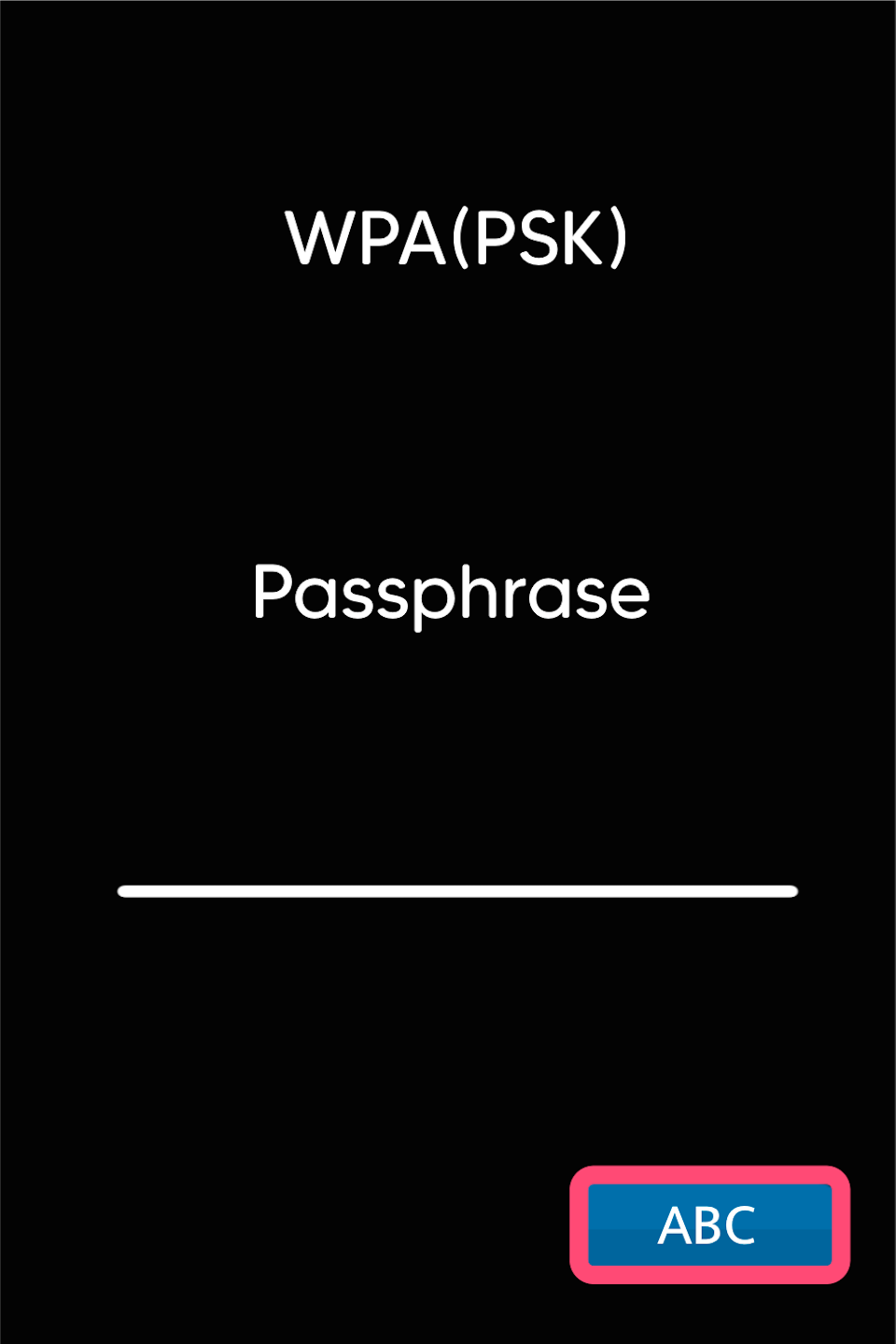
WLAN Password
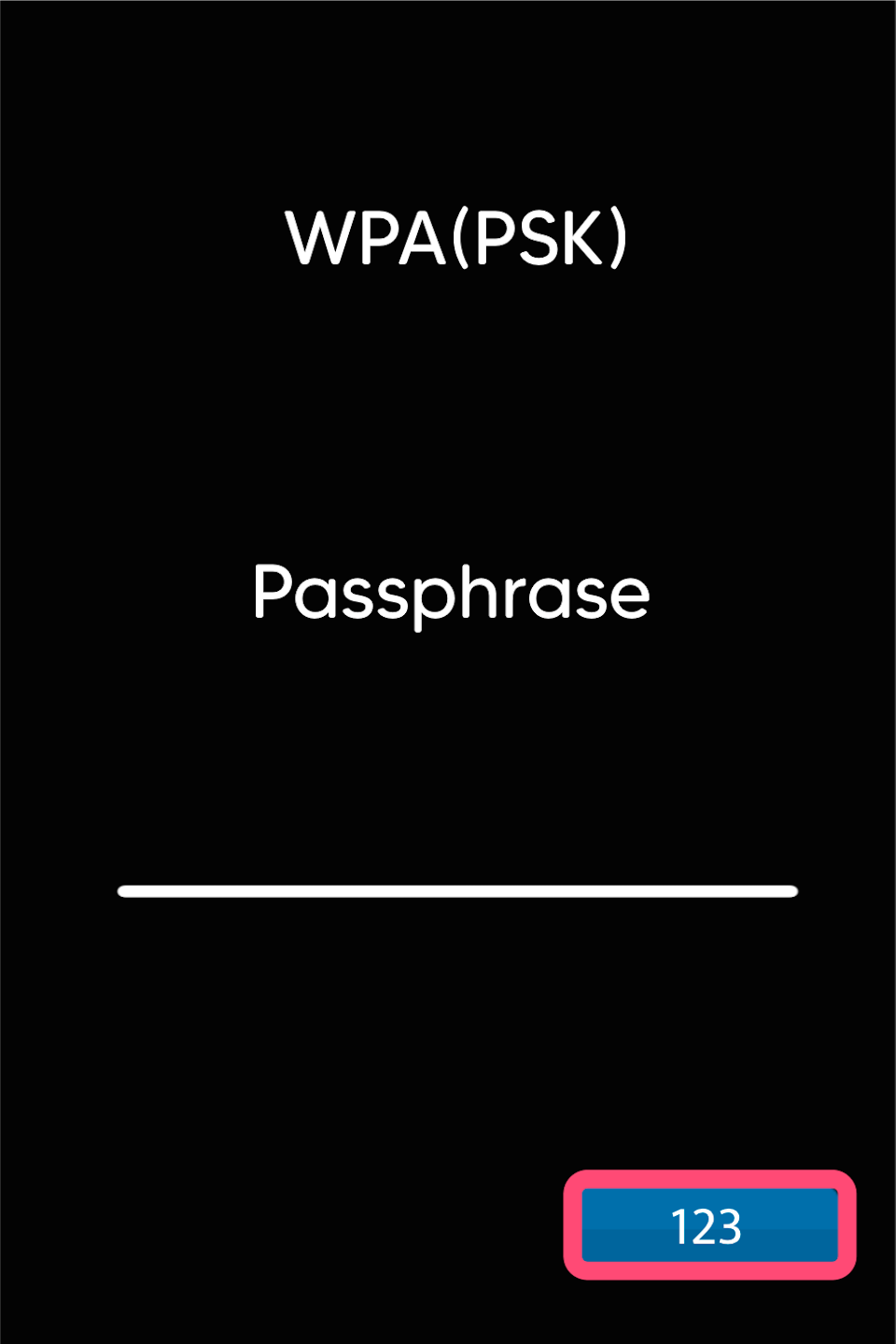
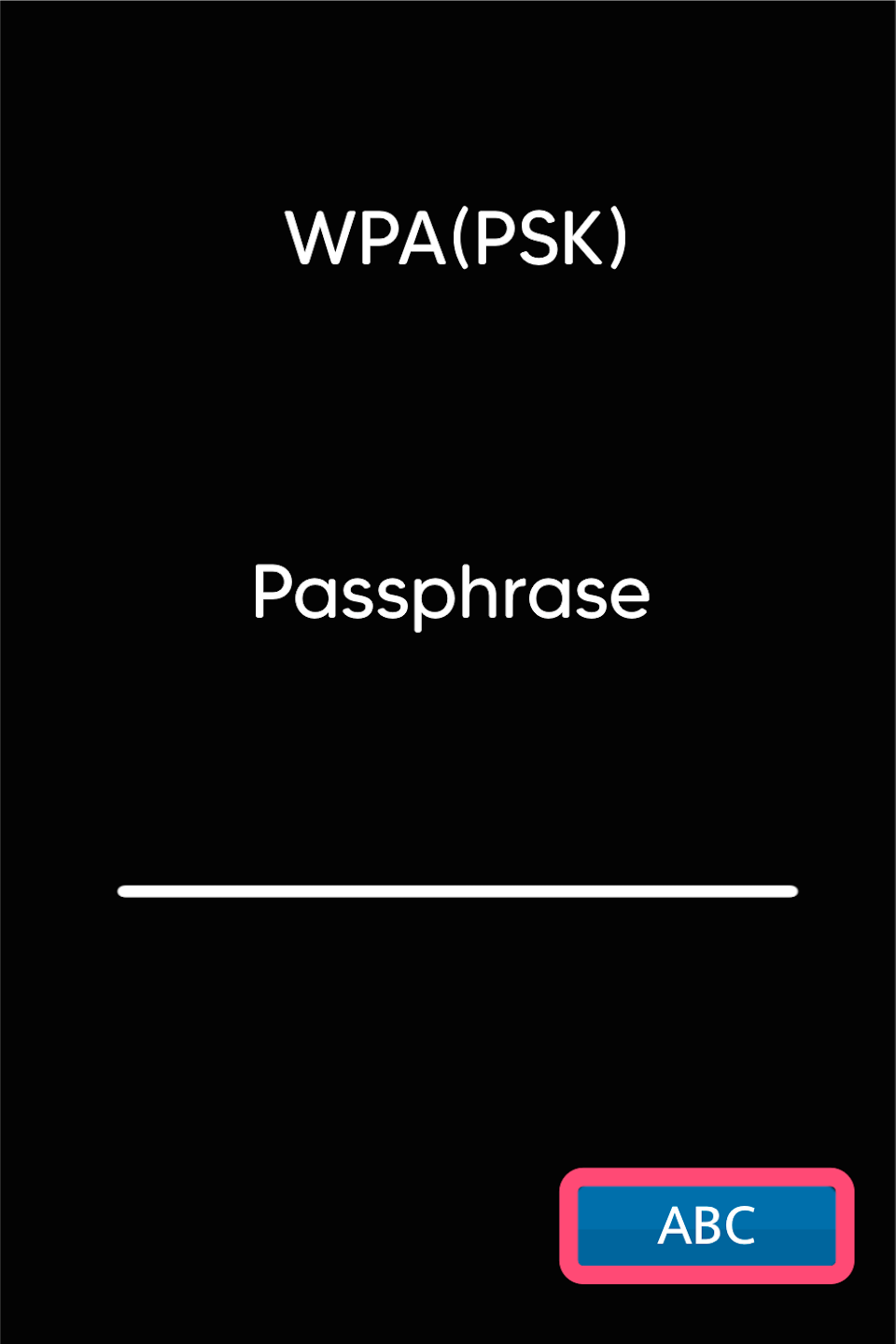
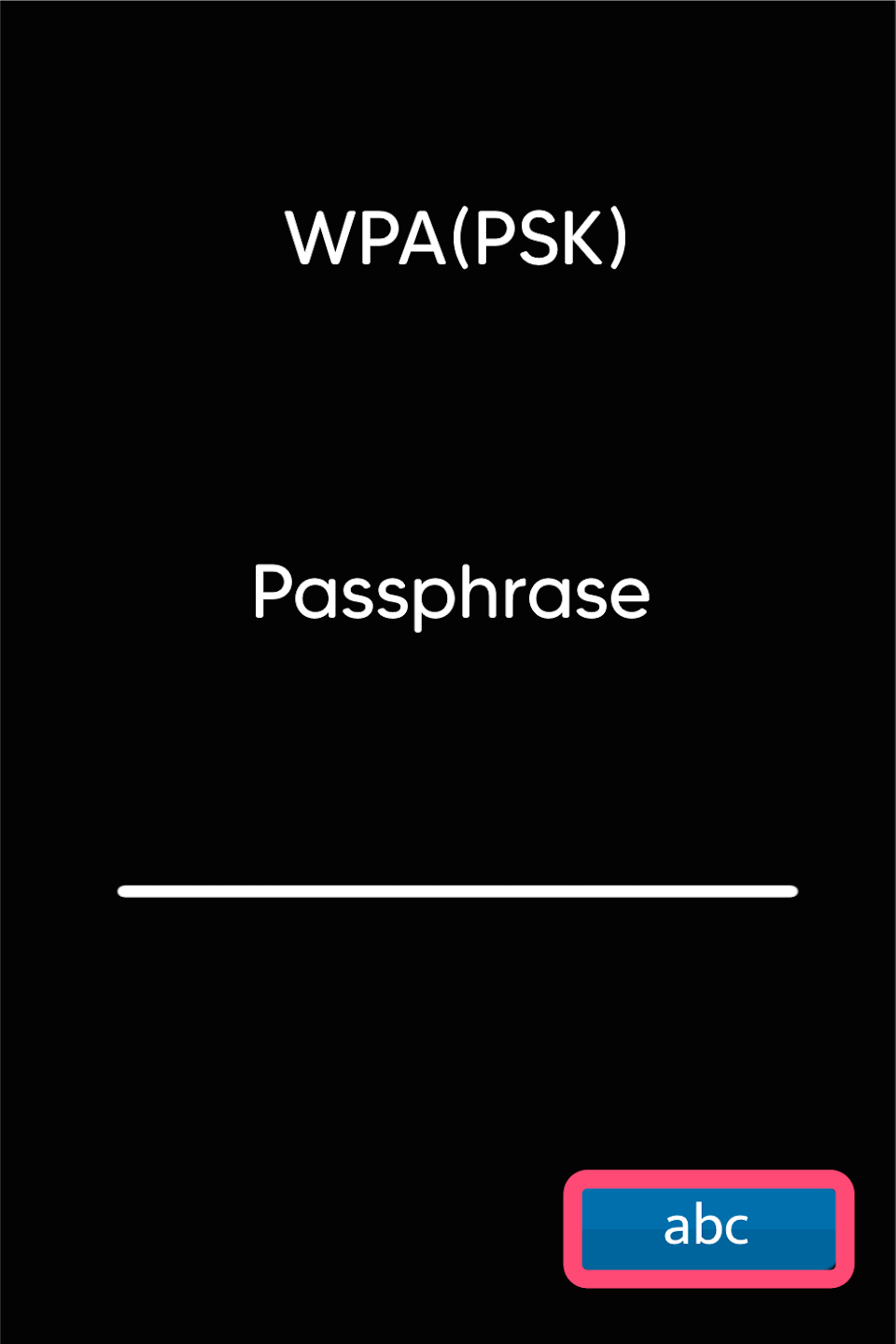
Please enter your WLAN password.
Pay attention to uppercase and lowercase letters.
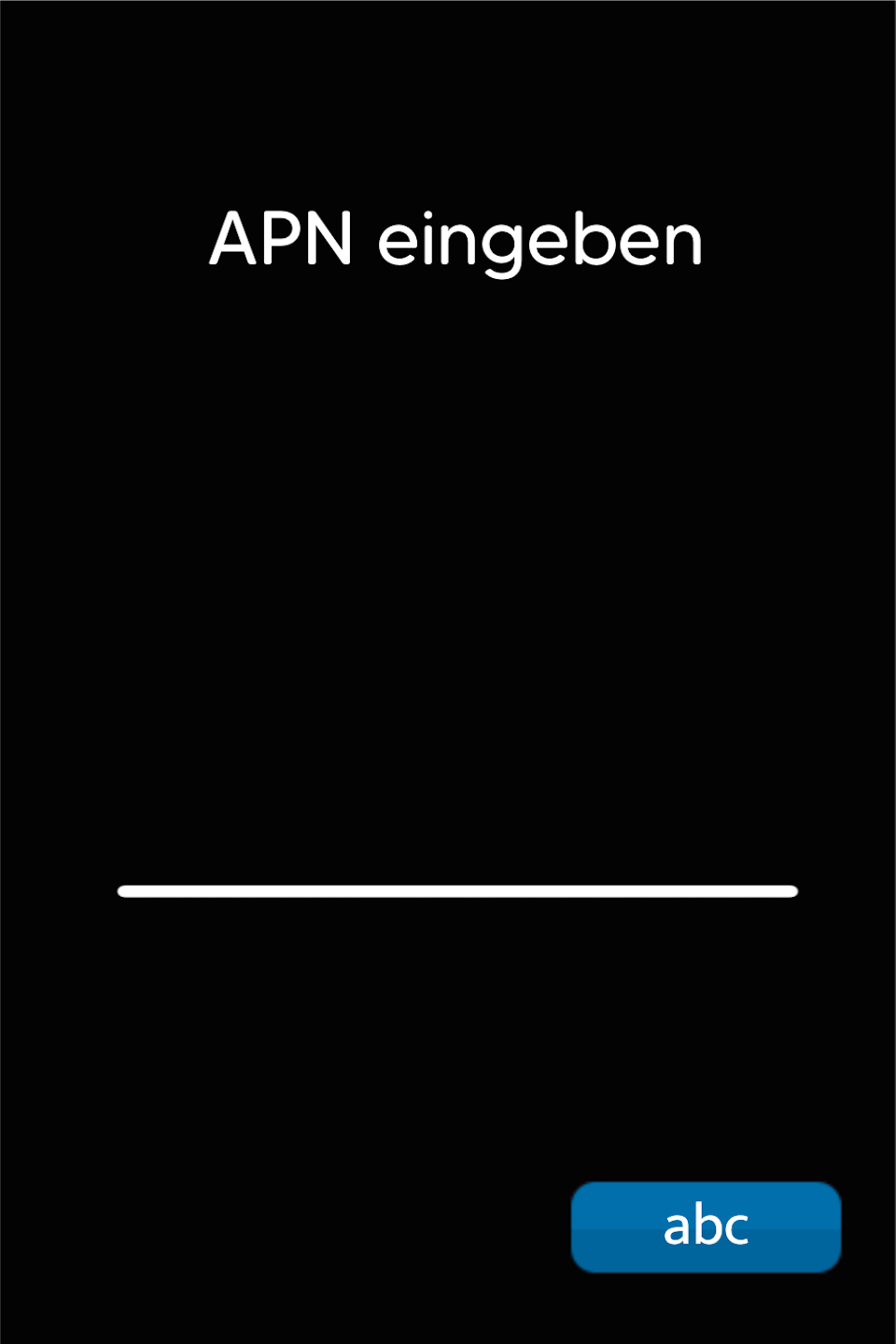
Use the button at the bottom right of the display to switch between numeric and alphabetic input (Fig. 1–3).
Please confirm your entry with the green OK button.
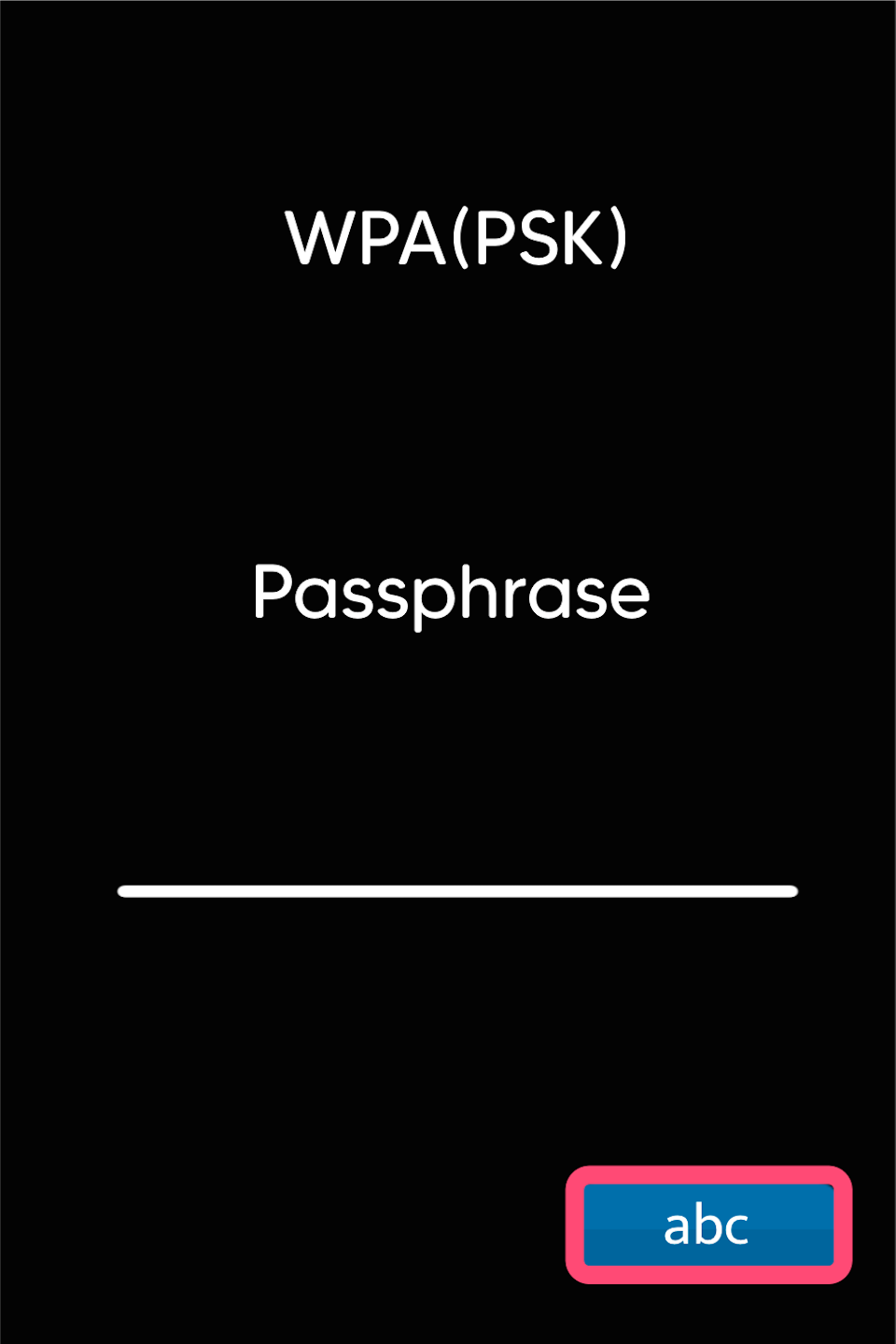
DHCP
Please confirm the selection "DHCP" (dynamic IP address assignment).
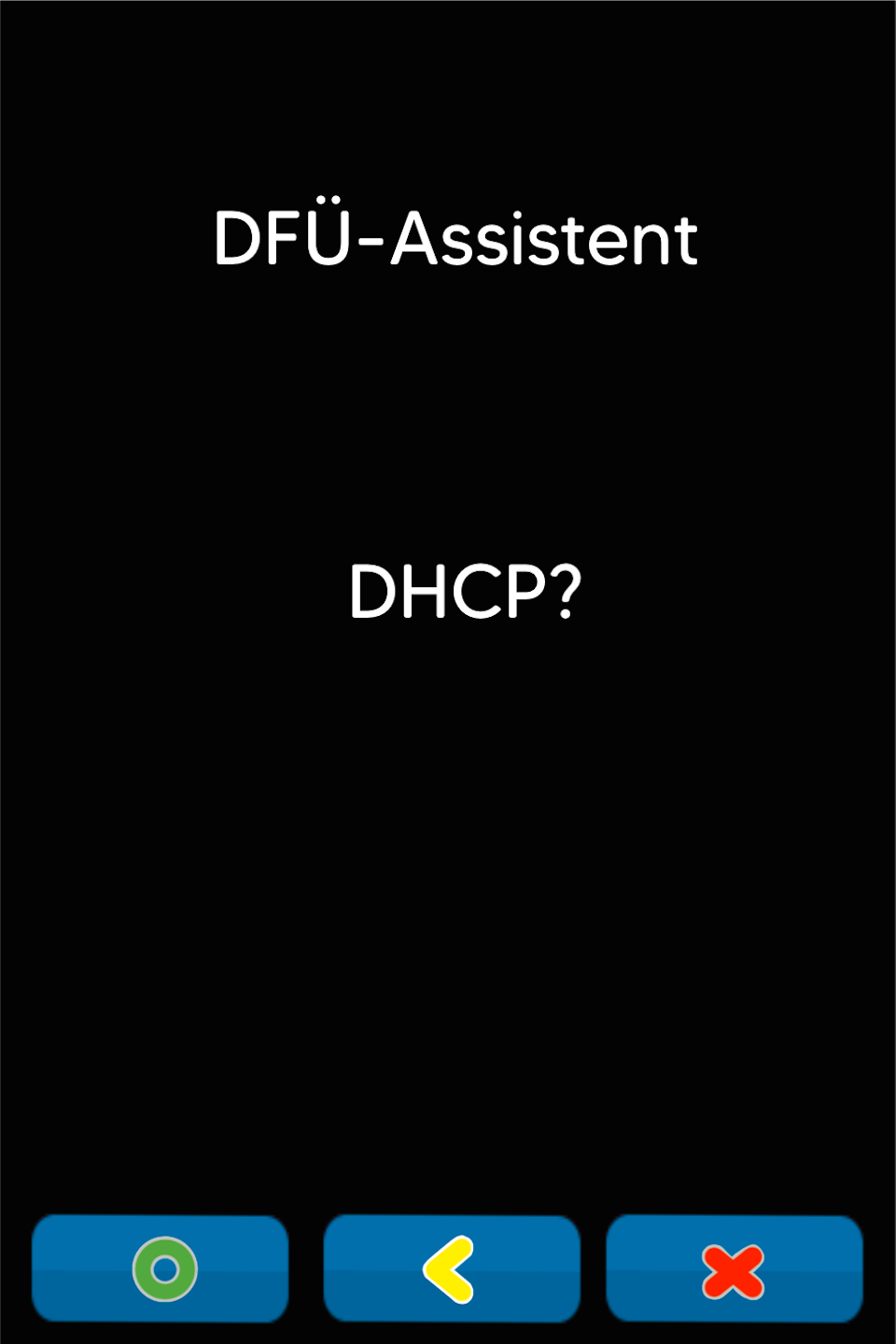
Save Selection
Please confirm that your selection will be applied and saved.
The card reader will print a receipt.
The card reader usually restarts automatically. If it does not, please press the red stop button. The restart will then be performed.
Once you have successfully set up the connection, please check its functionality with our article “Check Connection.”
Here you will find an informative article about the connection symbols on your card reader.
Mobile Network
Do you want to use the card reader with a SIM card? Then please select "Mobile Network."
Please confirm your selection with the green OK button.
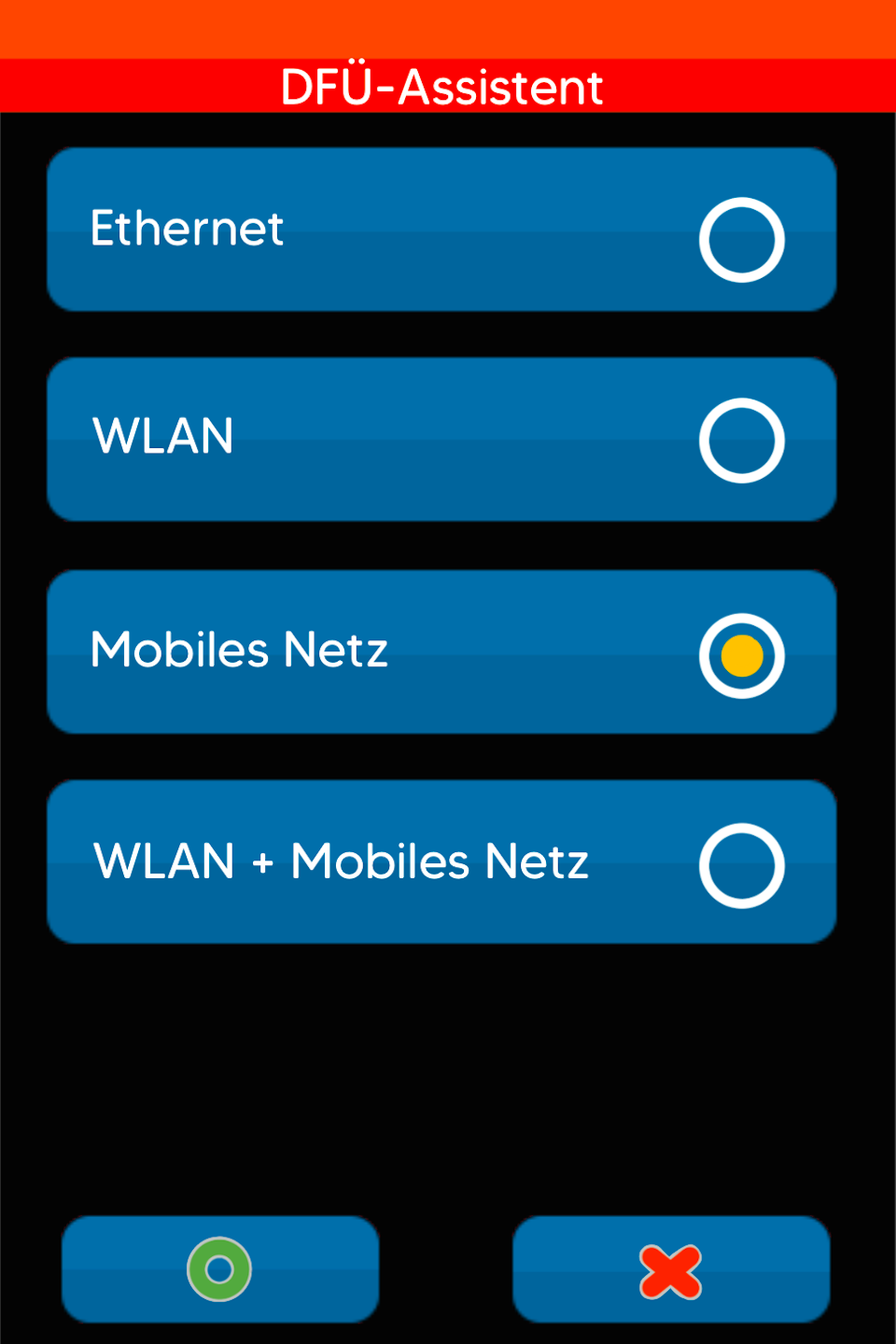
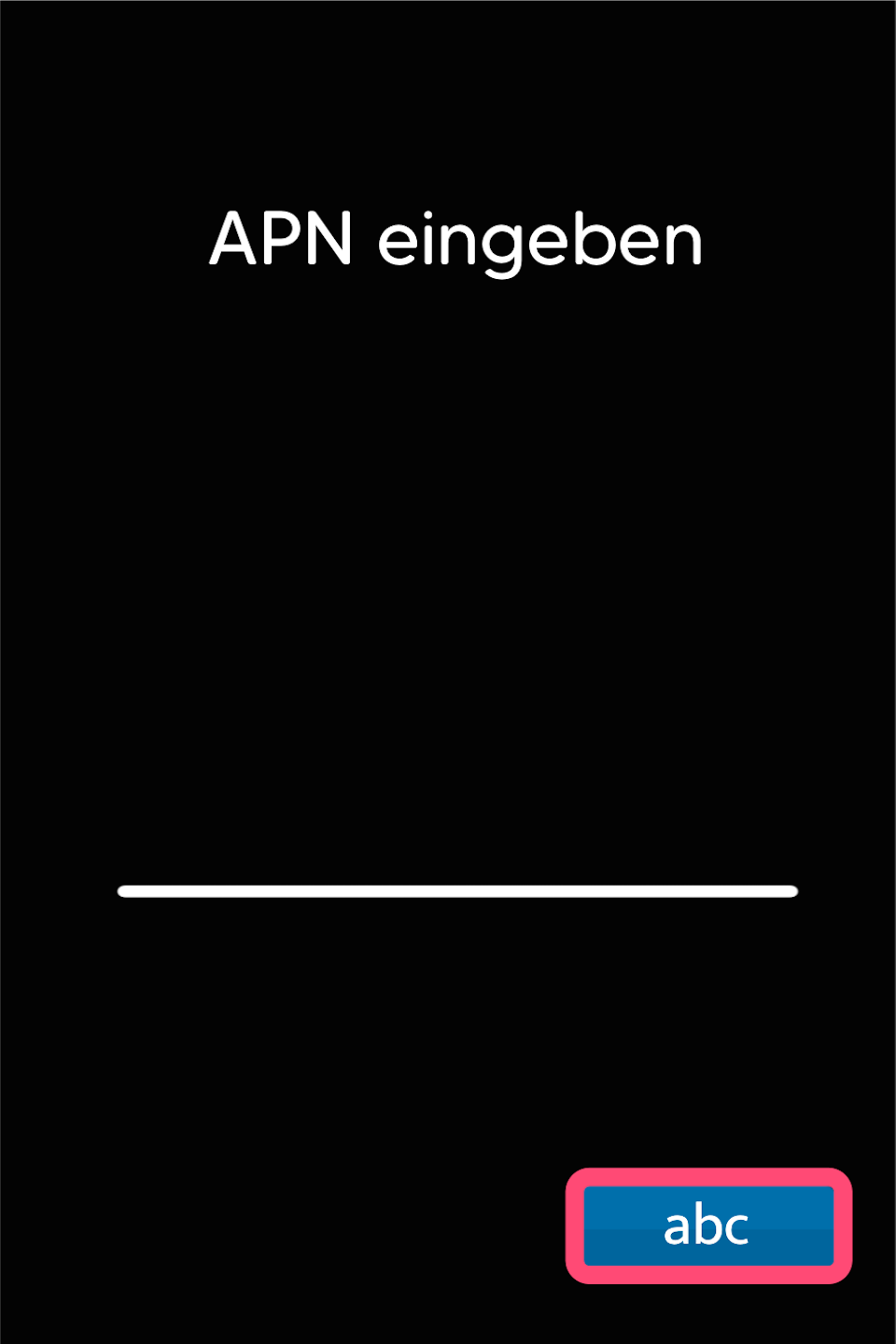
APN Data
The APN data is necessary for the SIM card to dial in correctly and establish a connection.
Please enter the following APN data:
internet.m2mportal.de
Use the button at the bottom right of the display to switch between numeric and alphabetic input.
Please confirm your entry with the green OK button.
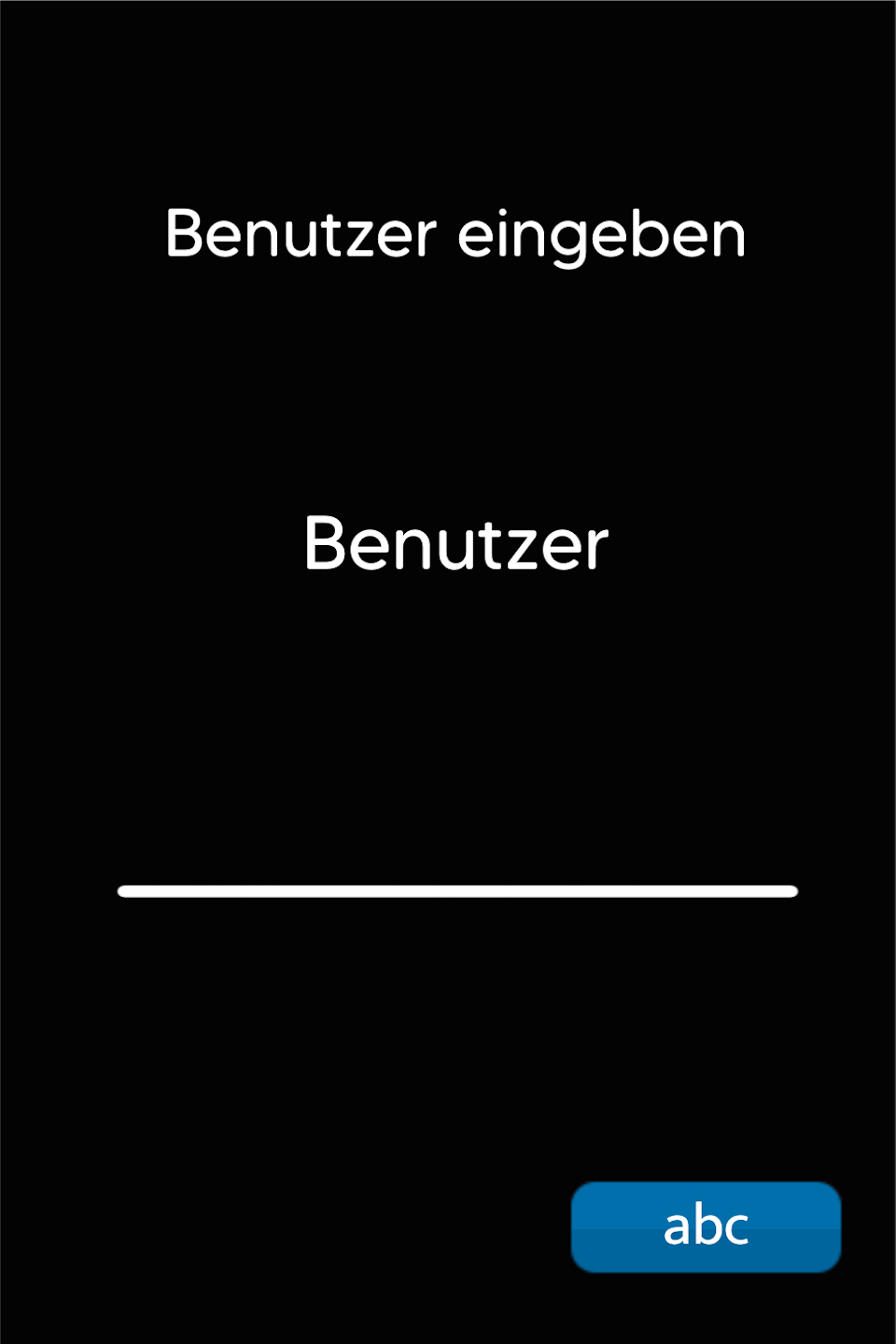
Username
The username is:
m2m
Please confirm your entry with the green OK button.
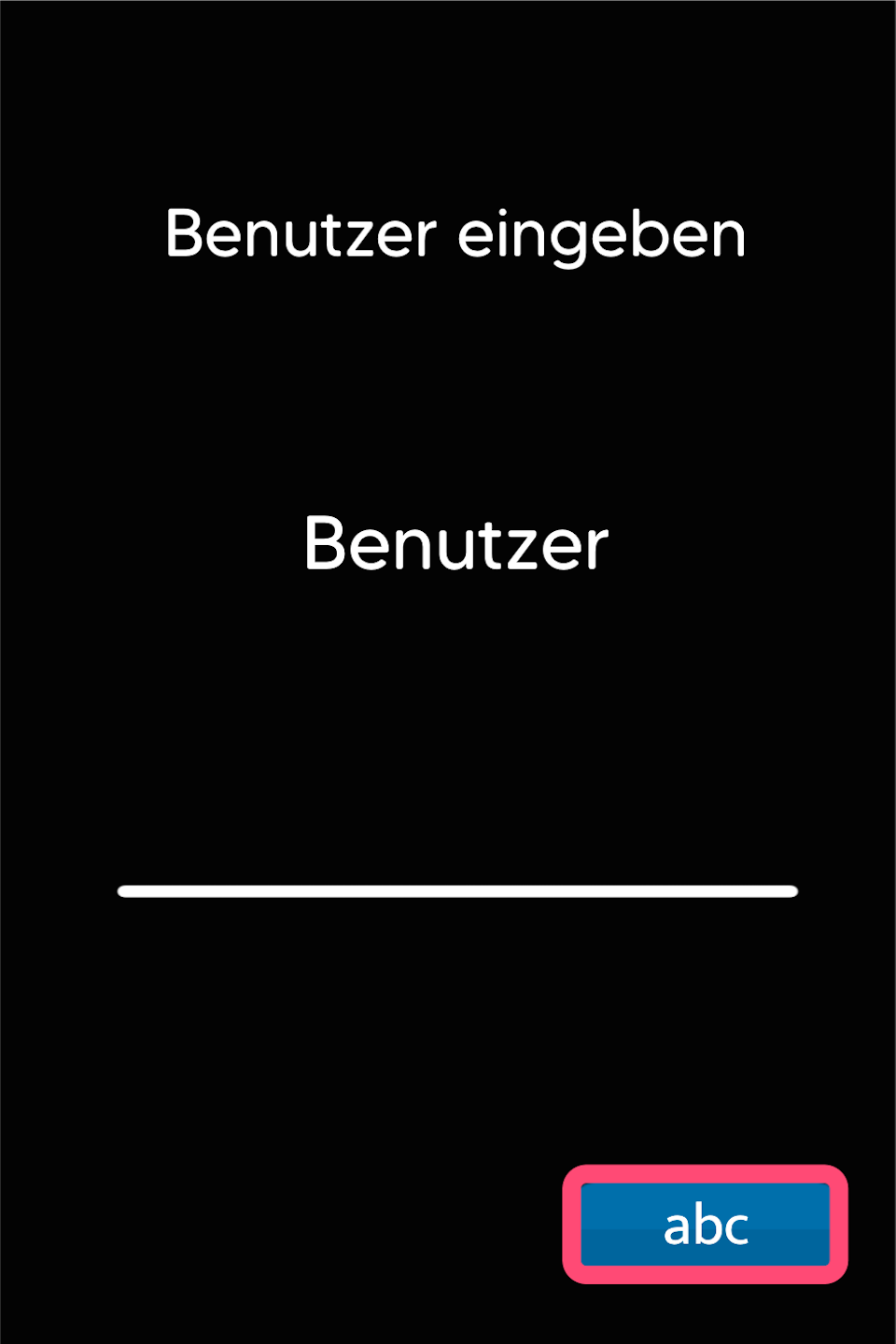
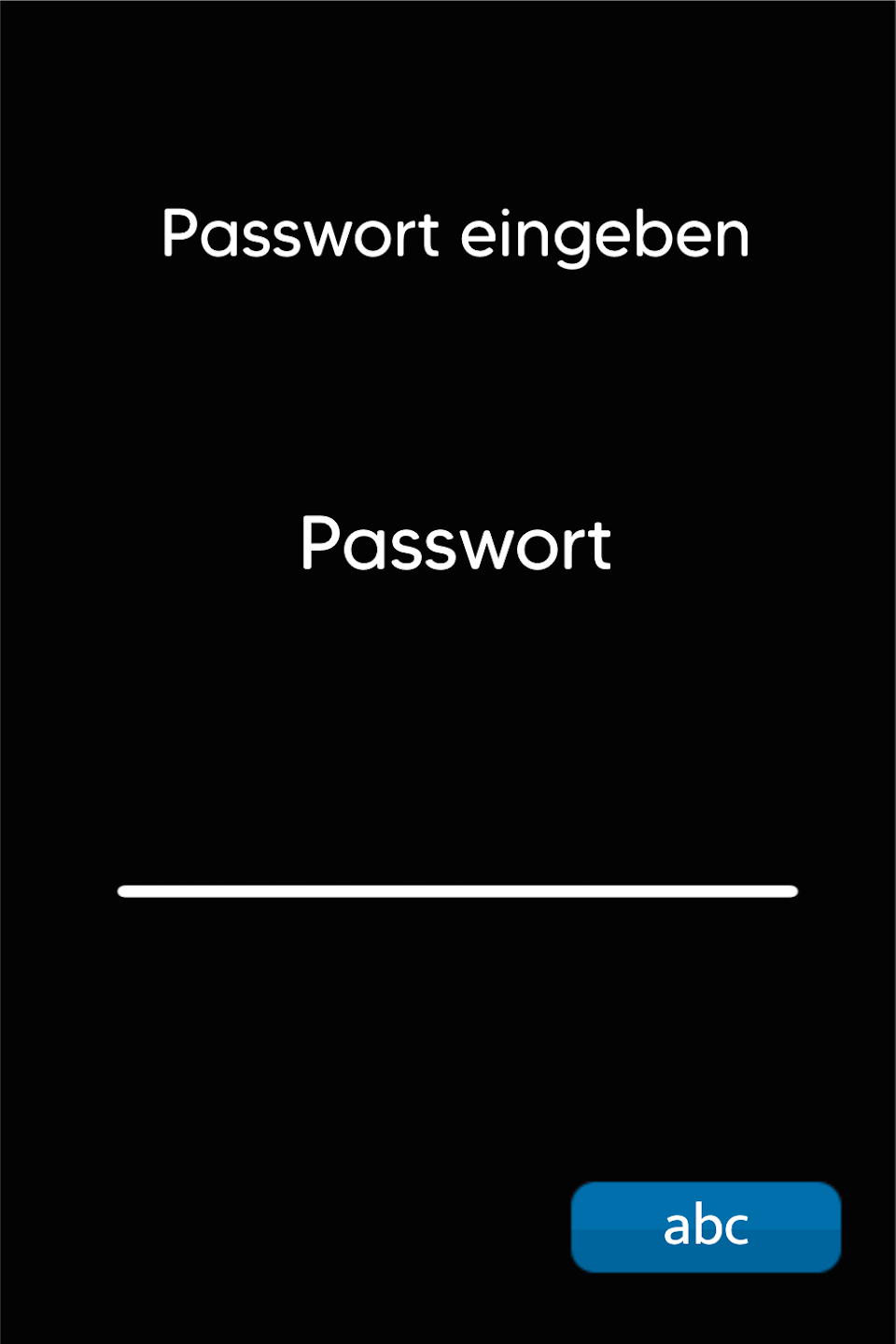
Password
The password is:
sim
Please confirm your entry with the green OK button.
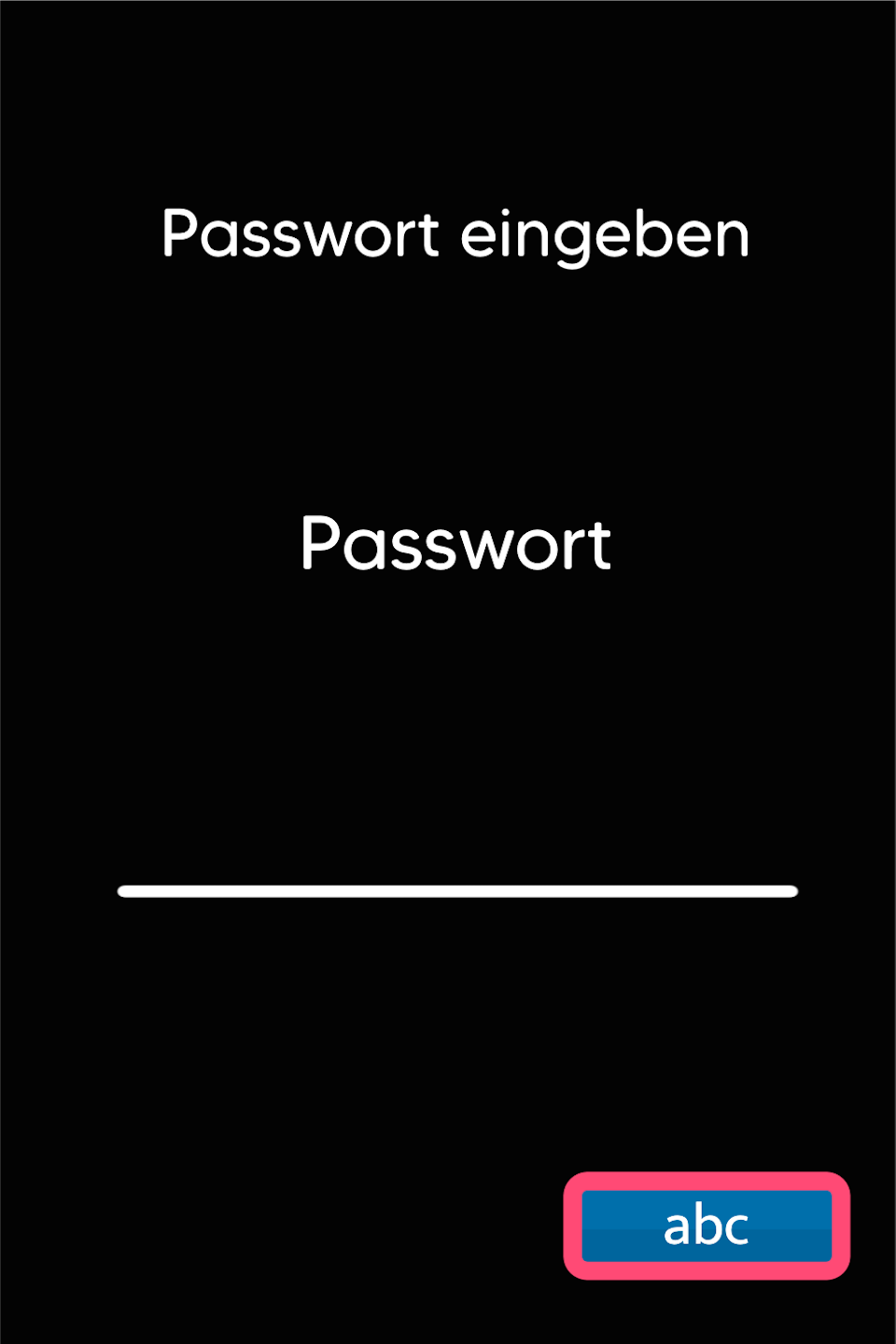
Save Selection
Please confirm that your selection will be applied and saved.
The card reader will print a receipt.
The card reader usually restarts automatically. If it does not, please press the red stop button. The restart will then be performed.
Once you have successfully set up the connection, please check its functionality with our article “Check Connection.”
Here you will find an informative article about the connection symbols on your card reader.
Combination WLAN with SIM Card
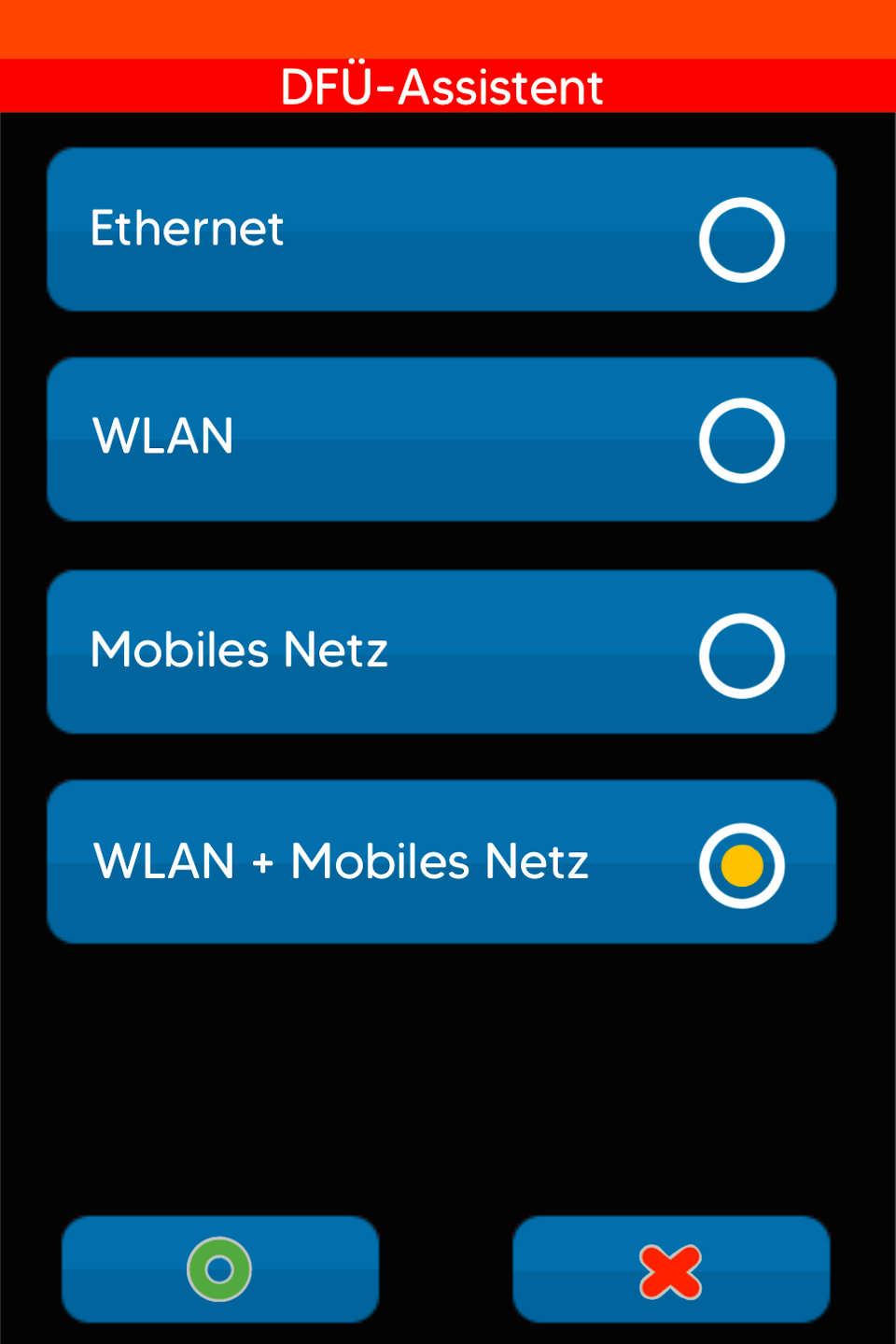
If you want to use the card reader in a combination of WLAN and SIM card, please select "WLAN + Mobile Network."
The WLAN connection is used with priority.
Automatic switching to the mobile network only occurs when no WLAN signal is available.
Switching takes about 20 seconds.
Please confirm your selection with the green OK button.
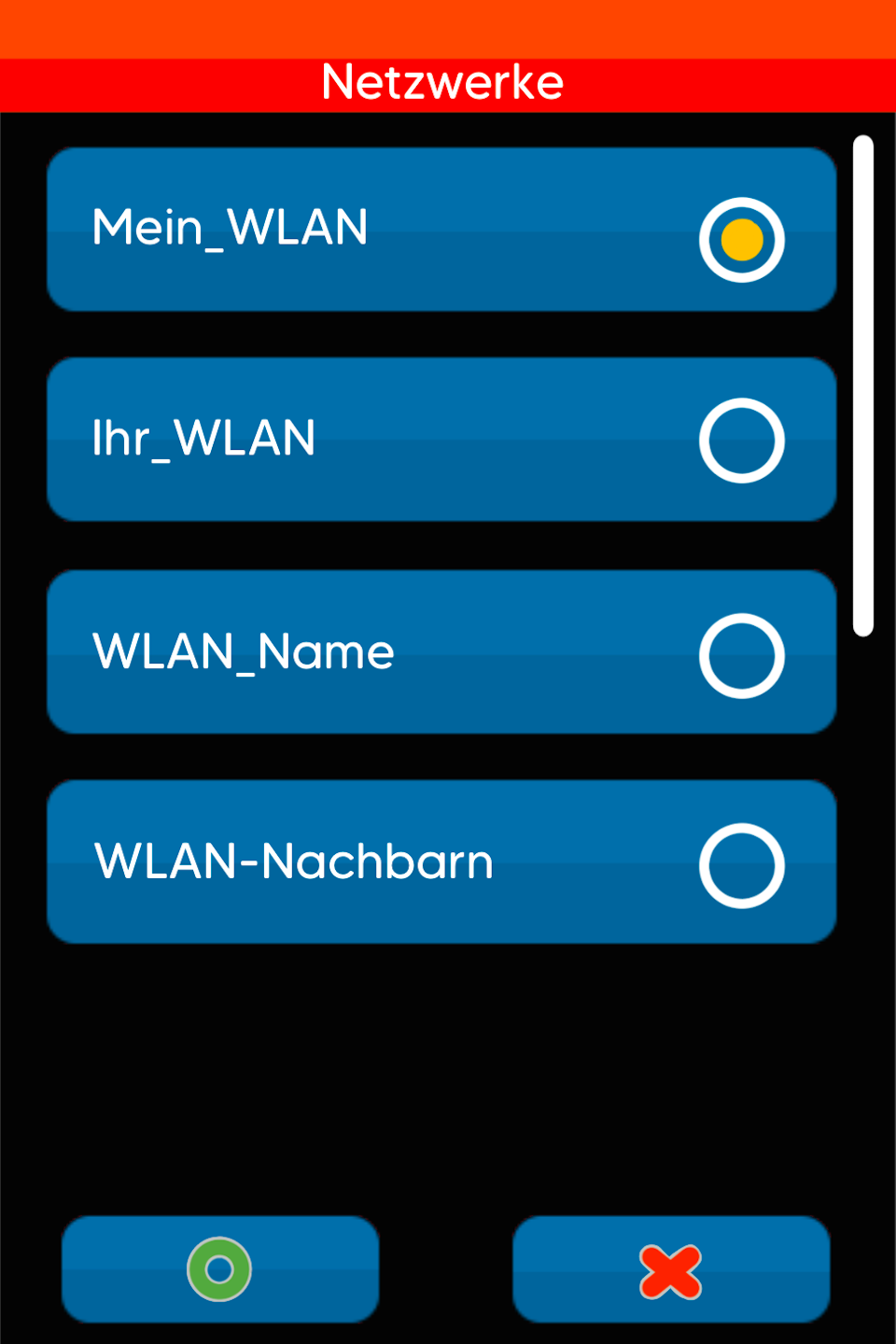
WLAN Network
Please select your WLAN network.
Please confirm your selection with the green OK button.
WLAN Password
Please enter your WLAN password.
Pay attention to uppercase and lowercase letters.
Use the button at the bottom right of the display to switch between numeric and alphabetic input (Fig. 1–3).
Please confirm your entry with the green OK button.
DHCP
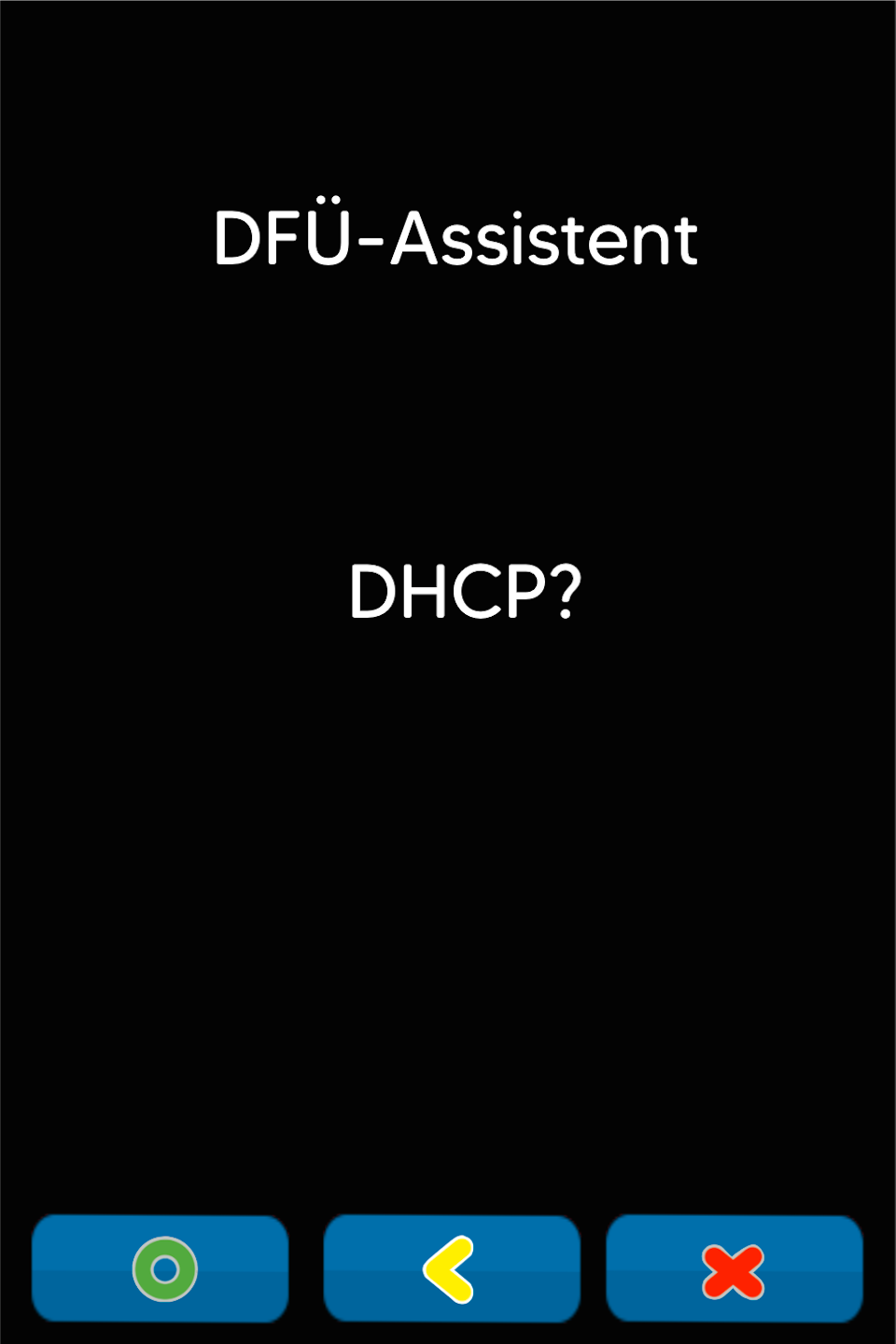
Please confirm the selection "DHCP" (dynamic IP address assignment)
APN Data
The APN data is necessary for the SIM card to dial in correctly and establish a connection.
Please enter the following APN data:
internet.m2mportal.de
Use the button at the bottom right of the display to switch between numeric and alphabetic input.
Please confirm your entry with the green OK button.
Username
The username is:
m2m
Please confirm your entry with the green OK button.
Password
The password is:
sim
Please confirm your entry with the green OK button.
Save Selection
Please confirm that your selection will be applied and saved.
The card reader will print a receipt.
The card reader usually restarts automatically. If it does not, please press the red stop button. The restart will then be performed.
Once you have successfully set up the connection, please check its functionality with our article “Check Connection.”
Here you will find an informative article about the connection symbols on your card reader.
Was this article helpful?
That’s Great!
Thank you for your feedback
Sorry! We couldn't be helpful
Thank you for your feedback
Feedback sent
We appreciate your effort and will try to fix the article
