Ingenico – Switching Your Card Reader Due to Contract Changes
Modified on Tue, 10 Feb at 4:03 PM
Have you received the confirmation email regarding the switch of your card reader to the new contract changes? This email contains both your old and your new terminal ID.
In this step-by-step guide, we would like to assist you with both images and text in switching your Ingenico card reader from the old to the new terminal ID.
Please perform a daily closing before making the switch so that any open transactions are processed. Existing transactions cannot be transferred to the new contract account.
Daily closing instructions – Link
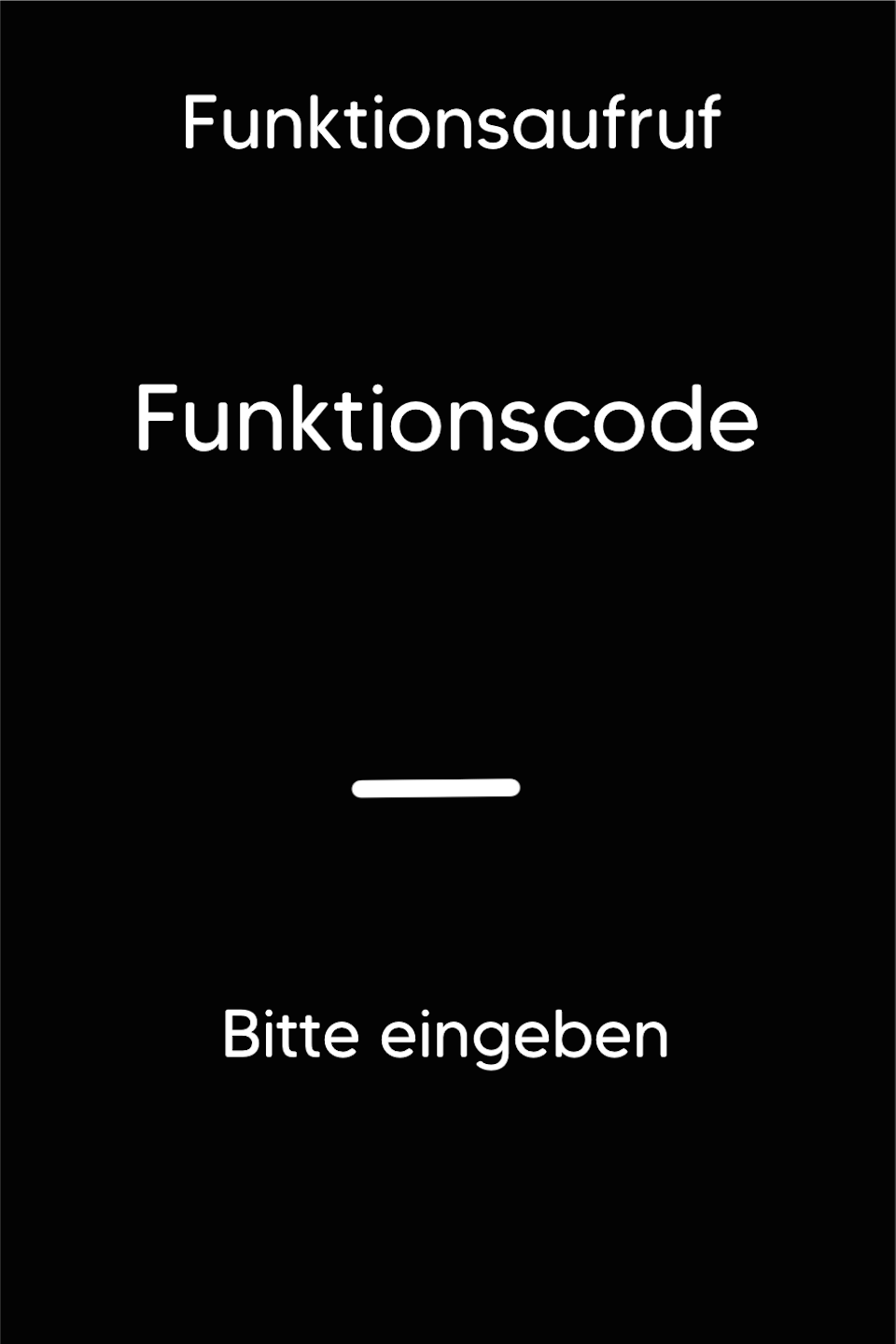
Funktionscode
Please first press the F key in the lower left area of the keypad several times in succession. The "Funktionscode" will now be displayed.
Function Code 710
Please enter the number 710 and confirm the entry with the green OK key.
PIN Entry
Please now enter the technician password based on your terminal ID.
You can find the terminal ID on your merchant receipts or on the daily closing receipt.
Terminal IDs starting with 61xxxxxx: 82024
Terminal IDs starting with 68xxxxxx: 11599
Terminal IDs starting with 526xxxxx: 17356
Please confirm the entry with the green OK key.

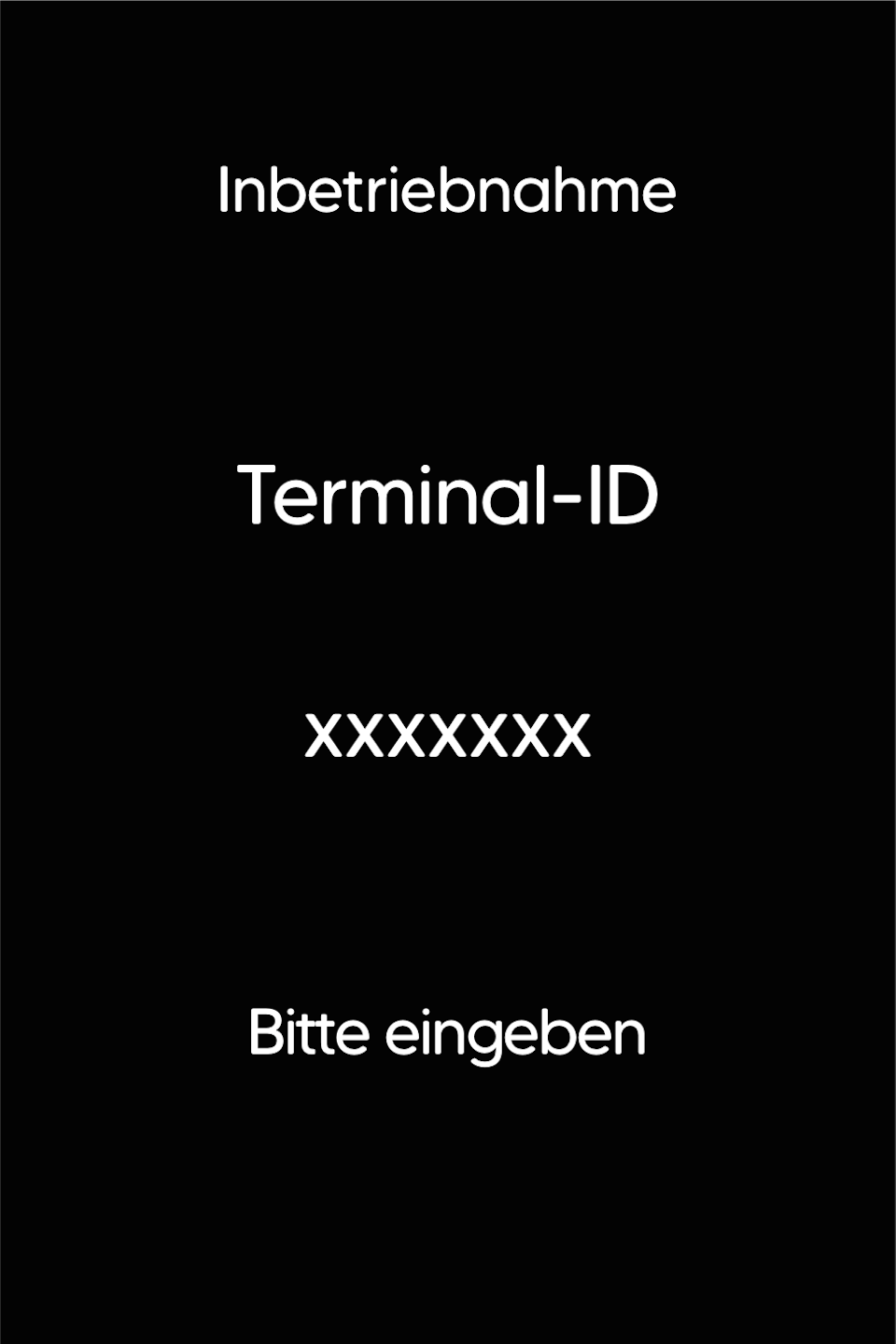
Enter Terminal ID
Please use the yellow CLR key to delete all numbers, and then enter your new terminal ID correctly into the field.
Your old and new terminal ID were provided to you by email.
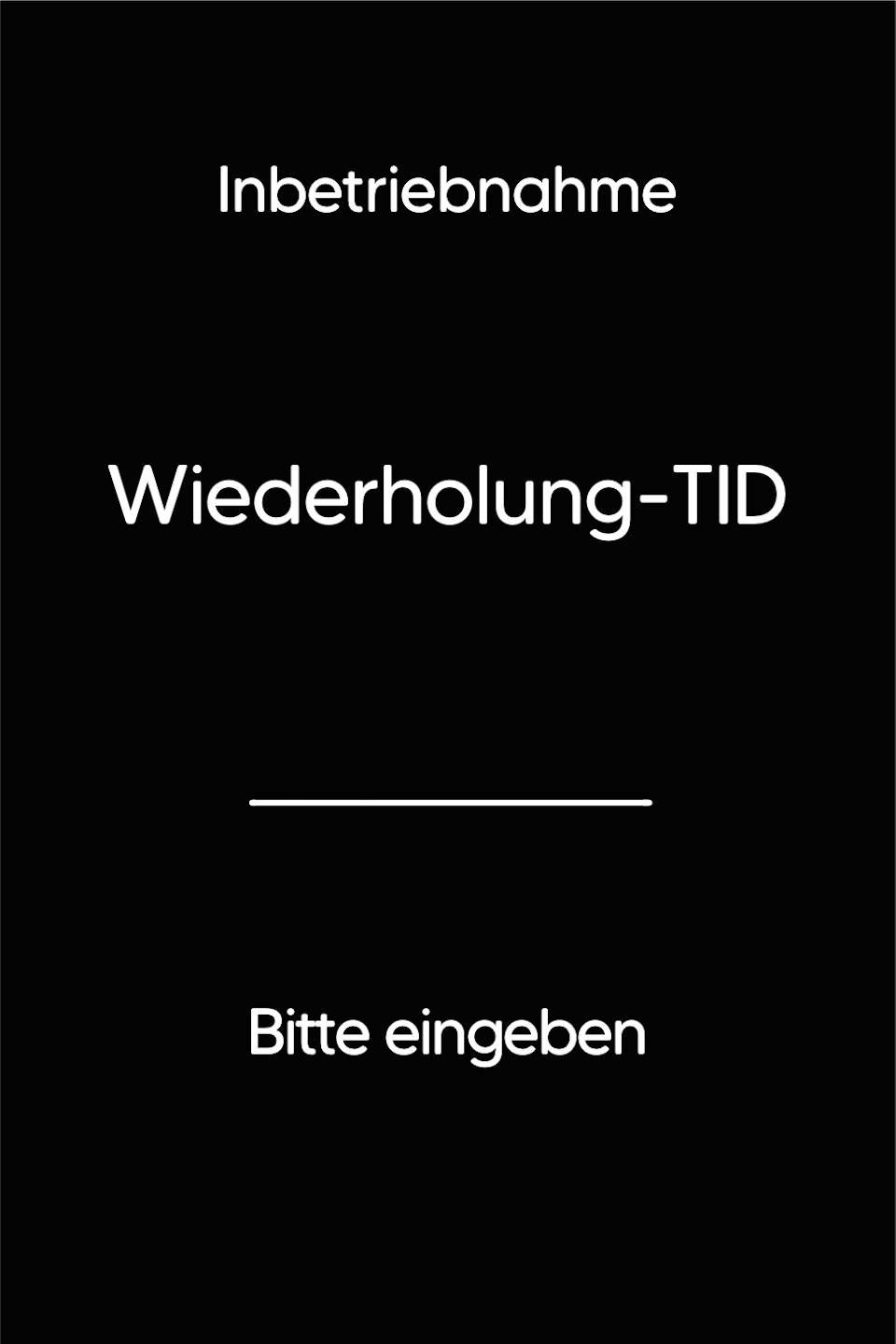
Repeat Terminal ID
Please repeat the entry of the new terminal ID and confirm it with the green OK key.
The card reader will now automatically perform a restart.
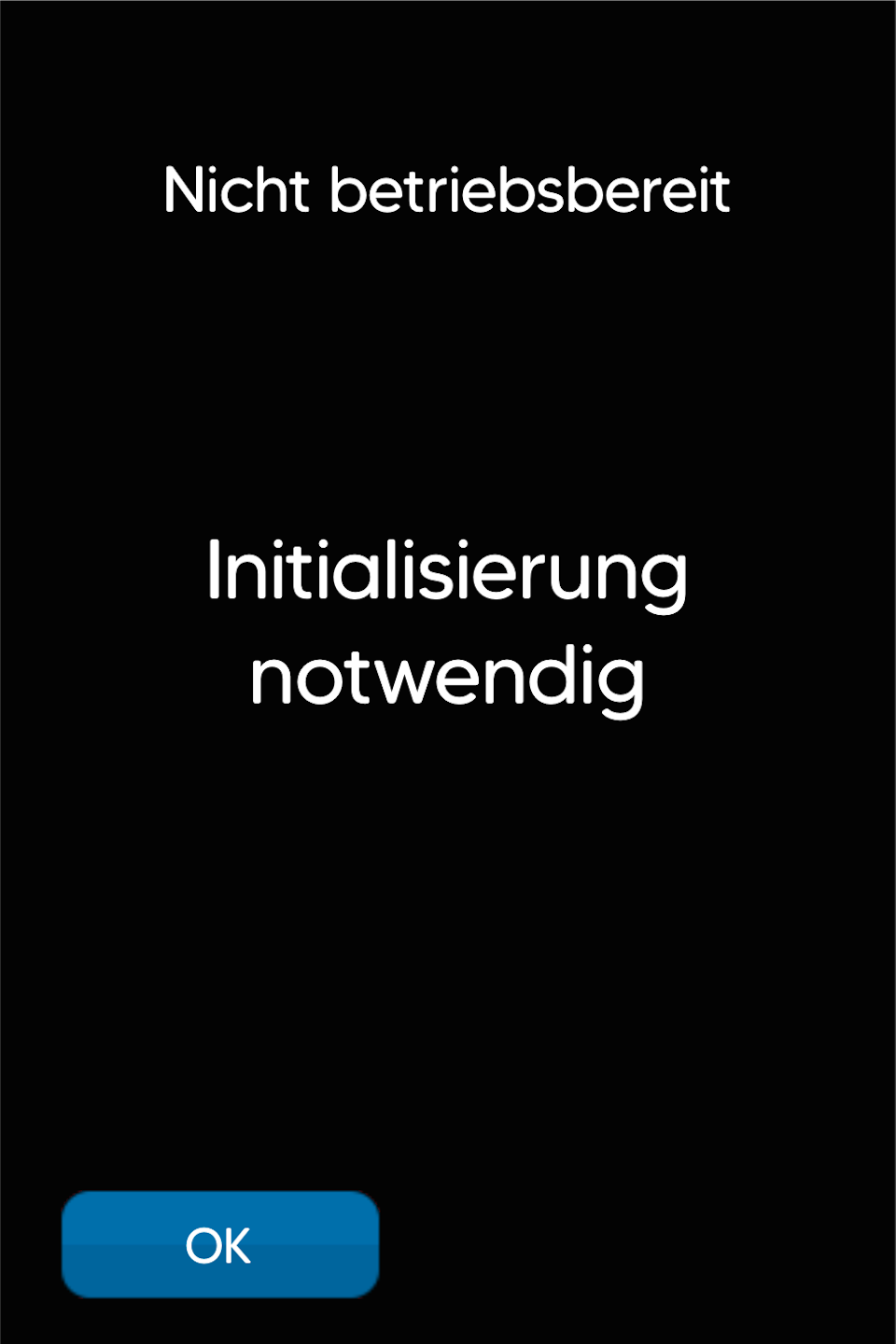
Initialization
After the restart, the display will show the message: Not ready for operation – Initialization required.
Please confirm the message with the green OK key.
The card reader will now be initialized with the updated contract information. Three diagnostics will be performed, each confirmed by a receipt.
Once all diagnostics are completed, your card reader will be available again with the new contract changes.
Was this article helpful?
That’s Great!
Thank you for your feedback
Sorry! We couldn't be helpful
Thank you for your feedback
Feedback sent
We appreciate your effort and will try to fix the article
