Verifone – Setting Up Your POS System Connection
Modified on Fri, 6 Feb at 5:29 PM
Would you like to connect your POS system to your Verifone card reader via the network? We will guide you step by step through the setup process.
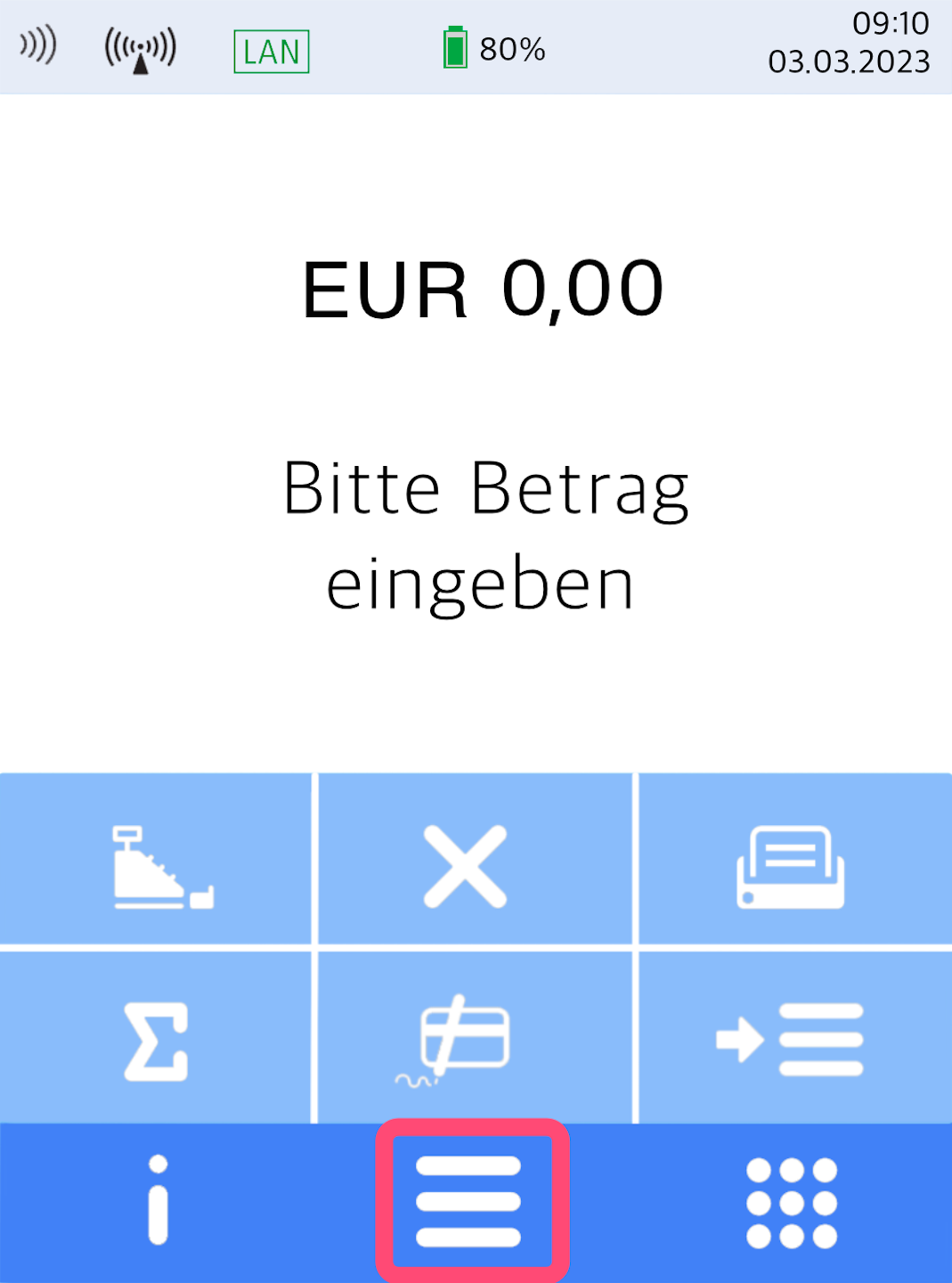
Menu Button
You will see your home display.
Please press the button with the 3 horizontal bars to access the main menu.
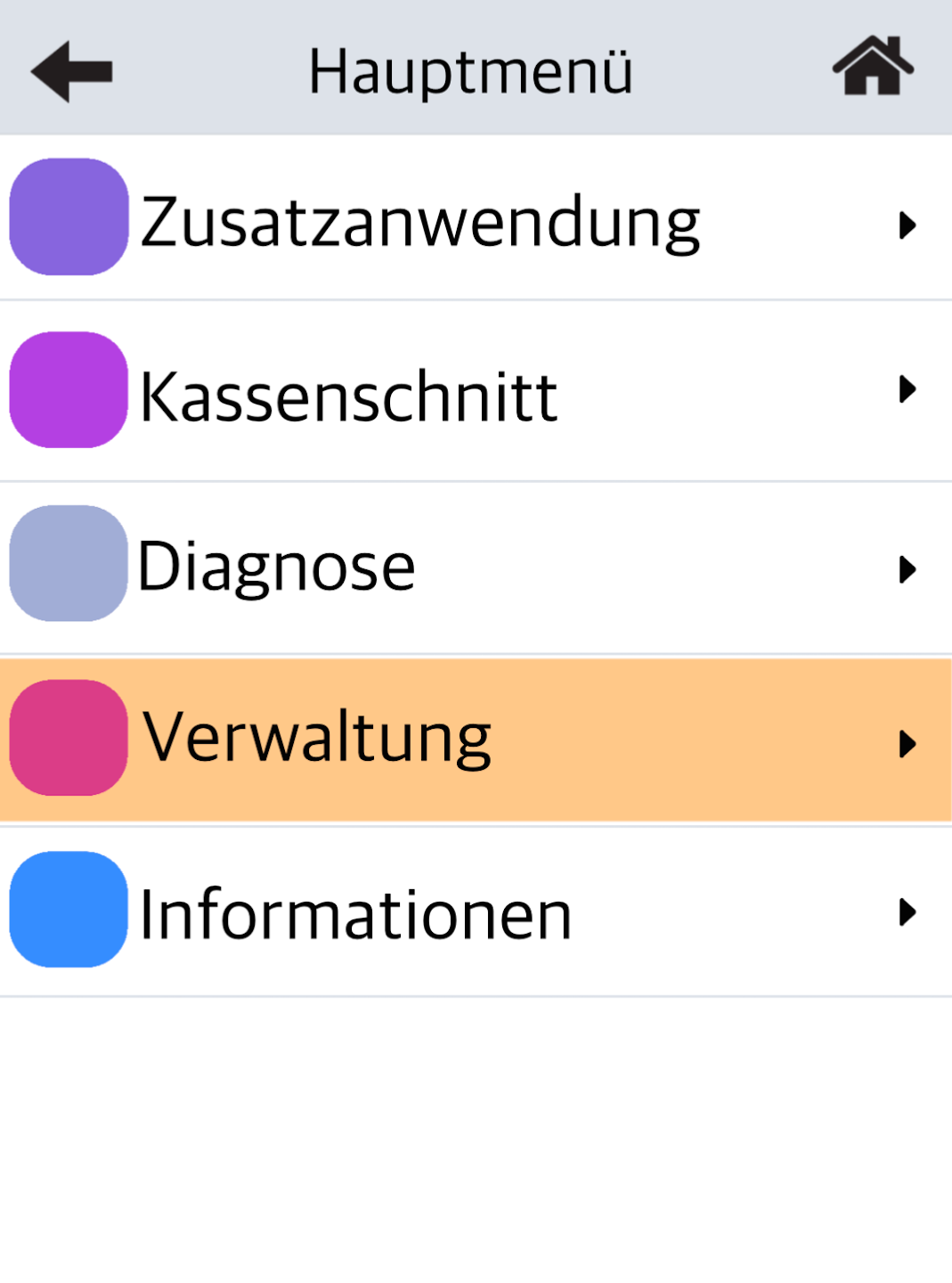
Management
Please select Verwaltung.
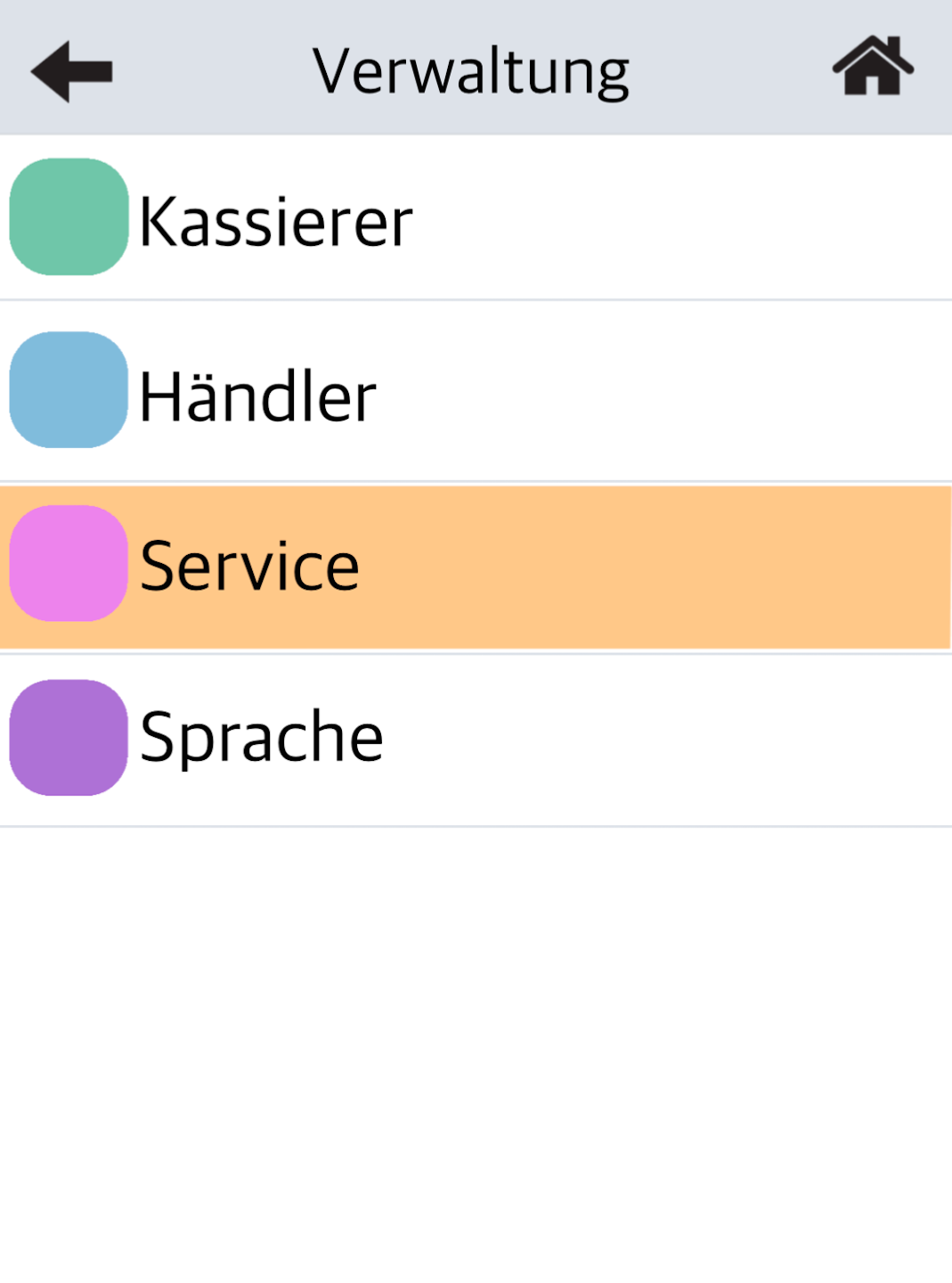
Service
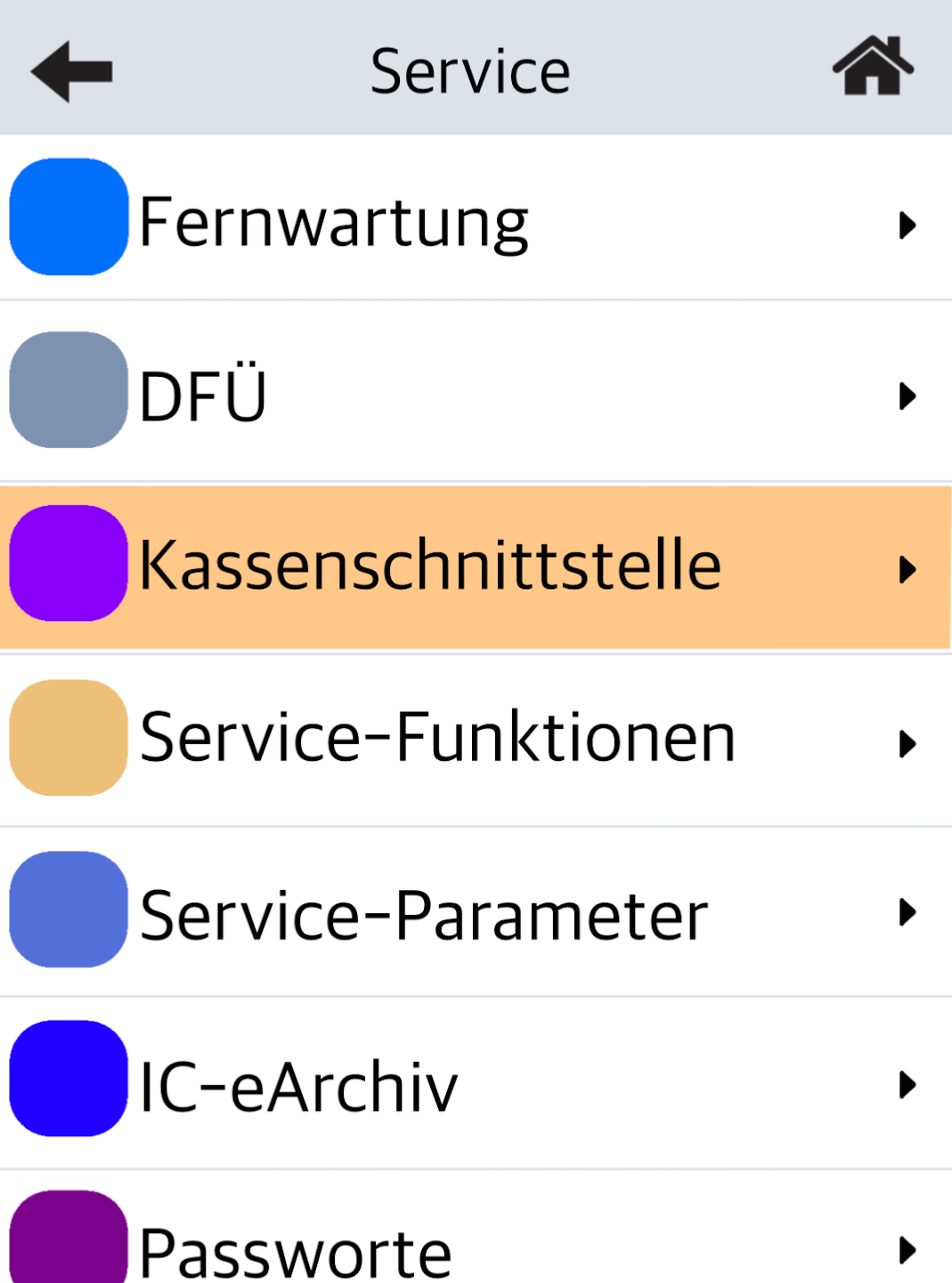
Please select the menu item Service.
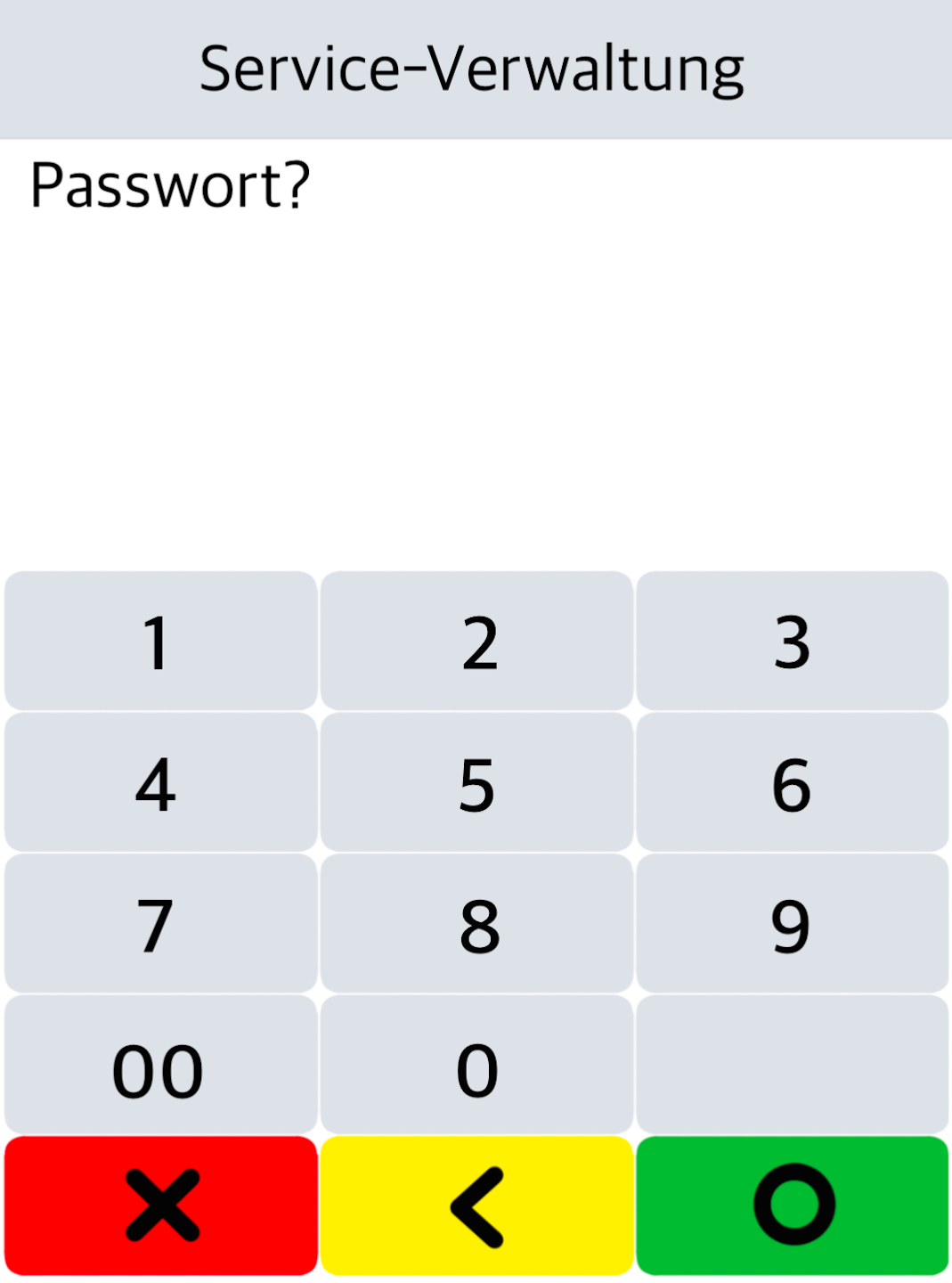
Password Entry
Enter the 6-digit technician password and confirm it with the green OK button on the display.
If you do not know the technician password, please contact our service hotline.
POS Interface
Select the menu item Kassenschnittstelle.
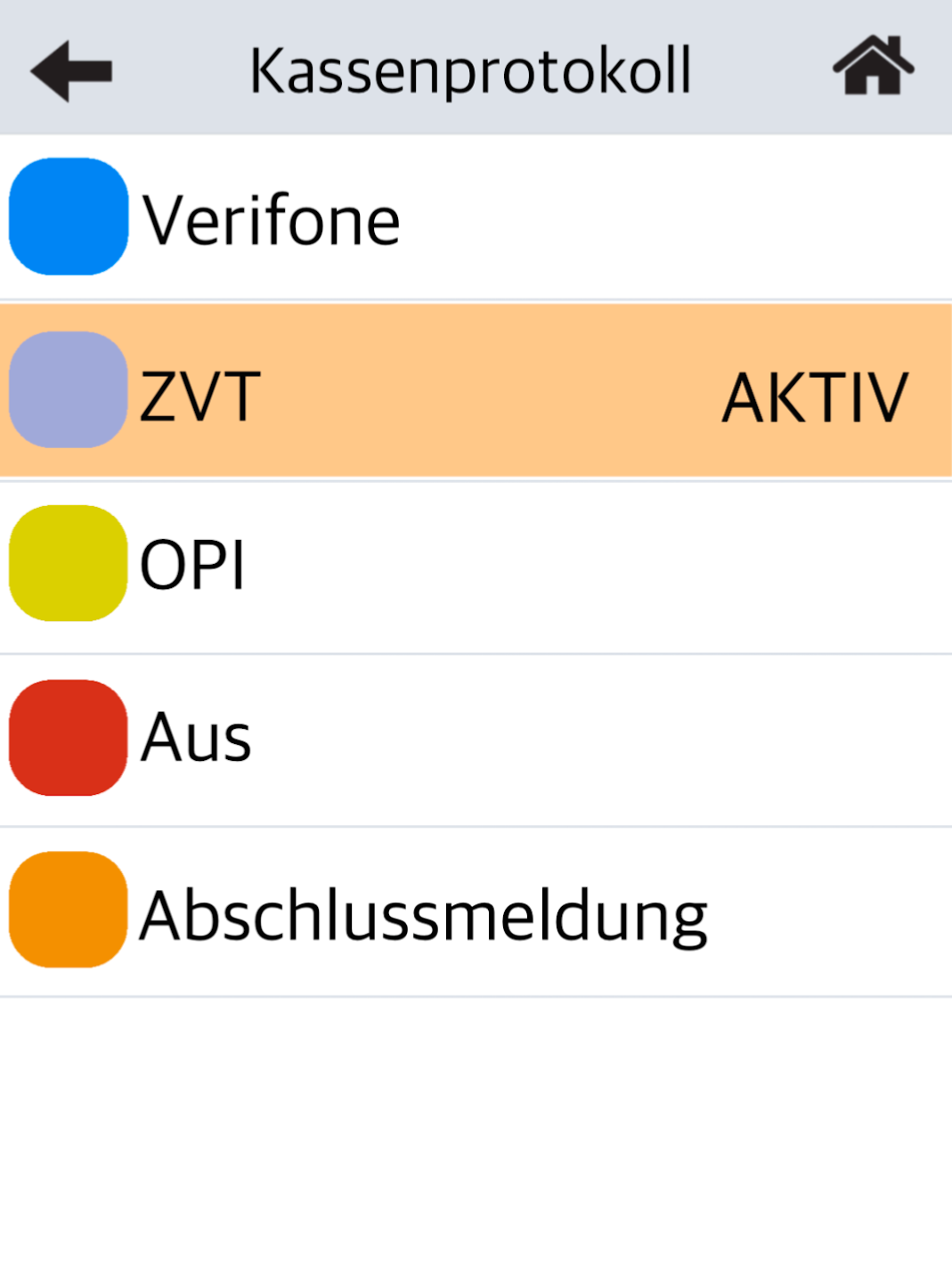
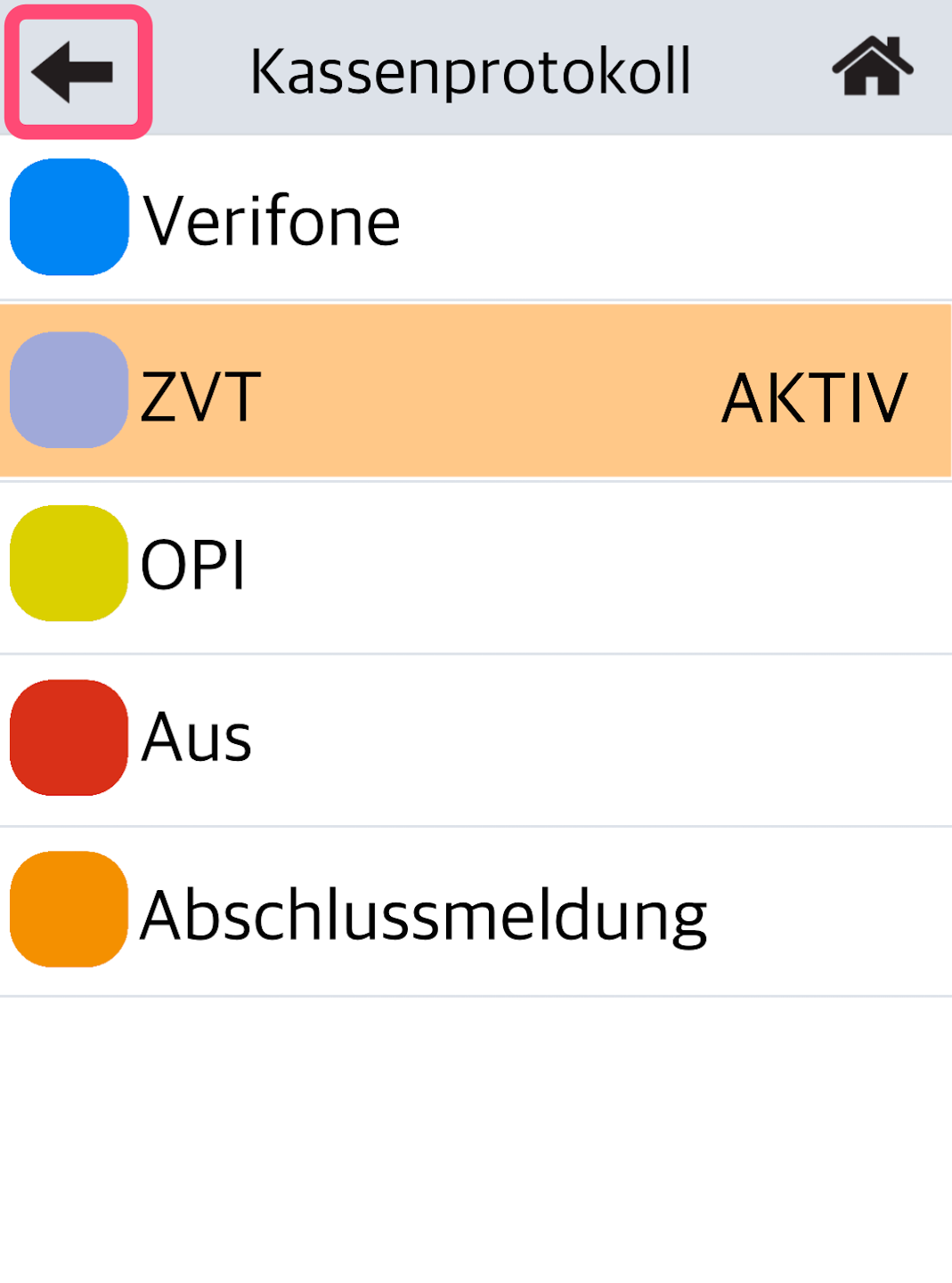
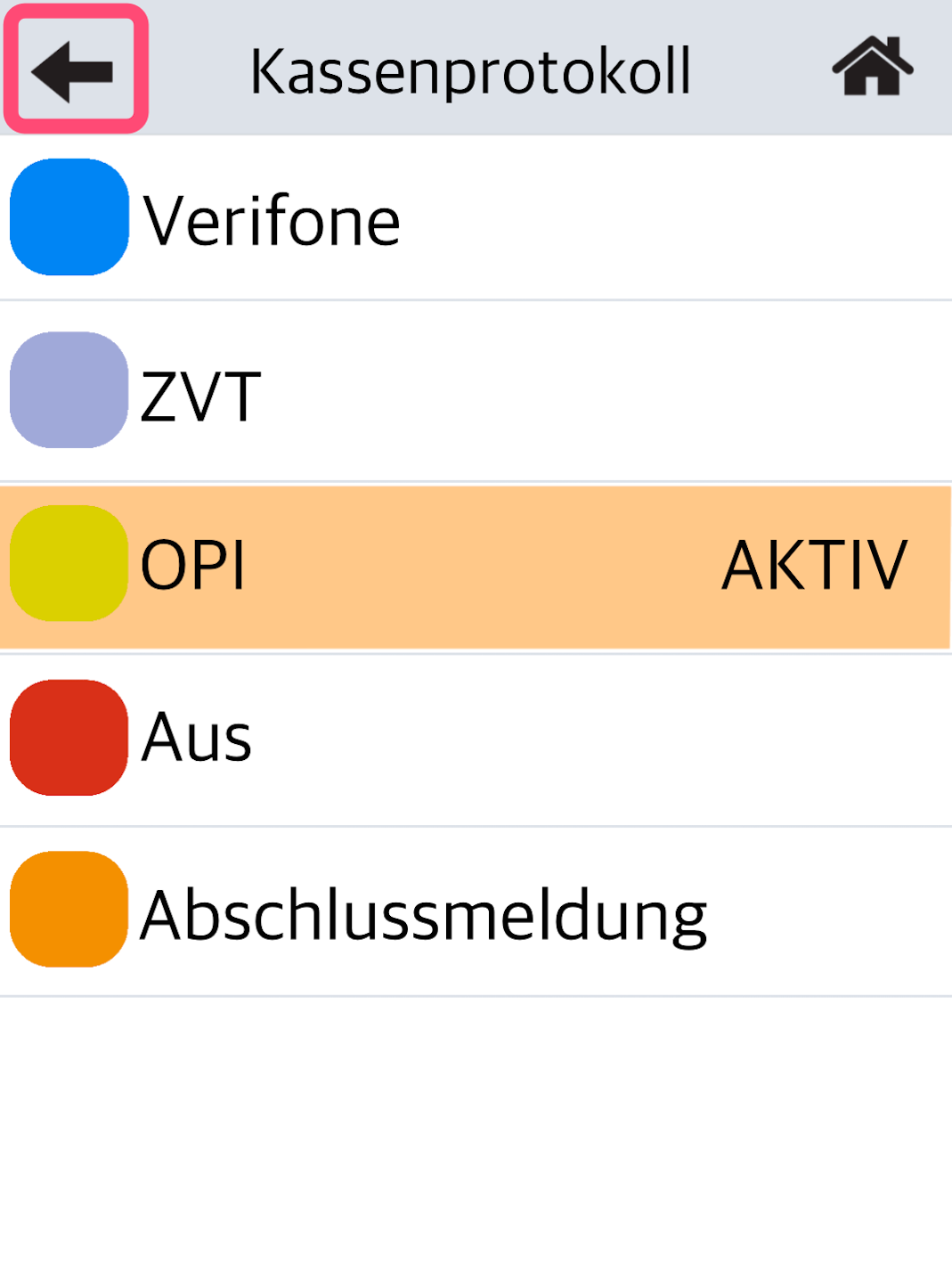
In the next step, you can select the cash register protocol used by your POS system.
Available options: ZVT or OPI.
If you are using a Tillhub POS system, select OPI.
If you are unsure which protocol to use, please contact your POS integrator.
ZVT Protocol
If your POS system operates via ZVT, please select ZVT by tapping it.
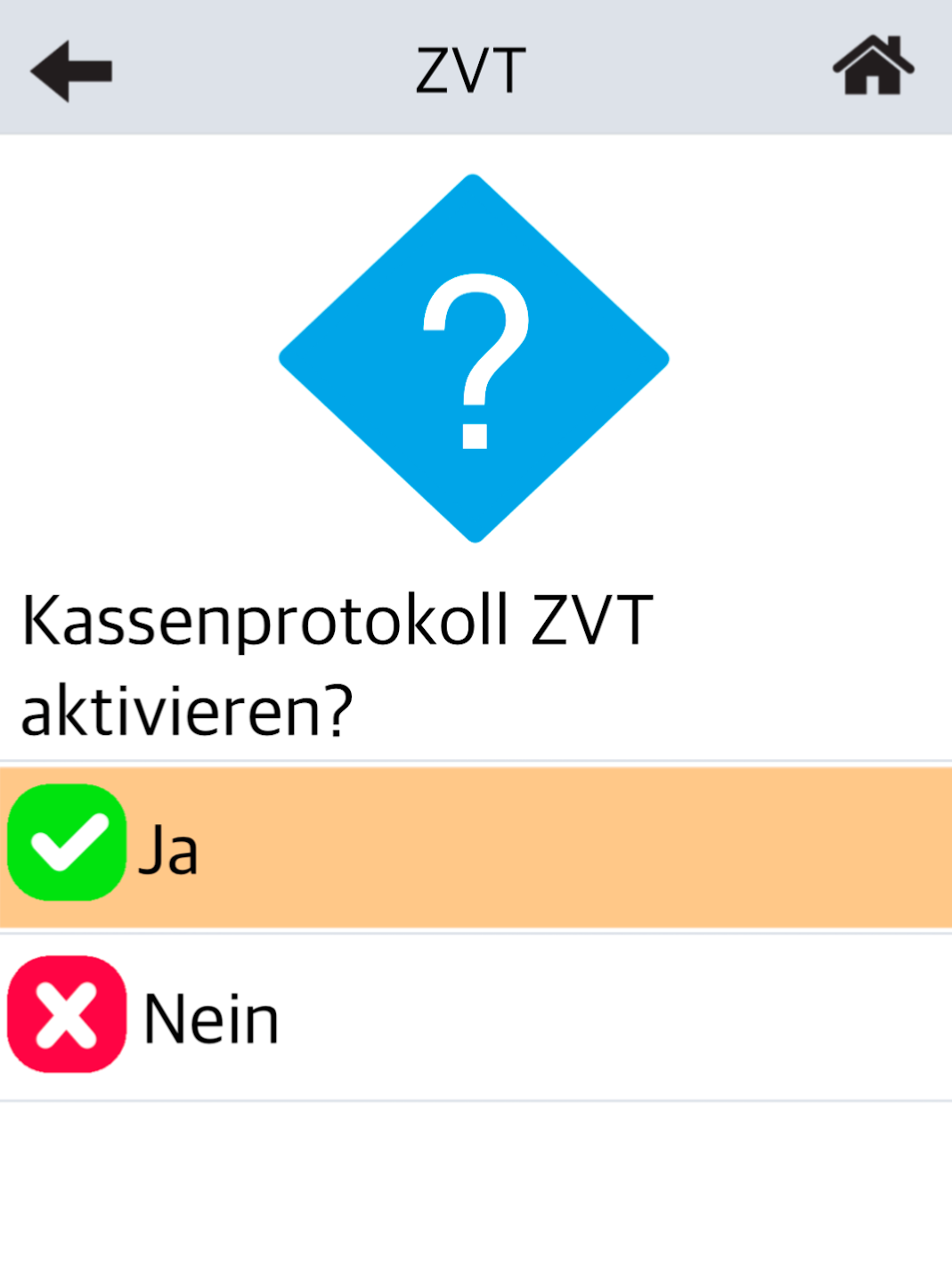
You will now be asked whether you want to activate the ZVT protocol (Fig. 2). Please confirm with YES.
POS Interface Type
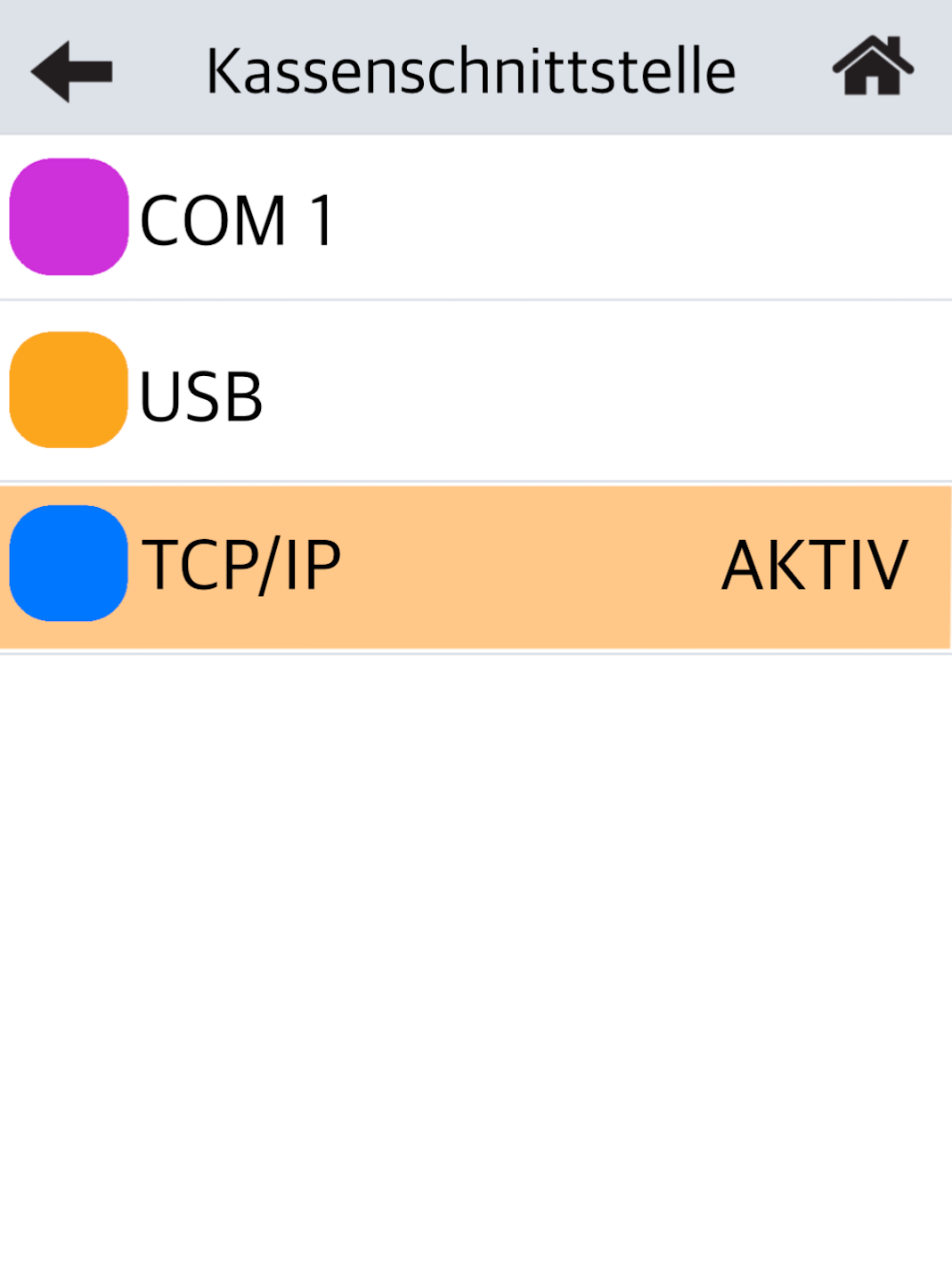
If the connection should run over the local network, select TCP/IP.
If you are using a serial POS cable, select COM1.
Port Number
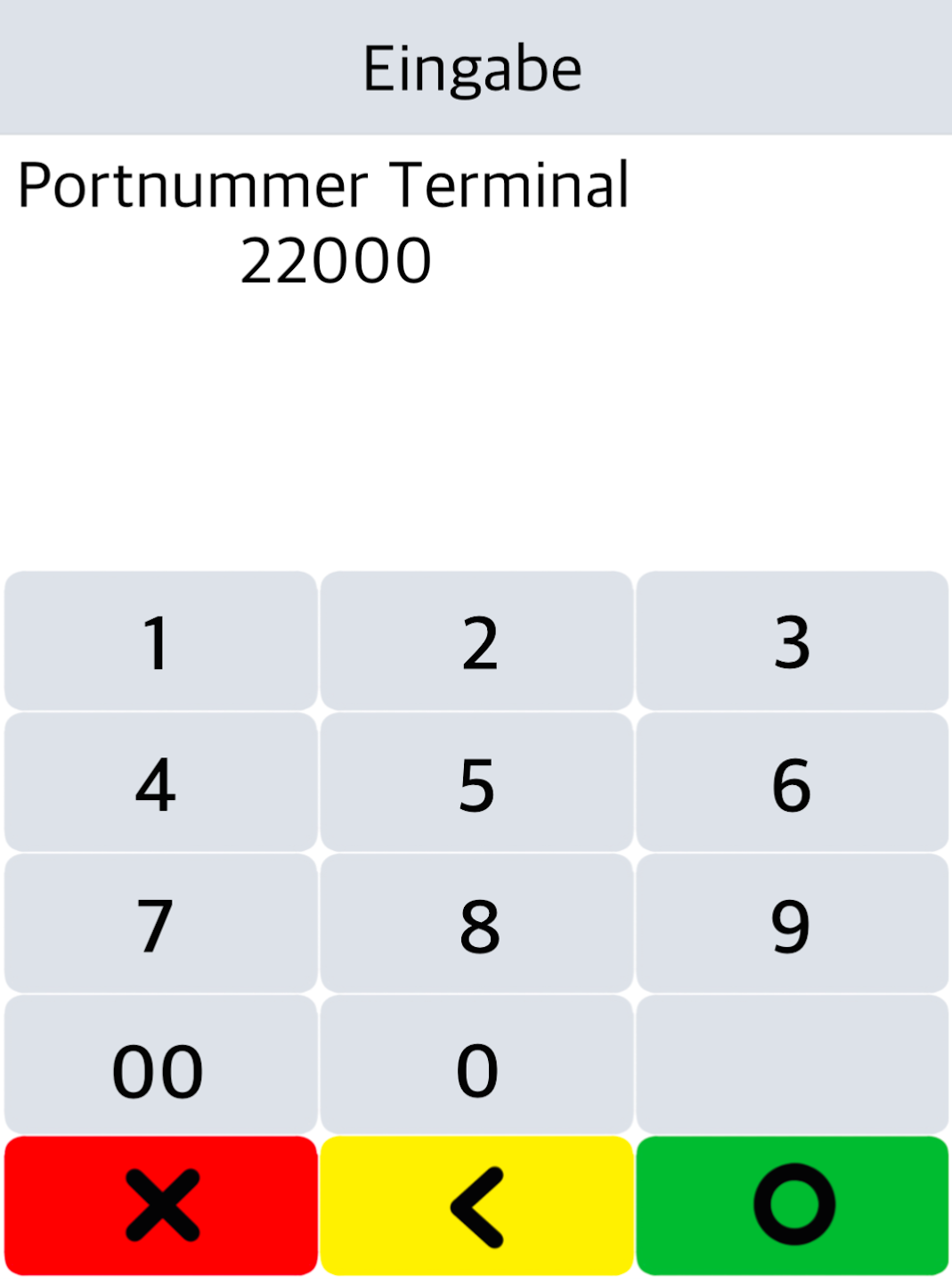
You must now enter the port number (4–5 digit number) for the POS interface.
If you don’t know the port number, you can get it from your POS provider.
You will be returned to the POS interface screen (Fig. 2). Press the arrow key in the top left 4 times to return to your home display.
Your card reader is now set up for POS integration via ZVT.
The amount transfer should now function.
Your POS system may need to register with the card reader. In that case, use your merchant password. Once connected, you should see Terminal ready for operation on the home display, and manual entry of transaction amounts will no longer be possible.
To ensure smooth replacement of your card reader in the future, please use the Submit POS Integration Data button to send us your POS connection data and parameters. We can then provide a preconfigured replacement terminal if needed.
OPI Protocol
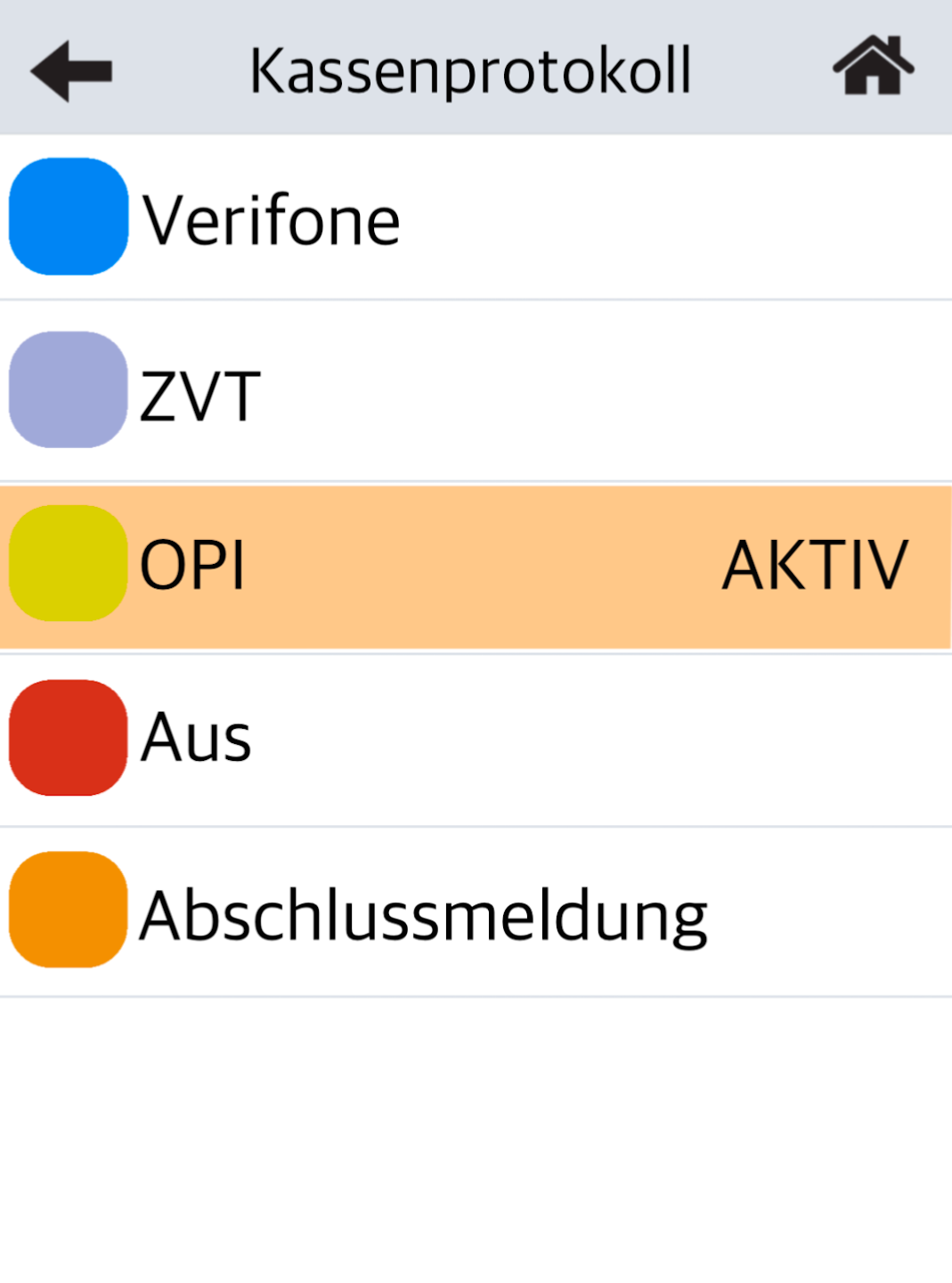
If your POS system operates via OPI, please select OPI by tapping it.
If you use a Tillhub POS system, OPI is the correct selection.
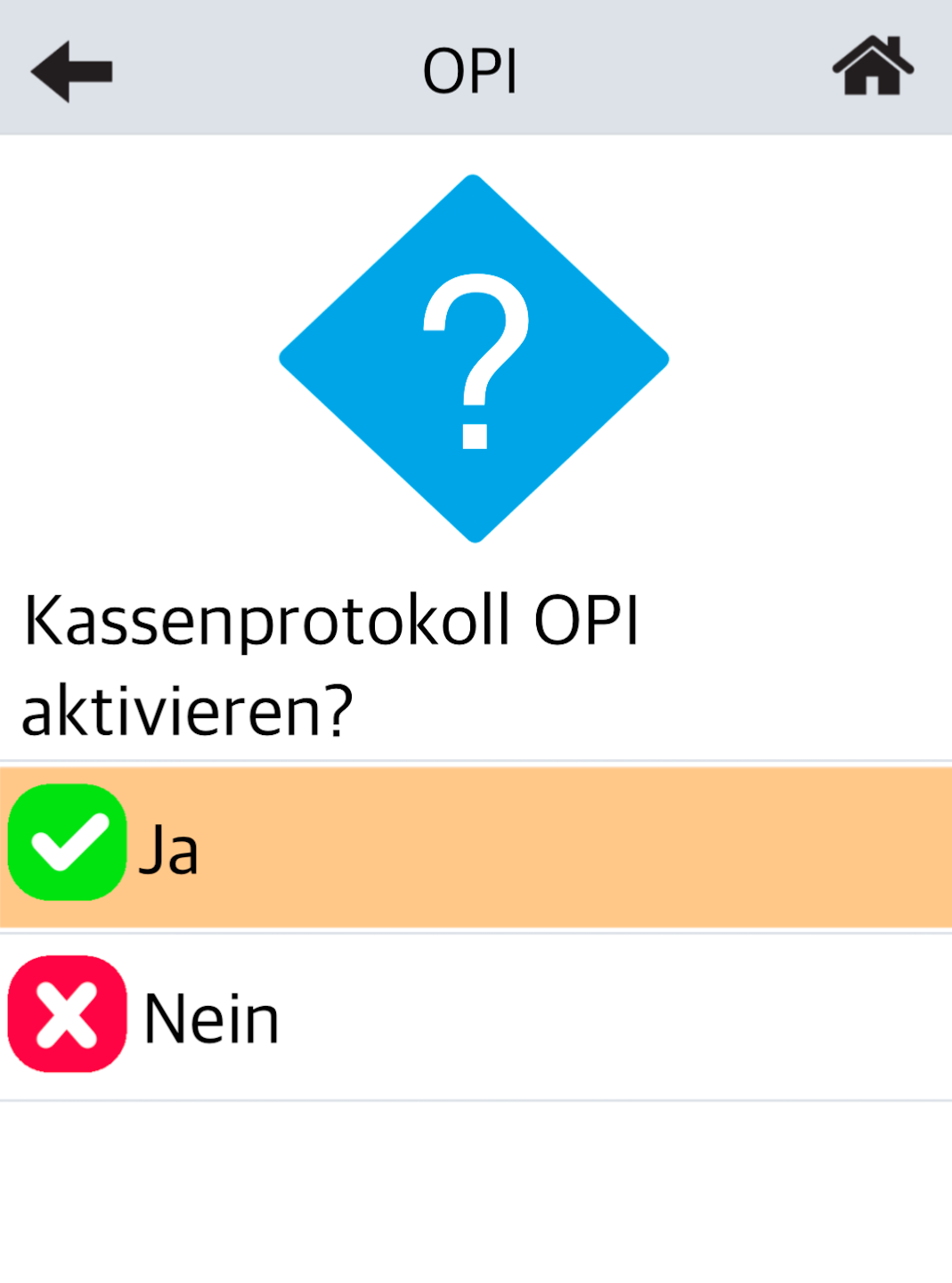
You will now be asked whether you want to activate the OPI protocol (Fig. 2). Please confirm with YES.
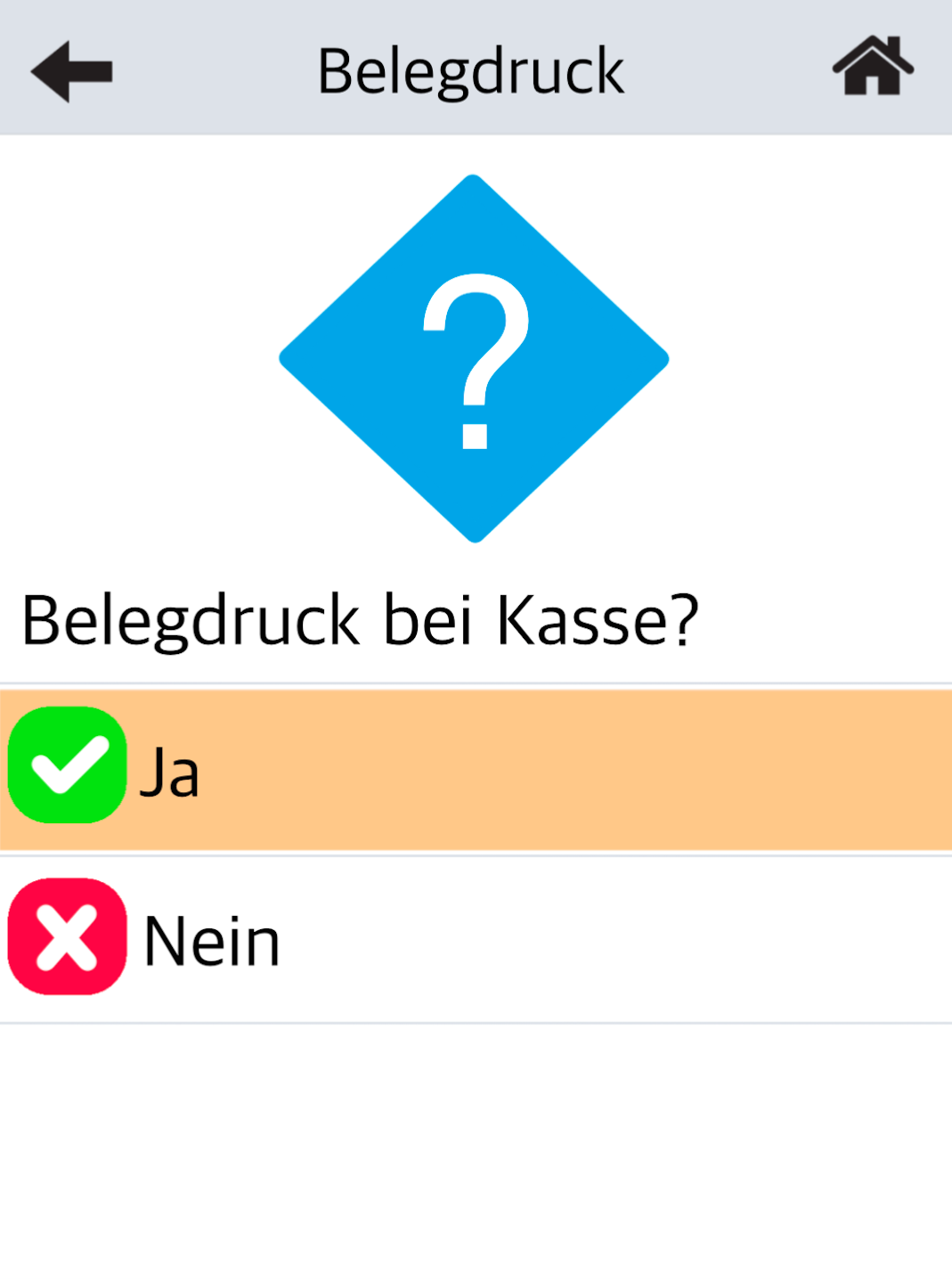
In Fig. 3, you can choose whether the receipt printing should take place at the POS system. Please make your selection.
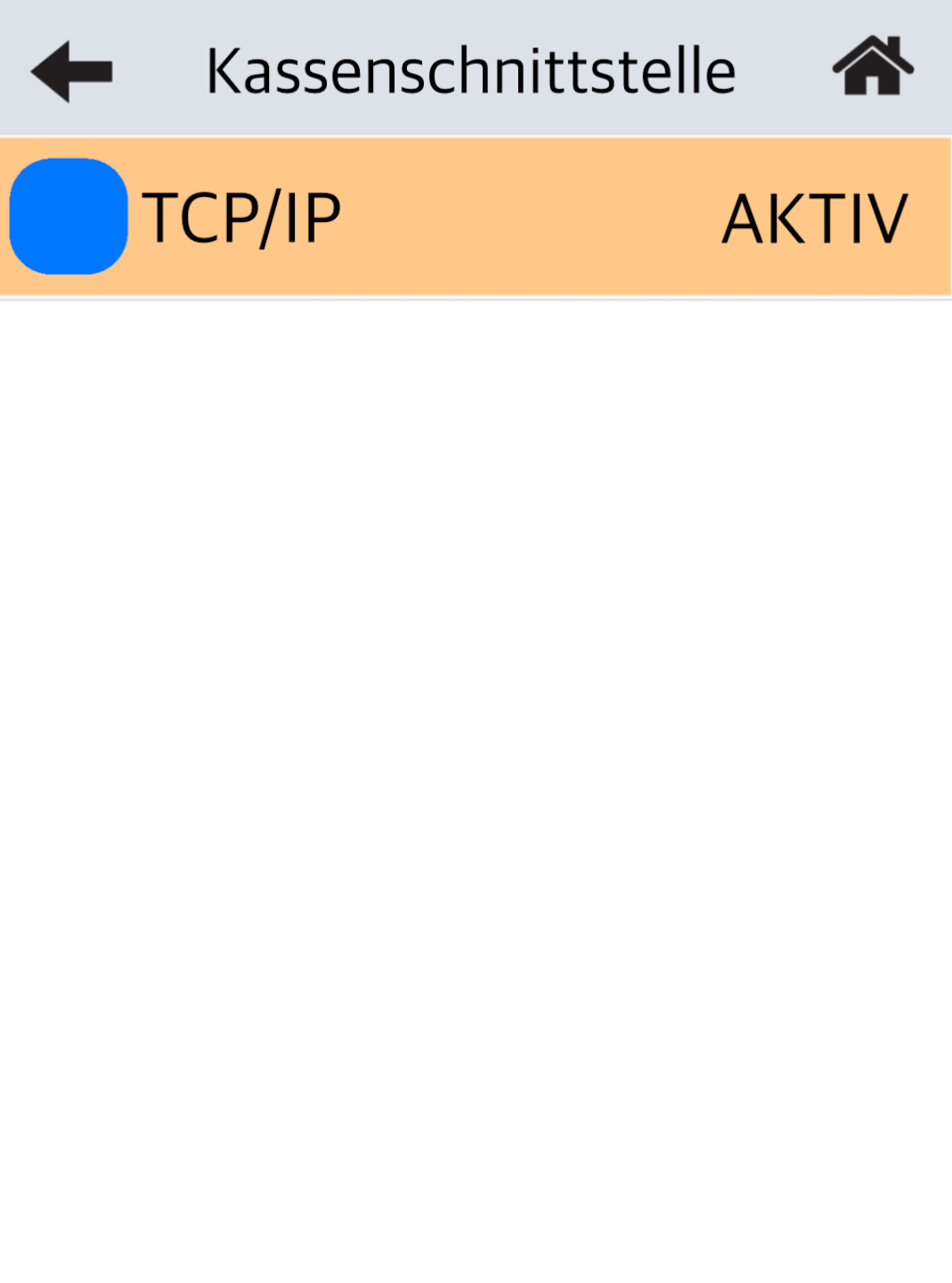
POS Interface Type
Please select TCP/IP.
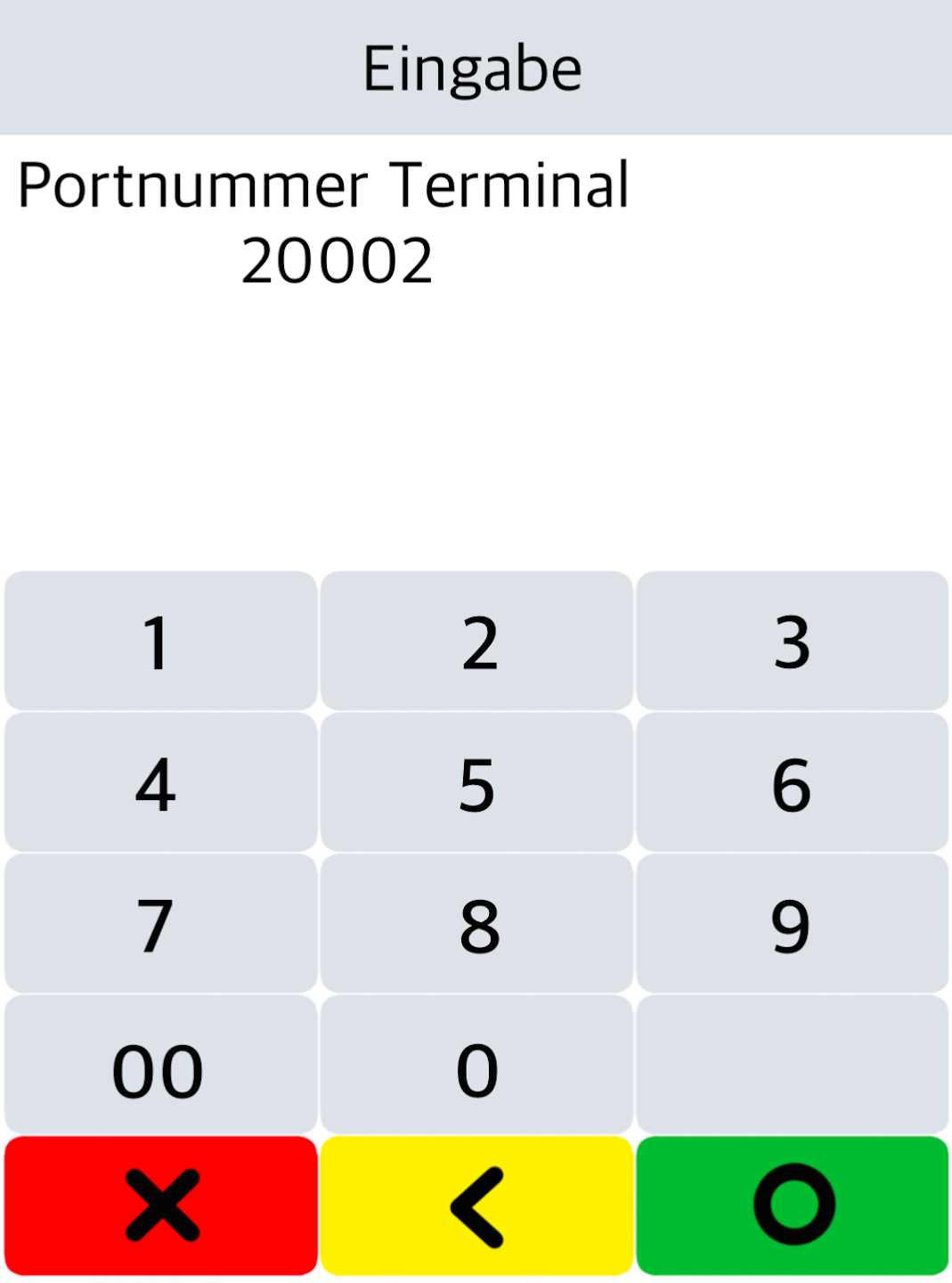
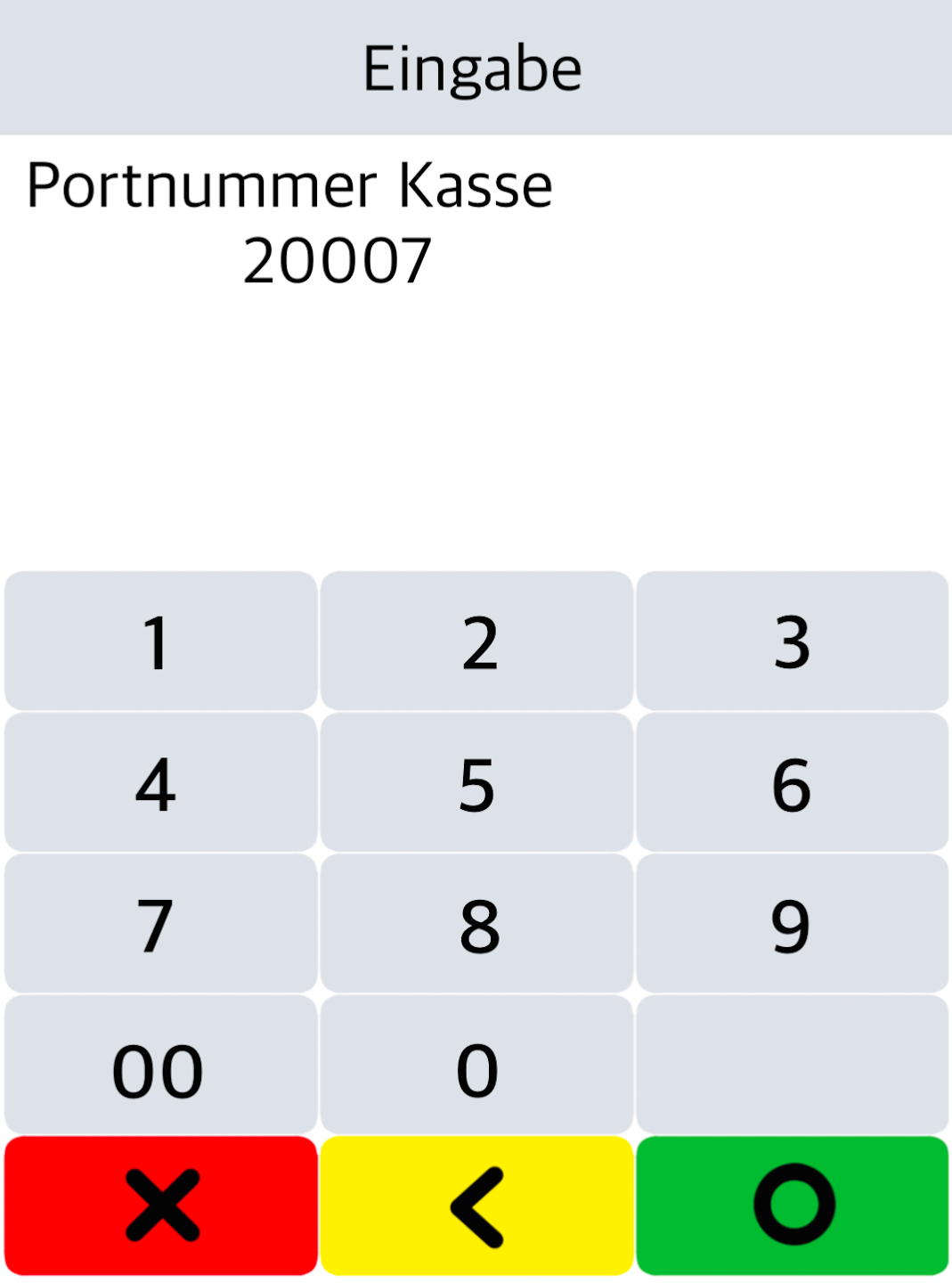
Port Number
In this section, you need to enter the incoming (Fig. 1) and outgoing (Fig. 2) port numbers (4–5 digits) for POS integration.
For Tillhub, the port numbers are:
Incoming port: 20002
Outgoing port: 20007
If you're unsure of the ports, please consult your POS integrator.
After entering the ports, you'll return to the POS interface menu (Fig. 3). Press the arrow key in the top left 4 times to return to the home display.
Your card reader is now set up for POS integration via OPI.
The amount transfer should now function.
Your POS system may need to register with the card reader. Use your merchant password for this. Once connected, you should see Terminal ready for operation on the home display. Manual entry of transaction amounts will no longer be possible.
To ensure smooth replacement of your card reader in the future, please use the Submit POS Integration Data button to send us your POS connection data and parameters. We can then provide a preconfigured replacement terminal if needed.
Was this article helpful?
That’s Great!
Thank you for your feedback
Sorry! We couldn't be helpful
Thank you for your feedback
Feedback sent
We appreciate your effort and will try to fix the article
