Verifone - Read Out IP Data
Modified on Tue, 10 Feb at 2:35 PM
In this step-by-step guide, we would like to show you how to read out the IP information from your Verifone card reader.
Menu Button
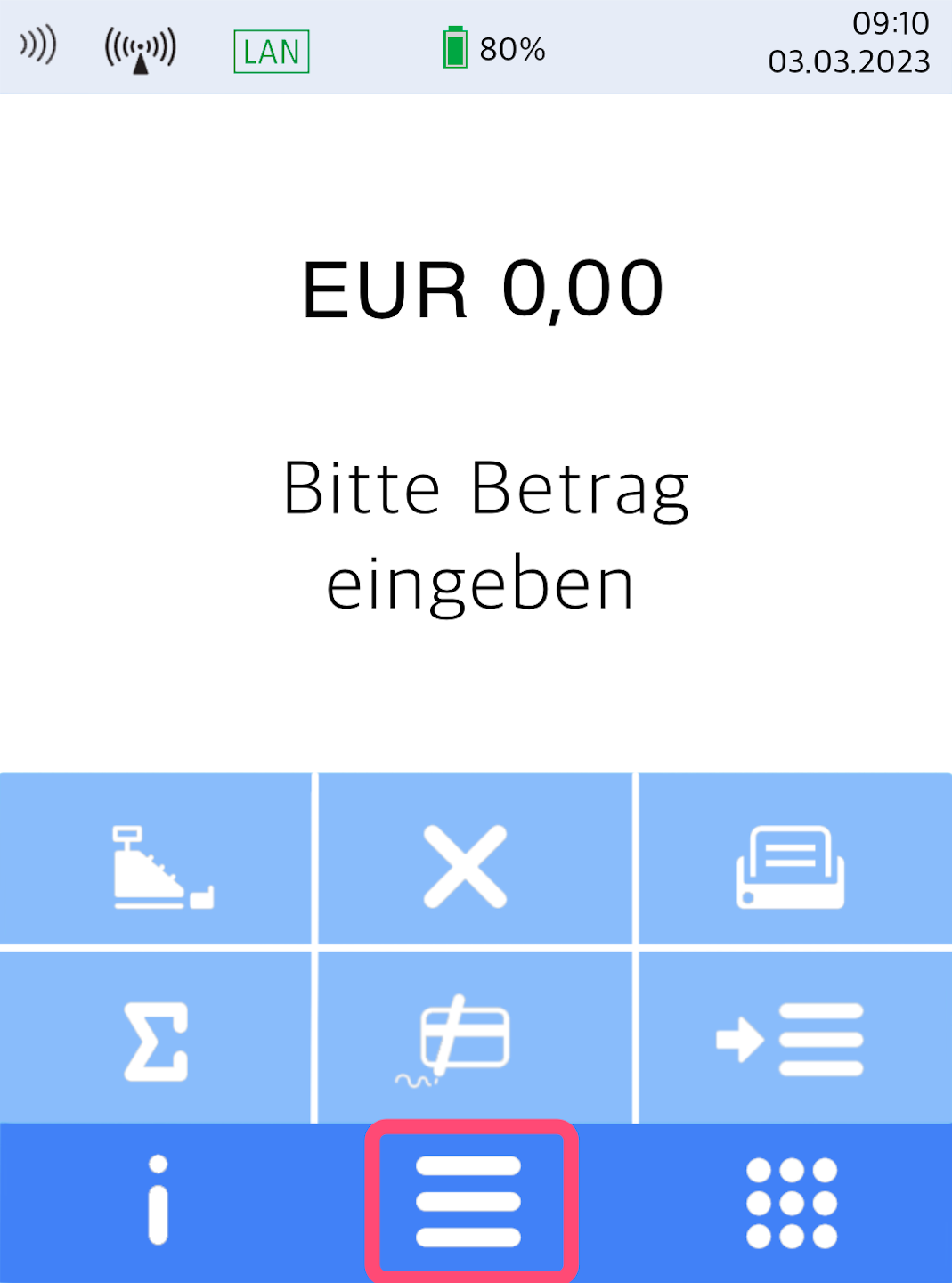
Here you see your home display.
Please tap the button with the 3 horizontal bars to access the main menu.
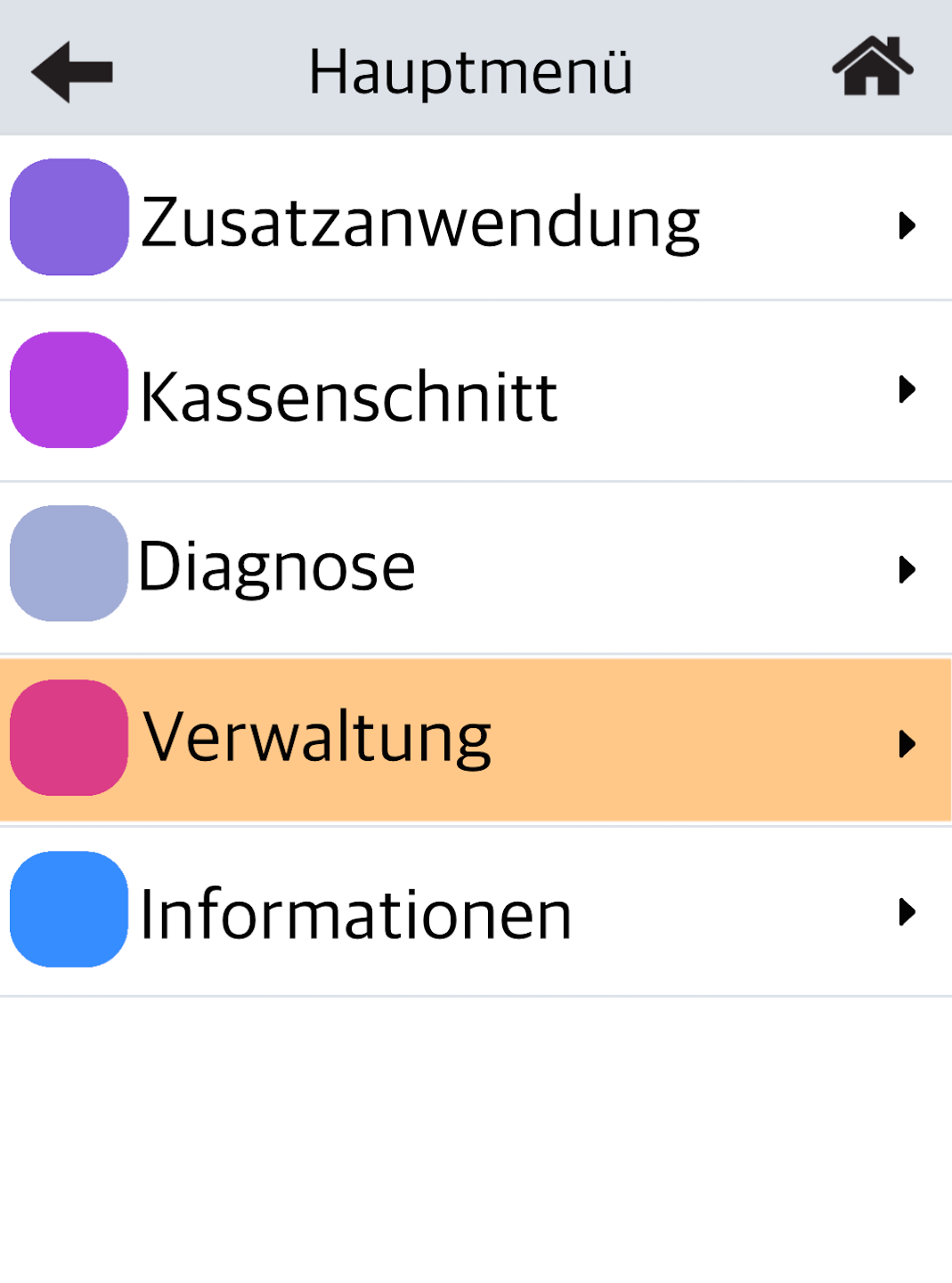
Management
Please select the menu item Verwaltung.
Select by tapping.
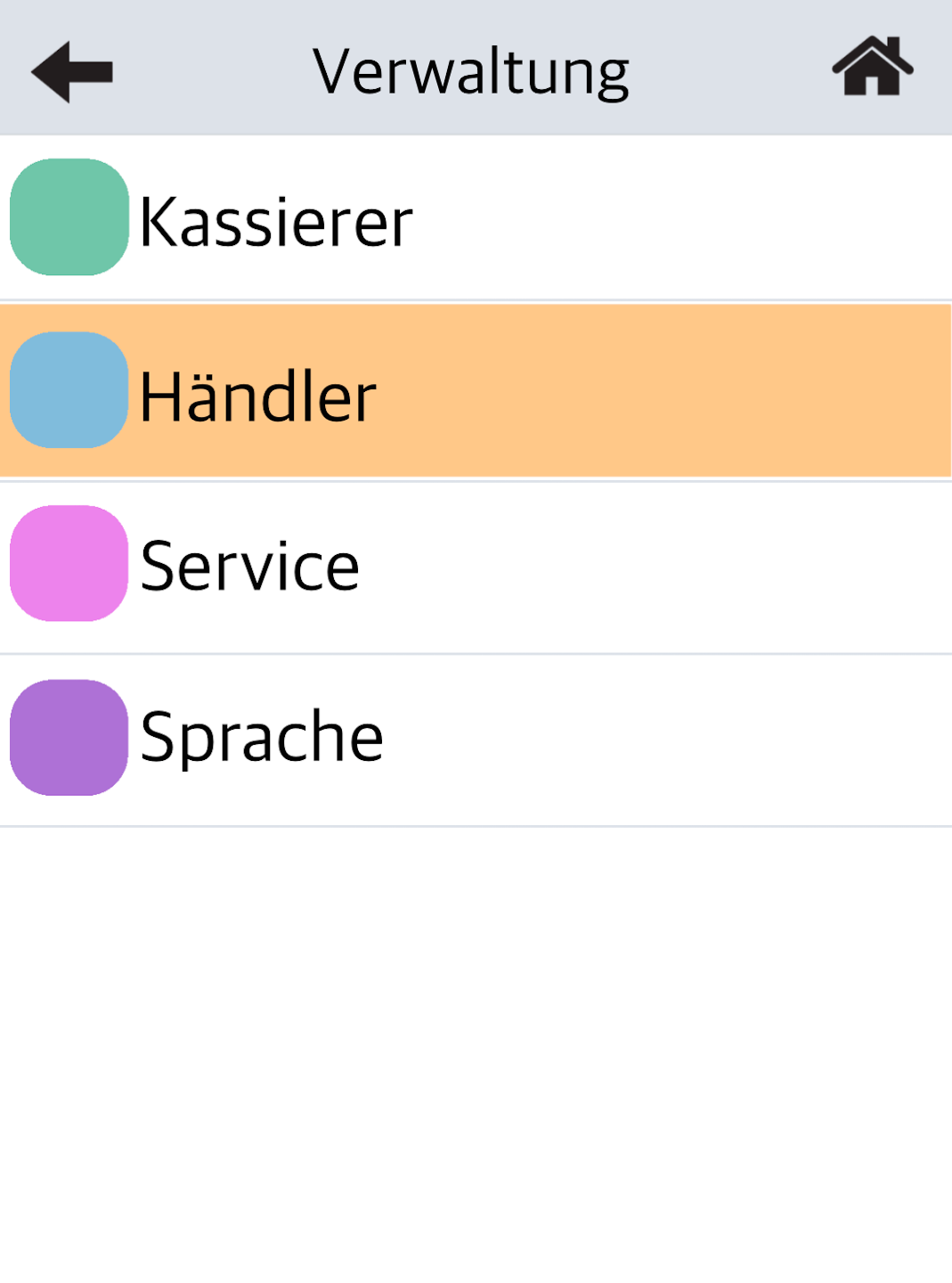
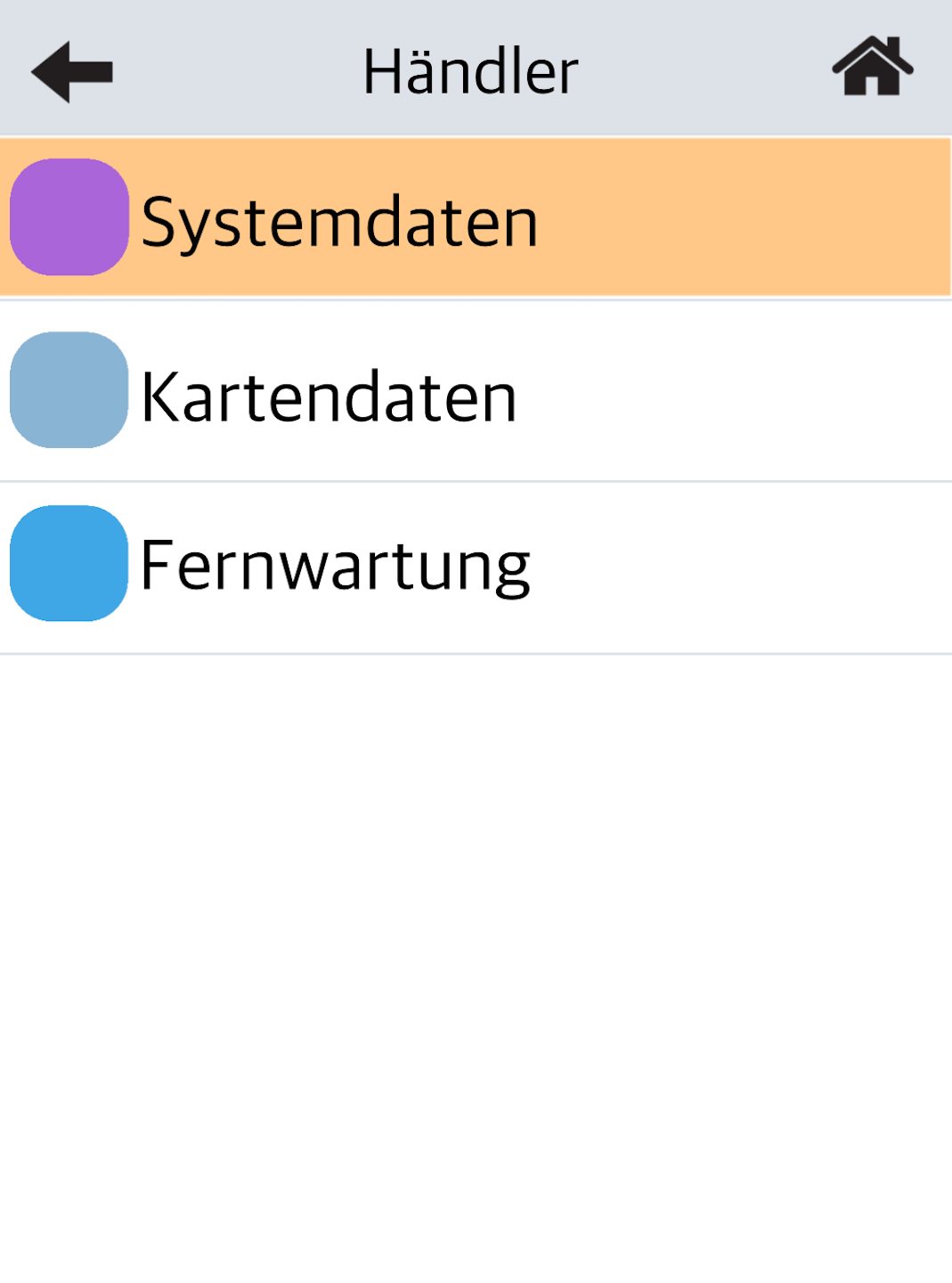
Merchant Selection
Please select Händler here.
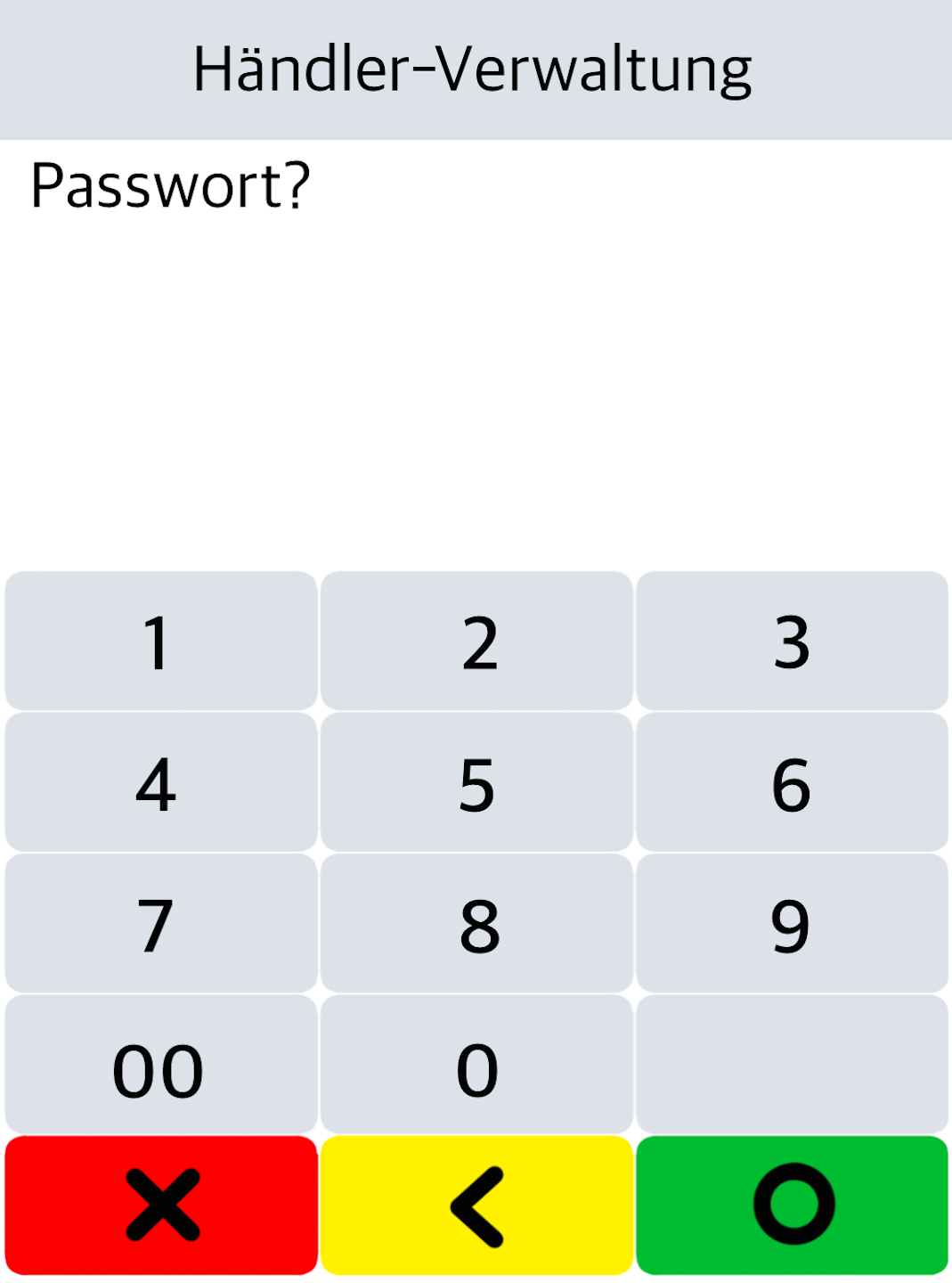
Password
Please enter your 6-digit merchant password and confirm the entry with the green OK button.
System Data
Select the menu item System Data here.
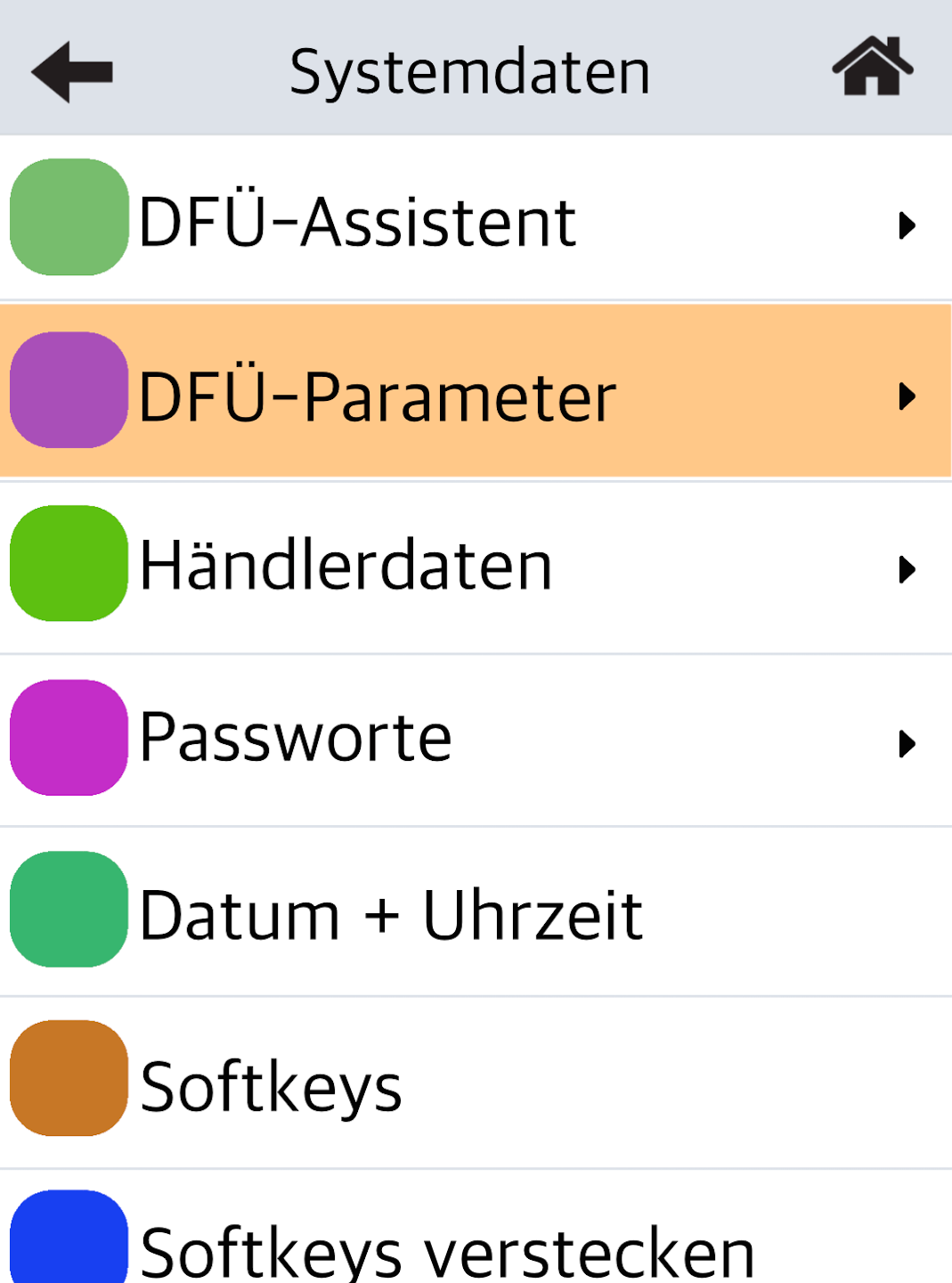
Dial-Up Parameters (DFÜ-Parameter)
To view the IP data, please tap the menu item DFÜ-Parameter.
Select your connection type:
LAN – wired via a network cable
WLAN – mobile connection via WLAN network
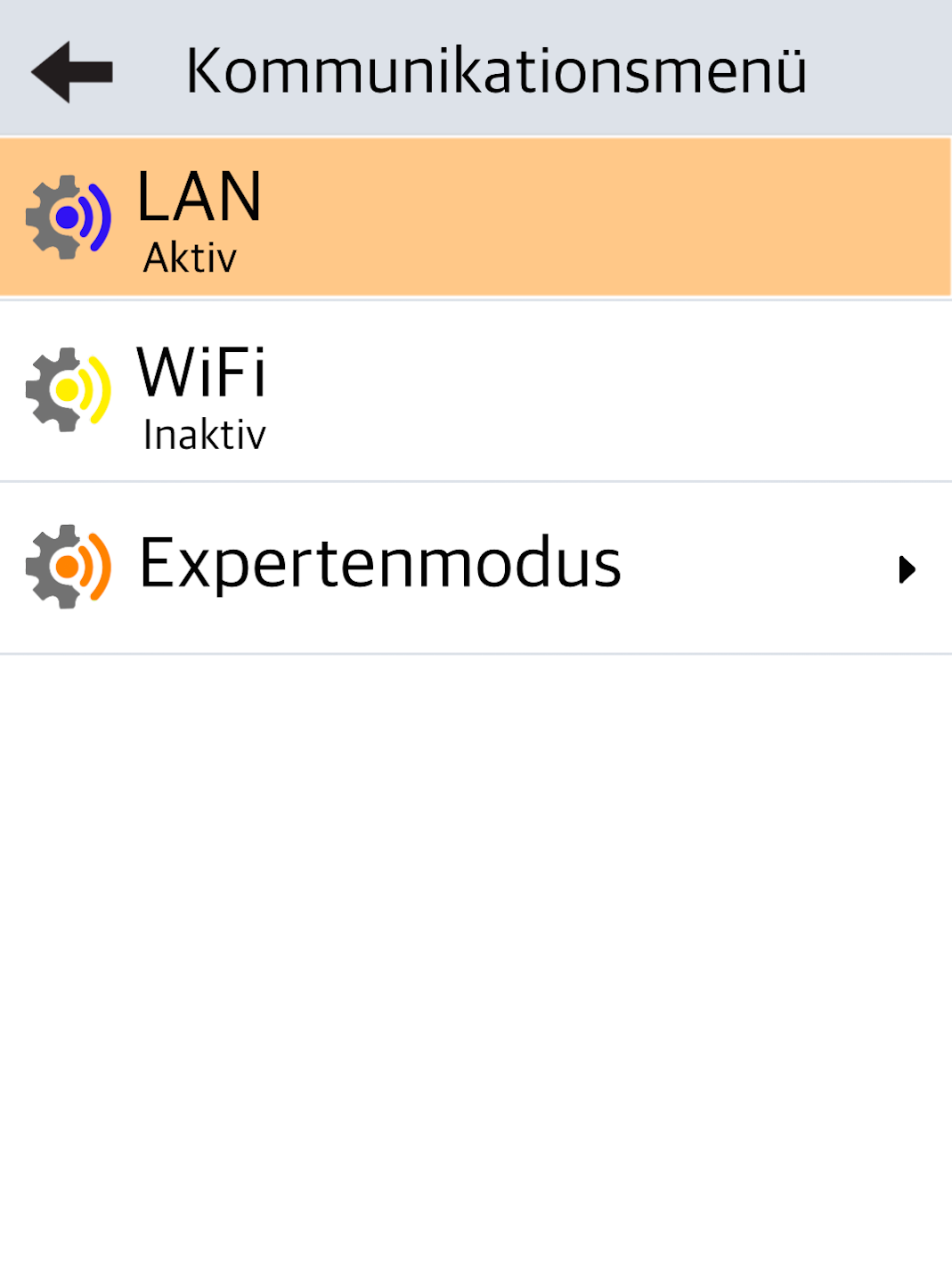
Connection Type LAN
If you are using a wired LAN connection, please tap LAN.
The connection must be active.
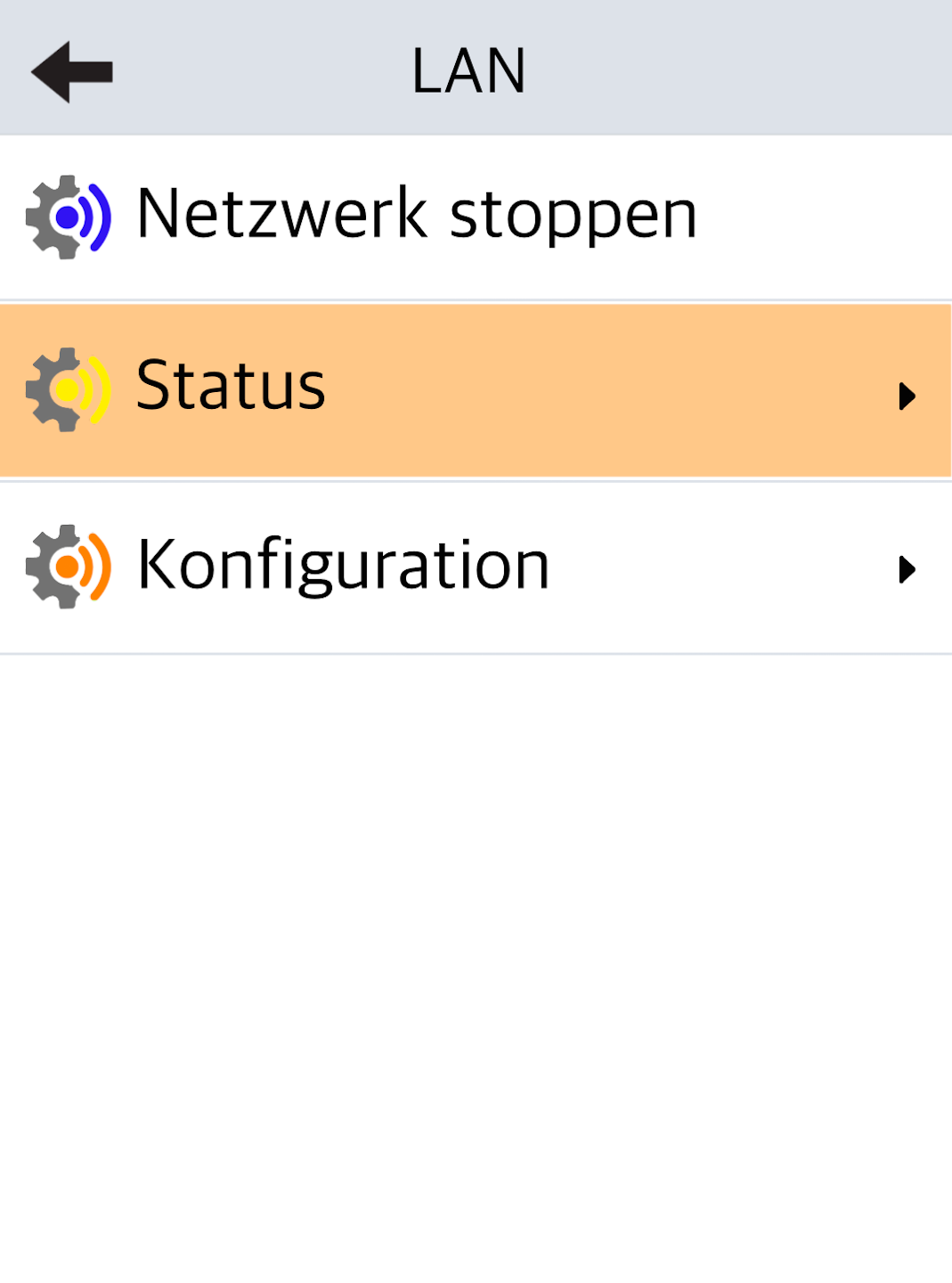
Status
Please select Status.
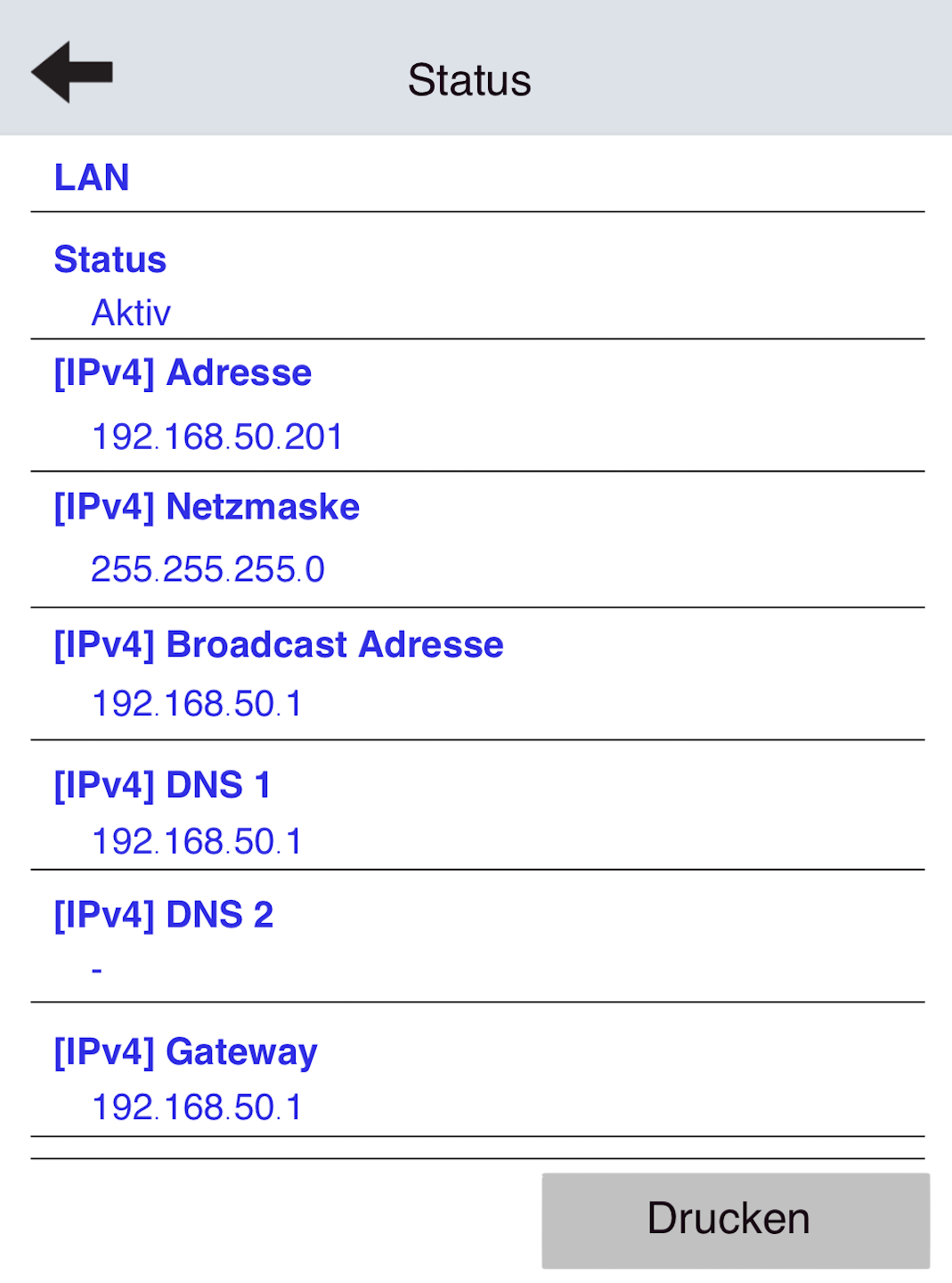
The IP data from your LAN network will now be shown on the display for your card reader.
To print, please select the Print button.
Connection Type WLAN
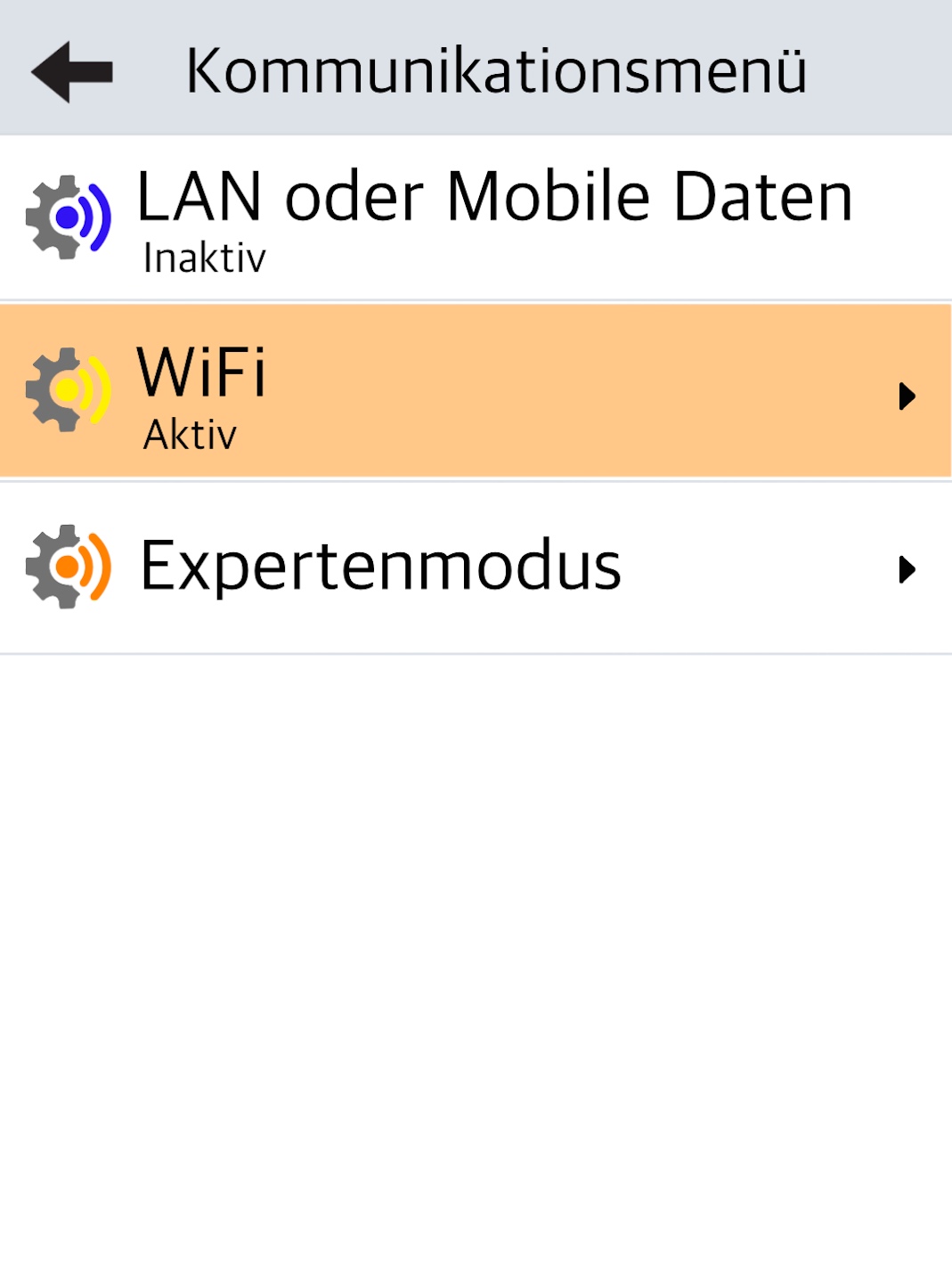
If you are using a mobile WLAN connection, please tap WLAN.
The connection must be active.
Status
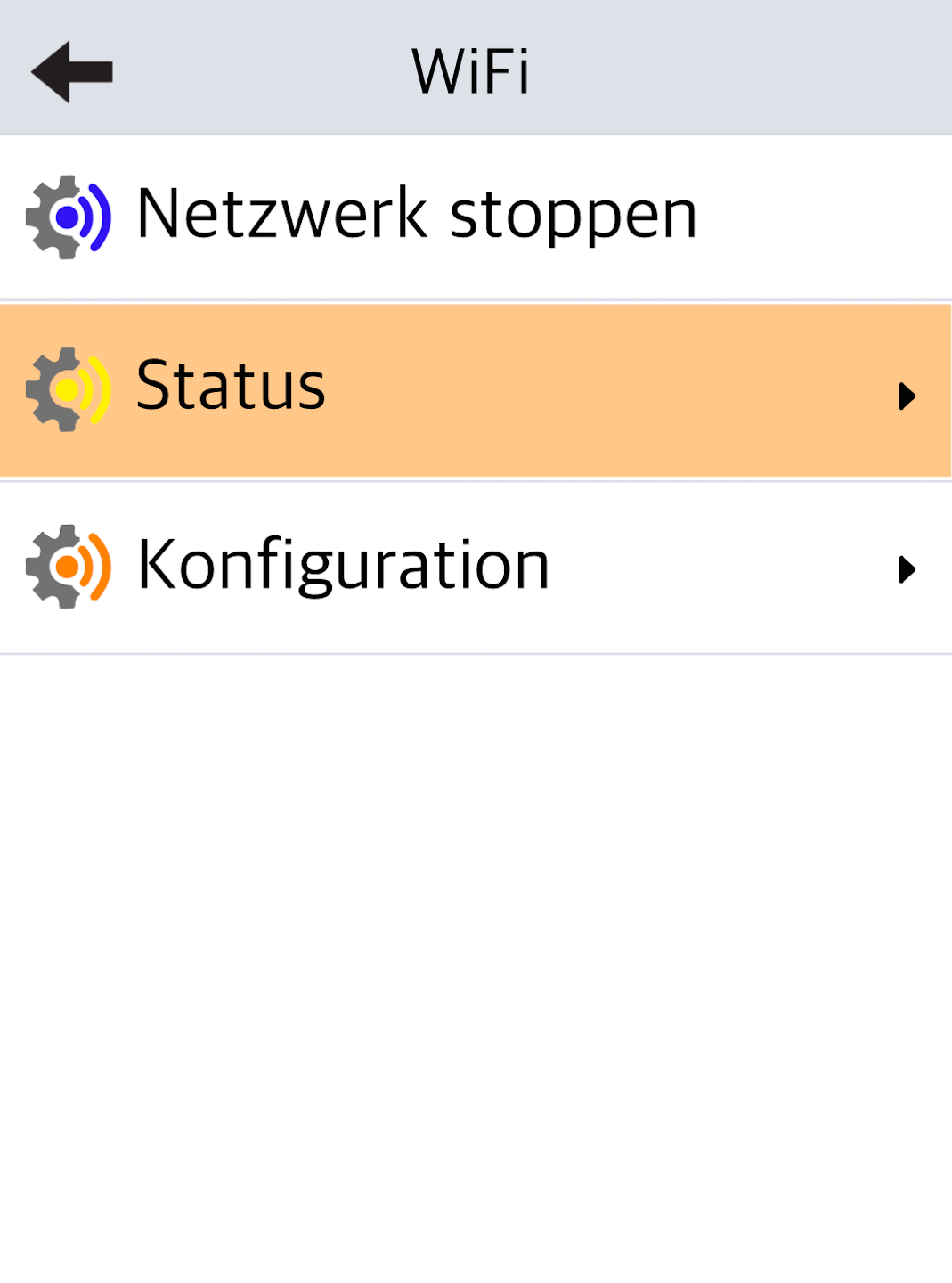
Please select Status.
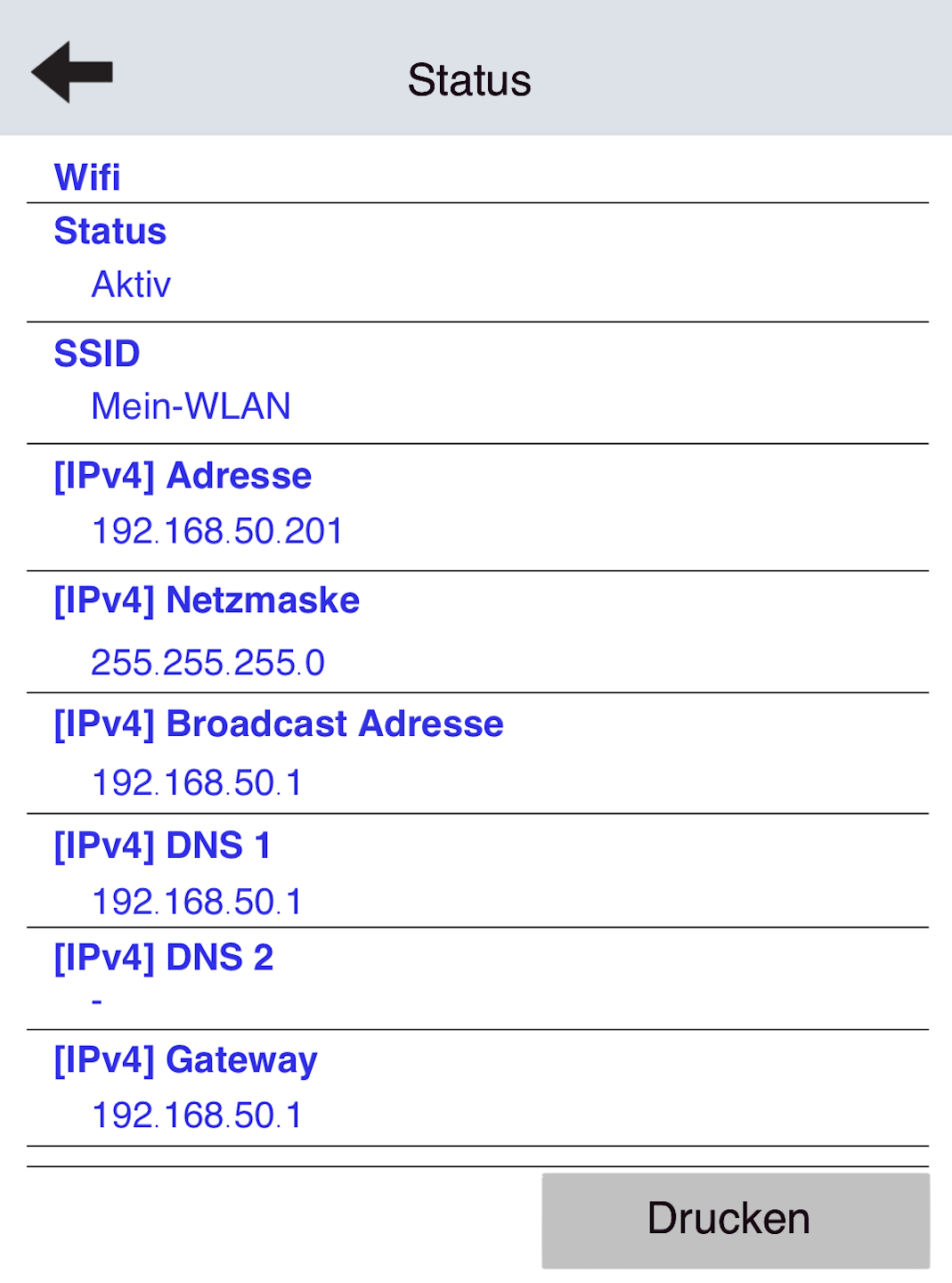
The IP data from your WLAN network will now be shown on the display for your card reader.
To print, please select the Print button.
Was this article helpful?
That’s Great!
Thank you for your feedback
Sorry! We couldn't be helpful
Thank you for your feedback
Feedback sent
We appreciate your effort and will try to fix the article
