Creating and Linking Checkout Questions
Modified on Mon, 16 Feb at 10:12 AM
In this article, we will show you how to create checkout questions and link them to items.
This feature is useful, for example, if you want to remind your staff to inform customers about a special offer when selling a specific item.
Step 1: Create Your Checkout Questions
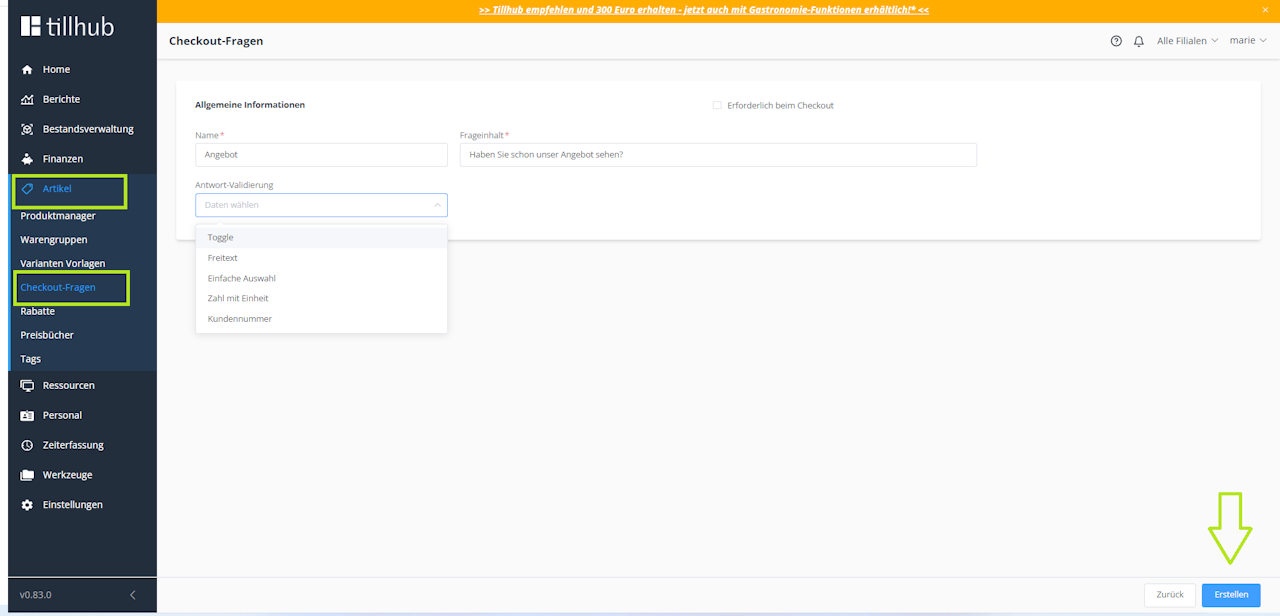
• Navigate to Items > Checkout Questions
• Click “+ New”
• Give your checkout question a name
• Formulate the question
• Select the validation option (the checkout question will only disappear at the POS after it has been confirmed in the selected way)
• Finally, click “Create”
Step 2: Link the Checkout Question to an Item
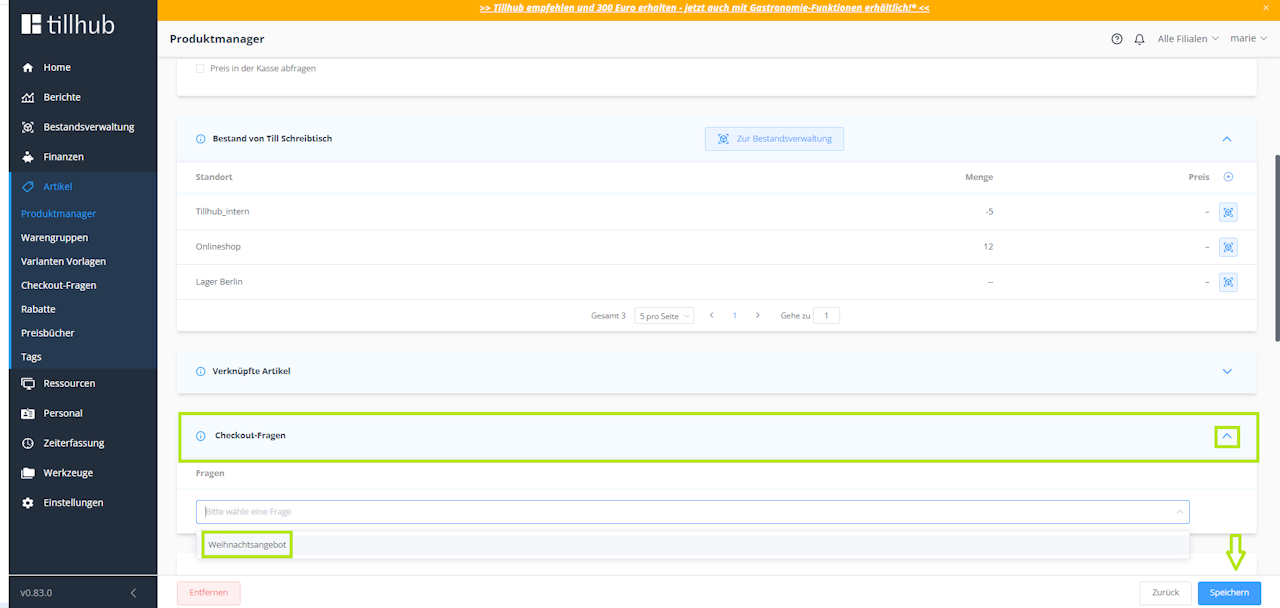
• Open the item you want to link the checkout question to in the Product Manager
• Scroll to Checkout Questions and open the drop-down menu
• Click Save
Step 3: Validate the Checkout Question at the POS
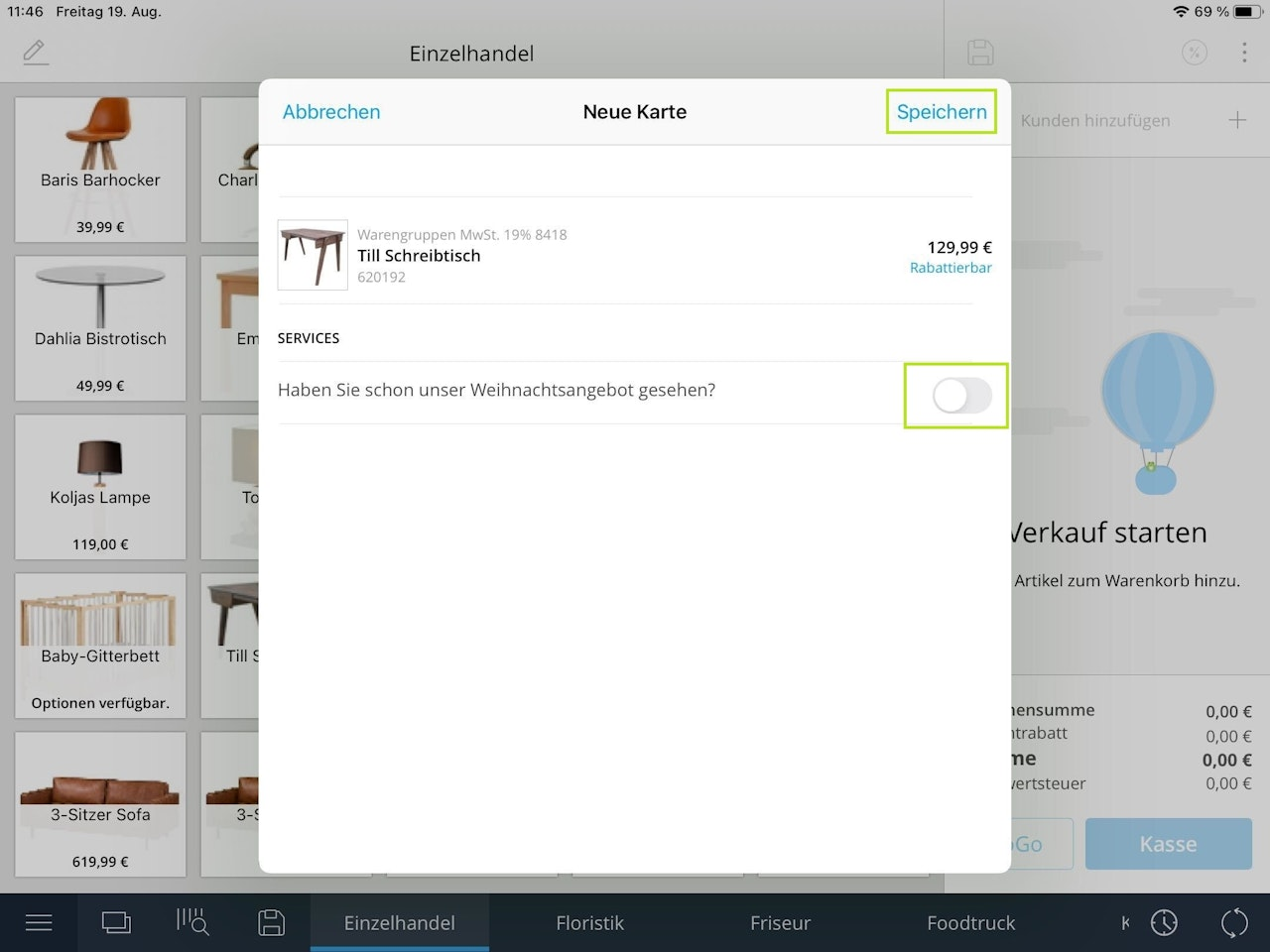
• When you tap the linked product at the POS, a pop-up window with the checkout question will appear
• The product will only be added to the cart after the checkout question has been validated and you tap SaveCreating and Linking Checkout Questions
Was this article helpful?
That’s Great!
Thank you for your feedback
Sorry! We couldn't be helpful
Thank you for your feedback
Feedback sent
We appreciate your effort and will try to fix the article
