History
Modified on Mon, 8 Jun at 9:58 AM
To view a sale in the OrderPro app, first open the app and tap the three lines in the top left corner to open the menu. Then go to "History", where all previous sales are displayed.
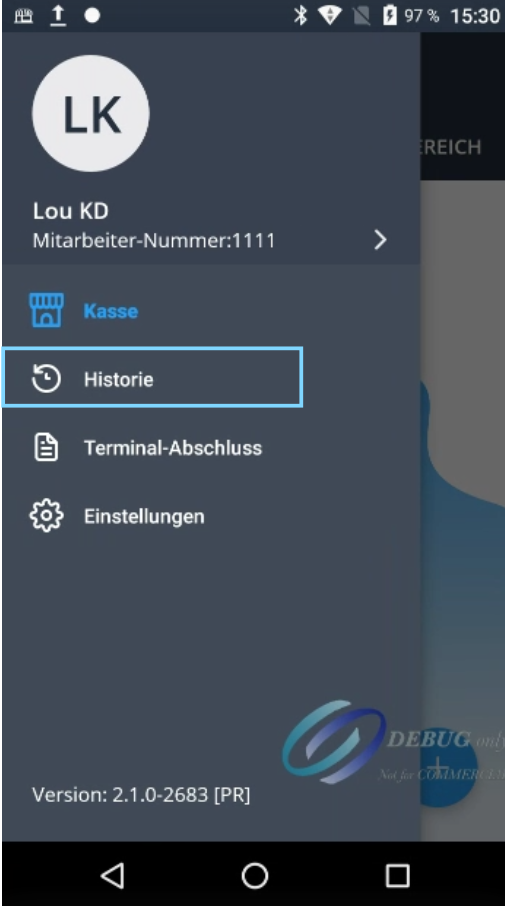
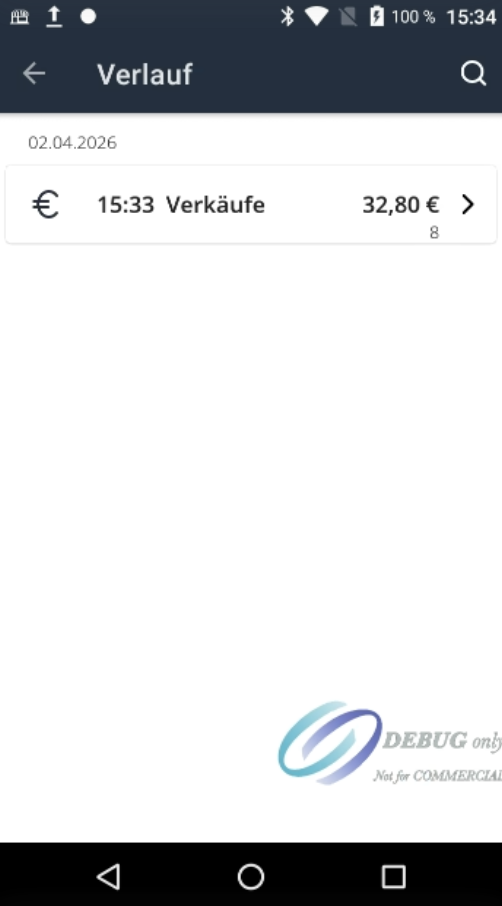
Tap on the desired sale to view more details. Here you can see the receipt number, the employee who processed the sale, the amount paid, the payment method, and the items sold. If a customer wants a refund, tap "Refund" at the bottom.
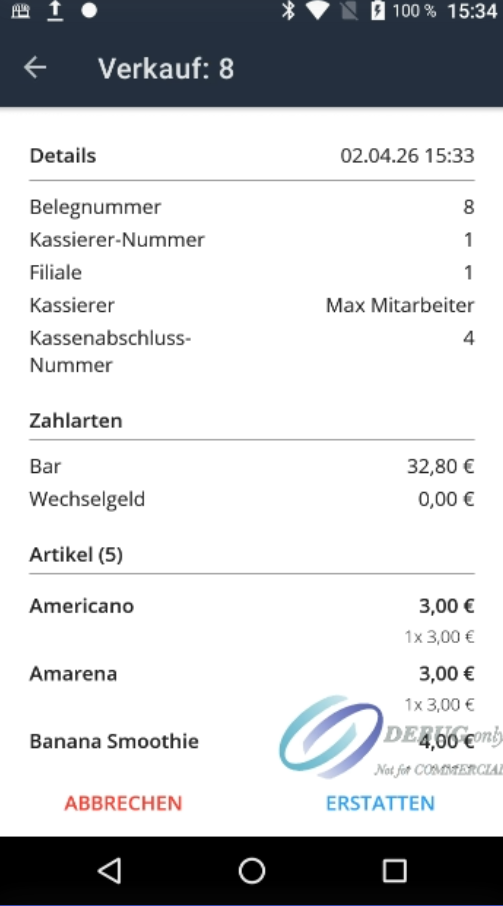
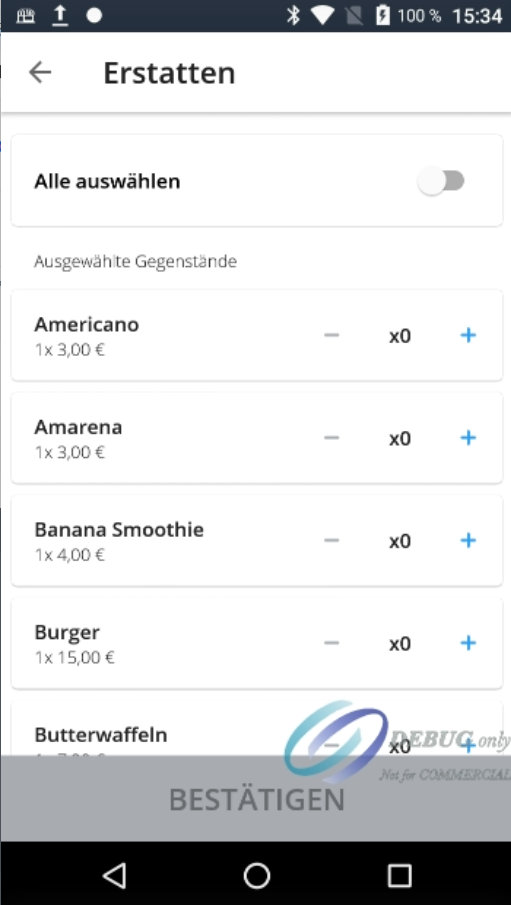
All items from the purchase will be displayed. For the item to be refunded, tap the plus sign to set the number of items to be refunded.
Example: If the item "Burger" was sold twice and both items are to be refunded, tap the plus sign twice.
If you want to refund the entire purchase, tap "Select All" at the top. Then select "Confirm" at the bottom.
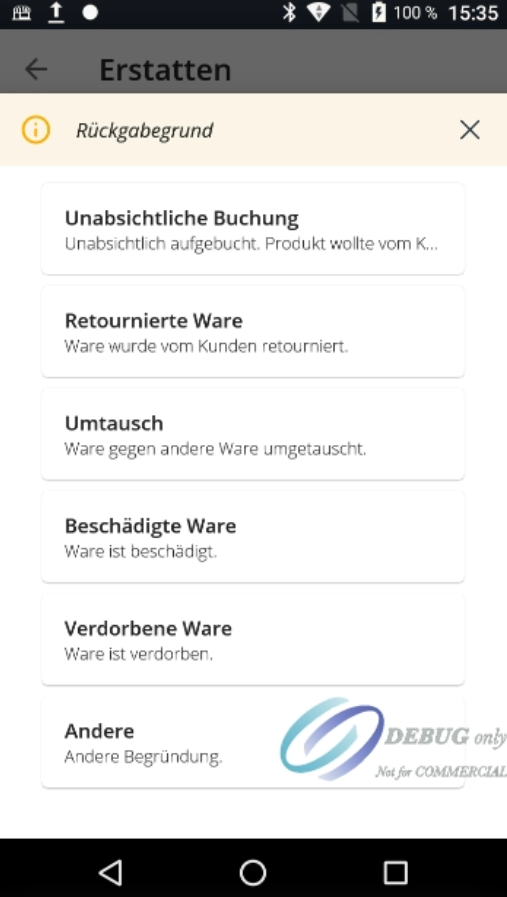
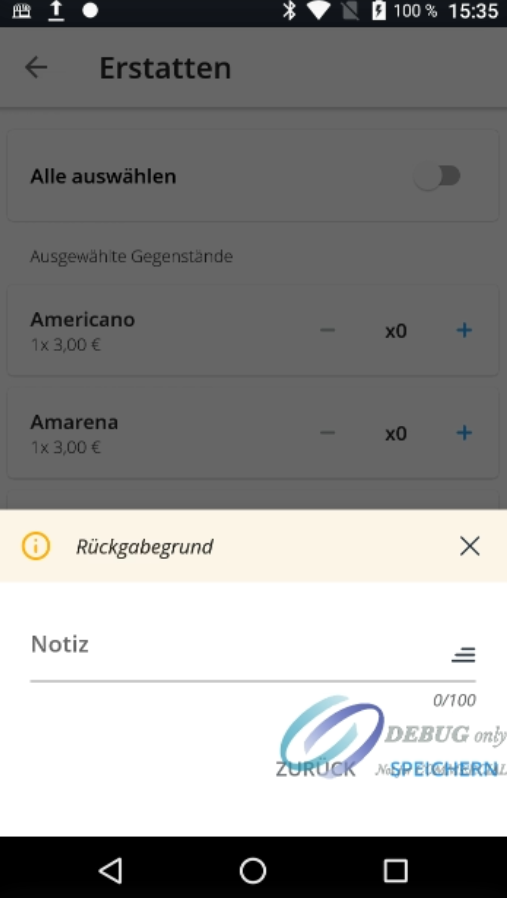
Now select the reason for the return from the suggested options. Optionally, you can add a note.
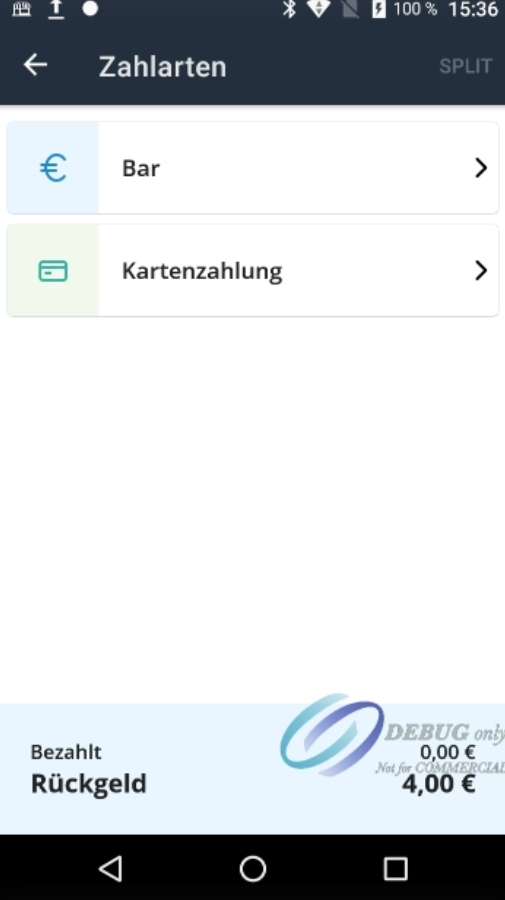
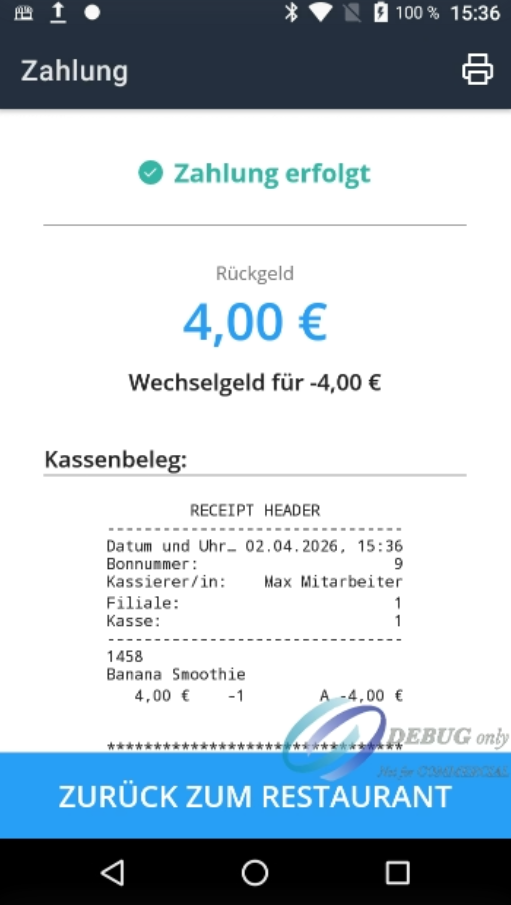
After that, select the payment method through which the customer should receive their refund. Once the refund is complete, you will receive a receipt, which you can print in the top right corner. Tap "Back to Restaurant" to return to the main screen of the app.
Was this article helpful?
That’s Great!
Thank you for your feedback
Sorry! We couldn't be helpful
Thank you for your feedback
Feedback sent
We appreciate your effort and will try to fix the article
