Payment Links - LinkPay (UnzerOne Dashboard)
Modified on Tue, 20 Oct at 12:03 PM
Payment links let you take payments without your own online shop or checkout page, or alongside it. You create a link for an order and send it to your customer by email, SMS or another channel. The customer opens the link and pays on a checkout page hosted by Unzer, using the payment methods you choose. You can also set default link settings and customise how the checkout page looks.
Note: Users with the Administrator, Operations Manager and Sales roles can view and create payment links and change the payment link settings. Users with the Sales role cannot see linked orders.
TABLE OF CONTENTS
- View your payment links
- Create a payment link
- Share a payment link again
- Track a paid payment link
- Open the linked order
- Set default link settings
- Customise your checkout page
View your payment links
- Go to Orders > Payment links.
- The list shows all payment links you have created. For each link, you can see:
- Created at and Last updated
- Branch name
- Type: Single-use or Multi-use
- Created by
- Description
- Amount
- Customer email
- Status
- Linked order
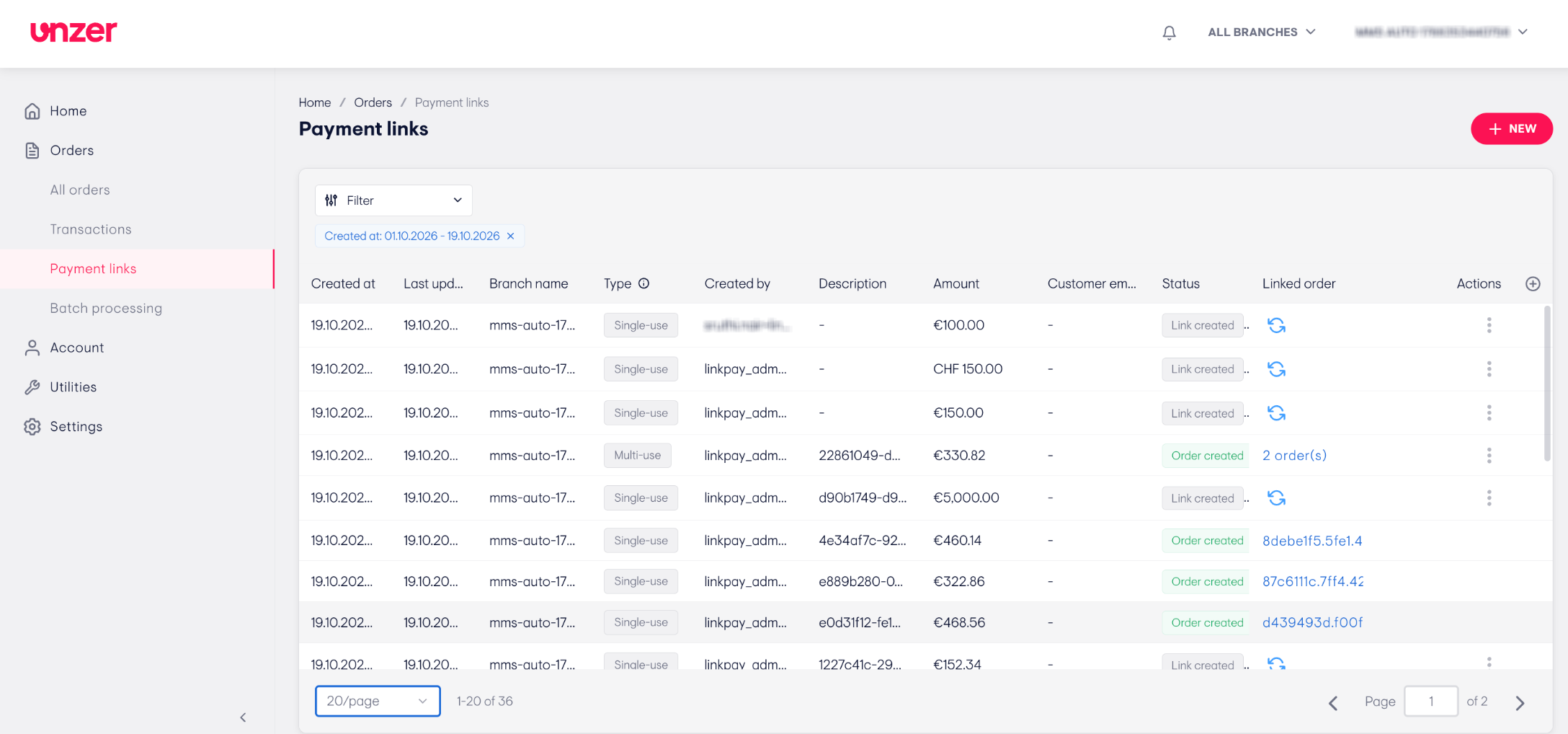
Note: A payment link can have these statuses:
- Link created: the link is active and waiting for payment.
- Order created: a customer completed checkout and the payment succeeded.
- Link Expired: the expiration date has passed and the link can no longer be used.
Note: You cannot edit or delete a payment link after you create it.
Note: Users with the Sales role cannot view Linked order.
Create a payment link
1. Open the create form
- Go to Orders > Payment links.
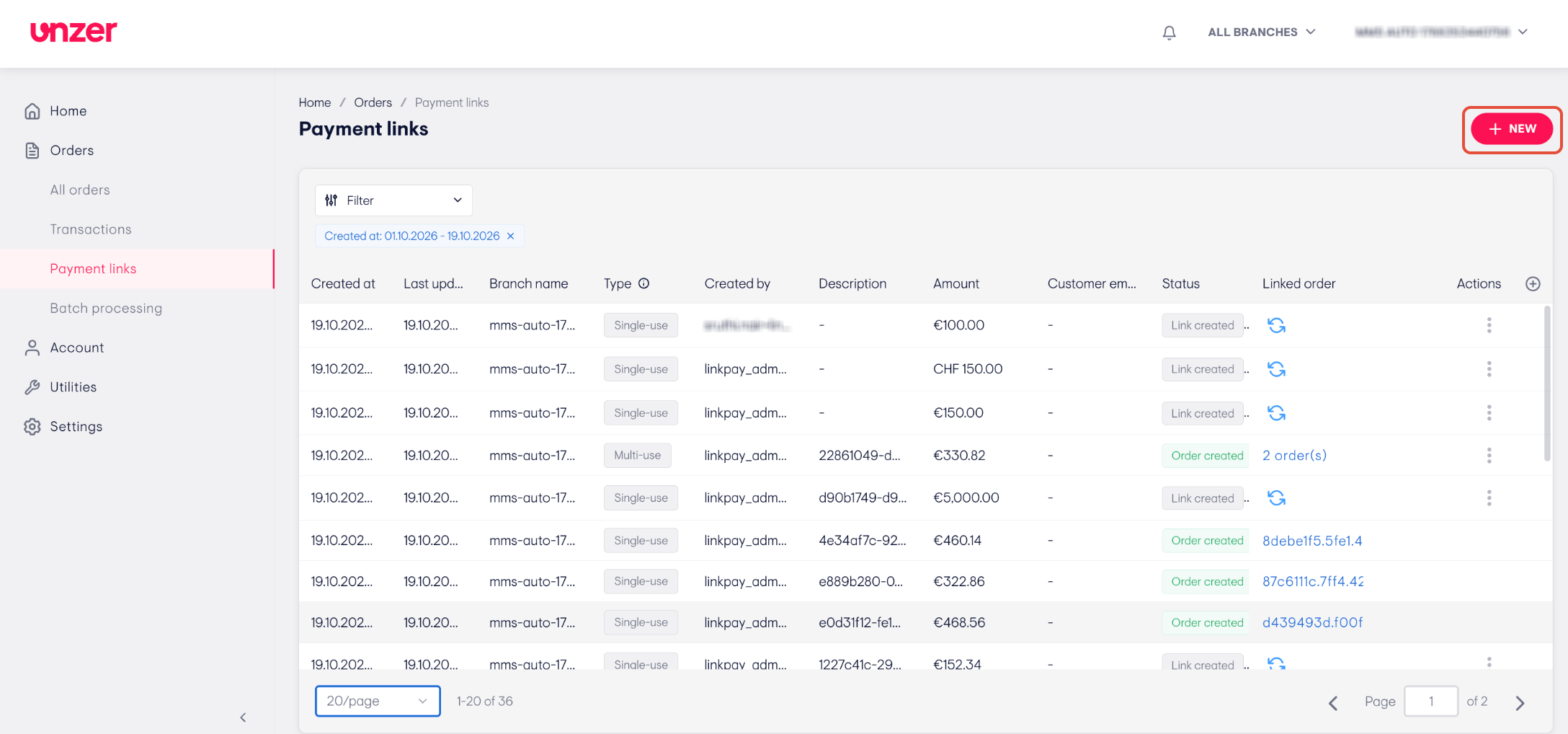
- Click + NEW.
- The Create payment link form opens.
2. Choose the branch and link settings
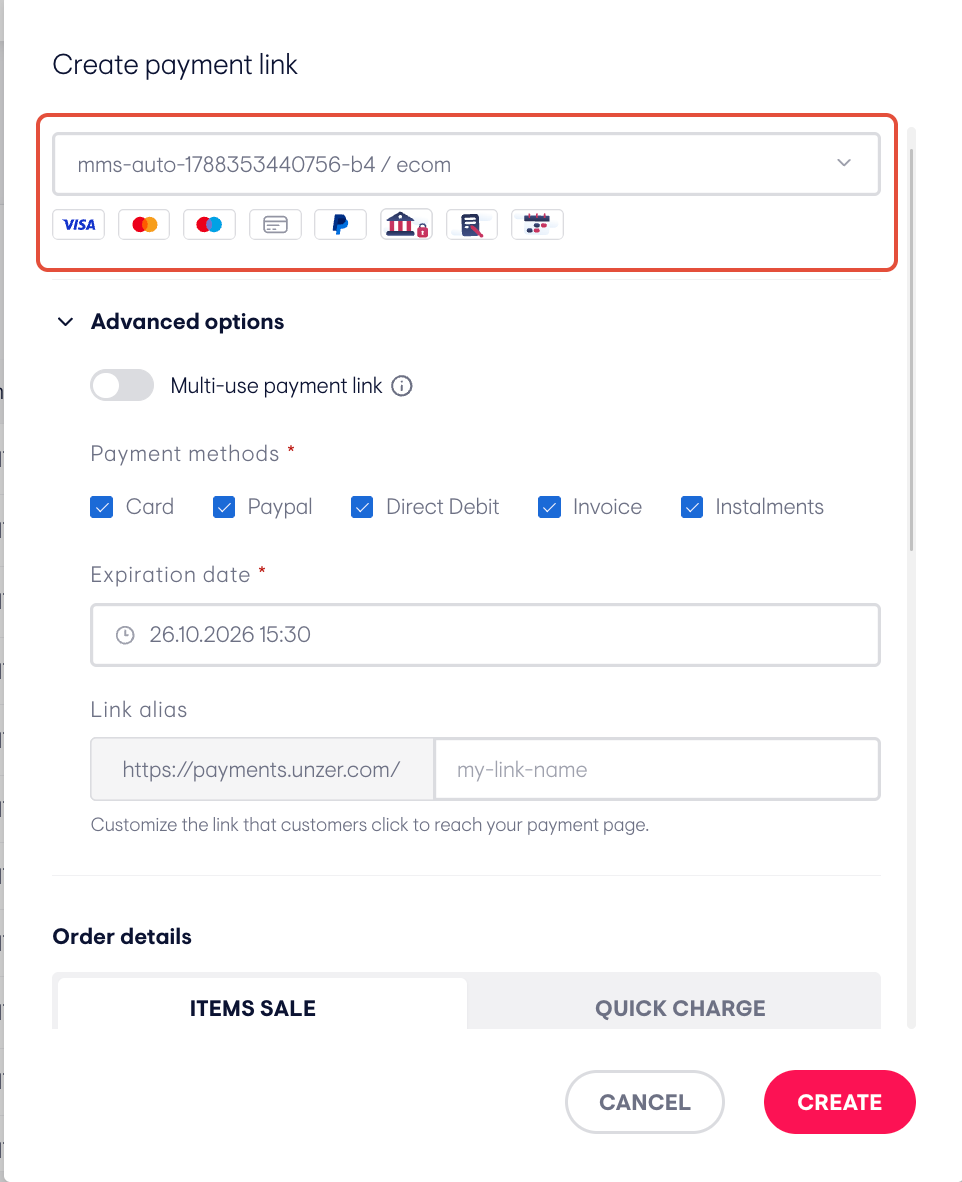
- Select a Branch. If the branch has more than one keypair, each one is shown as a separate option. Select the one you want to use.
- The icons below the field show the payment methods available for your selection.
- Click Advanced optionsto change the default settings:
- Multi-use payment link: switch on to let more than one customer use the link for multiple payments.
- Payment methods: clear the checkbox of any payment method you do not want to offer.
- Expiration date: the date and time the link stops working.
- Link alias: enter a unique custom name to personalise the link address your customer sees.
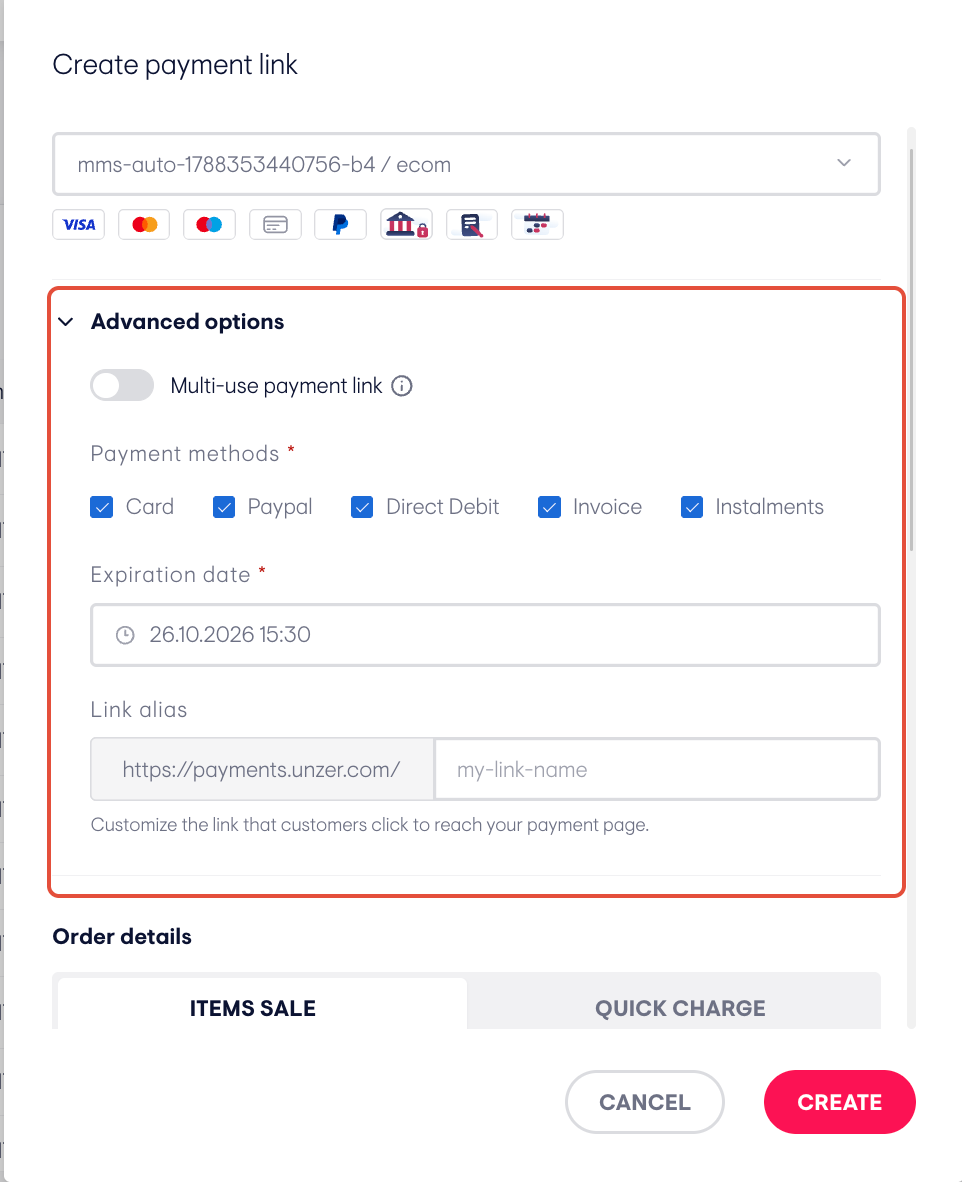
Note: The default expiration date and the default link type come from your payment link settings. By default, links are single-use and valid for 7 days. To change these defaults, see Set default link settings.
3. Add the order and customer details
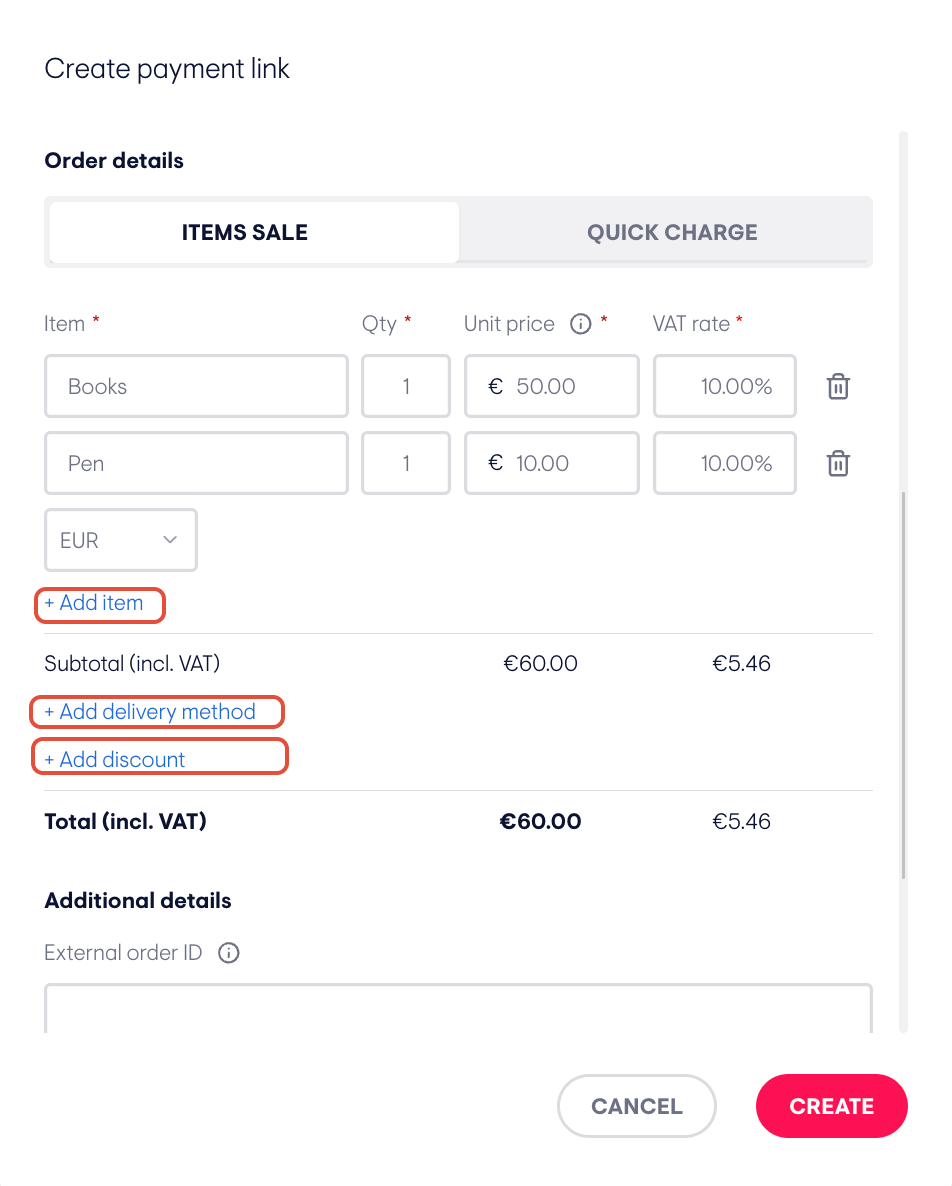
Under Order details, select one of these options:Option 1: ITEMS SALE
- Enter the Item, Qty, Unit price and VAT rate, and select the currency.
- Click + Add item to add more items, or click the bin icon to remove one.
- Optionally, click + Add delivery method or + Add discount. Check the Total (incl. VAT).
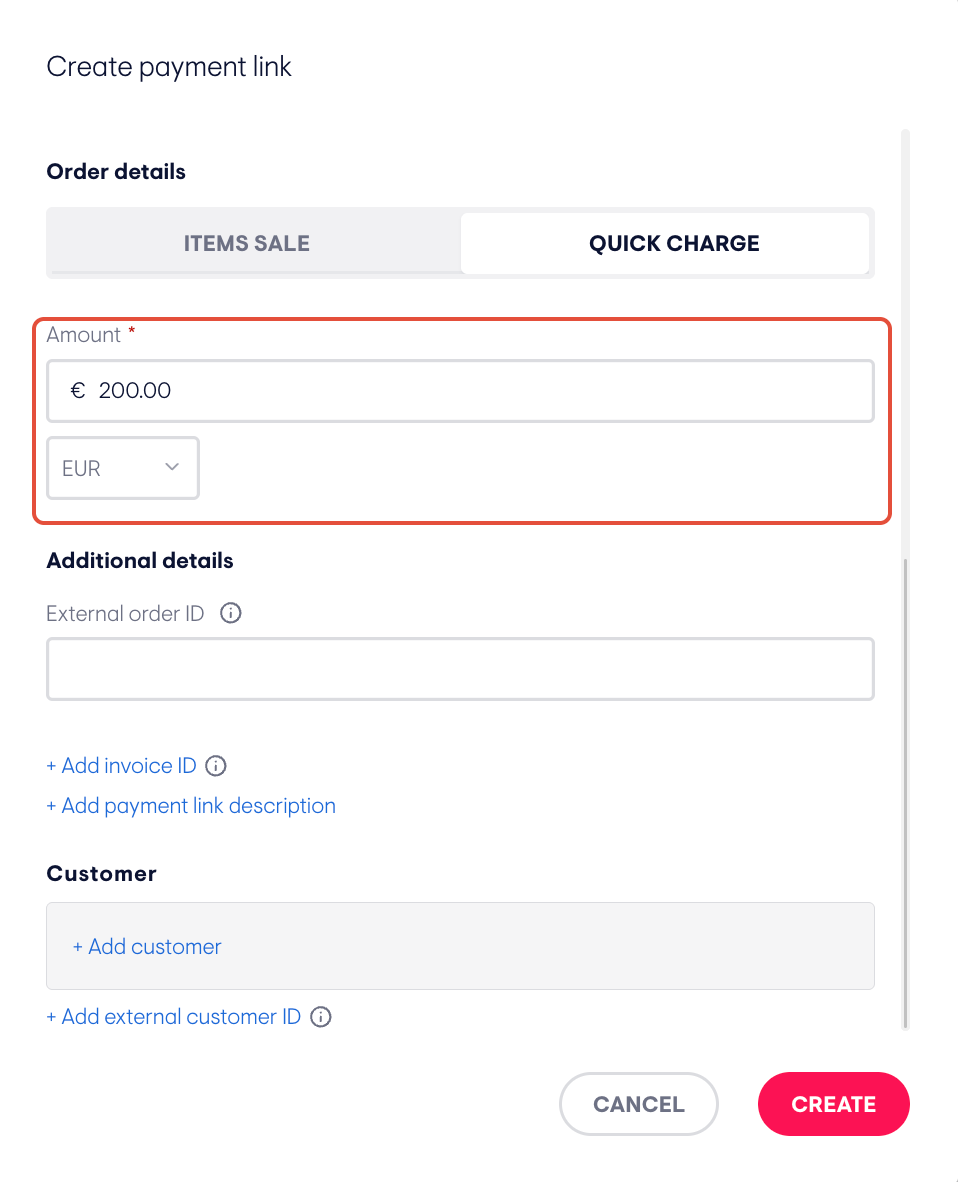
Option 2: QUICK CHARGE
- Enter the Amount and select the currency. Use this when you do not need to list individual items.
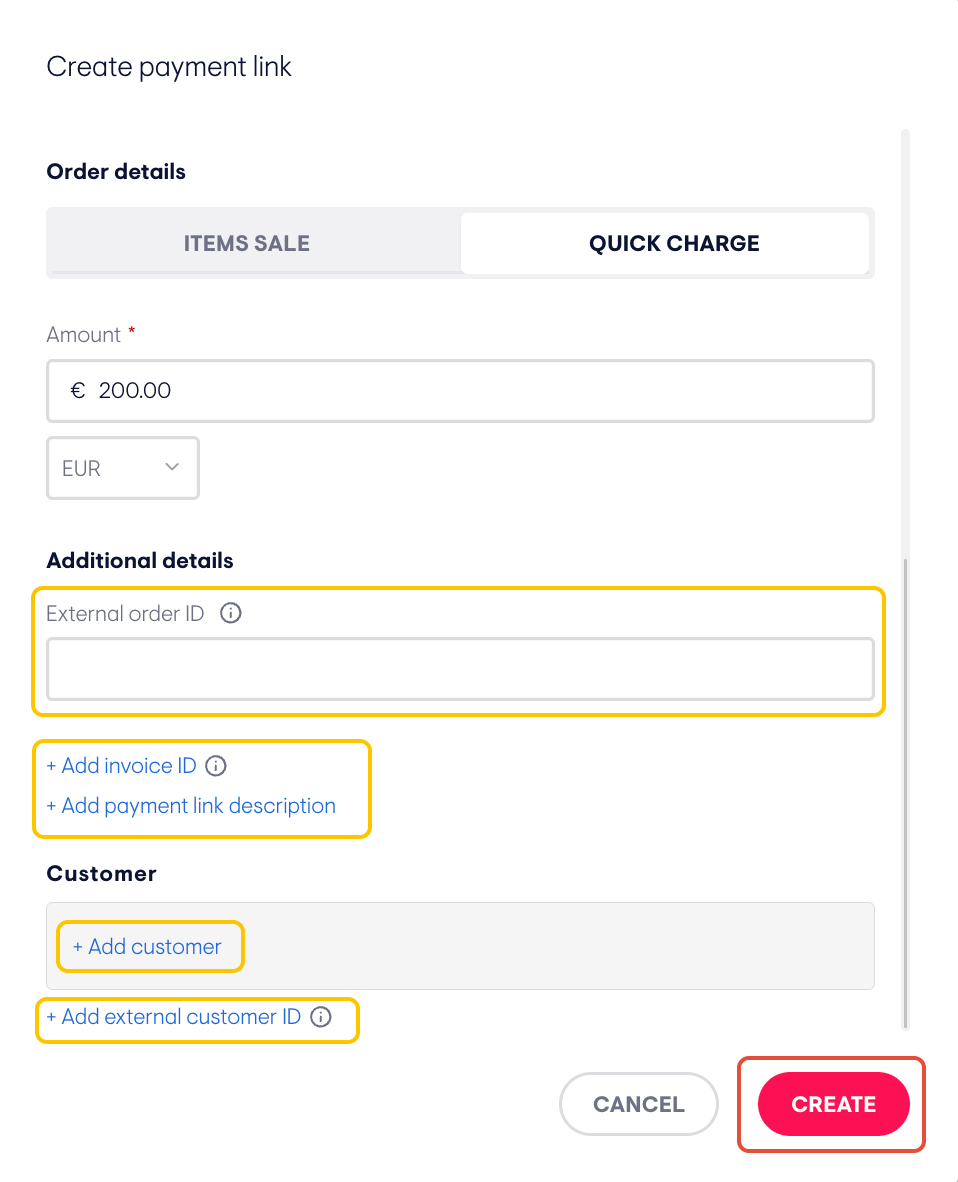
- Under Additional details, optionally enter an External order ID, or click + Add invoice ID or + Add payment link description.
- Under Customer, optionally click + Add customer or + Add external customer ID.
- Click CREATE.
4. Share the link with your customer
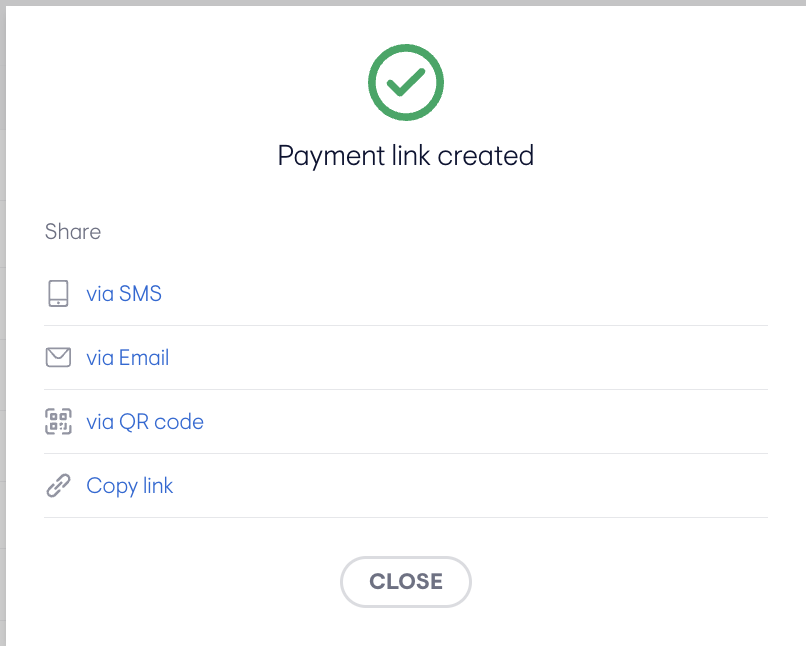
- A pop-up opens with these options:
- Copy the link
- Send the link by SMS
- Send the link by email
- Show a QR code for the customer to scan
- Choose the option you need.
5. Check the new link in the list
- Click Close to close the pop-up.
- The new link appears in the list with the status Link created.
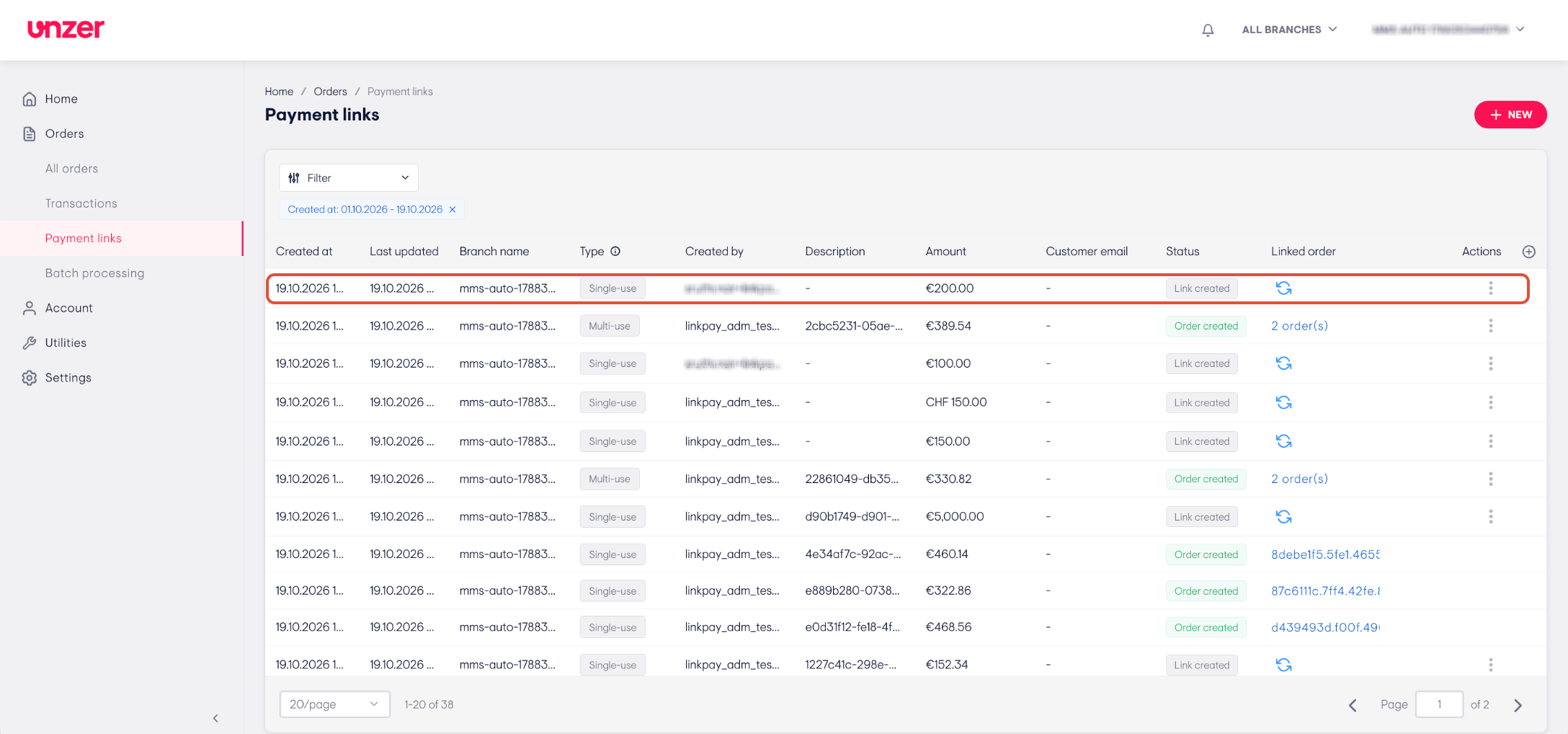
Note: The link expires when the expiration date has passed. After that, your customer can no longer pay with it and the status changes to Link Expired.
Share a payment link again
- Go to Orders > Payment links.
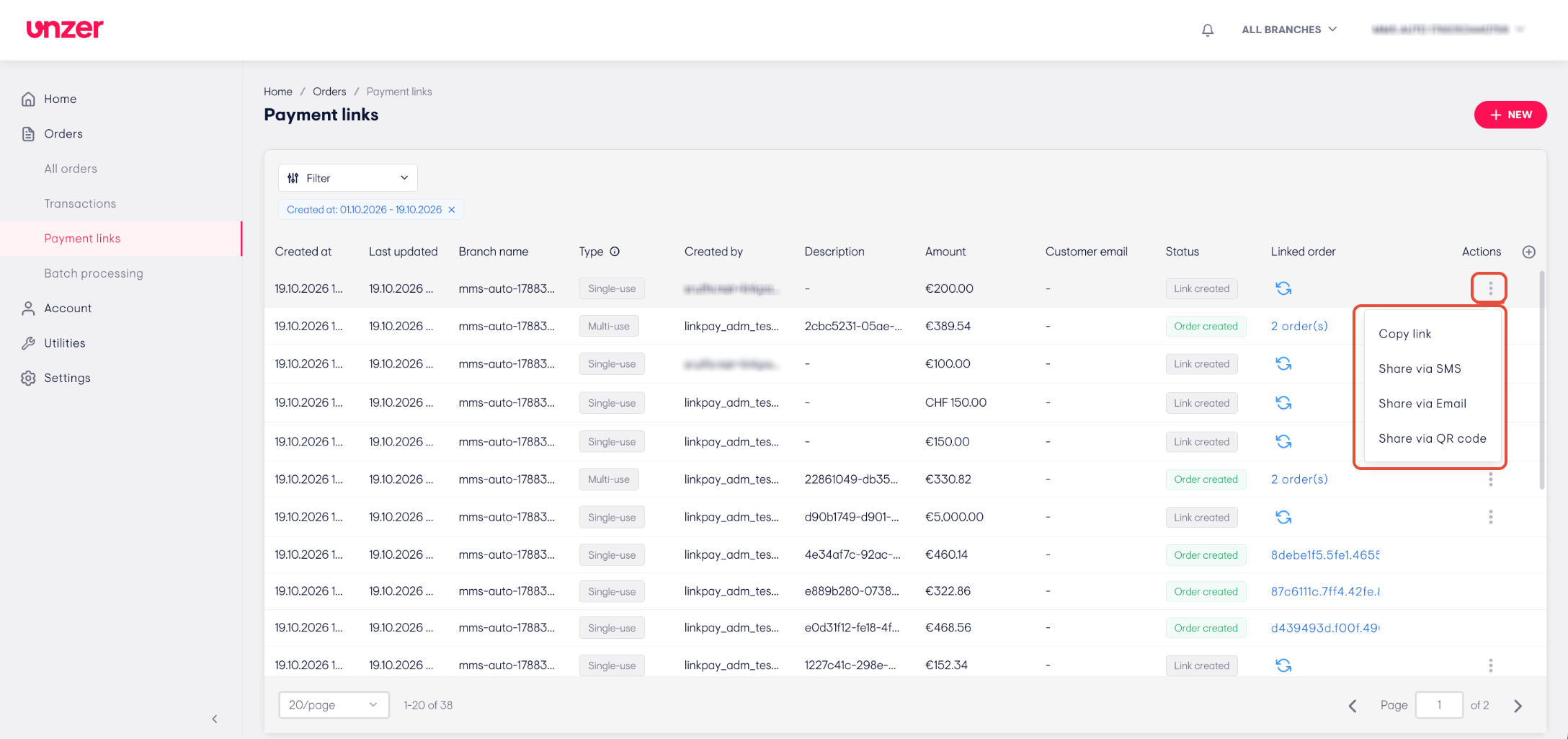
- In the row of the link, click the three-dot icon in the Actions column.
- Choose Copy link, Share via SMS, Share via Email or Share via QR code.
Track a paid payment link
- Go to Orders > Payment links.
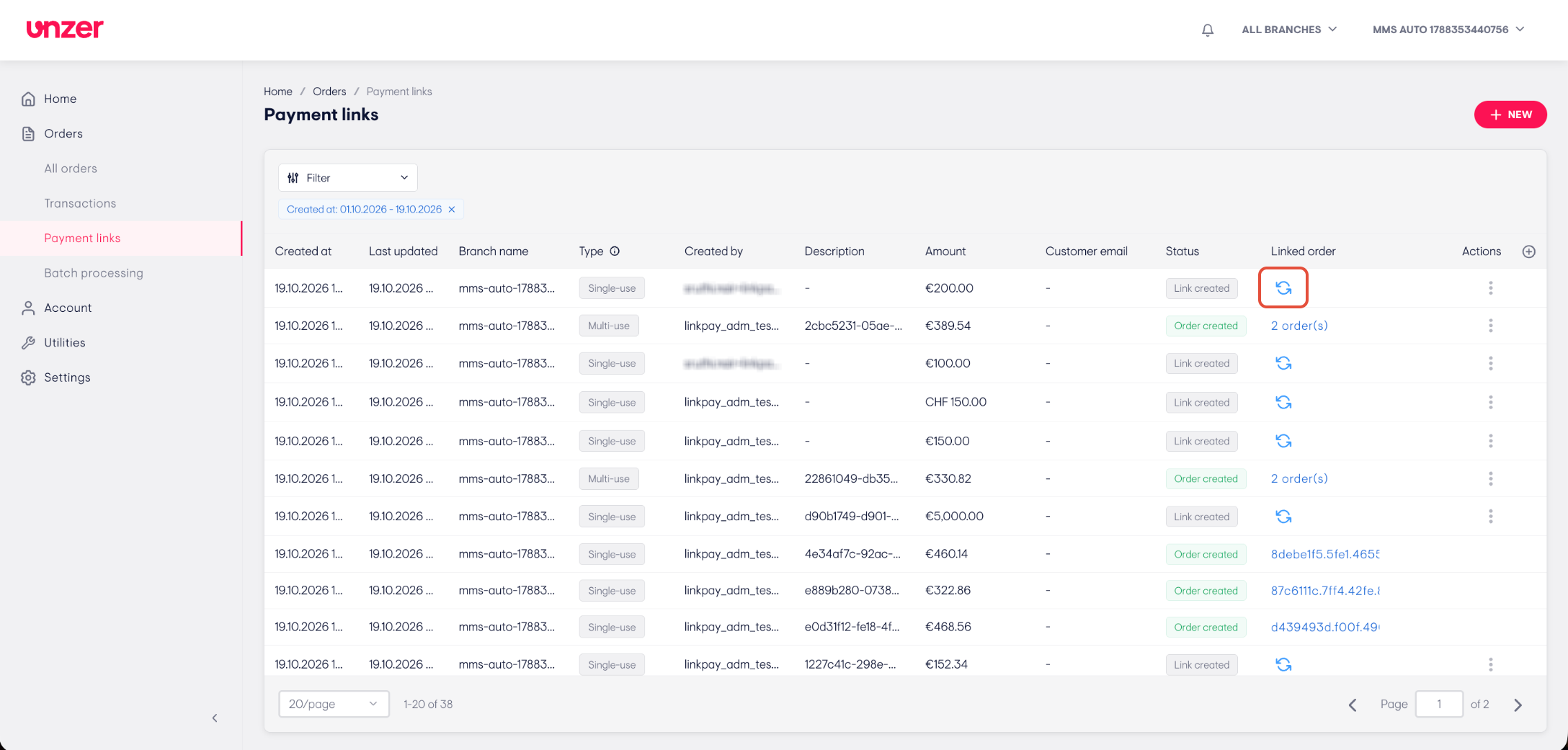
- If no customer has paid yet & the link has not expired, the Linked order column shows a refresh button. Click it to update the link status and check for new payments.
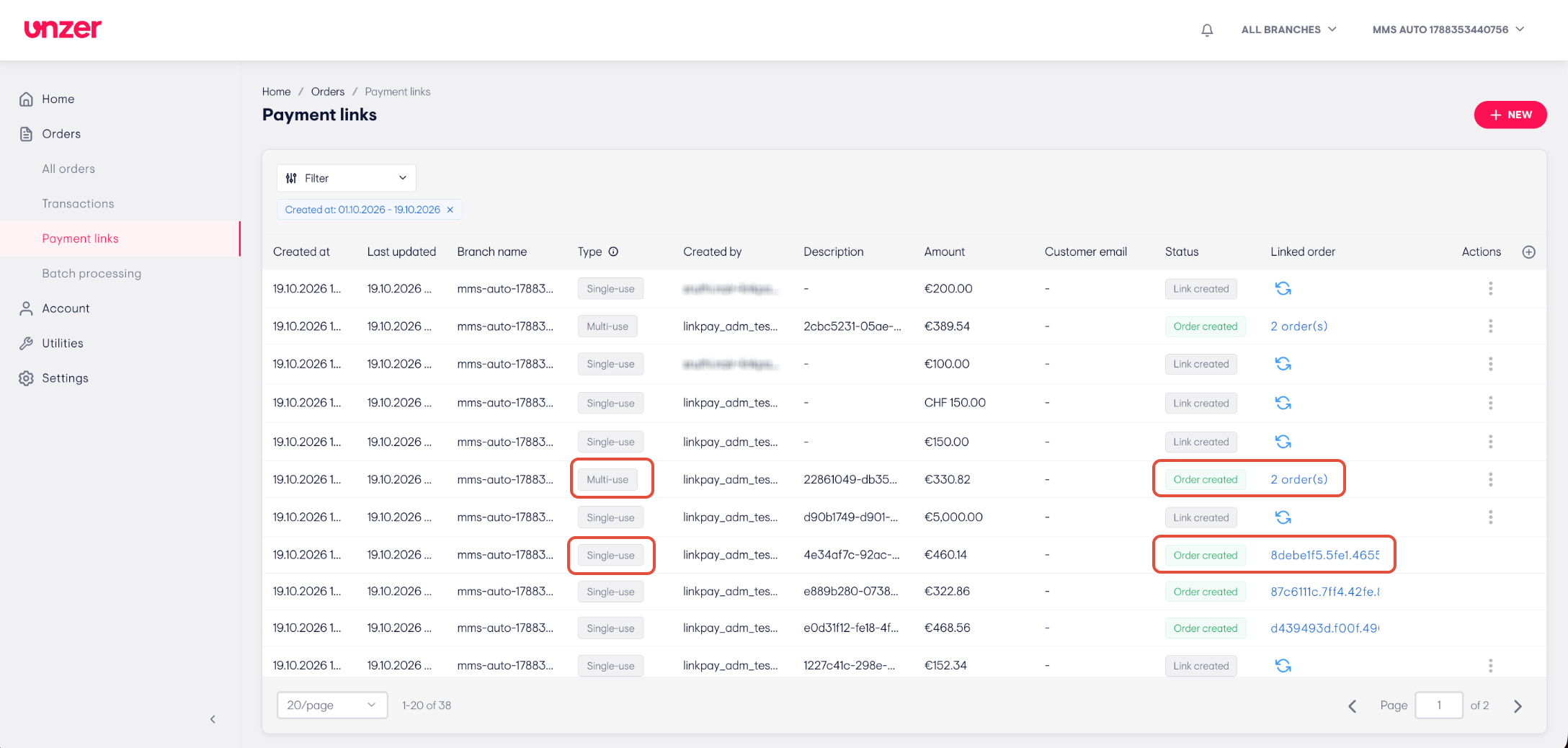
- When a customer has paid, the status changes to Order created and the Linked order column shows the order ID.
- For a multi-use link, the Linked order column shows the number of orders paid with the link, for example 2 order(s). The link stays usable until it expires.
Open the linked order
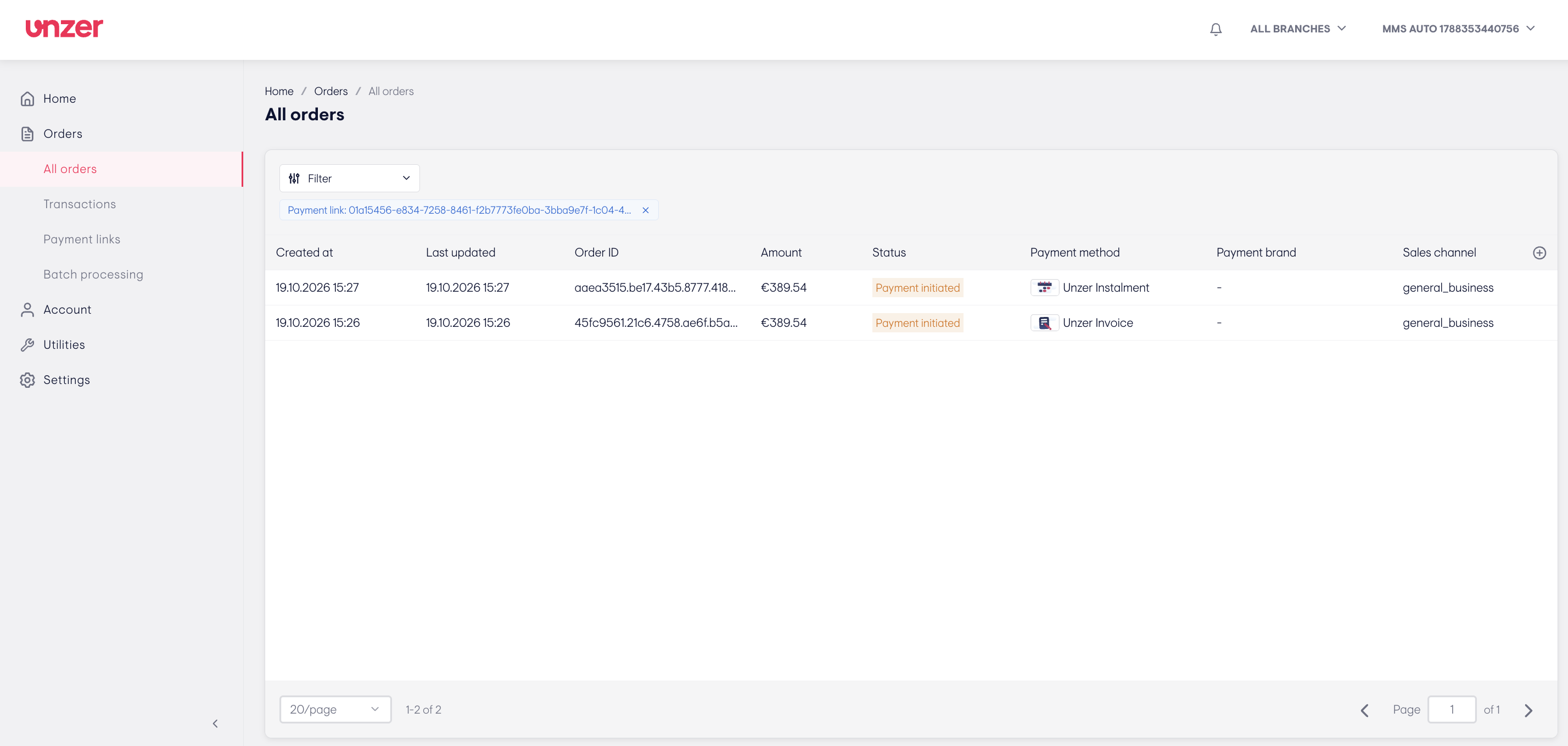
- Click the entry in the Linked order column.
- The All orders page opens, filtered to show the orders paid with this payment link. For a multi-use link, you see all orders paid with it.
- Open an order to capture, refund or cancel the payment.
Set default link settings
Open and edit the default settings
- Go to Settings > Payment links.
- On the General tab, under Defaults, set the values used for every new payment link:
- Link validity period: enter the number of days a new link stays valid. The default is 7 days.
- Link usage: select Single-use or Multi-use.
- Click SAVE. To undo your changes, click DISCARD CHANGES.
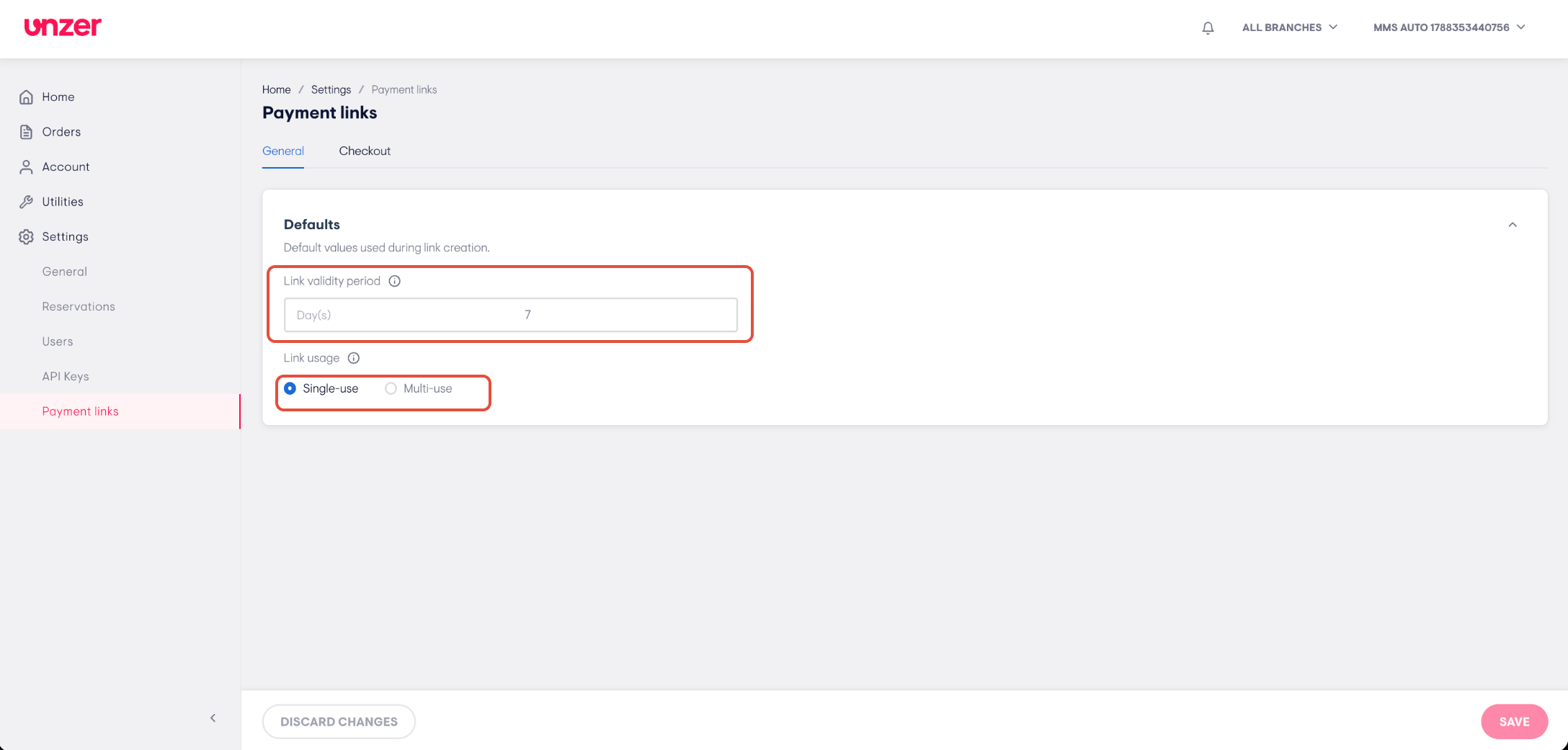
Note: You can still change the expiration date and link type when you create each link. The new defaults apply to all branches.
Customise your checkout page
Open and edit the checkout settings
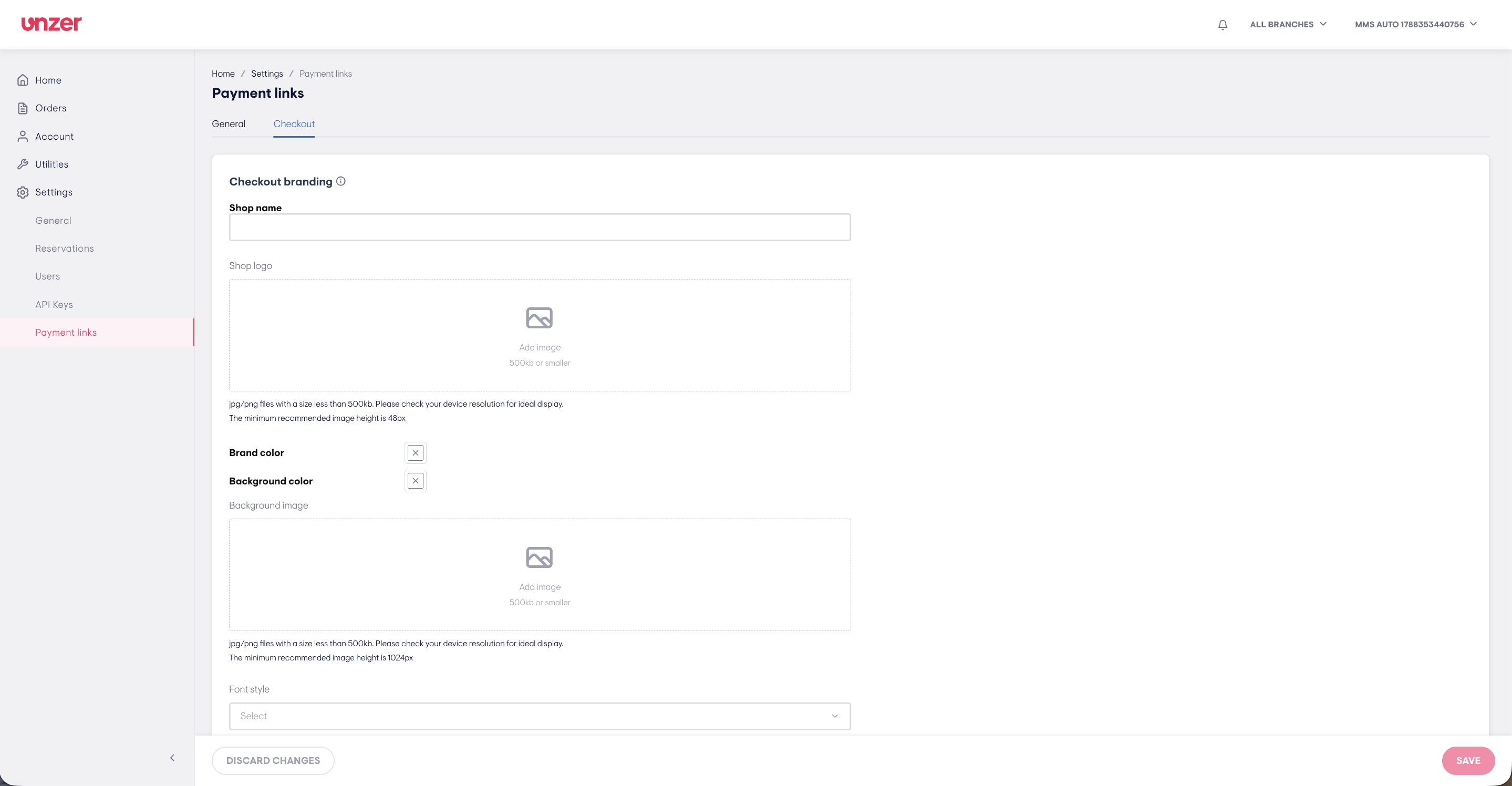
- Go to Settings > Payment links.
- Click the Checkout tab.
- Under Checkout branding, set how your checkout page looks:
- Shop name: the name shown on the checkout page.
- Shop logo: click Add image to upload your logo. Use a JPG or PNG file smaller than 500 KB, with a minimum height of 48 px.
- Brand color and Background color: click the colour box to pick a colour.
- Background image: click Add image to upload an image. Use a JPG or PNG file smaller than 500 KB, with a minimum height of 1024 px.
- Font style and Form style: select an option from the list.
- Favicon URL: enter the web address of the small icon shown in the browser tab.
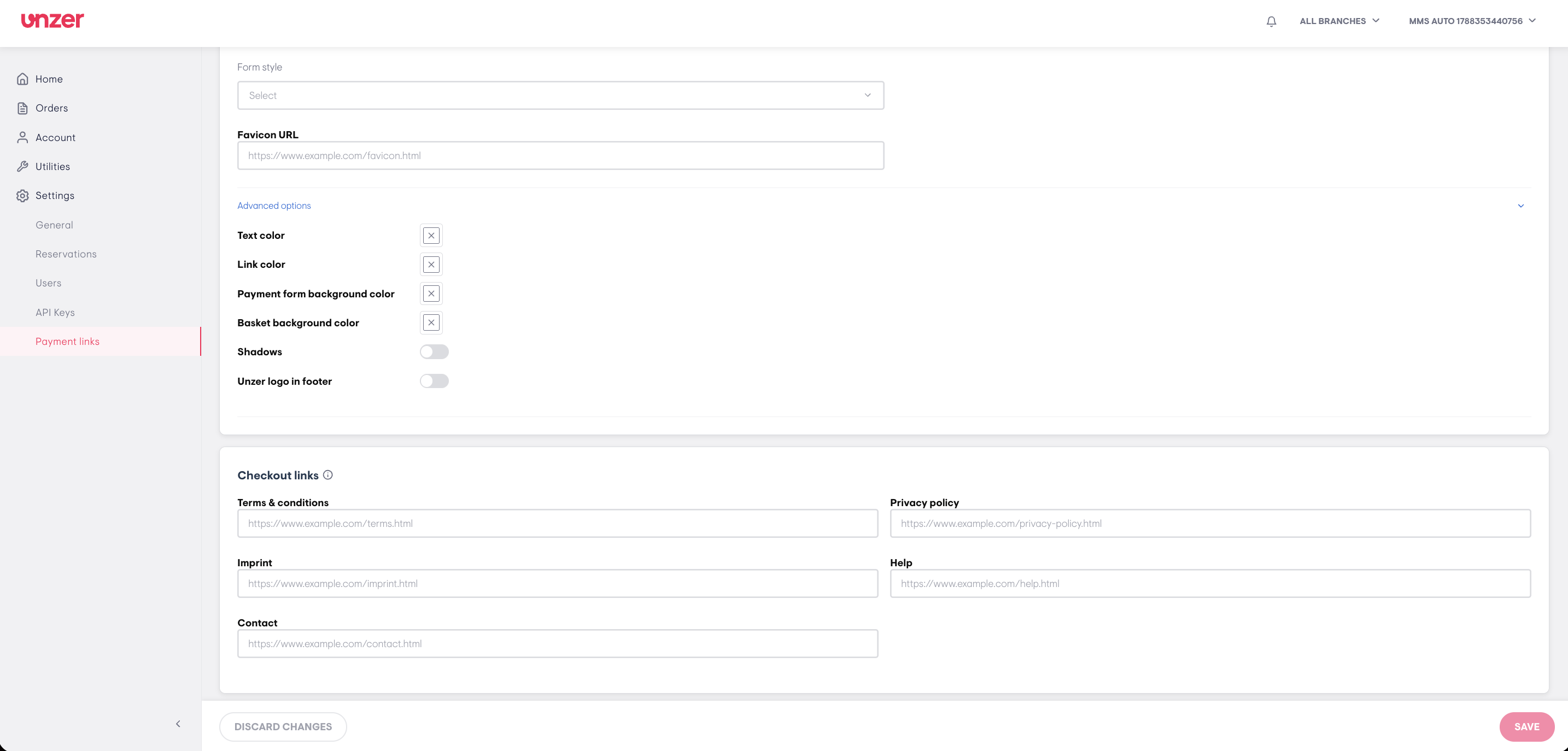
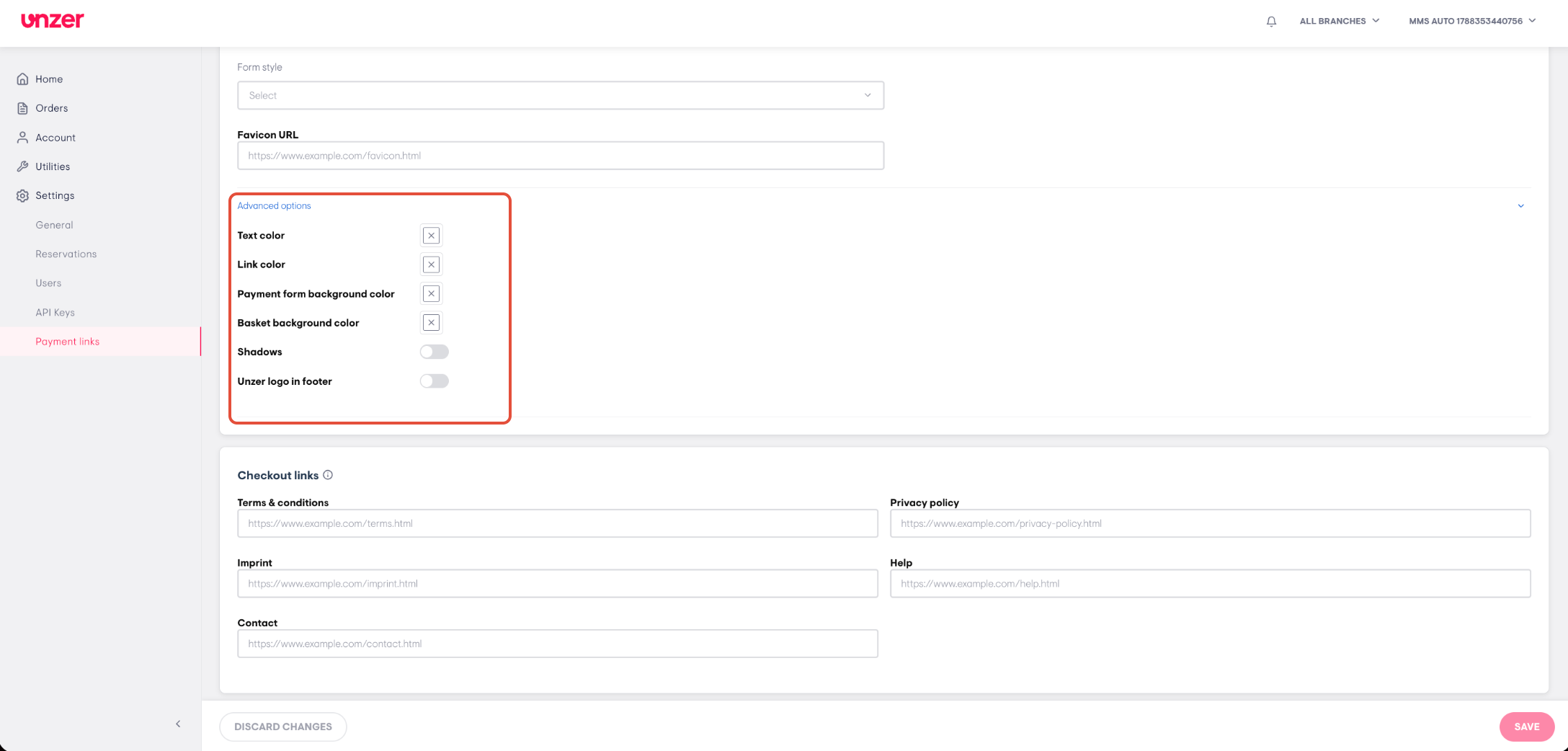
- Click Advanced options to set more details:
- Text color, Link color, Payment form background color and Basket background color: click the colour box to pick a colour.
- Shadows: switch on to show shadows on the checkout page.
- Unzer logo in footer: switch on to show the Unzer logo at the bottom of the checkout page.
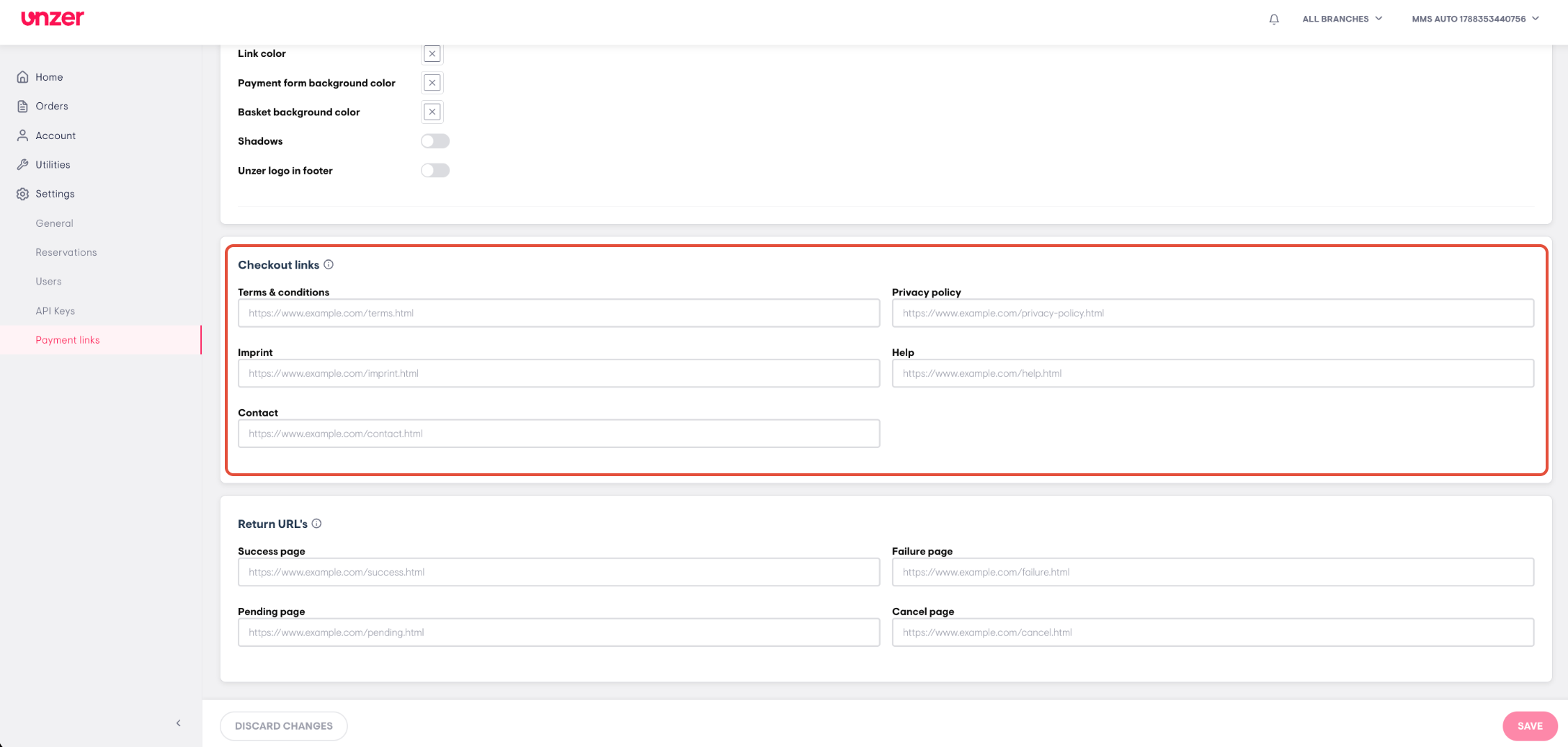
- Under Checkout links, enter the web addresses of your Terms & conditions, Privacy policy, Imprint, Help and Contact pages. Customers can open these from the checkout page.
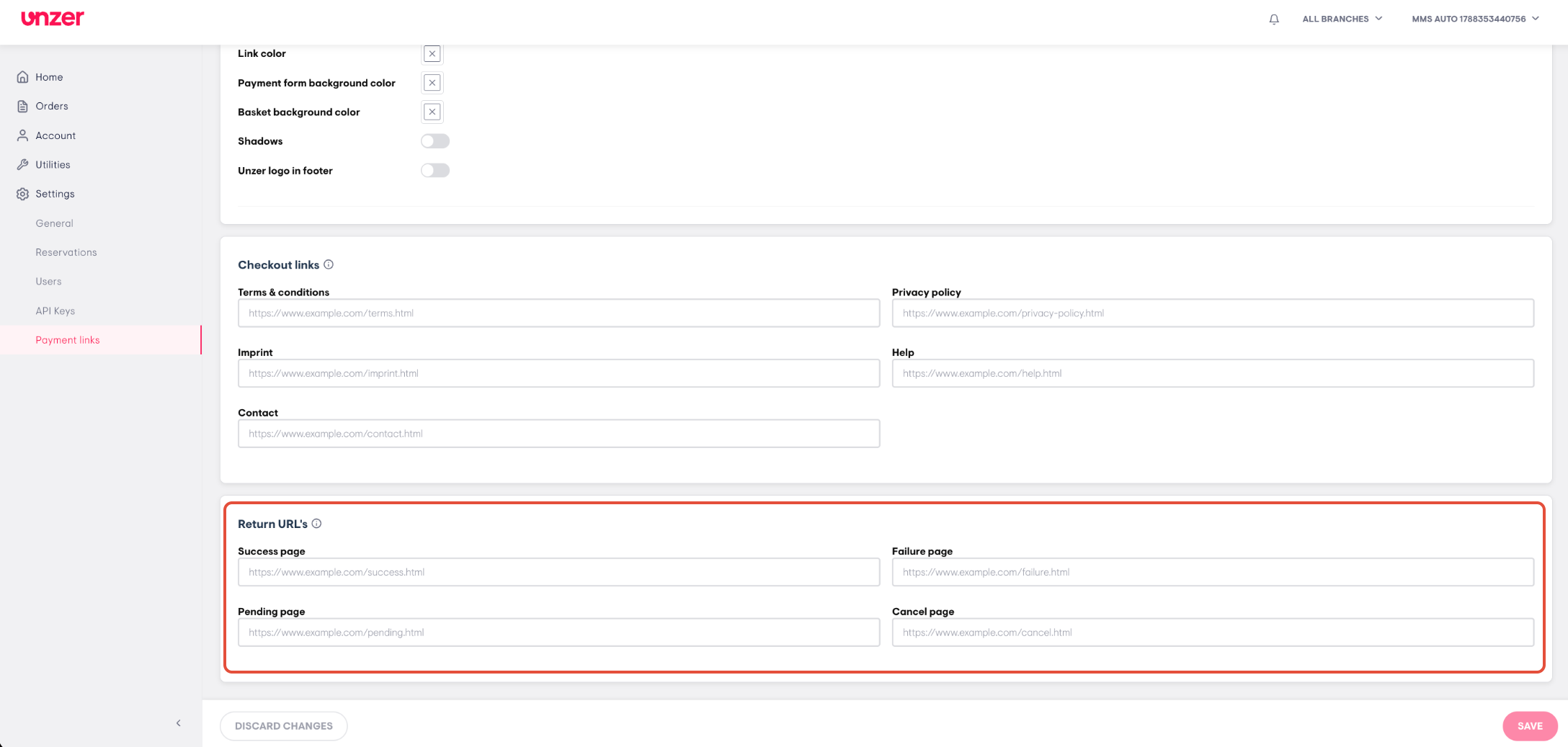
- Under Return URL's, enter the web addresses of the pages your customer is sent to after checkout:
- Success page: the payment succeeded.
- Failure page: the payment failed.
- Pending page: the payment is still being processed.
- Cancel page: the customer cancelled the checkout.
- Click SAVE. To undo your changes, click DISCARD CHANGES.
Note: The checkout settings apply to all branches.
Was this article helpful?
That’s Great!
Thank you for your feedback
Sorry! We couldn't be helpful
Thank you for your feedback
Feedback sent
We appreciate your effort and will try to fix the article