User Management & Roles
Modified on Wed, 7 Oct at 10:20 AM
TABLE OF CONTENTS
- Accessing the User List
- Create a new User
- Managing Individual Users
- Re-inviting Users
- Resetting 2FA setup
- Regeneration Backup codes
- Deleting users
- Managing Account Owners
The User Management section of the UnzerOne Dashboard allows merchants to add and manage additional users within their dashboard, assigning each user a specific role to control their level of access and permissions.
Note: Only merchant users with the Administrator or Operations Manager role can view or manage users & perform actions on them.
Accessing the User List
- Navigate to Settings > Users.
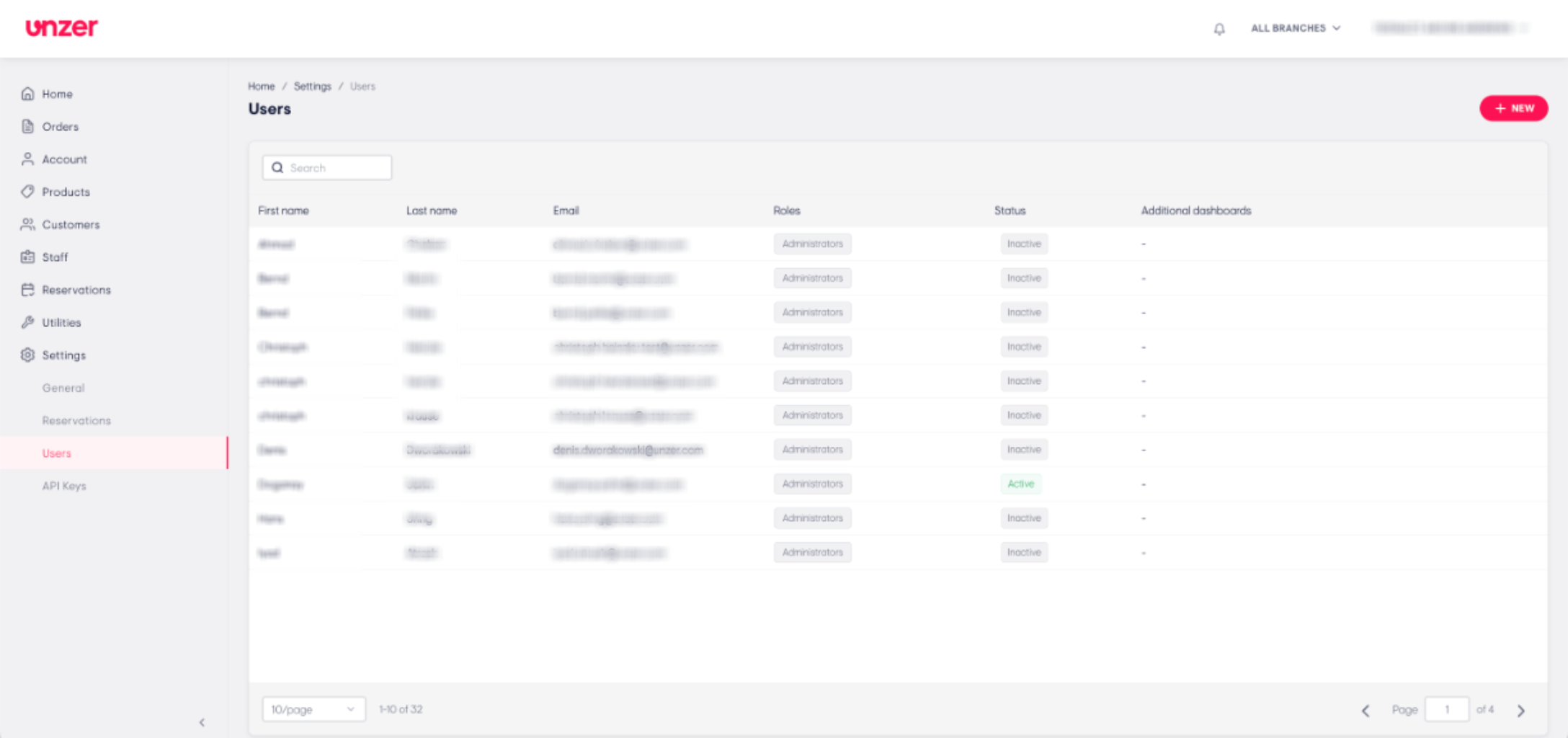
- Here, you will find a comprehensive list of all users registered in the application.
- The user list displays essential information for each user in a clear, organised format.
Create a new User
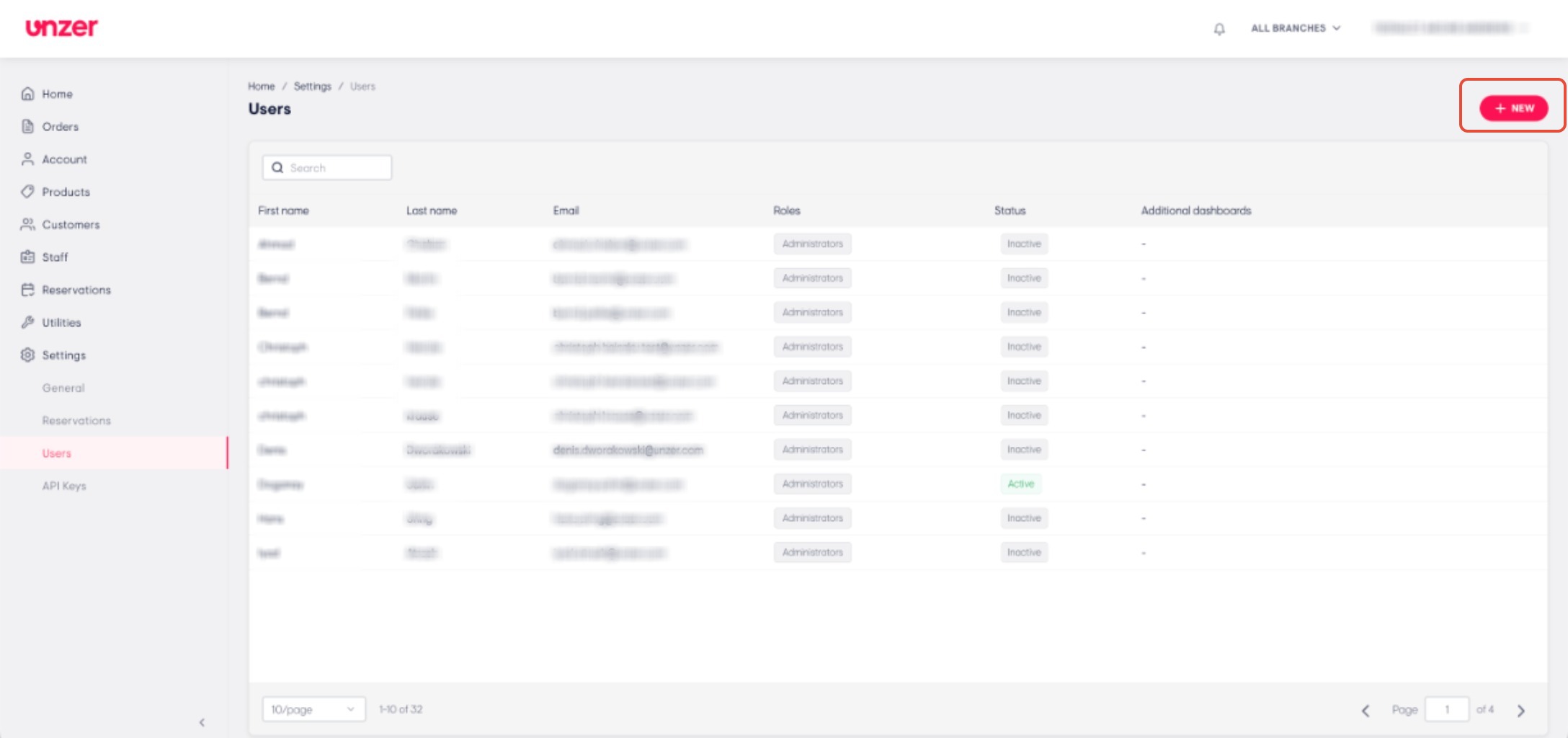
- Click on +NEW
- Enter the details such as first name, last name, email & select a role and click on CREATE
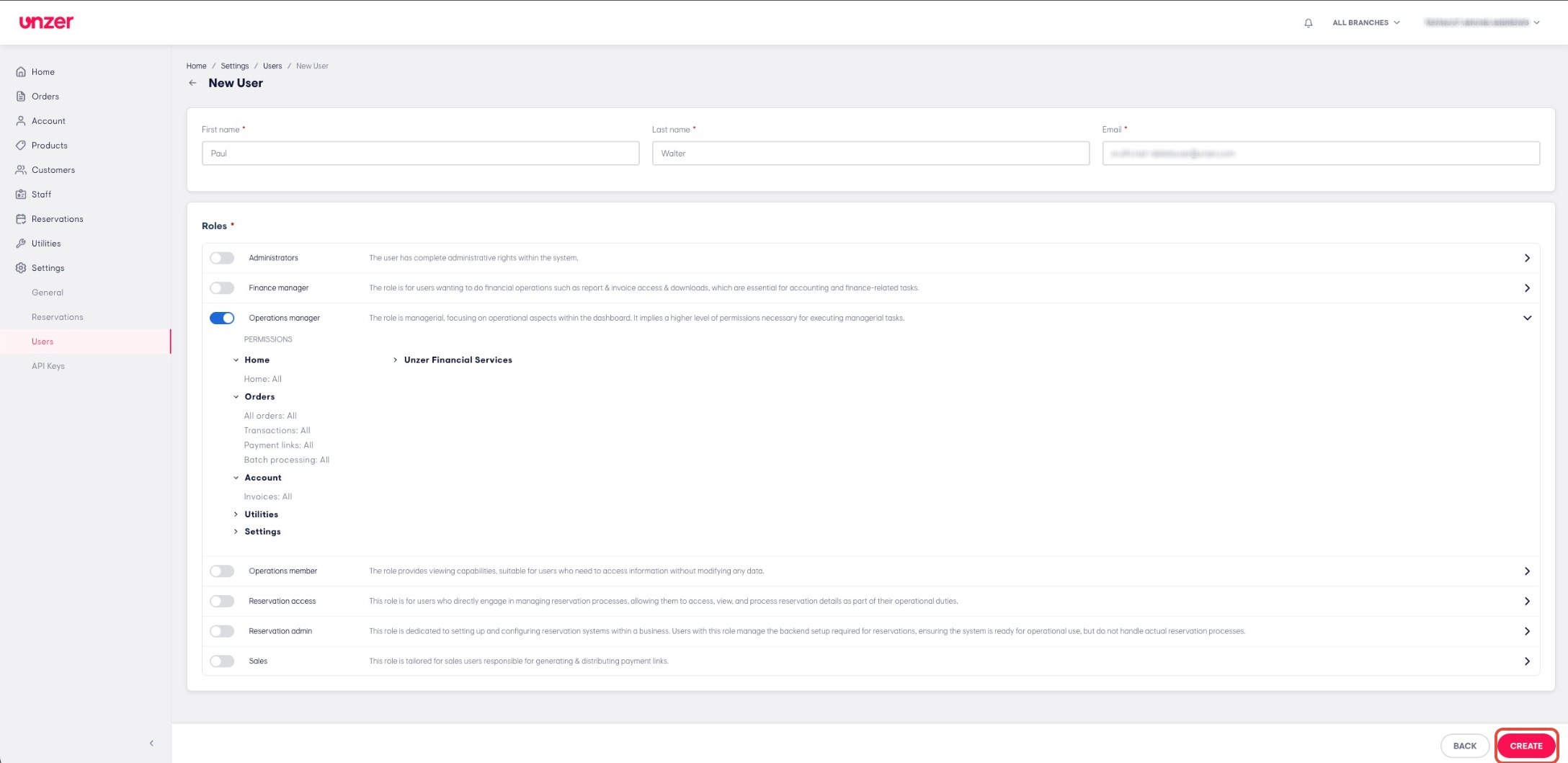
- The user will receive an email to complete the registration for a password, 2FA and back up codes.
Managing Individual Users
- Navigate to Settings > Users.
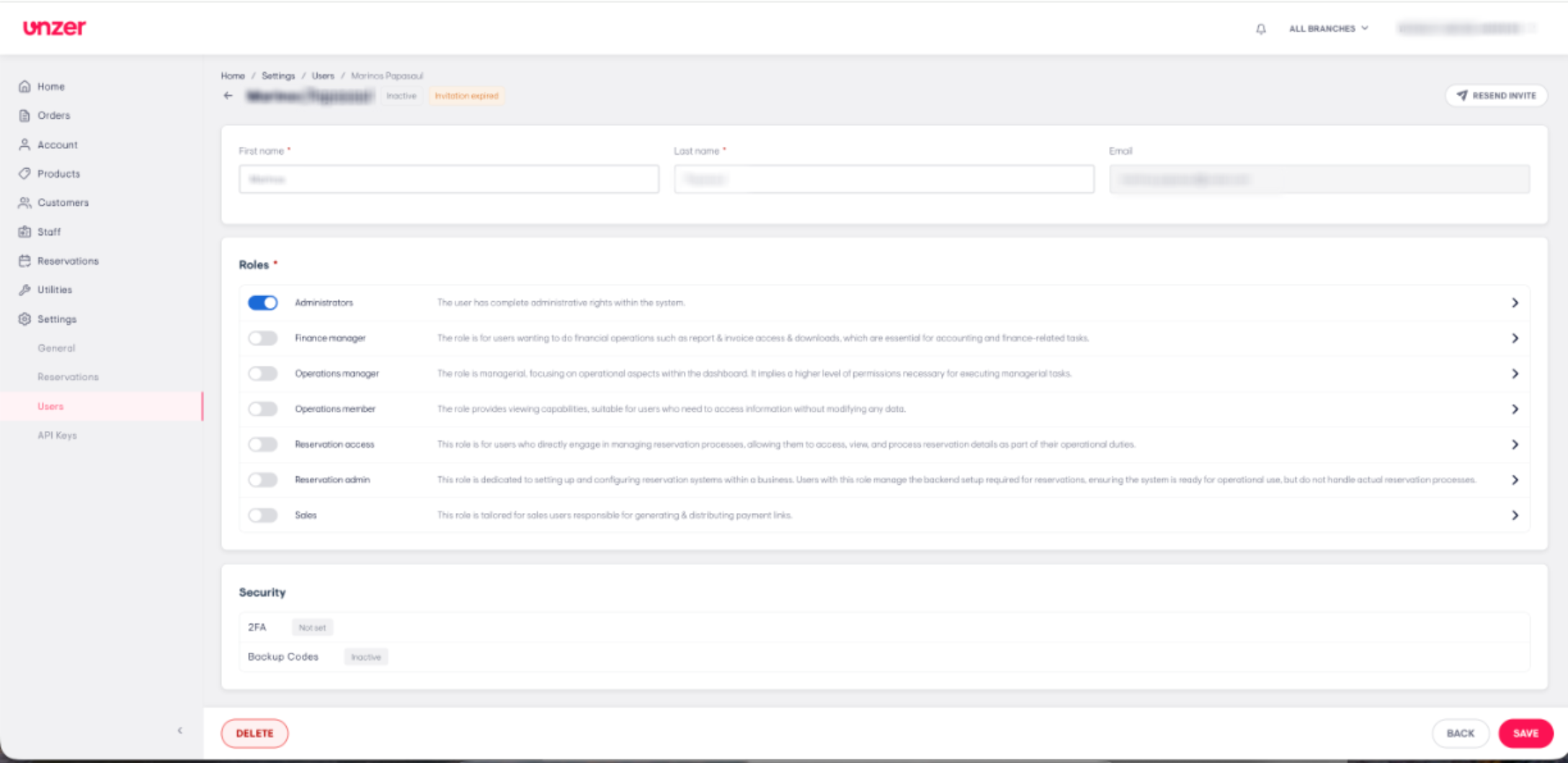
- Clicking on any user row to open detailed information about that user.
Re-inviting Users
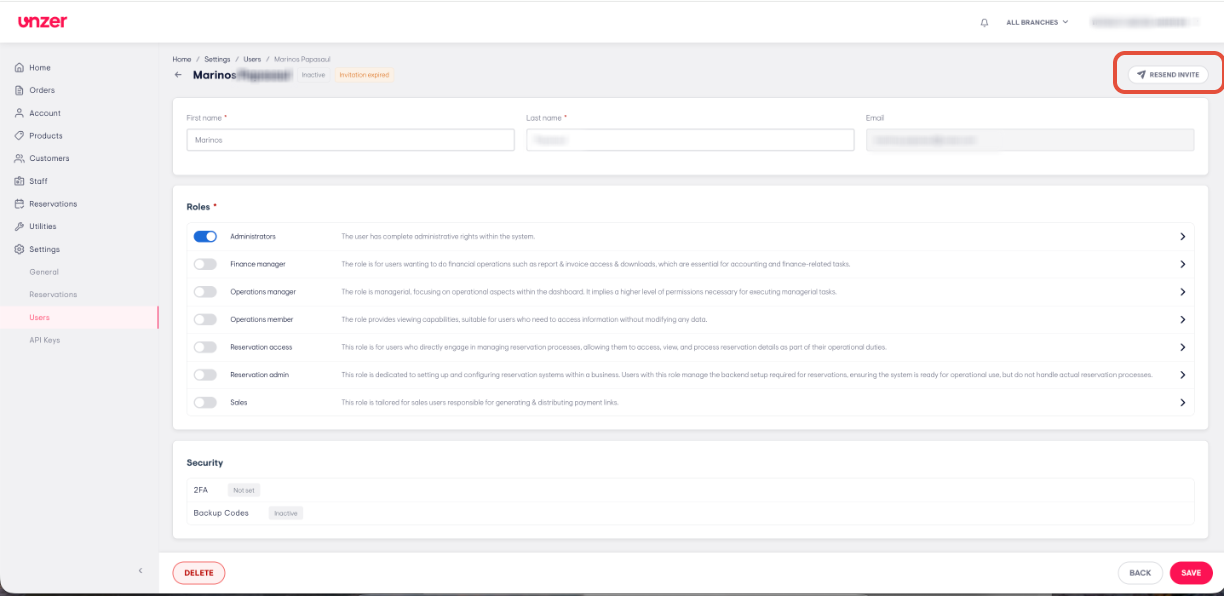
- Click on Resend invite to invite the merchant again if their invitation is expired.
Note: Invitations are valid for 30 days for security purposes.
Resetting 2FA setup
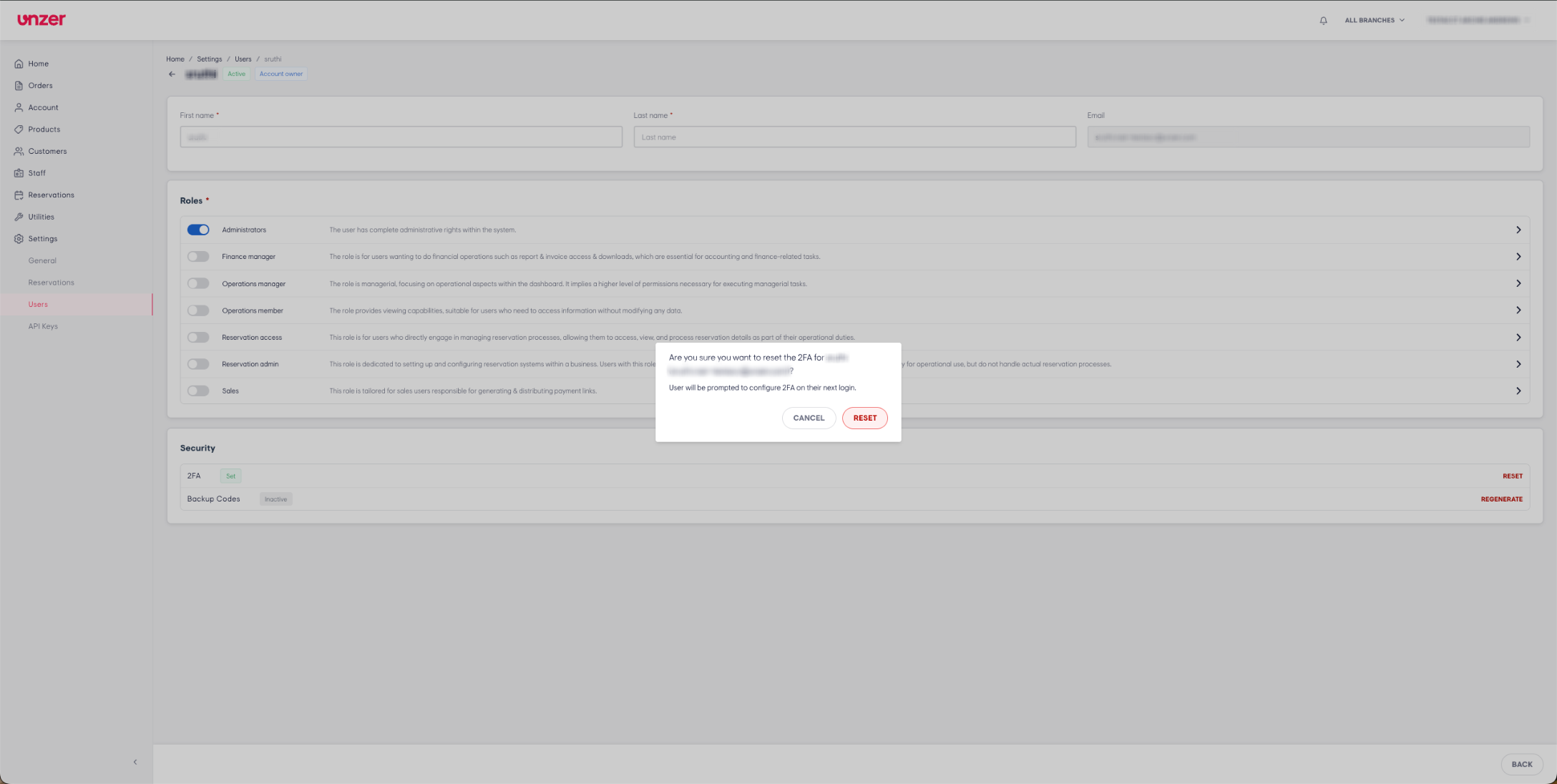
- Click on Reset option.
- Confirm by clicking on RESET button.
- Confirm the action with your 2FA code.
- The user will receive an email where they can follow the steps to set up a new 2FA credential.
Regeneration Backup codes
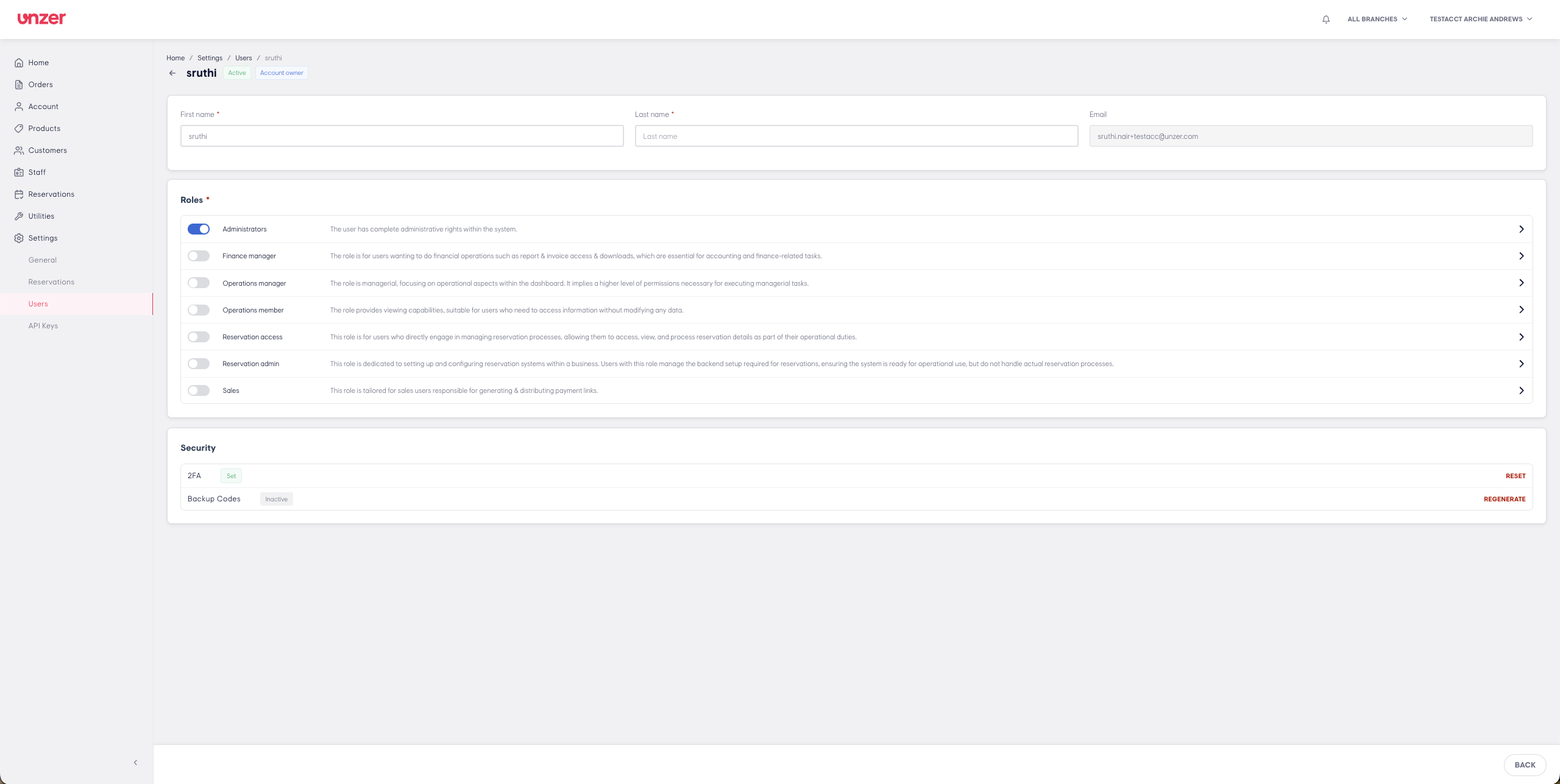
- Click on Regenerate option
- Confirm by clicking on REGENERATE button.
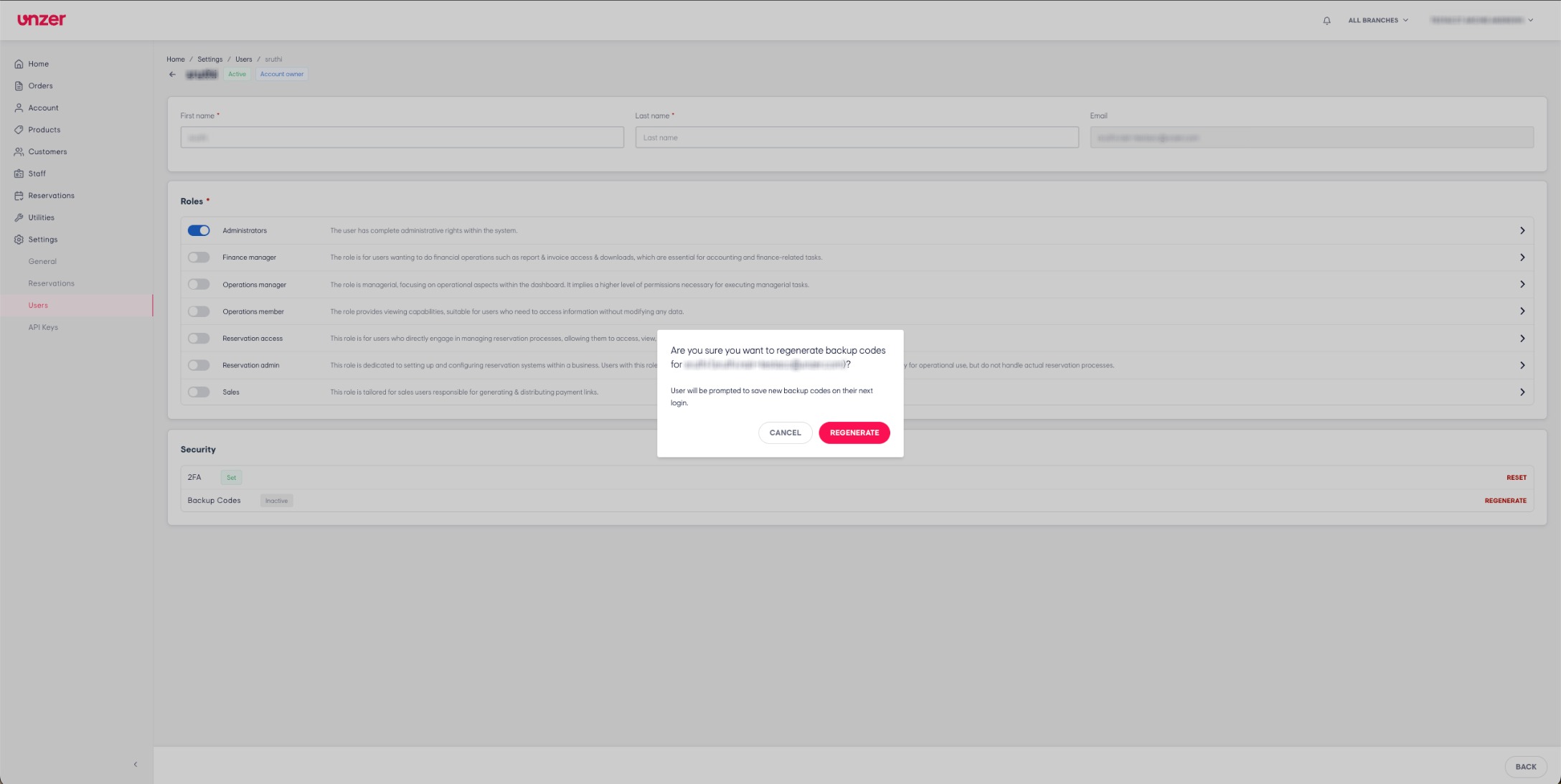
- The user will receive an email where they can follow the steps to generate new set of backup codes.
Note: Old backup codes will be discarded as soon as the process is complete from the users side.
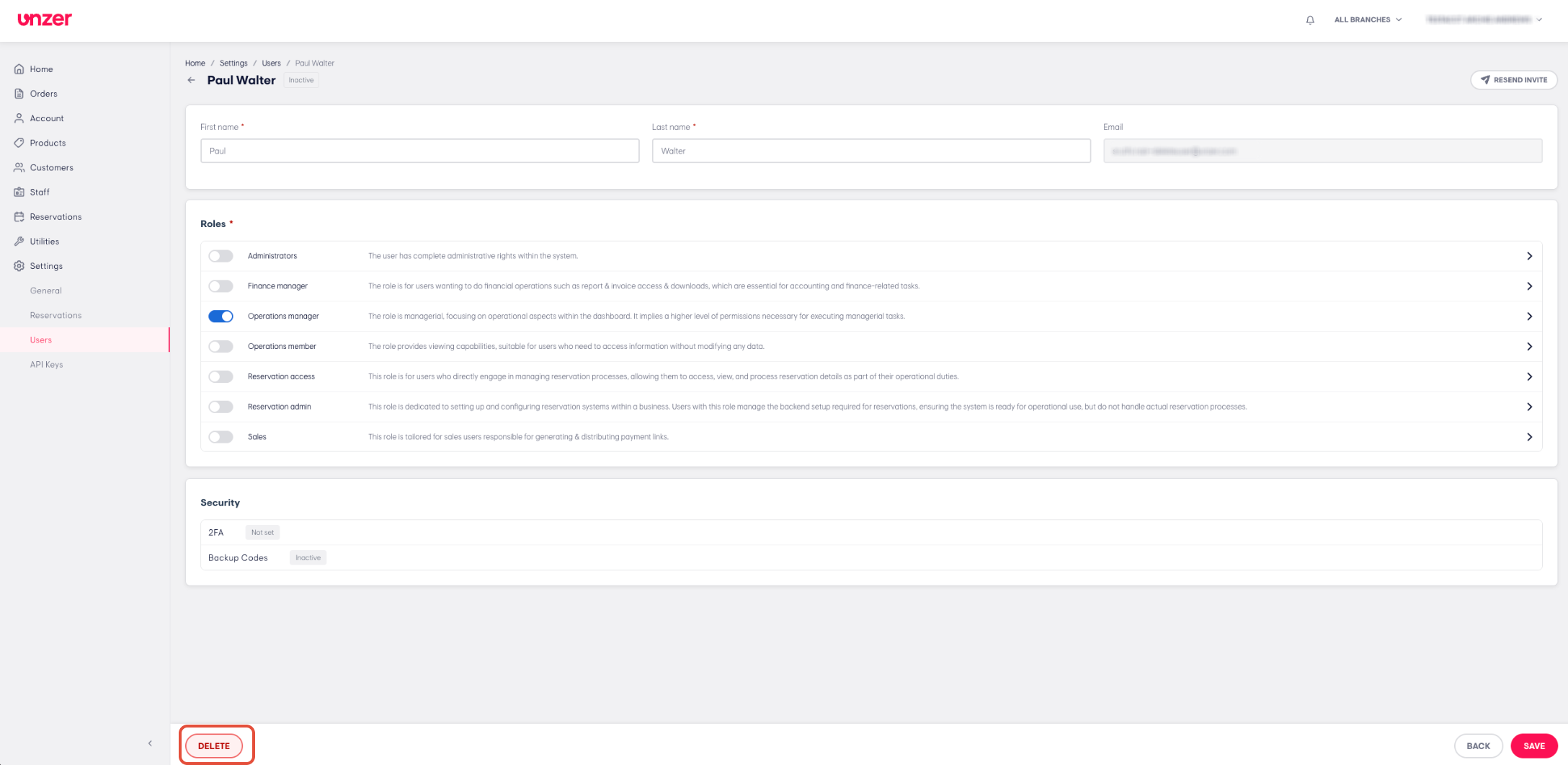
Deleting users
- Click on Delete button
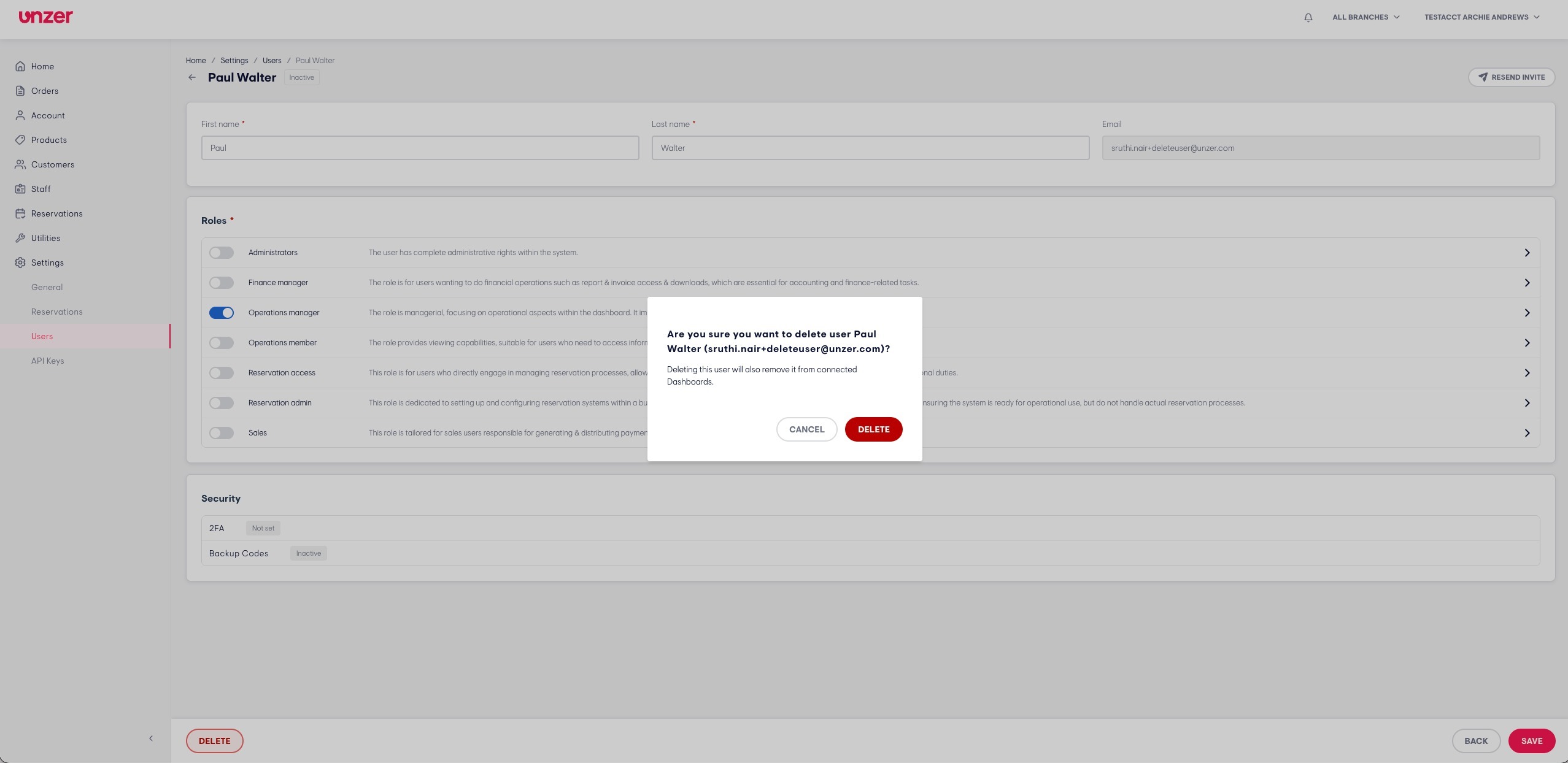
- Confirm the delete action
Managing Account Owners
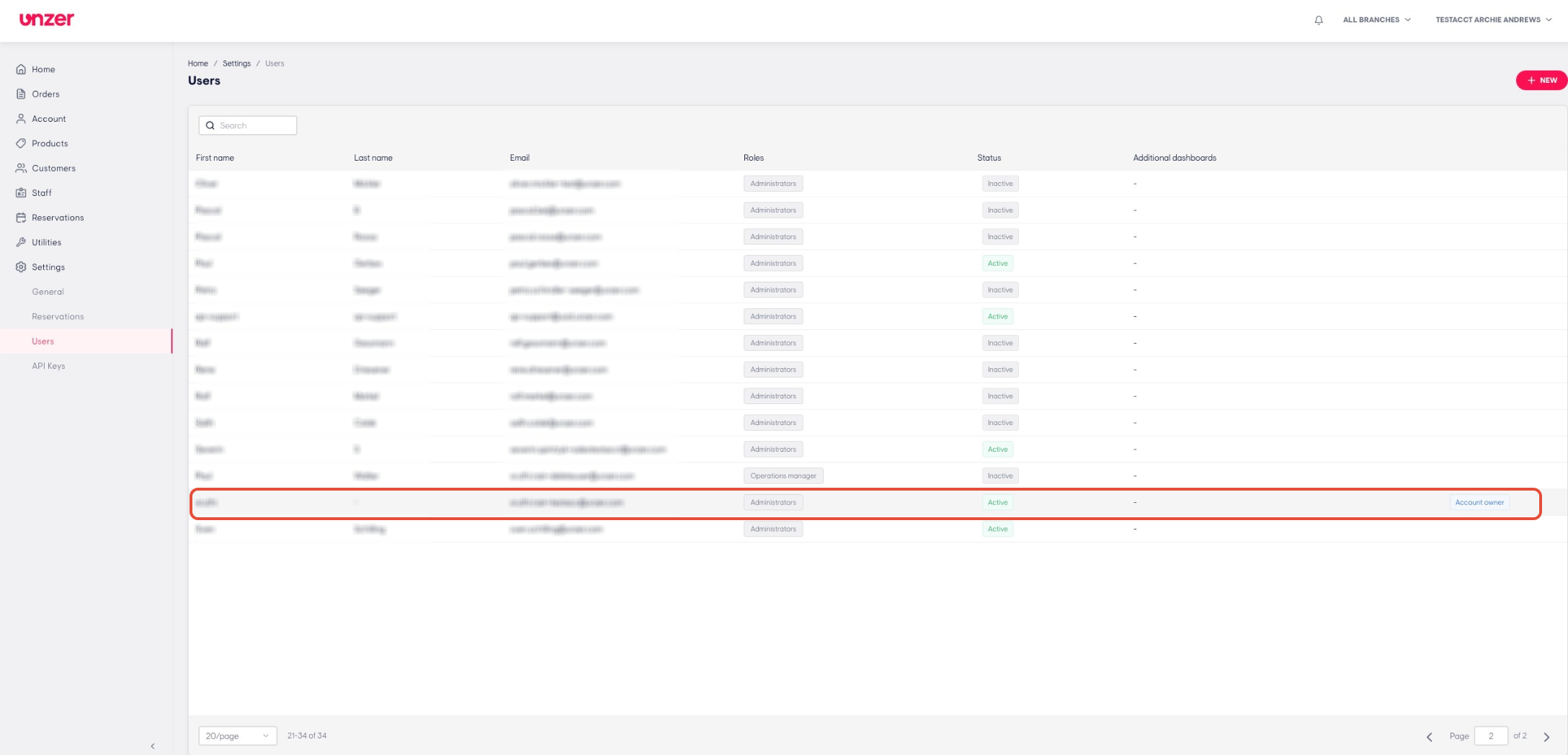
Note: Account Owner user cannot be deleted from within UnzerOne dashboard. Please contact Unzer support for managing/changing the account owner.
- To view them navigate to Settings > Users and find the user with the tag "Account Owner" in the list.
Was this article helpful?
That’s Great!
Thank you for your feedback
Sorry! We couldn't be helpful
Thank you for your feedback
Feedback sent
We appreciate your effort and will try to fix the article