Table Management
Modified on Fri, 4 Sep at 11:04 AM
TABLE OF CONTENTS
- Configuration in the Dashboard
- Configuring rooms and tables in the dashboard - New version
- Configuration of rooms and tables in the POS
- Rebooking Tables
- Rebooking an Item to a Different Table
Configuration in the Dashboard
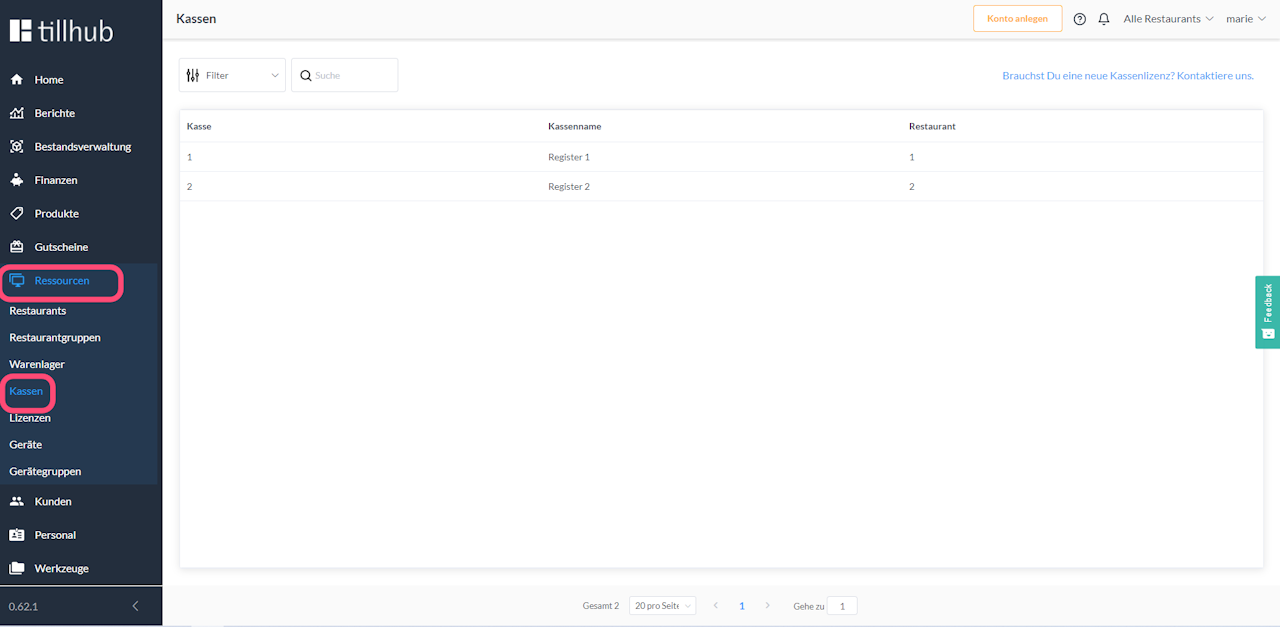
- The "Table Management" feature can be activated and deactivated in the dashboard.
- To do this, click on Resources in the main menu of your dashboard.
- Then navigate to Registers.
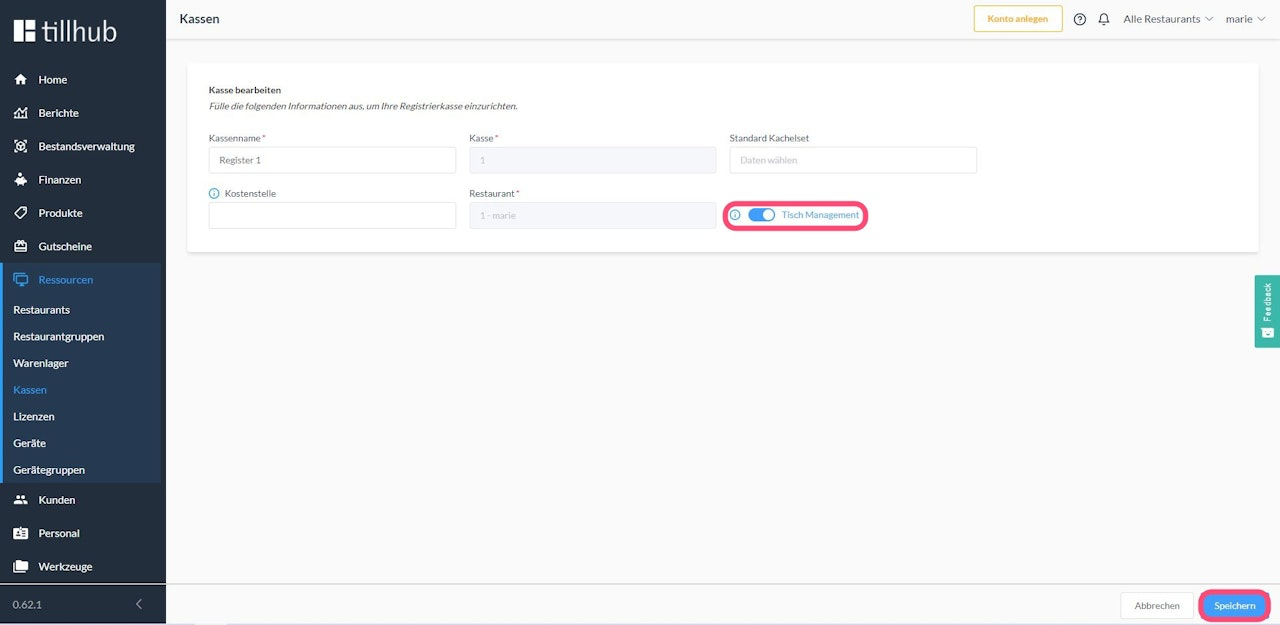
- Select the respective register on the right side of the screen.
- Activate the option "Table Management".
- Click Save.
Important note: We also offer a new version of table management. This version is optional and can be activated for you by Support upon request.
Configuring rooms and tables in the dashboard - New version
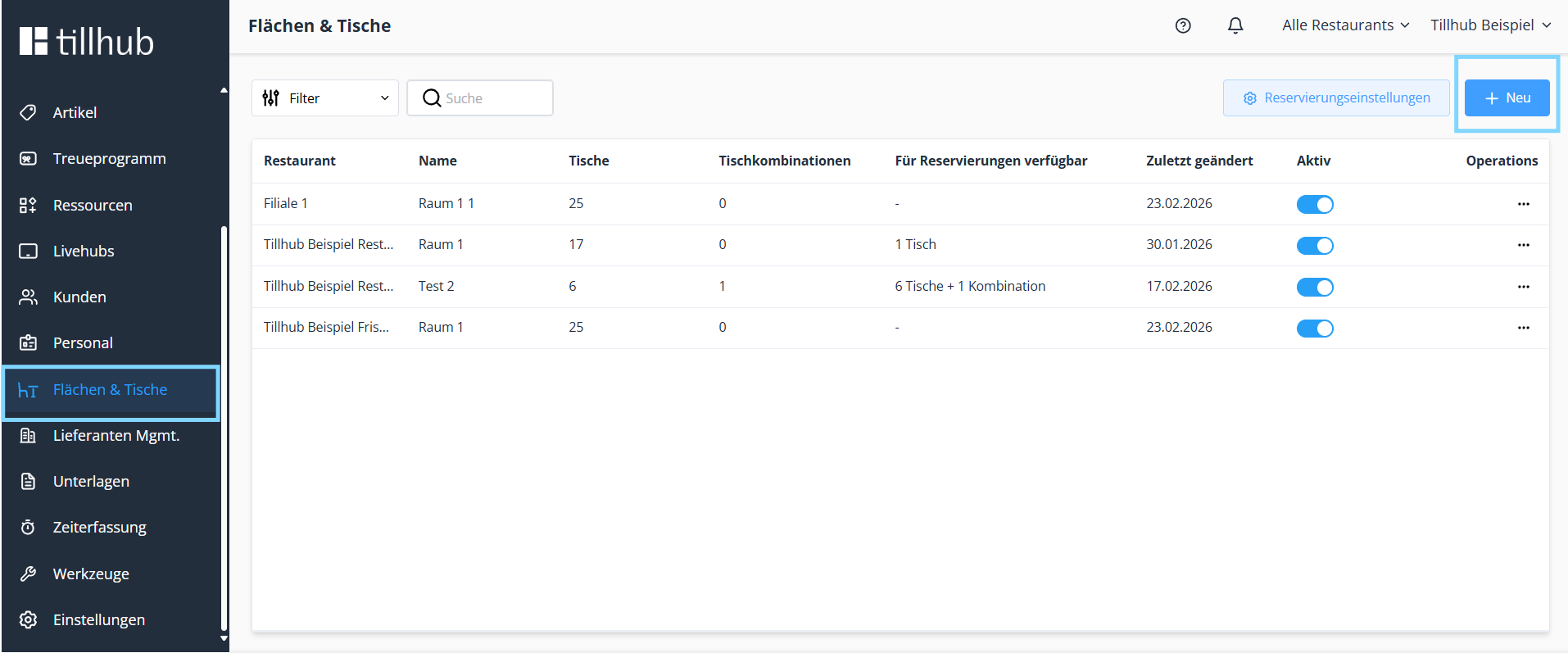
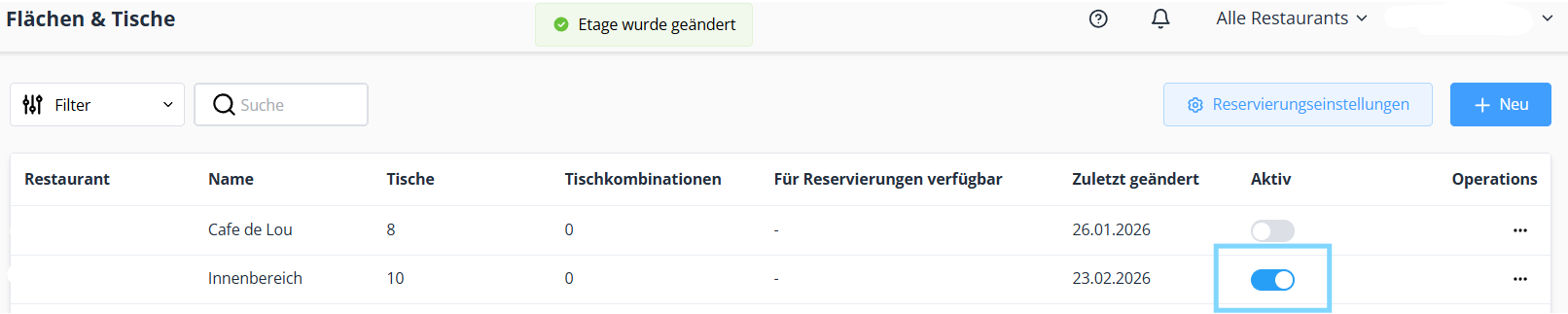
In the new version, all room and table setup and management is done centrally in the dashboard. Once the feature has been activated by support, select “Areas & Tables” from the menu.
Use “+ New” to create a new room, select the branch, and assign a suitable name, such as “Indoor area” or “Terrace.” After saving the room, you can create the first table using the “Add tables” button. Name the table accordingly and define the maximum number of seats. You can add as many additional tables as you like in the same way.
The new version also allows you to design your rooms in a realistic and visually appealing way. You can move tables around freely in the room, add furnishings, choose the floor color, and insert additional text and shapes. This allows you to replicate the actual room layout very accurately.
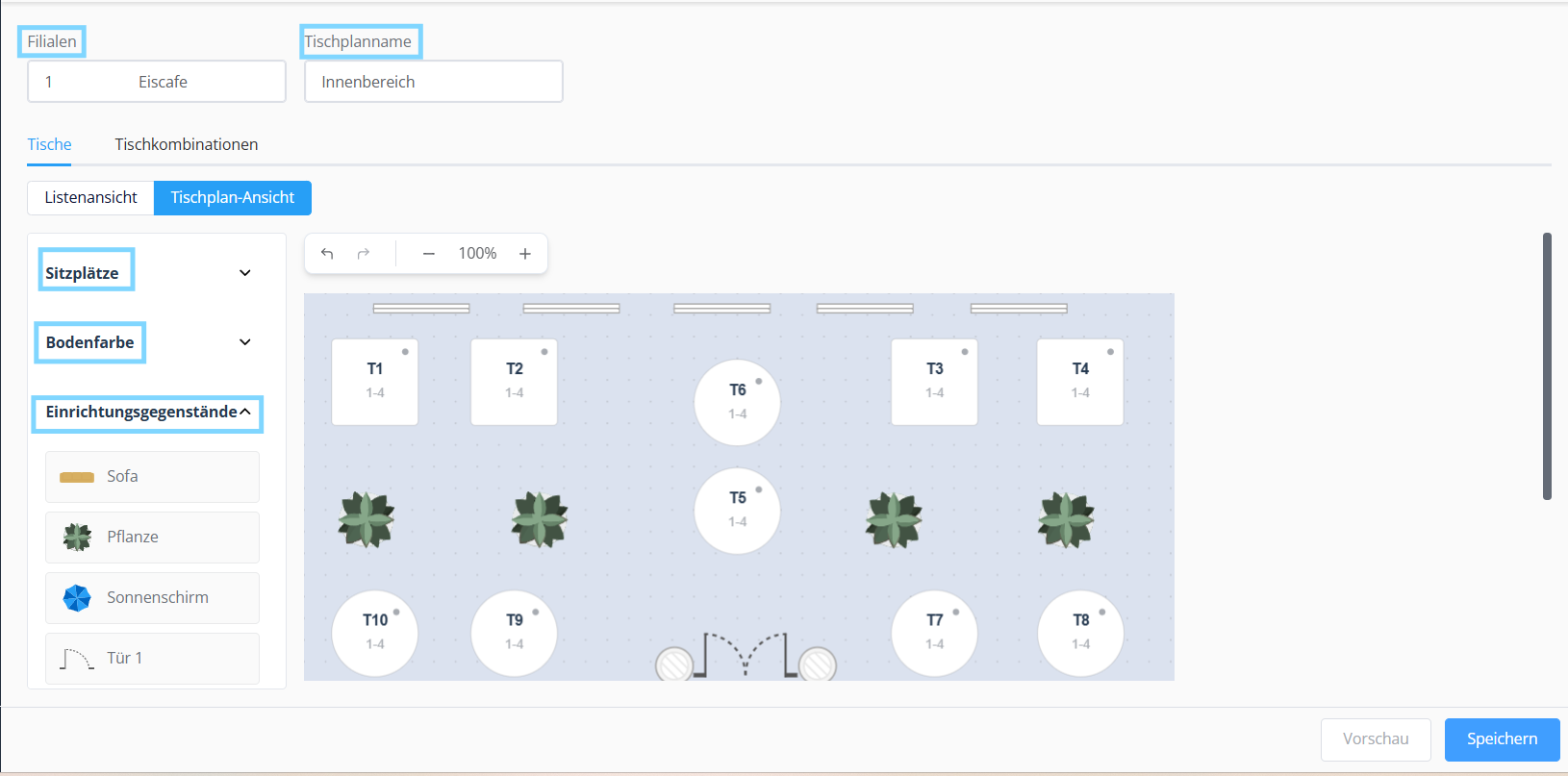
Once you have made all the adjustments, save your changes. Then switch back to the main view of the rooms and make sure to activate the newly created room. The room will only be available in the system once it has been activated.
Configuration of rooms and tables in the POS
- Navigate through the main menu to Settings.
- Select Tables & Rooms
- Select Add Room or tap on an existing room in the list. There you have the following options:
- You can set a room name.
- You can add tables by either tapping the Add Table button at the top right or by going to Table Count and entering the number manually.
- Using the Columns button, you can define the number of table rows/columns on the user interface.
- If you want to remove a table, simply swipe left to right on the row in which the table is located to remove it.
- You can rename a table by tapping on the row where the table is located.
- After making the changes, tap Save at the top right.
Using tables and placing orders
- Tap the menu icon at the bottom left and then navigate to POS in the main menu.
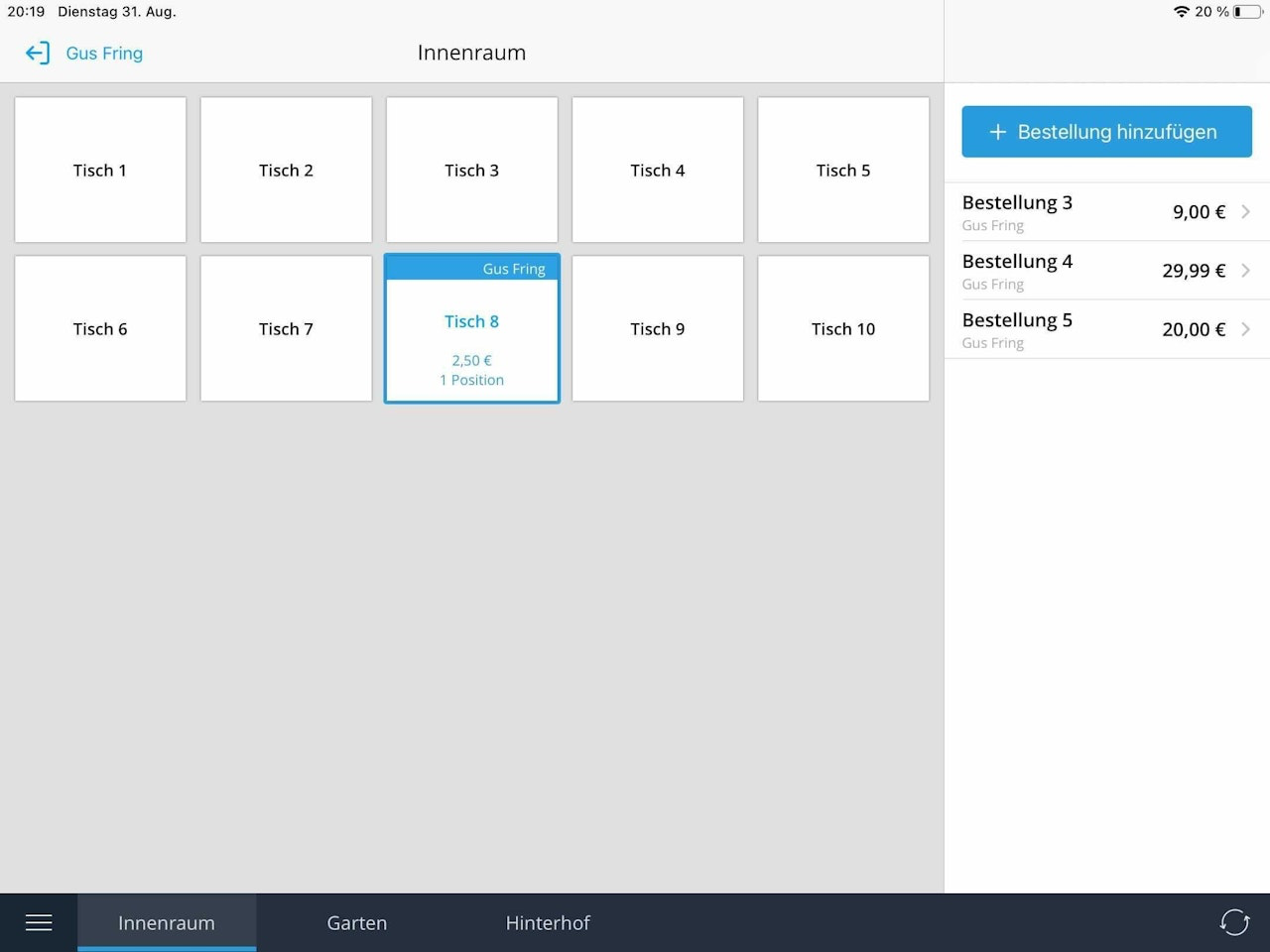
- In the POS, select a room from the bottom navigation bar.
- Select a table from the table view (comparable to tile view – but for tables).
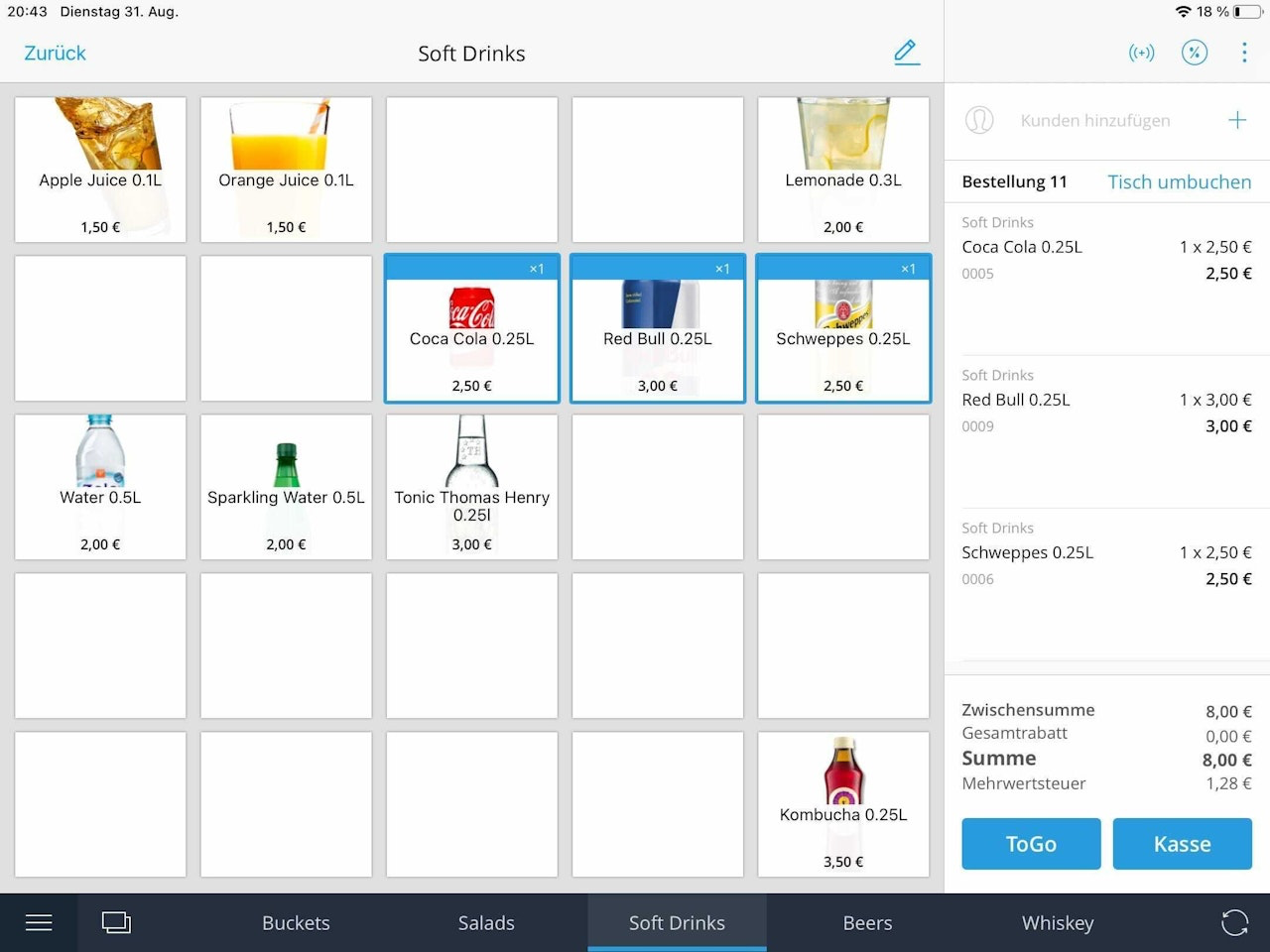
- Select the product of your choice to assign it as an order to the selected table.
- If you tap the Back button at the top left, the products placed in the cart will be saved as an open order under the respective table number. Alternatively, the order can be finalized and checked out directly.
- To add more food and drinks to an open order, select the table to which the order is assigned and book the next product.
Bar Orders
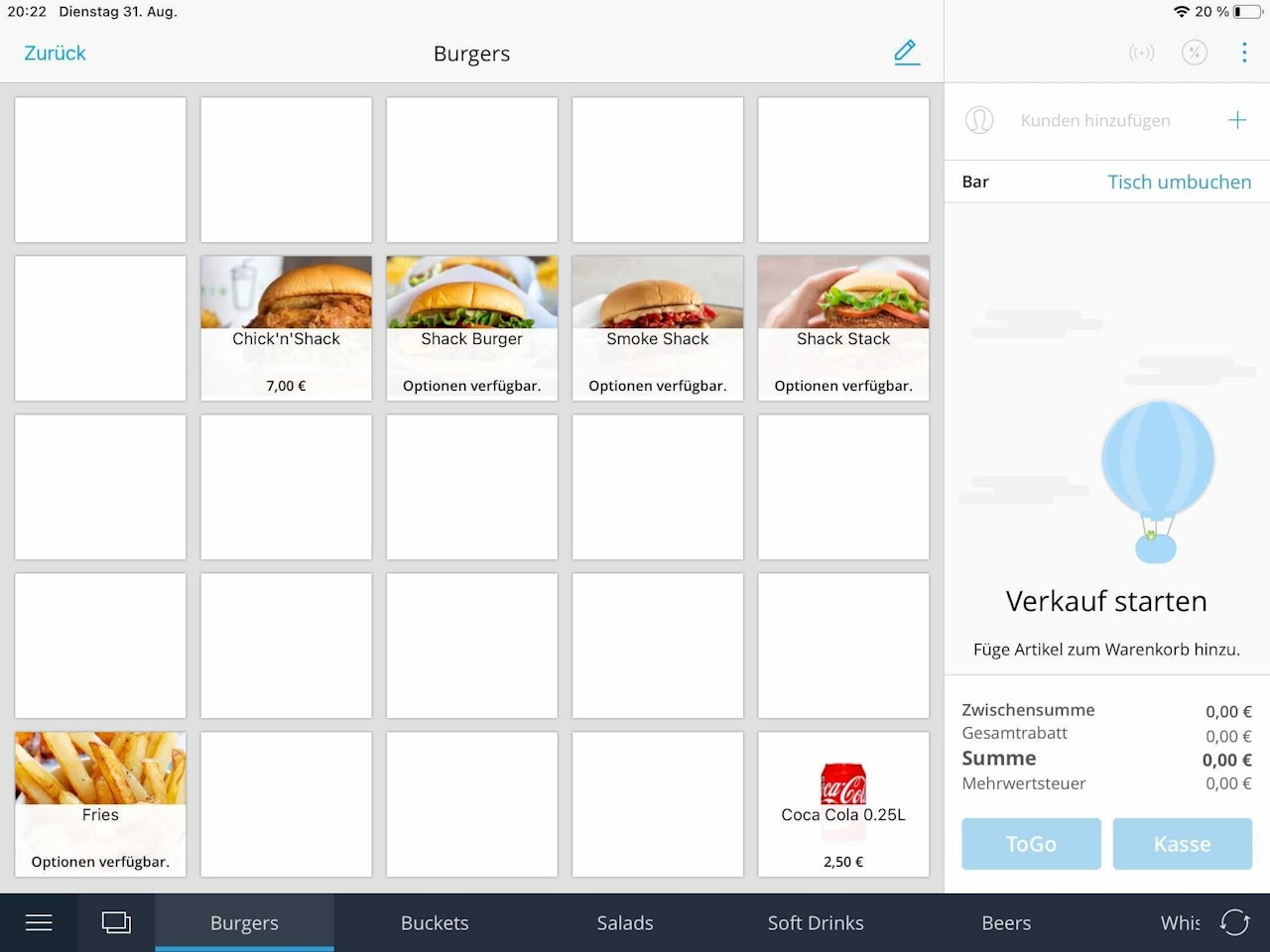
Bar orders are orders not assigned to a table but represent ongoing orders in a hospitality context. An unlimited number of bar orders can be placed.
Bar orders are not only for customers sitting at the bar but also include the following scenarios:
Immediate checkout: If a cashier wants to quickly and directly check out a customer, the bar order can be used, as selecting a table would be unnecessary in this case.
Simplified ordering process: If a customer orders a product at the bar due to local circumstances while waiting for a table to become available, the product can first be recorded as a bar order and then assigned to a table.
Temporary placement: If customers move tables, making fixed table assignments no longer possible, the products can be placed as bar orders.
Assigning multiple independent orders to one table
You can assign more than one order to a single table. This is typically the case in beer gardens, where multiple groups from different parties sit at large tables but want to be billed separately.
You can assign multiple order processes to one table as follows:
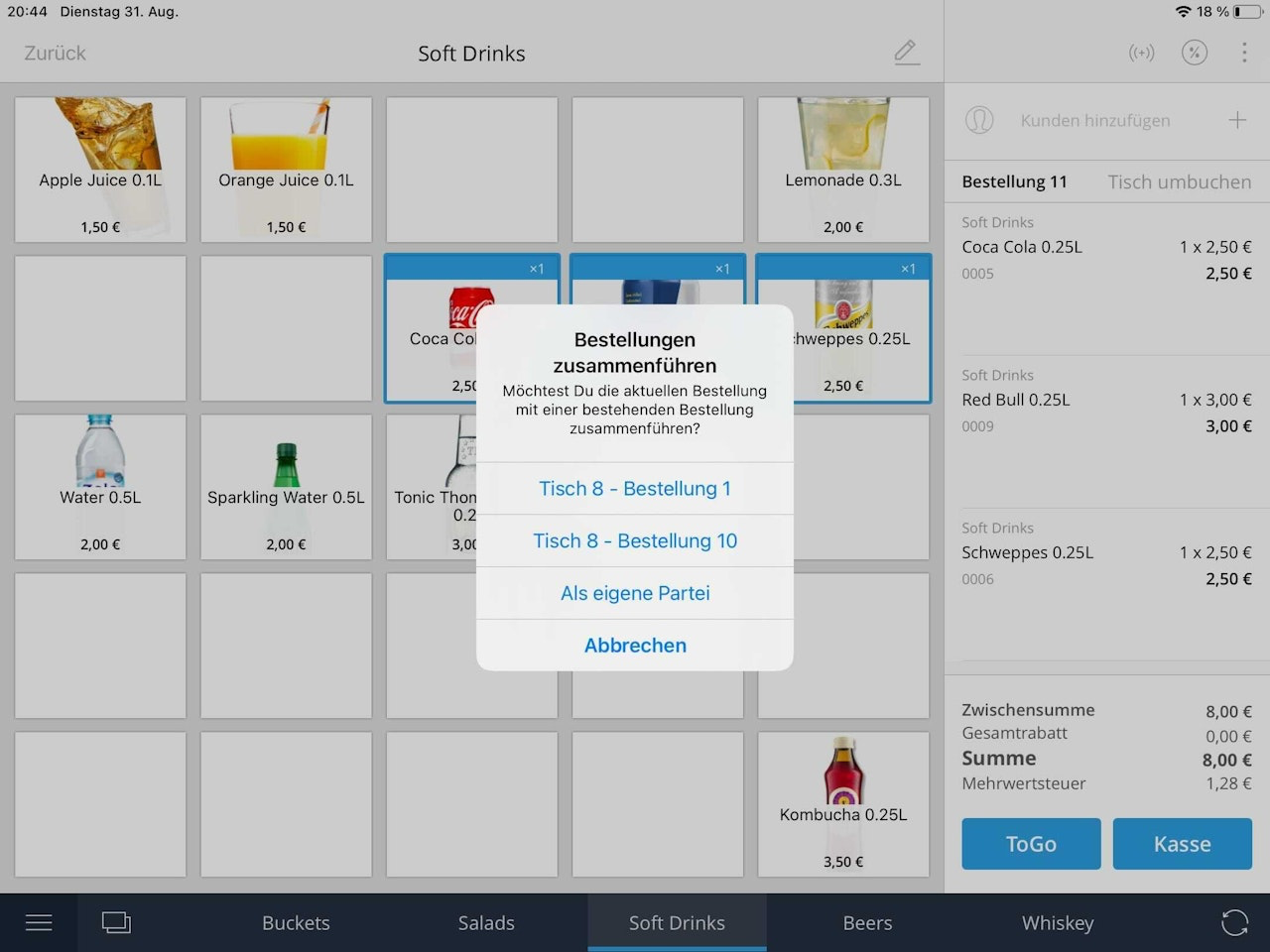
You can move any bar order by using the "Reassign table" button to assign it to a table that already has one or more orders assigned to it (Image 2).
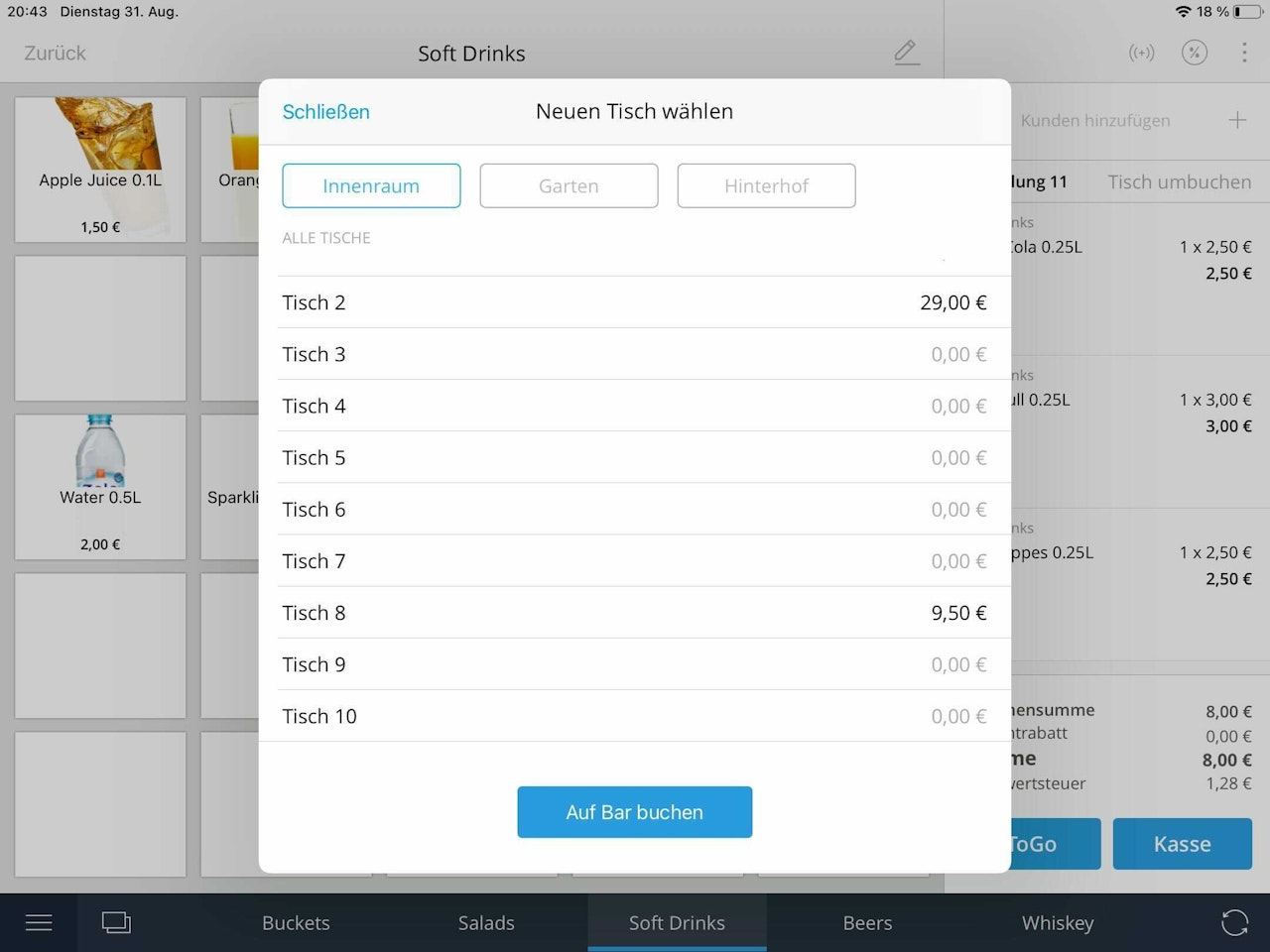
By tapping on the corresponding table, another window opens showing a list of existing orders. If you select the "As own party" option in this window, this order is assigned to the table as an additional independent order.
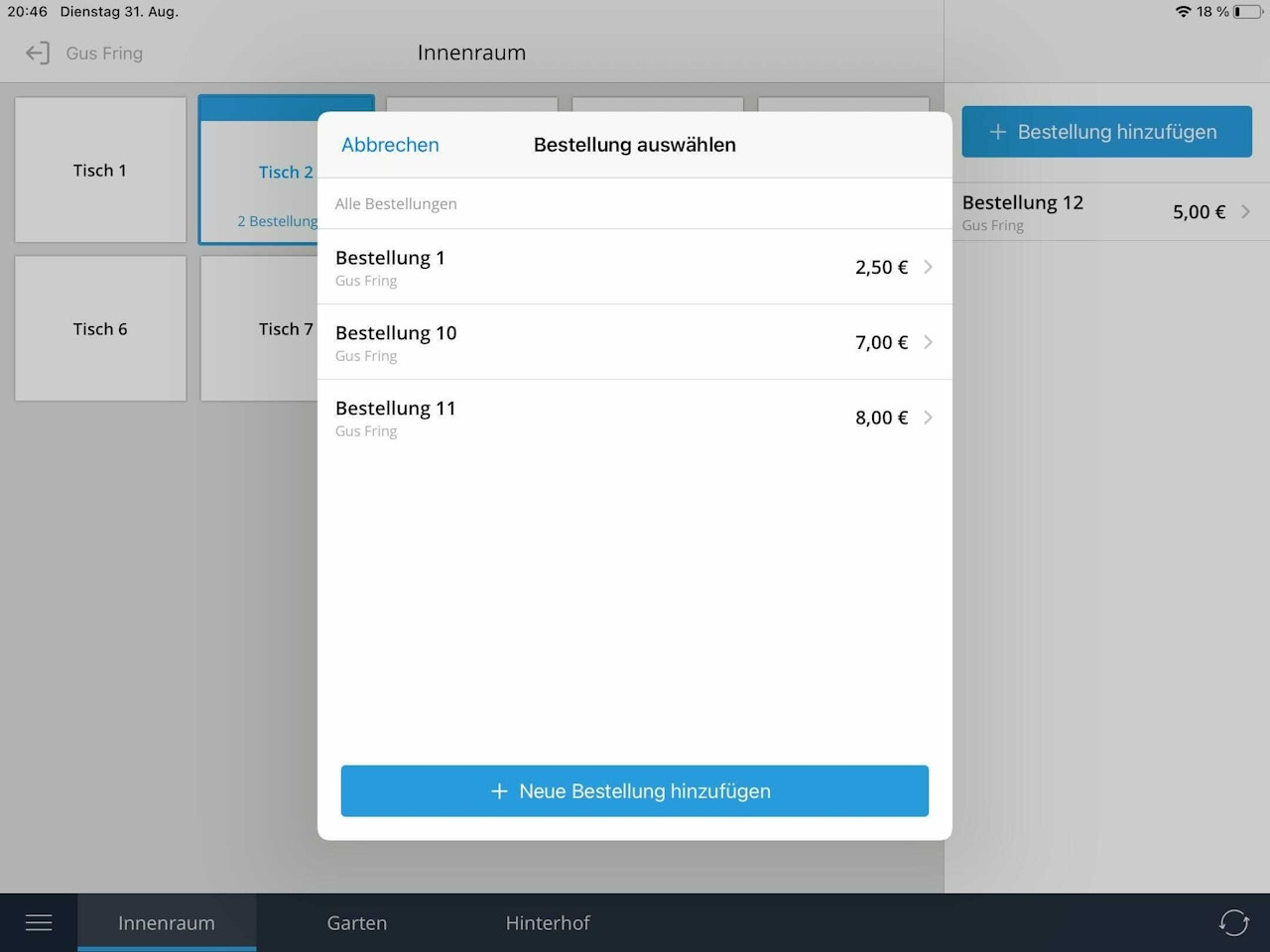
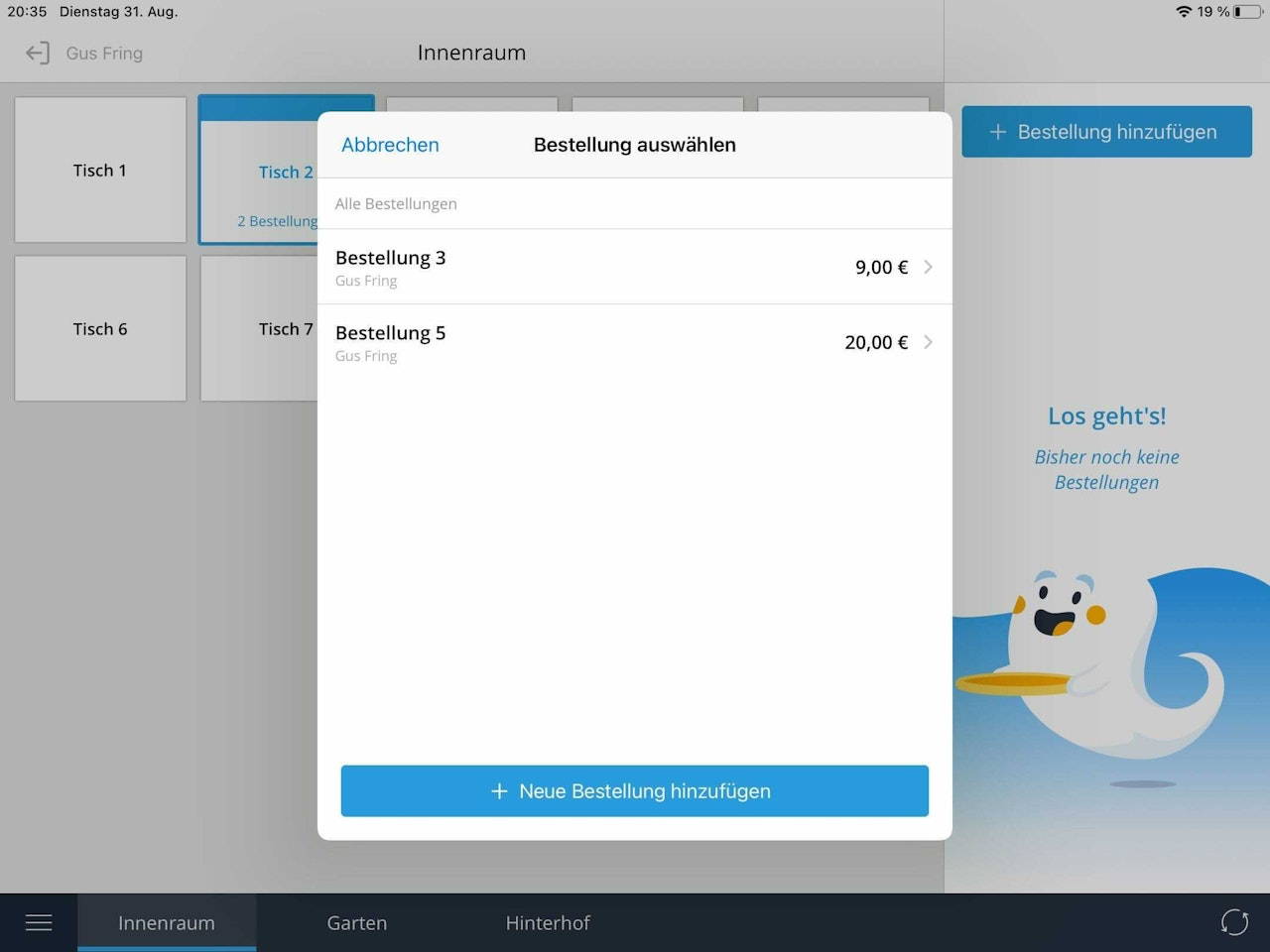
Alternatively, you can long press on a table to assign multiple orders to it. This opens a window that allows you to add additional orders to the table (Image 3).
Rebooking Tables
- Open a table with an order.
- When the open order appears in the cart, select Reassign table.
- Select a new table or move the order to the bar using the Assign to Bar button.
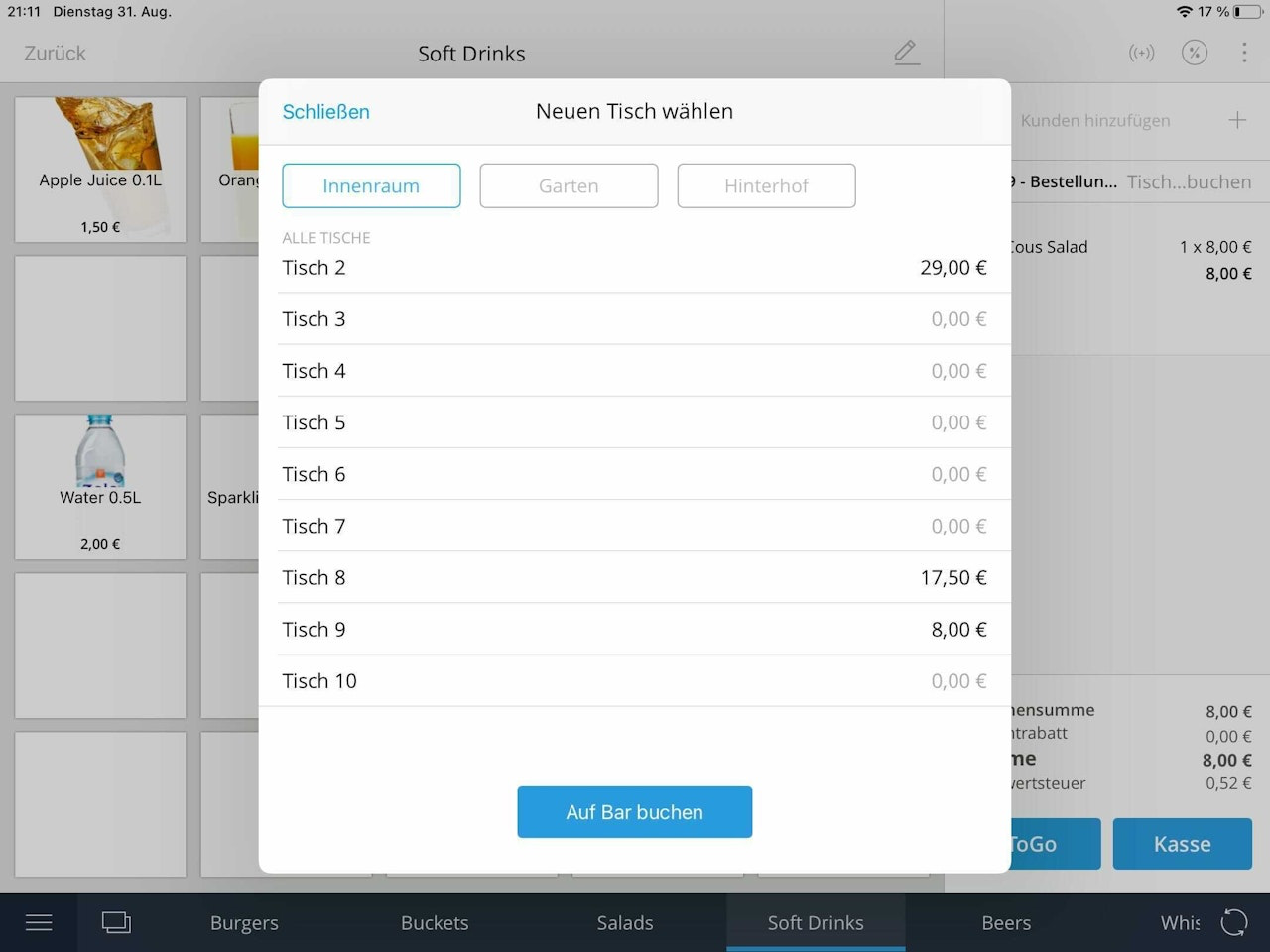
Rebooking an Item to a Different Table
Let's assume there are already some orders in the cart at one table. Now you would like to rebook one of the items to a different table. Please proceed as follows:
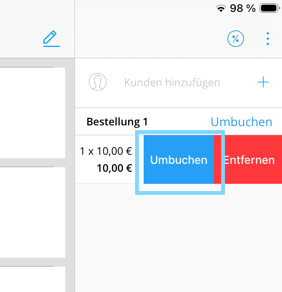
Swipe over the relevant item in the cart that you would like to rebook, slowly, from right to left. Hold your finger roughly to the middle and then release. The option "Rebook" will appear, tap on it in the middle.
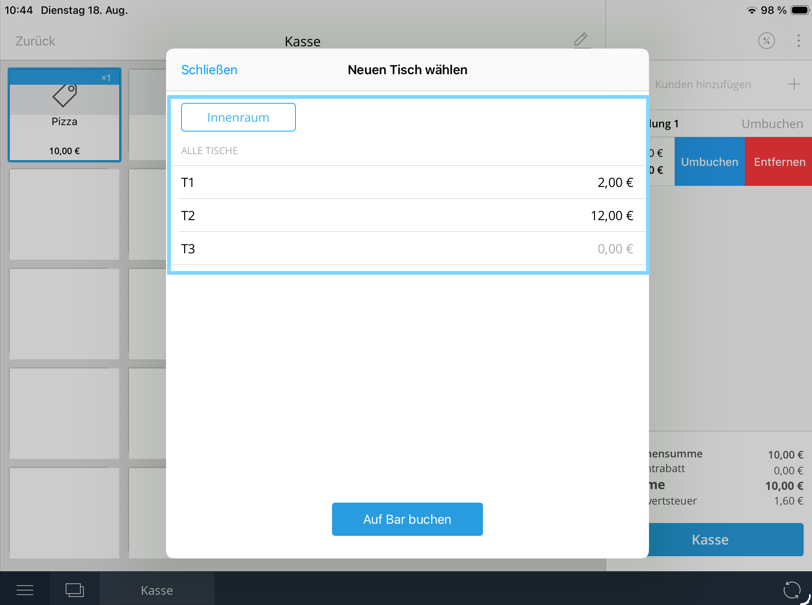
You can then select the table you would like to rebook the item to. Tap on the desired table in the middle. If an order already exists for this table, you will be asked whether you would like to move the item, confirm this.
And just like that, the item has been successfully rebooked to the other table.
Was this article helpful?
That’s Great!
Thank you for your feedback
Sorry! We couldn't be helpful
Thank you for your feedback
Feedback sent
We appreciate your effort and will try to fix the article
