CCV - Setting Up a Static IP Address Assignment
Modified on Wed, 4 Feb at 9:49 AM
Sometimes it is necessary to assign a static IP address to your card reader. As a rule, this should be configured on your internet router as an IP reservation. However, this is not always possible. Here we show you how to configure the static IP address directly on your CCV card reader.
You usually receive the IP address data from your IT service provider, IT technician, or POS integrator.
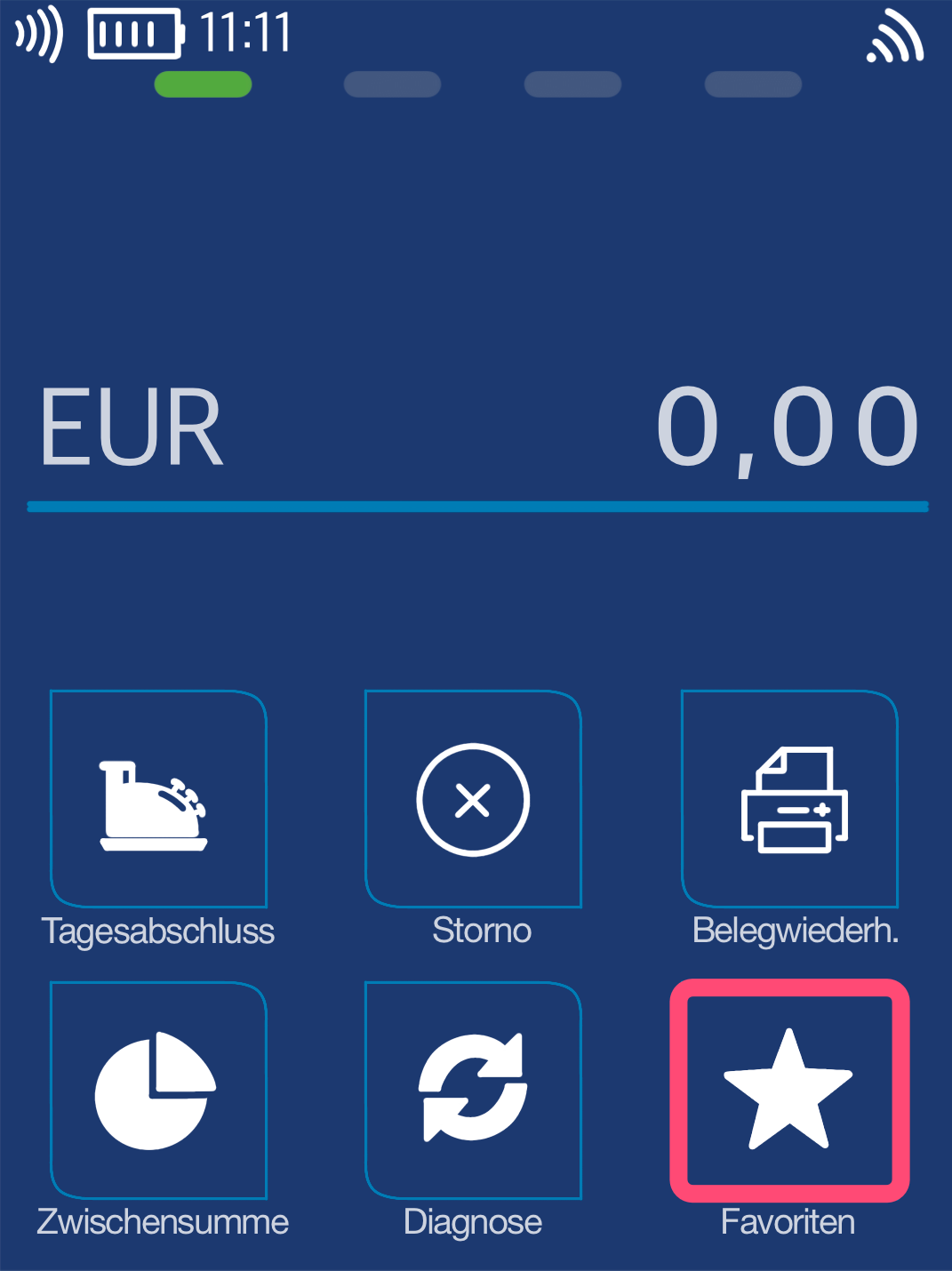
Favorites Button
You will see your main display. Please select the Favorites button.
Select by tapping.
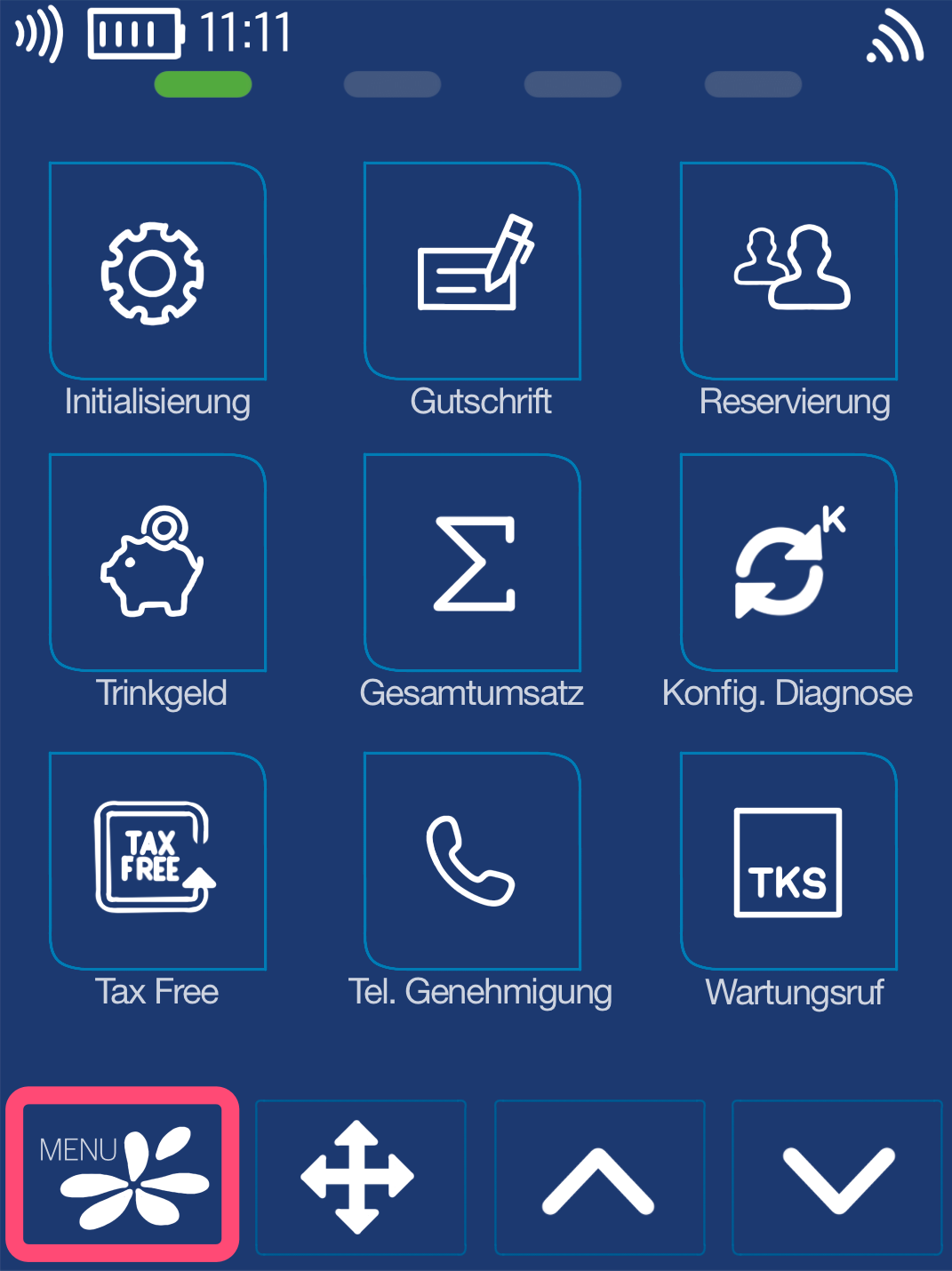
Menu Button
Now please select the Menu button.
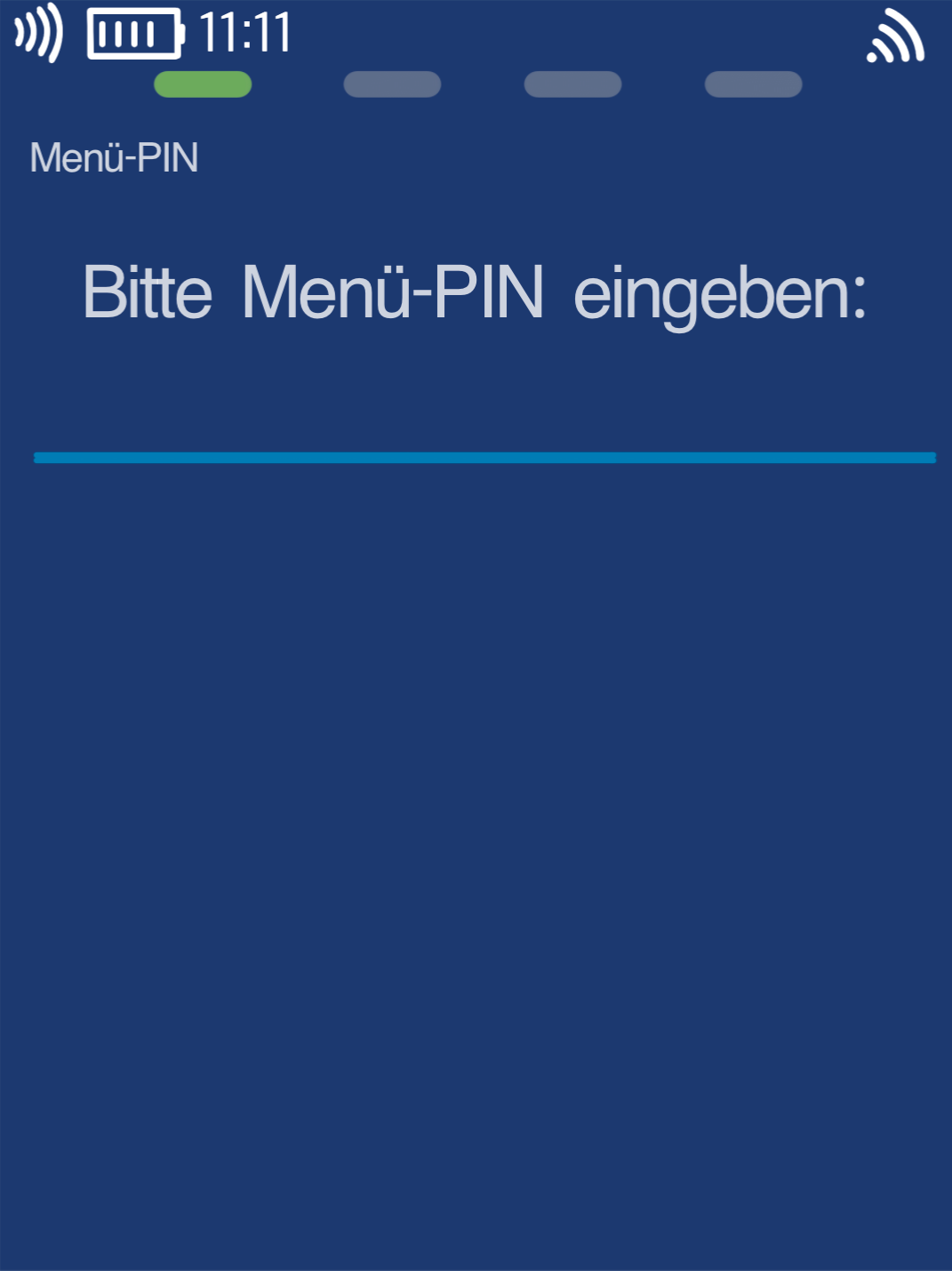
Menu PIN
Please now enter your merchant PIN.
You can find the Terminal ID on your merchant receipts or on the end-of-day report.
Terminal IDs starting with 61xxxxxx: 111111
Terminal IDs starting with 68xxxxxx: 111111
Terminal IDs starting with 526xxxxx: 0123
Please confirm the entry by pressing the green OK button.
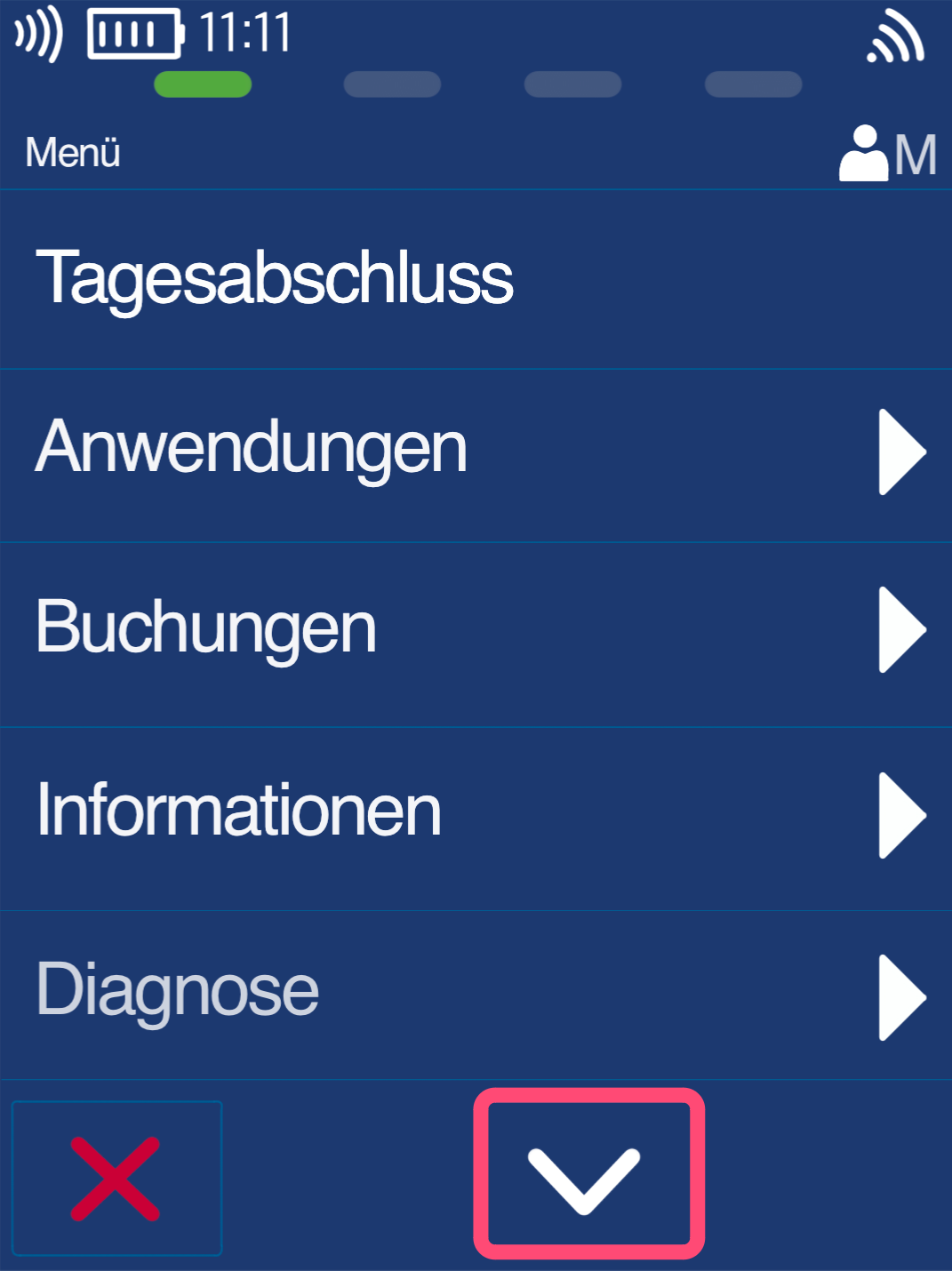
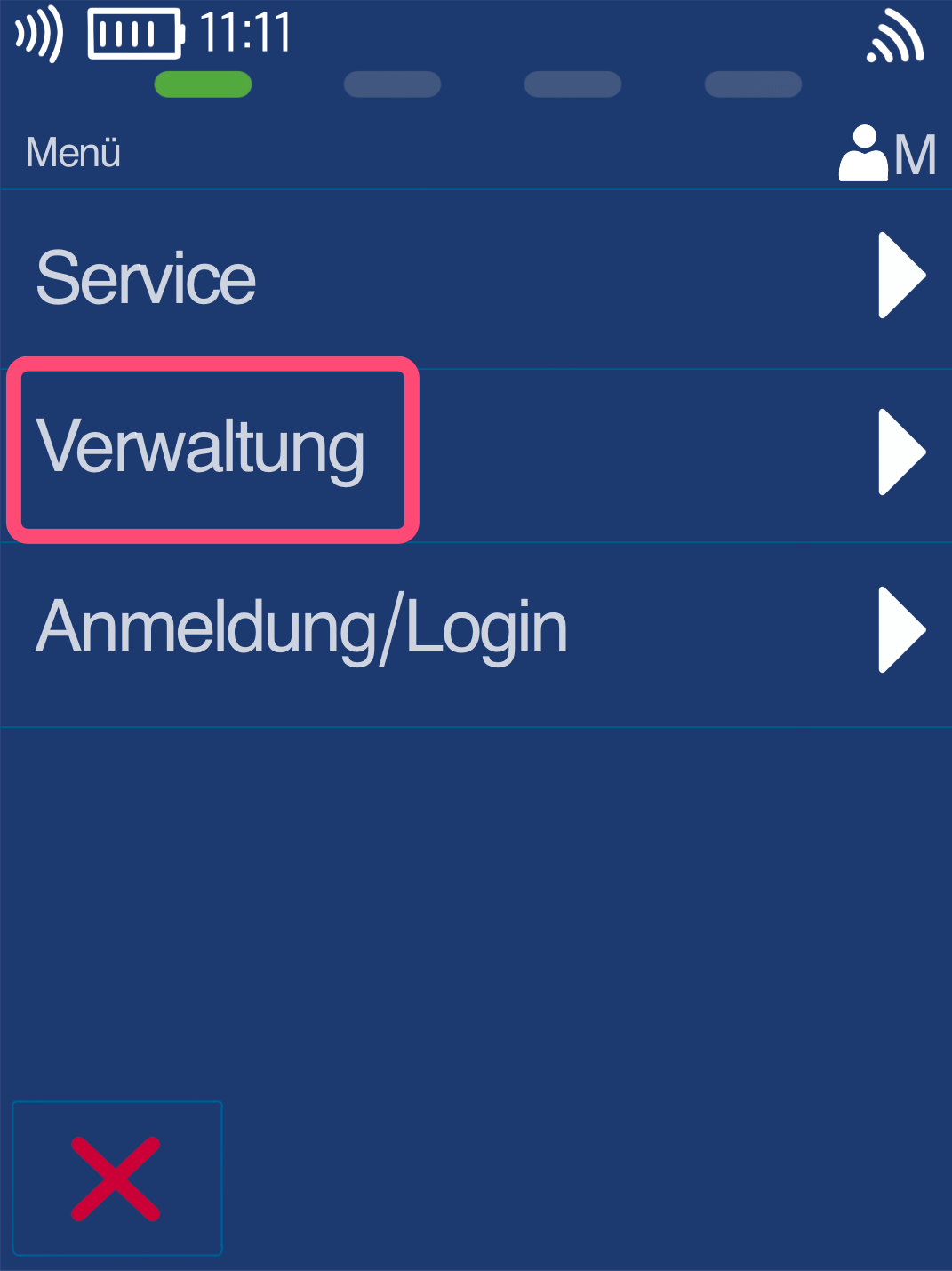
Administration
First, please select the down arrow key and then the Administration button (Fig. 2).
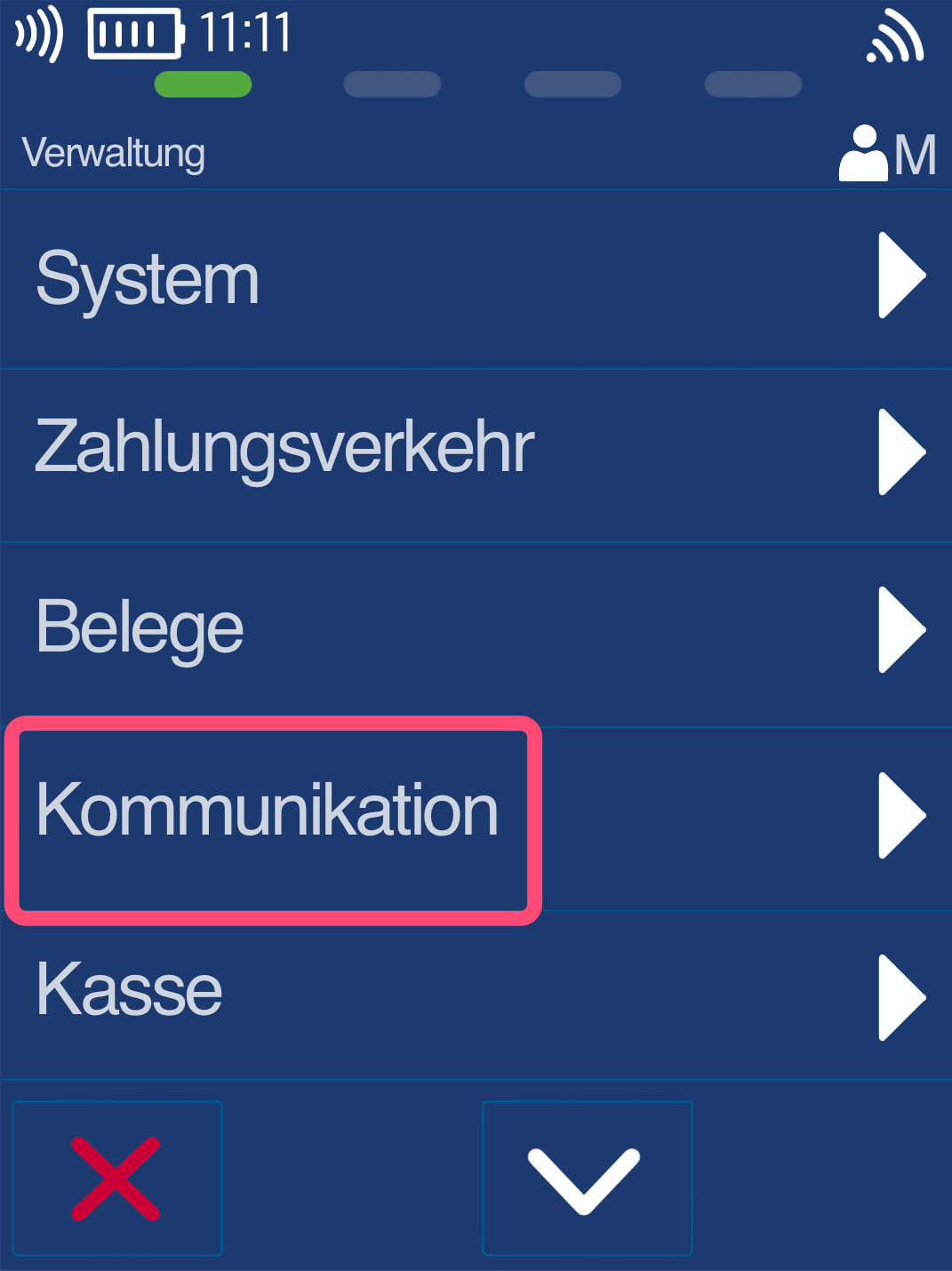
Communication
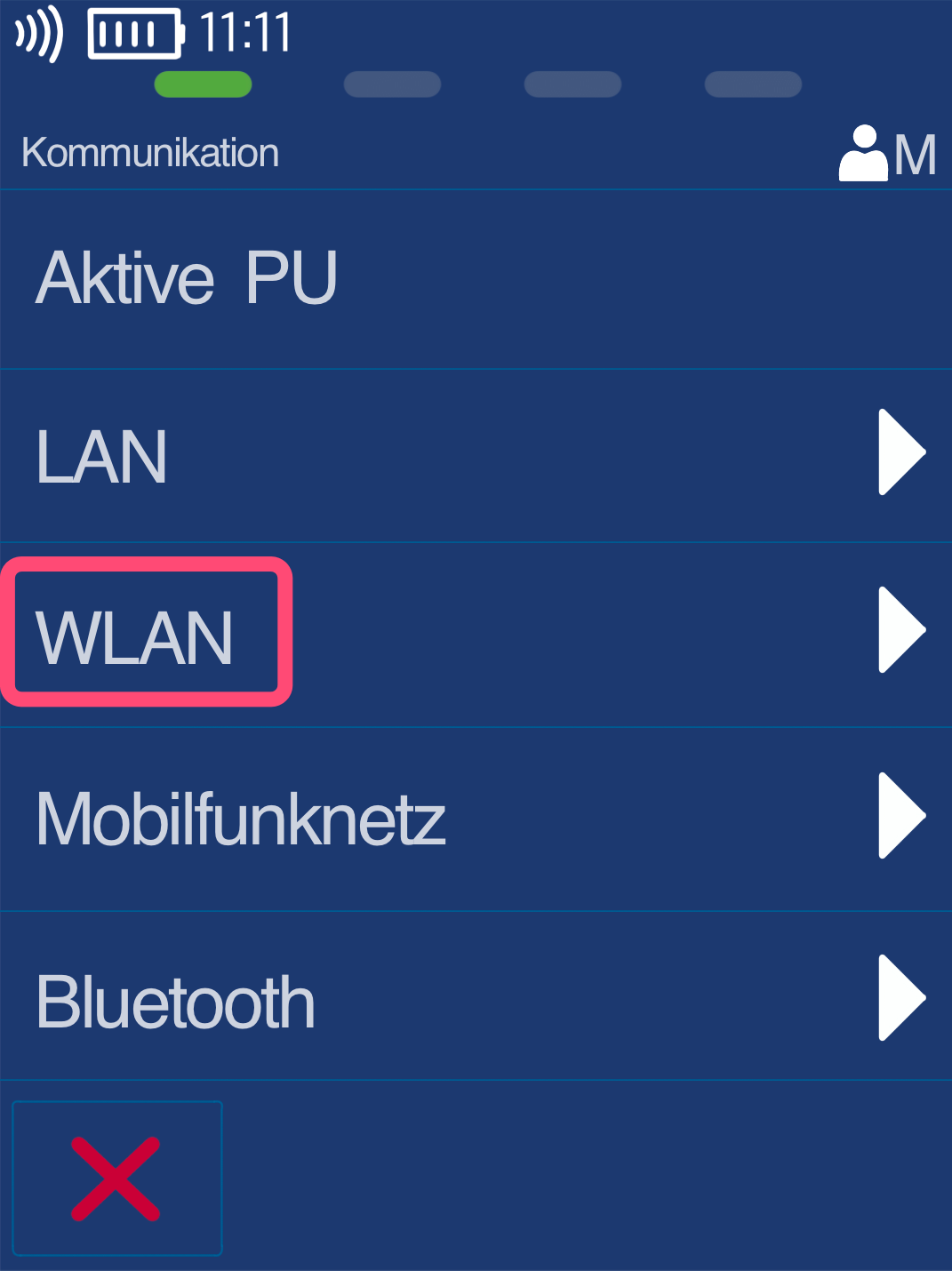
Please select the menu item Communication here (Fig. 1).
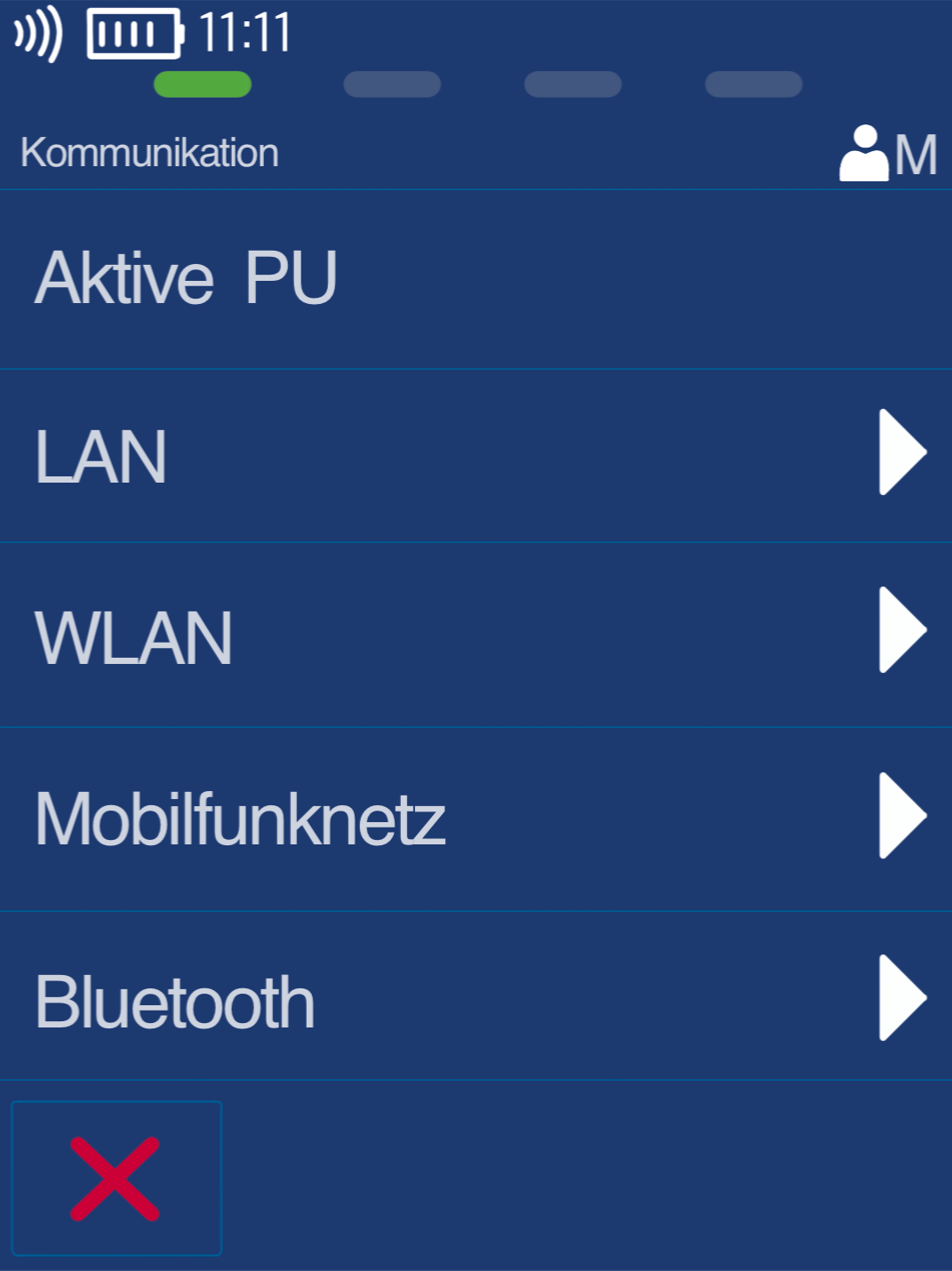
In Fig. 2 you can see the available connection type of your card reader.
The connection types vary between wired and mobile card readers.
Please select the connection type you are currently using and for which a static IP address should be set.
A mobile data connection cannot be assigned a static IP address.
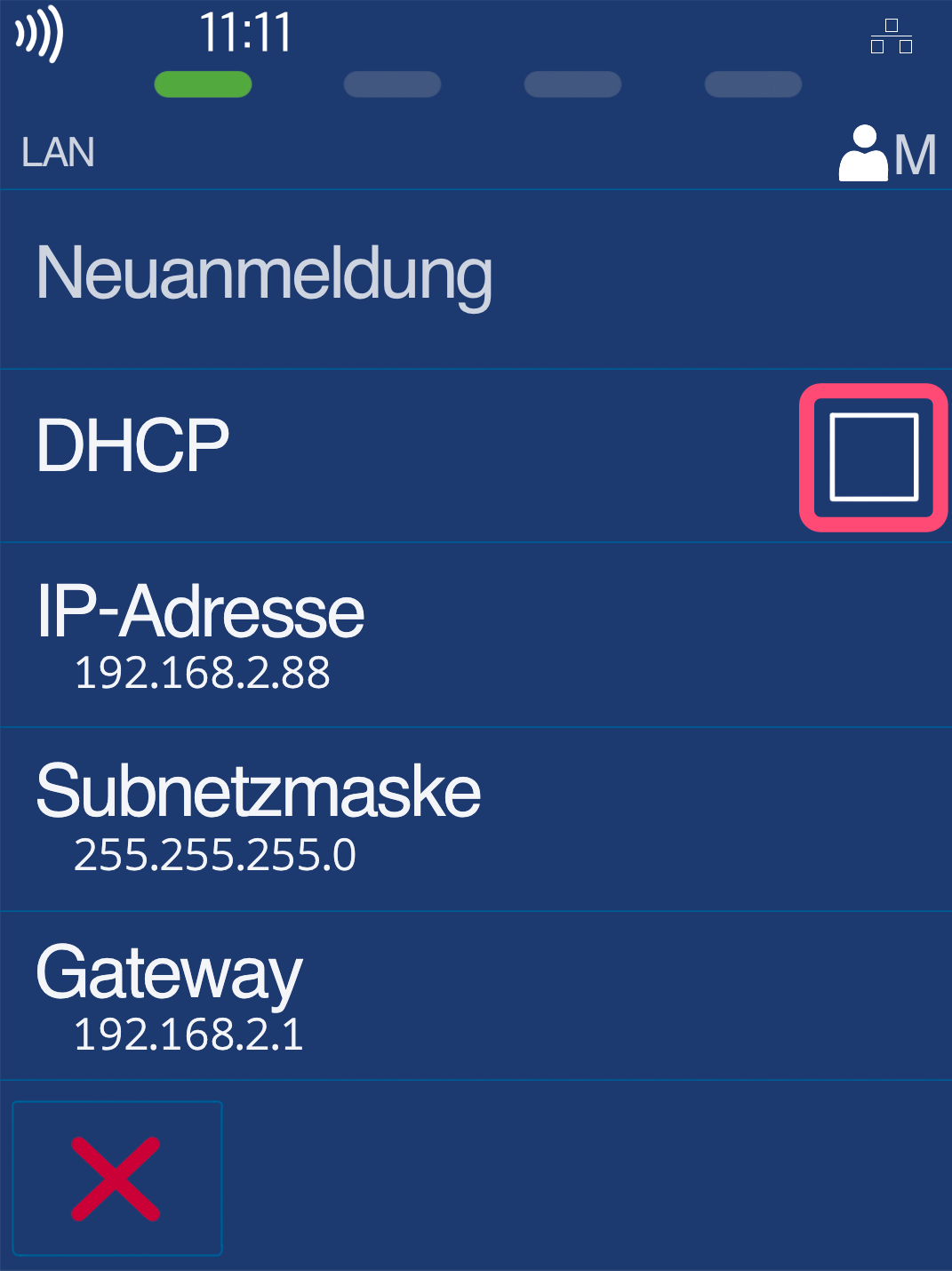
LAN
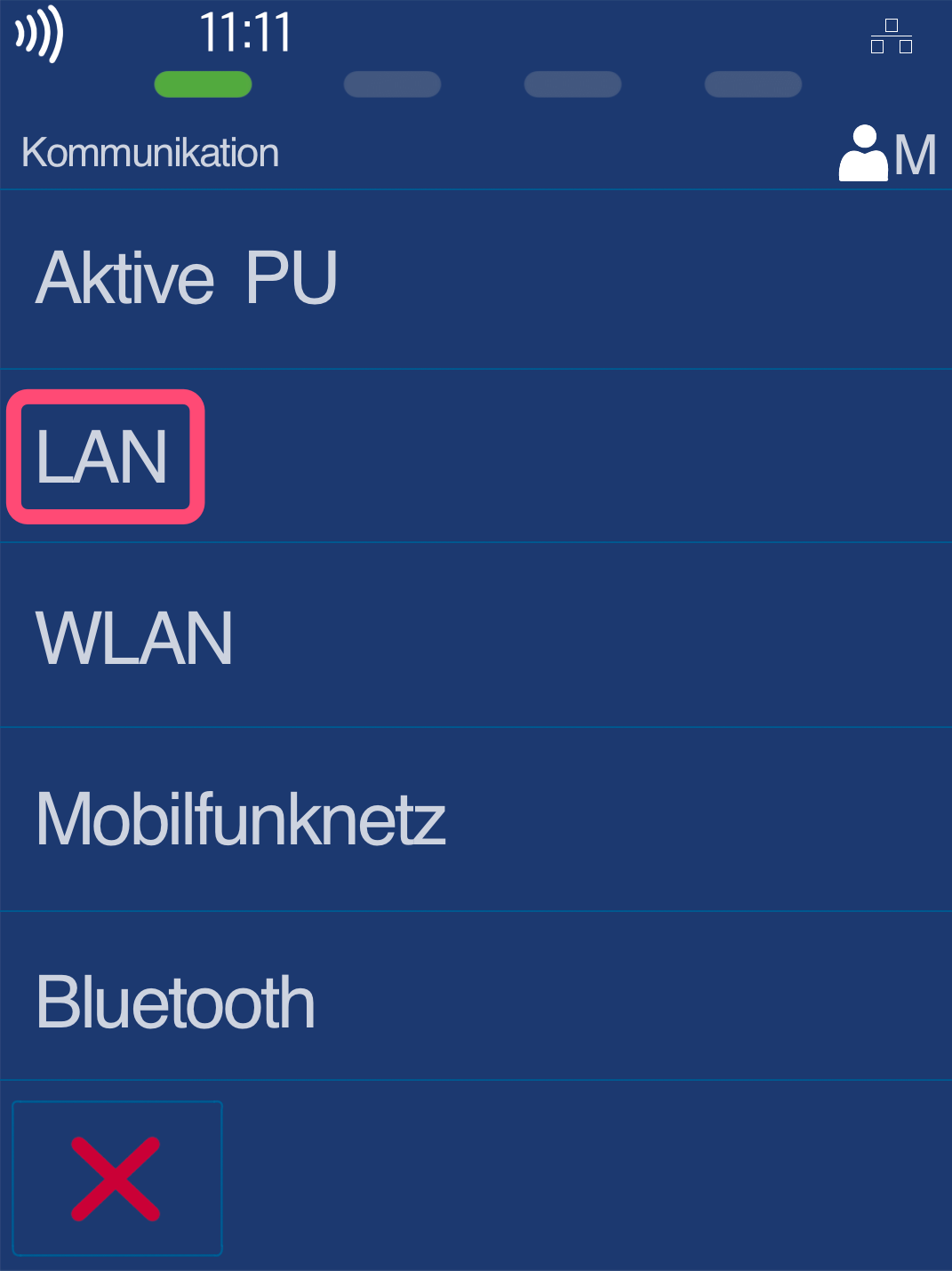
Selecting LAN and Disabling DHCP
If your card reader is connected via a network cable (LAN cable), please select LAN (Fig. 1).
In Fig. 2, disable DHCP by tapping it, so that you can enter the IP data.
You usually receive this data from your IT service provider, IT technician, or POS integrator.
WLAN
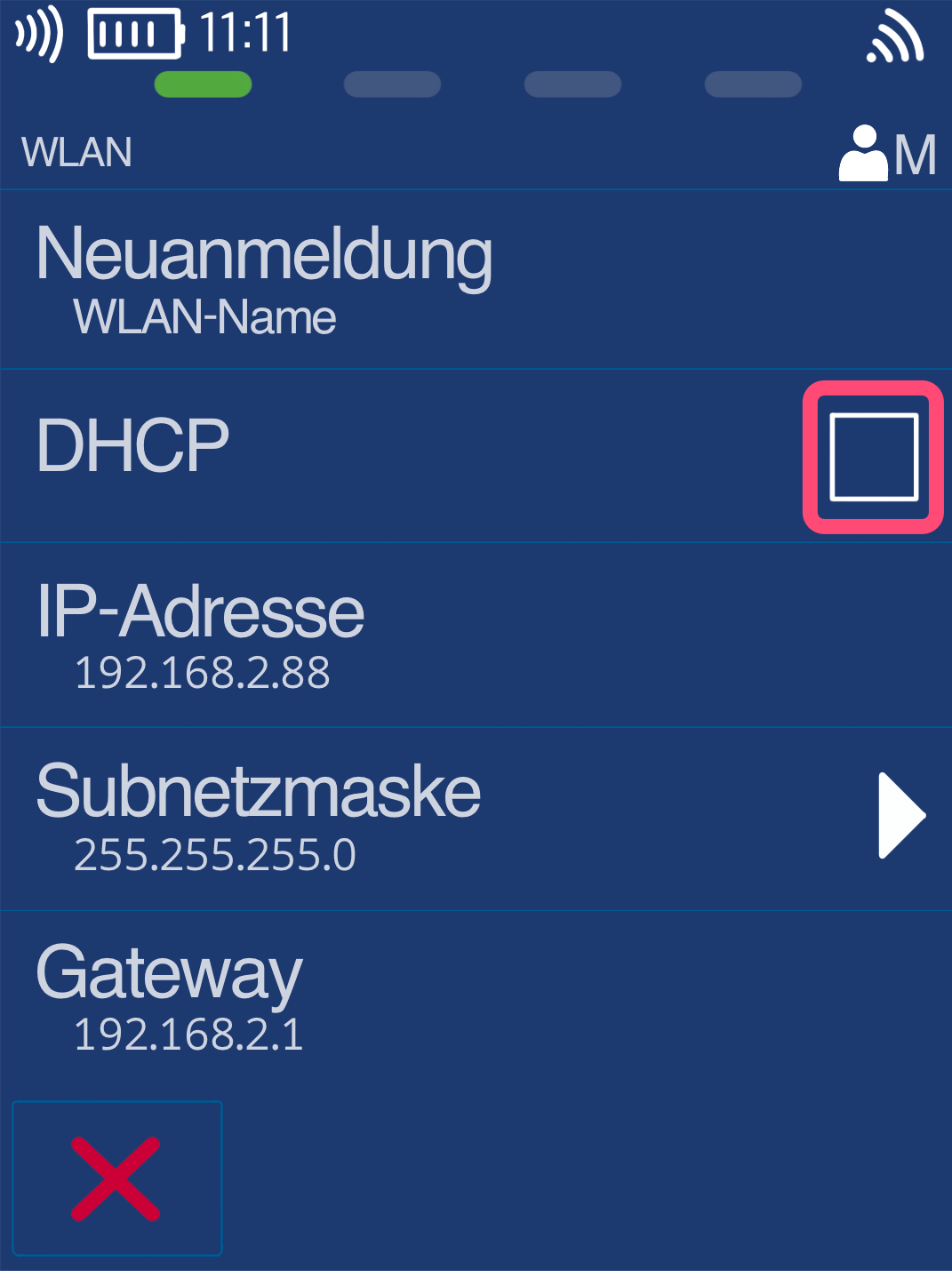
Selecting WLAN and Disabling DHCP
Are you using a wireless (WLAN) connection? Then please select WLAN (Fig. 1).
In Fig. 2, please disable DHCP by tapping it, so that you can enter the IP data.
You usually receive this data from your IT service provider, IT technician, or POS integrator.
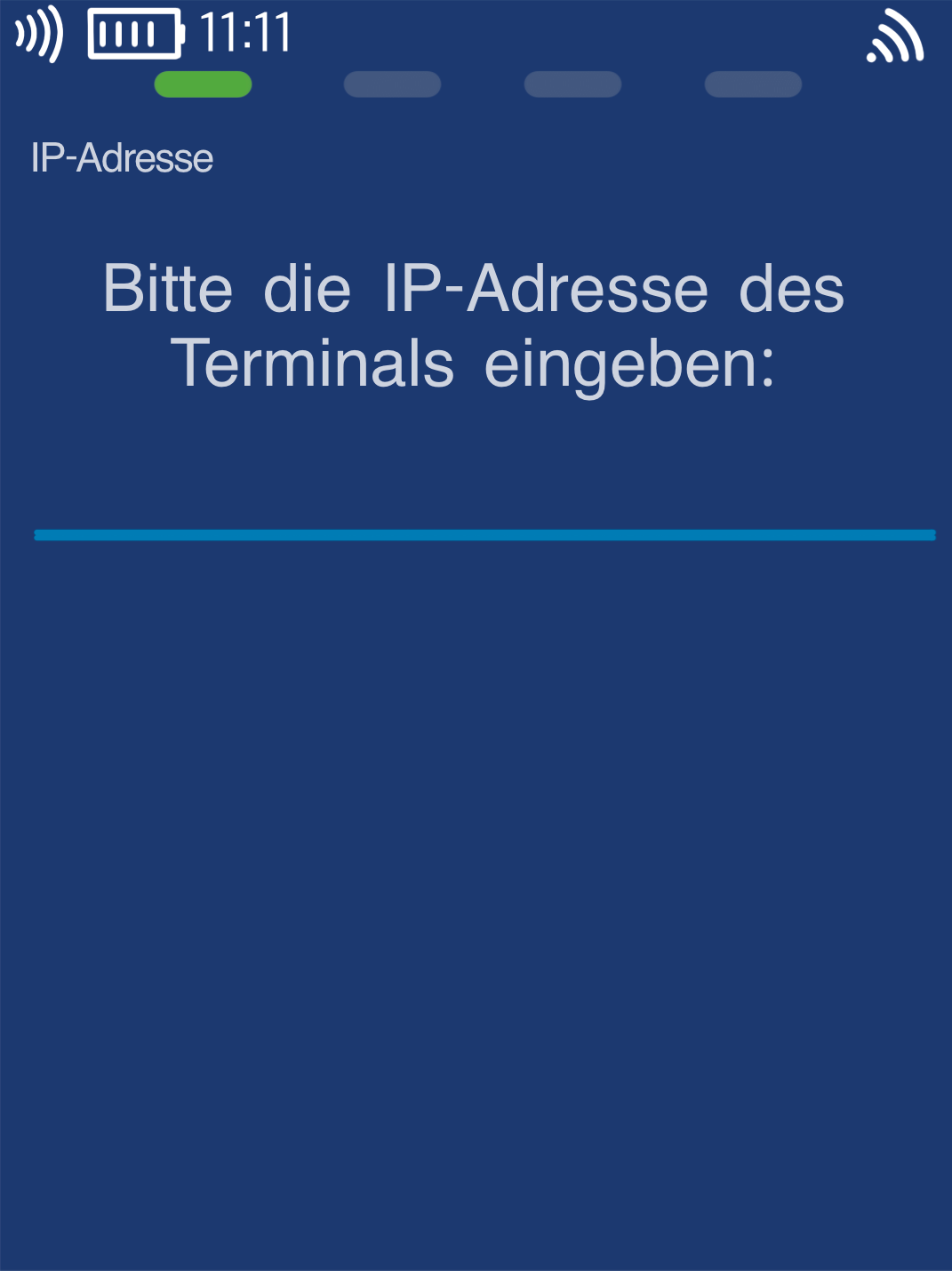
IP Data Configuration
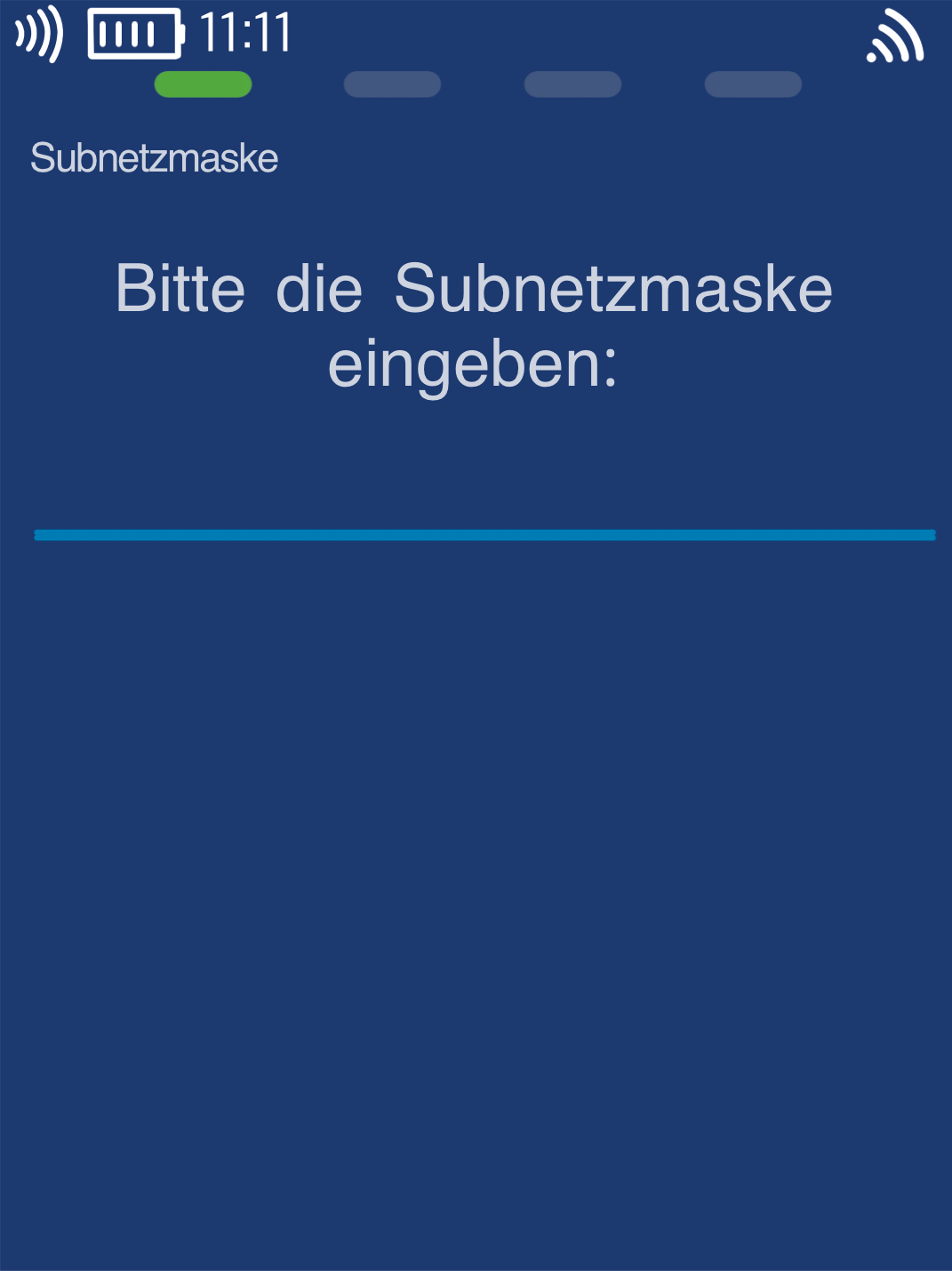
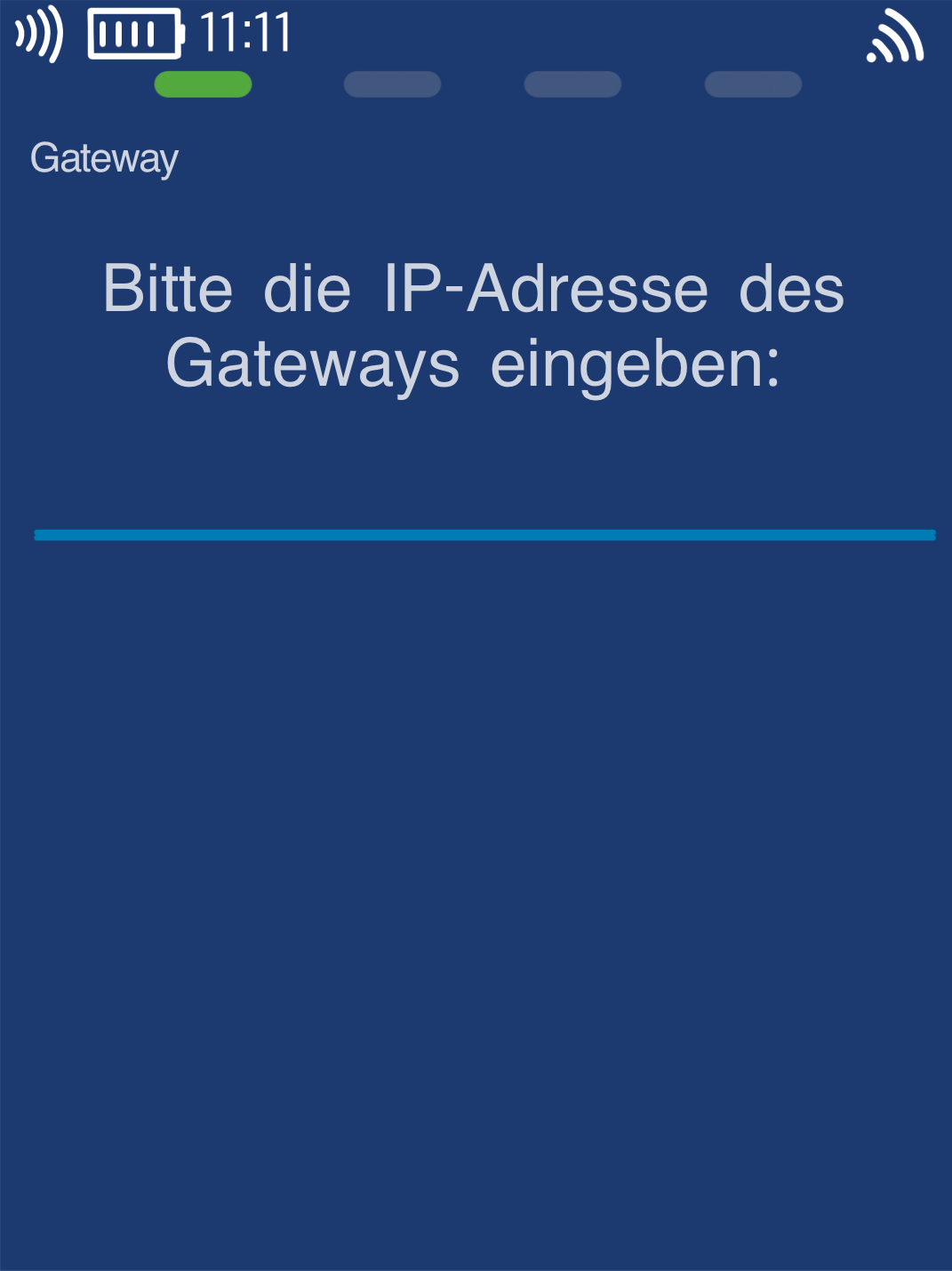
As shown in Figures 1–3, the IP address, subnet mask, and default gateway are the required entries.
An IP address consists of 4 blocks of 3 digits each, separated by periods.
192.168.005.078 – Example IP address
255.255.255.000 – Example subnet mask
192.168.005.254 – Example default gateway
Please tap each of the 3 menu items: IP Address, Subnet Mask, and Gateway, to enter your data. Confirm each entry by pressing the green OK button.
After entering the data, you can exit the menu by pressing the red Stop button. You will return to your main display.
Please check the connection afterwards using our instructions.
Was this article helpful?
That’s Great!
Thank you for your feedback
Sorry! We couldn't be helpful
Thank you for your feedback
Feedback sent
We appreciate your effort and will try to fix the article
