Ingenico - Change Password
Modified on Tue, 10 Feb at 4:03 PM
Would you like to change the cashier or merchant password for your Ingenico Move5000 or Desk5000 card reader? We’ll show you how it’s done.
Function Code
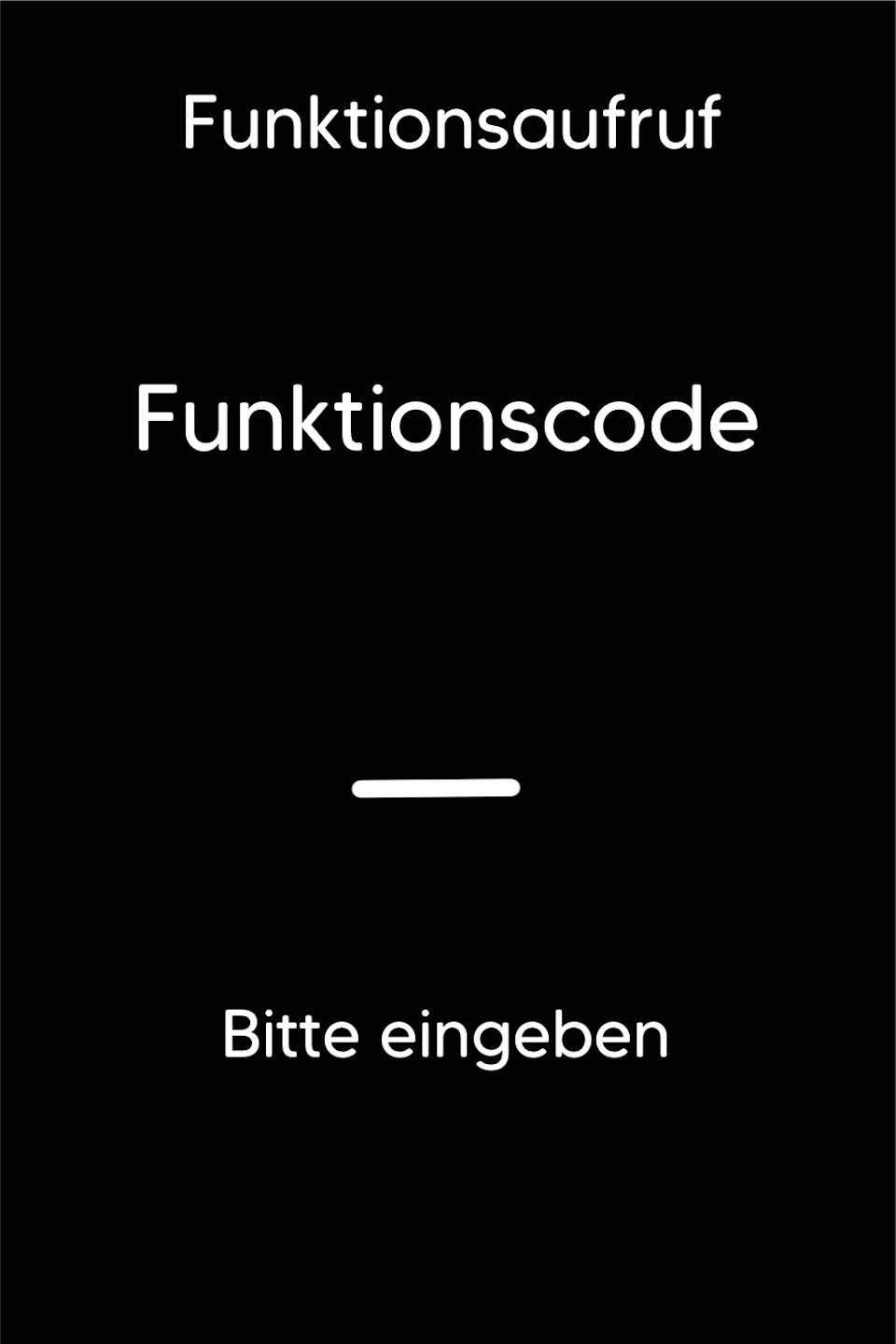
Please press the F key at the bottom left of the keypad repeatedly. You will now see "Funktionscode" on the display.
Function Code 521
Please enter the number 521 and confirm the entry with the green OK button.
Password Entry
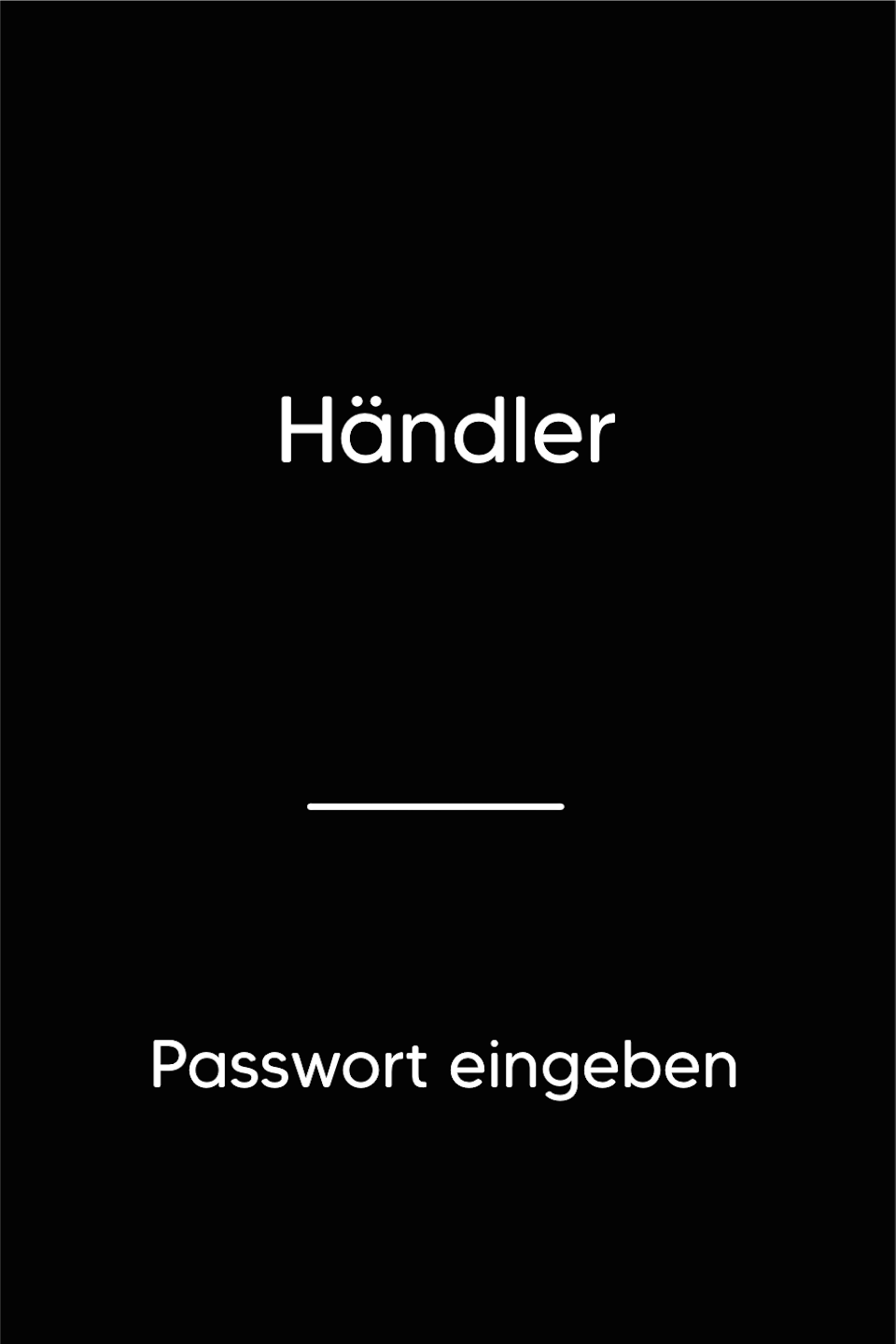
Please enter your current merchant password.
You can find the terminal ID on your merchant receipts or on the end-of-day report.
Terminal IDs starting with:
61xxxxxx – 22222
68xxxxxx – 12345
526xxxxx – 12345
Please confirm the entry with the green OK button.
Select Operator Password
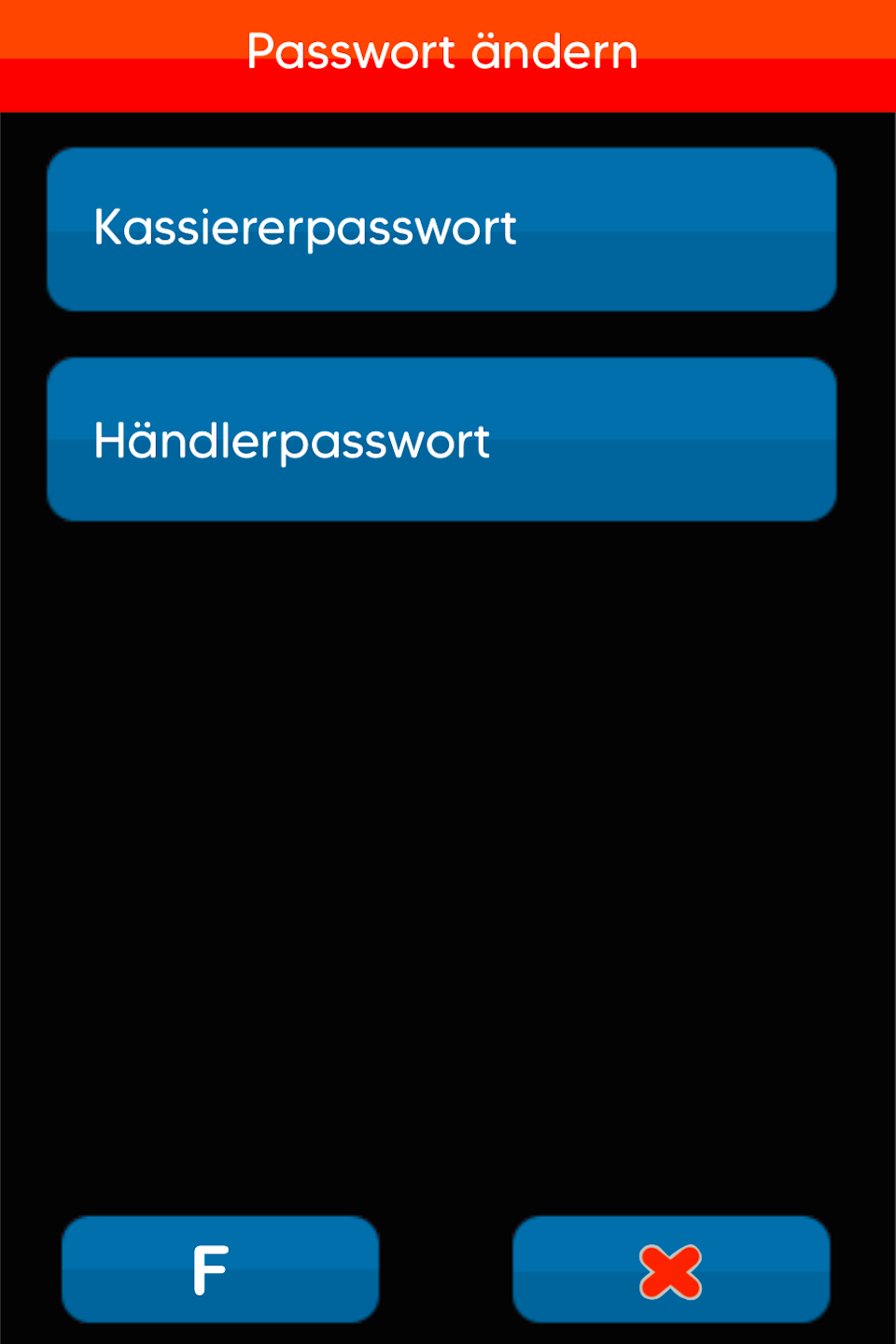
Please select the operator for which you would like to change the password.
Kassierer
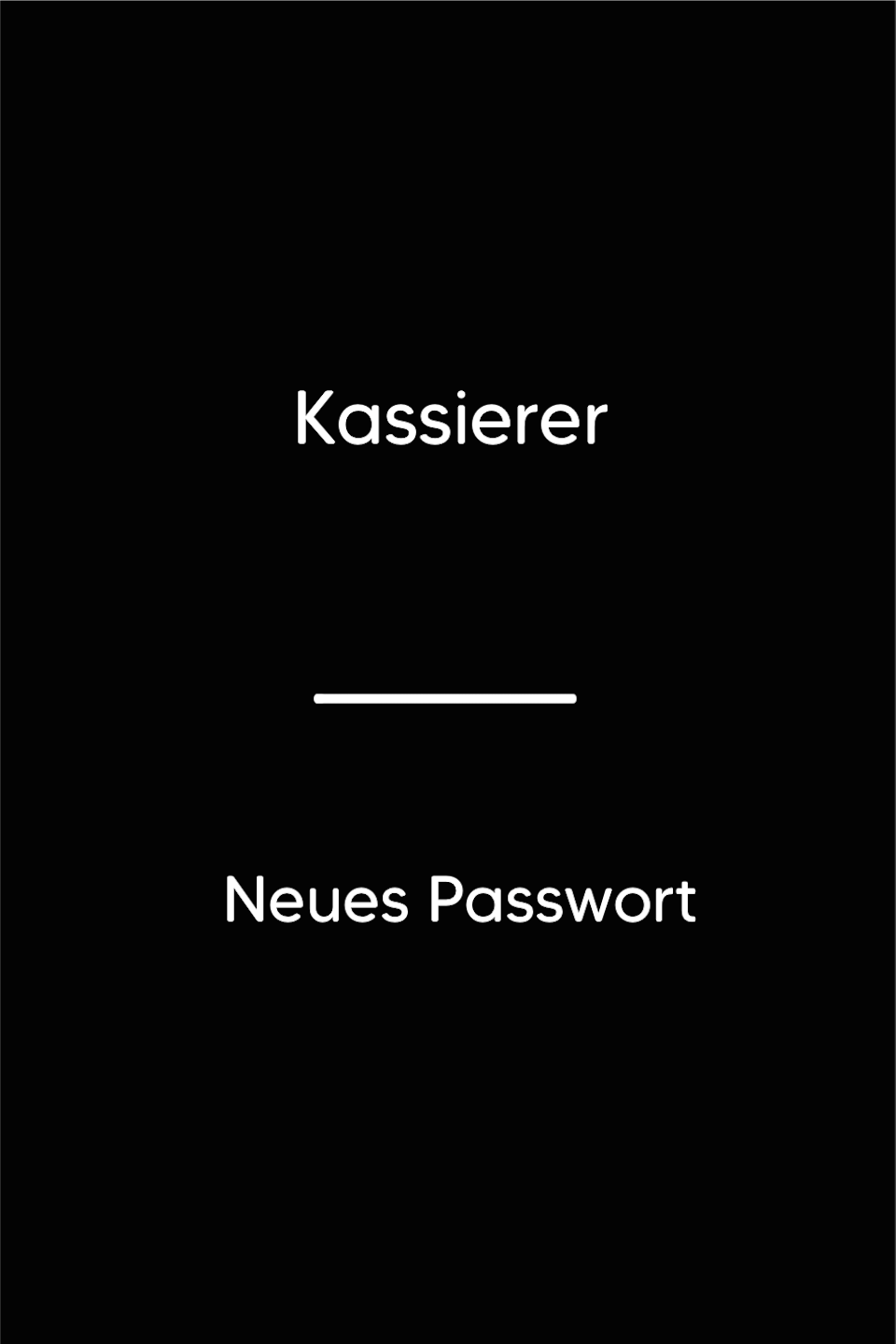
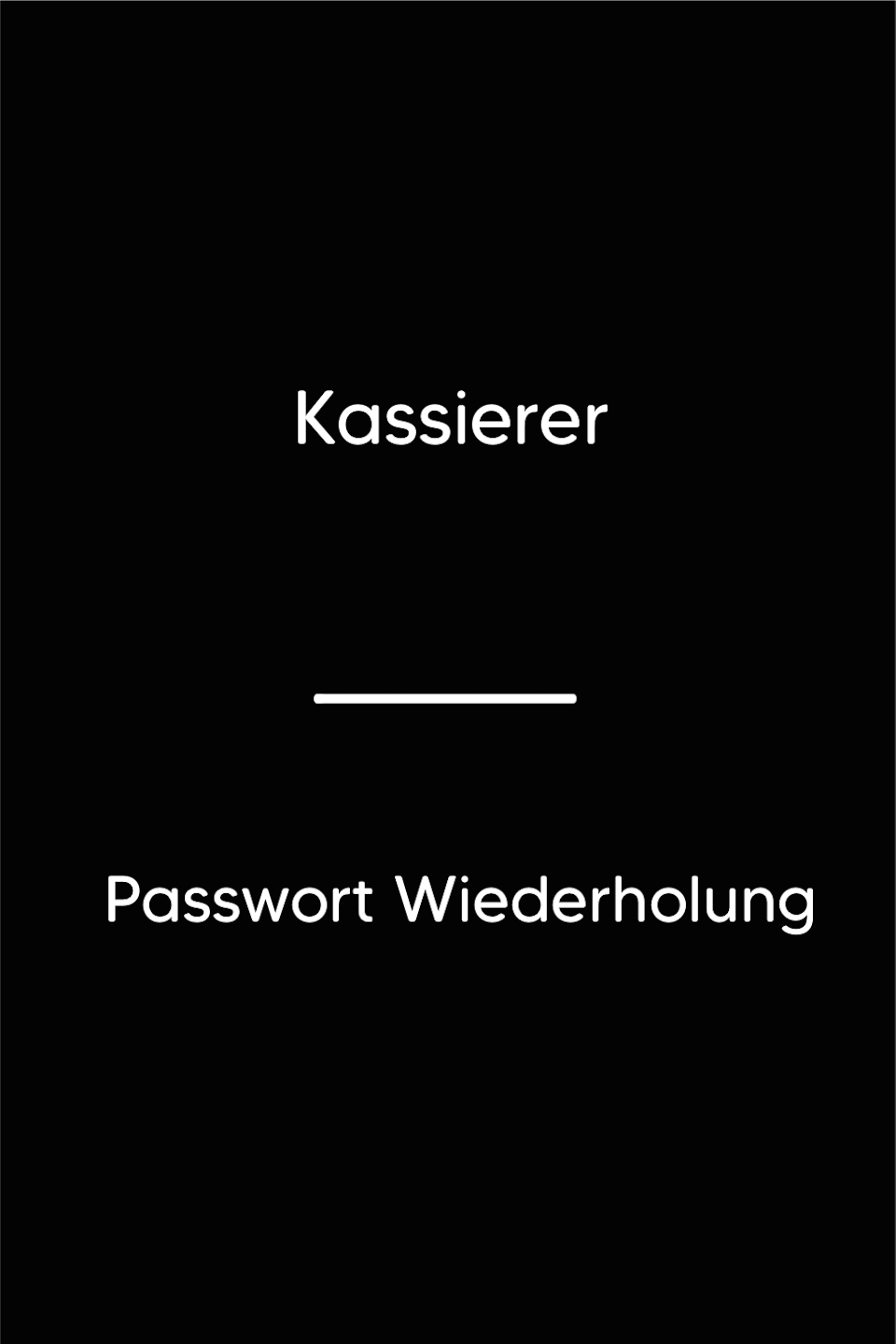
In Fig. 1, you can now enter the new cashier password and confirm it with the green OK button.
Would you like to use an empty password? Then enter 00000.
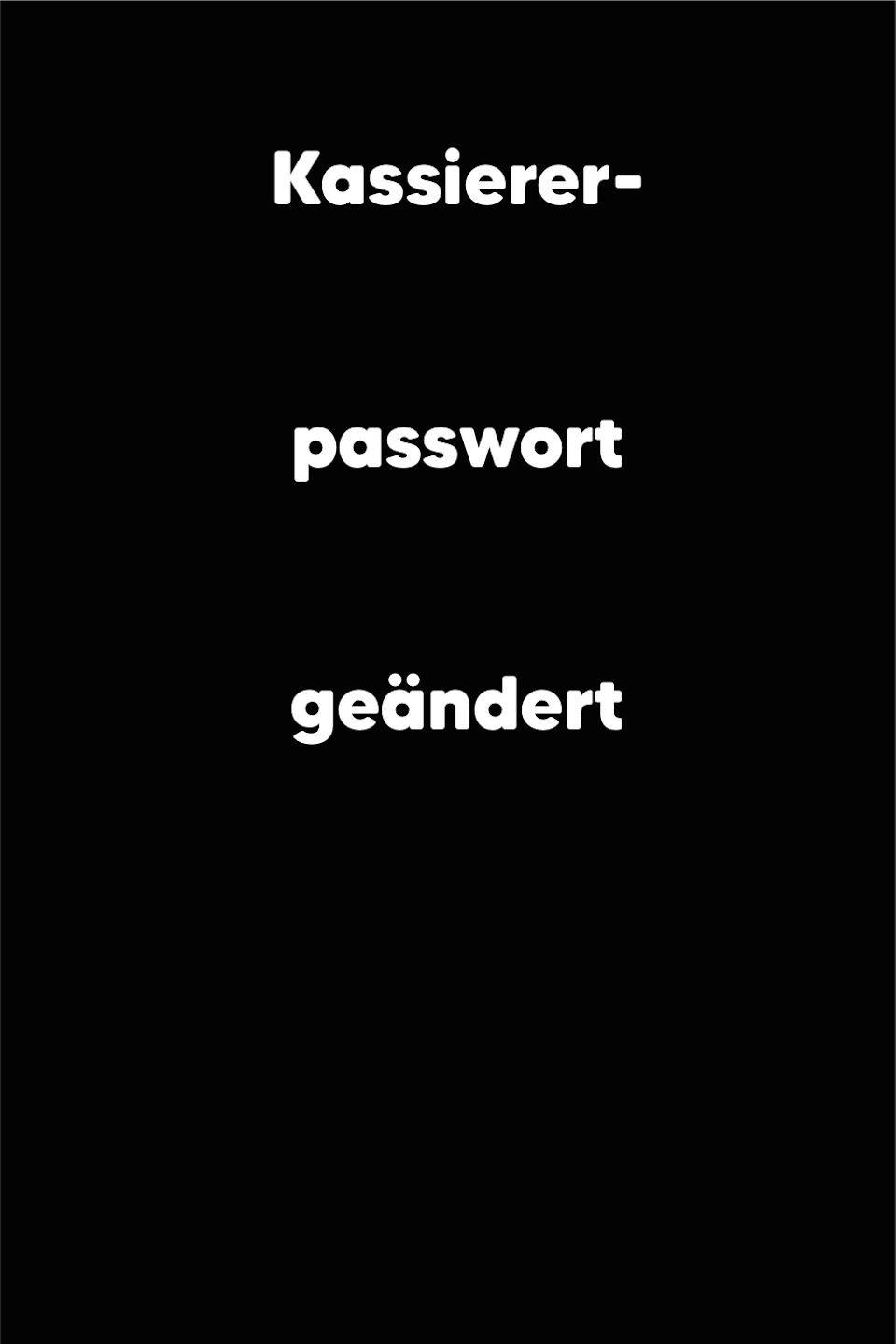
In Fig. 2, the new cashier password must be re-entered and confirmed with the green OK button.
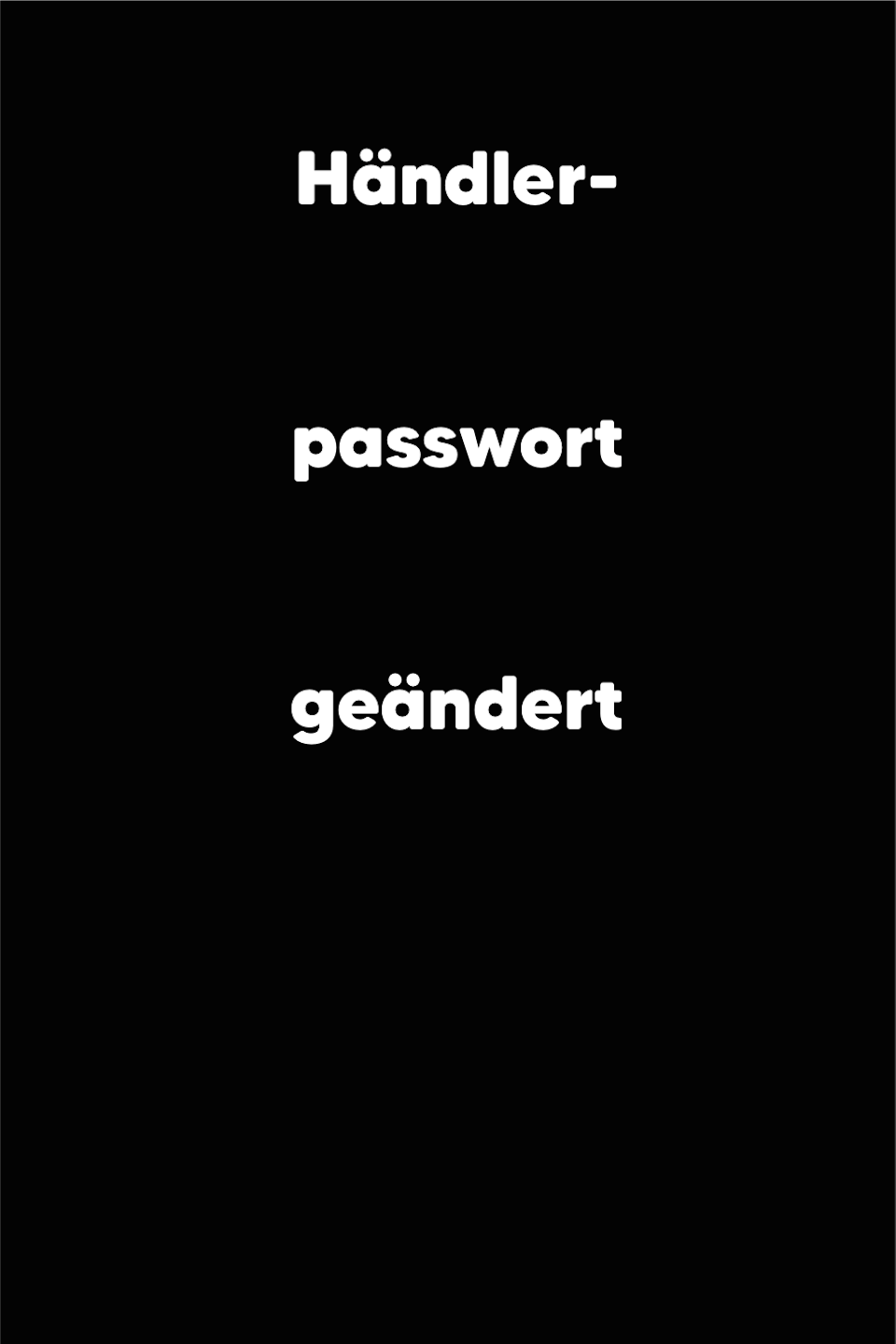
Fig. 3 will show you a confirmation that the password change was successful.
The process is now complete.
Händler
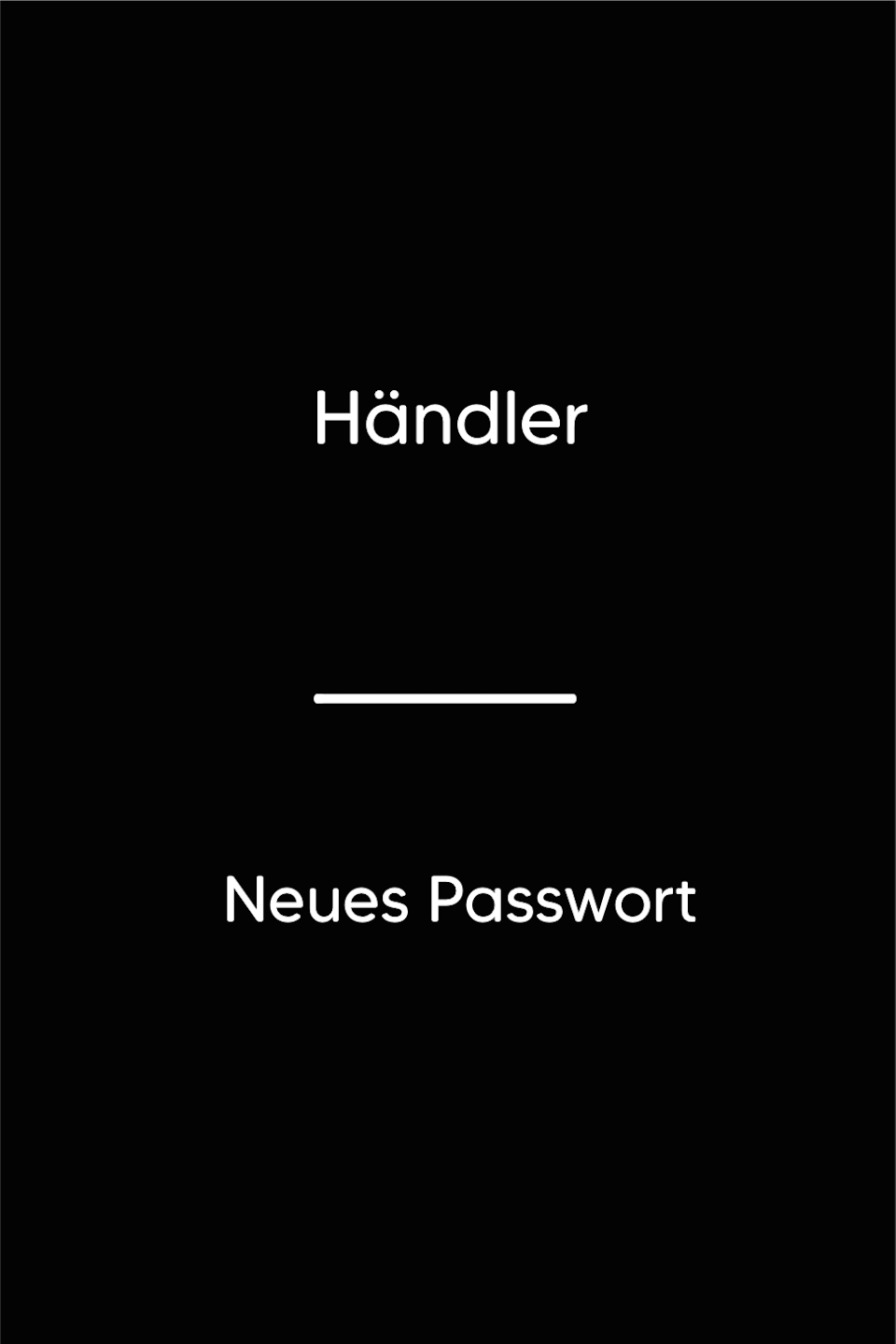
In Fig. 1, you can now enter the new merchant password and confirm it with the green OK button.
Would you like to use an empty password? Then enter 00000.
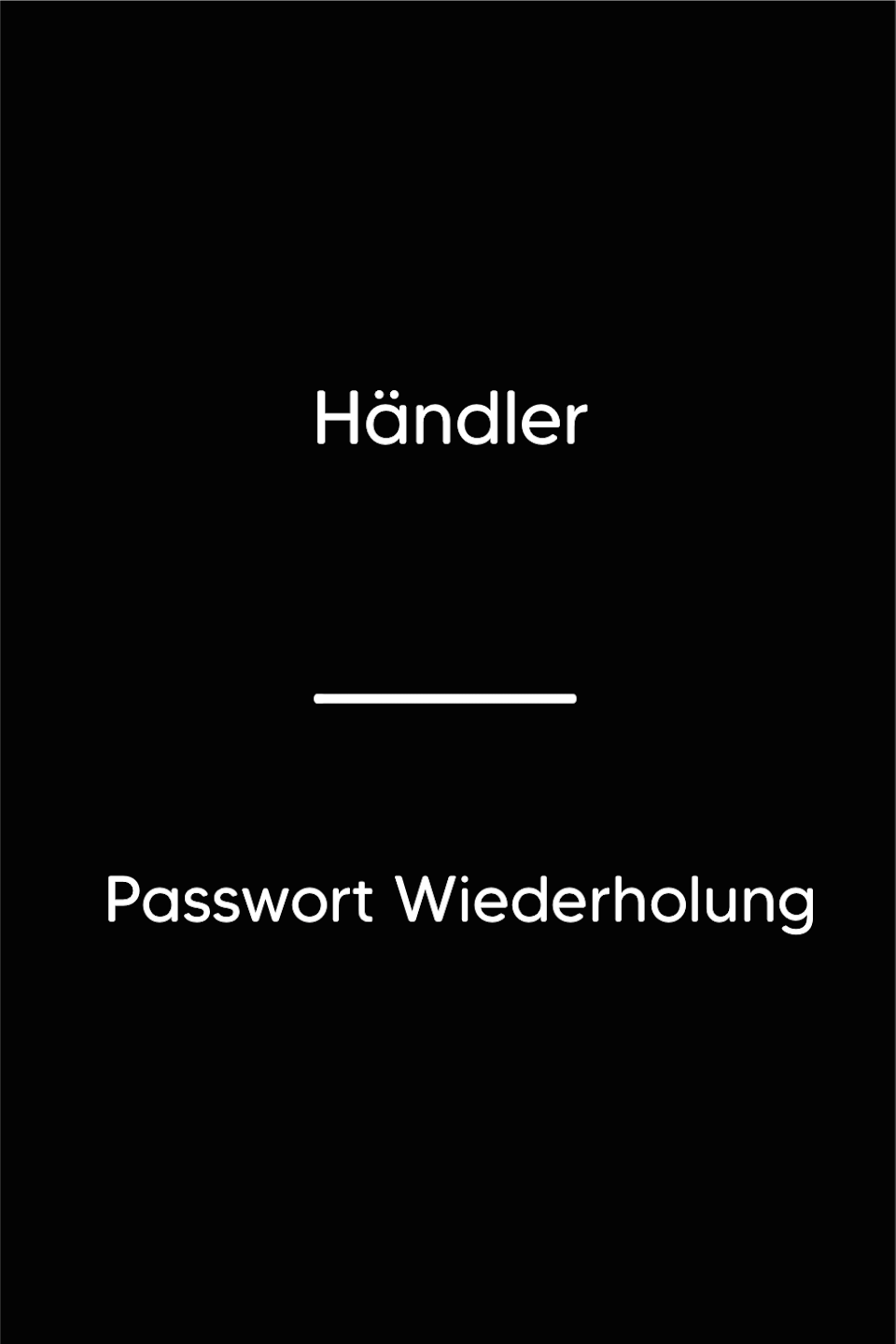
In Fig. 2, the new merchant password must be re-entered and confirmed with the green OK button.
Fig. 3 will show you a confirmation that the password change was successful.
The process is now complete.
Was this article helpful?
That’s Great!
Thank you for your feedback
Sorry! We couldn't be helpful
Thank you for your feedback
Feedback sent
We appreciate your effort and will try to fix the article
