Verifone – Setting Up Your Connection
Modified on Fri, 6 Feb at 5:29 PM
In this guide, we will show you how to set up a connection (LAN, WLAN, mobile network) on your Verifone card reader. Follow this step-by-step guide to explore all available connection types and configurations.
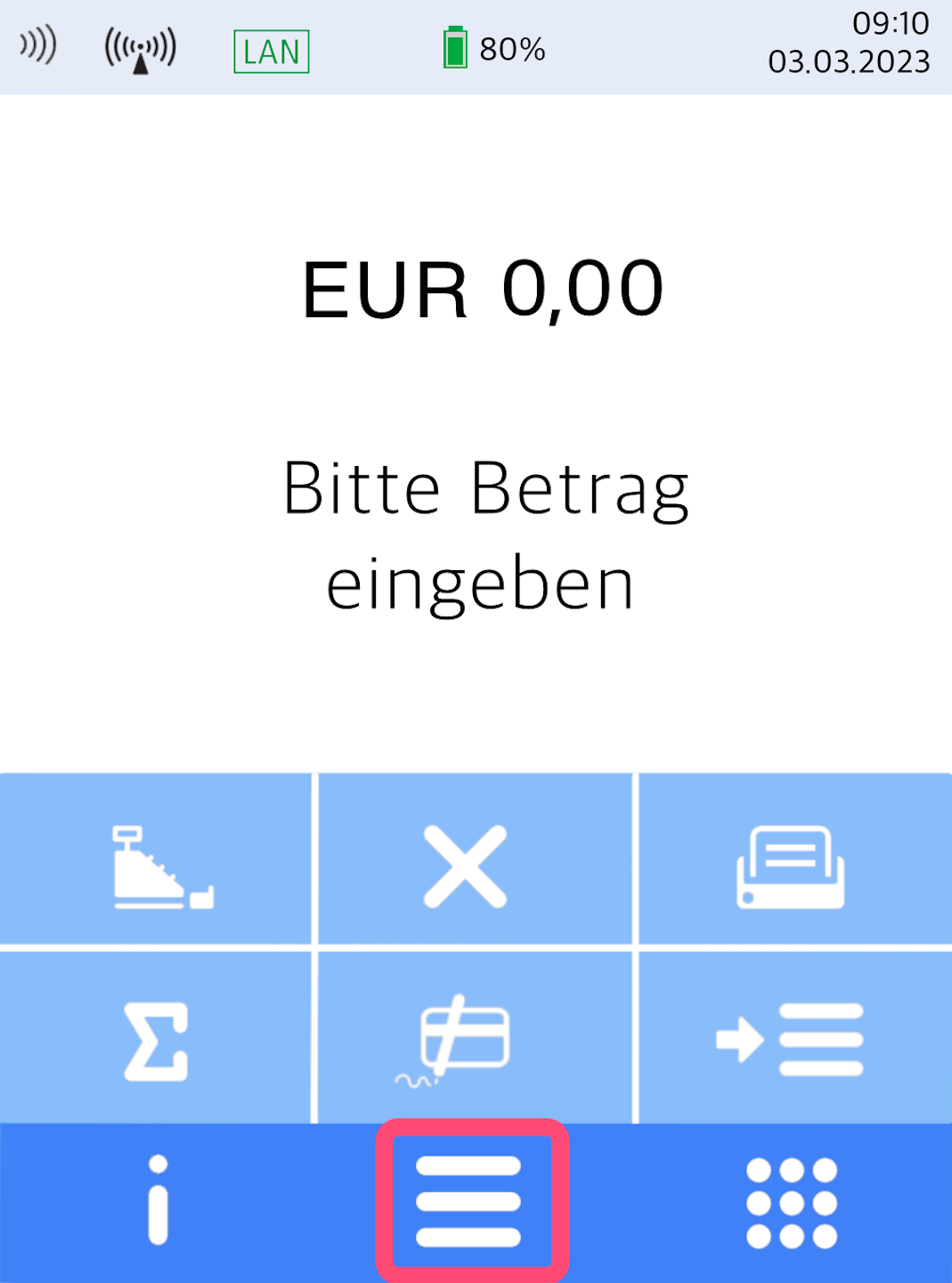
Menu Button
You will see your home display.
Please press the button with the 3 horizontal bars to access the main menu.
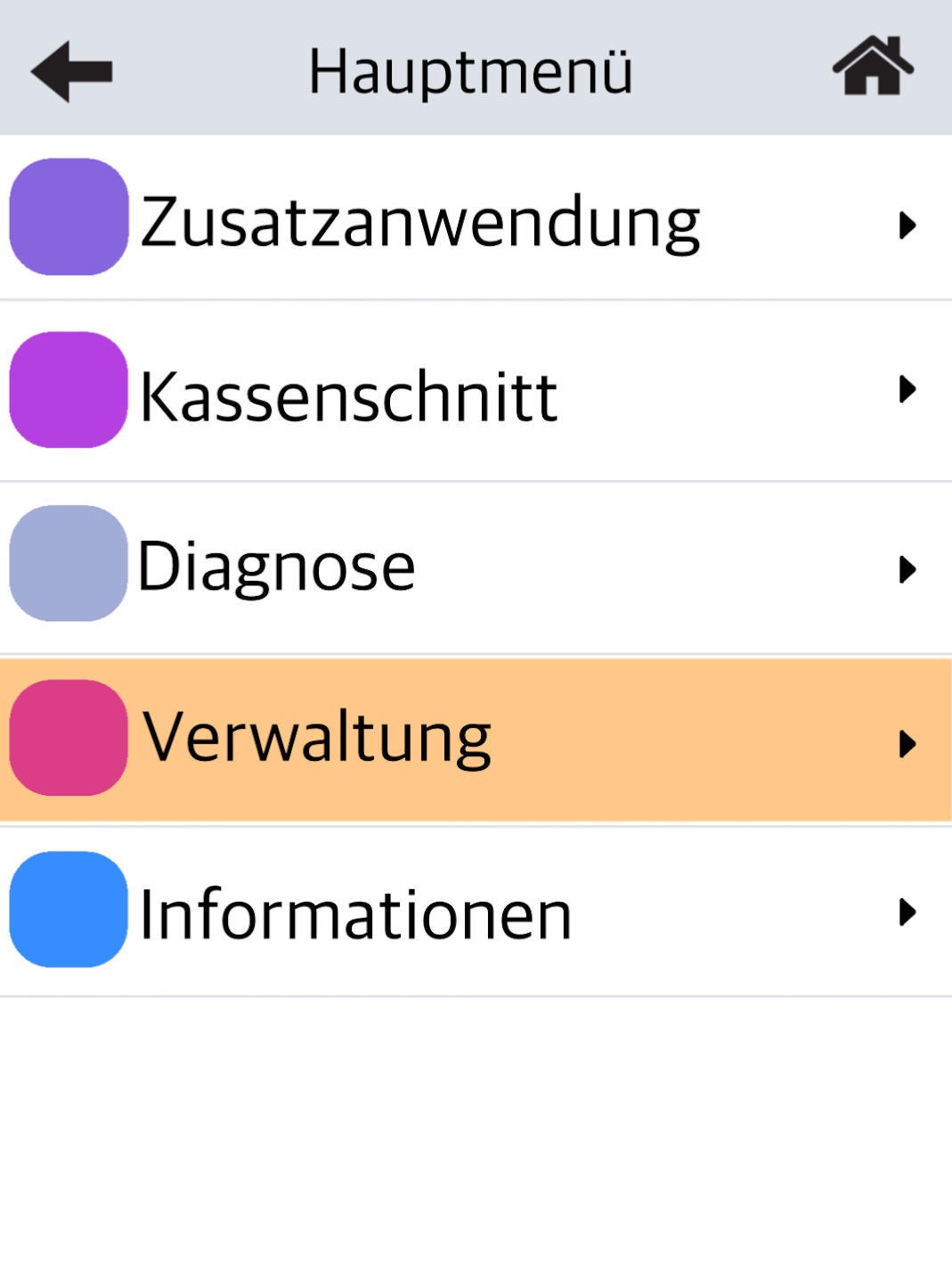
Management
Please select Verwaltung.
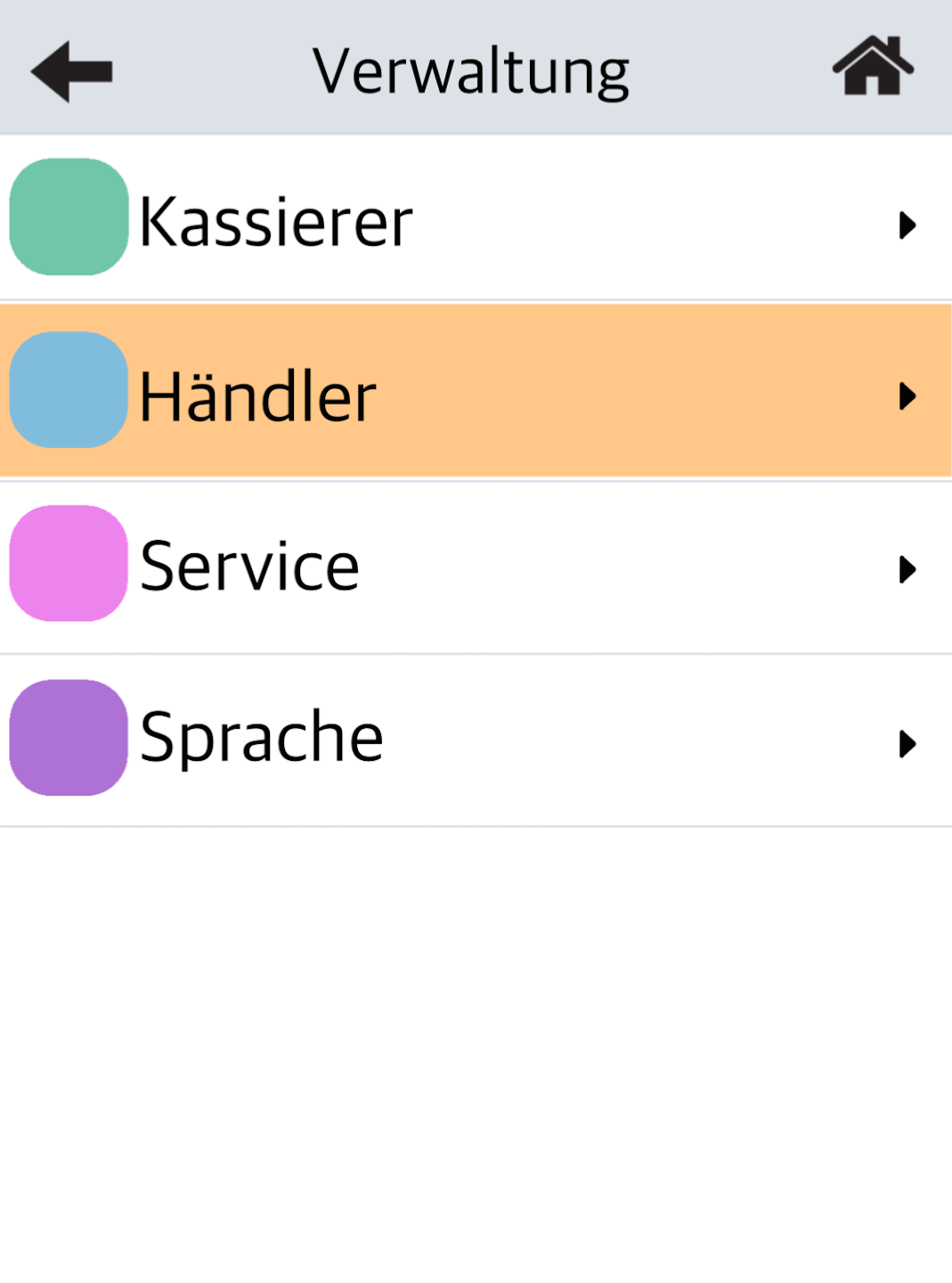
Operator and Password Entry
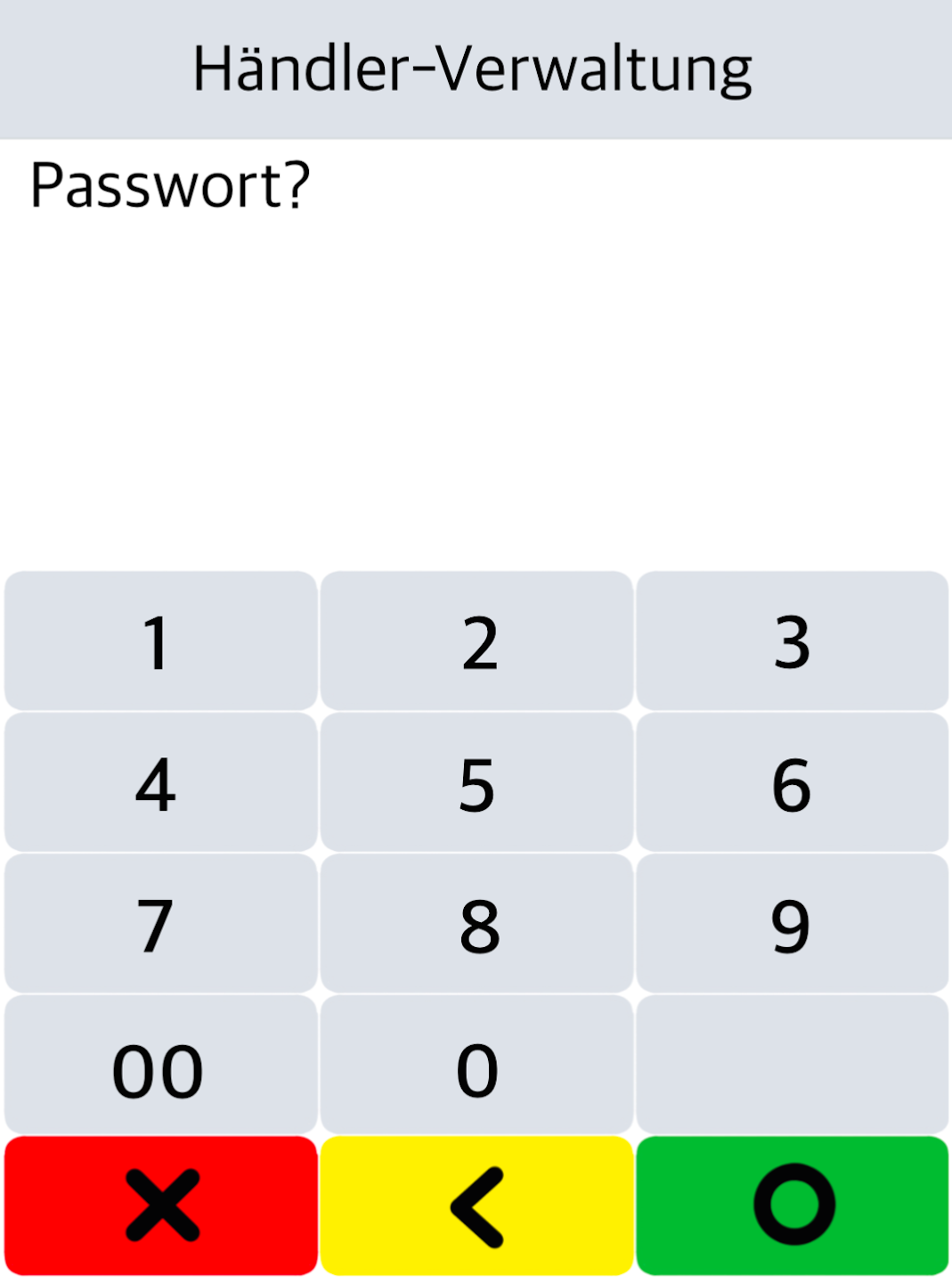
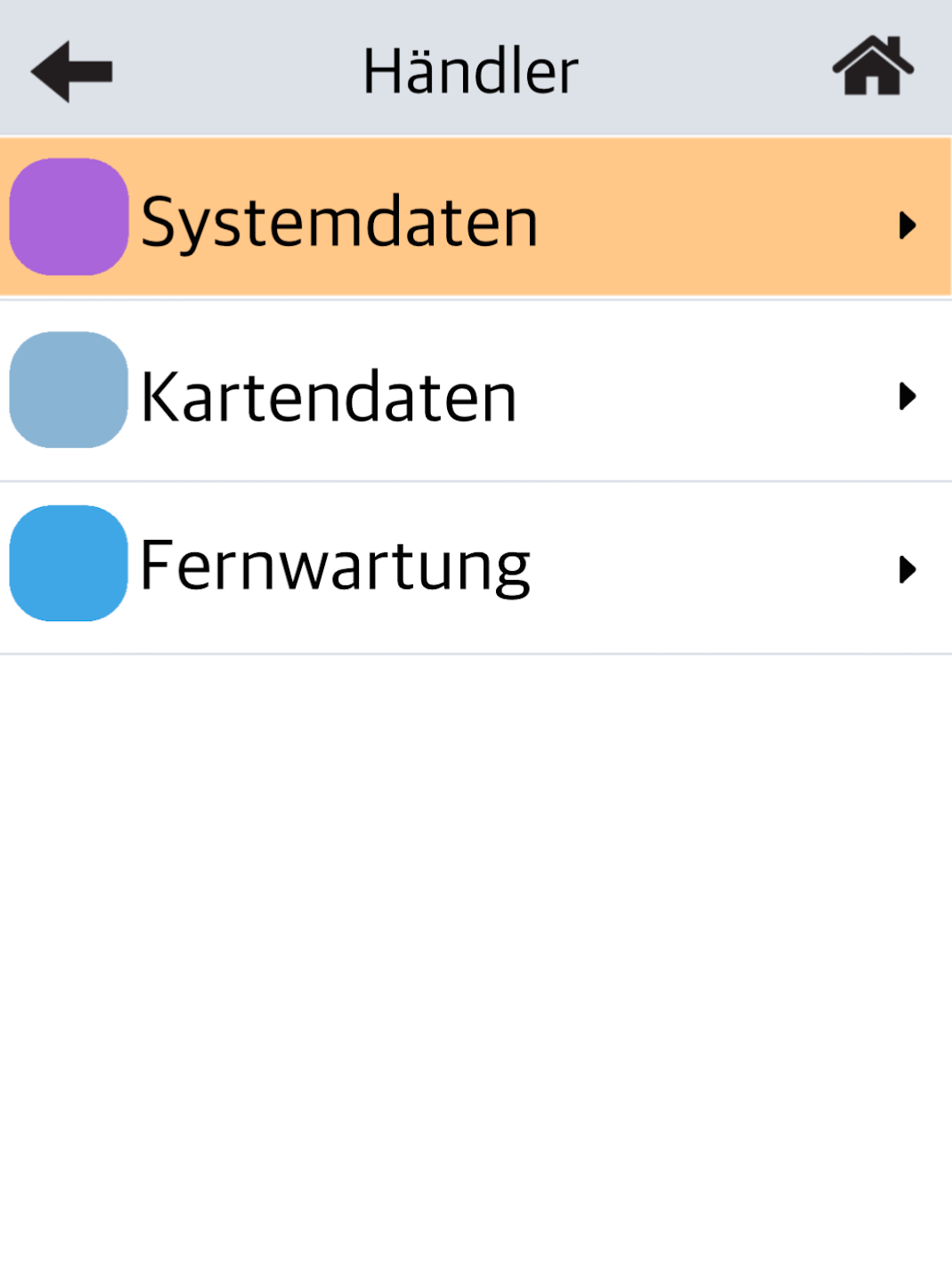
Please select Händler, then enter the 6-digit merchant password (Fig. 2).
Confirm the entry with the green OK button.
System Data
Please select Systemdaten.
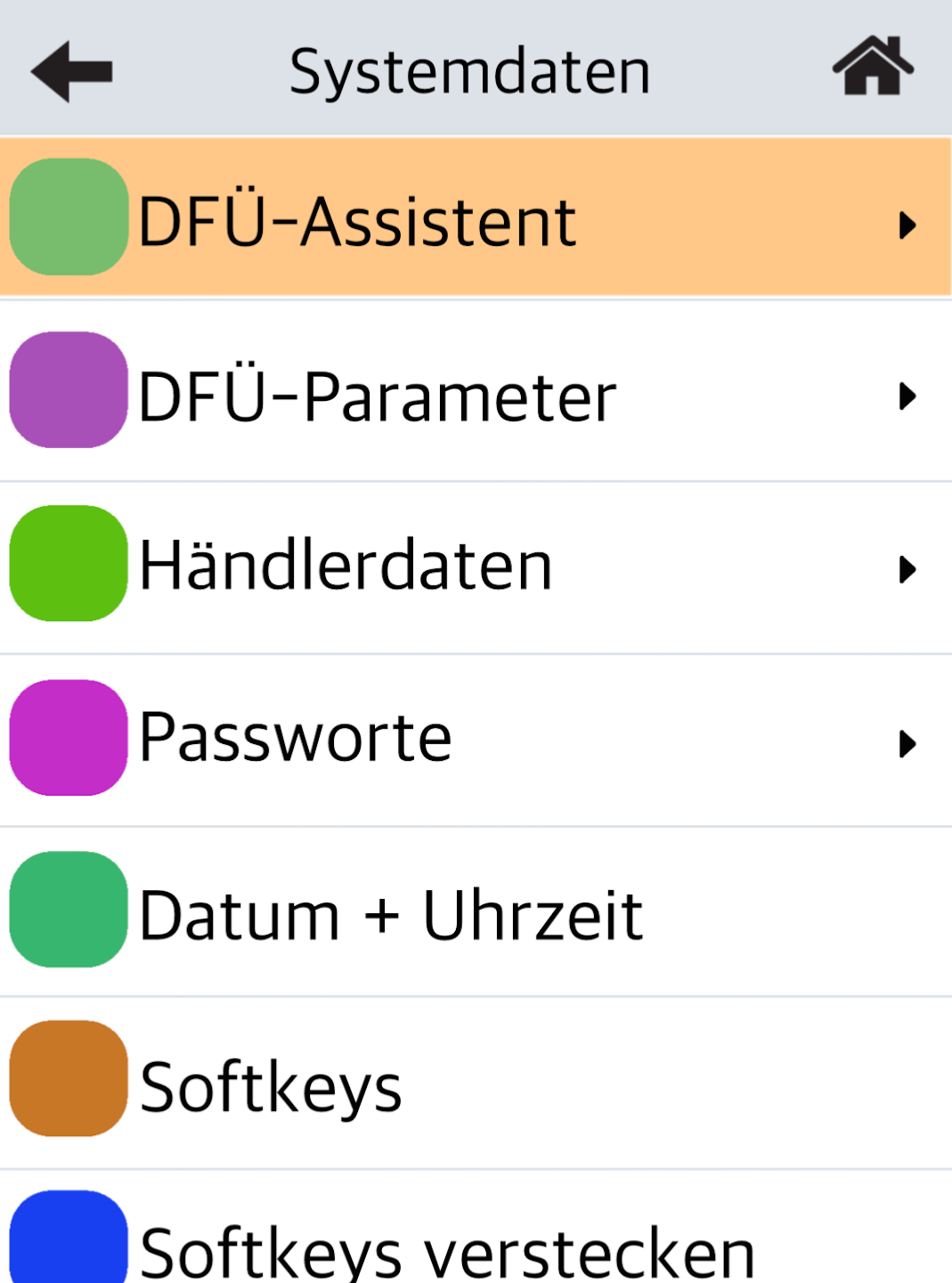
Dial-up Assistant (DFÜ-Assistent)
Now select the DFÜ-Assistent to configure all connection settings.
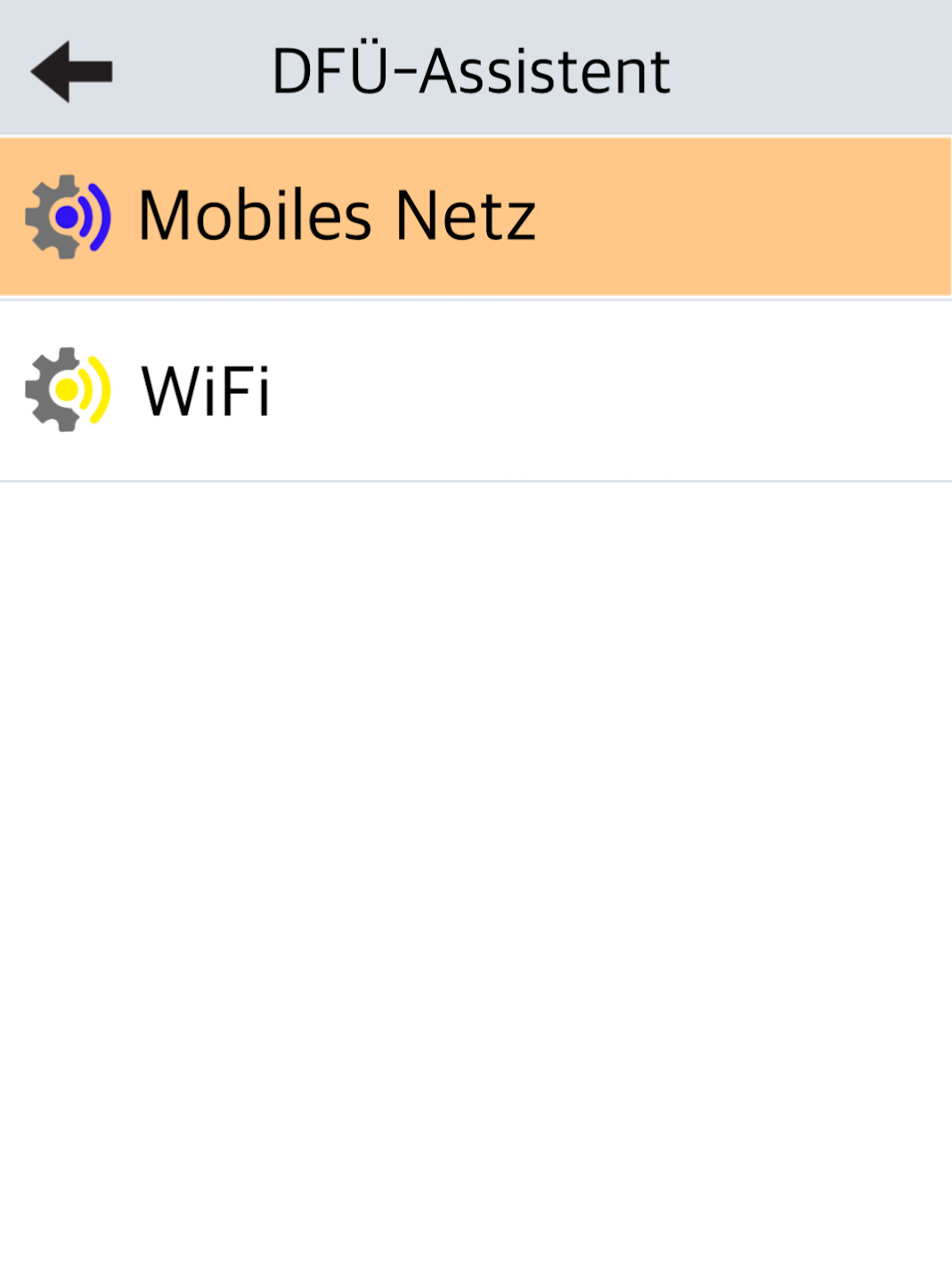
You can now choose your desired connection type:
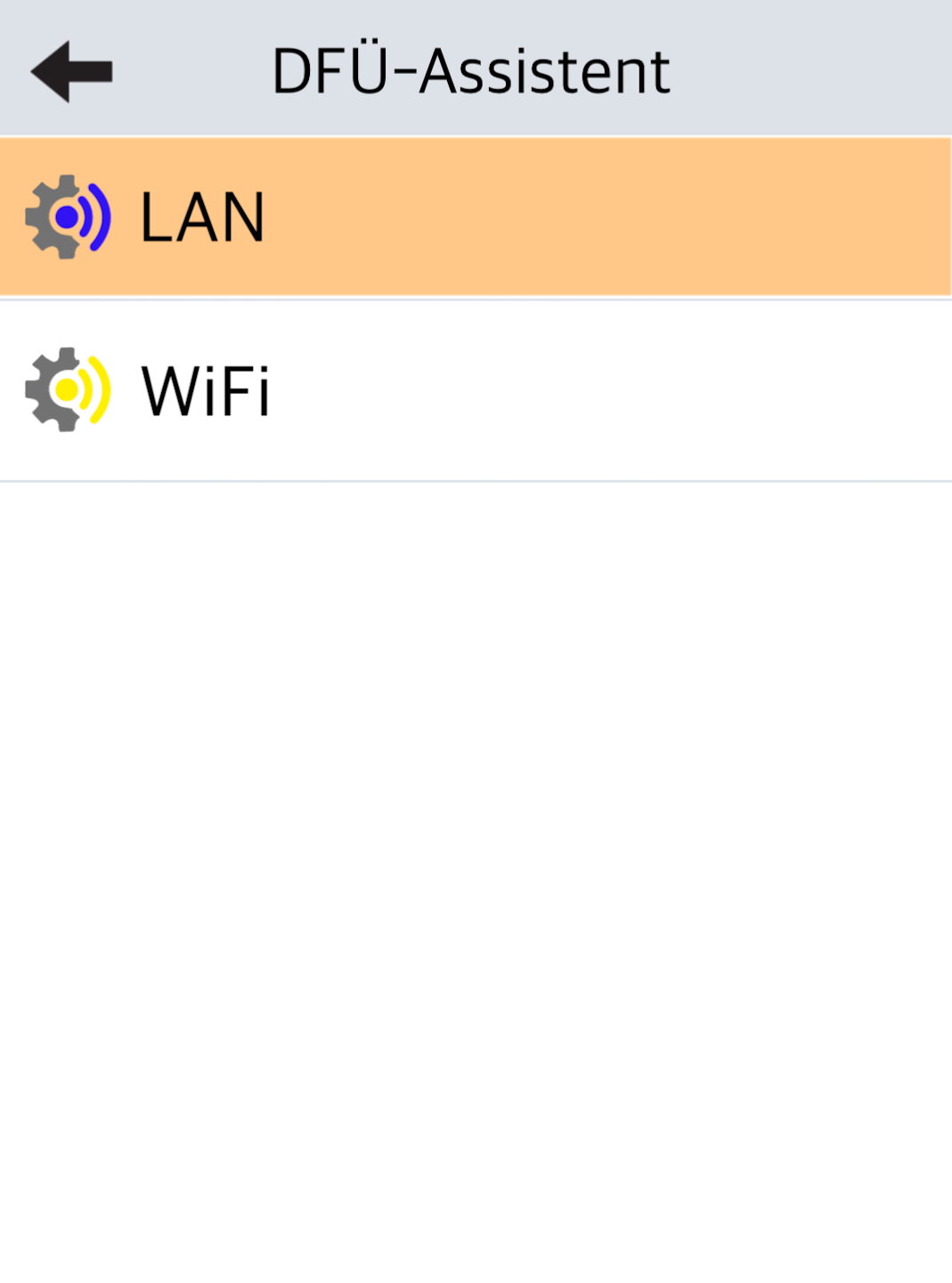
LAN
If you want to connect your card reader using a network cable (LAN), select LAN by tapping it.
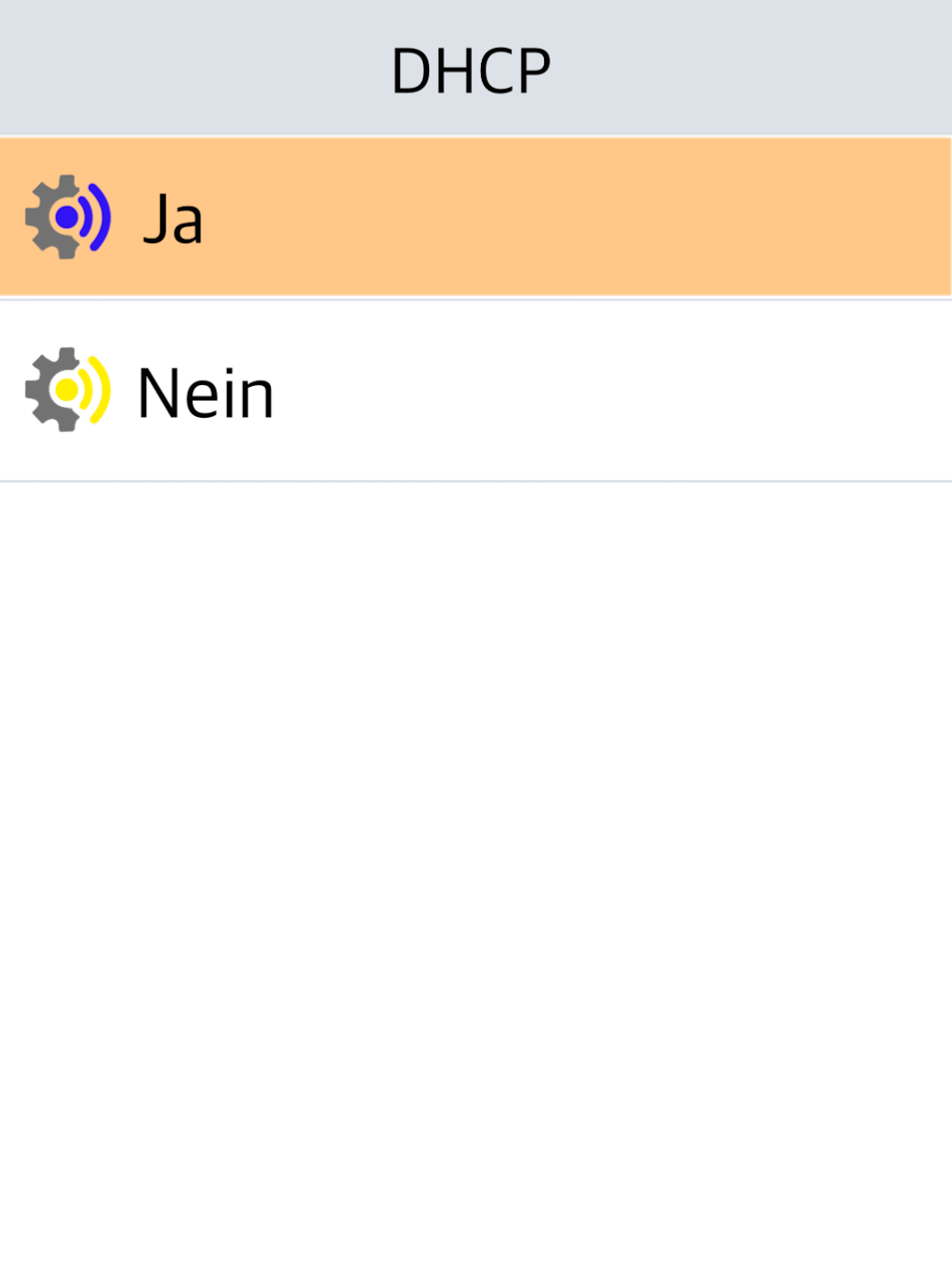
DHCP
Confirm the selection of DHCP (dynamic IP address assignment).
You can find a step-by-step guide for configuring a static IP address in our HelpCenter.
Finish Setup
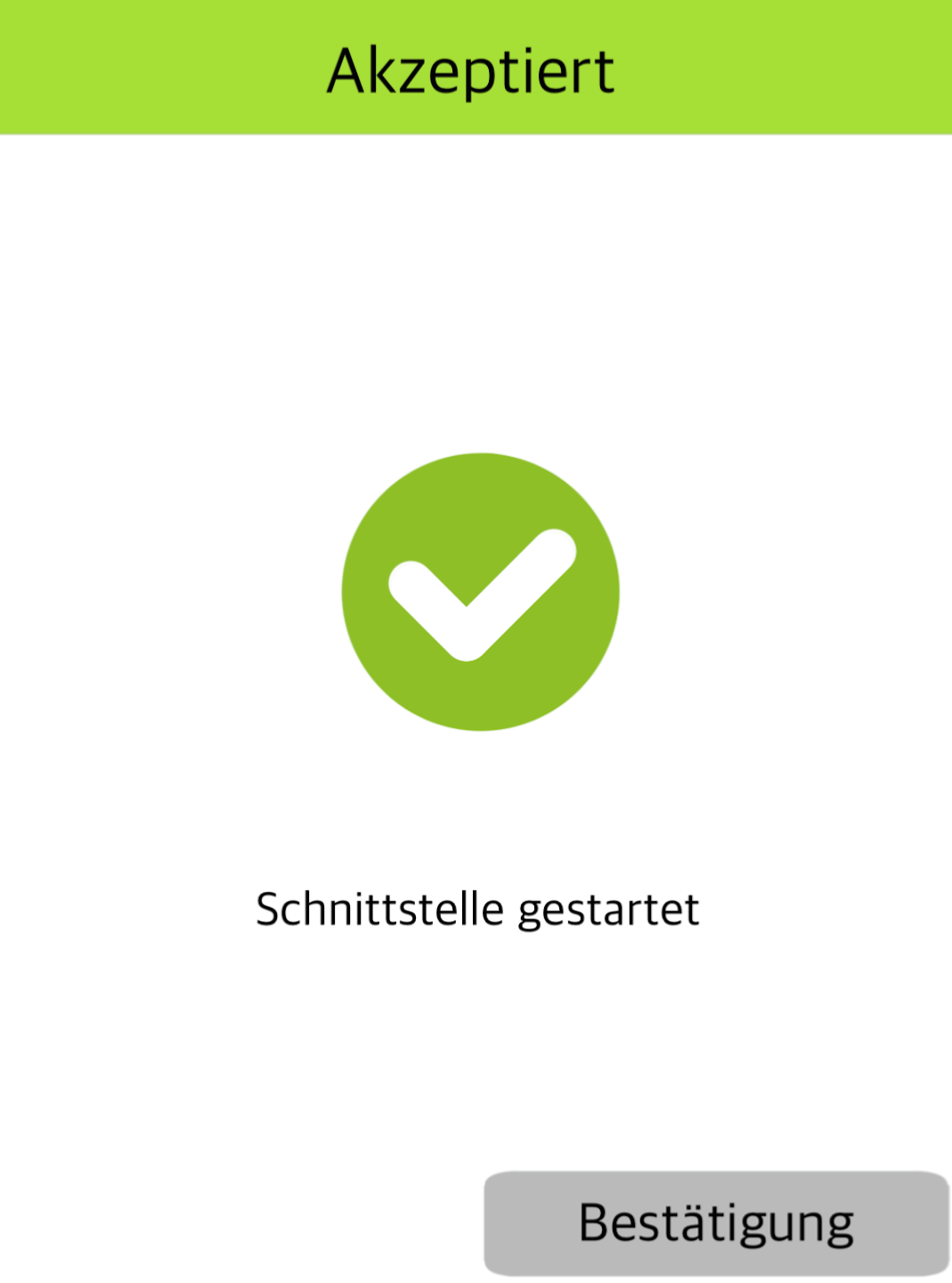
Confirm the configuration of the interface at the bottom right.
If successful, you will return to the connection selection screen. Tap the home icon at the top right to return to your main display.
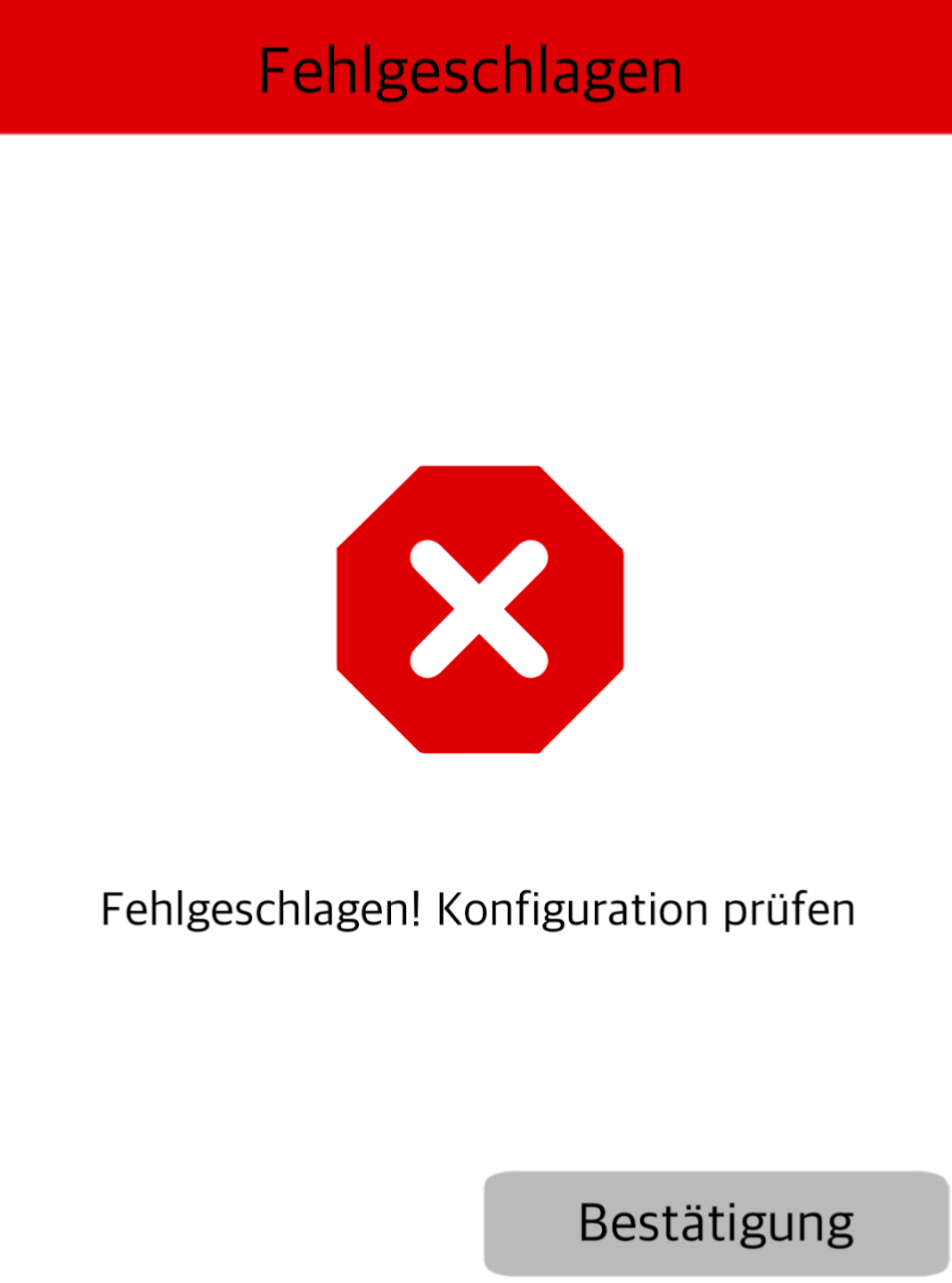
Do you see Fig. 2?
Please check that the LAN cable is properly connected to the card reader and your internet router.
Other possible issues may include an incorrect WLAN password or wrong APN data. If needed, please repeat the Dial-up Assistant setup.
Once your connection is successfully configured, test functionality using our article Check Connection.
You will also find helpful information about the connection symbols on your card reader.
WLAN
If you want to connect your card reader via WiFi, select WiFi here.
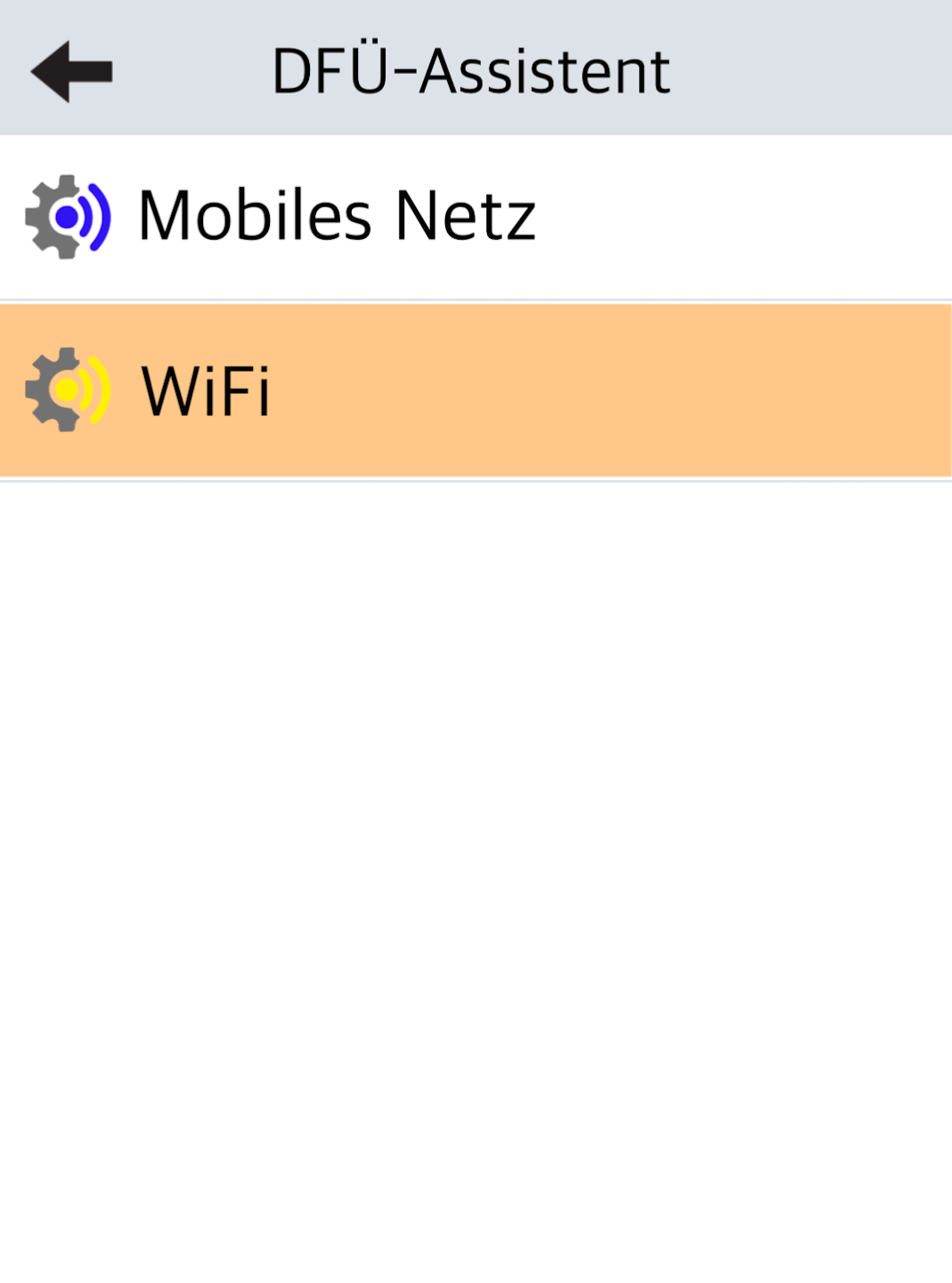
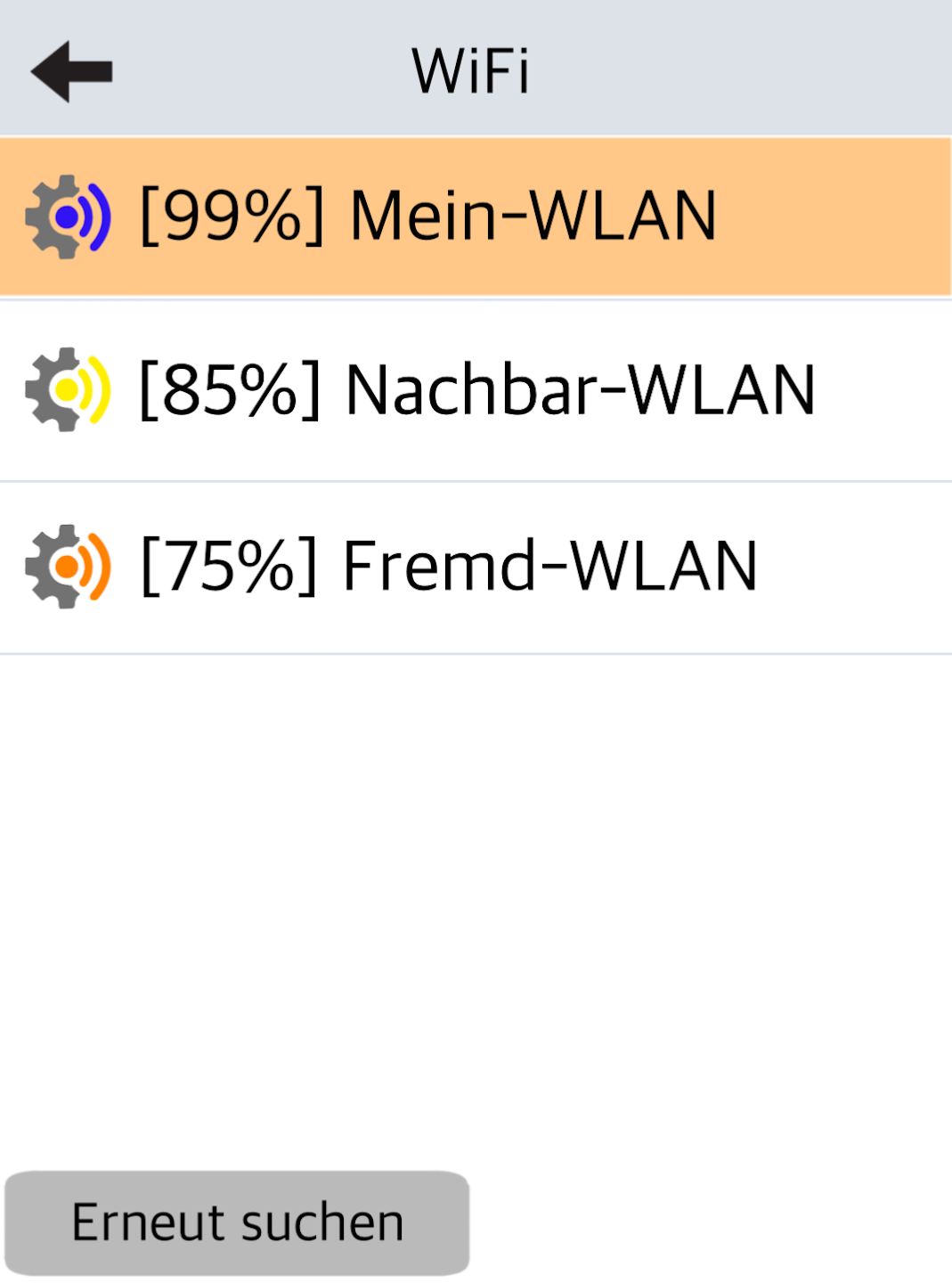
Select WLAN Network
Choose your WLAN network by tapping it.
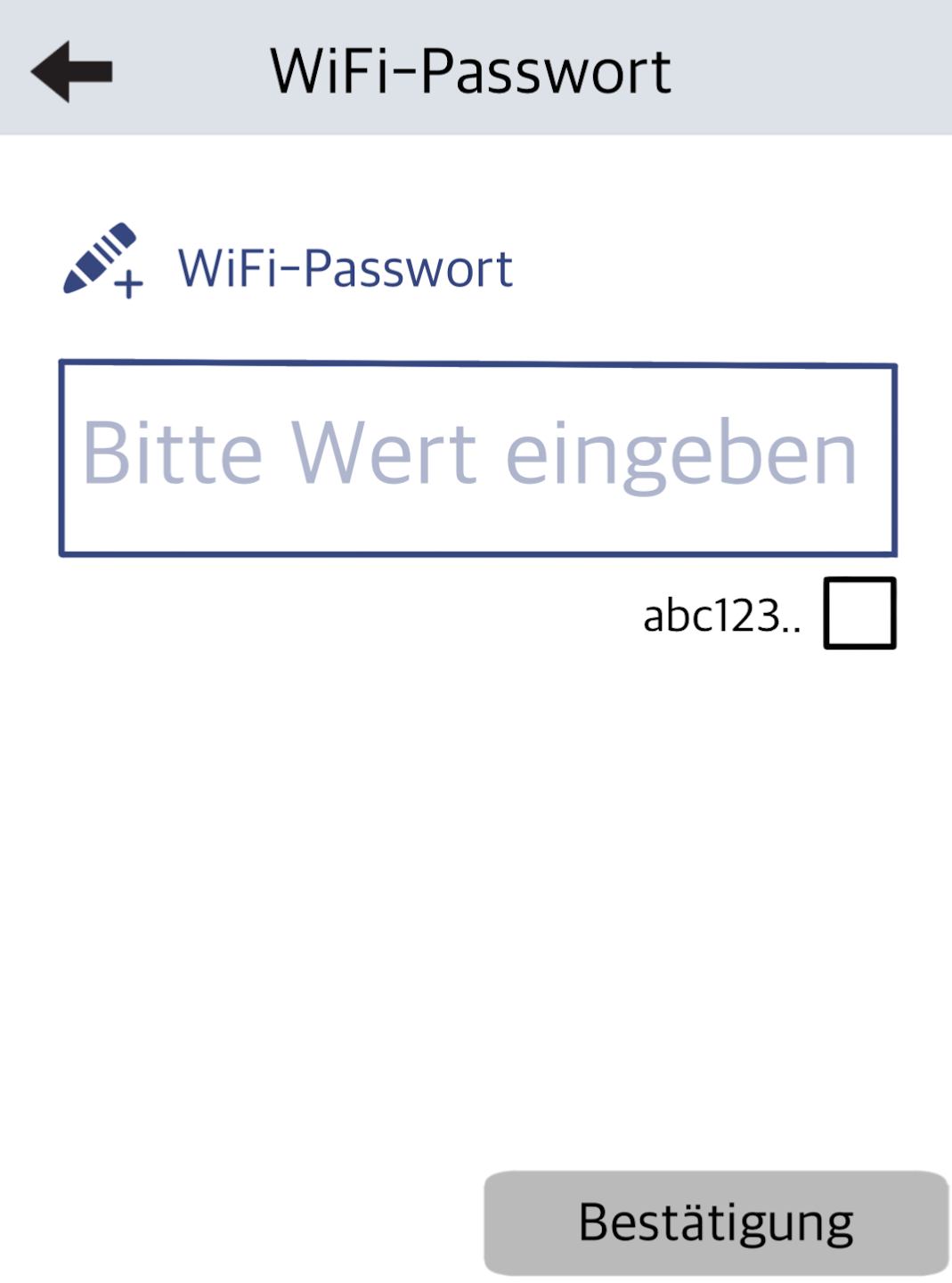
Enter Password
Enter your WLAN password.
Pay attention to uppercase and lowercase letters.
The keyboard shows numbers first, then lowercase, then uppercase letters.
Special characters can be found on key 1.
Confirm your entry with the green OK button.
Finish Setup
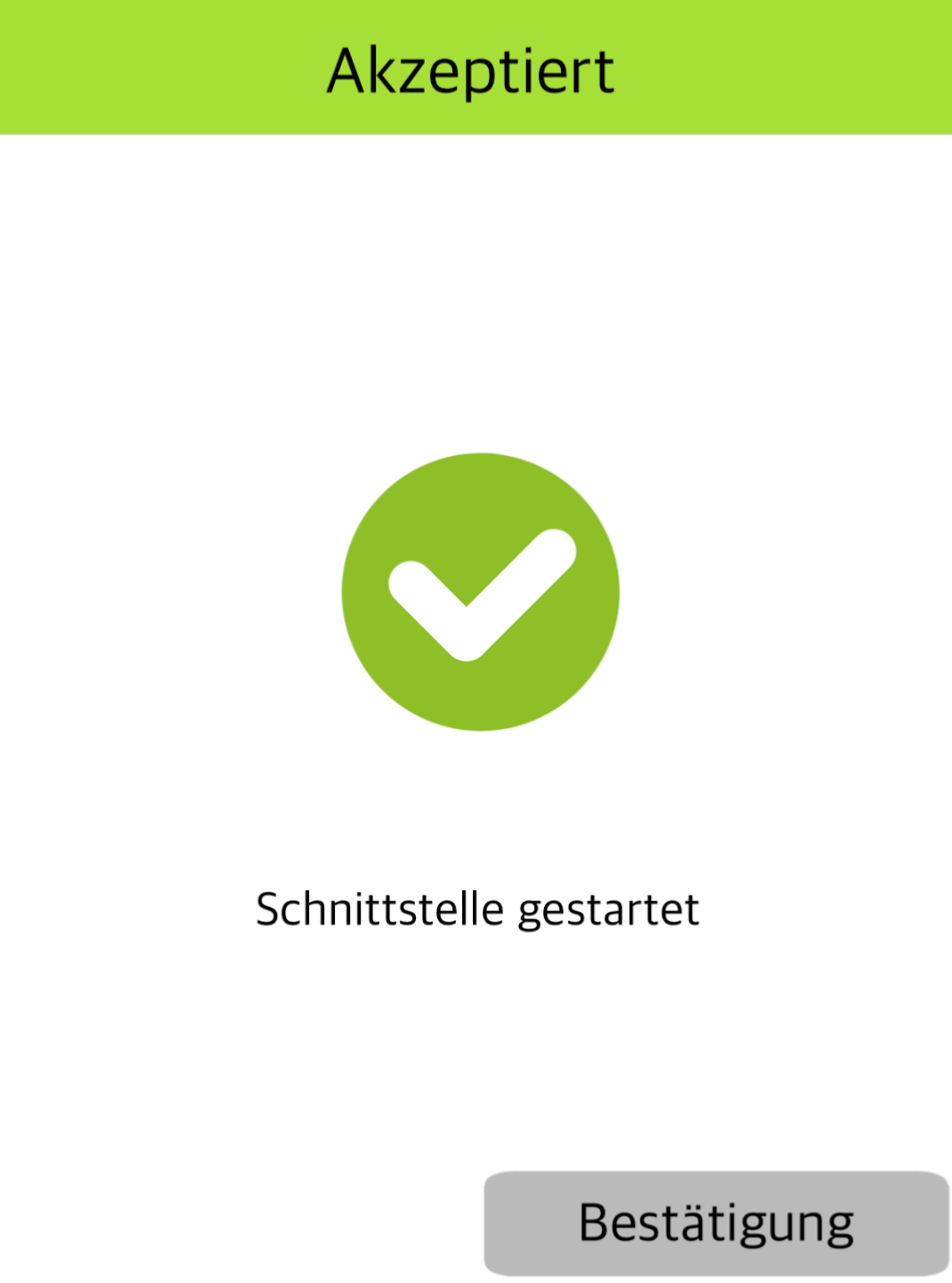
Confirm the configuration of the interface at the bottom right.
If successful, you will return to the connection selection screen. Tap the home icon at the top right to return to your main display.
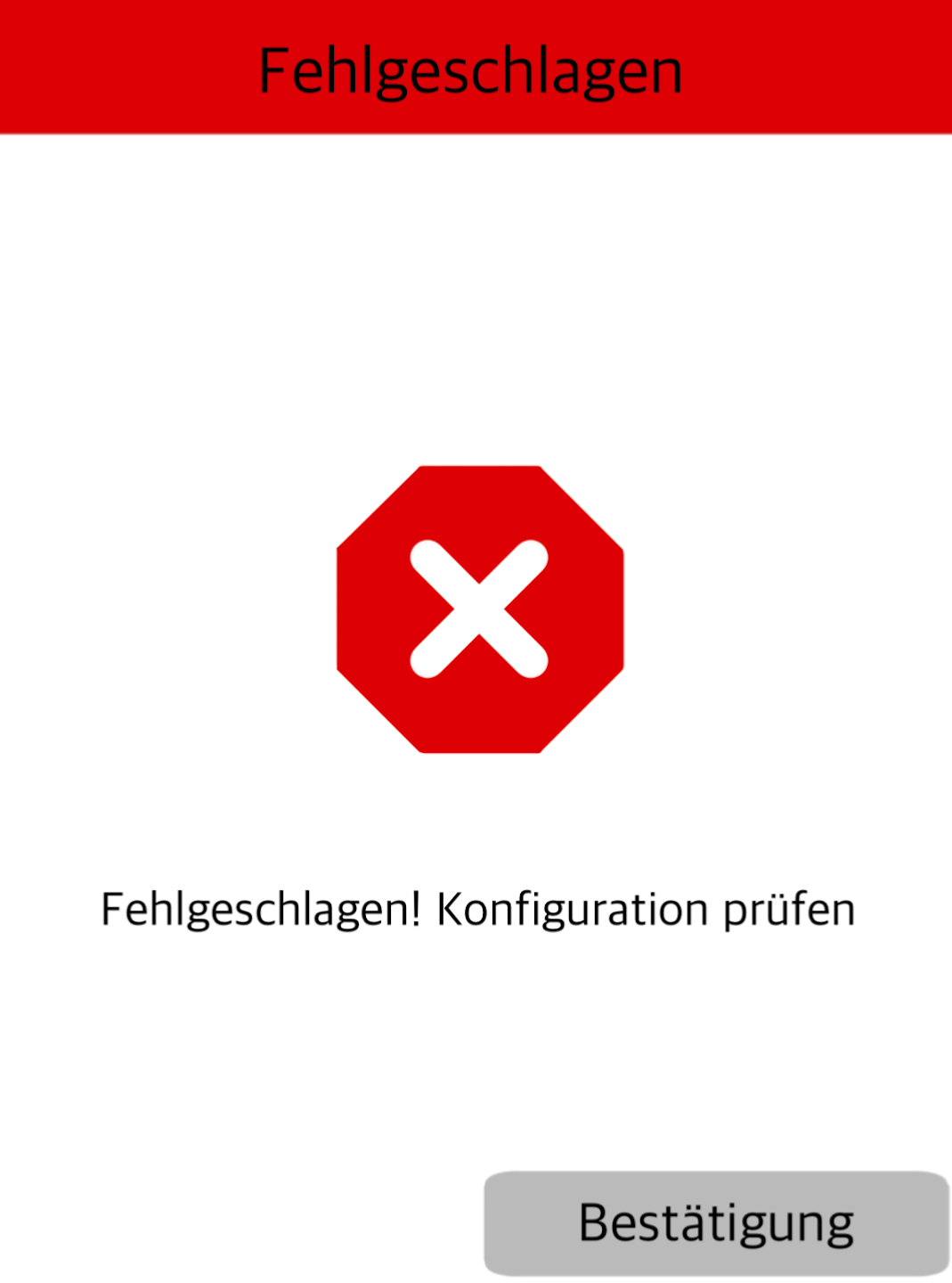
Do you see Fig. 2?
Please ensure that the LAN cable, if used, is properly plugged into the card reader and connected to the router.
Other possible issues include incorrect WLAN password or invalid APN data. Please run the Dial-up Assistant again if needed.
After completing the setup, test the connection using our article Check Connection.
You’ll also find an informative article on the connection symbols displayed on your card reader.
Mobile Network
If you want to connect the card reader via SIM card, please select Mobile Network.
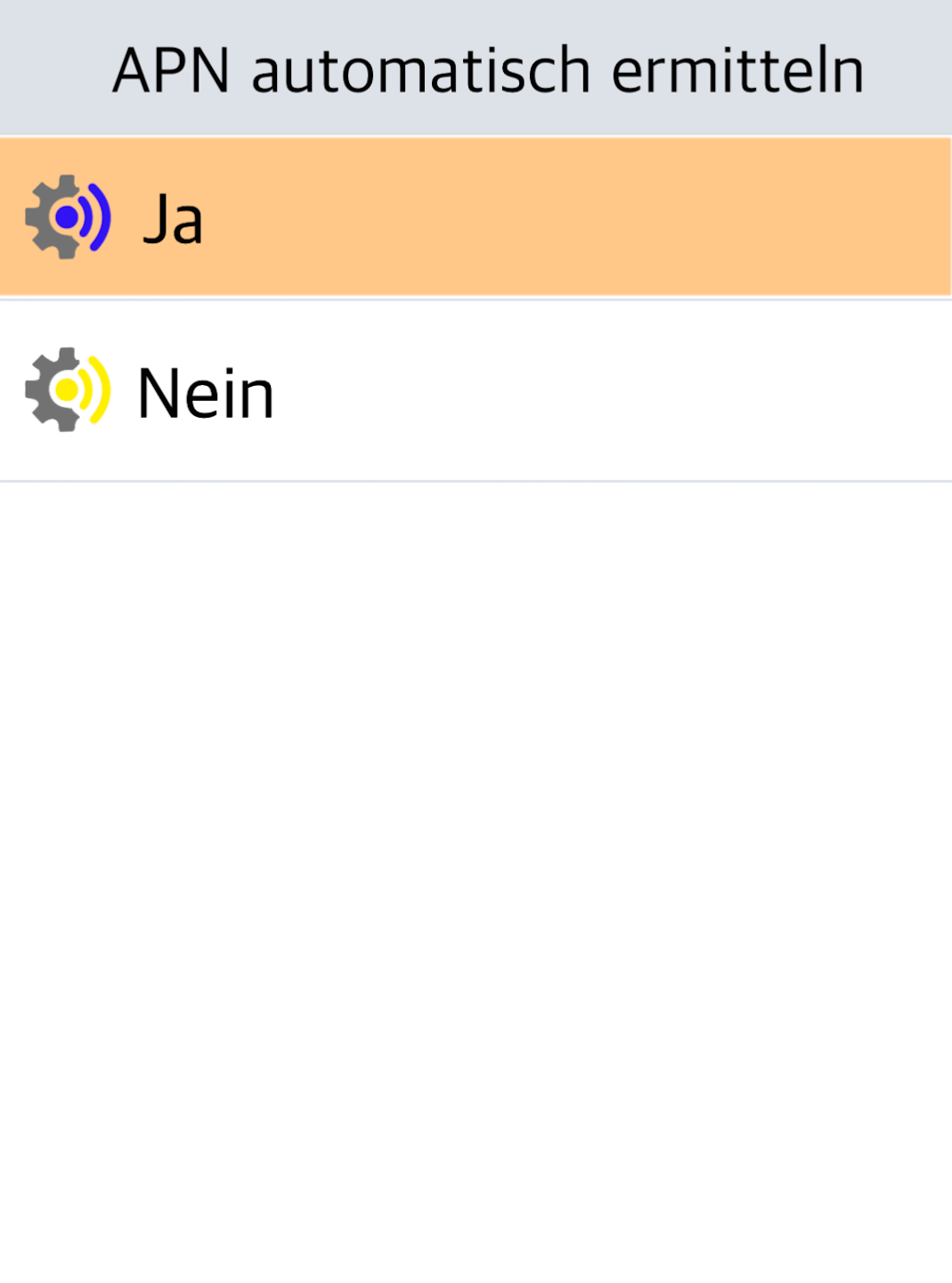
Detect APN
Confirm the APN detection prompt by selecting YES.
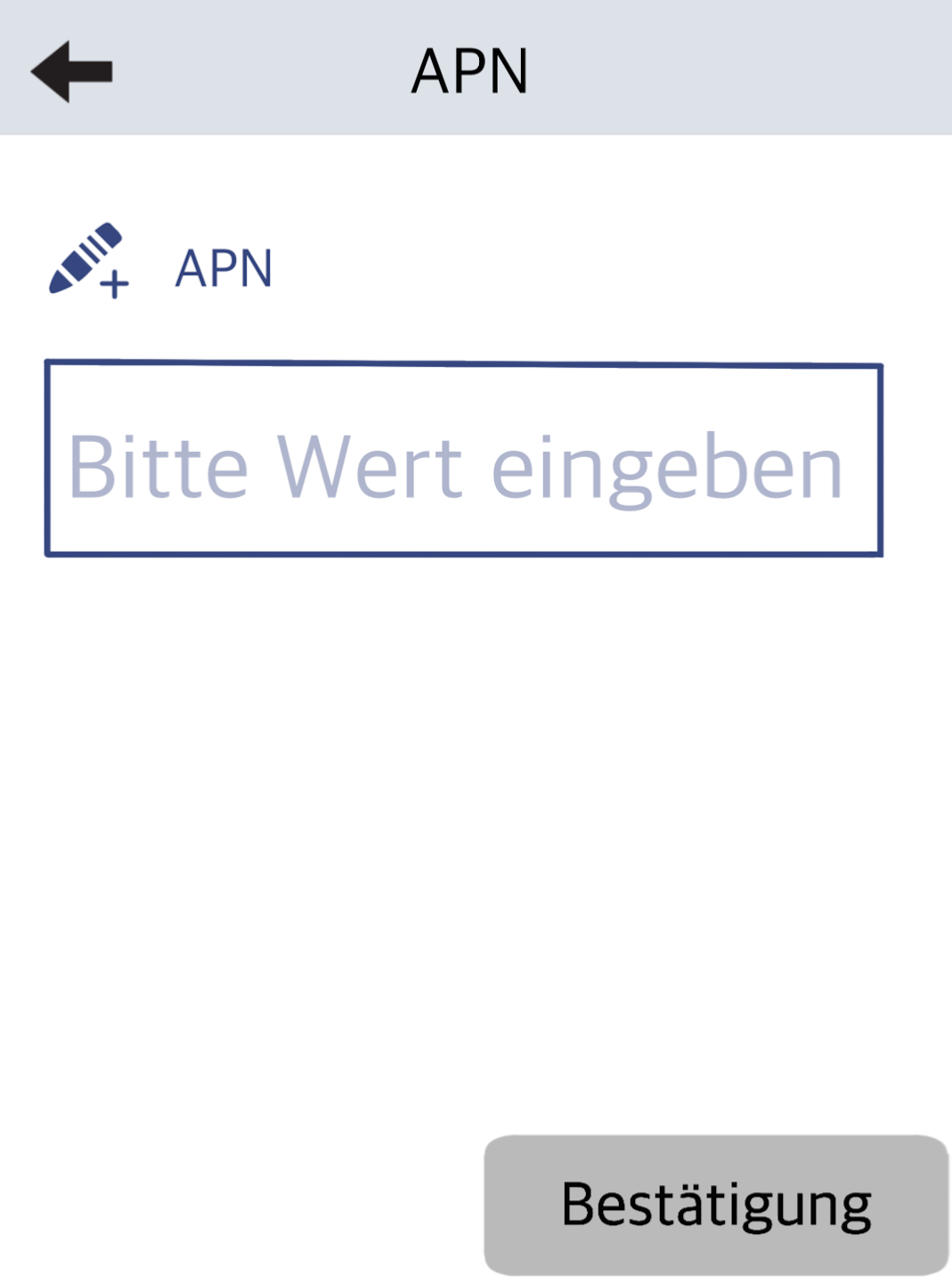
Enter APN
Enter the following APN data:
internet.m2mportal.de
The keyboard shows numbers first, then lowercase, then uppercase letters.
Special characters can be found on key 1.
Confirm with the green OK button.
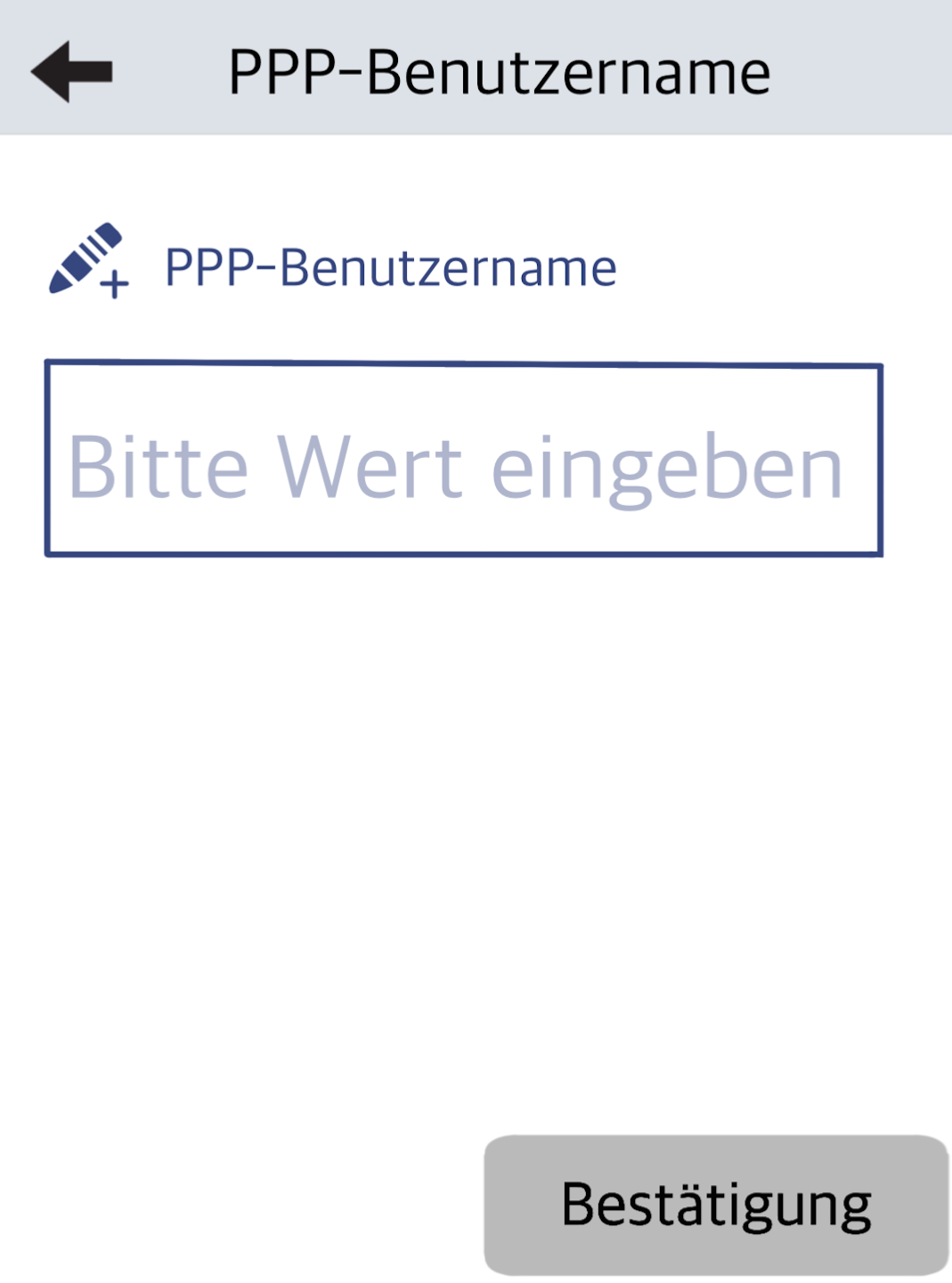
Enter Username
Enter the username:
m2m
Confirm with the green OK button.
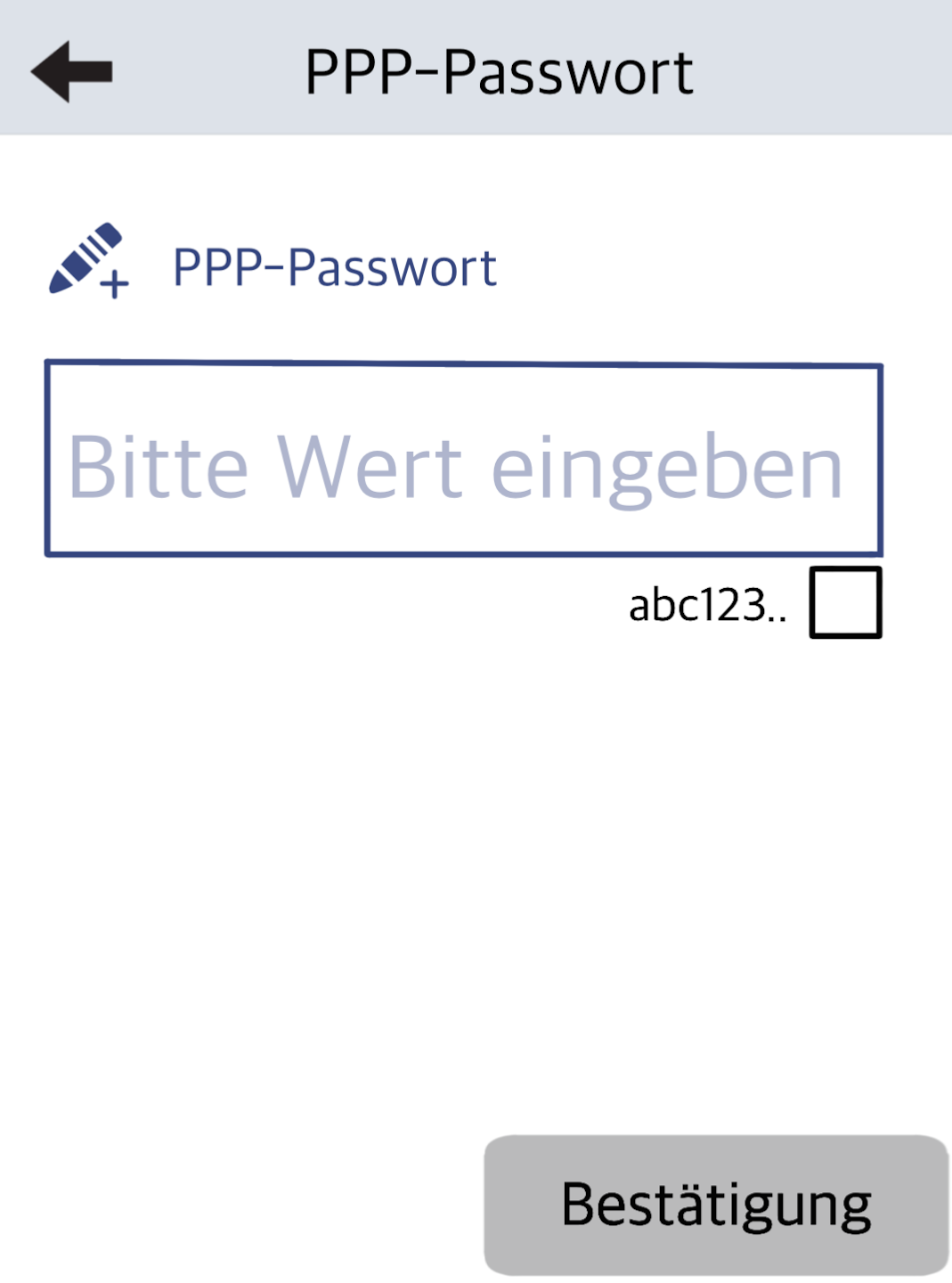
Enter Password
Enter the password:
sim
Confirm with the green OK button.
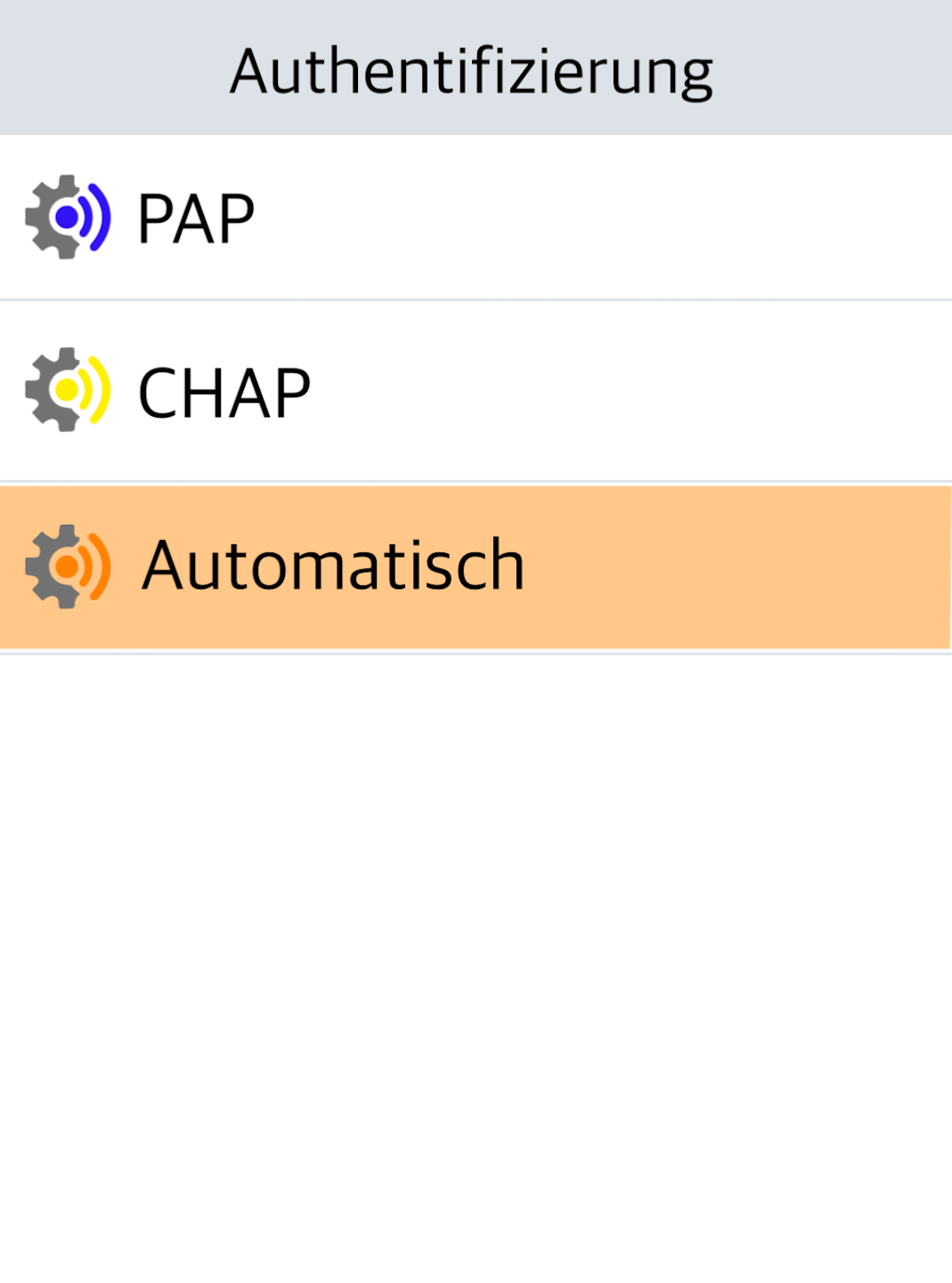
Authentication
Select Automatic.
Finish Setup
Confirm the configuration of the interface at the bottom right.
If successful, you will return to the connection selection screen. Tap the home icon at the top right to return to your main display.
Do you see Fig. 2?
Ensure the LAN cable (if applicable) is connected properly and the router is online.
Other causes of failure might be an incorrect WLAN password or invalid APN settings. Please re-run the Dial-up Assistant if needed.
Once setup is complete, check the connection using our guide Check Connection.
You will also find an informative article about the connection symbols shown on your card reader.
Was this article helpful?
That’s Great!
Thank you for your feedback
Sorry! We couldn't be helpful
Thank you for your feedback
Feedback sent
We appreciate your effort and will try to fix the article
