Verifone - Use of the Tip Function
Modified on Tue, 10 Feb at 2:36 PM
In this article, we would like to show you how to use the tip function on your Verifone card reader.
When the tip option is activated, two tip entry methods are enabled as a package:
V1 – Payment with subsequent tip booking (two transactions)
V3 – Payment with tip entry (one total transaction)
Some useful information for you:
- Manual tip entry (no percentage input)
- Girocard & credit card contactless and chip-based supported
- No tip limitation
- Tip for V1: Tip must be added before the cash register closing
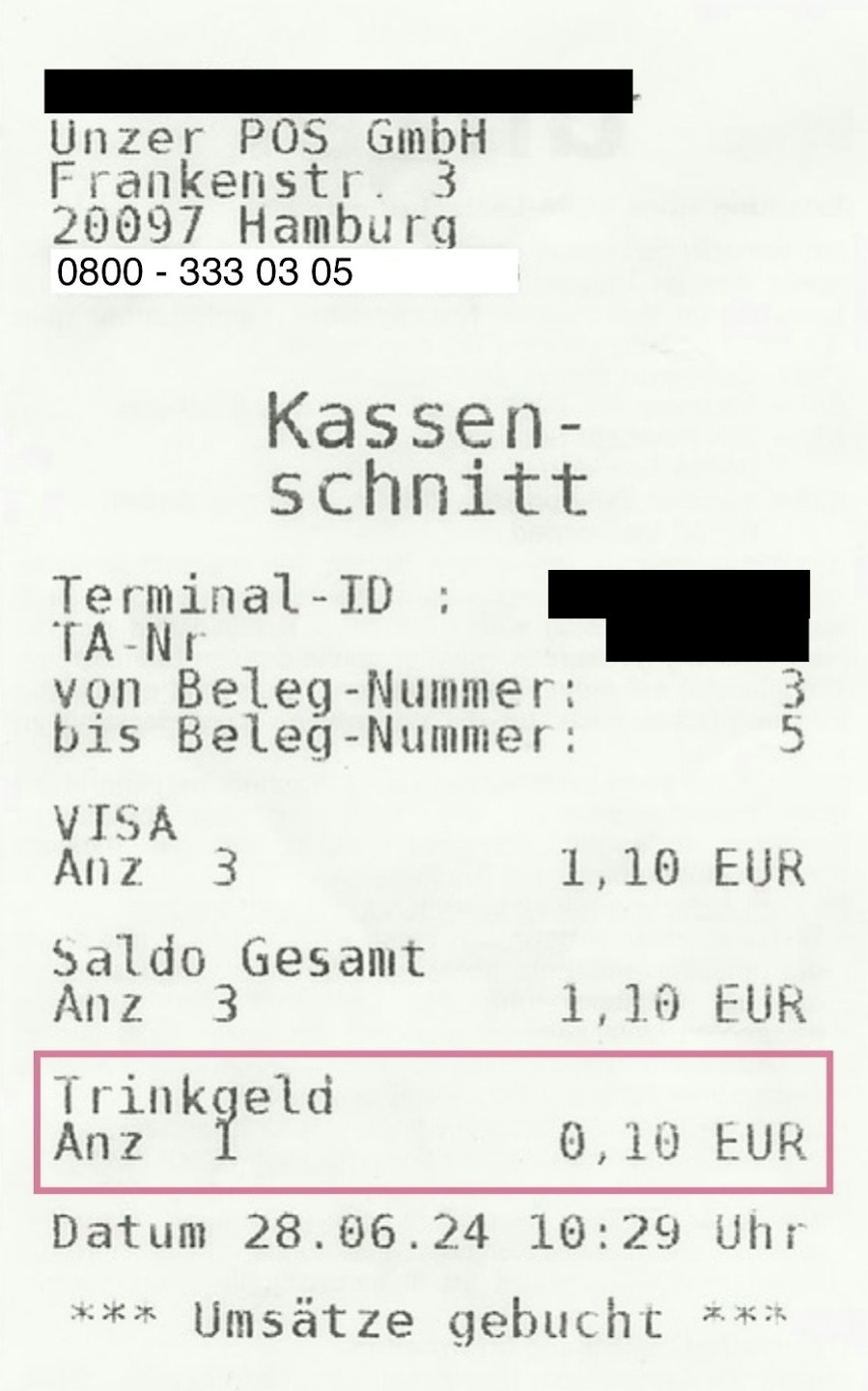
- Tip shown on the cash register closing¹ (from the latest software version)
¹ Tip amounts are shown on the cash register closing starting from software version 09 and currently only for terminal IDs starting with 61xxxxxx.
The tip function is not yet active for you? You can request activation here.
V1 – Payment with Subsequent Tip Booking
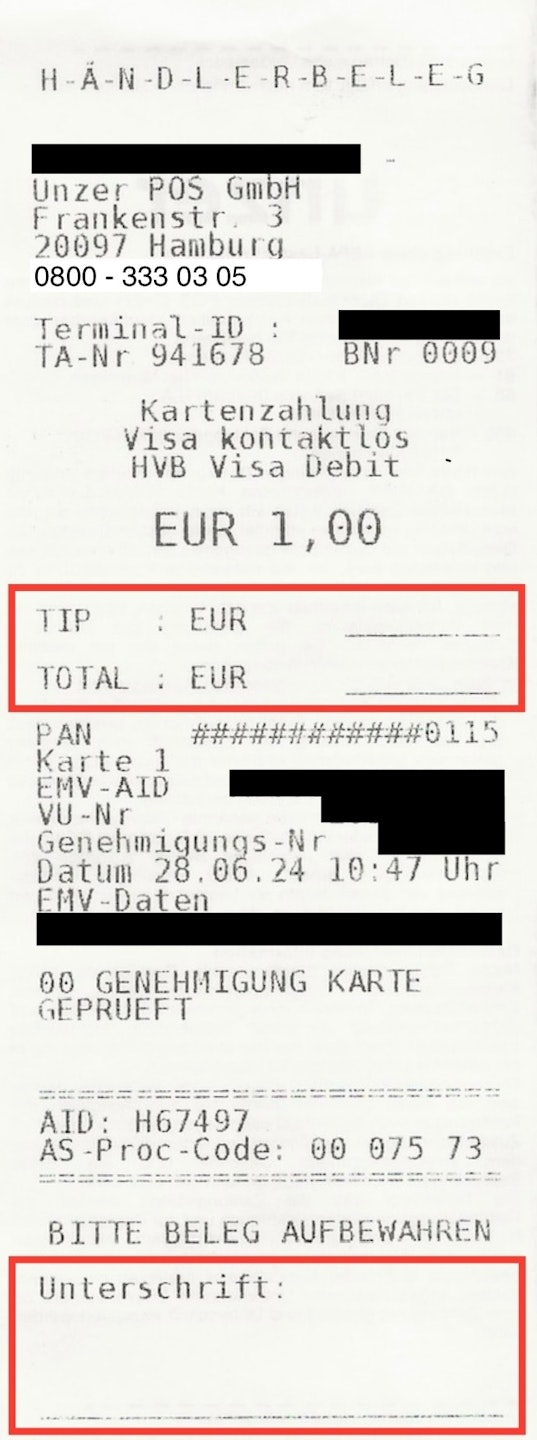
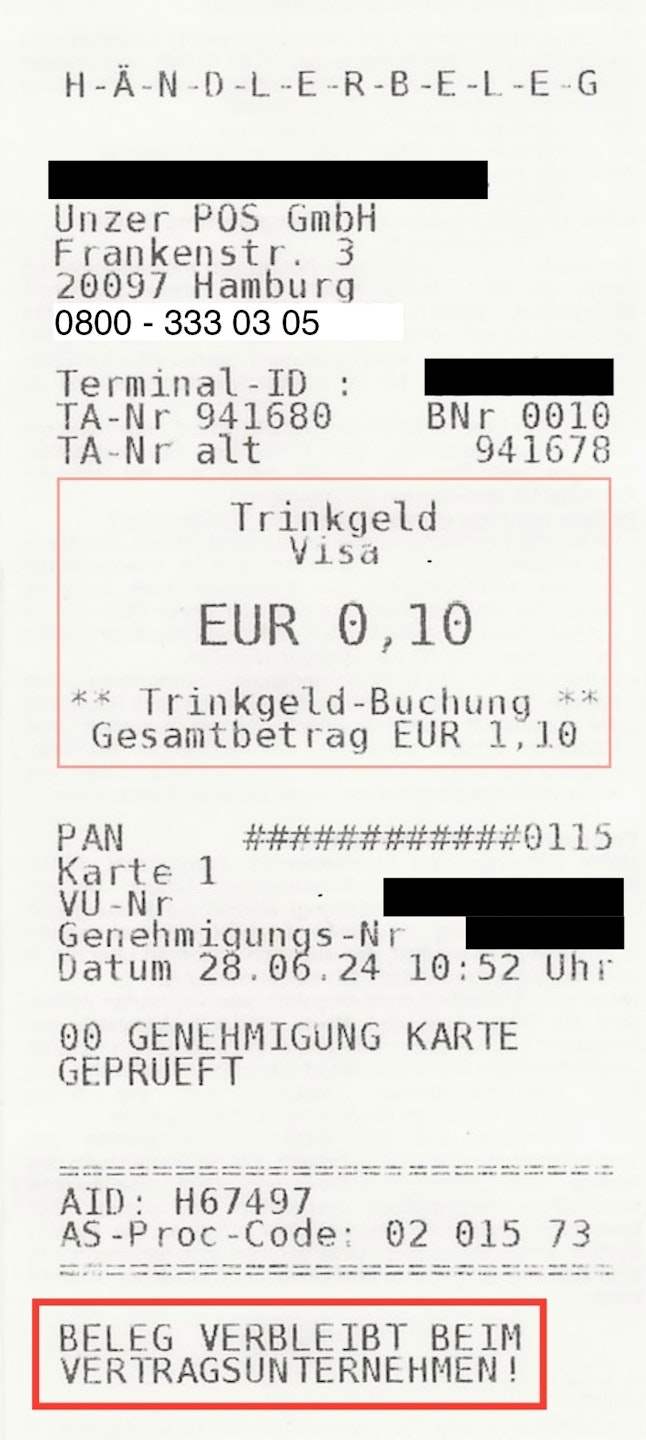
In this tip version 1, the cardholder has the option to enter a tip on the merchant receipt after the payment and confirm it with their signature. The tip amount is manually booked by the merchant (Fig. 2), and the booking must be completed before the cash register closing. The customer's card is not required to add the tip.
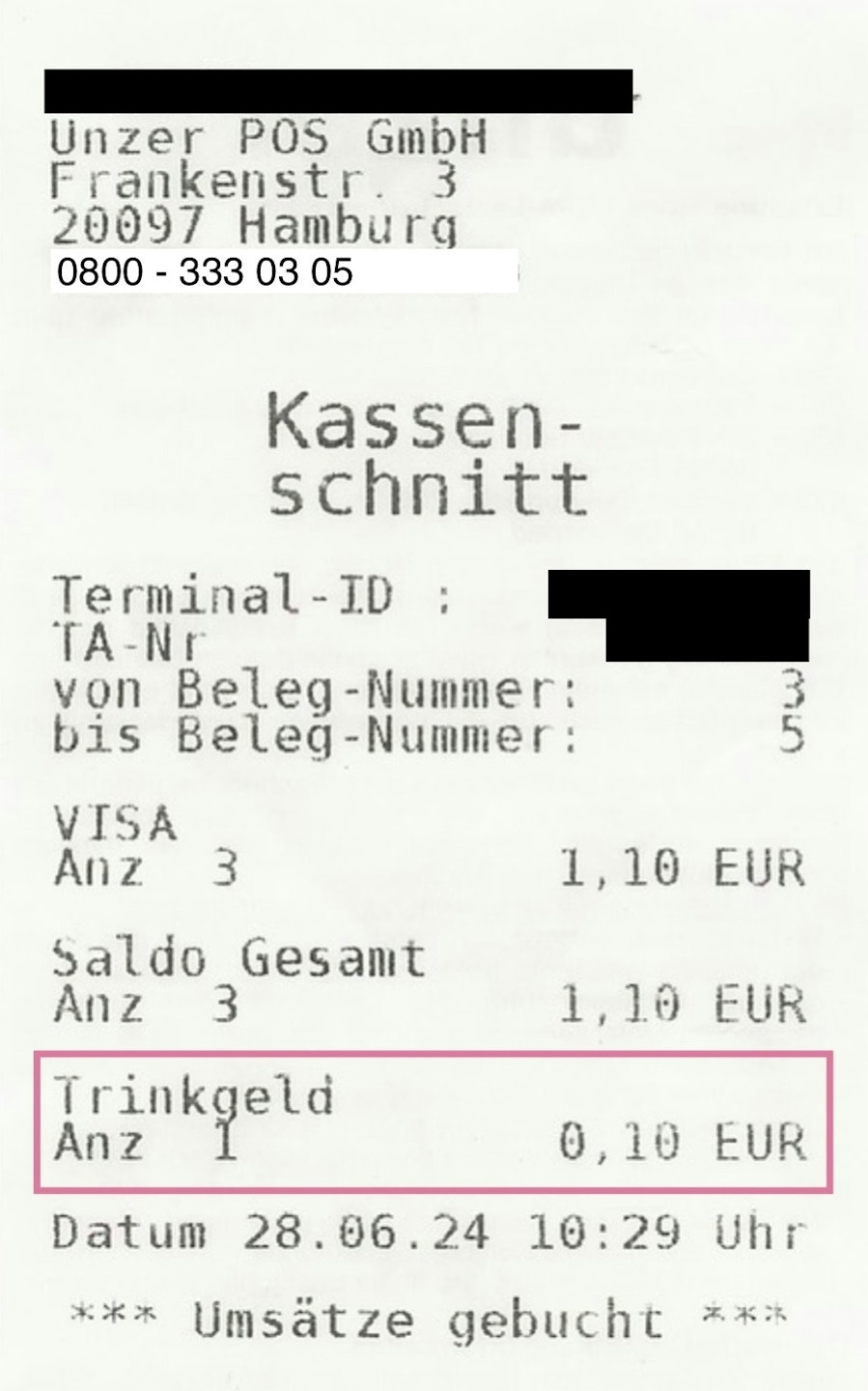
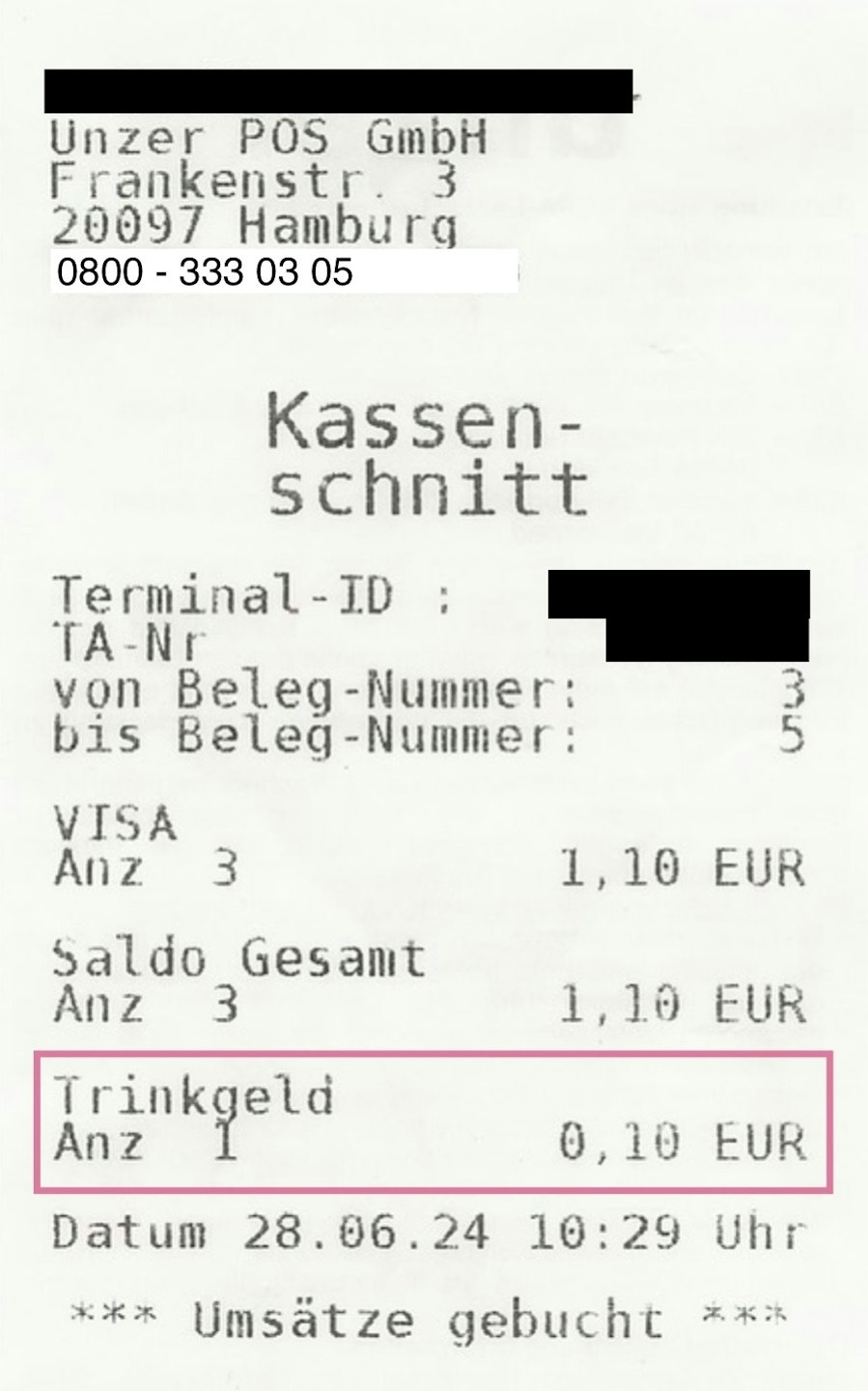
Fig. 3 – Tip amounts are shown on the cash register closing starting from software version 09 and currently only for terminal IDs starting with 61xxxxxx.
Tip – The Merchant Receipt
Step 1:
First, the payment is processed as usual on the card reader.
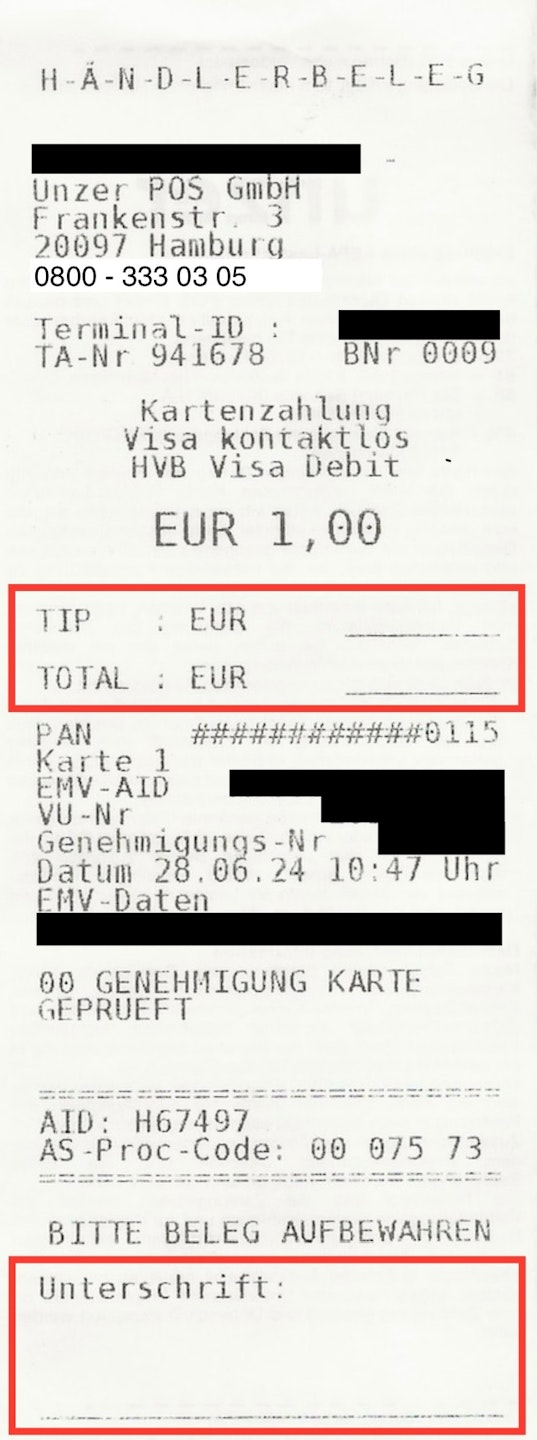
On the successful merchant receipt, you will now find two important fields:
The tip field, in which the customer enters how much tip they want to give
The signature field
Both fields must be filled in by the customer for the tip to be valid.
If no tip is given, both fields remain blank and no signature is required.
Tip – The Rebooking – Menu Path
Step 2:
If the TIP field is filled in and a signature has been provided, the tip must now be added.
A tip rebooking must be done before the cash register closing.
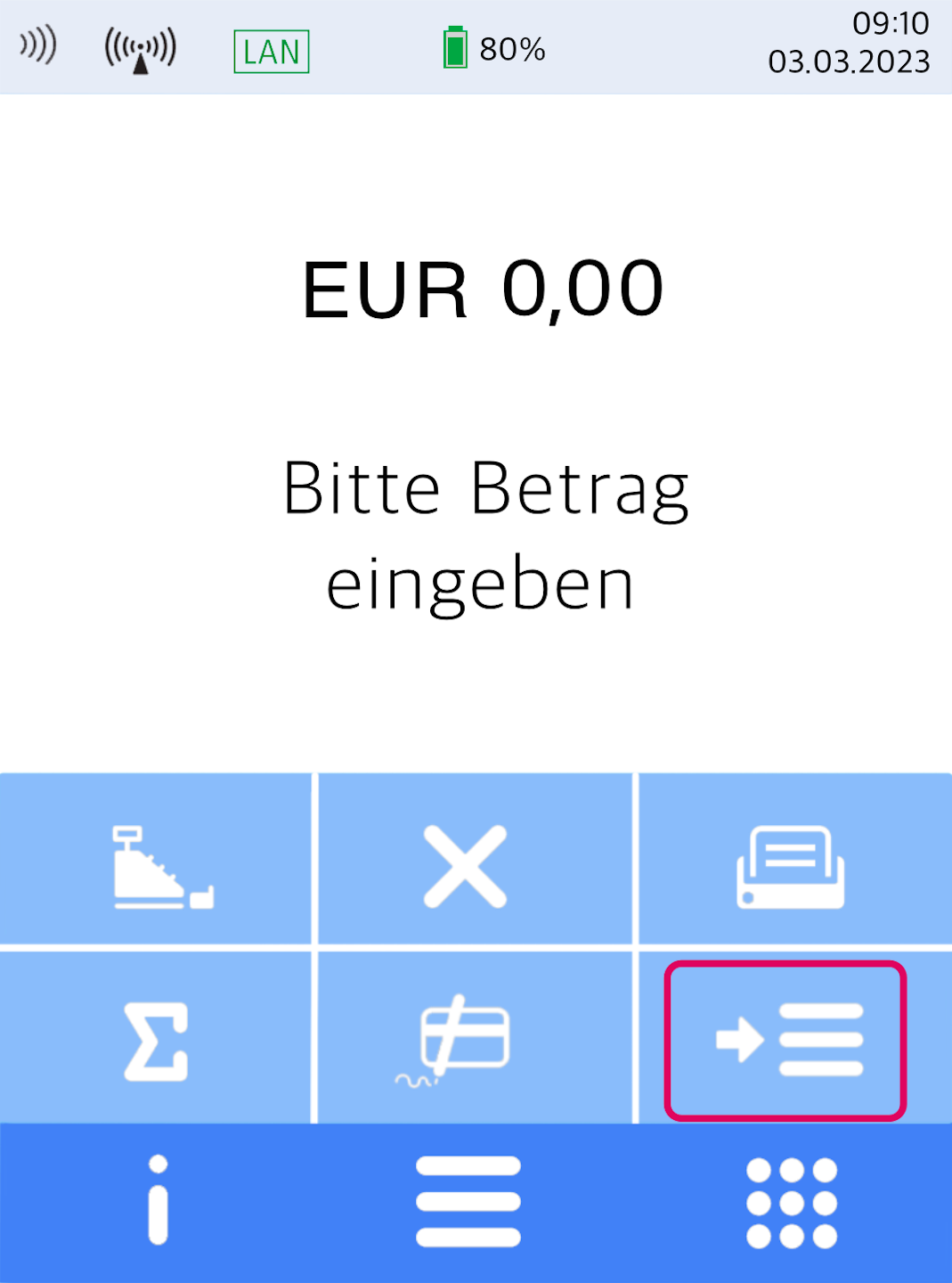
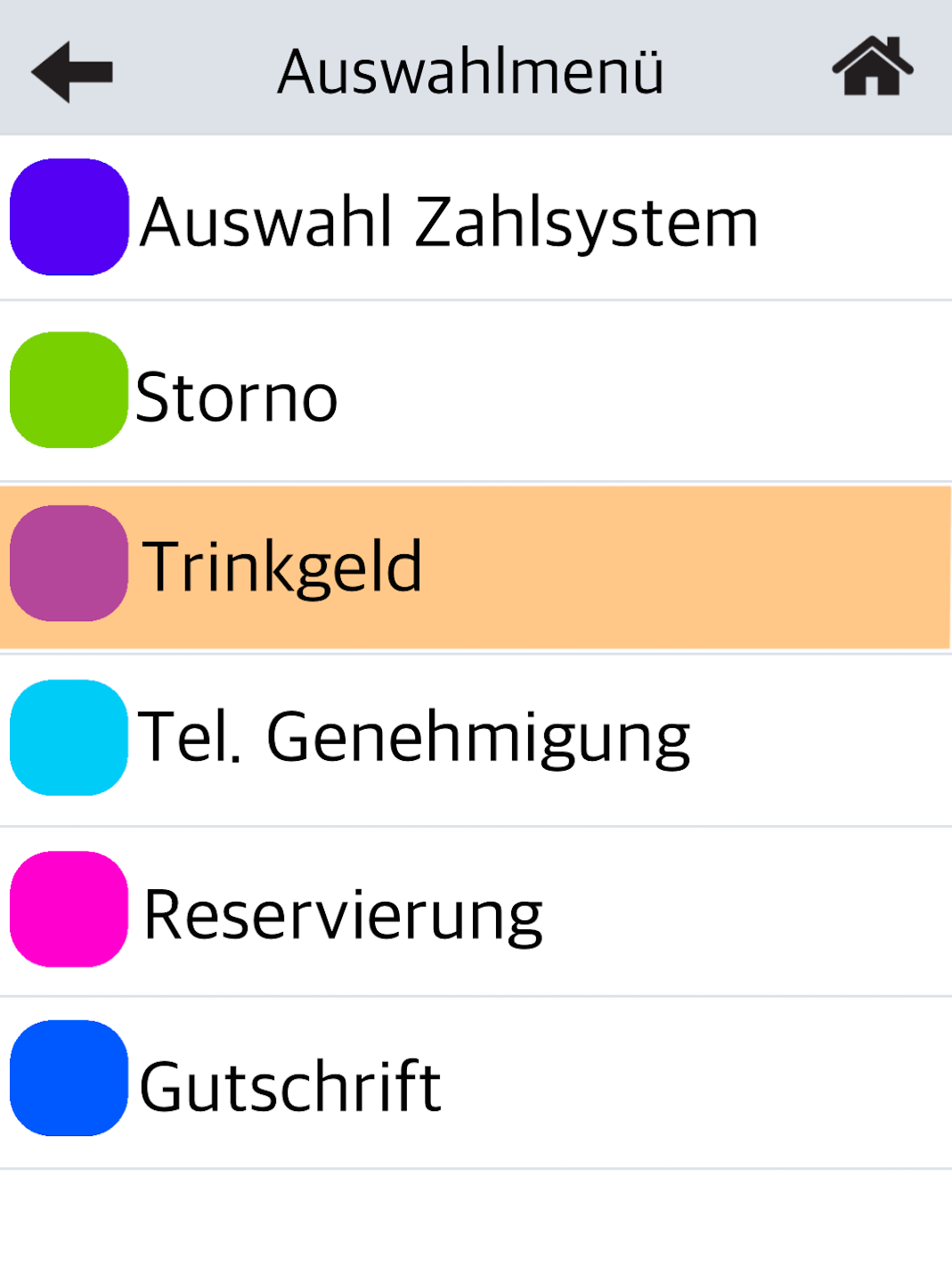
Fig. 2 – Please select the selection menu, then tap the menu item Tip (Fig. 3).
Tip – The Rebooking – Entering the Amount
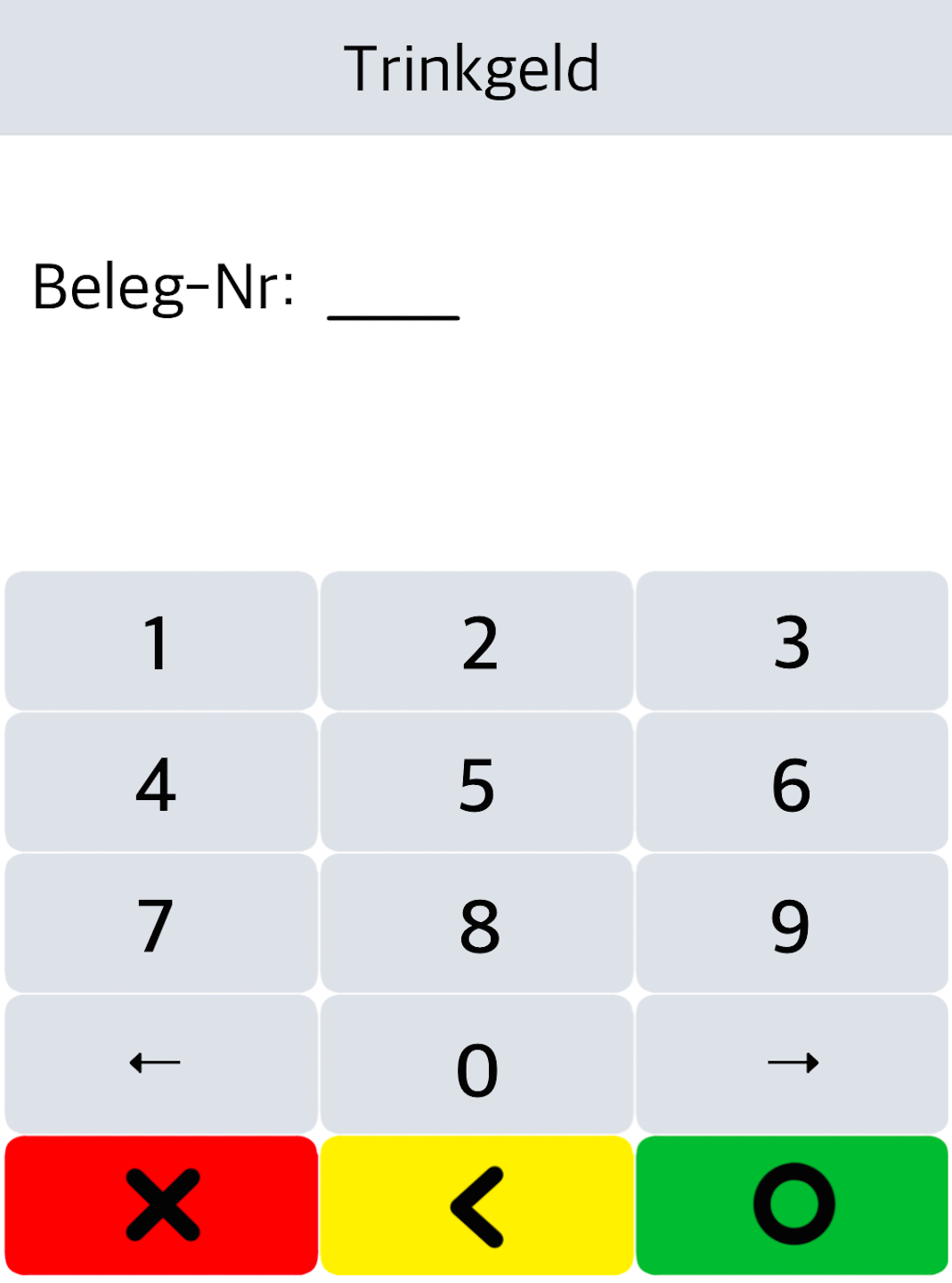
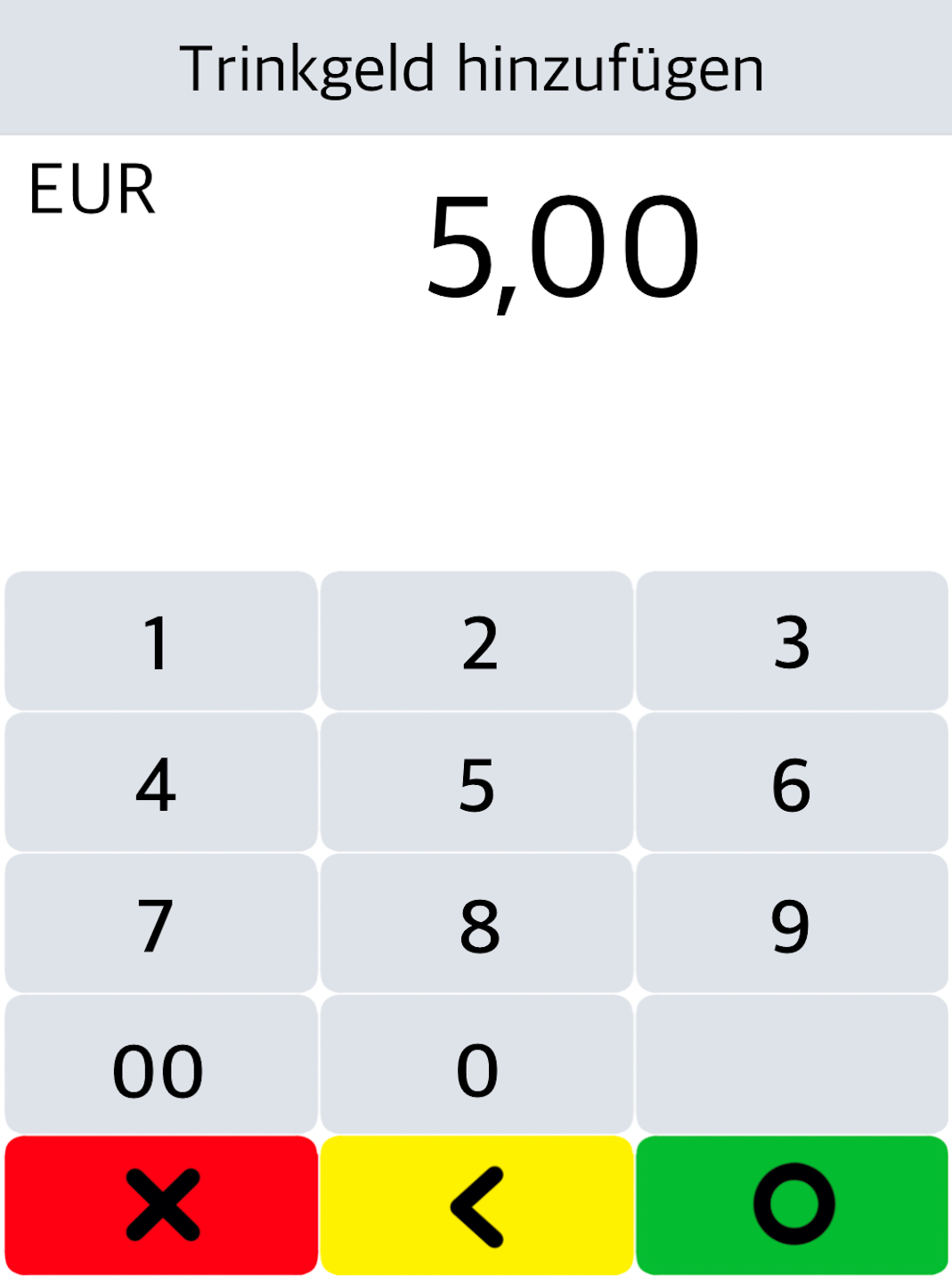
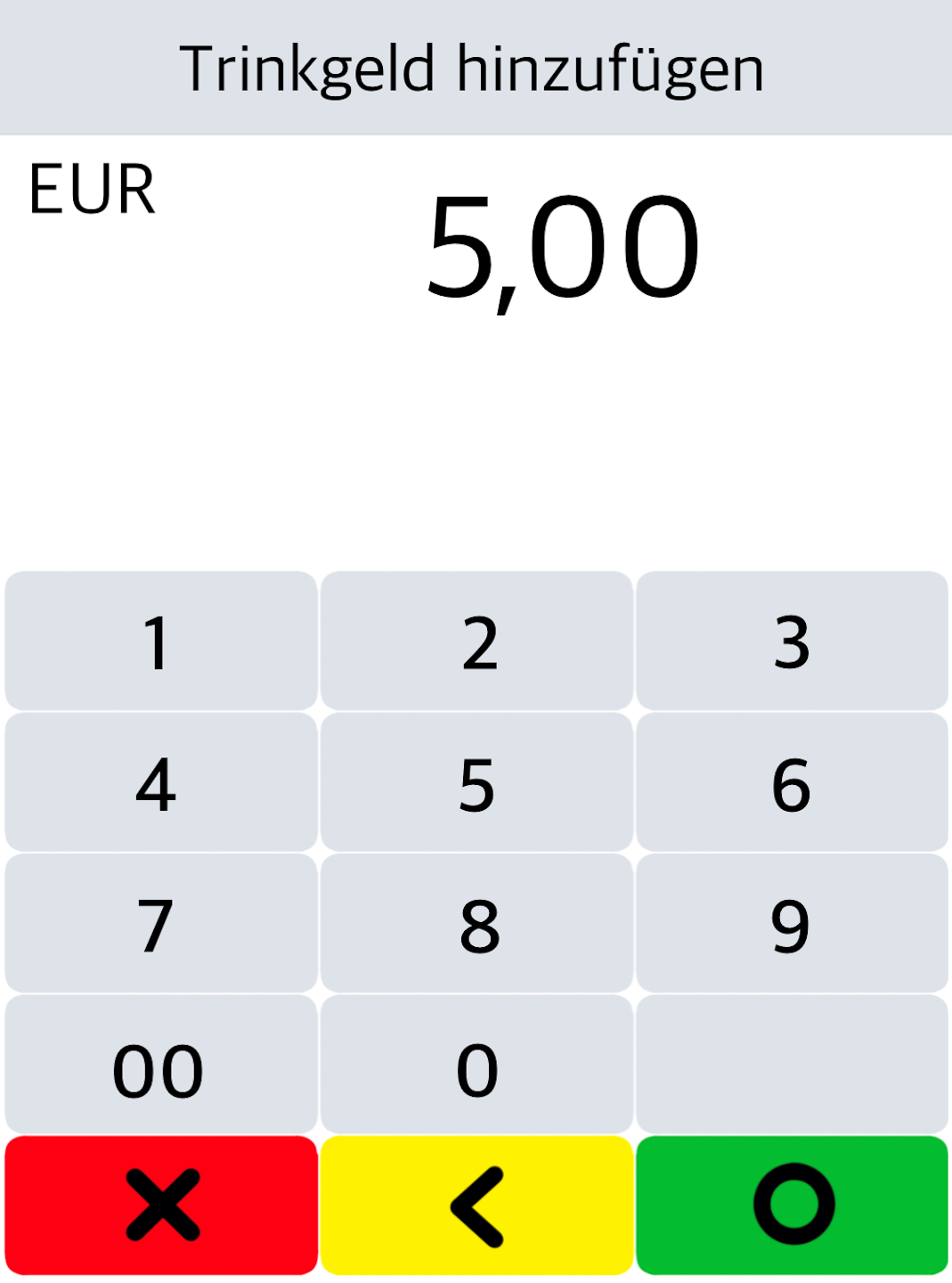
First, the receipt number of the original transaction is requested. You will find it on the original payment receipt signed by the customer. After confirming the receipt number, the tip amount is requested and confirmed with the green OK button (Fig. 1 and 2).
The rebooking takes place without presenting or inserting the customer's card again.
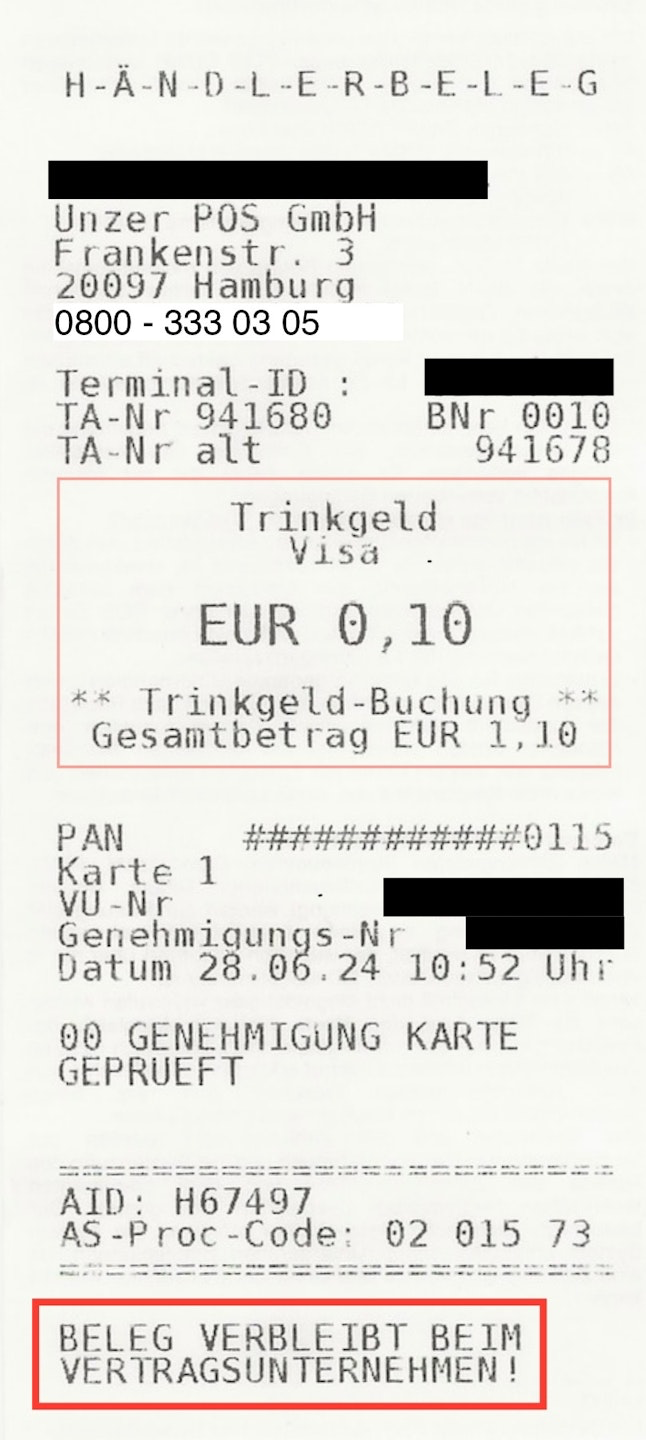
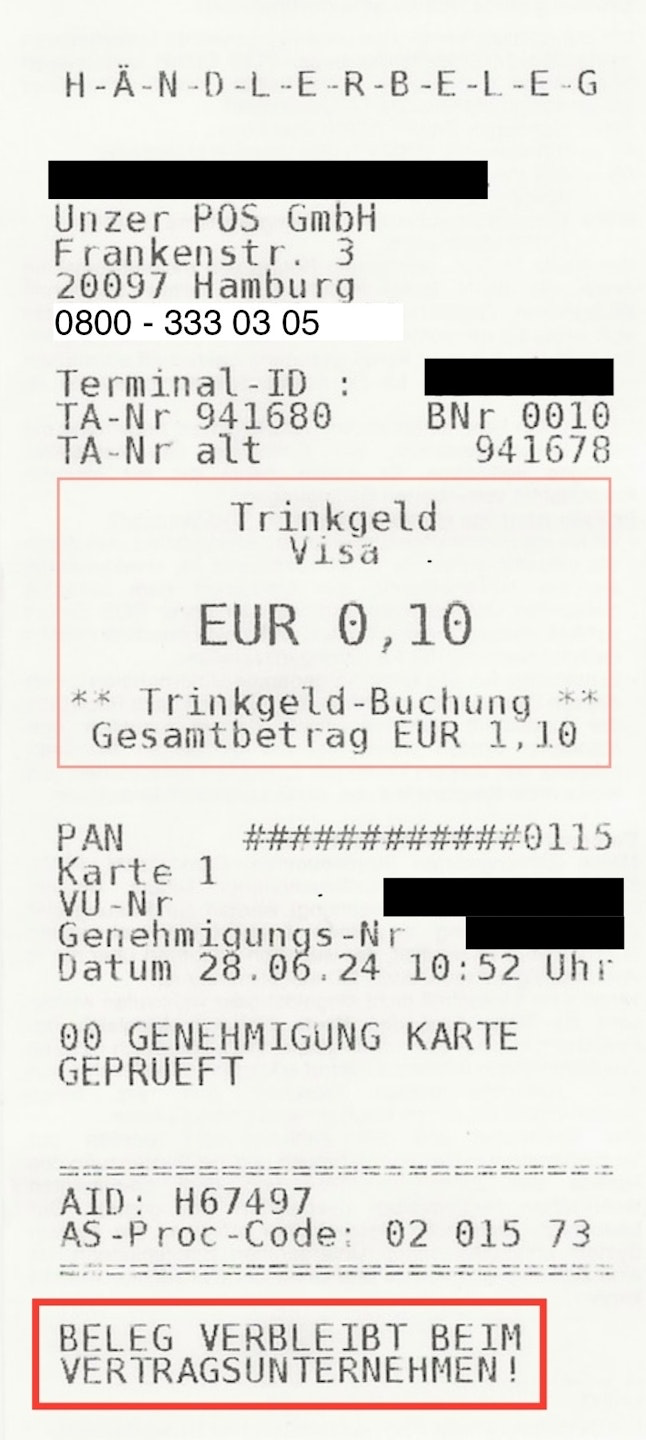
The tip has now been booked (Fig. 3).
Tip amounts are shown on the cash register closing starting from software version 09 and currently only for terminal IDs beginning with 61xxxxxx.
The tip function is not yet active for you? You can request activation here.
V3 – Payment with Tip Entry
Tip version 3 is available on Verifone card readers via a dedicated softkey.
Here, the tip is entered during the payment on the card reader (a single total transaction).
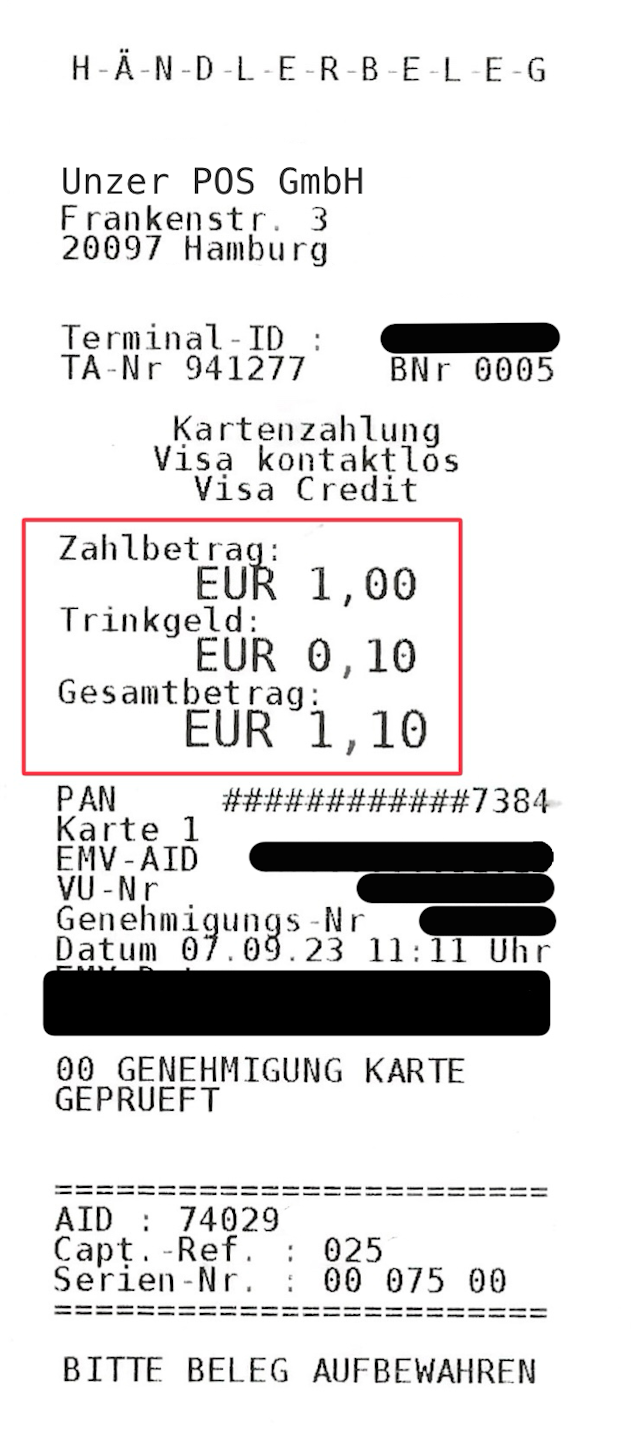
The transaction amount is the sum of the payment amount and the tip amount (Fig. 1).
All amounts appear on the merchant receipt and the cash register closing¹ (Fig. 2). Only one transaction occurs.
¹ Tip amounts are shown on the cash register closing starting from software version 09 and currently only for terminal IDs beginning with 61xxxxxx.
Menu Path
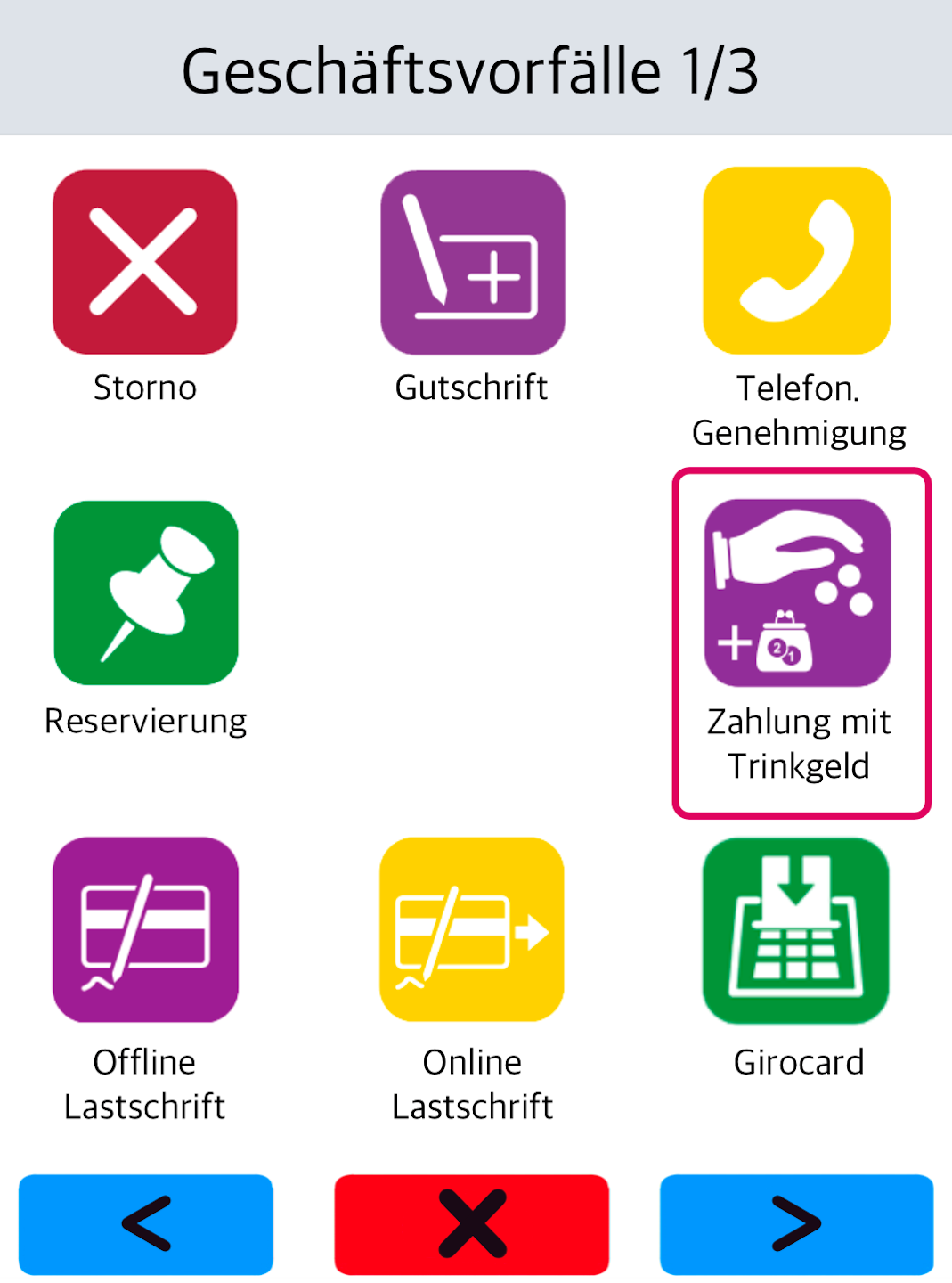
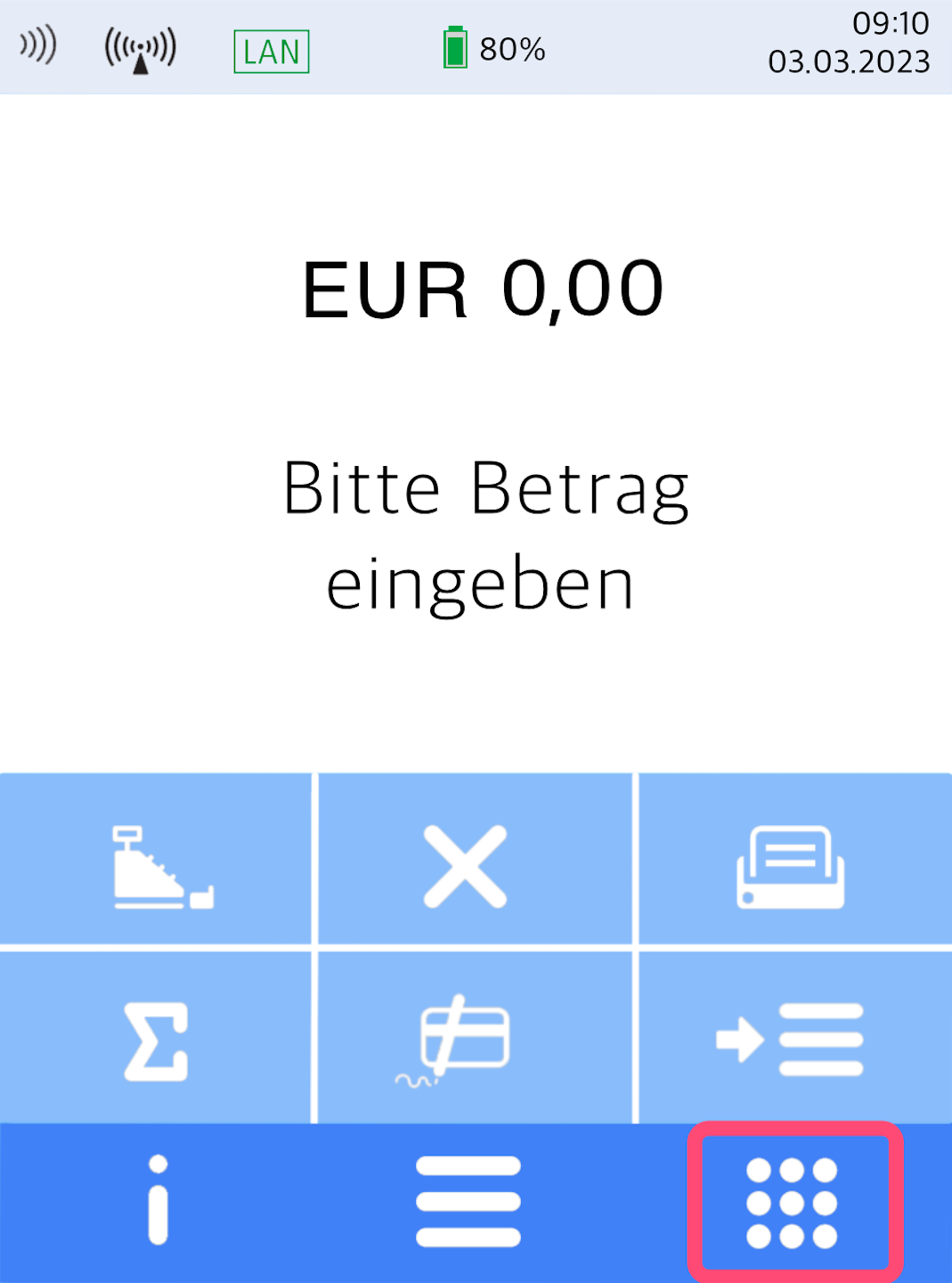
Please press the bottom right button with the 9 dots for Transactions (Fig. 1).
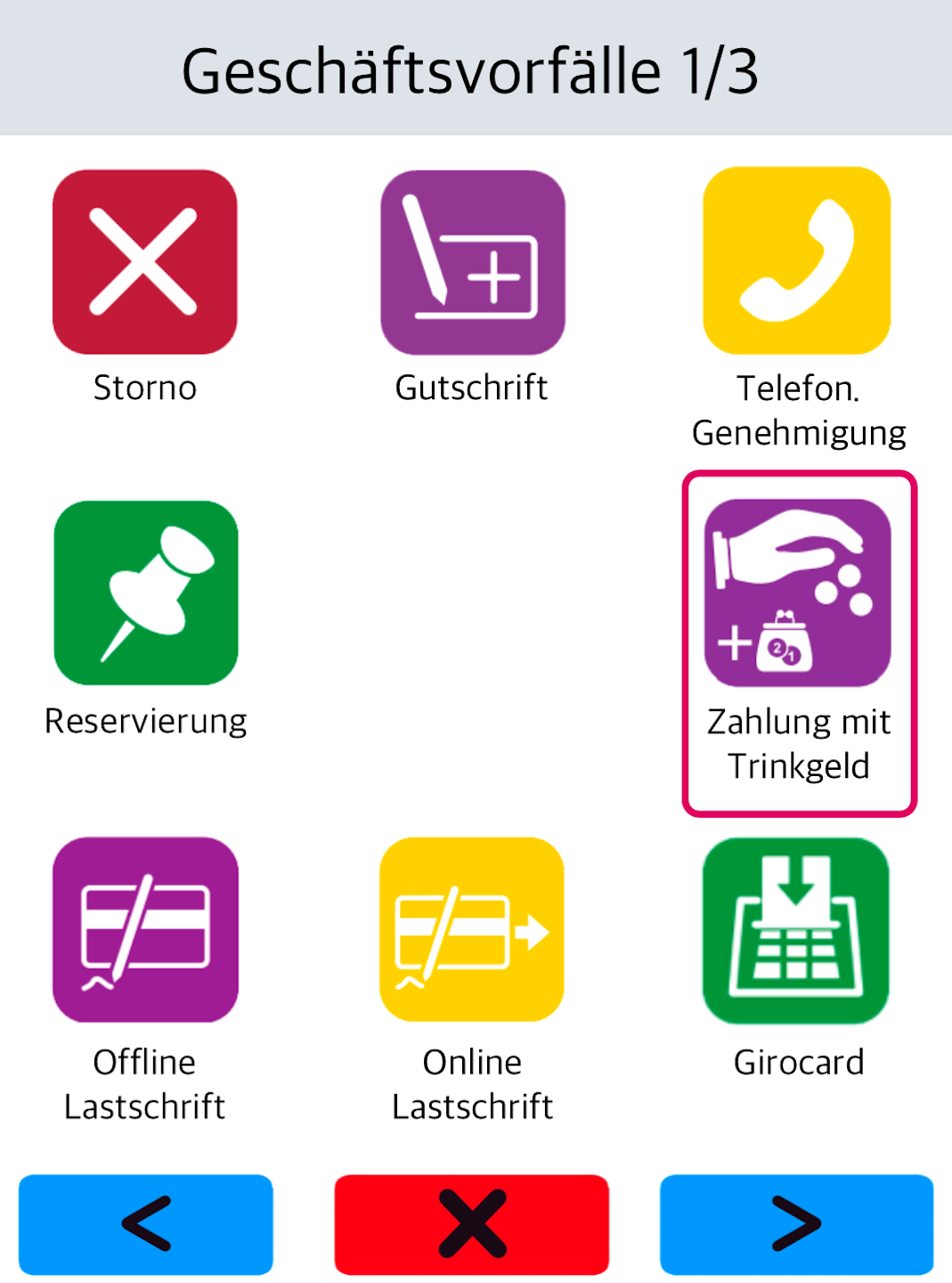
Now select the softkey Payment with Tip (Fig. 2).
For a simple amount entry, tip version V1 with signature is used.
Would you like to place the softkey on your home display? Then please use our guide: Customize Softkey
Payment & Tip Entry
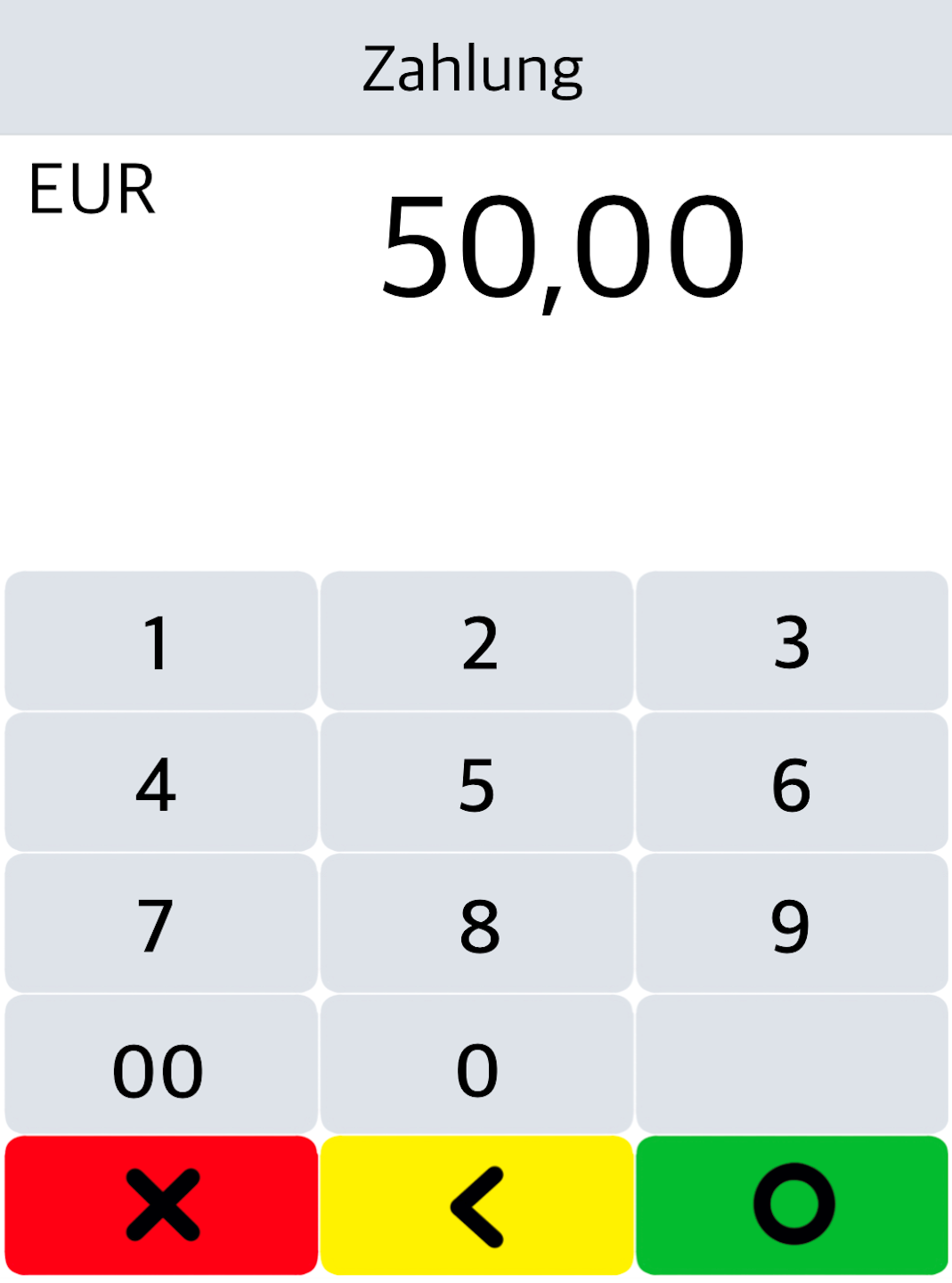
In Fig. 1, the payment amount is requested.
After confirming, the tip amount is requested (Fig. 2).
Tip amounts are shown on the cash register closing starting from software version 09 and currently only for terminal IDs beginning with 61xxxxxx (Fig. 3).
Would you like to place the softkey on your home display? Then please use our guide: Customize Softkey
The tip function is not yet active for you? You can request activation here.
Was this article helpful?
That’s Great!
Thank you for your feedback
Sorry! We couldn't be helpful
Thank you for your feedback
Feedback sent
We appreciate your effort and will try to fix the article
