Verifone - Set Softkey
Modified on Tue, 10 Feb at 2:56 PM
Softkey Assignment
Would you like to change the selection buttons (called softkeys) on the display of your Verifone card reader?
We will show you step by step how it works.
Main Menu
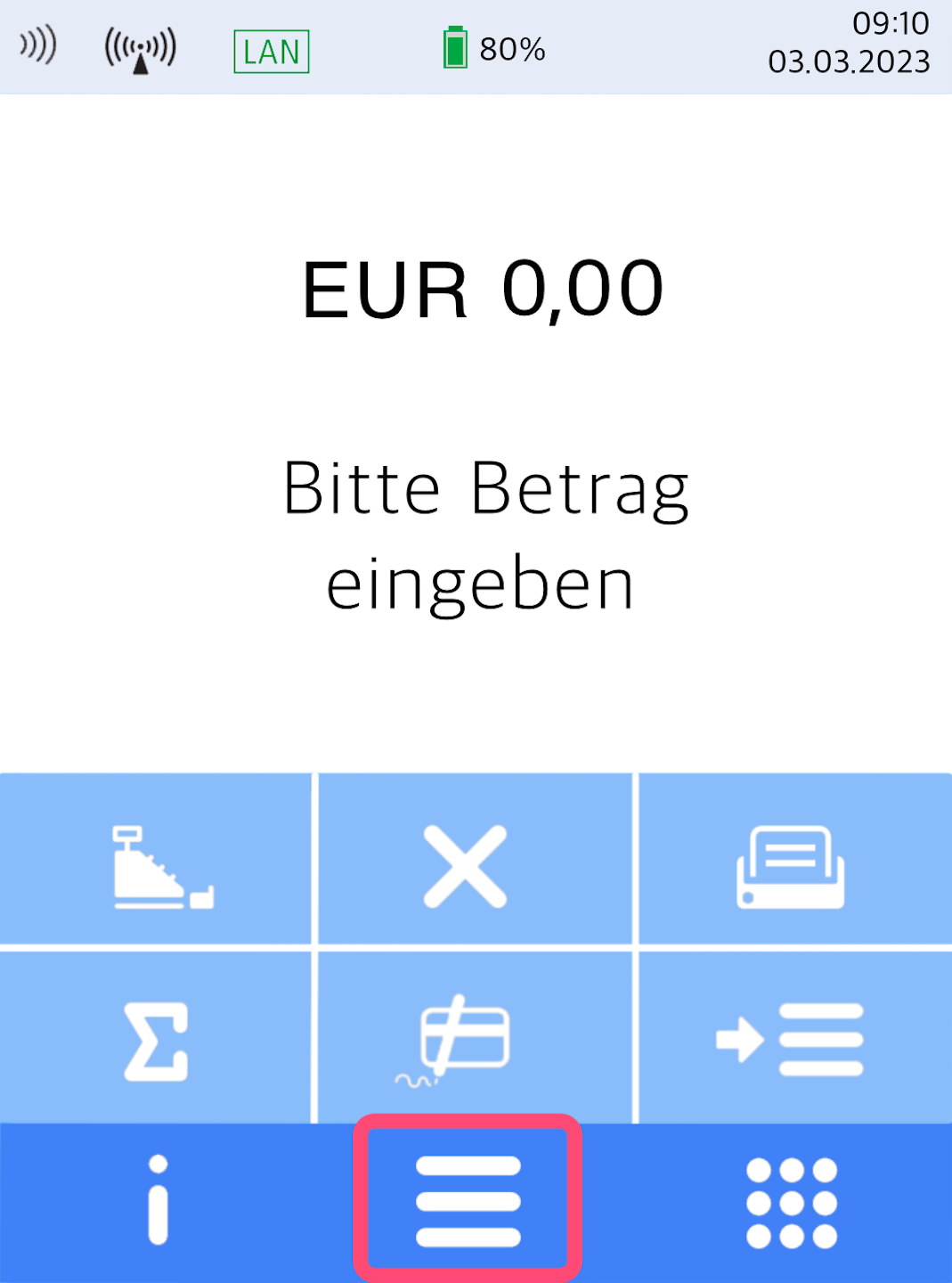
Here you see your home display.
Please tap the button with the three horizontal bars to access the main menu.
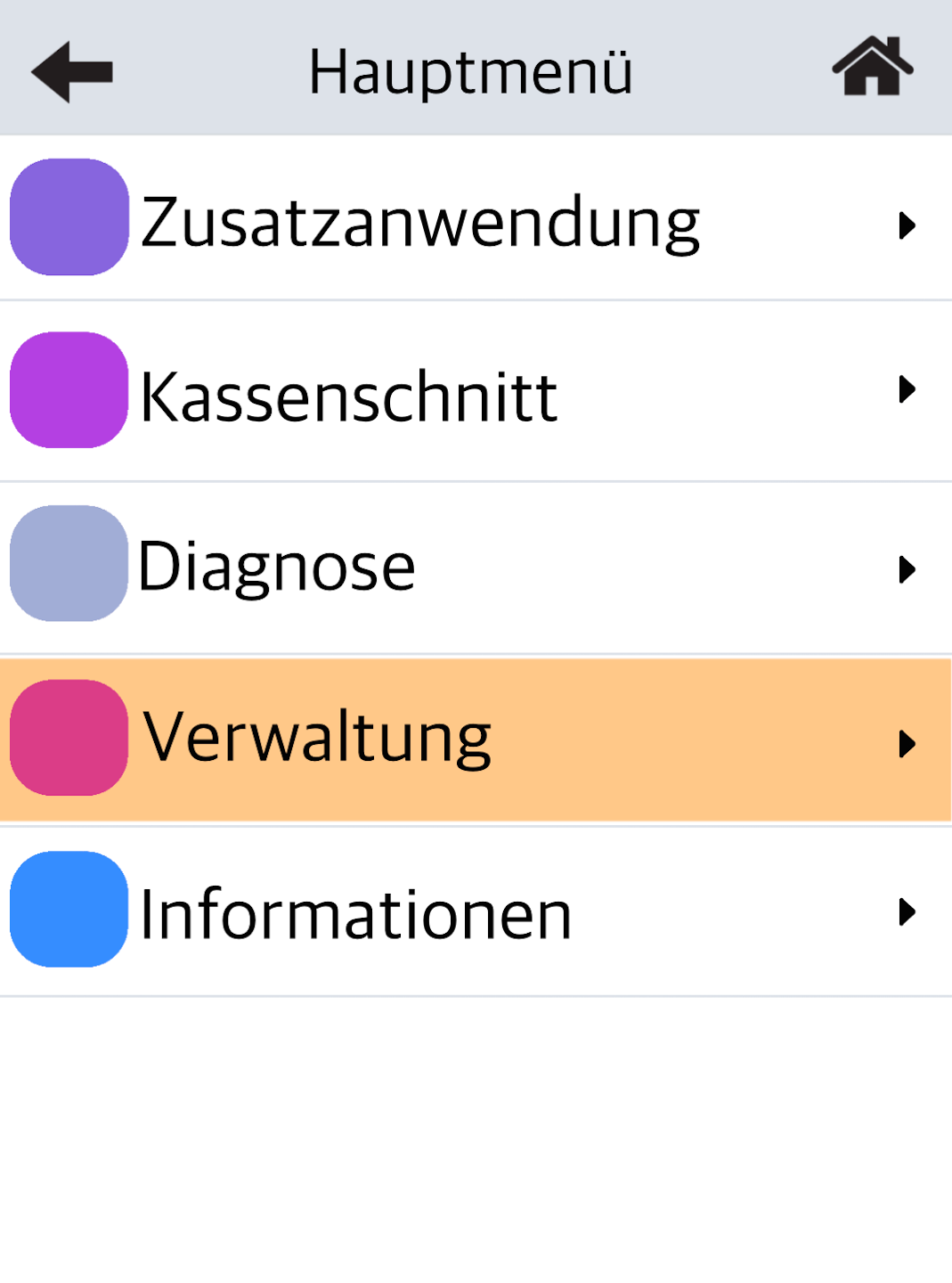
Management
Please select the menu item Verwaltung.
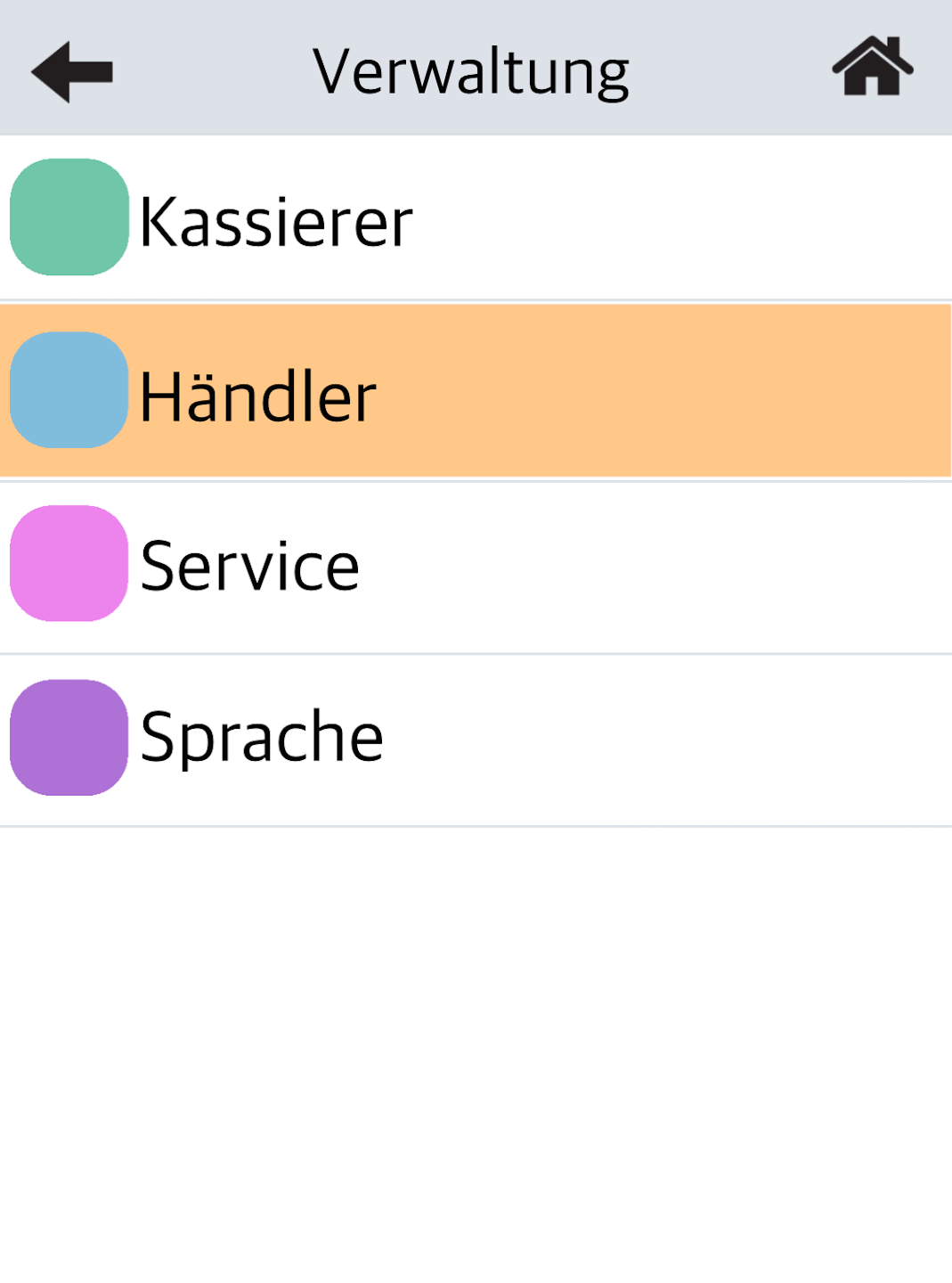
Select Merchant
Please select Händler here.
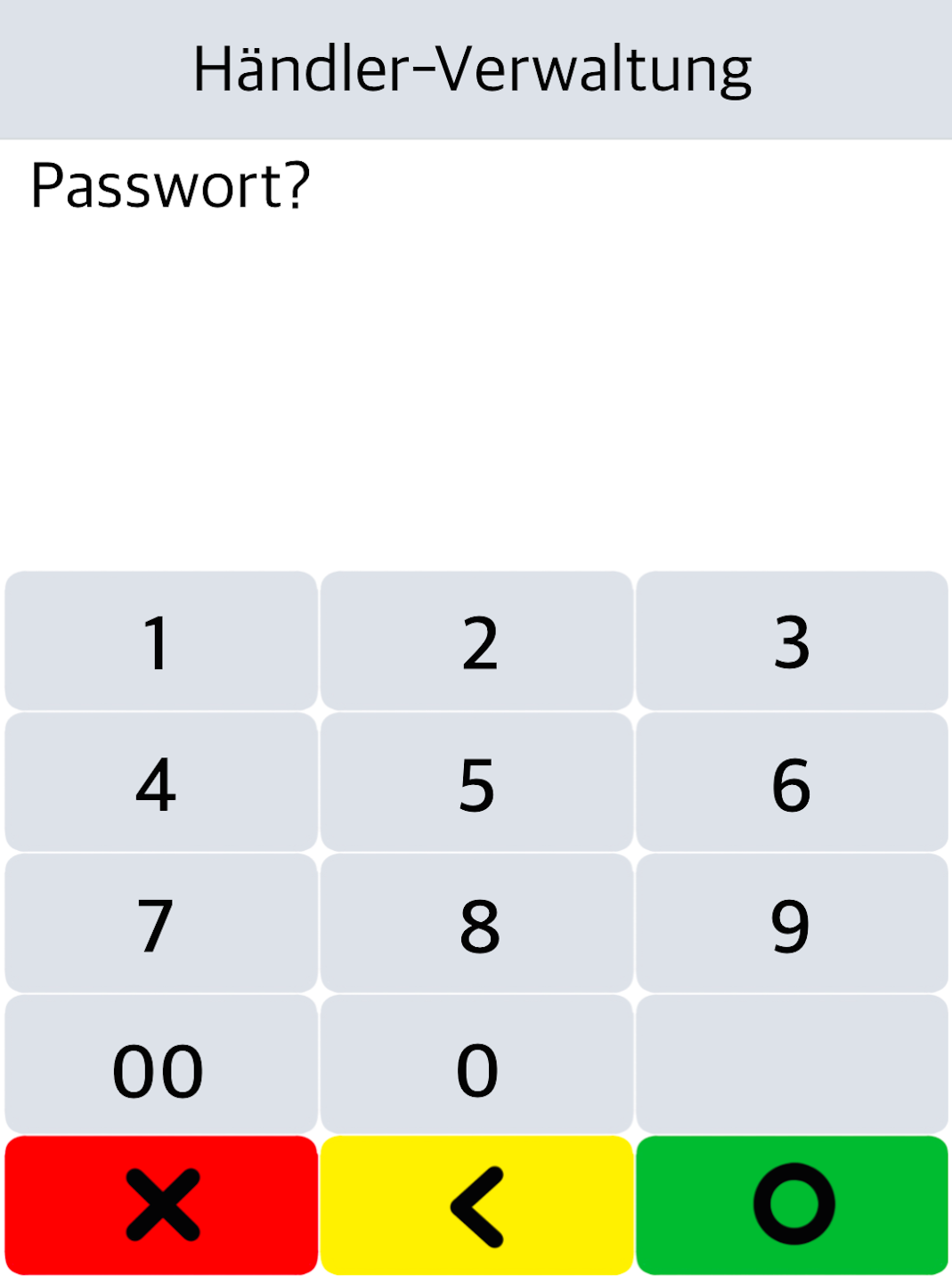
Password Entry
Please enter the 6-digit merchant password and confirm the entry with the green OK button.
You can find the terminal ID on your merchant receipts or on the cash register closing.
Terminal-IDs starting with 61xxxxxx: 000000
Terminal-IDs starting with 68xxxxxx: 000000
Terminal-IDs starting with 526xxxxx: 000000
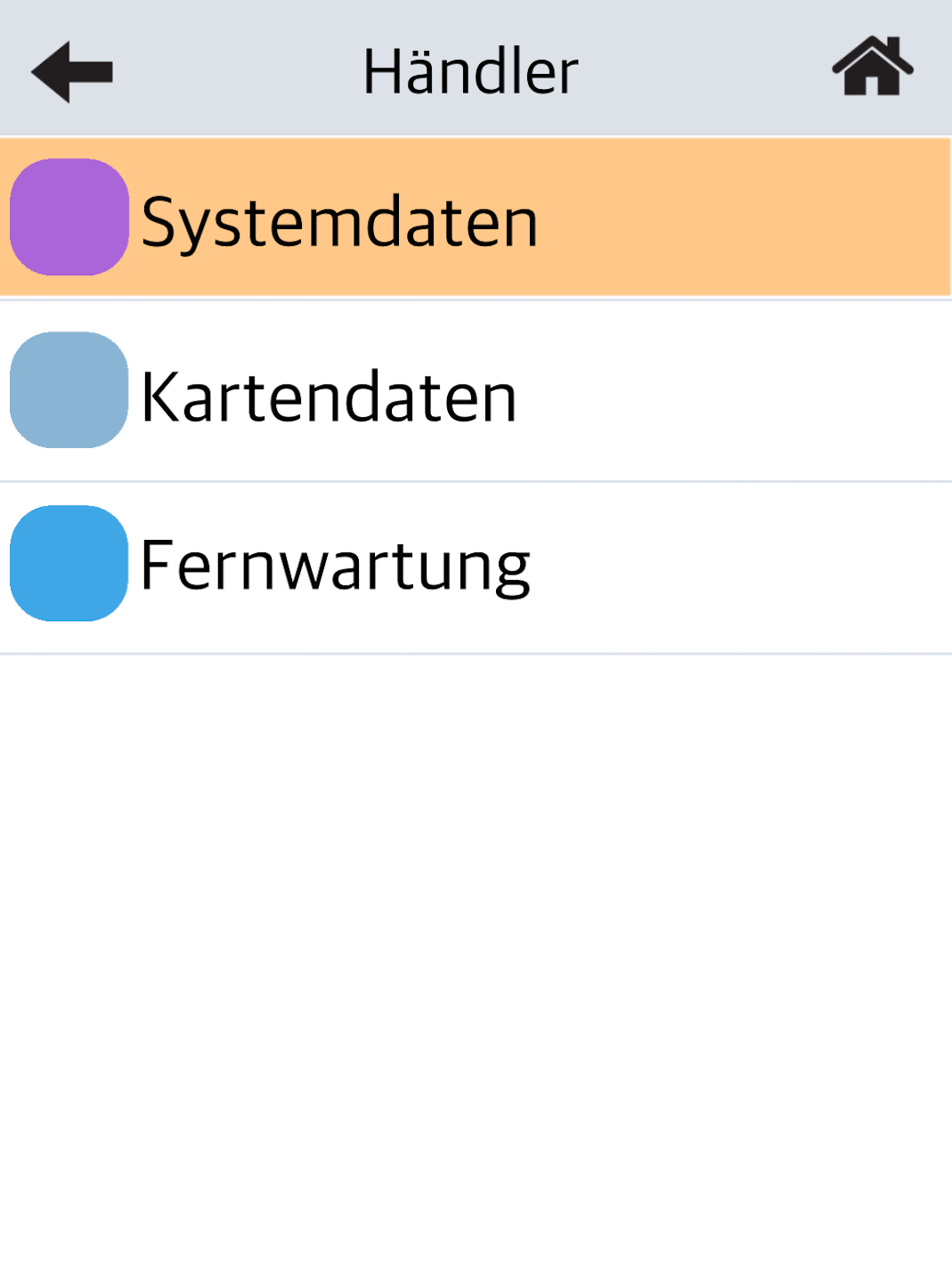
System Data
Please select the menu item Systemdaten.
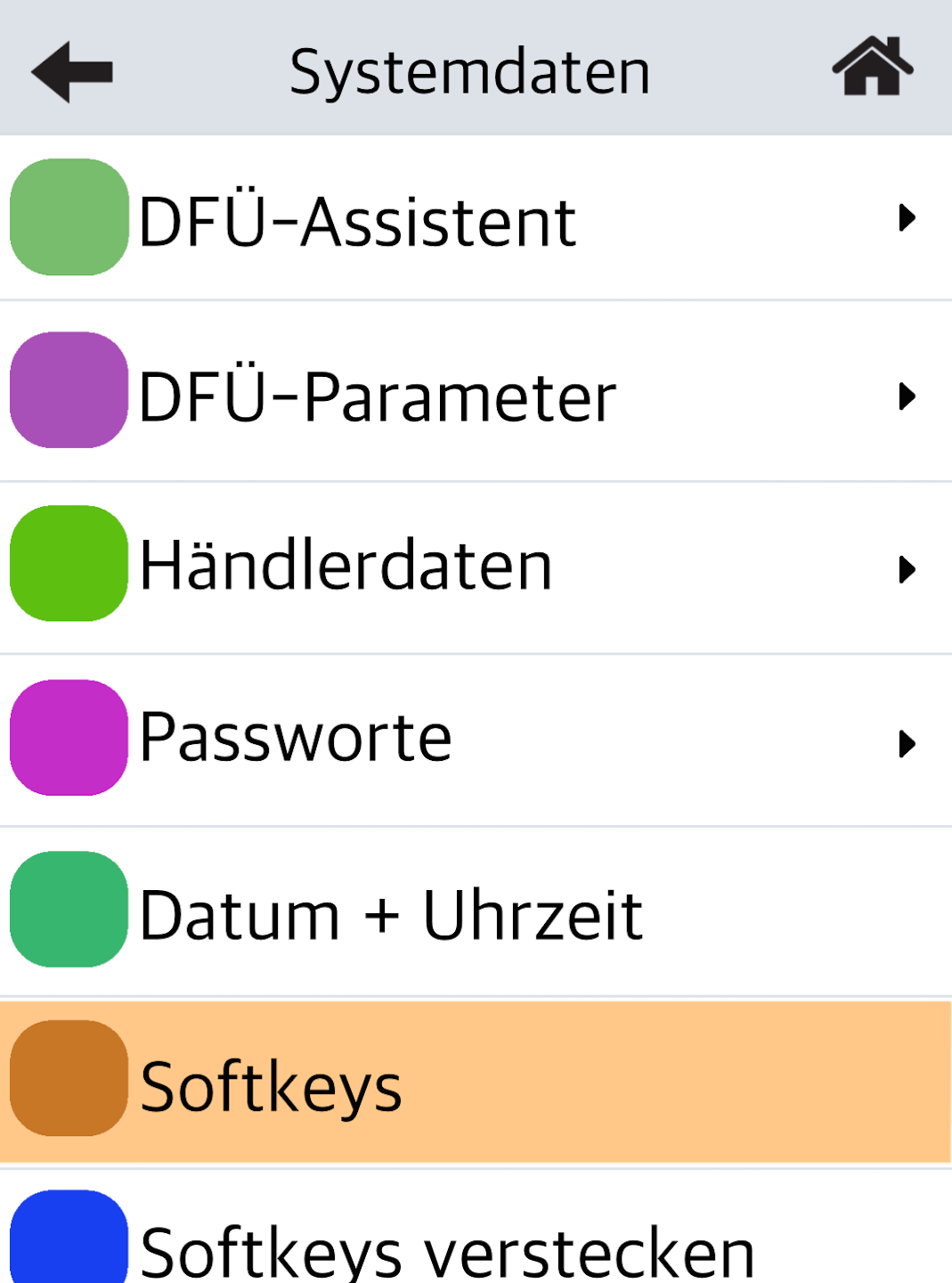
Softkeys
Please select the menu item Softkeys.
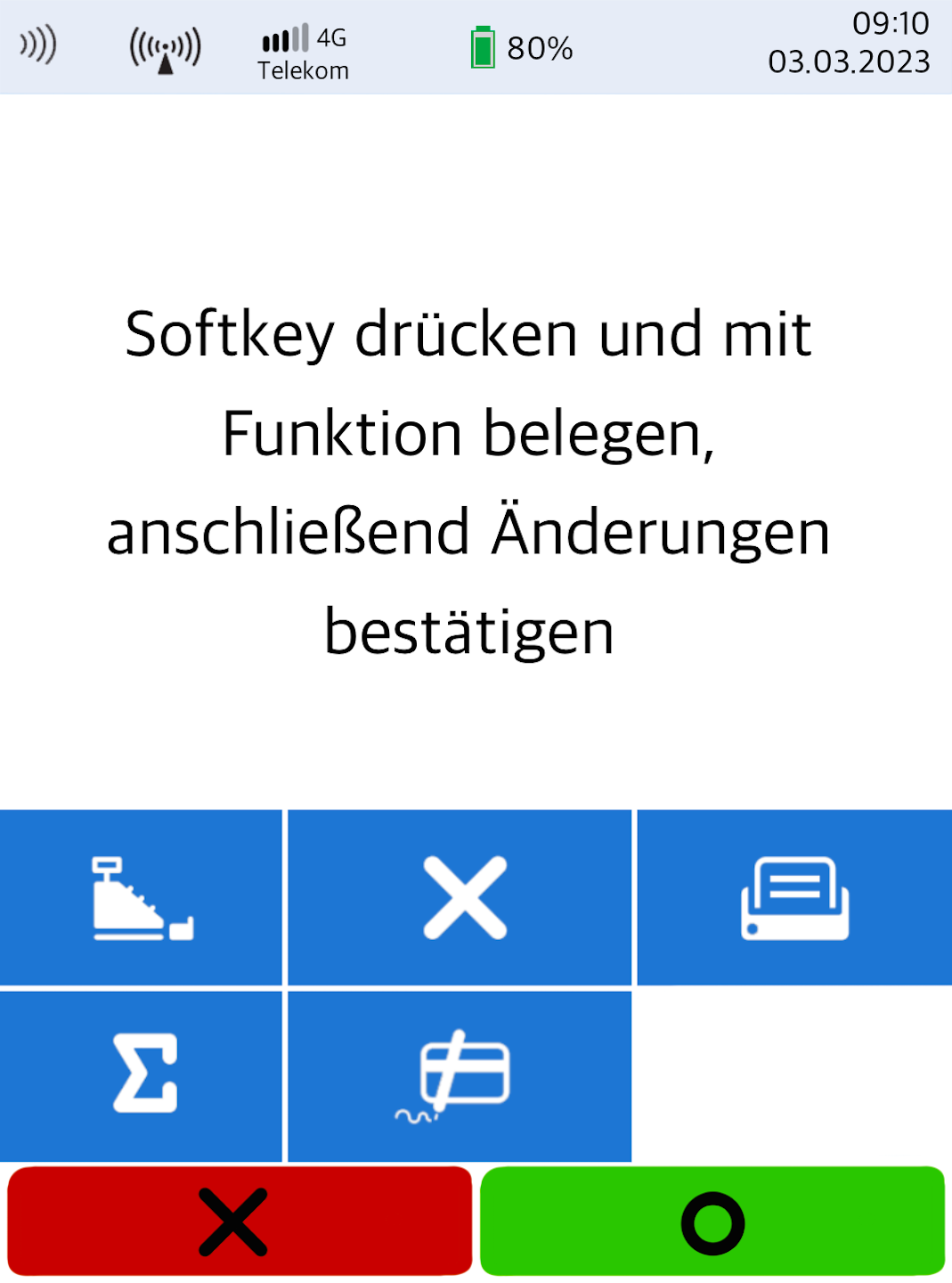
Softkey Assignment
Fig. 1
At this point, please select an icon that you would like to replace with another function.
Tip: The paper feed is usually the best option to replace, as it is rarely used.
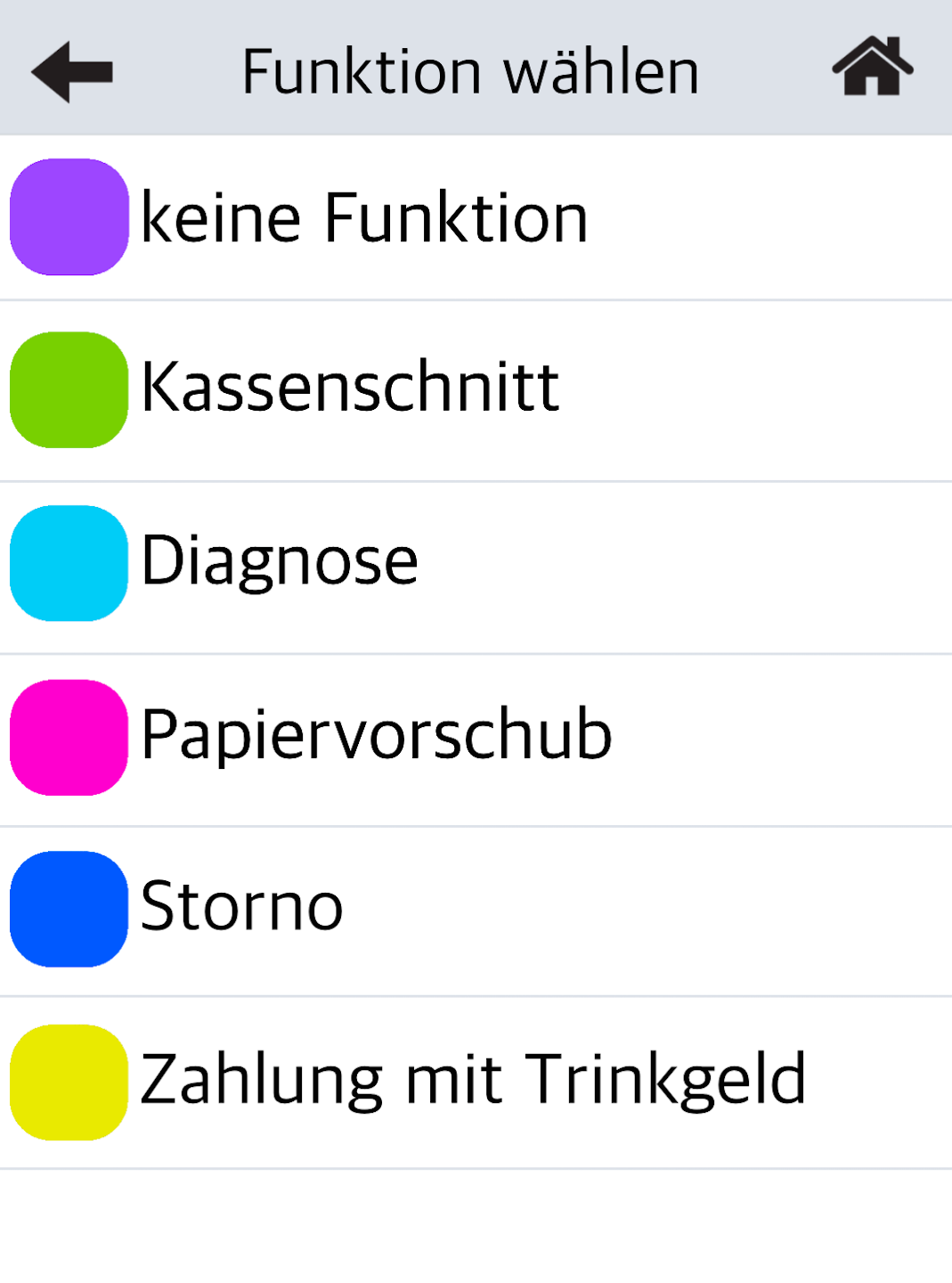
Fig. 2
Now you can choose the desired function from the list.
Tip: Merchants who want to use the tip function can select Payment with Tip here.
Please confirm the new softkeys with the green OK button.
Only then will they appear on the home display.
Was this article helpful?
That’s Great!
Thank you for your feedback
Sorry! We couldn't be helpful
Thank you for your feedback
Feedback sent
We appreciate your effort and will try to fix the article
