Register Closing
Modified on Fri, 6 Mar at 1:17 PM
During a register closing, the actual cash on hand is recorded in the first step, i.e. the current cash balance in the register is counted. In the second step, the recorded actual balance is compared with the expected balance. The expected balance includes all cash payments registered by the system. You perform a register closing every time you hand over or close the register, i.e. during a staff change or at the end of a workday. Completed register closings can be viewed under the menu item "History." They are also saved in the dashboard under "Finances" for 10 years.
TABLE OF CONTENTS
- How do I generate a provisional register closing (X-report)?
- How do I perform a register closing?
- Counting cash using the coin and banknote fields
- Counting cash using "Manual Entry"
- Compare register closing
- How do I transfer money to the bank before closing?
- How can I transfer cash to the bank before register closing?
- What is a Z-report?
- Why am I asked to deposit or withdraw a specific amount after opening the register?
How do I generate a provisional register closing (X-report)?
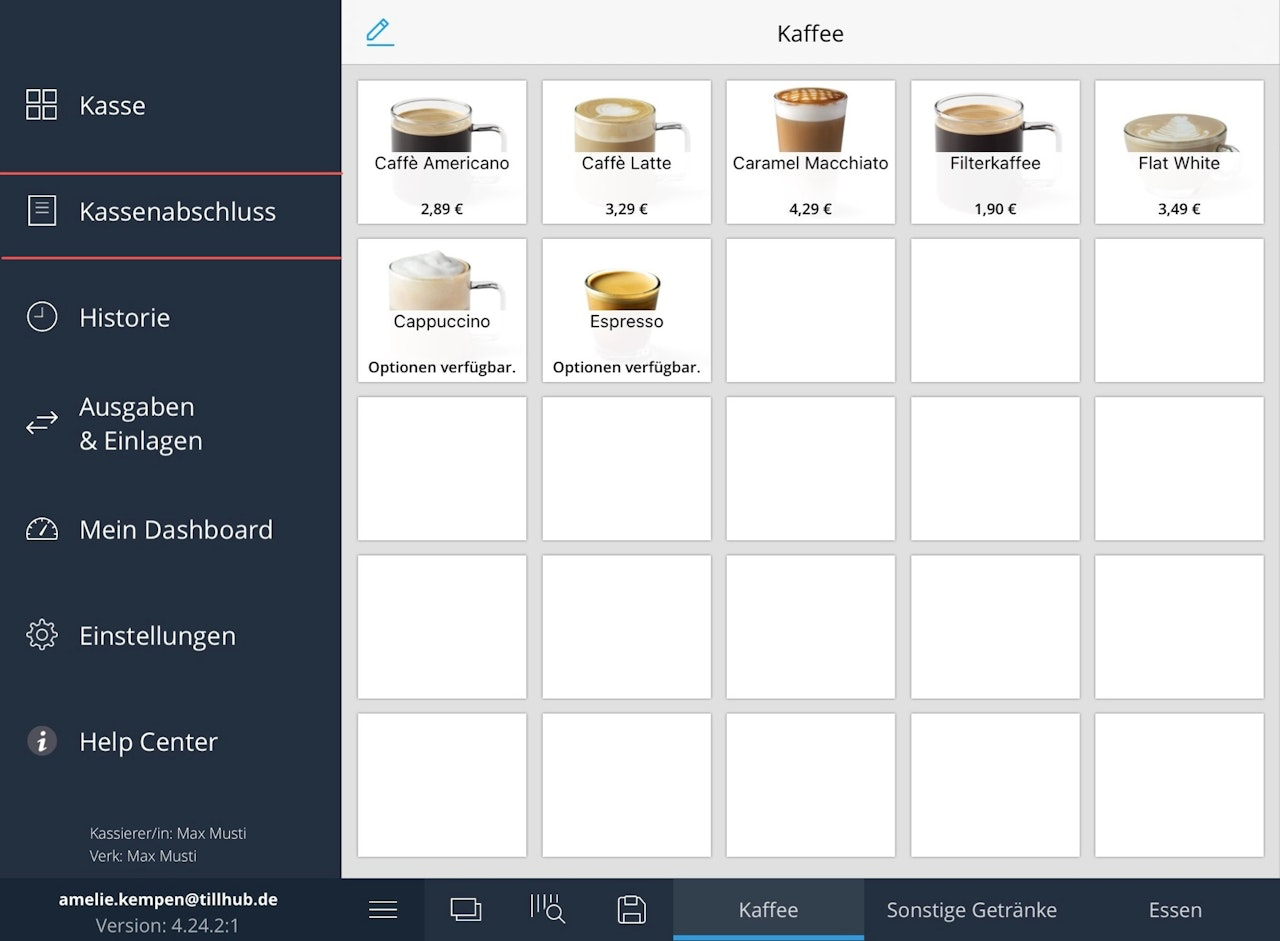
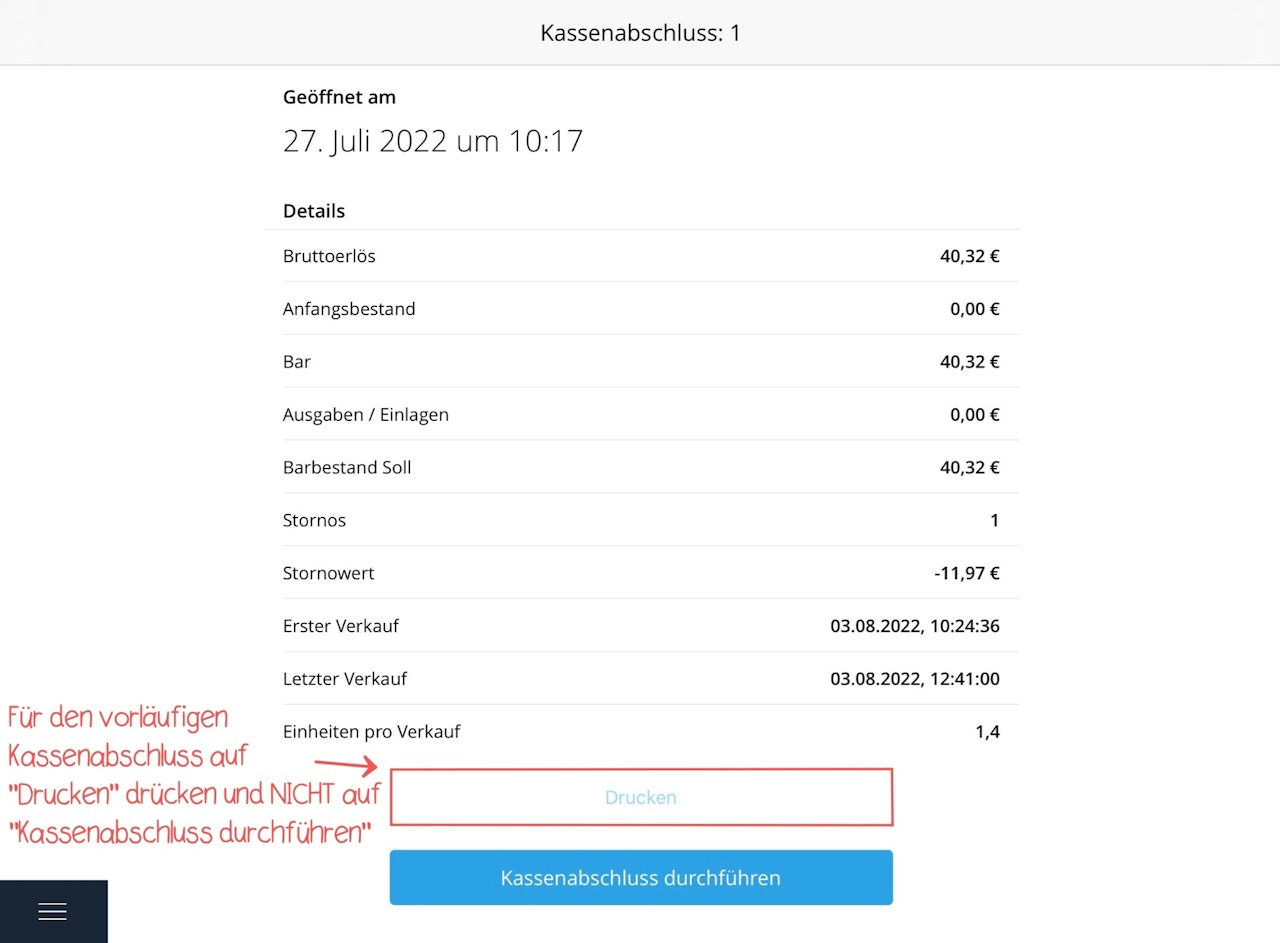
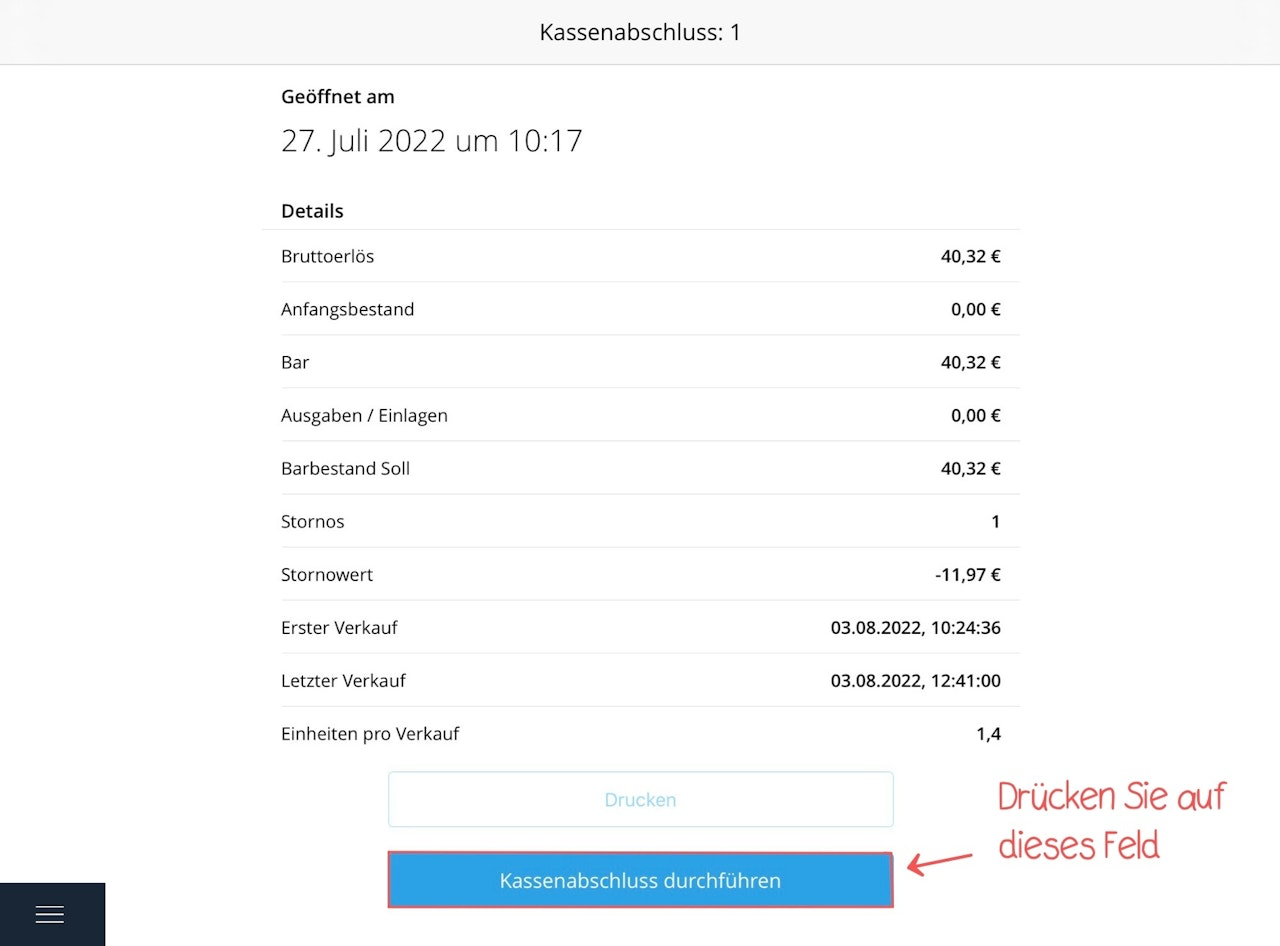
The X-report is an informational interim report of all sales made since the last register closing up to the time the X-report is generated. The X-report is not valid proof for the tax office and does not affect the ongoing cash register process. First, tap the main menu at the bottom left and then select "Register closing" from the list on the left. You will now see your provisional register closing with the corresponding closing number. To generate an X-report, do not select "Perform register closing", but only "Print".
Note: Under "Expenses / Deposits" in the X-report (Step 2), expenses and deposits are offset against each other. For example, if you had €200 in expenses and €300 in deposits, the value under "Expenses / Deposits" will be €100, because both items are netted.
X-report
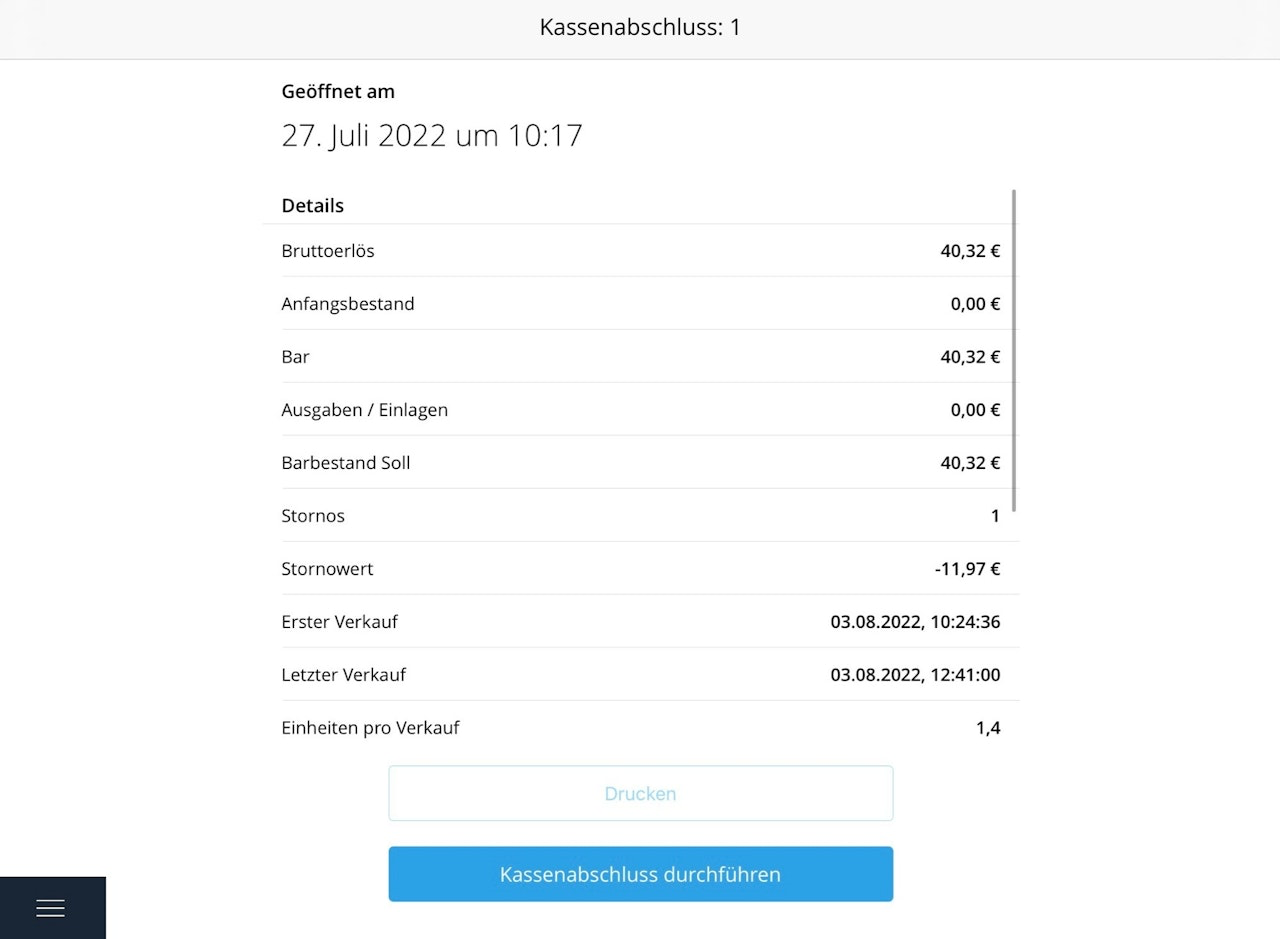
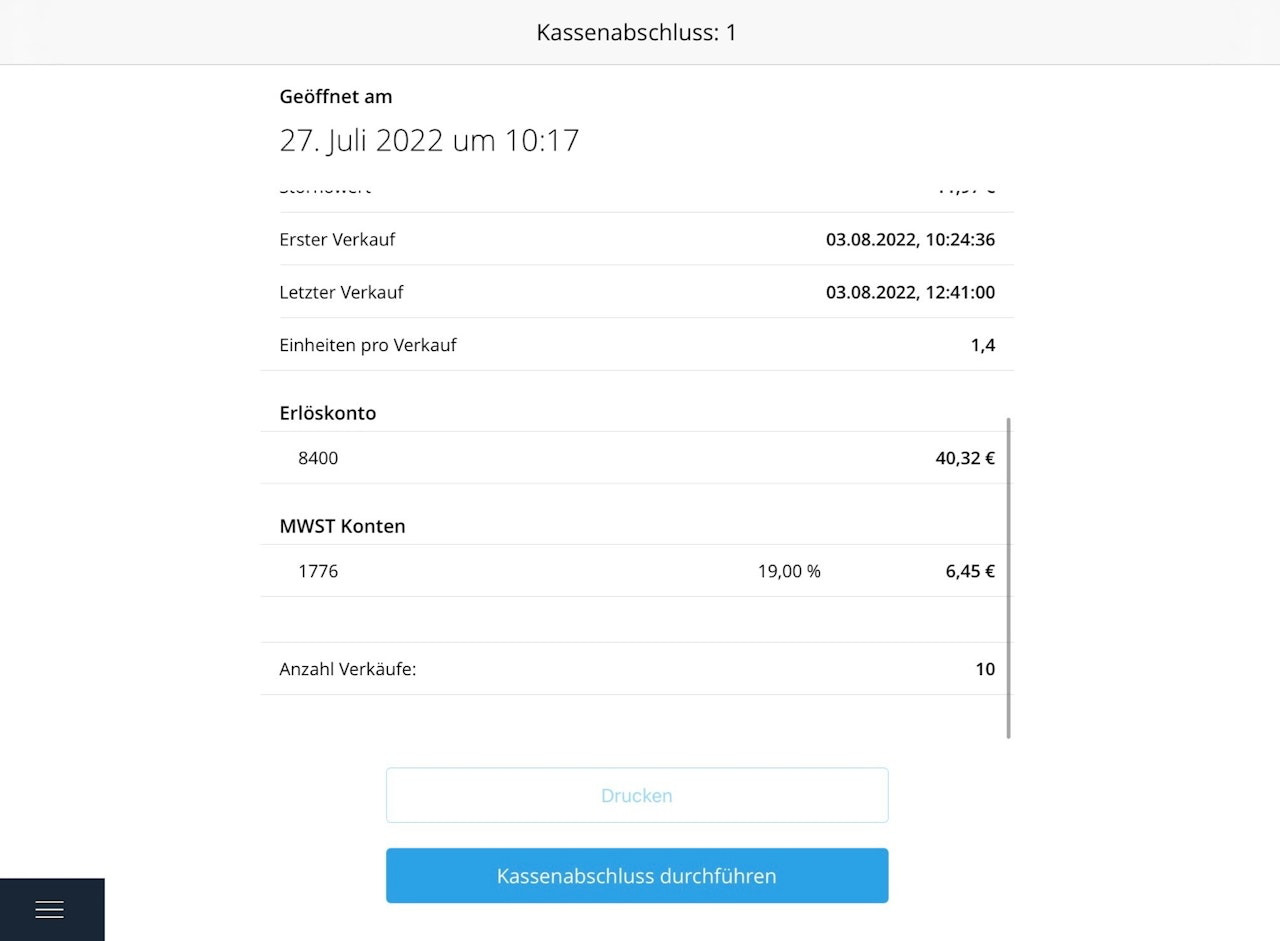
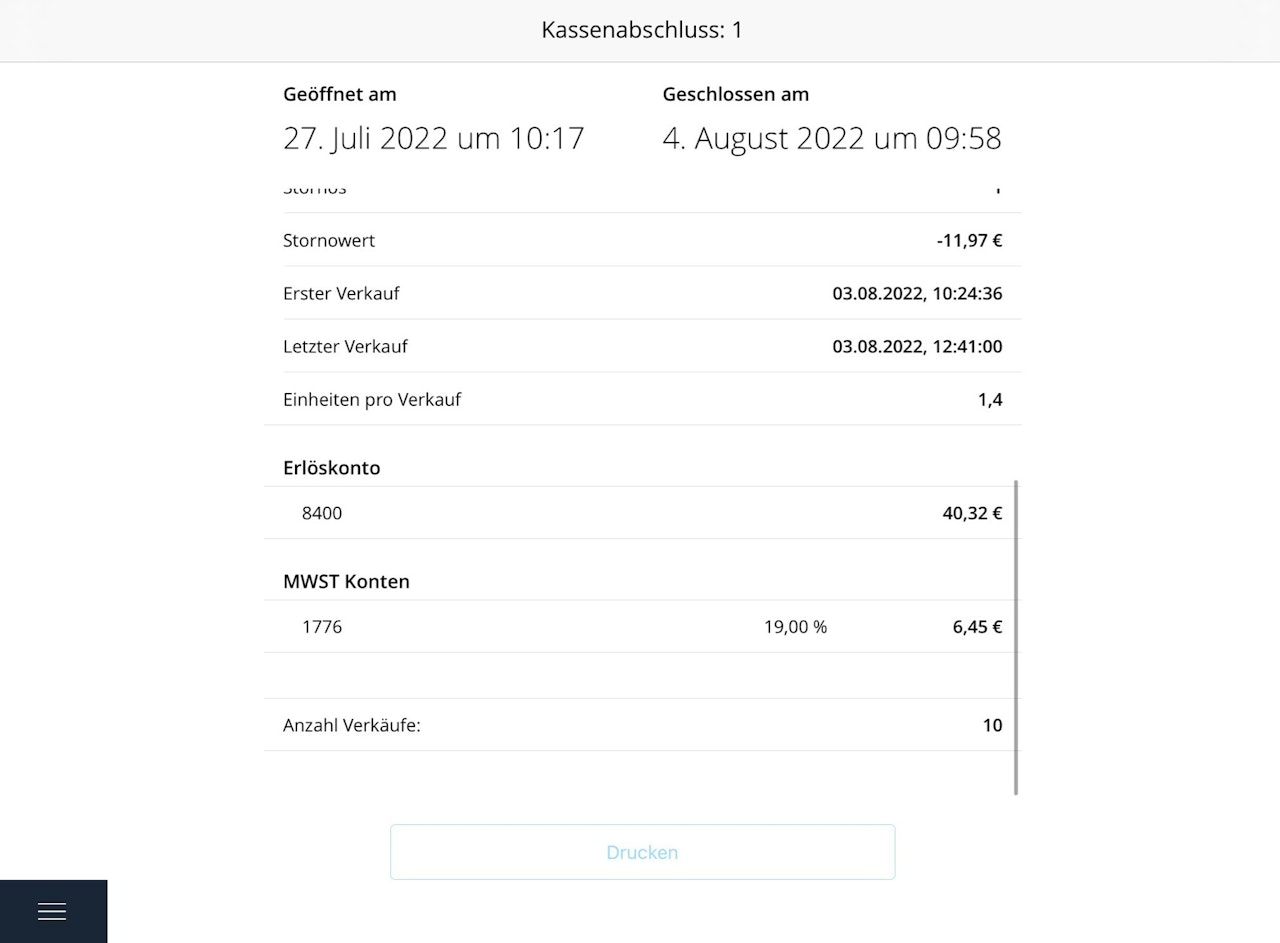
The X-report is broken down into the following sections:
Gross revenue
Starting cash
Cash
Expenses / Deposits
Cash expected
Cancellations
Cancellation amount
First sale
Last sale
Items per sale
Non-cash (card payments)
Revenue account
VAT accounts
Number of sales
How do I perform a register closing?
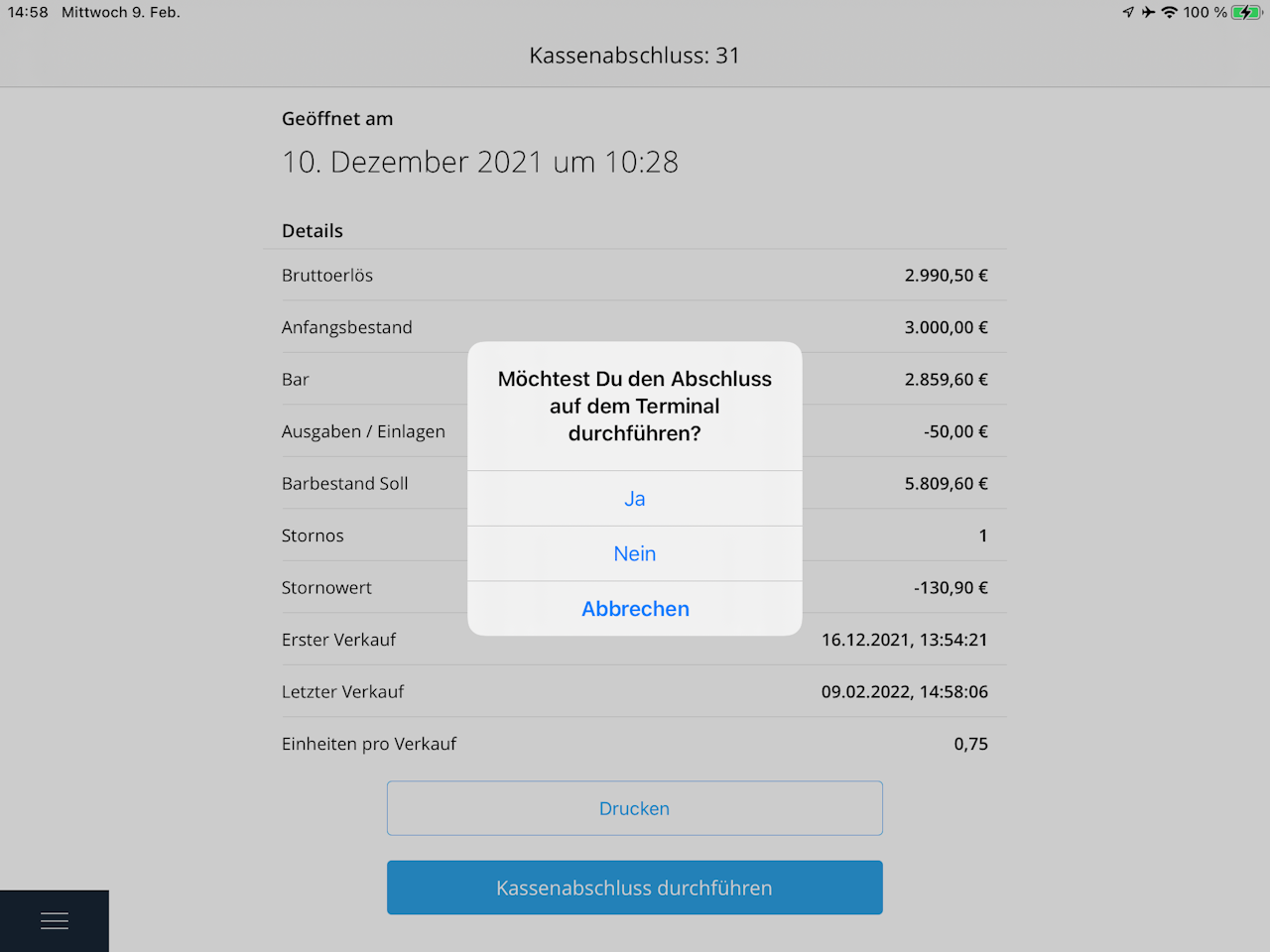
Tap the main menu at the bottom left and then select "Register closing" on the left. You will now see your X-report. Then tap "Perform register closing" to start the creation of the Z-report, which serves as the official report for the tax office. If you made a sale that day via a connected card terminal, a pop-up will ask: "Do you want to perform a register closing on the terminal?" Confirm if needed.
Counting cash using the coin and banknote fields
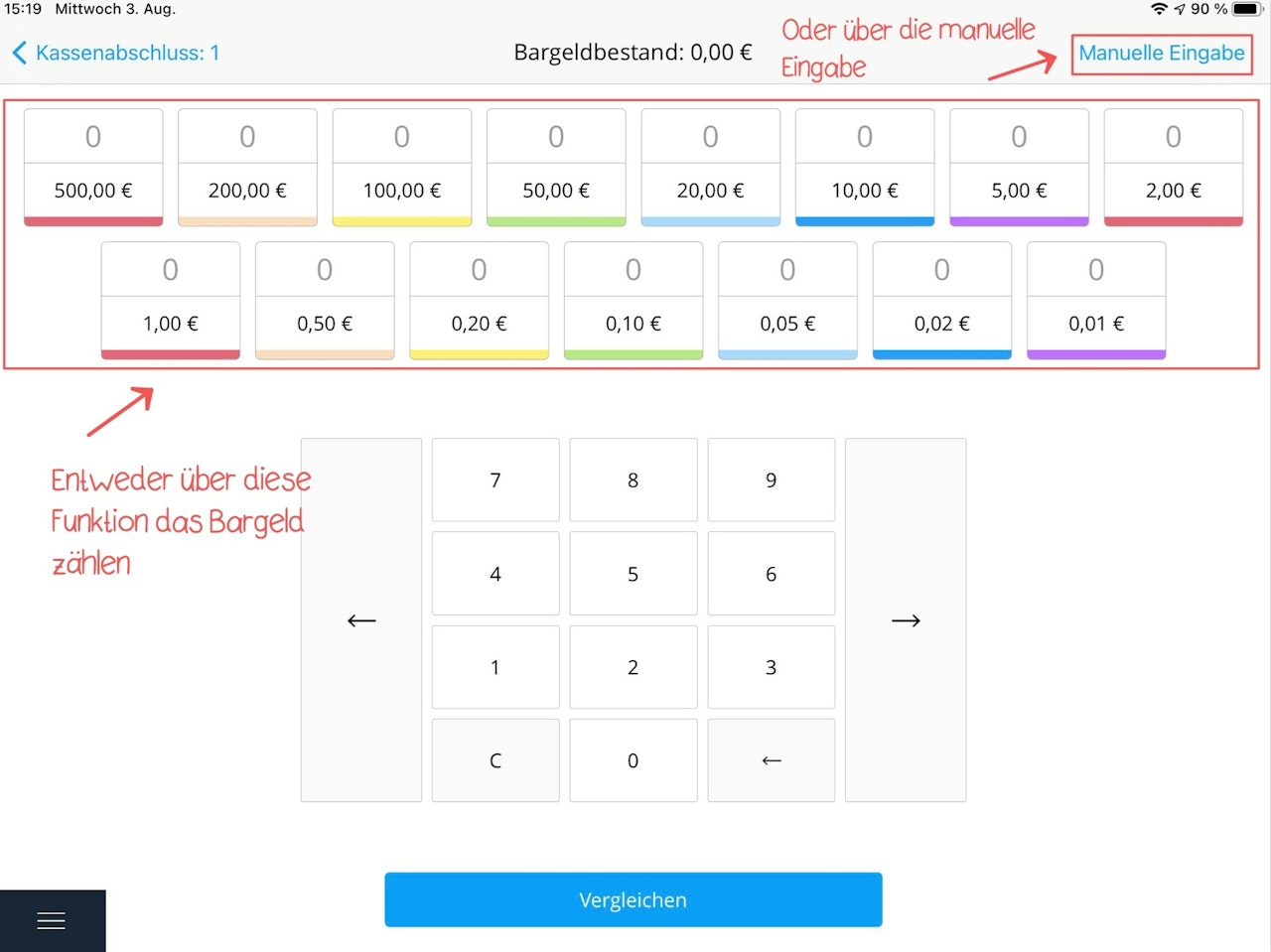
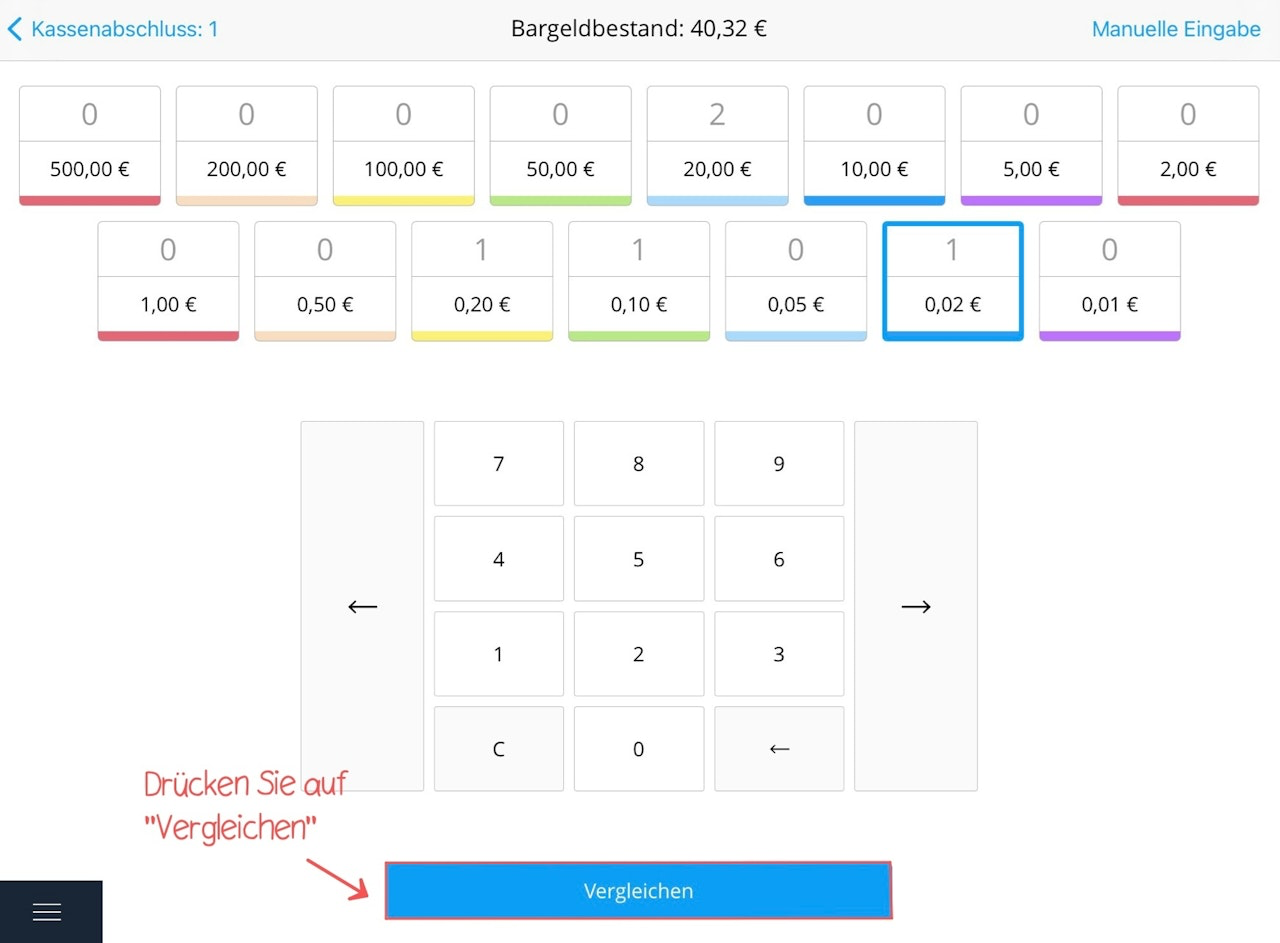
Next, you will be prompted to count the cash in your register. You have two options: Tap the coin or banknote field for which you want to enter the quantity. A blue border shows if the field is selected. You can change the number by either tapping the field repeatedly or using the number input field. The total will be calculated automatically and displayed at the top under "Cash balance". Correct your entry using "C" if needed. Then select the next field by tapping it or using the large arrows left and right of the input field.

Counting cash using "Manual Entry"
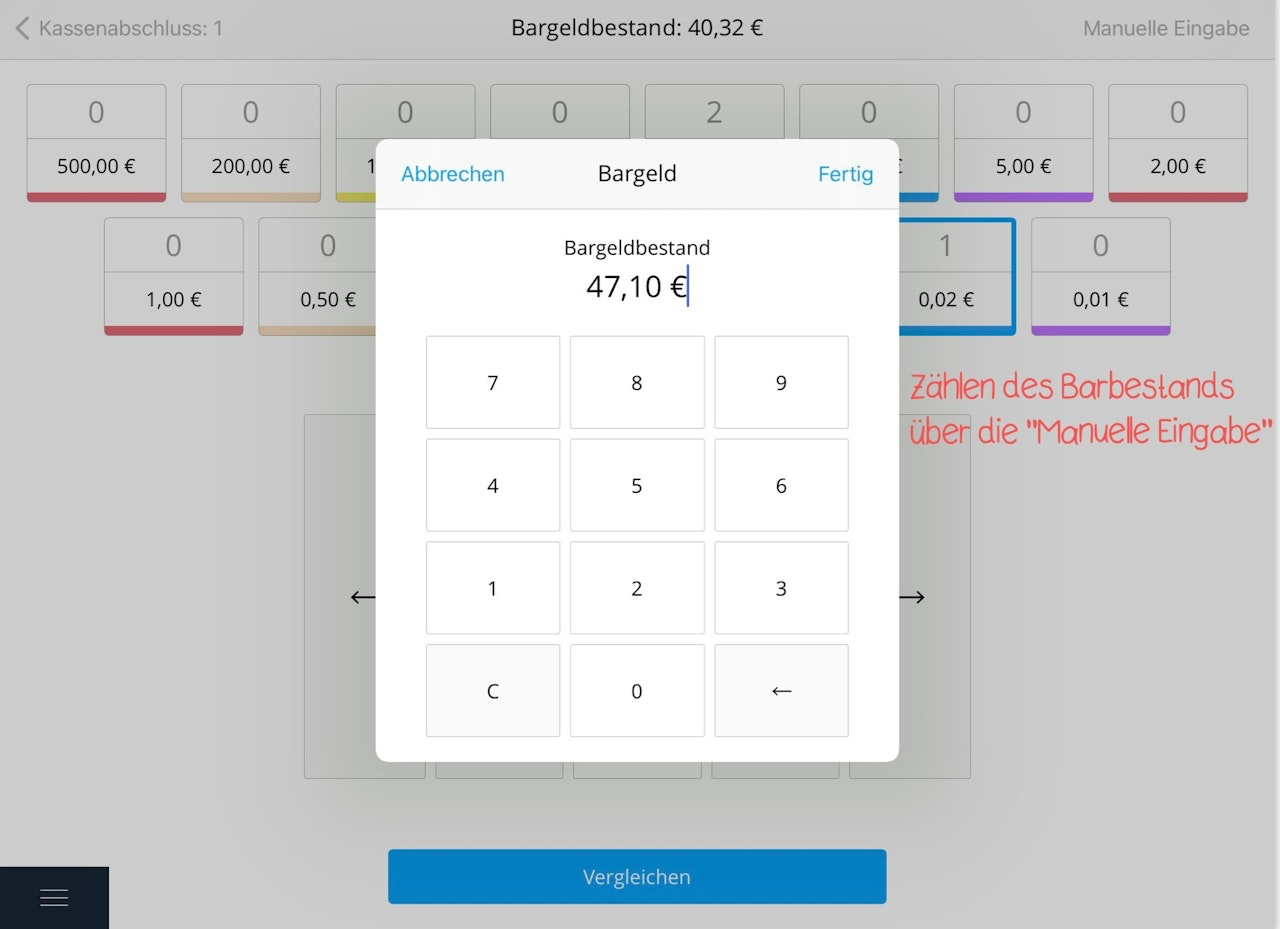
You can also enter your total cash amount directly by tapping "Manual Entry" to skip the coin counting process.
Compare register closing
Once you've entered the full cash amount, tap "Compare register closing". If there is no difference between booked and counted amounts, you’ll automatically proceed to the next step:
How do I transfer money to the bank before closing?
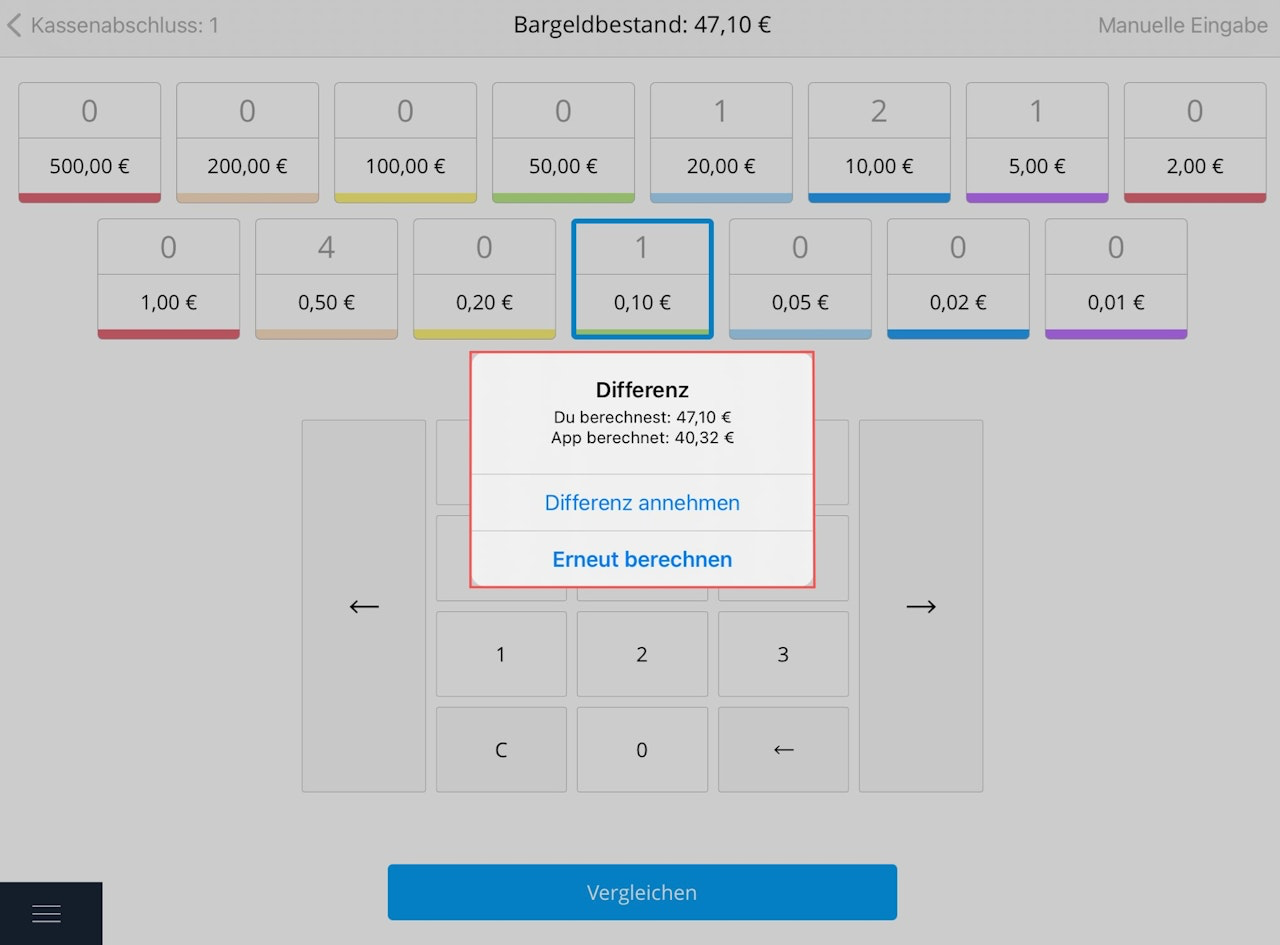
If there is a discrepancy, a small pop-up appears showing both the entered and expected amounts. You can now either tap "Recalculate" to count again, or "Accept difference" to confirm the discrepancy between actual and expected.
How can I transfer cash to the bank before register closing?
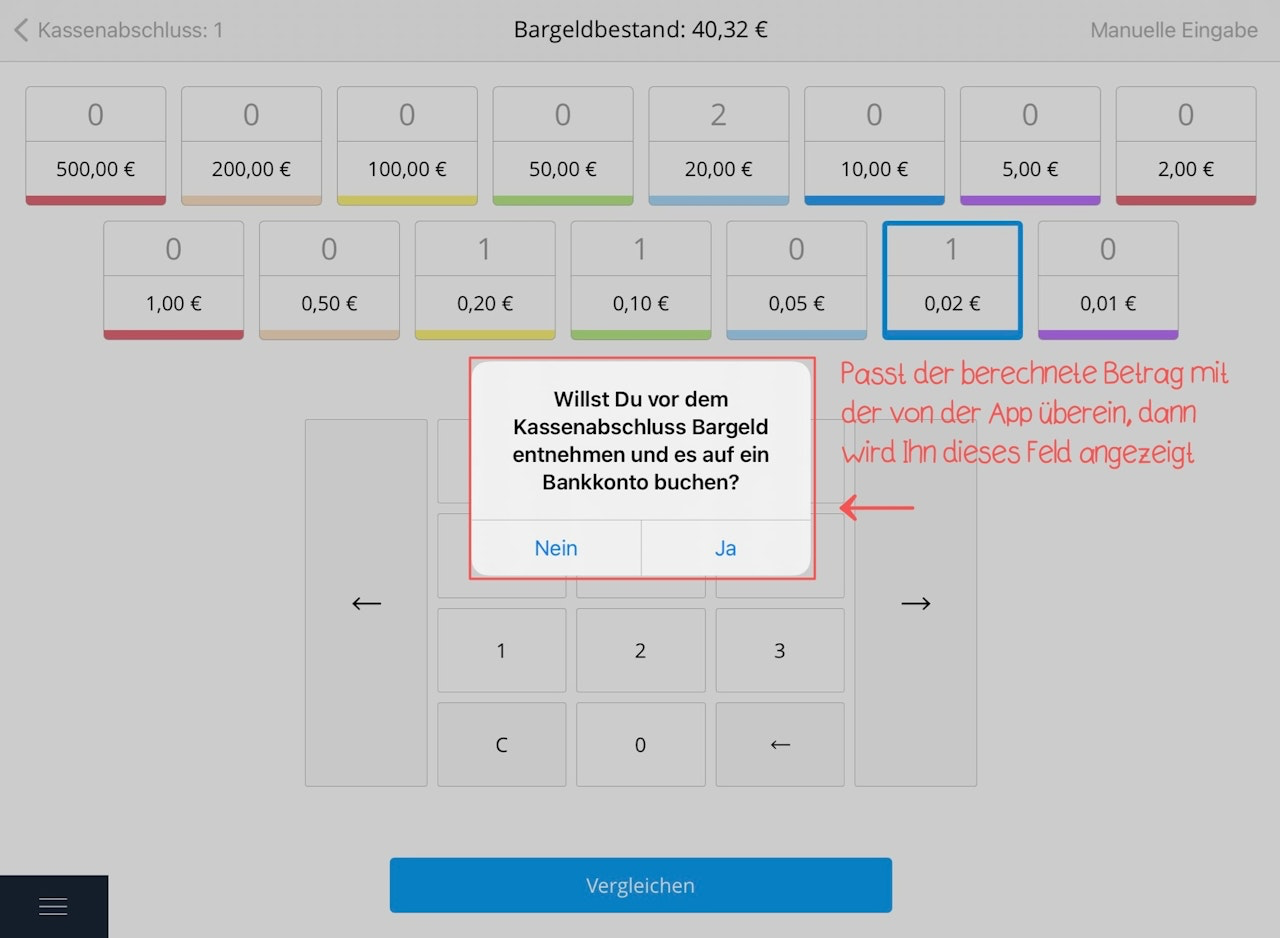
Just before the Z-report is finalized, you will be asked whether you want to remove the collected money and transfer it to a bank account.
Note: If you select "Yes", the app will suggest an amount to be transferred to the bank.
If you’ve set a fixed cash float in the settings, the app suggests the cash balance minus the fixed float amount. For example, if your register contains €400 and you’ve set a float of €100, the suggested payout amount will be €300. You can also change this amount—as long as it does not exceed the cash balance. Alternatively, select "No" if you don’t want to take money to the bank. If no float is defined, the entire cash balance will be suggested as the payout. If you transfer all cash to the bank, the float will be €0 when reopening the register. If you transfer only part of the cash, the remaining balance becomes your float when reopening. For example, if you have €400 in cash, no float set, and don’t transfer any amount, your float for the next day will be €400.
What is a Z-report?
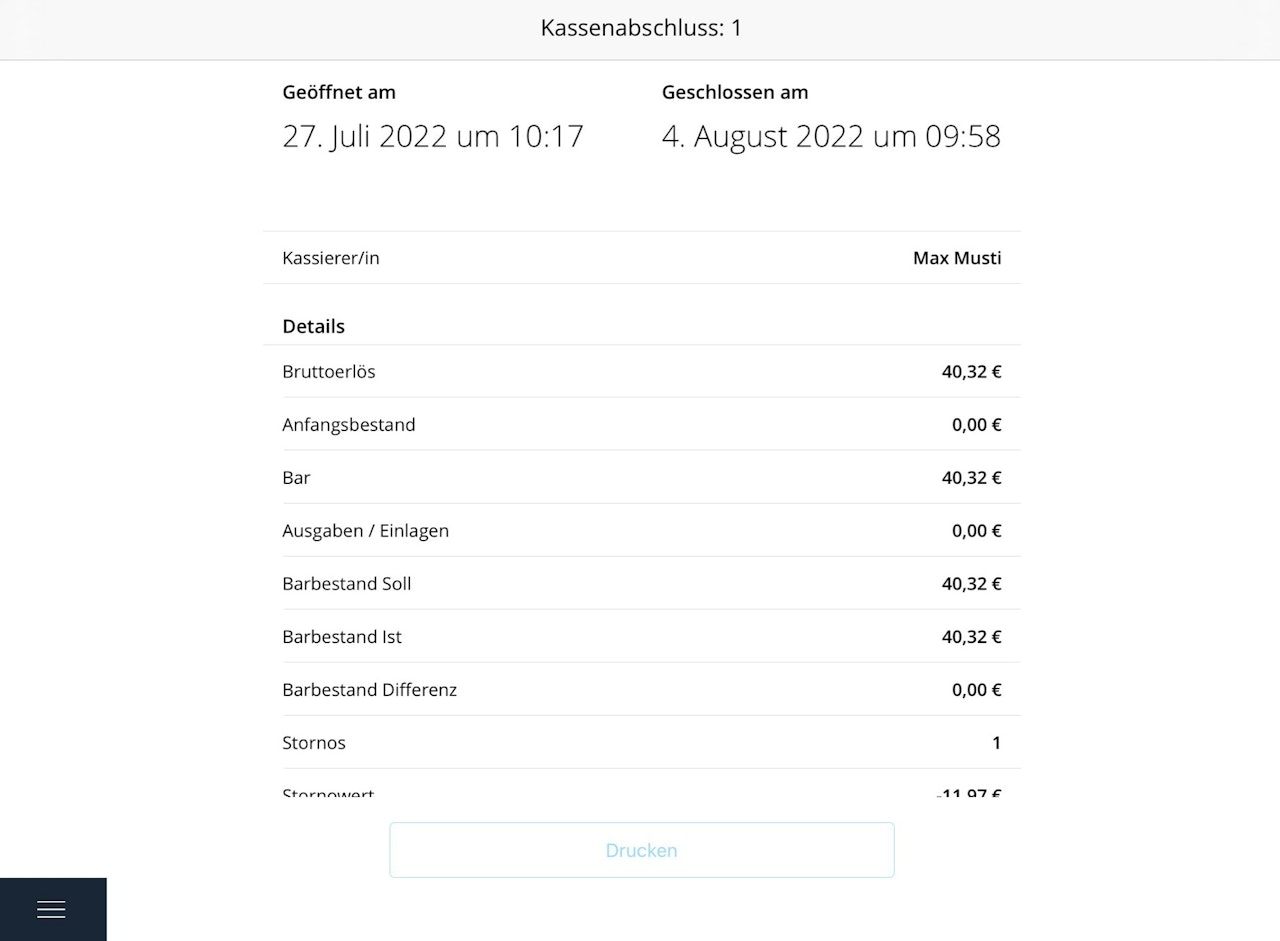
The Z-report is a full closing report of your register. It serves as proof for the tax office and closes the session for the currently open register. You can print the report immediately or later. In your register system's dashboard under "Finances", all Z-reports are stored for 10 years and can be viewed, printed, or sent.
The Z-report includes the following:
Gross revenue
Starting cash
Cash
Expenses / Deposits
Expected cash balance
Actual cash balance
Difference in cash balance
Cancellations
Cancellation amount
First sale
Last sale
Items per sale
Revenue account
VAT accounts
Number of sales
Why am I asked to deposit or withdraw a specific amount after opening the register?
This is because a cash float was defined in the settings. If the final balance after closing exceeds the defined float, you’ll be prompted to withdraw the excess amount.If the balance is below the float, you’ll be prompted to deposit the missing amount. This ensures that you always start the day with the same float. For more on this, see the chapter: Cash Float & Extraordinary Transactions.
IMPORTANT: Terminal Closing
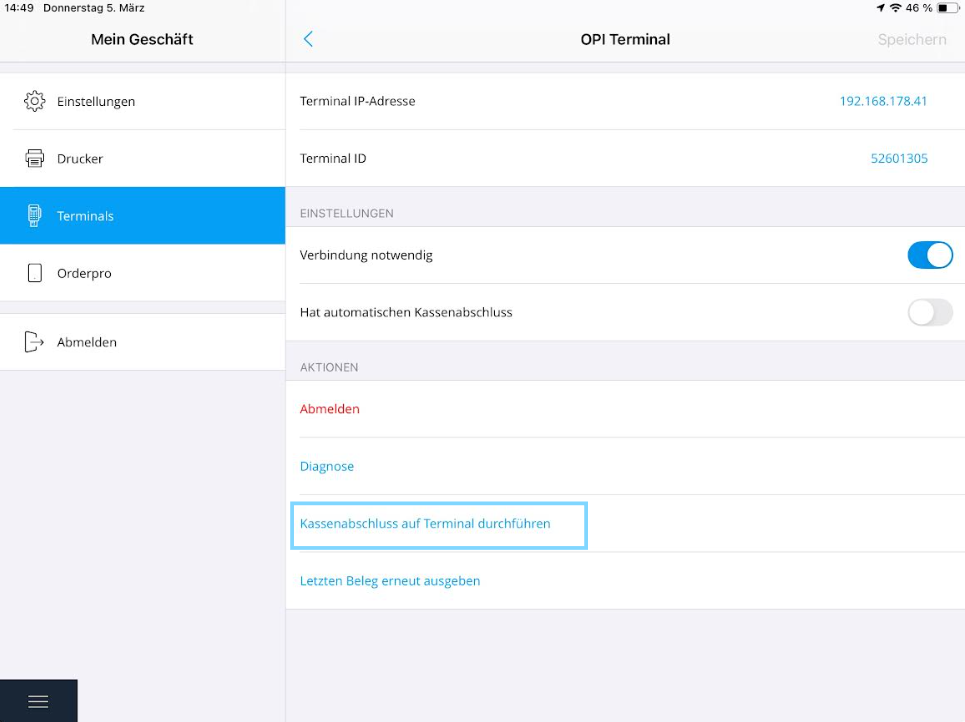
When you finish the cash register closing, a prompt will often appear on the screen: "Perform terminal closing? – Yes / No". Please click "Yes" at least once a week so that the terminal closing is carried out. If this prompt does not appear, you can also perform the terminal closing manually. To do so, go to Settings → Terminals, select the currently logged-in OPI terminal and click "Perform terminal closing" at the bottom. Alternatively, the terminal closing can also be carried out directly on the card payment device.
It is important to perform the terminal closing at least once a week in order to receive your payments. If the terminal closing is not carried out within a week, it will be triggered automatically by the system. This incurs additional costs, which you can avoid by performing the terminal closing yourself.
Please note: The cash register closing should be performed daily, the terminal closing at least once a week.
Was this article helpful?
That’s Great!
Thank you for your feedback
Sorry! We couldn't be helpful
Thank you for your feedback
Feedback sent
We appreciate your effort and will try to fix the article
