Voucher Function
Modified on Mon, 23 Feb at 10:36 AM
Once everything is set up in the dashboard, working in the app interface becomes relevant.
We distinguish between 2 essential work steps.
Load voucher
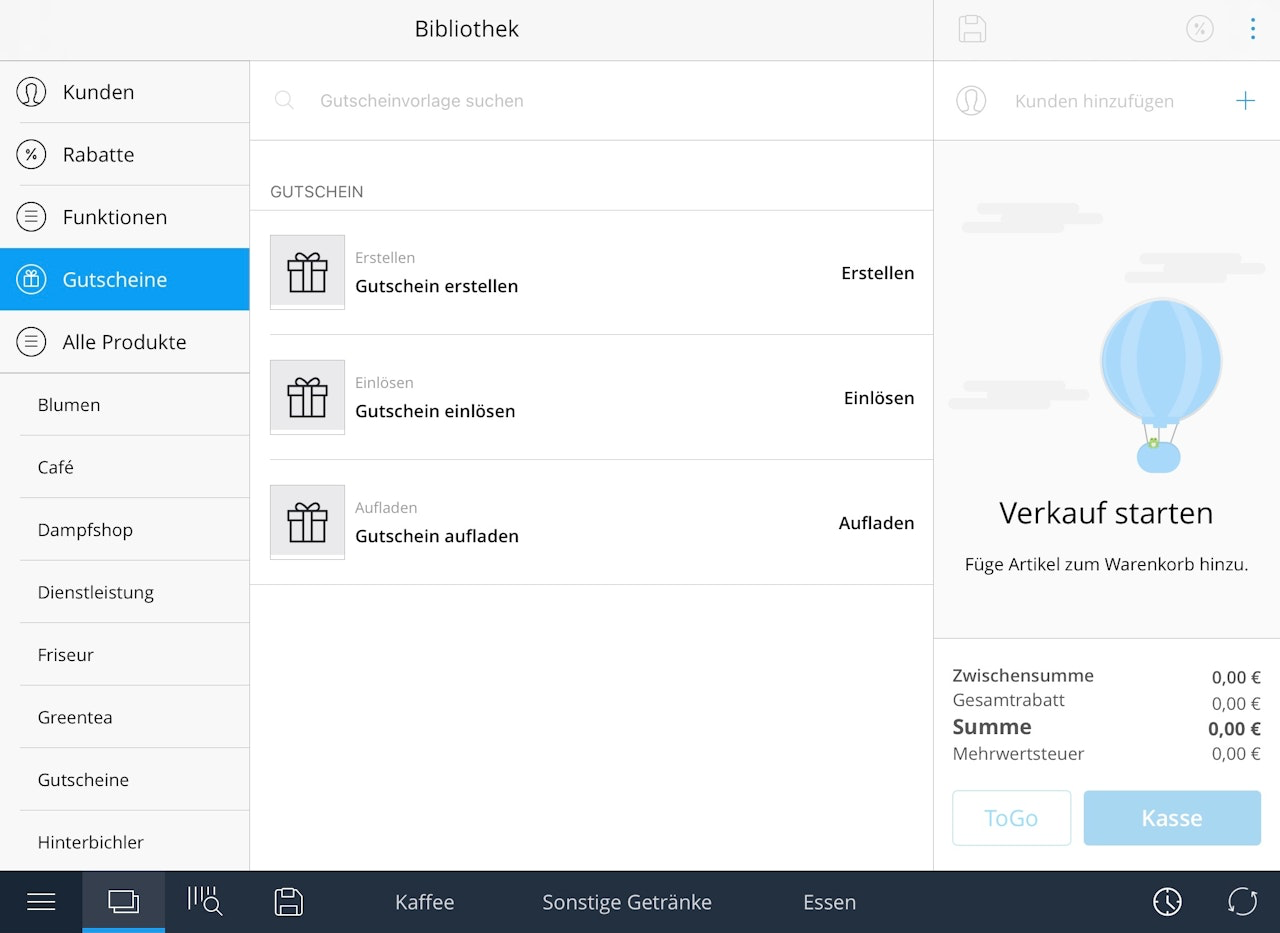
Open "Library – Vouchers – Load"
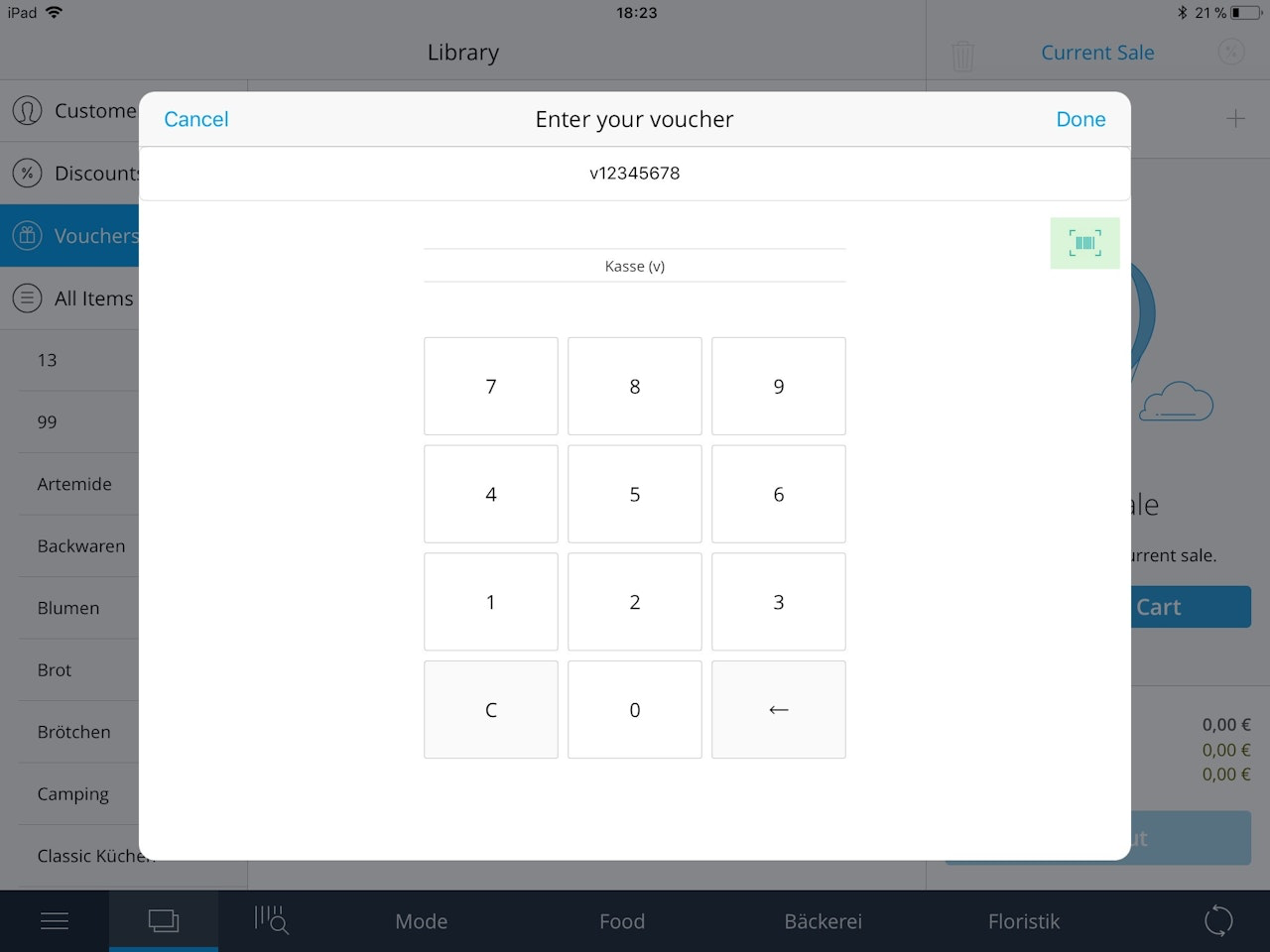
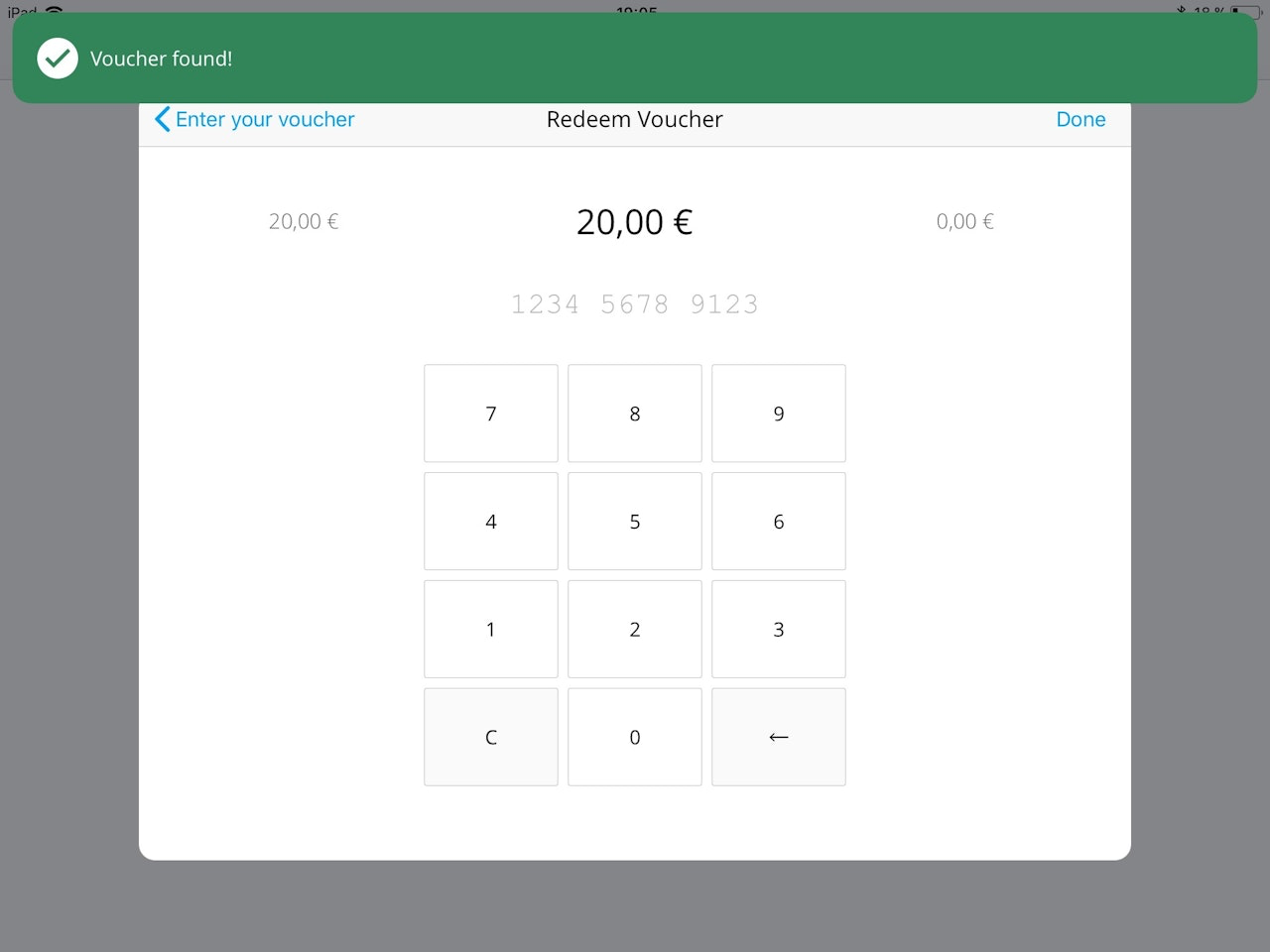
- A pop-up opens where either the barcode can be scanned or the code entered manually
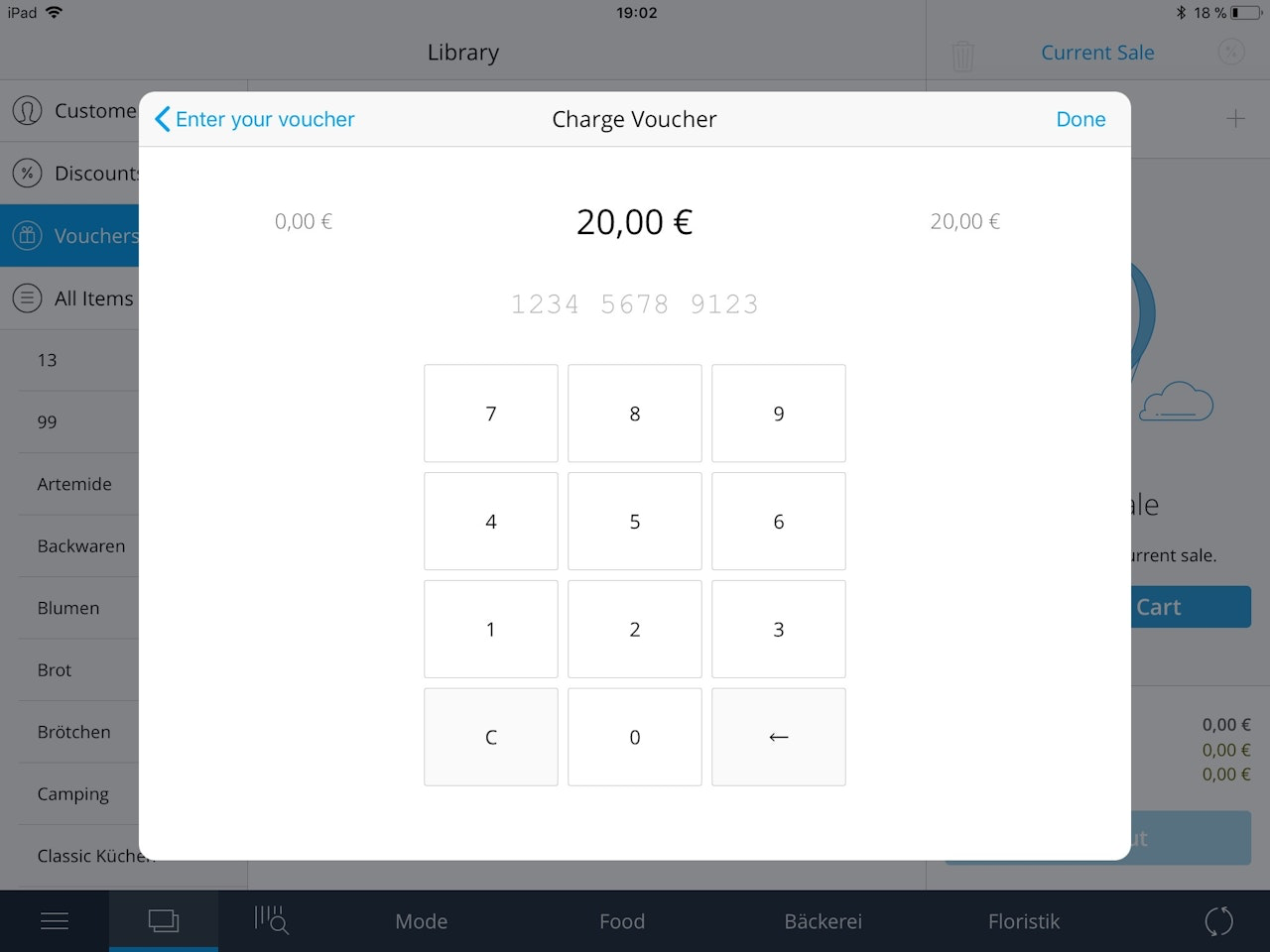
- If the voucher is found in the system, the desired amount to be loaded is entered
- Left shows the current balance and right the balance after loading
- Finally, the amount to be loaded appears as a position in the shopping cart
- Checkout as usual and the voucher will now have the desired balance
Redeem voucher
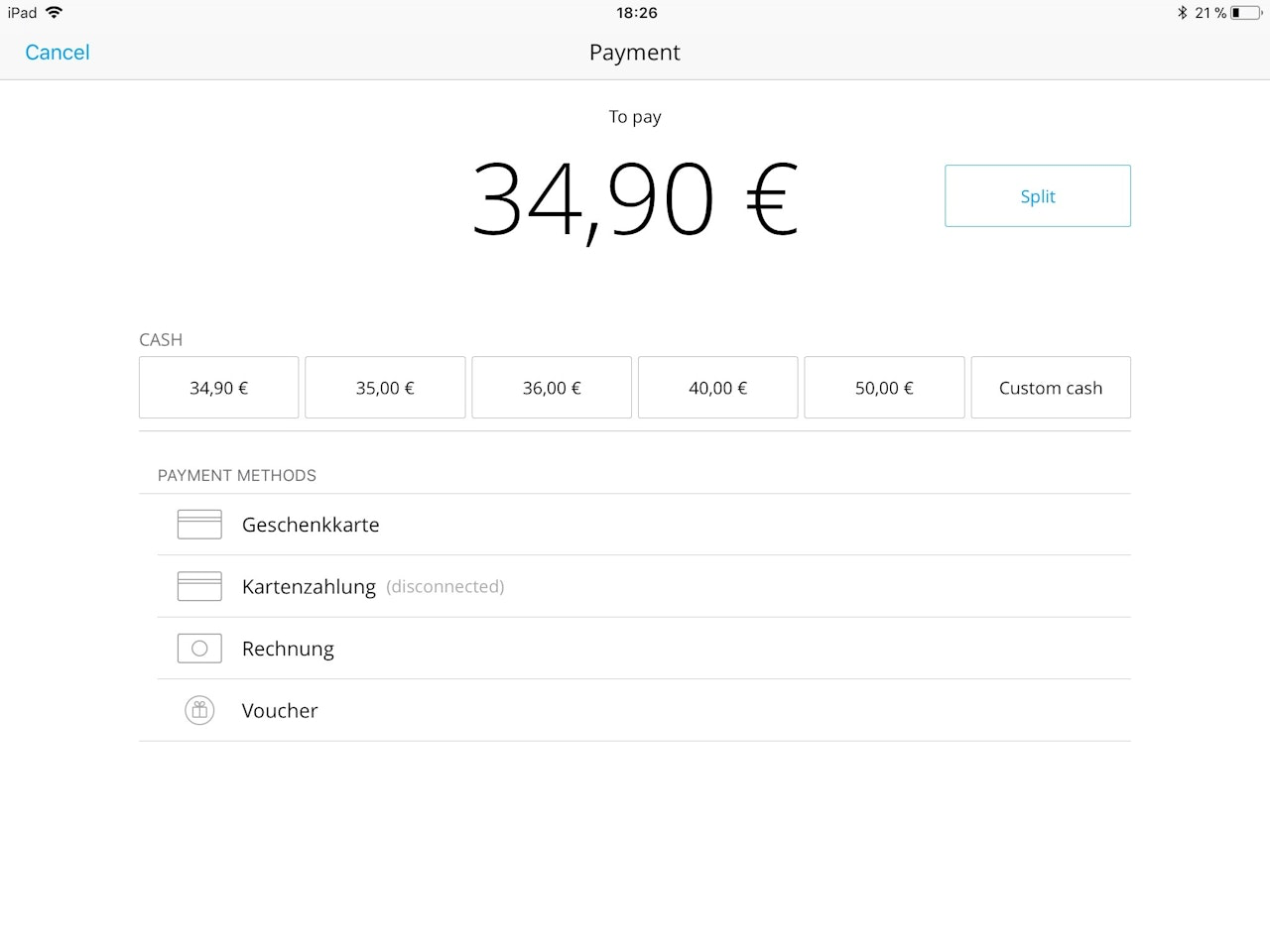
- If a customer now wants to pay for a purchase with their voucher, this can be done either via the "Library" or through the normal "Checkout" process (select voucher)
- As in the loading process, during the payment process, the barcode can be scanned or entered manually
- If the available balance is sufficient, the sale is completed automatically
- If the balance is not enough, the redeemed amount is displayed and the remaining amount must be paid via cash etc.
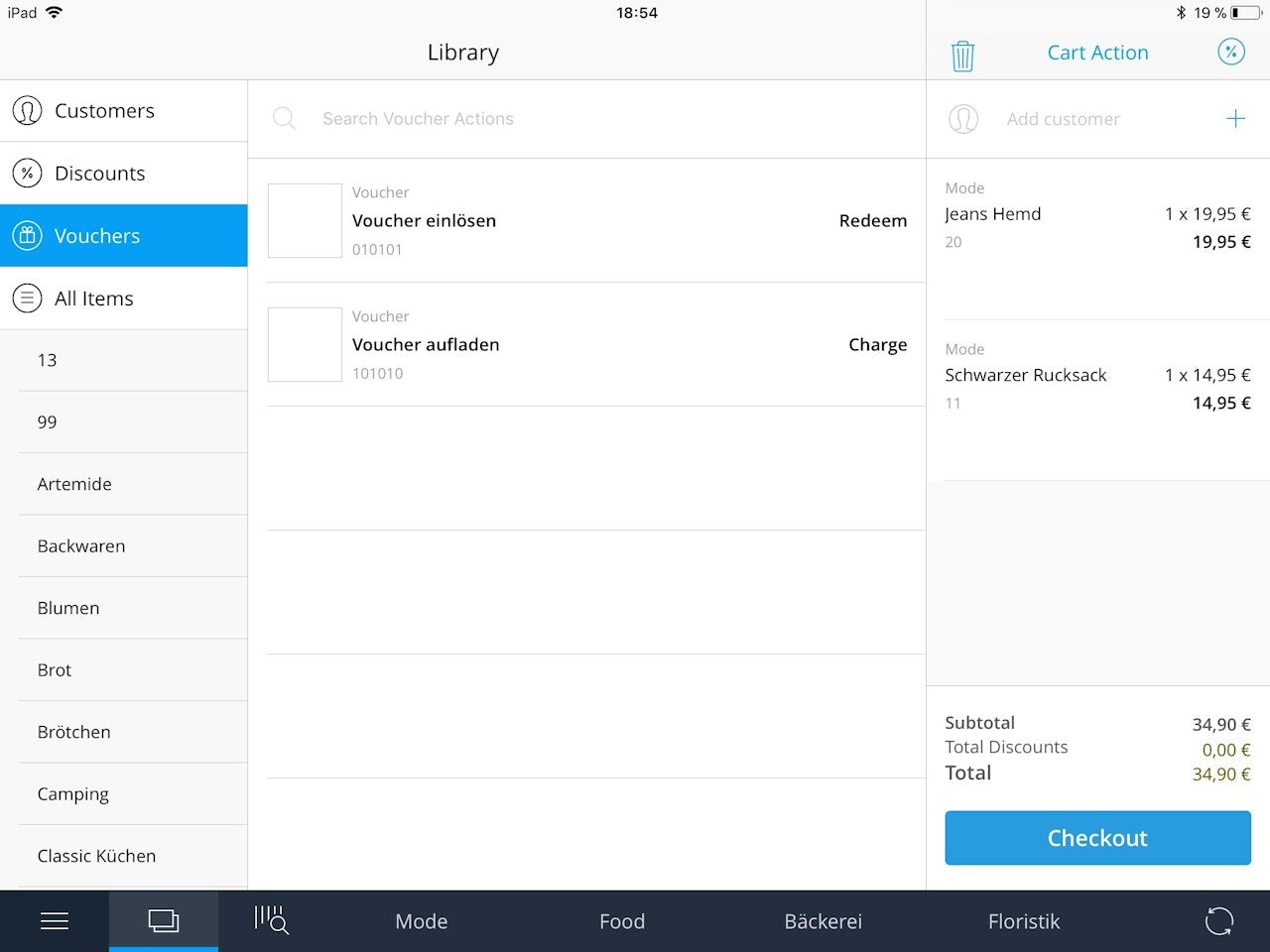
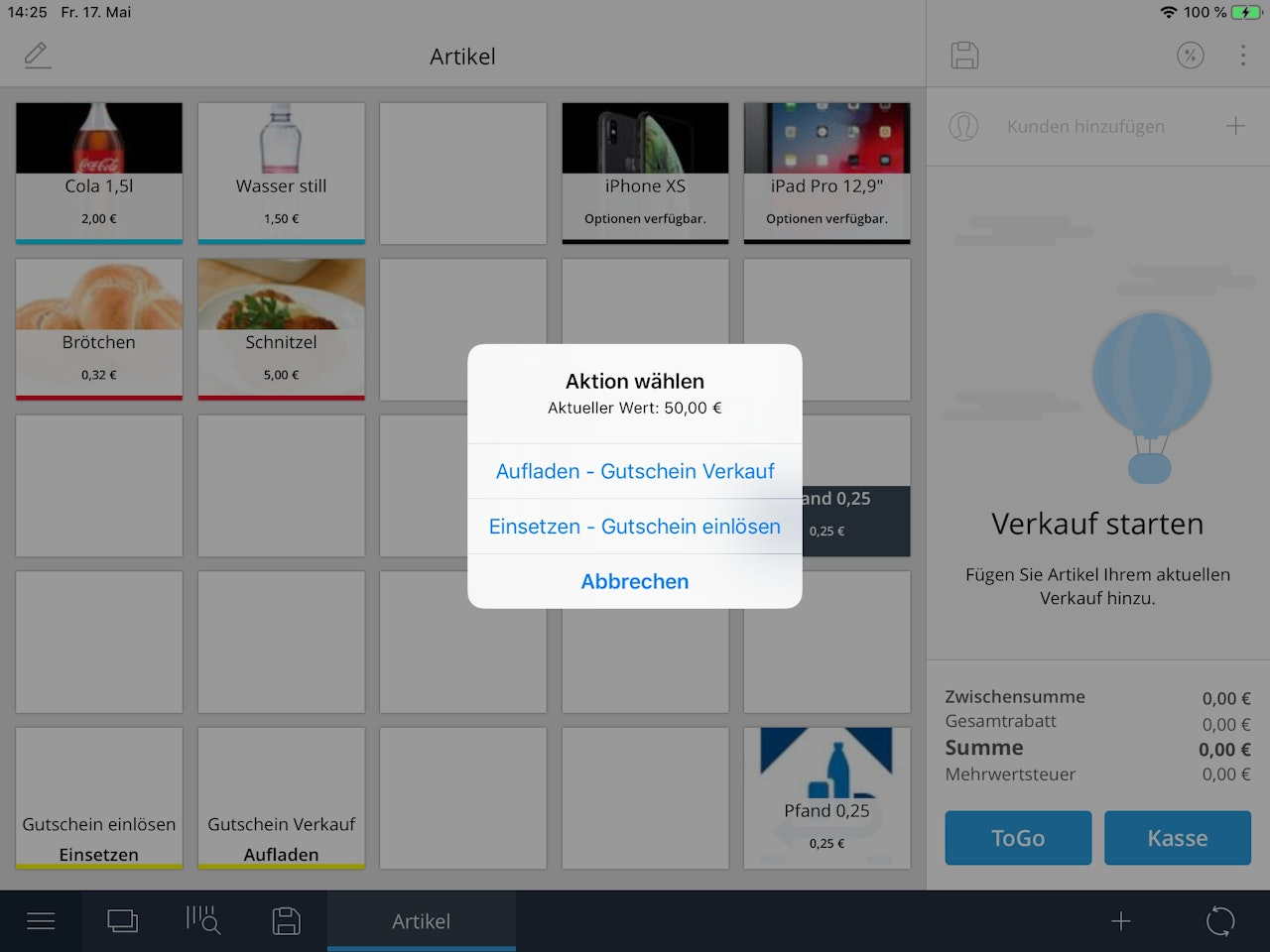
Starting with version 4.9, if you scan a voucher by barcode, the app will ask whether you want to redeem, load, or sell the voucher.

Was this article helpful?
That’s Great!
Thank you for your feedback
Sorry! We couldn't be helpful
Thank you for your feedback
Feedback sent
We appreciate your effort and will try to fix the article