Setting Up a Menu with Different VAT Rates
Modified on Mon, 8 Jun at 9:58 AM
From 1 January 2026, a uniform VAT rate of 7% applies to all food in hospitality — whether dine-in or take-away. Drinks remain at 19%. Within a single menu, both rates may apply. The steps below ensure each rate is captured and printed correctly on the receipt.
Food – 7% VATDrinks – 19% VAT
1
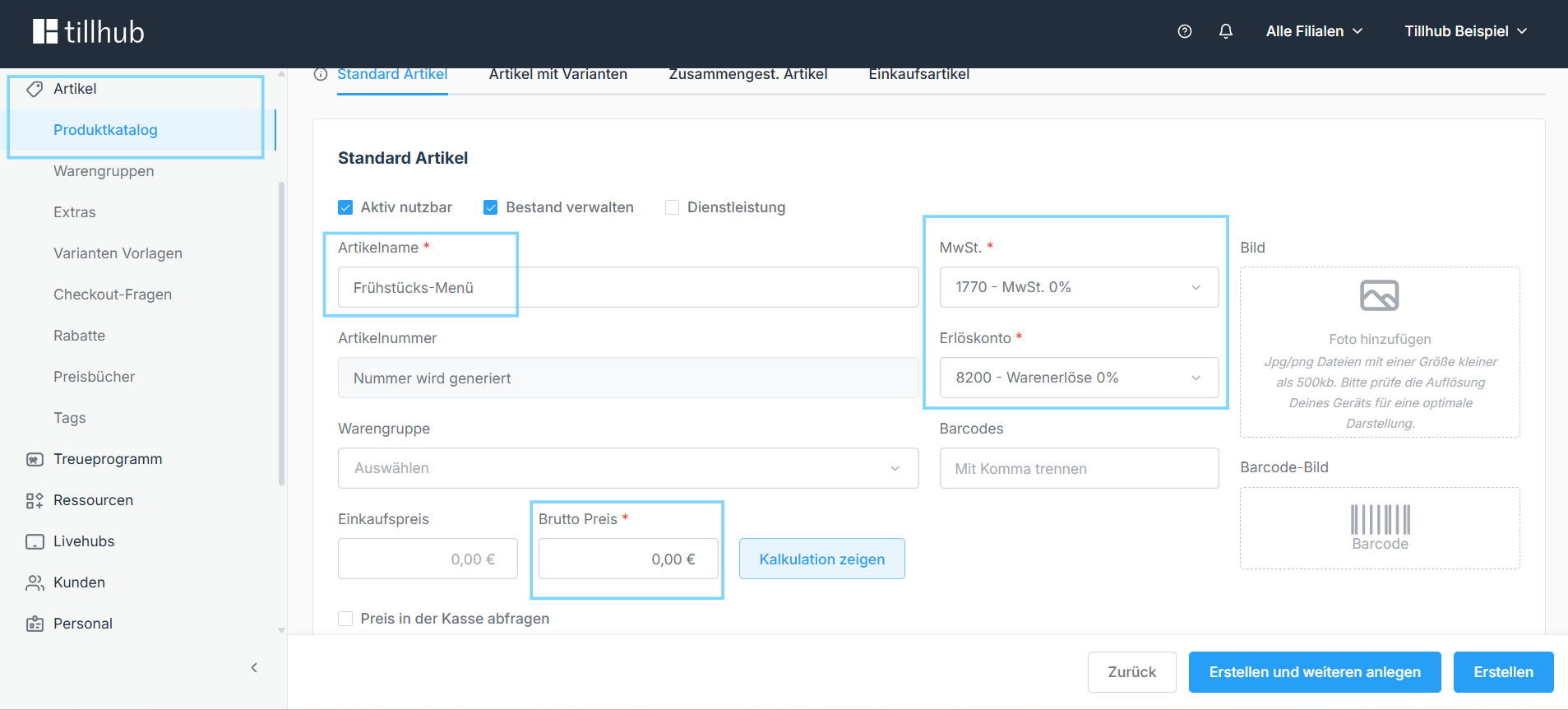
Create a standard item
Create a new standard item and give it a clear name, e.g. "Breakfast Menu". The VAT setting does not matter here. Set the gross price to €0.00 and save.
2
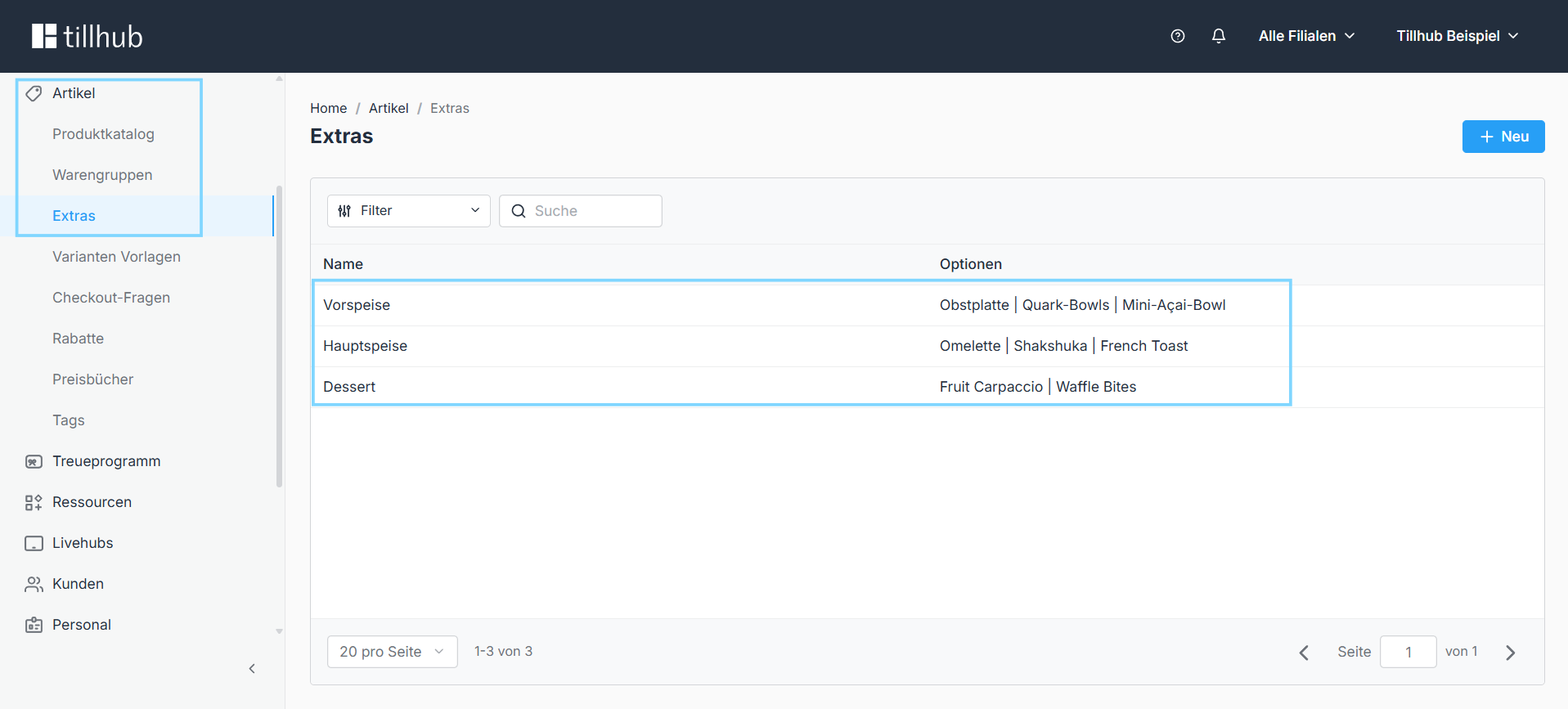
Create extras
Each course is set up as a separate extra. Names are flexible — common options are Course 1, Course 2, Course 3 or more descriptive labels like Starter, Main, Dessert, Drink. Use whatever structure fits your business best.
3
Configure each extra
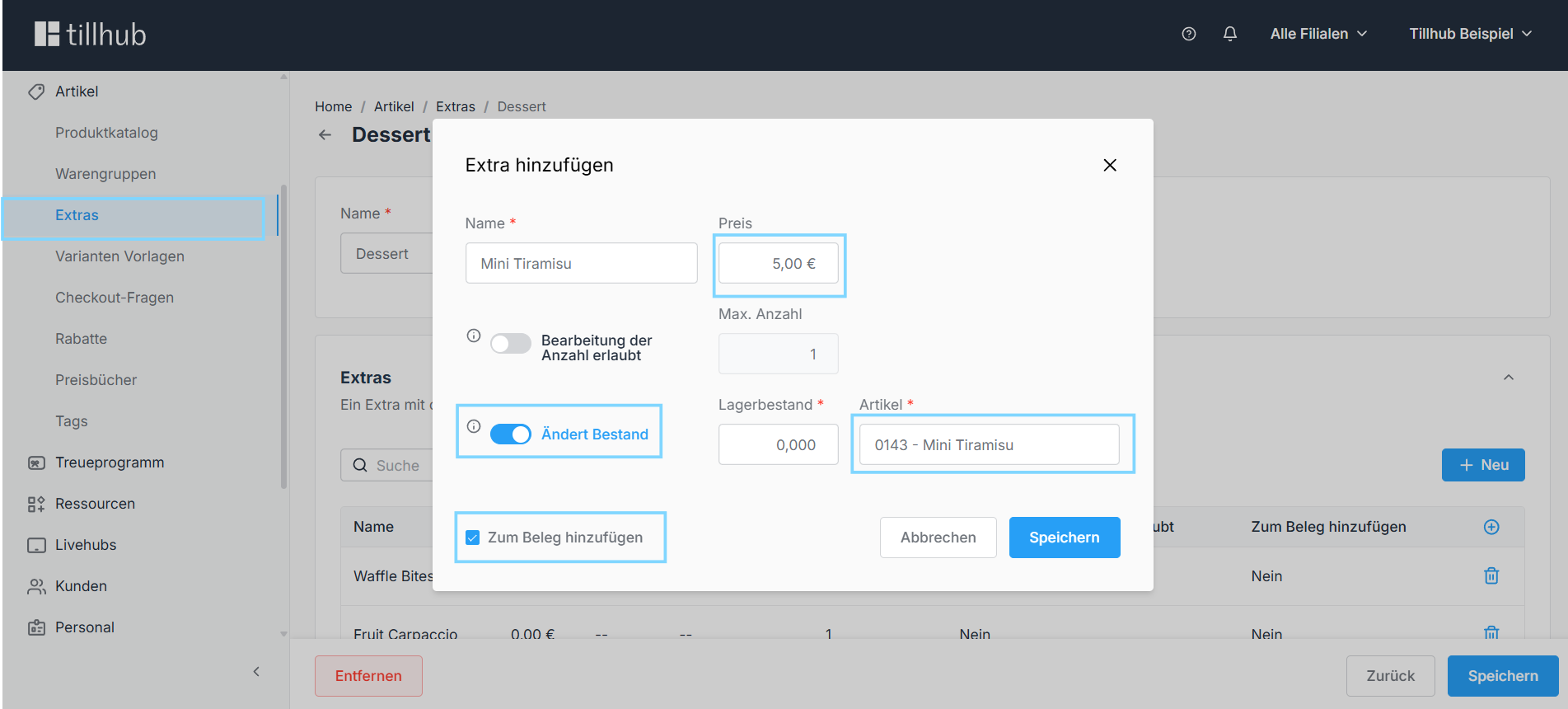
Give the extra the name of the corresponding item — ideally matching the original name exactly. Set the price for this item within the menu (it may differ from the regular price). Then enable two options:
• Updates stock — toggle turns blue when active. It will appear grey after saving — this is expected behaviour, not an error.
• Add to receipt Required — ensures the item is listed individually on the receipt with its own VAT rate.
• Updates stock — toggle turns blue when active. It will appear grey after saving — this is expected behaviour, not an error.
• Add to receipt Required — ensures the item is listed individually on the receipt with its own VAT rate.
"Add to receipt" is essential — without it, the correct VAT rates will not be shown on the printout.
4
Repeat for all courses
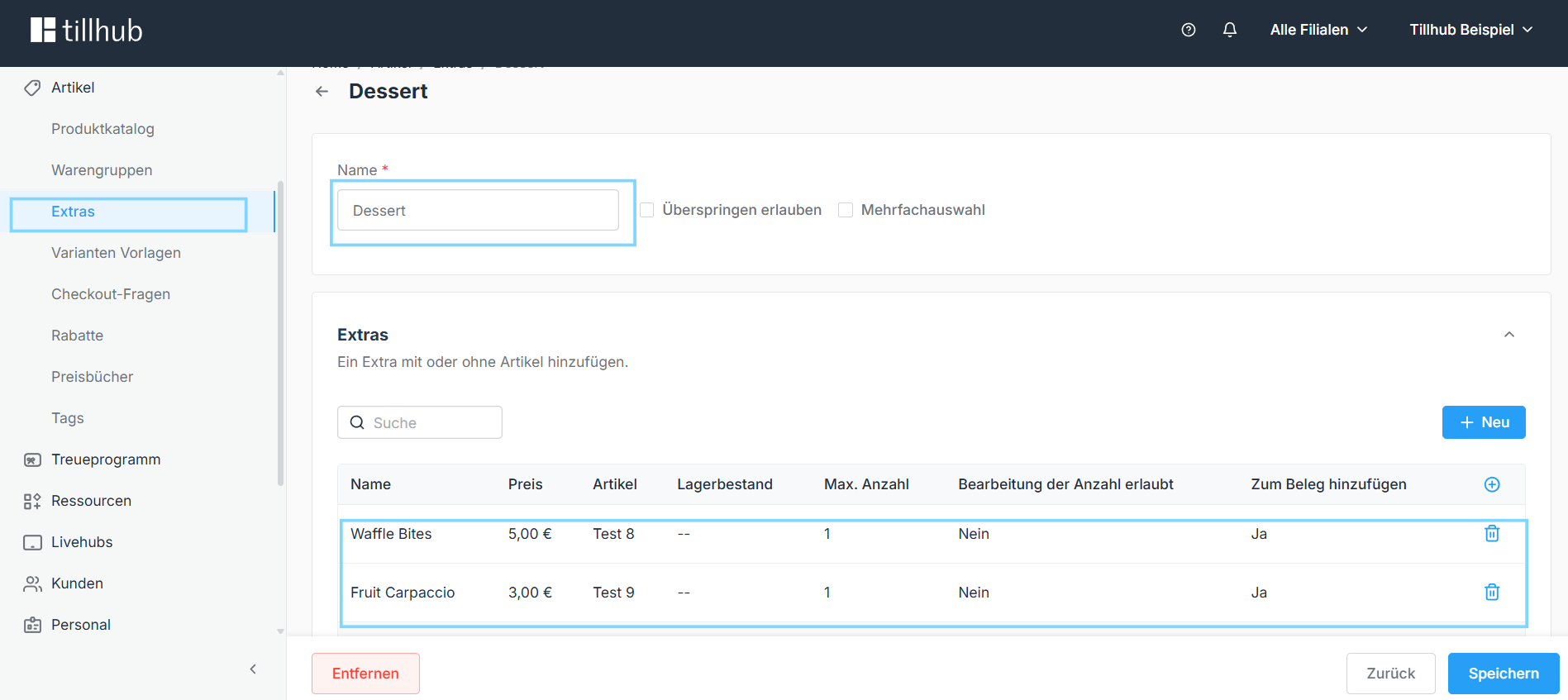
Repeat step 3 for every component of the menu until all courses are set up as extras.
5
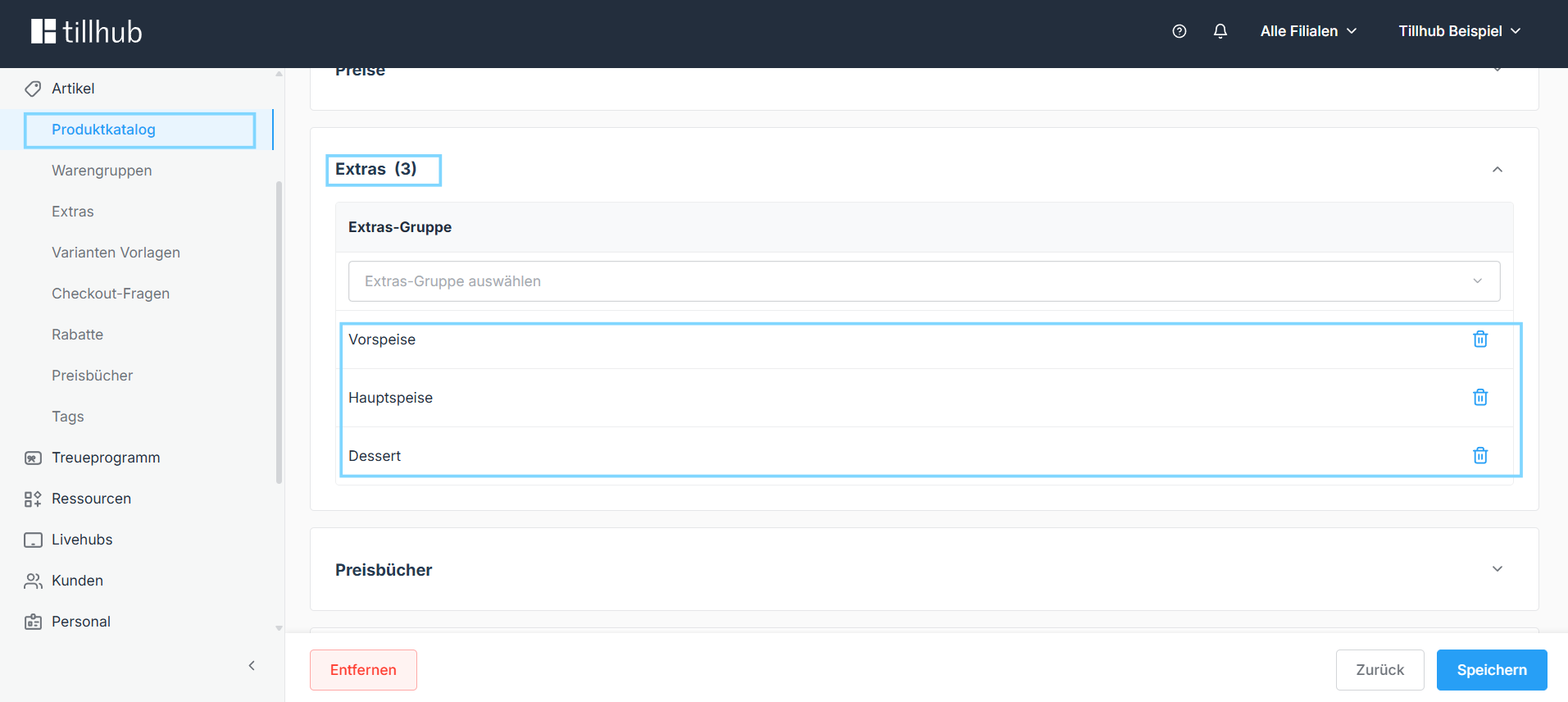
Assign extras to the menu item
Link all created extras to the standard item (e.g. "Breakfast Menu"). The order in which extras are listed here determines the order in which they appear at the till.
6
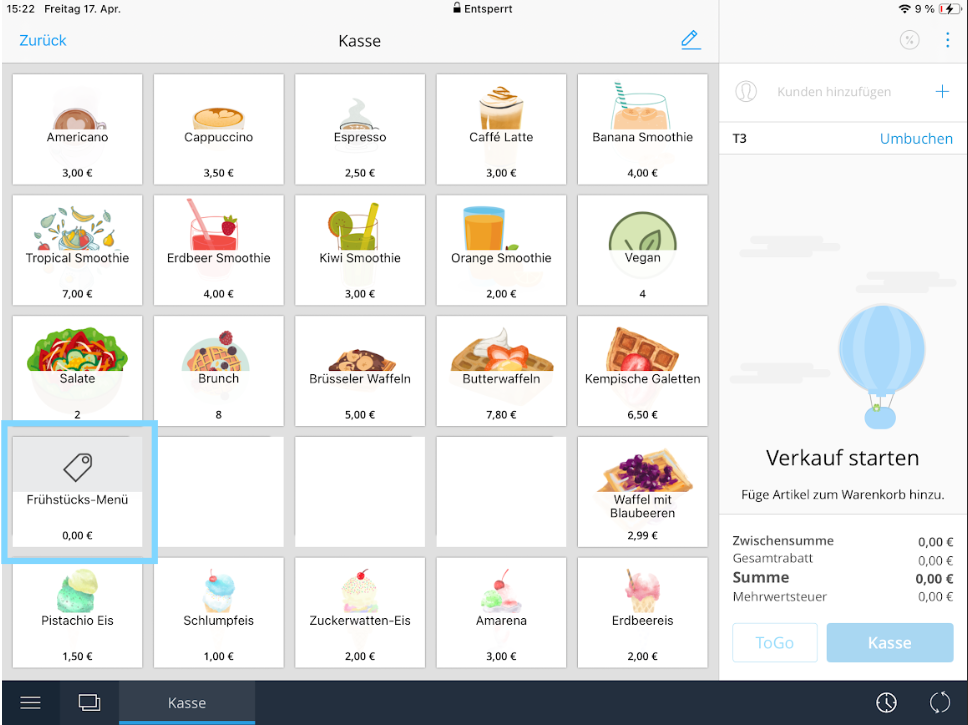
Assign a tile
Place the "Breakfast Menu" item on an available tile in your till layout.
7
Sync data & test
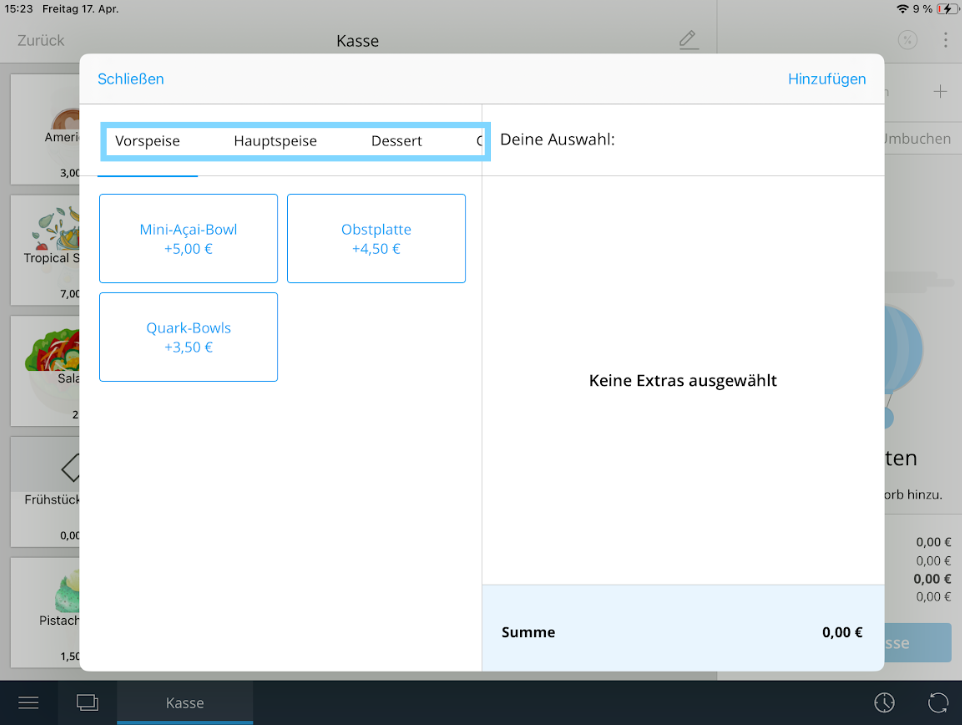
On the iPad at the till, open settings and tap "Sync data" to push all changes. Then run a test sale: tap the "Breakfast Menu" tile, select options for each course (if only one option exists per course, it will be pre-selected automatically), and confirm with "Add".
8
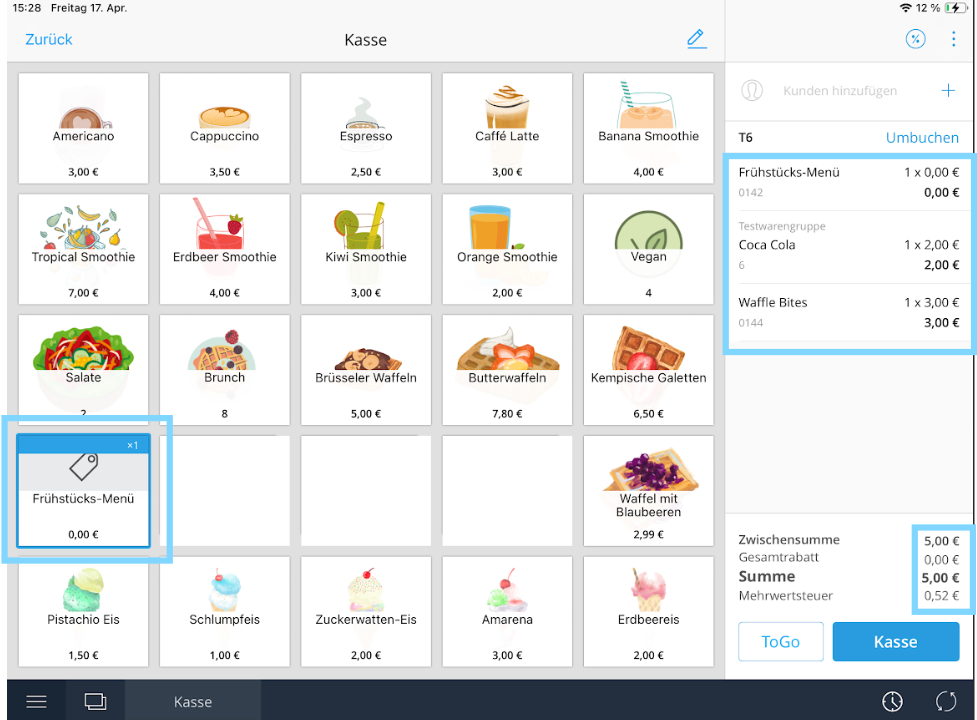
Check the basket
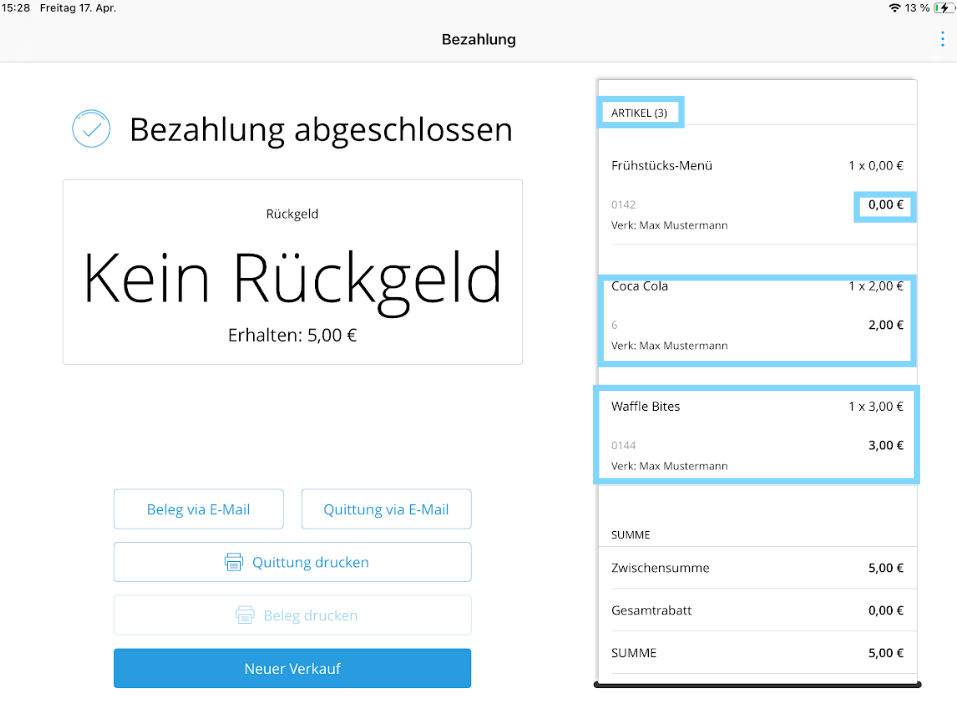
The "Breakfast Menu" should now appear in the basket with all selected components listed individually.
9
Verify the receipt
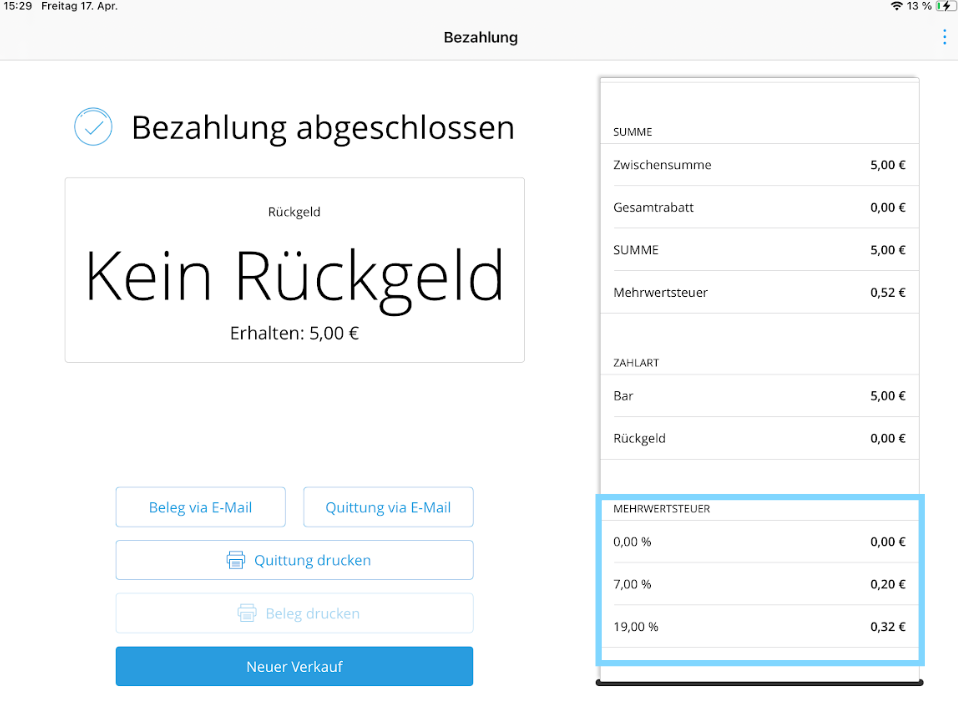
On the printed receipt, the different VAT rates (7% for food, 19% for drinks) will be shown correctly — both in the item lines and in the VAT summary at the bottom.
Check both the top and the bottom of the receipt to confirm all rates are correctly split.
Was this article helpful?
That’s Great!
Thank you for your feedback
Sorry! We couldn't be helpful
Thank you for your feedback
Feedback sent
We appreciate your effort and will try to fix the article
