Quick guide to hardware setup
Modified on Tue, 17 Feb at 2:16 PM
Quick guide
Here you will find a step-by-step guide to setting up your POS Go device.
In this article
- Step 1: Charge your device
- Step 2: Connect your device to the internet
- Step 3: Receiving a new SIM card
- Step 4: Inserting the SIM card
- Step 5: Configure APN
- Step 6: We’ll call you!
- Step 7: Start your self-onboarding
Step 1: Charge your device
First, unpack the POS Go device upon receipt and connect it to the power supply to charge the built-in battery.
If you want to speed up the charging process, use the included charging cradle. The charging cable is located underneath the double bottom of the packaging.
Step 2: Connect your device to the internet
If you purchased a SIM card for your POS Go from us, we have already installed it for you. With sufficient network coverage, your POS Go would automatically be connected to the internet. However, to save data volume during the initial setup, we recommend also connecting the POS Go to a Wi-Fi network.
Image 1:
- Turn on your device.
- Slowly swipe down from the top of the screen until the Wi-Fi icon appears in the upper left corner.
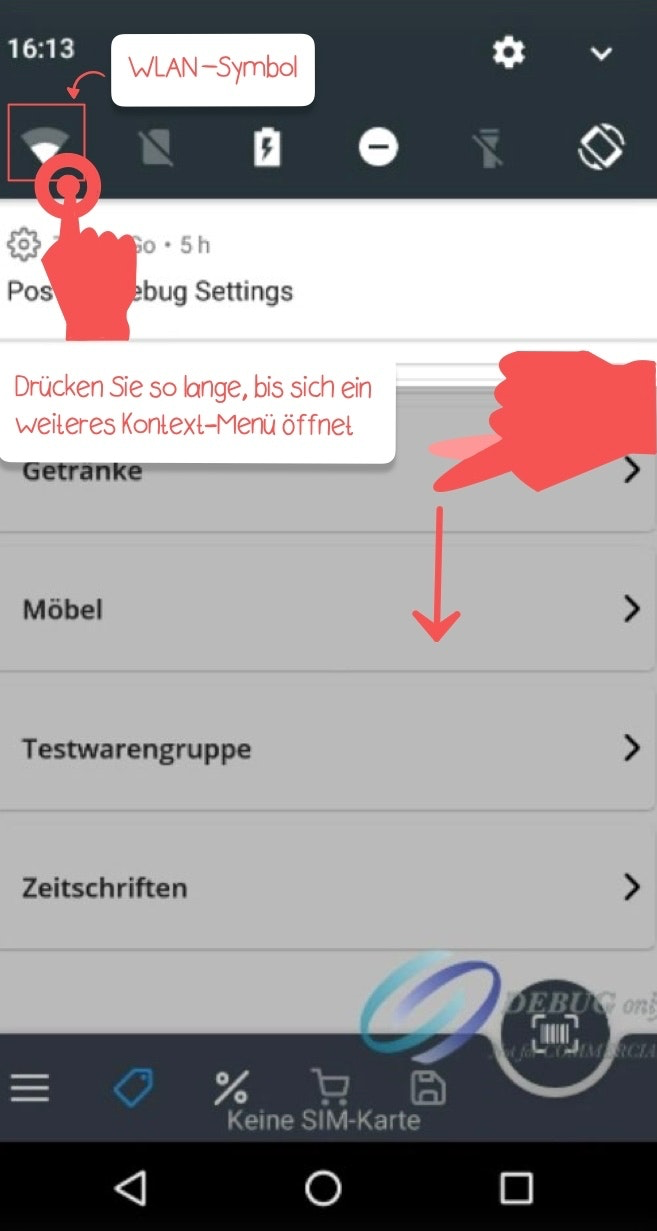
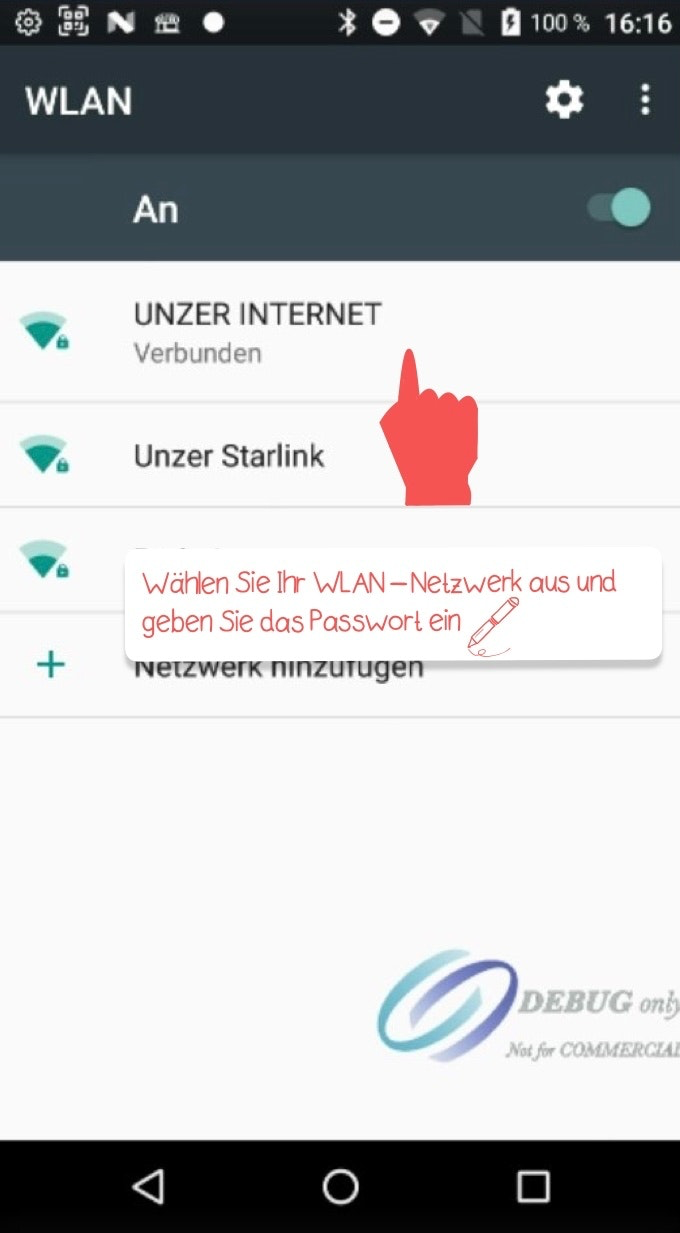
Image 2:
- Press and hold the Wi-Fi icon until an additional context menu with the available Wi-Fi networks opens. Select your
- Wi-Fi network and enter your Wi-Fi password.
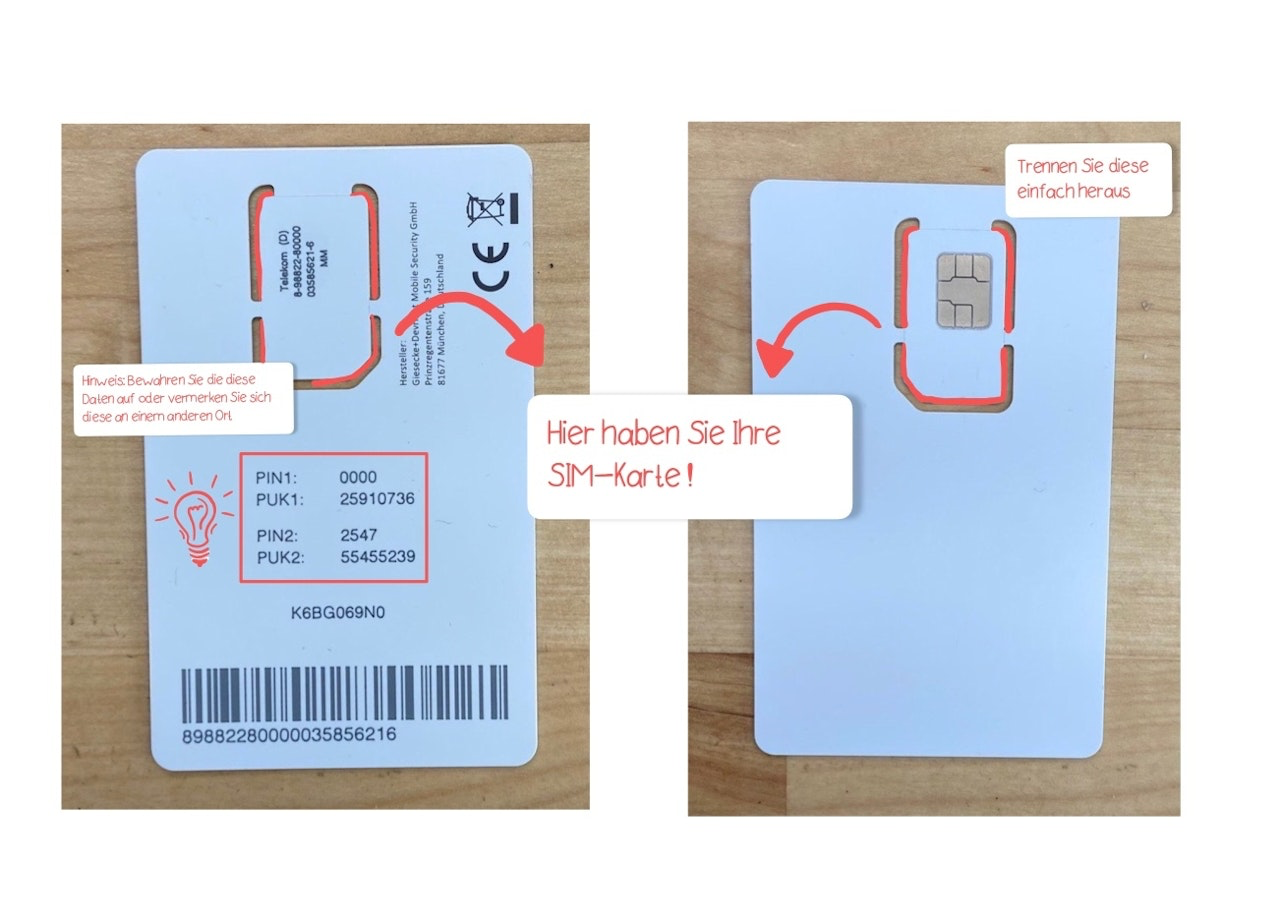
Step 3: Receiving a new SIM card
Please remove your SIM card from the plastic holder and keep it with your documents.
Step 4: Inserting the SIM card
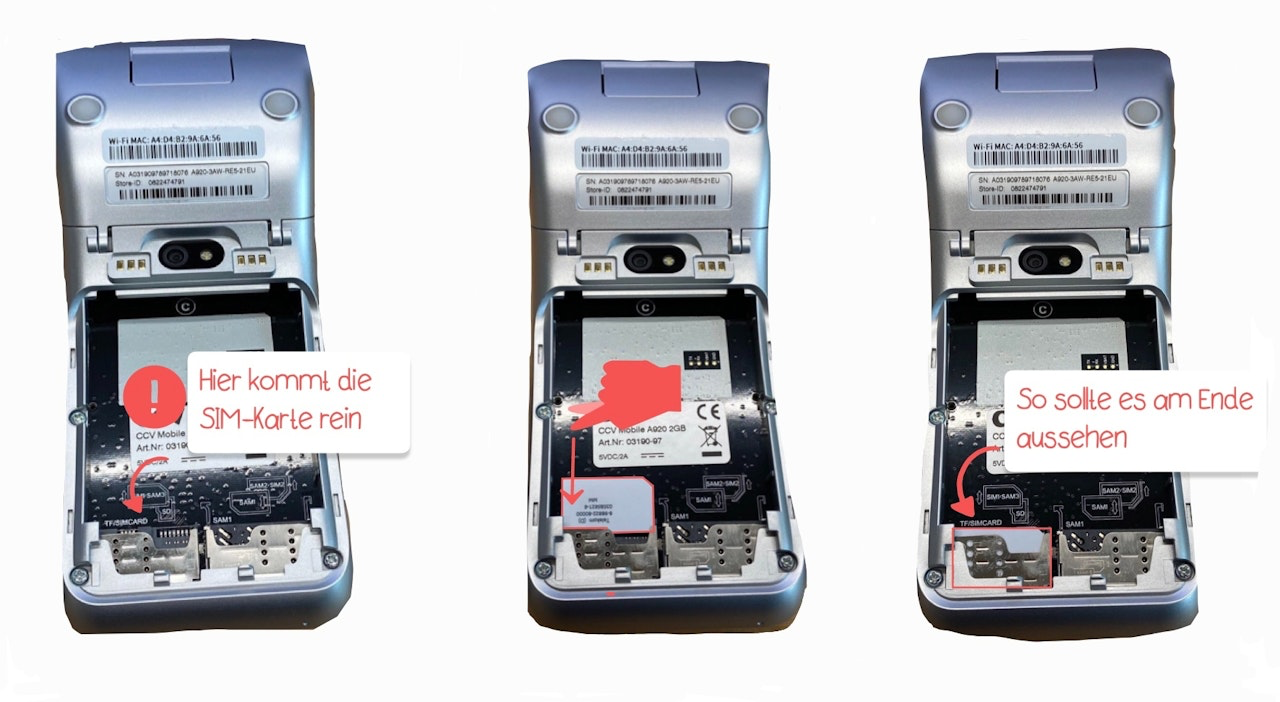
If you already have a SIM card and did not purchase one from us, you need to insert it as follows:
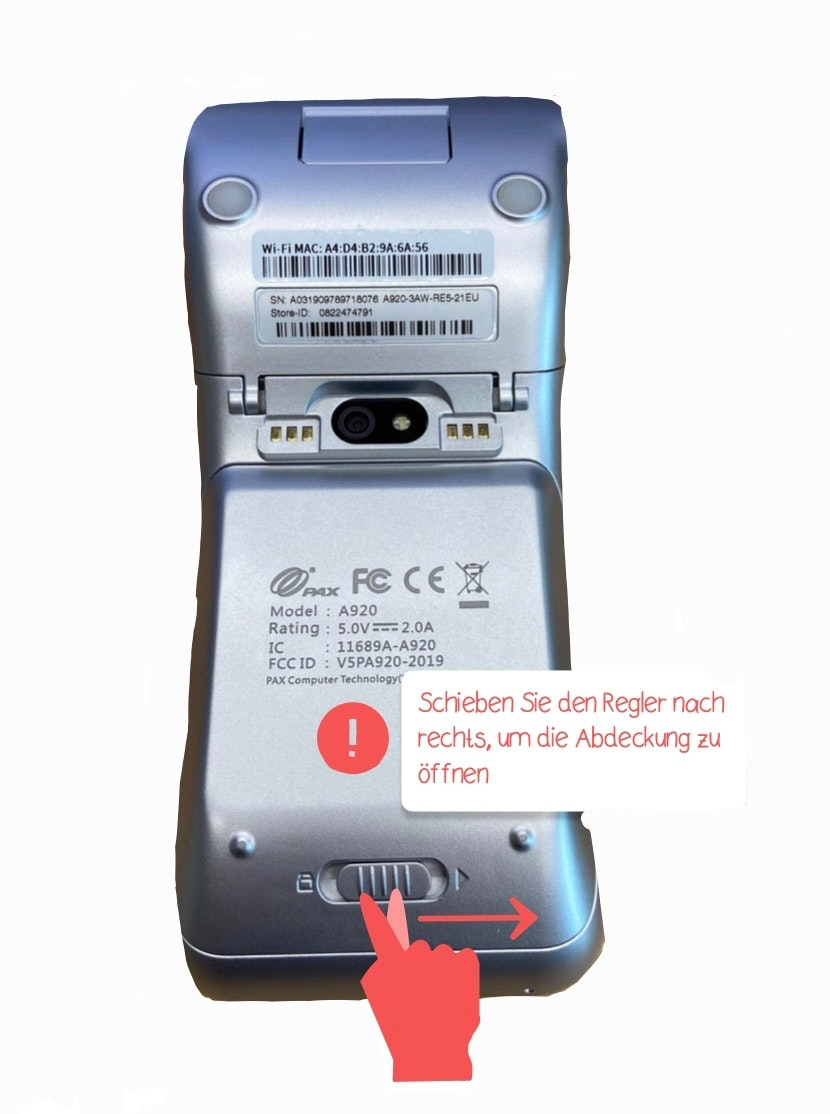
- Turn off the device.
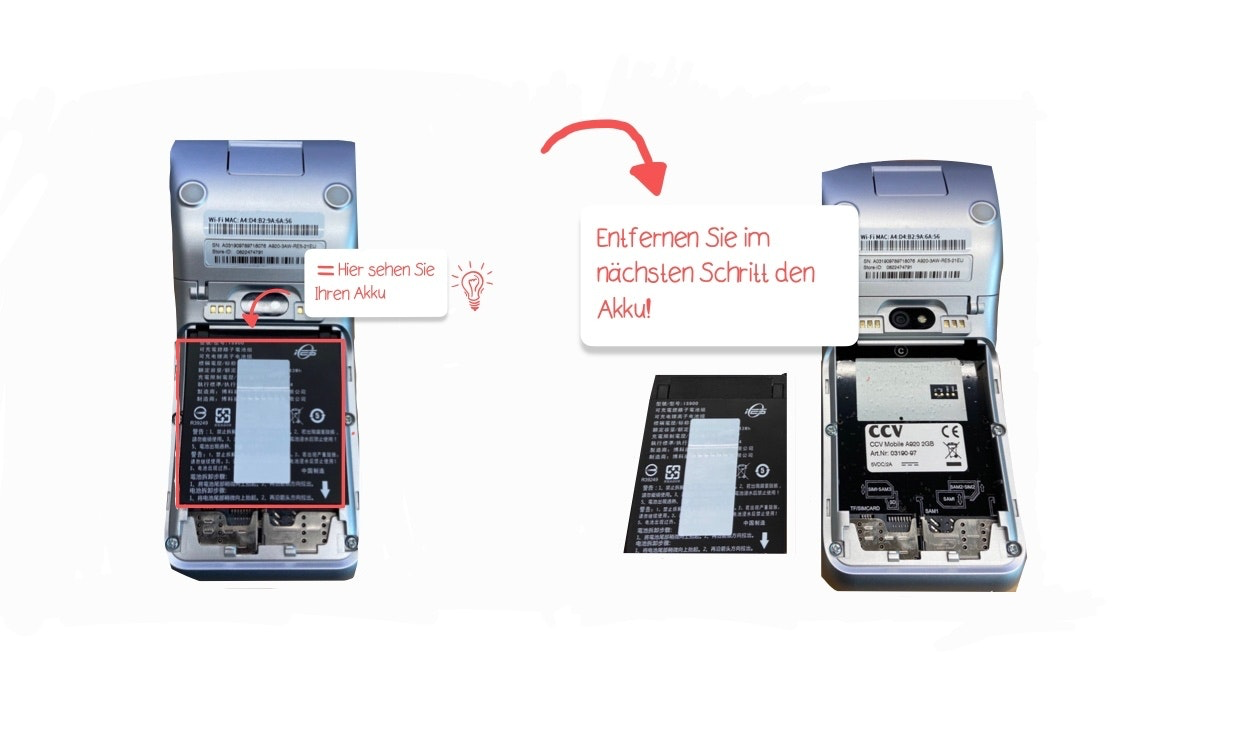
- Open the cover on the underside of your POS Go by sliding the latch from left to right (Image 1).
- Remove the battery (Image 2).
- Insert your SIM card (standard size) into the appropriate slot (TF/SIMCARD). The SIM1/SAM3 diagram shows you the correct position (Image 3).
Step 5: Configure APN
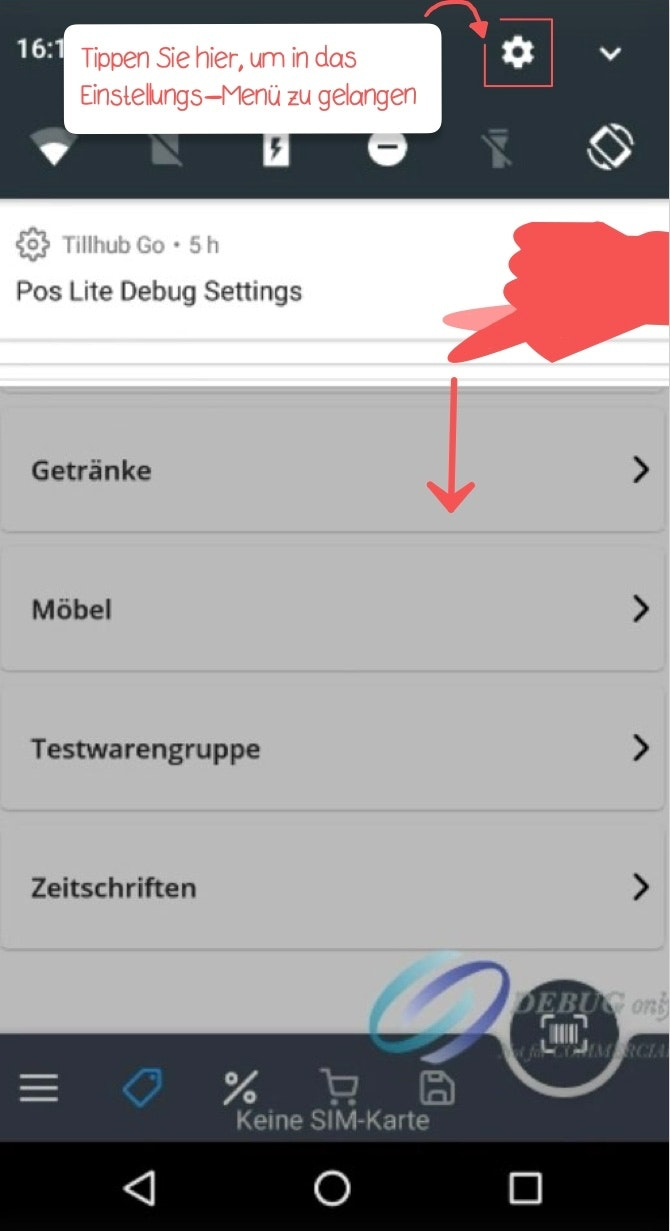
In this step, you need to configure your APN. To do this, go to the settings of your POS Go device by tapping the gear icon in the top right corner.
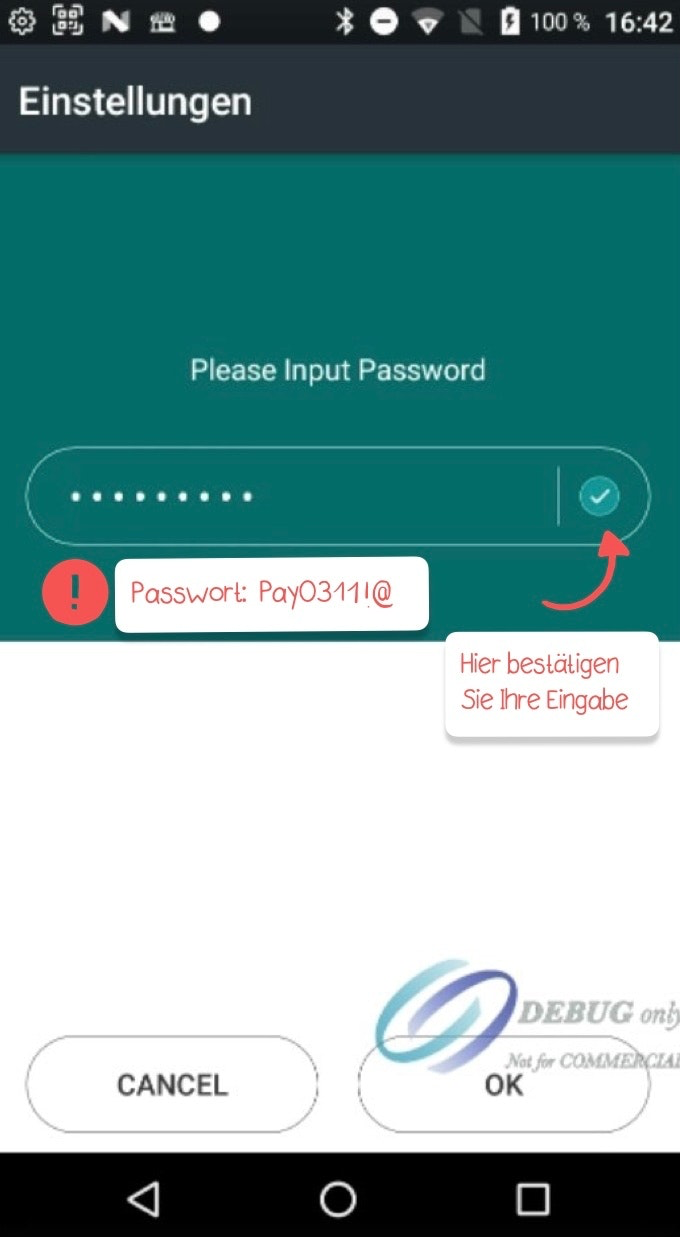
In the next field, enter the following password: Pay0311!@
Confirm your entry by tapping the green checkmark.
APN Configuration – 1
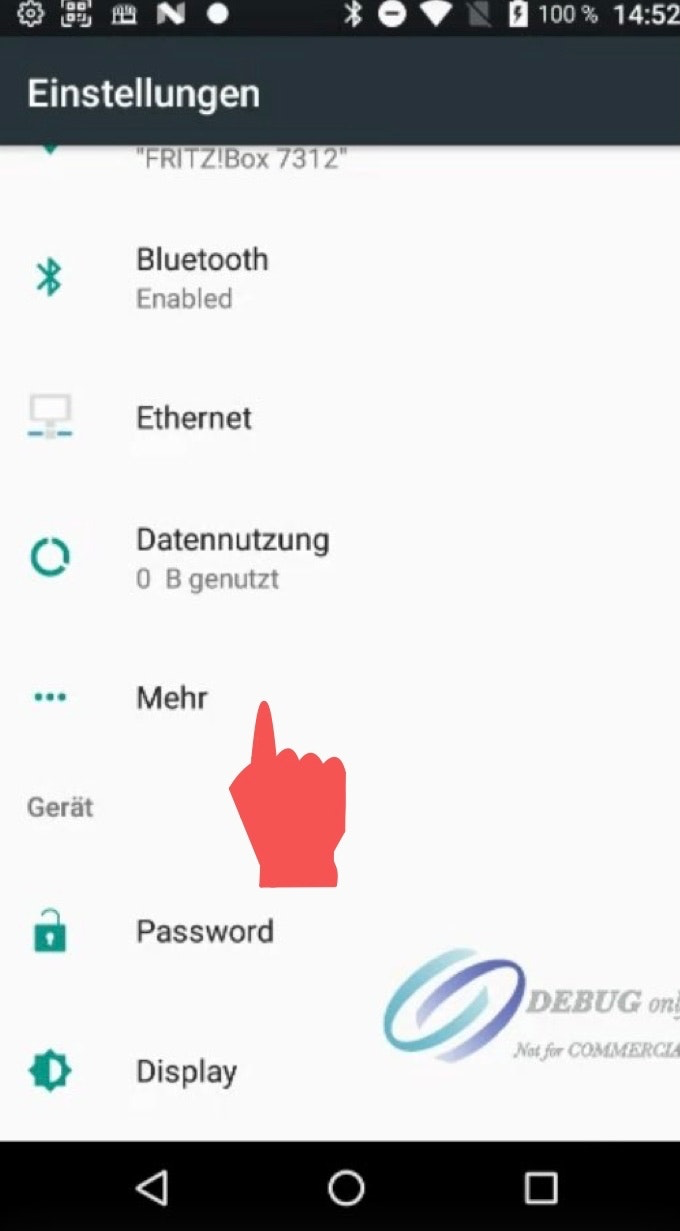
- In Settings, click on the “More” button (Image 1).
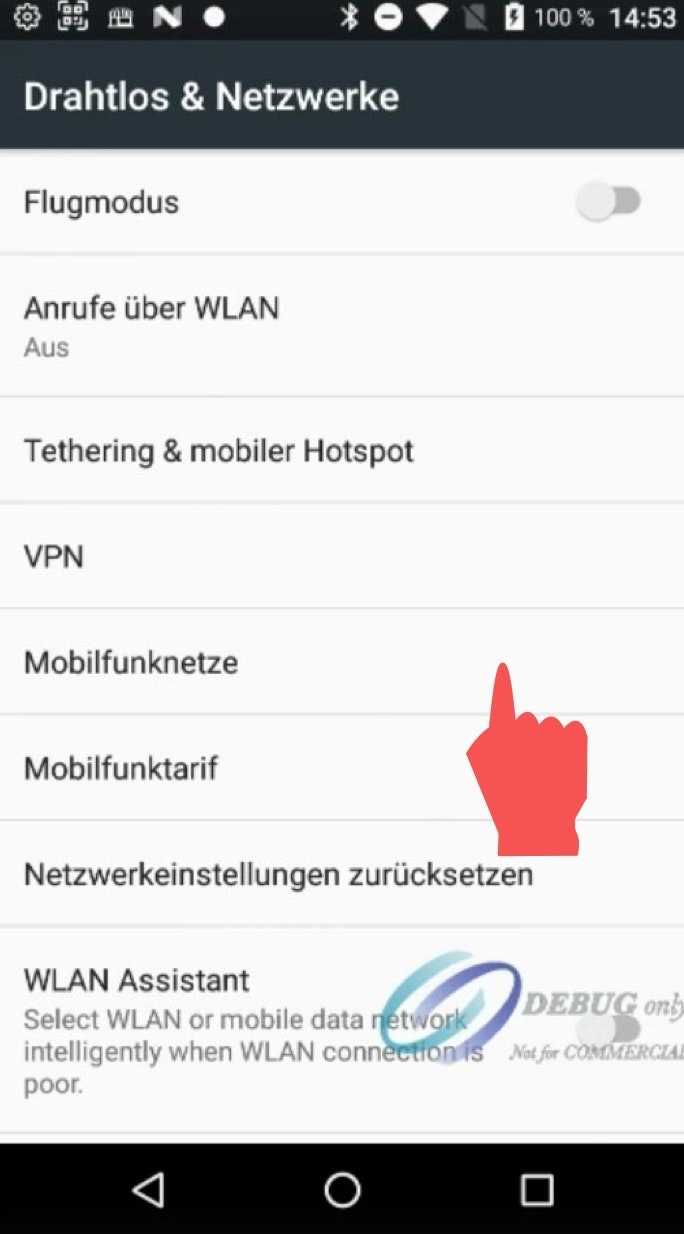
- Navigate to “Mobile networks” (Image 2).
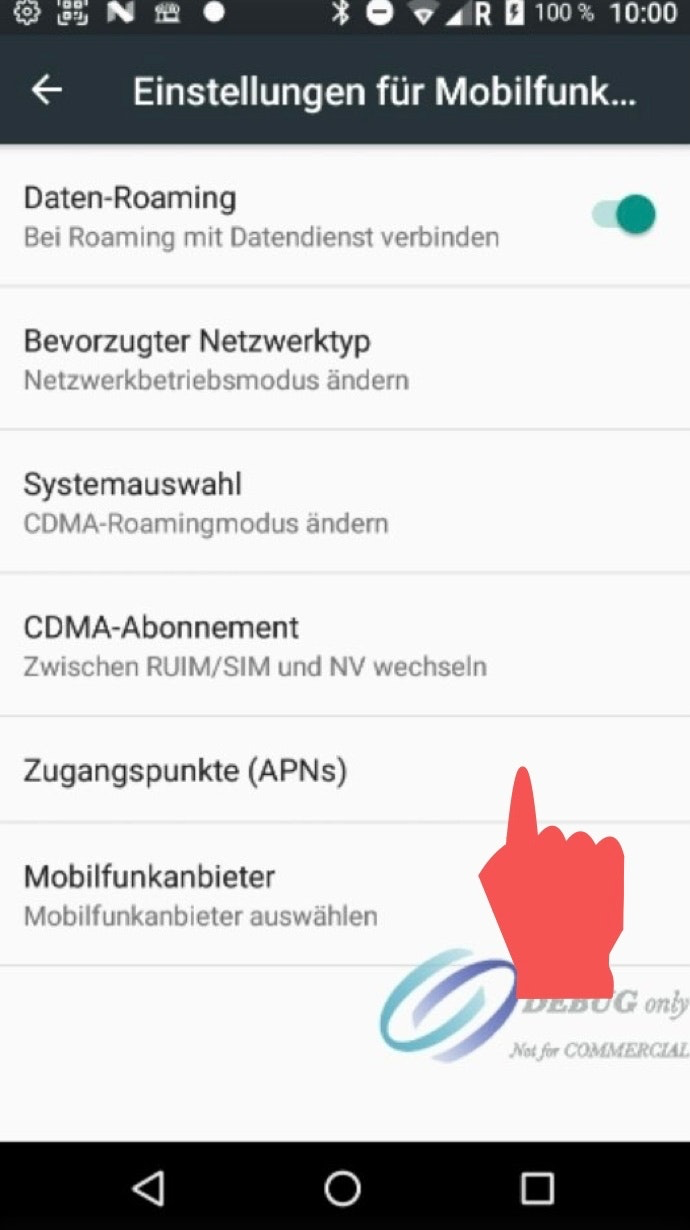
- Navigate to “Access Points (APNs)” (Image 3).
APN Configuration – 2
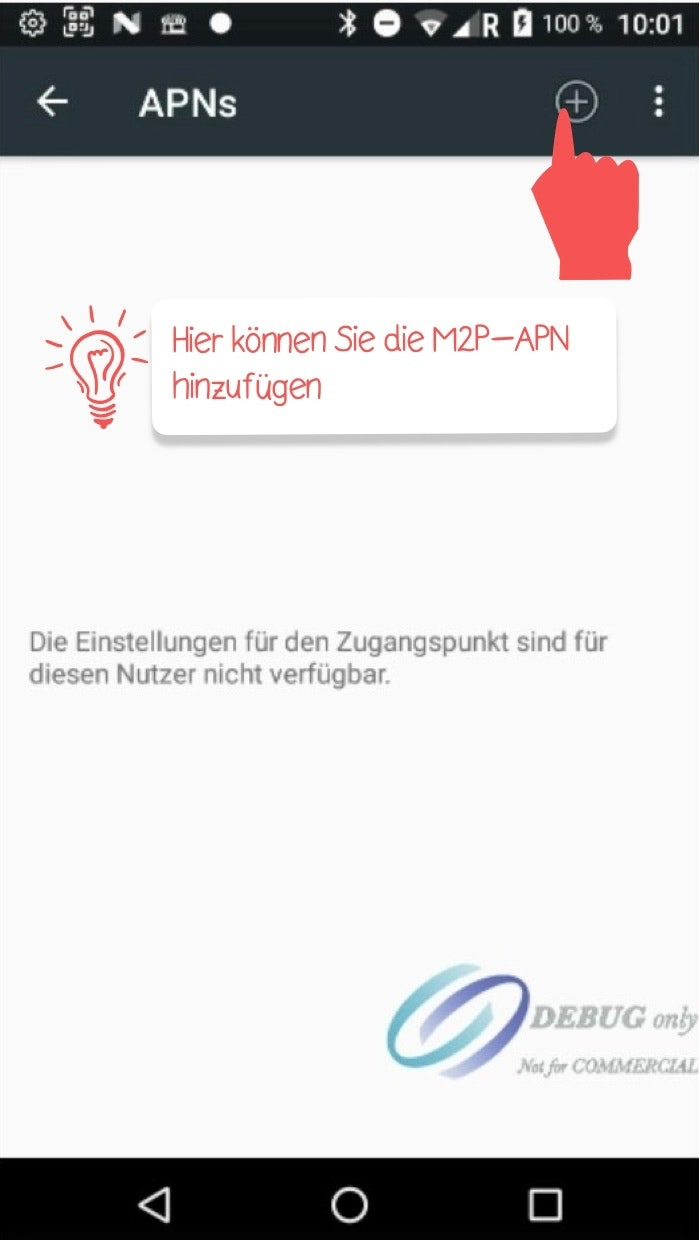
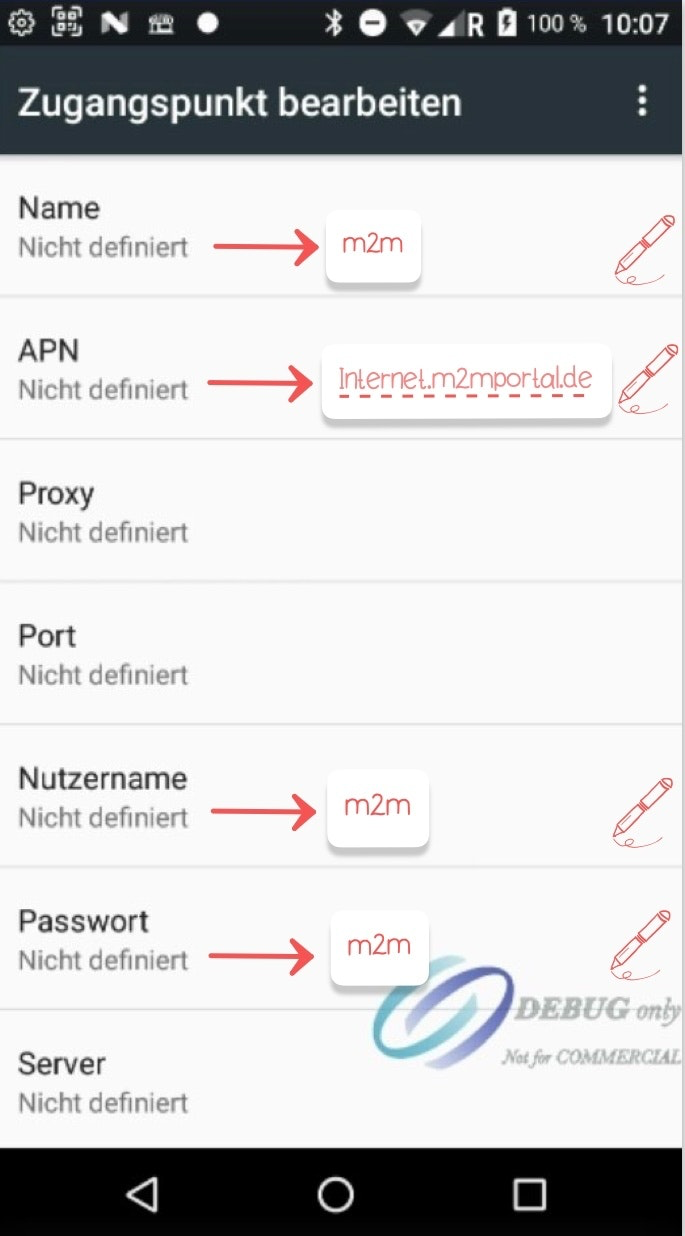
- Tap the plus symbol in the top right corner to add the M2M APN.
- Fill in the required fields “Name,” “APN,” “Username,” and “Password” as follows:
- Name: m2m
- APN: Internet.m2mportal.de
- Username: m2m
- Password: m2m
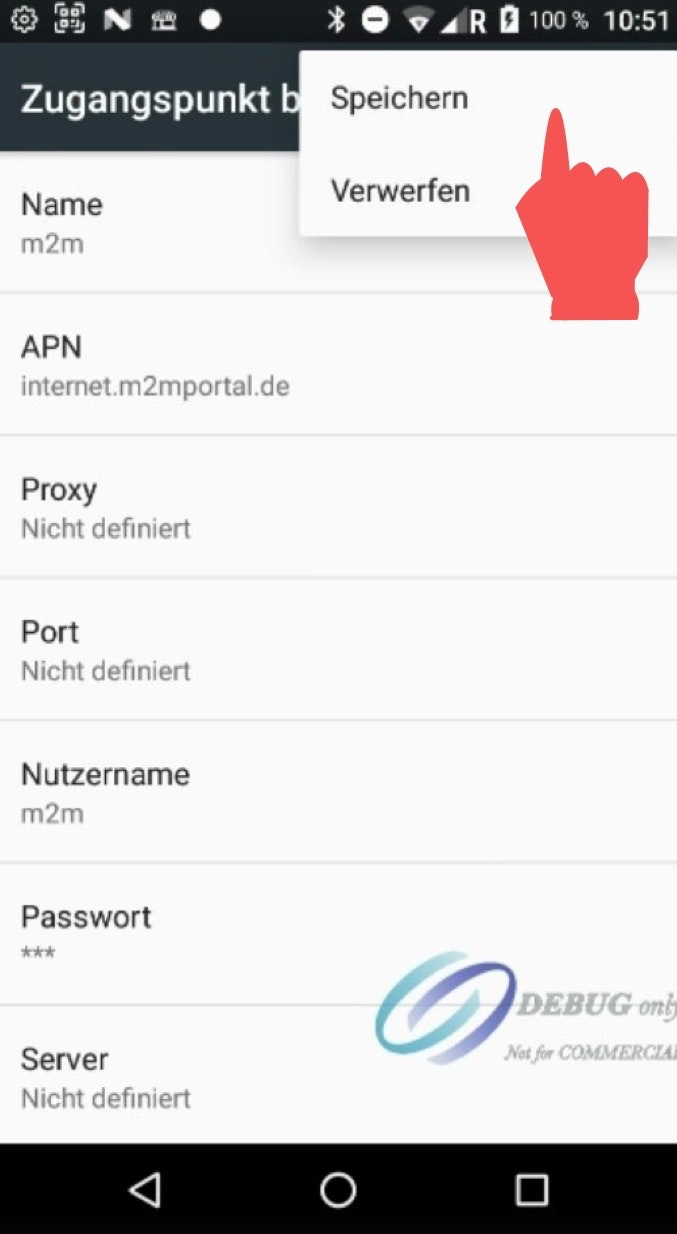
- Open the three-dot menu in the top right corner and finally tap “Save.”
Step 6: We’ll call you!
Within 24–48 hours after receiving your POS Go, we will contact you by phone.
During the 15-minute welcome call, we will provide you with your login credentials and explain what to pay attention to during your self-onboarding.
We will also schedule an appointment with you to activate your cash register. During this 30-minute activation appointment, we will answer any remaining questions and activate your TSE. After that, your cash register is ready for operation, and you can start processing your sales.
And now: have fun cashing in!
Step 7: Start your self-onboarding
In our Help Center, we have created a self-onboarding guide for POS Go.
Please follow each of the steps presented in the following articles to systematically familiarize yourself with the functionalities of your POS Go.
Important note: During the testing phase, please use only test items for the checkout process. Each test sale should be canceled immediately afterward.

Was this article helpful?
That’s Great!
Thank you for your feedback
Sorry! We couldn't be helpful
Thank you for your feedback
Feedback sent
We appreciate your effort and will try to fix the article